

ITDR rules
In ITDR > Ruleset you decide what counts as a threat for your company, how much it weighs and what ITDR does when it finds one. This page is for whoever administers the console: it explains how rules work, how to add and edit them, the ruleset settings and how to test the ruleset before saving it.
Before you start
Section titled “Before you start”- ITDR must be enabled for your company. With the Basic plan, the page shows Your license doesn’t provide ITDR and the Go to billing button.
- To see the rules you need the Read permission on the ITDR resource, and to save changes, Update. See Roles and permissions.
How rules work
Section titled “How rules work”Each rule has some conditions, a risk from 0 to 100 and, if you want, one or two actions:
- Deny the access: denies the access being attempted at that moment.
- Lock the user: locks the user’s account, and the user loses access to every service until an administrator unlocks it. See Block or unblock a user.
On every authentication attempt, ITDR checks all the active rules:
- Every rule that is met is written to the attempt’s report (Applied rules), even if its risk is 0 and it has no actions. Rules with risk 0 provide context, for example that the device is known.
- The attempt takes the highest risk of the rules that are met, never the sum. That risk decides the level: Clear, Low, High or Fraud.
- If any of the rules that are met asks for Deny the access, the access is denied. If any asks for Lock the user, the user is locked.
Rules apply to the whole company (Company-wide): they are not assigned to groups or applications.
The Ruleset page
Section titled “The Ruleset page”Go to ITDR > Ruleset. The ITDR - Ruleset page has:
- At the top, the number of active rules (for example, 9 of 9 rules active), the Company-wide tag and, if there are unsaved changes, Unsaved changes.
- The Settings (ruleset settings), Test ruleset (test), Discard (discard the changes) and Save changes (save) buttons. Discard and Save changes are only enabled when there are changes.
- The rules table, with the Search rules search box, the Add detection button and these columns:
- Status: active or paused.
- Rule: the name. Rules you haven’t saved yet have the new tag.
- Detects: the conditions, written as a sentence.
- Risk: the rule’s level and risk, for example High 50.
- Action: an icon if the rule denies the access (Denies the access) or locks the user (Locks the user), or — if it does neither.
- Manage: the Options menu, with Activate / pause, Duplicate and Delete rule.
- On the right, the editor for the rule you select.
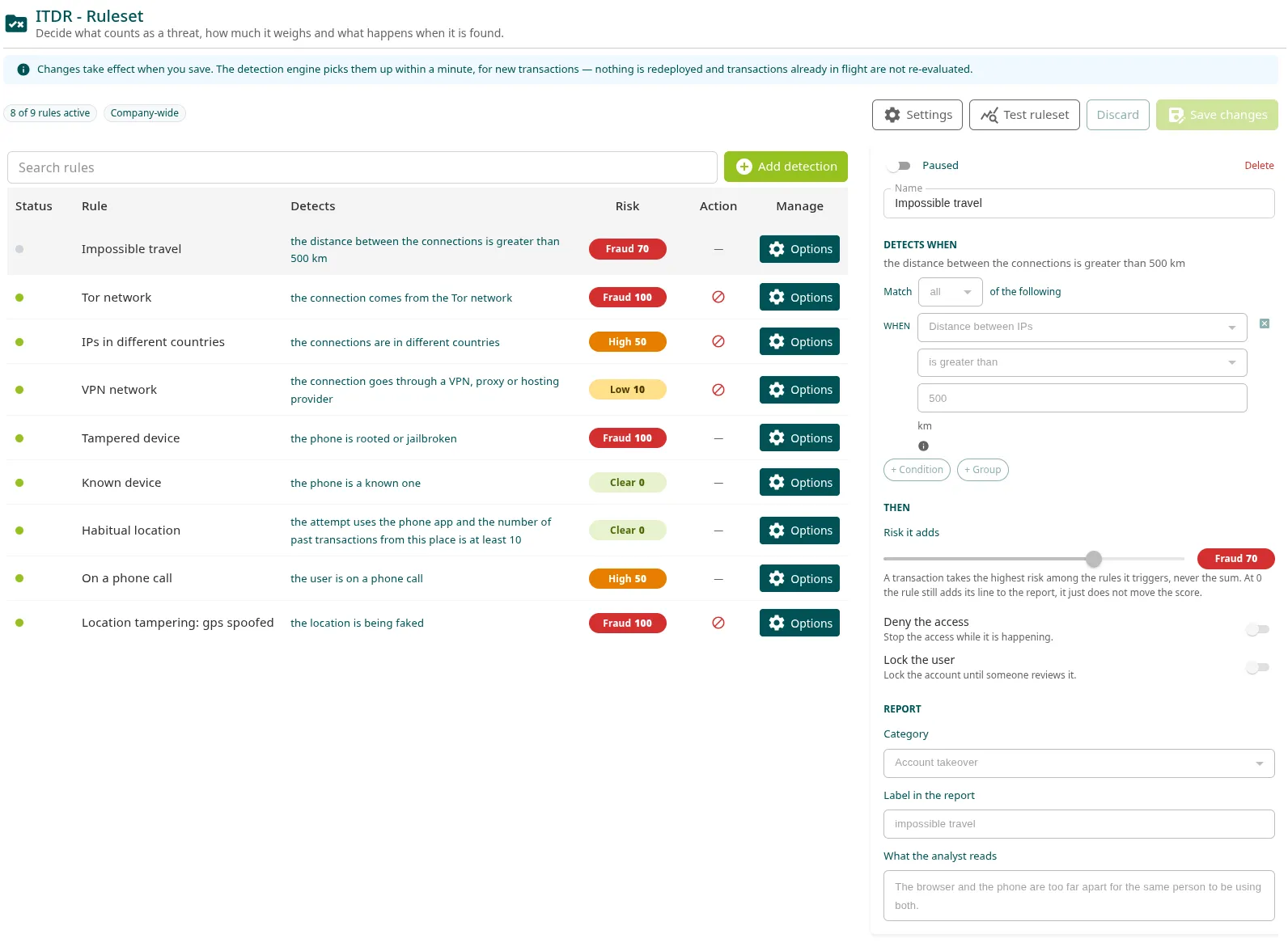
Duplicate creates a paused copy named <name> (copy). Delete rule removes the rule when you save; until then you can get it back with Discard.
Default rules
Section titled “Default rules”A company that has never configured its rules starts with this set:
| Rule | Condition | Risk | Action |
|---|---|---|---|
| Malware on the phone | No known malware installed is false | High 50 | — |
| Tor network | Tor exit node is true | Fraud 100 | Deny the access |
| IPs in different countries | Both IPs in the same country is false | High 50 | Deny the access |
| VPN network | VPN, proxy, relay or hosting is true | Low 10 | Deny the access |
| Tampered device | Rooted or jailbroken is true | Fraud 100 | — |
| Known device | First time on this device is false | Clear 0 | — |
| Habitual location | The attempt uses the phone app is true and Transactions from this location is at least 10 |
Clear 0 | — |
| On a phone call | On a phone call is true | High 50 | — |
| Location tampering: gps spoofed | GPS spoofed is true | Fraud 100 | Deny the access |
None of these rules locks the user. The default set also starts with the thresholds 10, 30 and 70, the email notification turned on only for Fraud and sent to the Ironchip Administrators group, and no time zone (UTC). You can change, pause or delete any of these rules.
Add a detection
Section titled “Add a detection”The console has no button to create a blank rule: new rules come from the detection catalog or from duplicating a rule. To create a custom rule, add the closest detection and change its conditions in the editor.
-
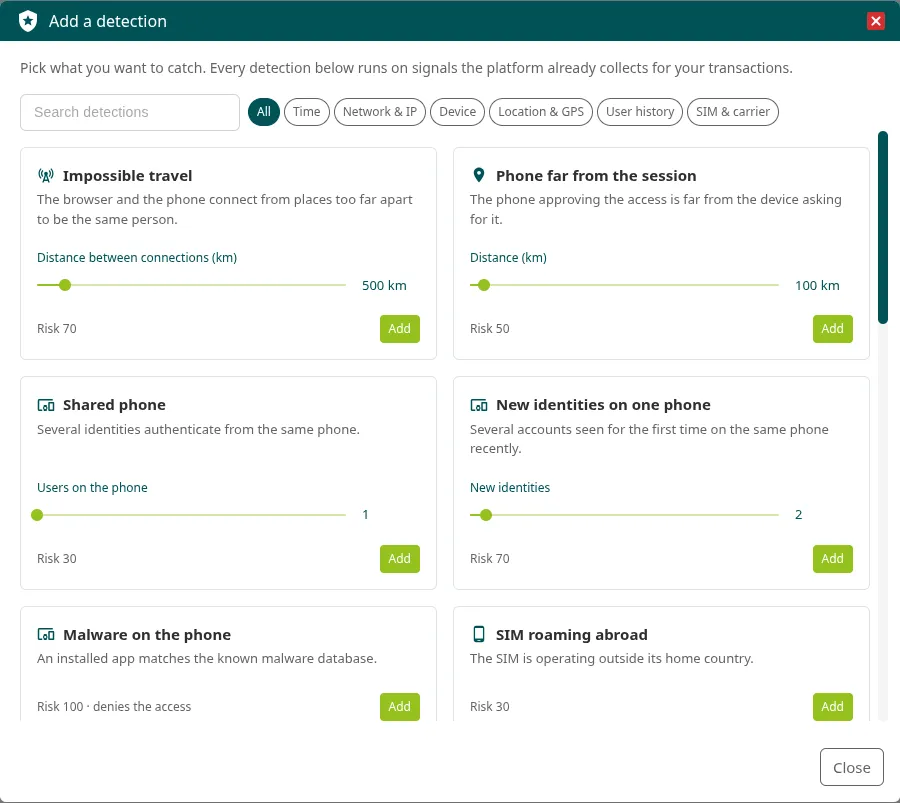
Click Add detection. Add a detection opens.
-
Search in Search detections or filter by group: All, Time, Network & IP, Device, Location & GPS, User history or SIM & carrier. Each card shows what it detects, its risk (Risk 50) and whether it denies the access (Risk 100 · denies the access).
-
If the card has a slider, adjust the value, for example the distance.
-
Click Add. The console confirms with Detection added and the rule appears at the top of the table, active and with the new tag.
-
Review the rule in the editor and click Save changes.
These are the detections in the catalog:
| Detection | Group | Condition | Risk | Action |
|---|---|---|---|---|
| Impossible travel | Network & IP | Distance between IPs is greater than 500 km (50 to 5000 km) |
70 | — |
| Phone far from the session | Location & GPS | Distance browser / phone is greater than 100 km (10 to 2000 km) |
50 | — |
| Shared phone | Device | Users on this device is greater than 1 (1 to 20) |
30 | — |
| New identities on one phone | Device | New users on this device recently is at least 2 (1 to 20) |
70 | — |
| Malware on the phone | Device | No known malware installed is false | 100 | Deny the access |
| SIM roaming abroad | SIM & carrier | SIM roaming is true | 30 | — |
| New SIM for this user | SIM & carrier | First time with this SIM is true | 30 | — |
| Outdated location | Location & GPS | GPS fix age is greater than 300 s (30 to 3600 s) |
10 | — |
| Imprecise location | Location & GPS | GPS accuracy is greater than 1000 m (100 to 10000 m) |
10 | — |
| First time from this place | Location & GPS | First time from this location is true | 10 | — |
| Far from the usual place | Location & GPS | Distance to the usual location is greater than 200 km (10 to 5000 km) |
30 | — |
| Many users at one place | Location & GPS | Users at this location is greater than 5 (1 to 100) |
30 | — |
| Connection from a datacenter | Network & IP | App IP is a hosting provider is true | 50 | — |
| New operator for this user | Network & IP | First time on this ISP is true | 10 | — |
| Brand new user | User history | New user is true | 10 | — |
To detect accesses outside the company’s working hours, see Working hours and time zone.
Edit a rule
Section titled “Edit a rule”Click a rule in the table to open it in the editor on the right:
- The status switch (Active or Paused) and Delete.
- Name: the rule’s name. It is required.
- DETECTS WHEN: the sentence that summarizes the rule and, below it, its conditions (see Conditions).
- THEN, what happens when it is met:
- Risk it adds: the risk, from 0 to 100 in steps of 5. At 0, the rule appears in the report but does not raise the score.
- Deny the access: denies the access in progress.
- Lock the user: locks the user’s account until someone reviews it and unlocks it.
- REPORT, how it appears in the report:
- Category: Tampering, Account takeover, Money laundering, New account fraud or Shared intelligence.
- Label in the report: the short name of the case in the report, for example
impossible travel. If you leave it empty, the rule’s name is used. - What the analyst reads: the explanation that appears in the report when the rule is met.
While a rule is paused, you can only change its status or its name, or delete it. Changes are not applied until you click Save changes (see Save your changes).
Conditions
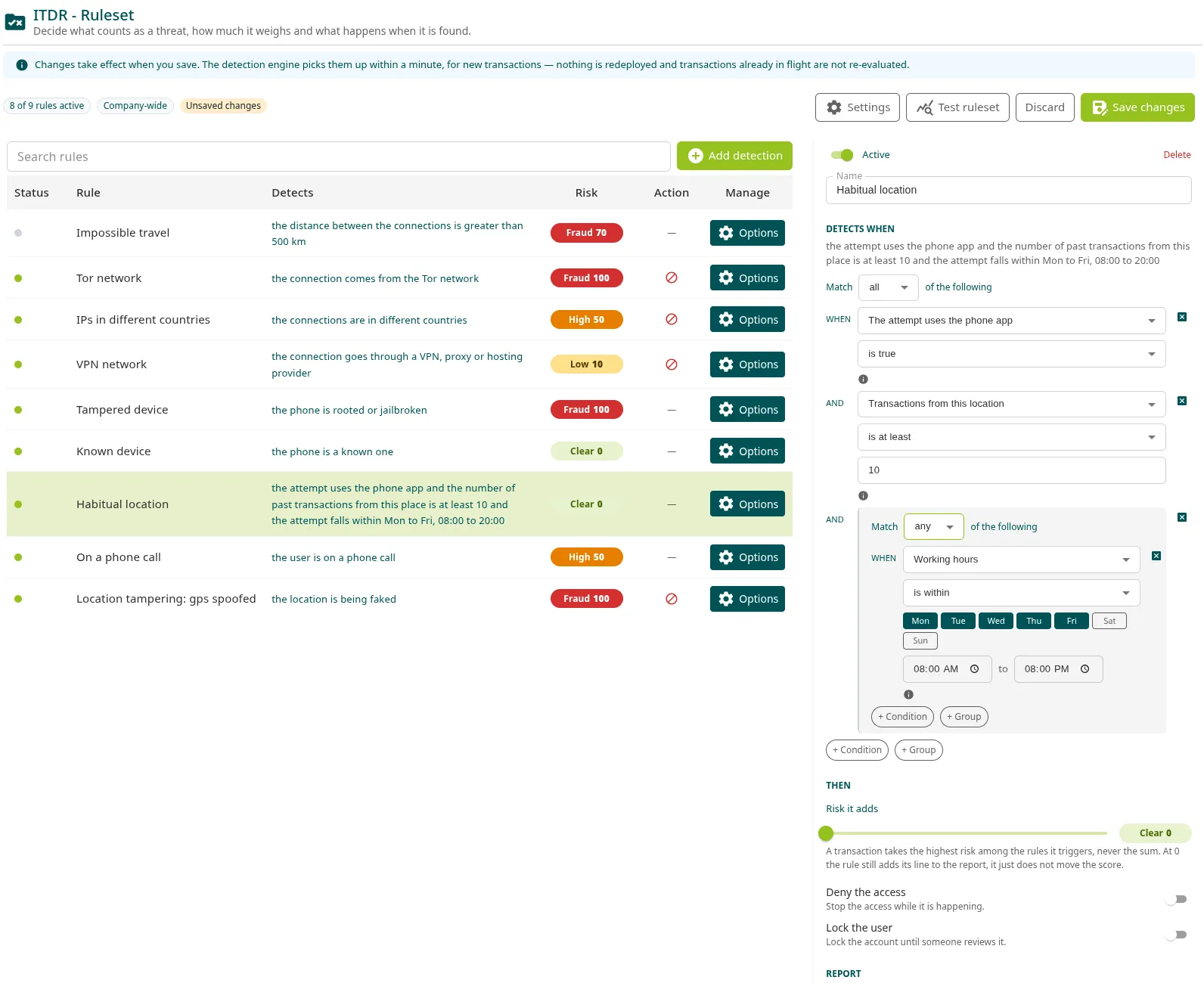
Section titled “Conditions”A rule’s conditions are combined with Match all of the following (all of them must be met) or Match any of the following (one is enough). Rows start with when and then with and or or, depending on what you chose.
- In DETECTS WHEN, choose all or any.
- Click + Condition and choose the field, the operator and the value. The console shows the field’s unit (km, s, m) and, in the information icon, what it measures.
- To mix both ways of combining, click + Group. A new group starts with the opposite combination to its parent group: inside an all rule, an any group, and the other way round. You can nest up to two levels of groups.
- To remove a condition, click its X (Remove condition).
For example, to detect a new device connecting through Tor or a VPN:
- Match all of the following
- when First time on this device is true
- and a Match any of the following group:
- when Tor exit node is true
- or VPN, proxy, relay or hosting is true
A group with no conditions shows No conditions — this rule never matches.: a rule like that never fires.
Operators
Section titled “Operators”| Field type | Operators |
|---|---|
| Yes or no | is true, is false |
| Number | is greater than, is at least, is less than, is at most, is, is not |
| Text (countries, operating system) | is, is not |
| Working hours, Valid between | is within |
In text fields, enter the value the way ITDR collects it: countries with their ISO code in uppercase (ES, FR) and the operating system in lowercase (android, ios).
Fields
Section titled “Fields”The field selector groups them by signal type.
Time
| Field | What it indicates |
|---|---|
| Working hours | Whether the attempt falls within certain days and hours (see Working hours). |
| Day of the month | The day of the month. Useful on payroll or month-end dates. |
| Valid between | Whether the attempt falls within a date window (From and To). It needs both dates. |
| Day of the week | The day of the week as a number: 1 is Monday and 7 is Sunday. |
| Time of day | The time of the attempt in minutes since midnight: 480 is 08:00. |
| Moment of the attempt | The moment of the attempt in Unix seconds. |
Network & IP
| Field | What it indicates |
|---|---|
| Tor exit node | The browser’s or the phone’s IP belongs to the Tor network. |
| VPN, proxy, relay or hosting | One of the two IPs is a VPN, a proxy, a relay or a hosting provider. |
| Both IPs in the same country | The browser’s and the phone’s IPs are in the same country. |
| Distance between IPs | The distance in km between the locations of the two IPs. It is -1 if either one cannot be located. |
| App IP is a VPN | The phone’s IP is a VPN. |
| Browser IP is a VPN | The browser’s IP is a VPN. |
| App IP is a hosting provider | The phone’s IP belongs to a data center and not to a home or mobile network. |
| The phone connects through a proxy | The phone’s IP is a proxy. |
| App IP country | The country of the phone’s IP (ISO code). |
| Browser IP country | The country of the browser’s IP (ISO code). |
| App IP operator (ASN name) | The name of the operator (autonomous system) of the phone’s IP. |
| First time on this ISP | The user had never connected through this operator. |
Device
| Field | What it indicates |
|---|---|
| Rooted or jailbroken | The phone is rooted or jailbroken. ITDR also flags it if the app runs on an emulator or has a debugger. |
| Running on an emulator | The app runs on an emulator and not on a real phone. |
| Debugger attached | The app has a debugger attached. |
| On a phone call | The user is on a call while authorizing. |
| Operating system | The phone’s operating system. |
| First time on this device | The user had not used this device before. |
| Users on this device | How many different users have authenticated from this device. |
| New users on this device recently | How many identities have been seen for the first time on this device recently. |
| Transactions from this device | How many attempts this user has made from this device. |
| No known malware installed | No installed app matches the malware database. |
Location & GPS
| Field | What it indicates |
|---|---|
| GPS spoofed | One of the GPS spoofing detectors (the wifi one or the electromagnetic one) has fired. |
| GPS contradicted by wifi | Only the wifi detector. |
| GPS contradicted by EM consensus | Only the electromagnetic detector. |
| GPS fix age | The age in seconds of the GPS reading. It is -1 if unknown. |
| GPS accuracy | The horizontal accuracy in meters that the phone reports. Exactly 100 is a default value, not a measurement. |
| Distance browser / phone | The distance in km between the browser and the authorizing phone. It is -1 if either one has no location. |
| Transactions from this location | How many attempts the user has made from this place. |
| First time from this location | The user had never operated from this place. |
| Distance to the usual location | The distance in km to where the user usually operates. |
| Users at this location | How many identities operate from this place. |
| Location country | The country of the location (ISO code). |
| Anonymised connection | The location could only be resolved through an anonymized connection. |
User history
| Field | What it indicates |
|---|---|
| New user | It is this identity’s first attempt. |
| Transactions by this user | How many attempts the identity has made. |
| The attempt uses the phone app | The attempt is made with the phone app. |
| The attempt uses a browser | The attempt is made from a browser. |
SIM & carrier
| Field | What it indicates |
|---|---|
| SIM roaming | The SIM is outside its home country. |
| SIM home country | The country the SIM belongs to (ISO code). |
| SIM current country | The country where the SIM is connected (ISO code). |
| First time with this SIM | The user had never authenticated with this SIM. |
Working hours and time zone
Section titled “Working hours and time zone”Time conditions (Working hours, Day of the month, Day of the week and Time of day) are calculated in the company’s time zone, which you choose in Settings > Company time zone. If you don’t choose one, UTC is used and a working-hours rule will fire at the wrong times.
A Working hours condition takes the days (from Mon to Sun) and a start time and an end time; when you add it, the console suggests Monday to Friday, from 08:00 to 20:00. Keep in mind that:
- The start time counts and the end time does not: 08:00 to 20:00 covers up to 19:59.
- You must check at least one day.
- A schedule that crosses midnight, for example 22:00 to 06:00, is never met. For a night shift, use two conditions under Match any of the following: one from 22:00 to 23:59 and another from 00:00 to 06:00.
To detect accesses outside a Monday-to-Friday 08:00 to 20:00 schedule, create a rule with Match any of the following and three Working hours is within conditions:
- Mon to Fri, from 00:00 to 08:00;
- Mon to Fri, from 20:00 to 23:59;
- Sat and Sun, from 00:00 to 23:59.
Because the end time does not count, the 23:59 minute falls outside these conditions.
Ruleset settings
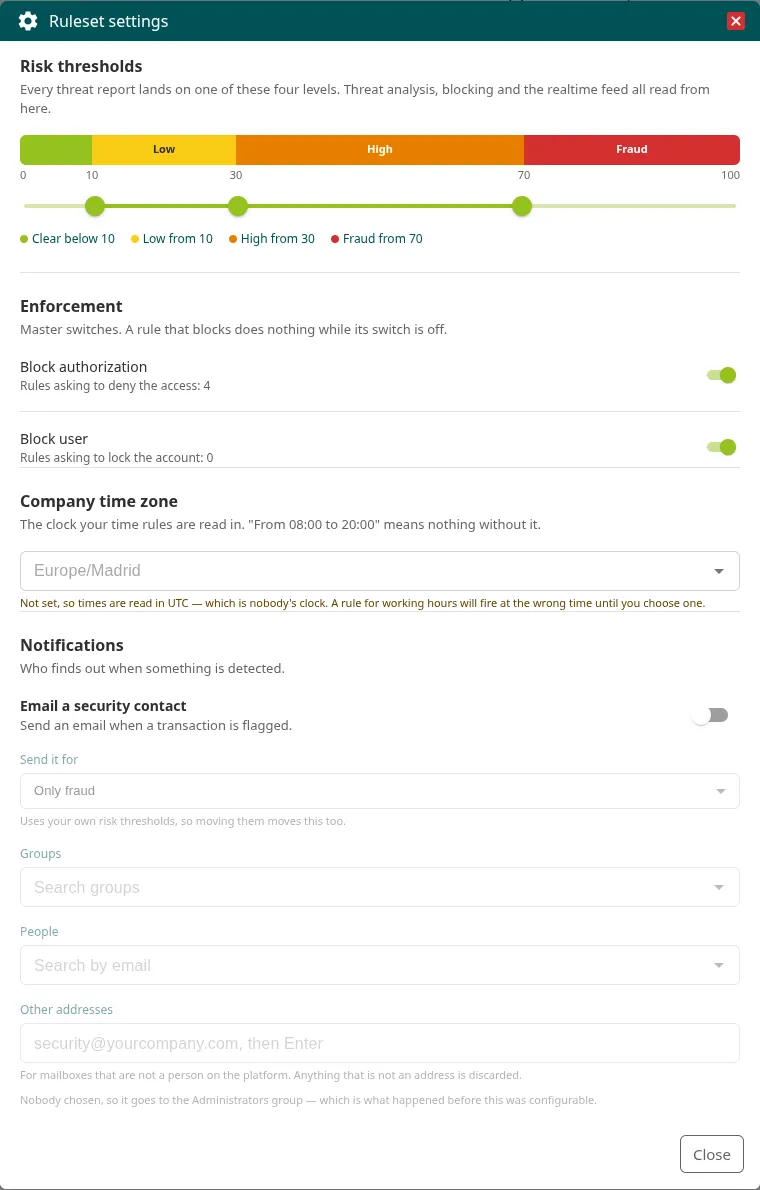
Section titled “Ruleset settings”Click Settings to open Ruleset settings. Changes in this window go to the draft, like changes to rules: save them with Save changes.
Risk thresholds
Section titled “Risk thresholds”Risk thresholds splits the 0 to 100 scale among the four levels with three markers, in steps of 5. The legend shows where each level starts (Clear below 10, Low from 10, High from 30, Fraud from 70 with the default values). If you save all three at 0, the default values are restored: 10, 30 and 70.
The Realtime feed and Threat analysis views and the report use their own fixed cutoffs to show the level. See Risk levels.
Enforcement
Section titled “Enforcement”These are the general switches for the actions:
- Block authorization: turns on the rules that ask for Deny the access. Below it, the console shows how many there are (Rules asking to deny the access: N).
- Block user: turns on the rules that ask for Lock the user (Rules asking to lock the account: N).
While a switch is off, the rules that ask for that action don’t apply it, although they still add risk and appear in the report. Each rule’s editor warns about it with Blocking is turned off for the whole ruleset. or Locking is turned off for the whole ruleset.
Company time zone
Section titled “Company time zone”The time zone in which time conditions are read. Choose it from the list, for example Europe/Madrid. If you leave it empty, the console warns that times are read in UTC. It is the company’s only time zone setting in the console: every other date in the console is shown in your browser’s time zone.
Notifications
Section titled “Notifications”Decide who receives an email when ITDR flags an attempt:
- Email a security contact: turns the notification on or off. It is on by default.
- Send it for: the level from which notifications are sent: Only fraud (the default), High risk and above, Low risk and above or Anything, even when nothing is flagged, which sends an email for every attempt evaluated.
- Groups: search for and add company groups.
- People: search for and add users by their email address.
- Other addresses: mailboxes that are not platform users, such as
security@example.com. Type the address and press Enter; anything that is not a valid address is discarded.
If you don’t choose anyone, the notification goes to the Ironchip Administrators group. Each user in the chosen groups and people receives it at their email address and, if they have one, at their external email address, without duplicates. The email is sent in the company’s language.
Test the rules
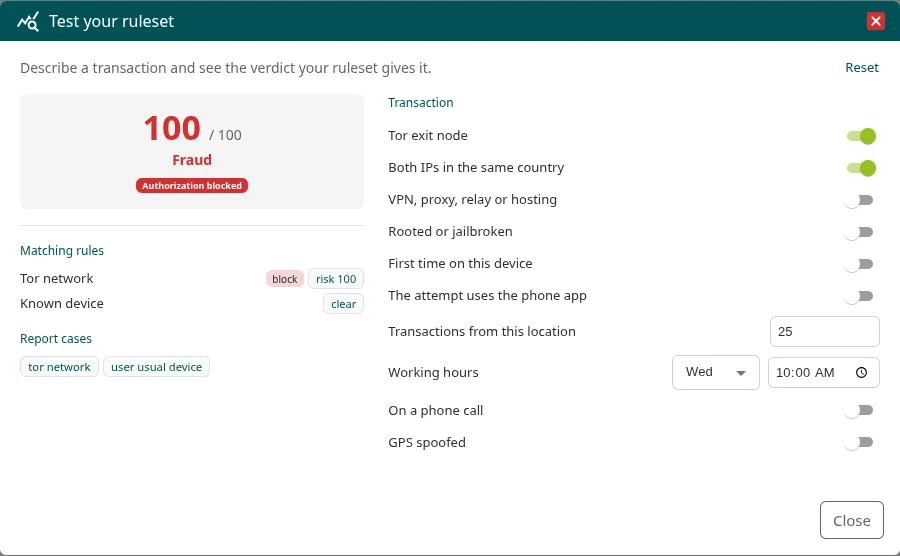
Section titled “Test the rules”Before saving, check what verdict your ruleset gives a specific attempt:
-
Click Test ruleset. Test your ruleset opens.
-
In Transaction, describe the attempt. The window shows a field for each piece of data the active rules read: a switch, a number, a text, a day and a time, or a date.
-
Review the result:
- the score out of 100 and the level;
- Authorization blocked or Authorization allowed, and User blocked if the user would be locked;
- Matching rules: the rules that are met, with their risk or clear, and block if they ask to block;
- Report cases: the cases that would go to the report.
-
To go back to the initial values, click Reset.
If no rule is met, the window shows Nothing matches — the transaction goes through unflagged. The test uses the draft, with the unsaved changes, and it does not create reports or affect any user.
Save your changes
Section titled “Save your changes”Everything you change on the page (rules and settings) is a draft until you click Save changes. Meanwhile, the page shows Unsaved changes. If you move to another page within the console, the draft is still there when you come back.
- Save changes saves the whole ruleset and shows Ruleset updated. The detection engine applies the changes in less than a minute and only to new attempts: there is nothing to deploy and attempts in progress are not evaluated again.
- Discard discards the draft after you confirm in Discard changes.
- If another administrator saved while you were editing, the console shows Someone else changed the ruleset. Click Reload to load their rules and apply your changes again.
- If any rule is not valid, the console shows the reason and saves nothing, not even the valid rules.
Limits
Section titled “Limits”- Up to 200 rules per company.
- Each rule needs a name, a risk from 0 to 100 and at least one condition.
- A rule cannot expand into more than 64 combinations of conditions (each any group inside an all group multiplies the combinations). If the rule is not saved for that reason, split it in two.
- Working hours needs at least one day, and Working hours and Valid between need both times or dates.
- The time zone must be a valid name, such as
Europe/Madrid. - In Notifications, up to 100 groups, 100 people and 100 addresses.
Was this page helpful?
Thank you. We will use it to improve the documentation. If you want to tell us what is missing or unclear, write to support@ironchip.com.