

SAML
SAML 2.0 is the federation protocol used by corporate suites and SaaS applications (Microsoft 365, Google Workspace, Salesforce). Ironchip acts as the identity provider and issues the assertion with the user’s attributes.
Requirements
Section titled “Requirements”- An administrator account in the Ironchip admin console.
- A service that supports SAML 2.0 and whose ACS URL and Entity ID you know.
- The users enrolled in Ironchip, or identity synchronization configured.
- The company created in Ironchip. See Integration protocols for the data to prepare.
Supported SAML attributes
Section titled “Supported SAML attributes”Ironchip currently supports these fields:
| Description | Friendly name | SAML name |
|---|---|---|
| User name | uid |
urn:oid:0.9.2342.19200300.100.1.1 |
| User email | mail |
urn:oid:0.9.2342.19200300.100.1.3 |
| User given name | givenName |
urn:oid:2.5.4.42 |
| User common name | cn |
urn:oid:2.5.4.3 |
Add the application to the company
Section titled “Add the application to the company”The Applications section lists all the protected services that have been added to Ironchip and their integration type.
-
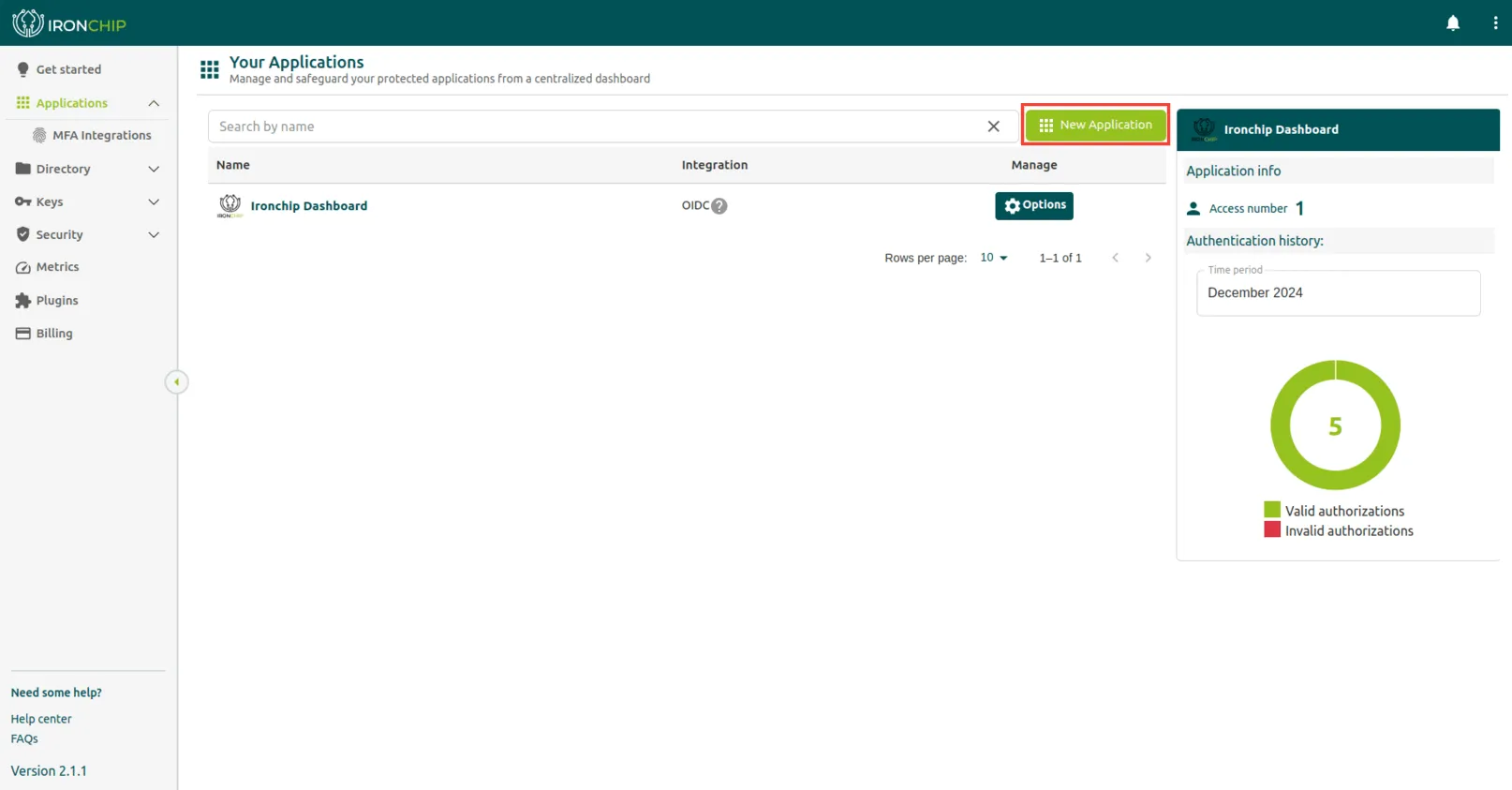
Click New Application. The Add new application window opens.
-
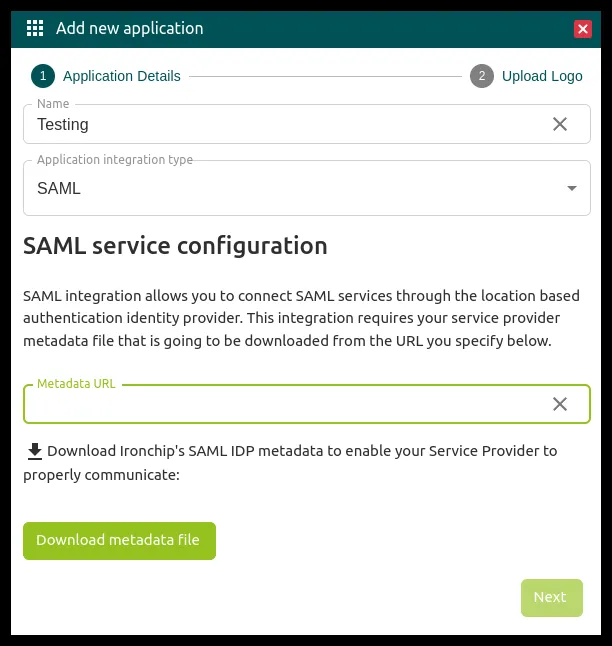
In the Application Details step, enter the application name in Name.
-
In Application integration type, select SAML.
-
In Metadata URL, enter the public URL of the metadata document of the service you want to protect: Ironchip downloads it from that URL. You can find it in the service settings, for example in a Metadata public URL field.
-
Click Download metadata file to download Ironchip’s SAML IdP metadata, and load it in the service settings so the service can communicate with Ironchip.
-
Click Next and complete the Upload Logo step to finish. The service appears in the Applications section.
Grant access to users and groups
Section titled “Grant access to users and groups”-
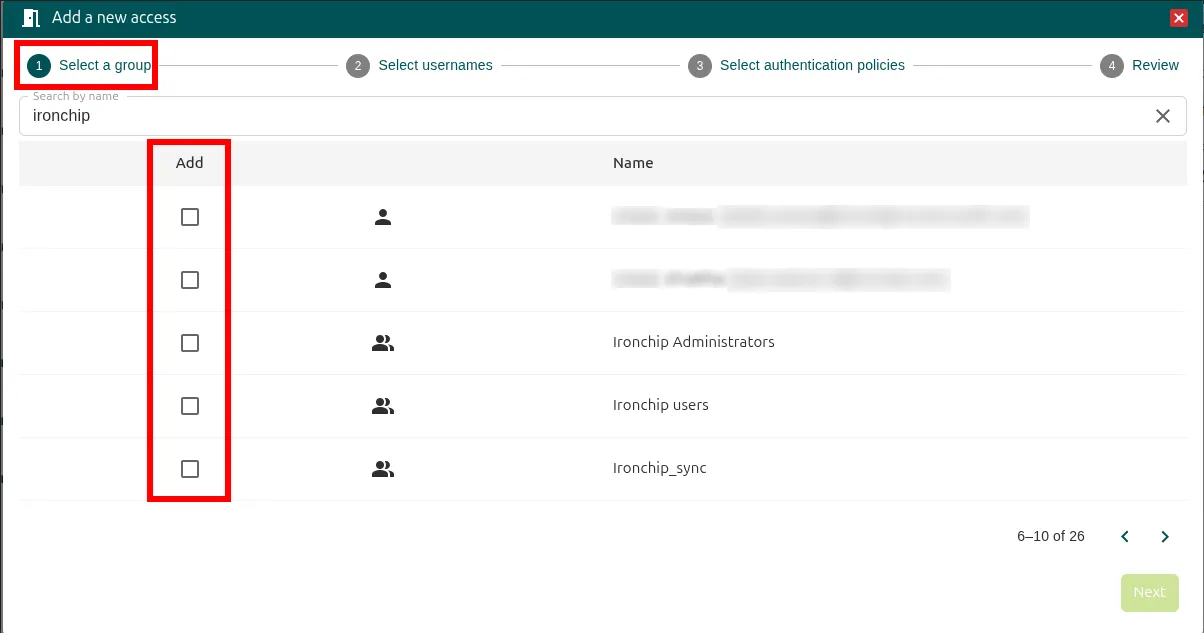
In Applications, click Add in the Add access column of the service. The Add a new access window opens.
-
In Select a group, search by name with Search by name, check the Add box of the users or groups that get access and click Next.
-
In Select usernames, check the format of the external username (External Username), email by default, and click Next.
-
In Select authentication policies, choose the authentication policies required for access, for example Any user devices AND Any user safezones, and click Next.
-
In Review, check the summary and click Add.
The access is created with the selected configuration. You can change it at any time with the access’s Options button. The details of each step are in Grant access to users and groups.
Was this page helpful?
Thank you. We will use it to improve the documentation. If you want to tell us what is missing or unclear, write to support@ironchip.com.