

FIDO2 key
FIDO2 is a passwordless authentication standard based on public-key cryptography. The private key is stored in the authenticator, for example a physical security key, and is never shared with the service. This protects against phishing attacks and credential leaks.
Generate the FIDO2 key
Section titled “Generate the FIDO2 key”To register a FIDO2 key from the admin console, follow these steps:
-
Go to the Ironchip admin console: app.ironchip.com.
-
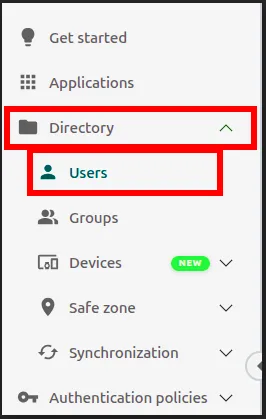
In the left side menu, go to Directory > Users.
-
Find the user you want to assign the FIDO2 key to, click Options and select Register a passkey.

-
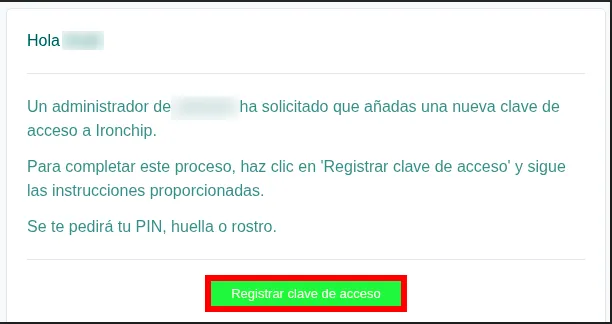
The user receives an email to register their passkey. In the email, click the button to register the passkey (Registrar clave de acceso in the screenshot, which shows the email in Spanish).
-
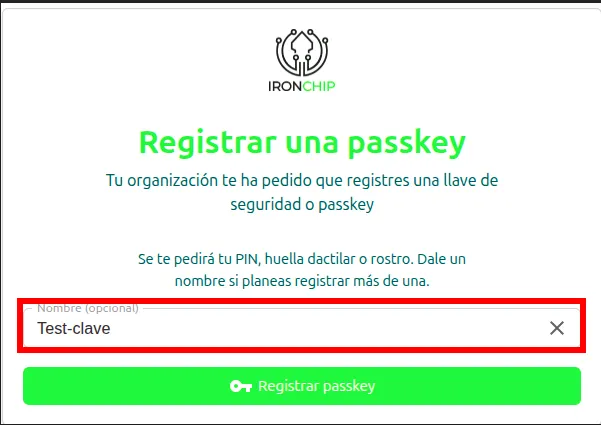
Type a name to identify the key.
-
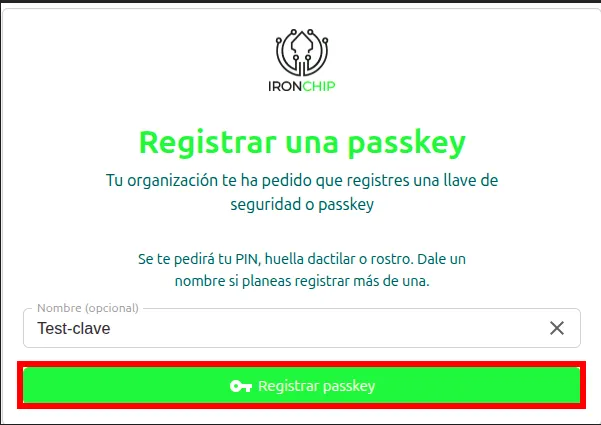
Click the button to register the passkey (Registrar passkey in the screenshot).
-
A window asks for the authenticator PIN. Enter it and continue (Siguiente in the screenshot).
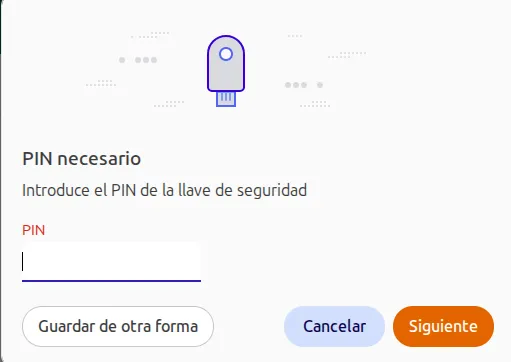
-
If everything went well, the FIDO2 key is registered.
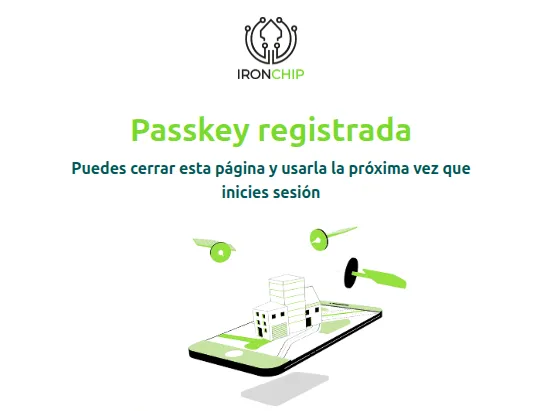
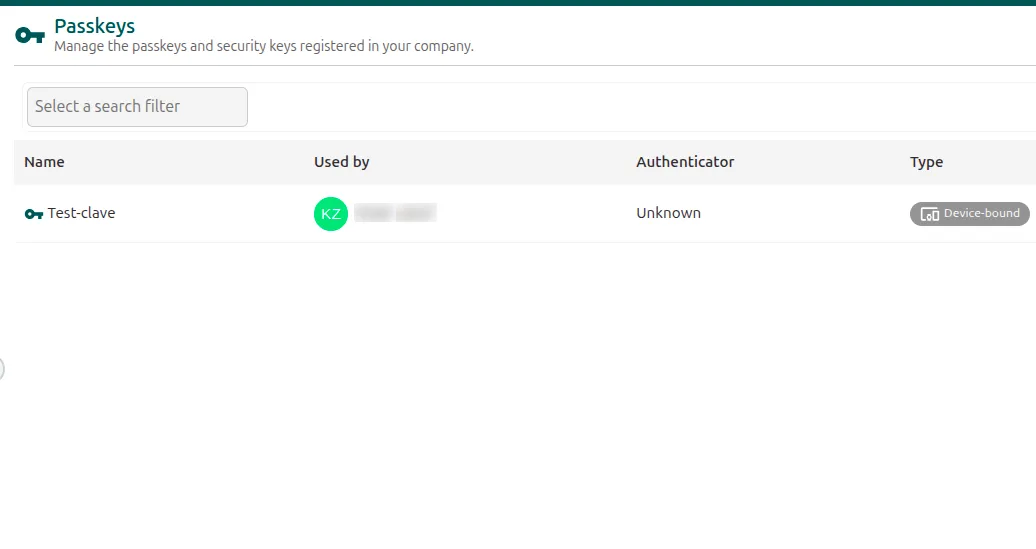
You can see all the keys created in the admin console, under Directory > Devices > Passkeys:
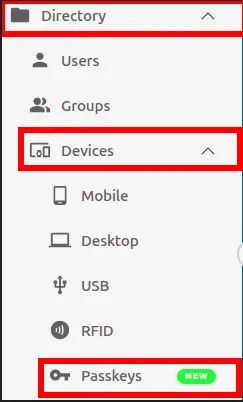
The list of all the keys created appears there.
Test it
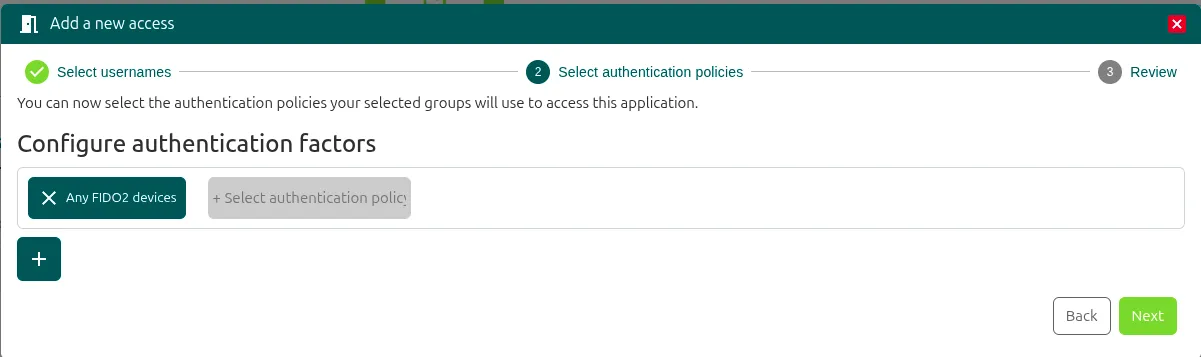
Section titled “Test it”For the test, set Any FIDO2 devices as the authentication method of the access. In the Add a new access window, at the Select authentication policies step, add it under Configure authentication factors.
The video shows what authentication with FIDO2 looks like.
Was this page helpful?
Thank you. We will use it to improve the documentation. If you want to tell us what is missing or unclear, write to support@ironchip.com.