

Error messages and solutions
Common errors during the installation and configuration of Ironchip, with their meaning and solution. If an error persists, contact Ironchip support.
Error messages
Section titled “Error messages”User not authenticated in the service
Section titled “User not authenticated in the service”User XXX is not authenticated in service XXX. Please try again.The user is not authenticated, or the authentication process was not valid. Retry the authentication on the same page.
Authentication protocol not compatible
Section titled “Authentication protocol not compatible”Authentication protocol used is not compatible. Contact IronChip support providing error printed in Event Viewer.If this error appears during user authentication, the service provider is misconfigured and is not sending the service in the authentication request. Contact Ironchip support and provide the error log printed in the Event Viewer.
Unexpected Ironchip failure
Section titled “Unexpected Ironchip failure”Ironchip has failed. Sorry. Contact support to allow us to solve the problem.Something unexpected happened. Contact Ironchip support and provide the error log from the Event Viewer so we can solve the problem.
Unable to load the license key
Section titled “Unable to load the license key”Unable to load IronChip license key. Check that it is the correct license and try again. If problems persist, contact IronChip support for help.The license format is not valid. Contact support@ironchip.com with the error: we will validate the license key you used and provide a valid one if it is not.
Invalid API key
Section titled “Invalid API key”The API-Key provided is not valid. Please, contact IronChip support and send logs for assistance.The license has the correct format but is old or invalid. Contact info@ironchip.net with the error: we will validate the license key you used and provide a valid one if it is not.
Device name error
Section titled “Device name error”If you have an iOS device and see this error:
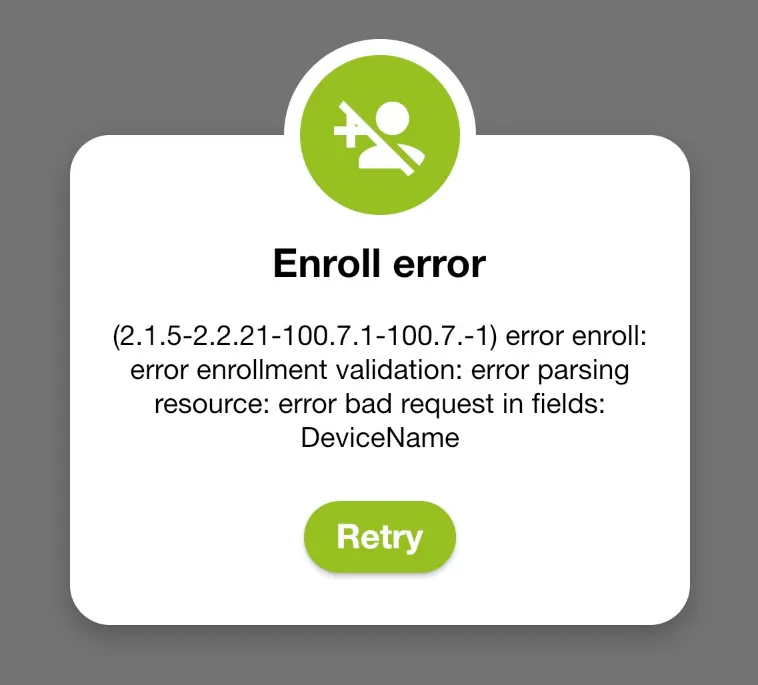
The device name on iOS cannot contain accents, -, /, $, %, @, &, ., _ or similar characters. To fix this error, change the device name.
Login error
Section titled “Login error”If you see this error:
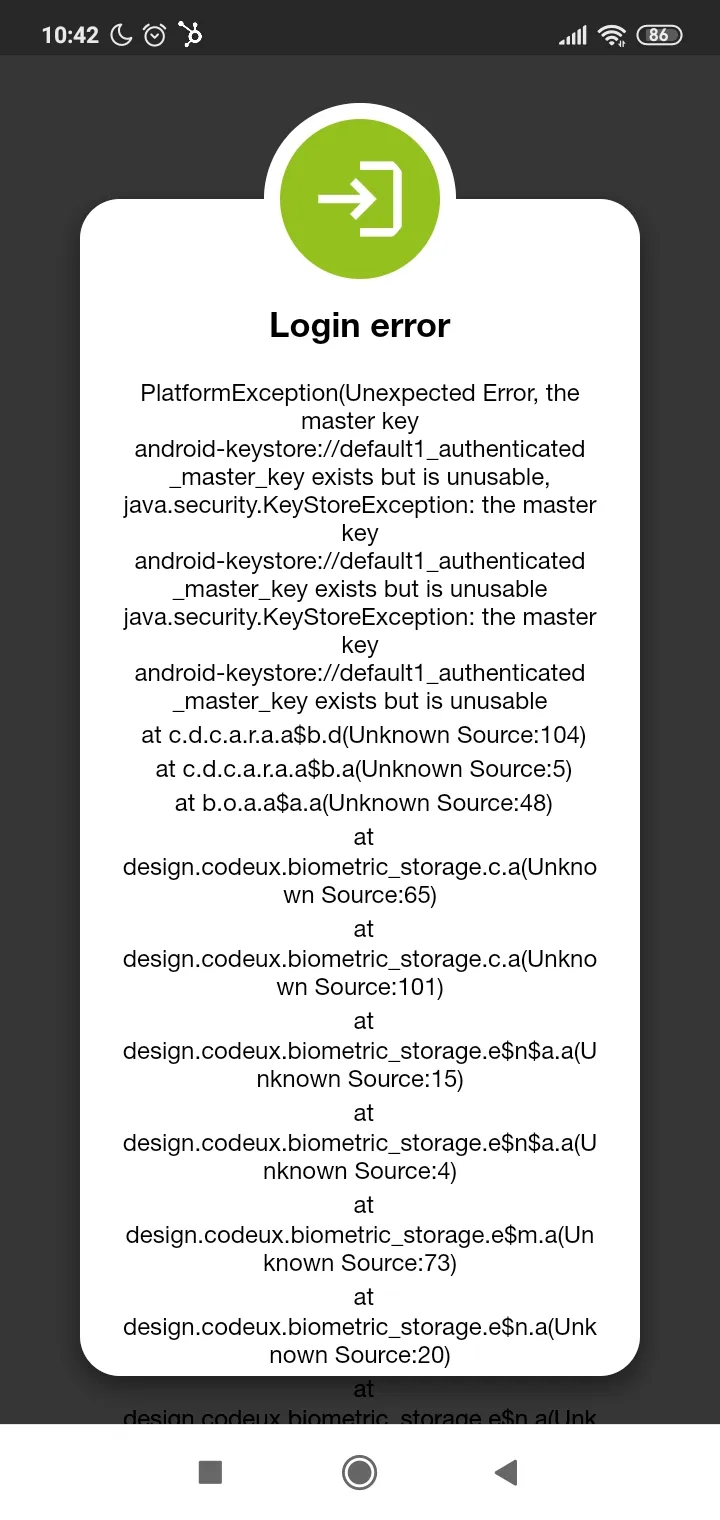
Ironchip recommends that the first thing a new user does is create a recovery safe zone. To solve this error, clear the application data or reinstall the app, and recover the account.
How to set the date and time automatically
Section titled “How to set the date and time automatically”A device with the wrong time can cause verification codes to be rejected. Turn on automatic date and time.
Windows
Section titled “Windows”Go to Settings > Time & language > Date & time and turn on Set time automatically.
Ubuntu
Section titled “Ubuntu”Go to Settings, Date & Time section, and turn on Automatic Date & Time.
Android
Section titled “Android”It depends on the model, but in general: go to Settings, find the date and time section and select the option to set the date and time automatically.
Go to Settings > General > Date & Time and turn on Set Automatically.
Was this page helpful?
Thank you. We will use it to improve the documentation. If you want to tell us what is missing or unclear, write to support@ironchip.com.