

Entra ID
Microsoft Entra ID (formerly Azure AD) is a cloud-based identity and access management service. It helps your employees access external resources, such as Microsoft 365, the Azure portal, and thousands of other SaaS applications. It integrates with Ironchip over the LDAP protocol, through Microsoft Entra Domain Services (formerly Azure AD DS).
Each new tenant comes with an initial domain name, .onmicrosoft.com, which you can’t change or delete. You can add your organization’s own domain names, which helps you create usernames your users recognize. For more information, see the Microsoft documentation.
Requirements
Section titled “Requirements”- Access to the Ironchip admin console.
- A user with permission to configure Azure.
- An active Azure subscription and a Microsoft Entra ID tenant associated with the subscription.
- Microsoft Entra Domain Services enabled and configured on the tenant.
Configure Azure
Section titled “Configure Azure”Microsoft Entra Domain Services must meet these requirements to integrate with Ironchip:
- Secure LDAP enabled:
- Create the necessary certificates.
- Allow secure LDAP access over the internet. You can use an Azure network security group rule to limit that access.
- Configure the groups you want to synchronize.
- Create a subdomain that points to the external IP address of secure LDAP. This is required if you want to connect with TLS in secure mode, because the client certificate must match the host.
- User configuration:
- Federated users: not supported.
- Users synchronized from on-premises: in hybrid environments, make sure password hash synchronization is enabled. If it already is, run the cmdlet described in Microsoft’s guide to apply it.
- Cloud users: even if the user was already created in the cloud, they must sign in and change their password.
For more information, see the official Microsoft tutorial on configuring LDAPS.
Configure Ironchip
Section titled “Configure Ironchip”When you finish the Azure configuration, create a key group (password policy) in Ironchip with the LDAP protocol that points to Microsoft Entra Domain Services. See Authentication policies for details.
-
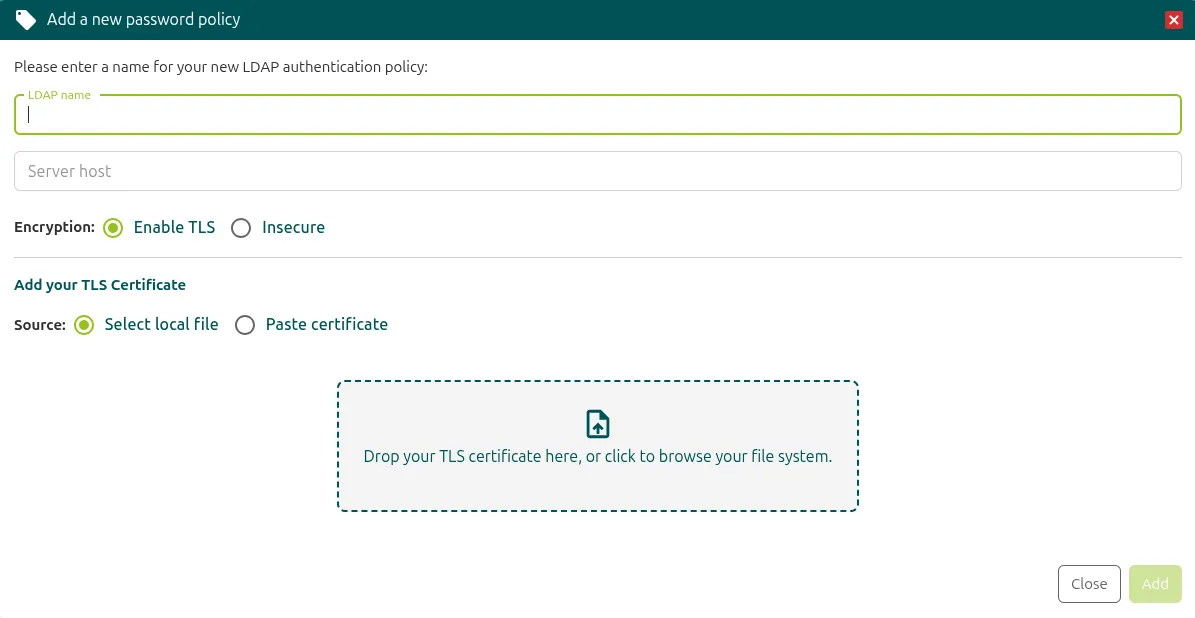
In Authentication policies, open the Password policies section and click Add password policy.
-
Add the name (LDAP name) and the server (Server host). If you want to enable secure TLS (Enable TLS), also add the certificate.
-
Ironchip checks that the connection works by asking you for a sample username (UPN or email) and LDAP password, which are not stored.
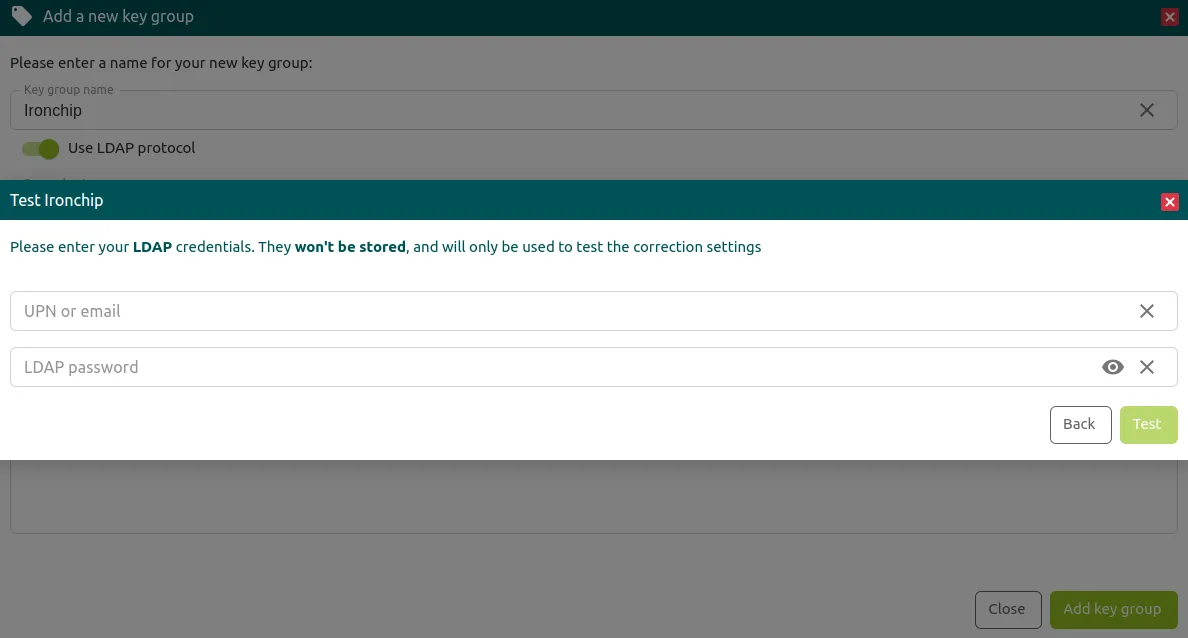
You can modify any field later: each time you do, Ironchip checks the connection again. Once the group is created, you can also test it with different users from its options.
Configure the access
Section titled “Configure the access”With the LDAP key group created, set it up in an access to start the authentication process.
Verify the integration
Section titled “Verify the integration”- Start authentication in the application like any other, with the username you configured earlier.
- If the access requires an LDAP key group, a prompt appears asking you to enter your email password.
- If you configured the access with another type of key group, such as your device, open the Ironchip app to finish the process and sign in to the application.
Was this page helpful?
Thank you. We will use it to improve the documentation. If you want to tell us what is missing or unclear, write to support@ironchip.com.