

Authenticate with Ironchip
This guide explains how you authenticate with Ironchip depending on the service you access: with the app and a push notification, at the Windows or Linux sign-in, or on web services through SAML or OIDC.
Authentication process
Section titled “Authentication process”You can authenticate in two ways.
From the push notification
Section titled “From the push notification”-
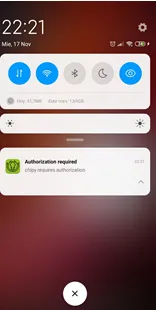
Enter your credentials in the service you want to access. A push notification arrives on your phone through the Ironchip app.
-
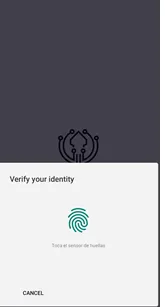
Tap the push notification. The Ironchip app opens, where you must enter the selected biometrics if it was set as a requirement.
-
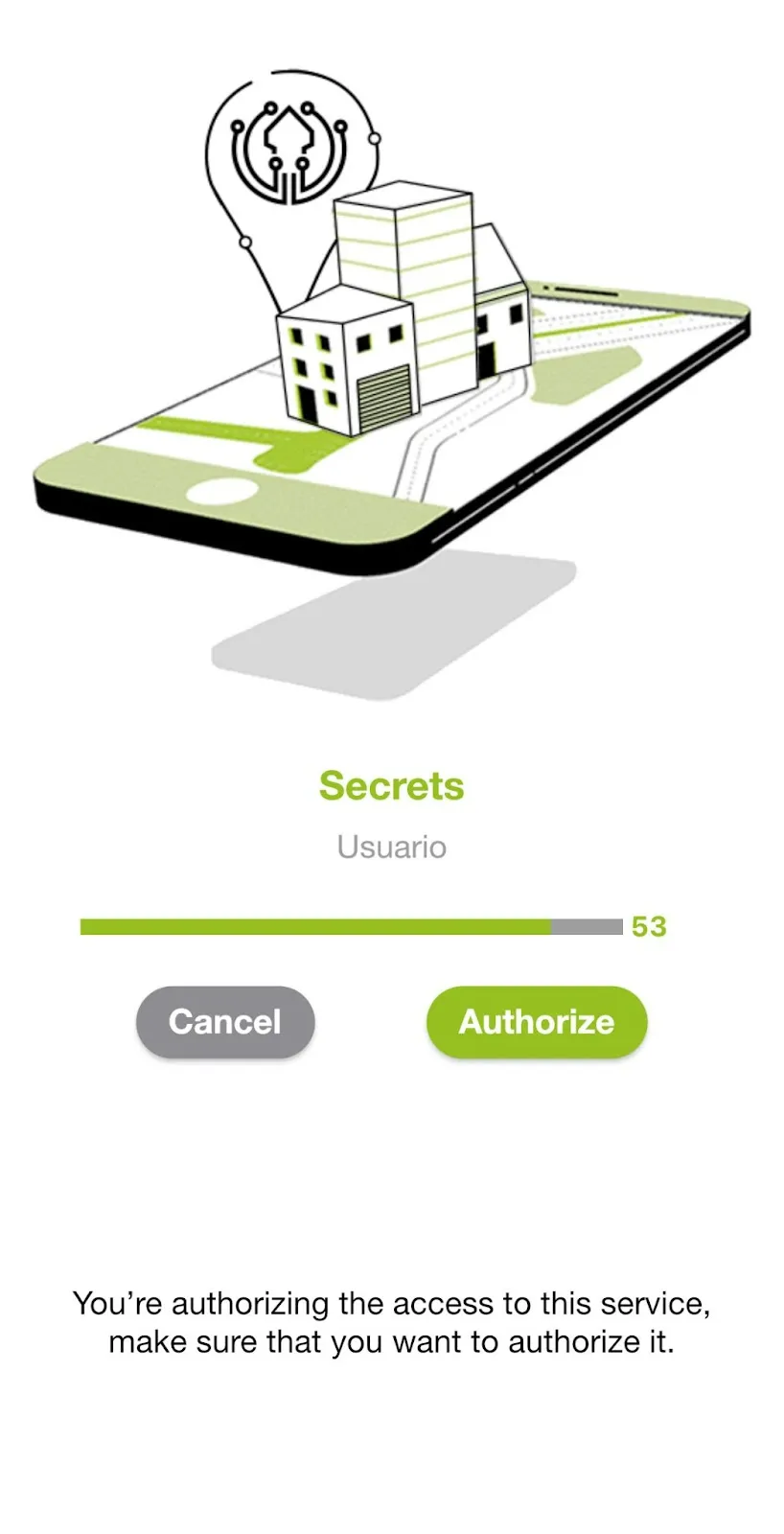
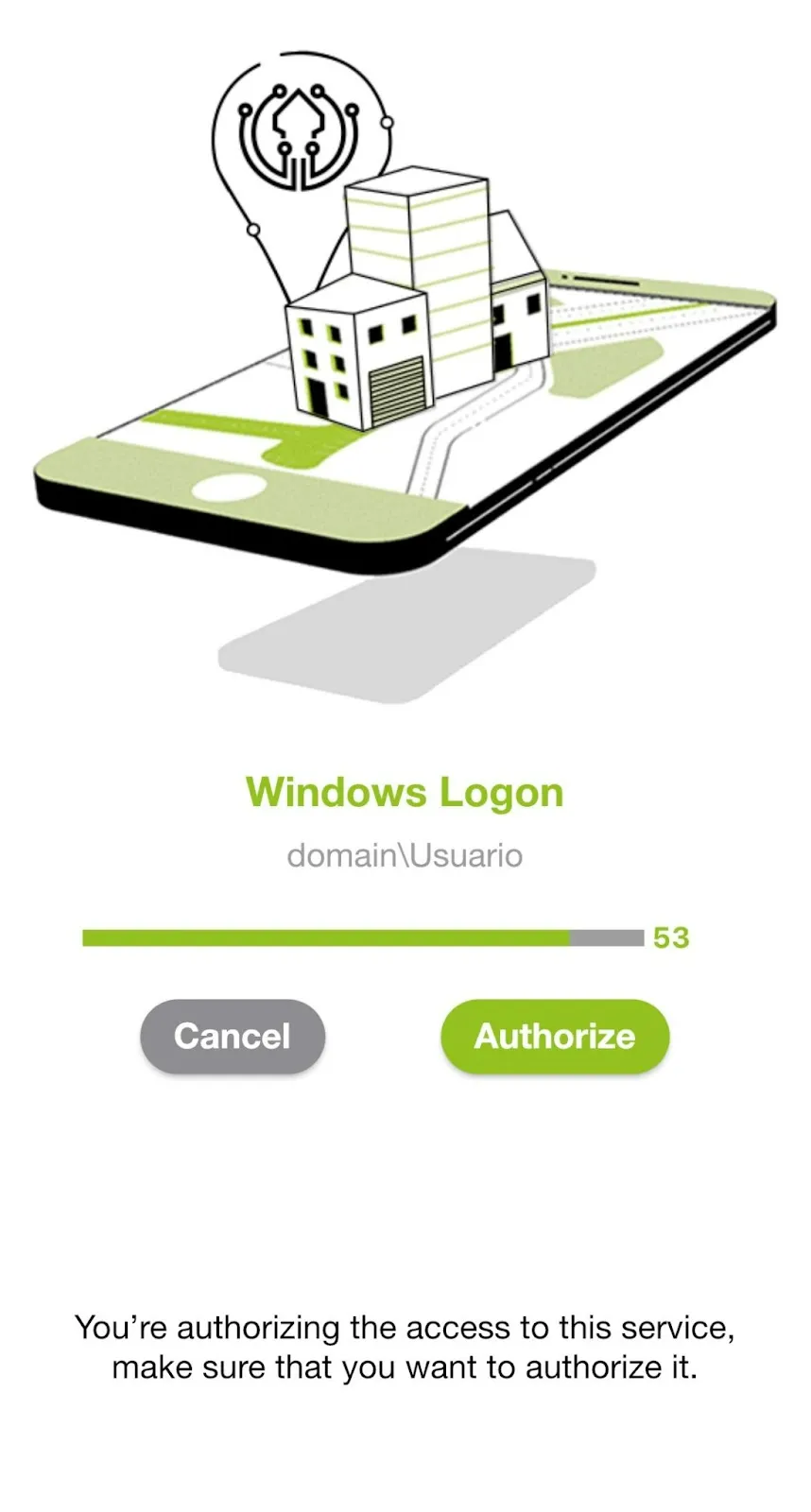
Tap Authorize. The signal scanning screen opens and verifies whether you are in the authorized location for accessing the service. If you are in the correct location, you get access to the service.
From the app
Section titled “From the app”-
Enter your credentials in the service you want to access. A push notification arrives on your phone.
-
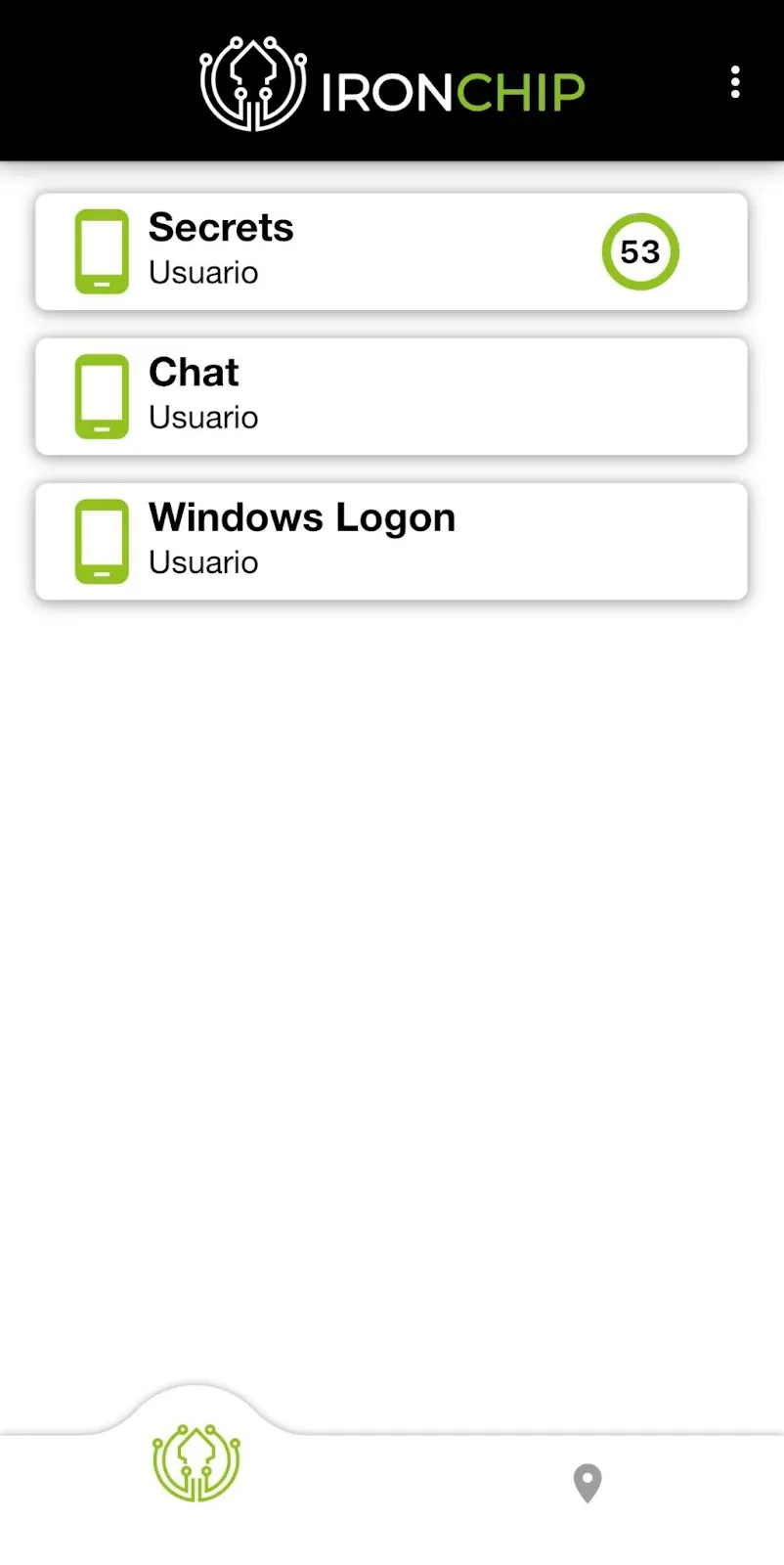
Instead of tapping the notification, open the app directly and go to Services. On the service where you entered your credentials, a countdown timer shows how many seconds are left to run the signal scan and verify your identity. Tap the service card.
-
Tap Authorize. The signal scanning screen opens and verifies whether you are in the authorized location. If you are in the correct location, you get access to the service.
Windows logon
Section titled “Windows logon”With Windows Logon you access your Windows services securely, using security factors in addition to your usual password. If you are an administrator and need to install it, see Install the authenticator on Windows. There are three options:
- Push notification: a notification arrives on your phone so you can authorize the sign-in.
- Offline: you access the computer without an internet connection using a code provided by the app.
- USB: you access the computer without authorizing anything, because the USB drive authorizes the access itself.

If you have more than one user, the first drop-down list lets you choose which user to sign in with. Fill in the required fields, such as username and password.
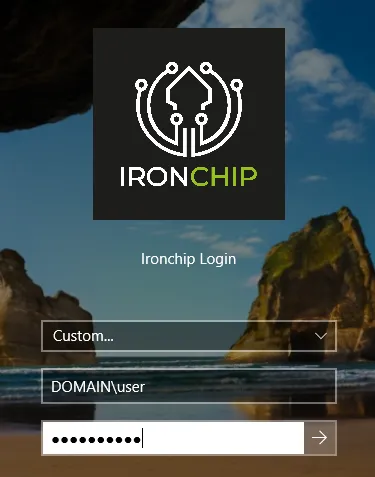
With push notification
Section titled “With push notification”After you enter your sign-in details, a notification arrives on your phone asking you to authorize the sign-in.
With USB
Section titled “With USB”To use this mechanism, you must have enrolled with a USB drive beforehand. See Enrollment.
Fill in the required fields, such as username and password. Because the USB drive is inserted in the computer, you don’t need to authorize anything: the USB drive does it automatically.
Offline
Section titled “Offline”You can authenticate to services without an internet connection with the Offline feature, which uses an offline code to verify your identity instead of authorization from the phone.
-
Open the offline authenticator application, which gives you a link. With that link you can create one of your offline keys: enter your Windows username in Windows Username and click Generate. If you don’t clearly remember the user you sign in with, ask your administrator for help.
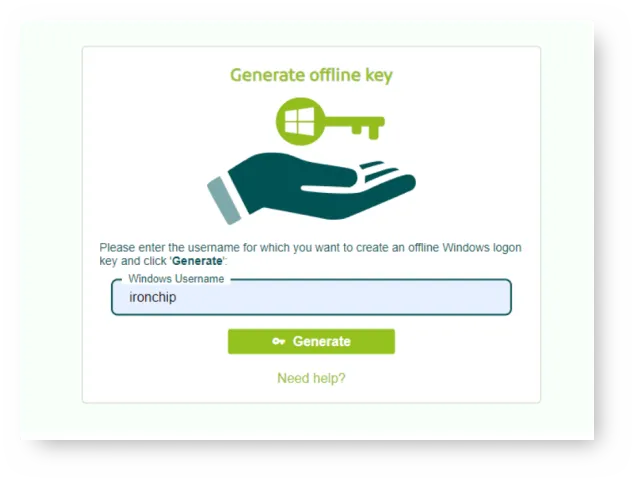
-
When the offline key is generated, a QR code appears to add it to the mobile app, along with a text code to copy and paste into the desktop app.
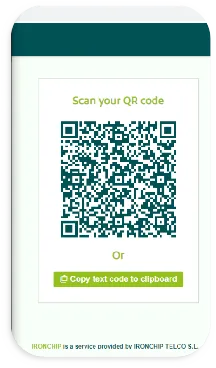
-
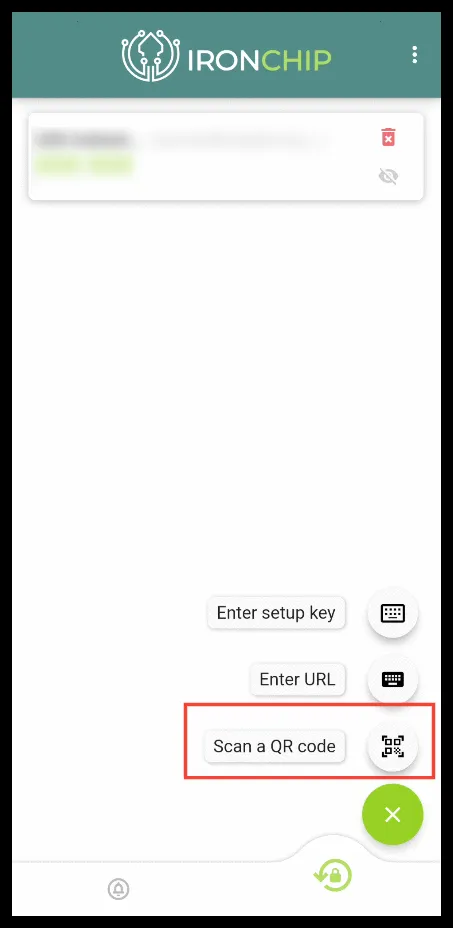
In the mobile app, go to the second tab at the bottom right, the one with the padlock icon. Tap the round green + button at the bottom right and choose Scan a QR code.
-
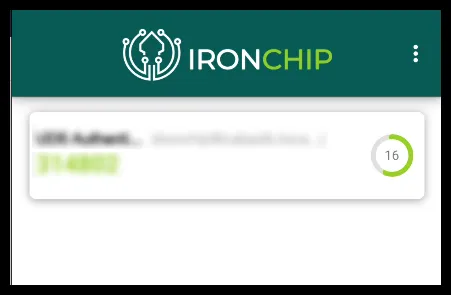
Scan the generated QR code or manually enter the Setup KEY. If everything went as expected, a new entry appears with your OTP code, which is regenerated every 30 seconds.
-
Tap the card that appeared to display the OTP code. The code is hidden again every 30 seconds.
-
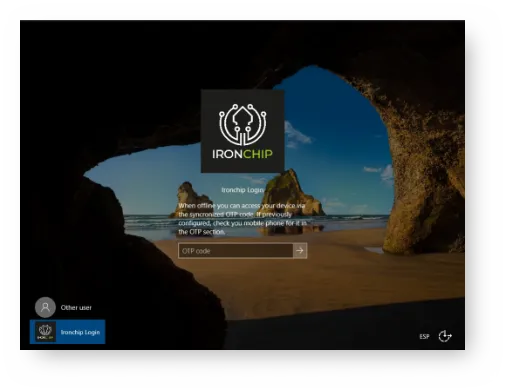
On the Windows sign-in screen, enter the code shown by the app in the OTP code field.
If you get an error saying that the offline (OTP) functionality is not installed (Offline functionality is not installed), you have two options:
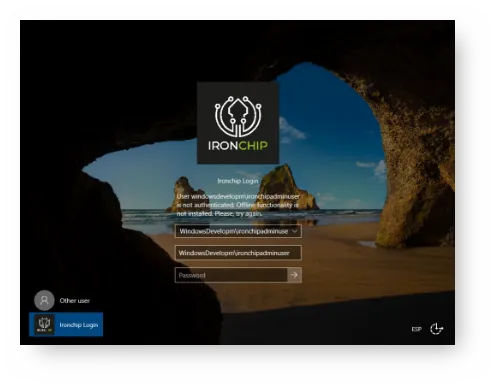
- Connect to the internet and sign in with a push notification or a USB drive.
- If you have no internet access, contact your administrator.
Password change
Section titled “Password change”To change your password, contact your administrator. After that, you see this window when you try to sign in. You also see it if your password has expired.
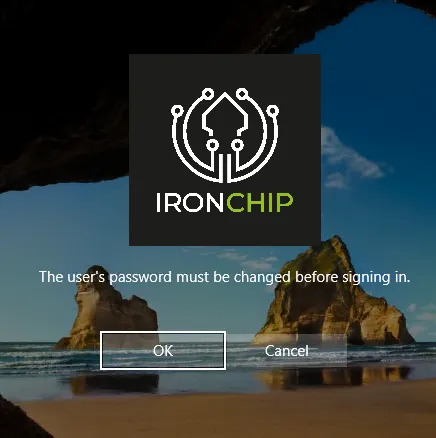
-
Fill in the second field with the user you want to sign in as.
-
Fill in the third field with your previous password.
-
Fill in the fourth and fifth fields with the new password.
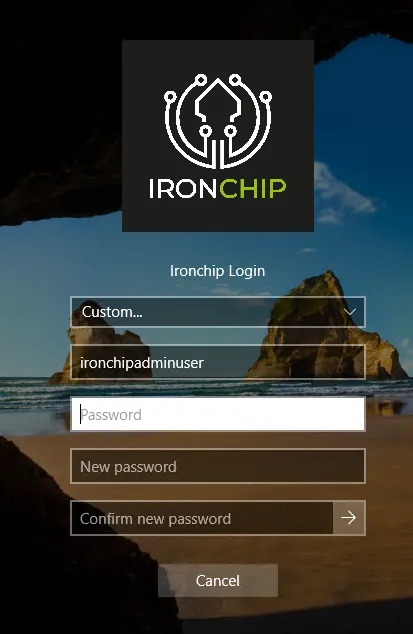
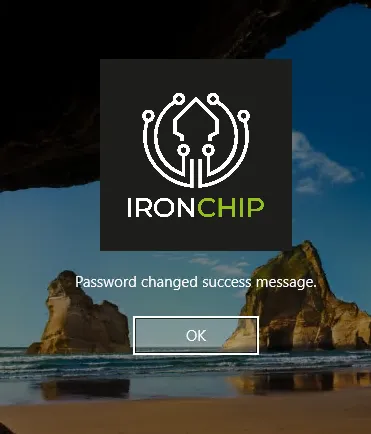
Once the password is changed, you see this message:
Linux logon
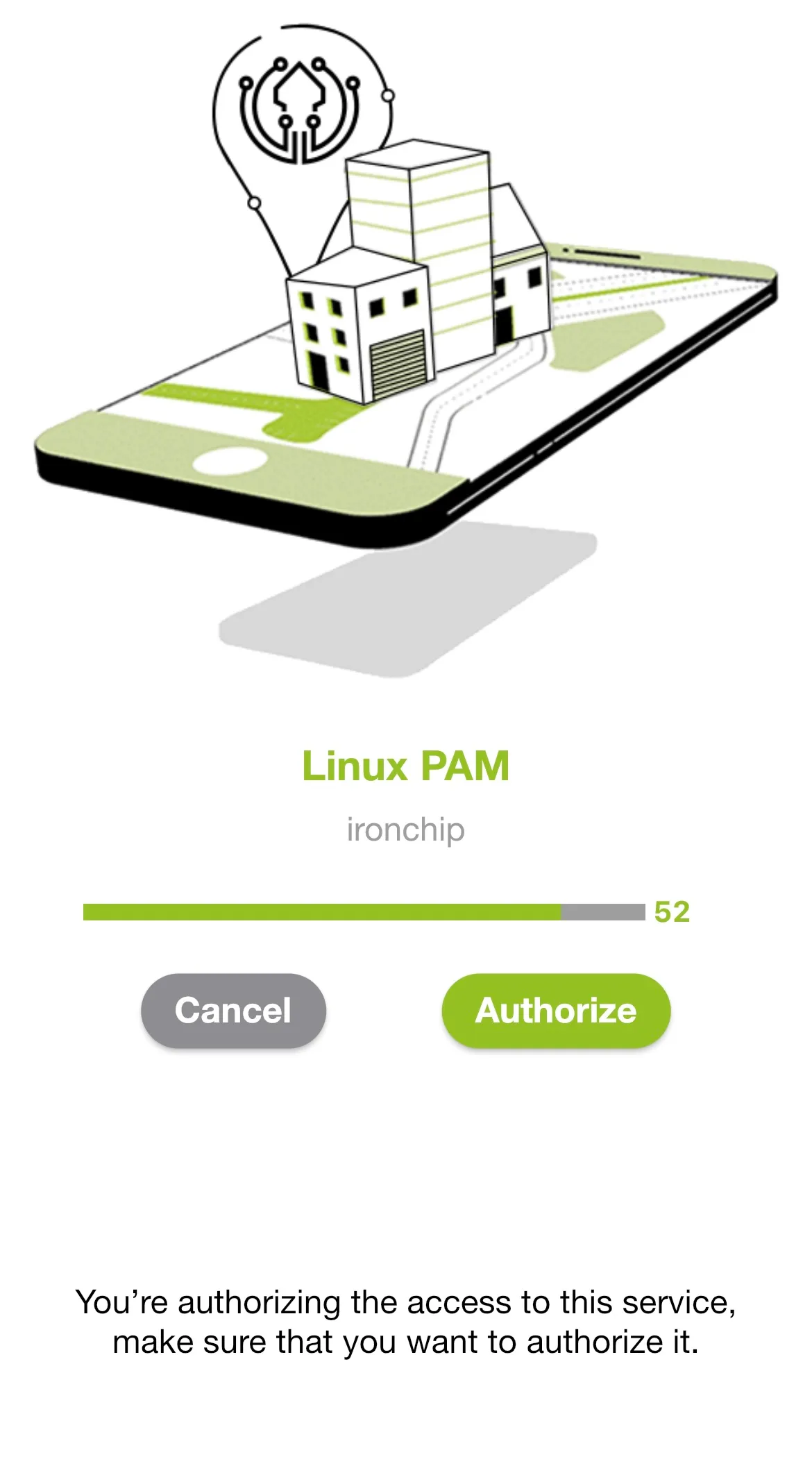
Section titled “Linux logon”With Linux Logon you access your Linux services securely. Depending on your administrator’s requirements, the system can ask for your authorization at sign-in, when you escalate privileges in Linux (sudo) or when you use the ssh service.
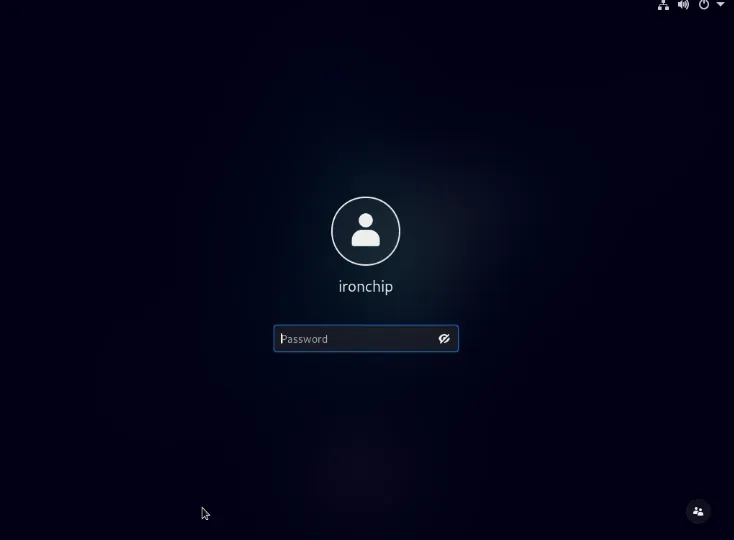
Once your administrator has installed Linux Logon on your computer, sign in. A push notification arrives on your phone so you can authorize the access.
Web services
Section titled “Web services”The Ironchip platform lets you access company services from the browser. There are two ways to sign in, SAML or OIDC.
With SAML
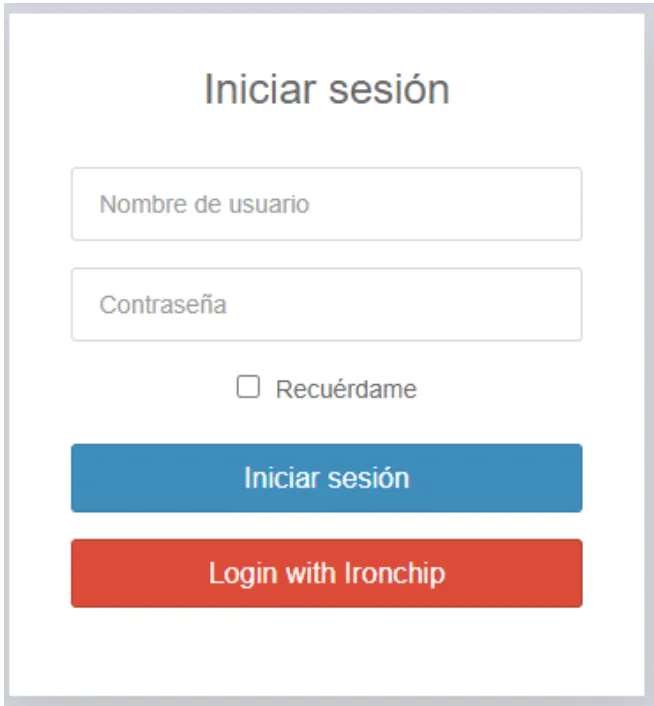
Section titled “With SAML”You see a page like the one below. Sign in by clicking Login with Ironchip.
-
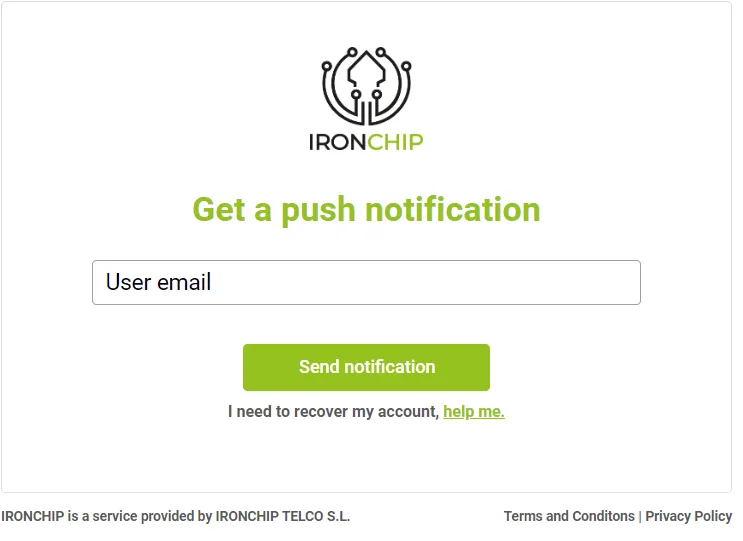
Click the red button, enter your usual email address and click Send notification. A push notification arrives from the Ironchip app.
-
Accept the notification in the app by tapping Authorize to get access to the platform.
With OIDC
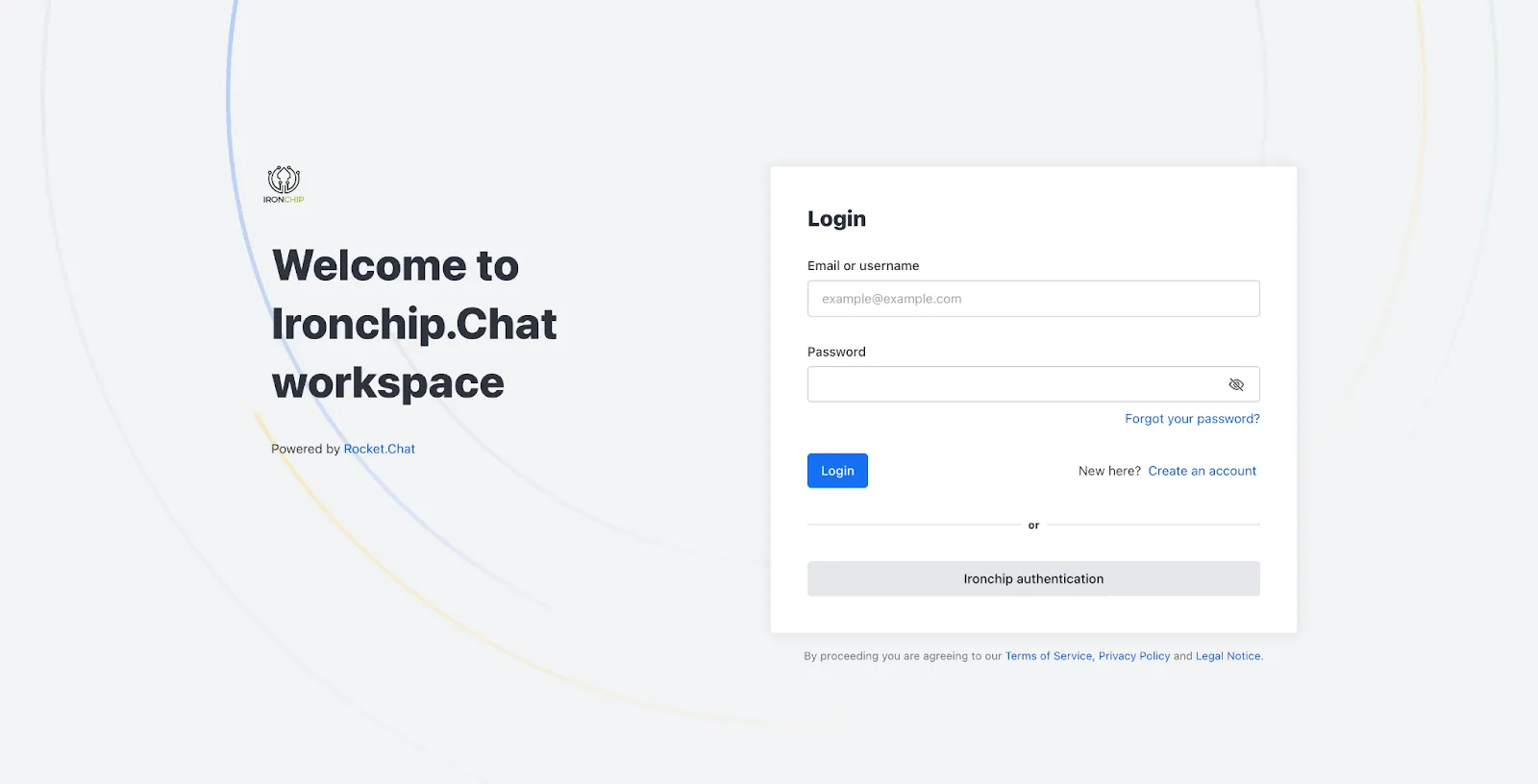
Section titled “With OIDC”The second way to sign in on the web is similar to the screen below.
-
Click the gray rectangular button at the bottom, Ironchip Authentication. This button can also appear as Sign in with OIDC. Clicking it opens an additional tab.
-
In the new tab, enter your usual email address and click Send notification to receive the push notification.
-
Accept the notification that arrives on your phone to get access to the platform.
Was this page helpful?
Thank you. We will use it to improve the documentation. If you want to tell us what is missing or unclear, write to support@ironchip.com.