

Install the authenticator on Windows
This guide explains how to install the Ironchip desktop authenticator for Windows. It has three parts: download the installer, install it and enroll the user.
Requirements
Section titled “Requirements”- 64-bit Windows. On versions older than Windows 10 you also need Microsoft Visual C++ Redistributable x64.
- Administrator permissions on the computer.
- Connectivity to the Ironchip API (
https://api.ironchip.comby default).
Download the installer
Section titled “Download the installer”You have two ways to download the authenticator installer.
From the admin console
Section titled “From the admin console”- Go to the Ironchip admin console, app.ironchip.com, and sign in with your administrator account.
- Go to the Plugins section, find the Windows Authenticator card under Authenticators and click Download.
From GitHub
Section titled “From GitHub”- Go to the official Ironchip repository, github.com/Ironchip-Security, where all the downloads are, and open Ironchip-Windows-Authenticator.
- Go to github.com/Ironchip-Security/Ironchip-Windows-Authenticator/releases, which lists all the available versions, and download
IronchipWindowsAuthenticator.msifrom the latest one.
Install with the wizard
Section titled “Install with the wizard”Once you have the installer on the computer, run it as administrator and follow these steps:
-
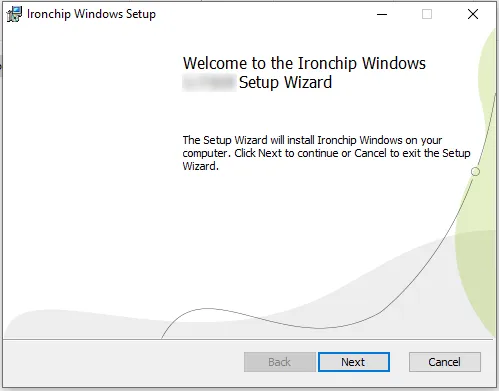
Check that it is the version you want and click Next.
-
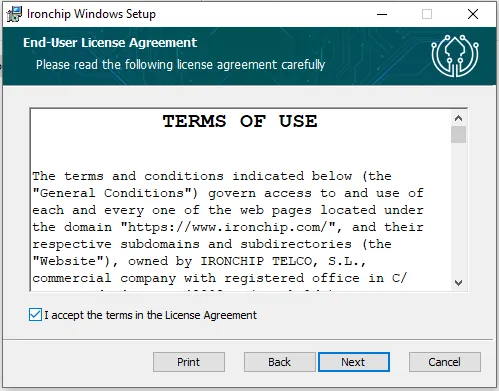
Accept the terms of use.
-
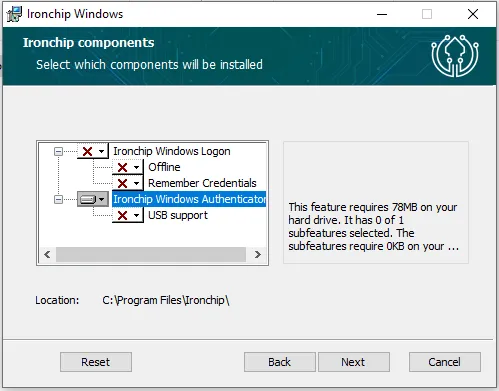
Select the features you want to install. Here you only need Ironchip Authenticator and, if you need it, USB support, which lets you store your identity on a USB drive and is not installed by default.
-
In Ironchip Host, leave the API URL as it is (
https://api.ironchip.com) unless your company is in another environment. Then select one of the three proxy options depending on whether you have an automatic proxy (Automatic), a manual proxy (Manual, with its host and port) or no proxy (None).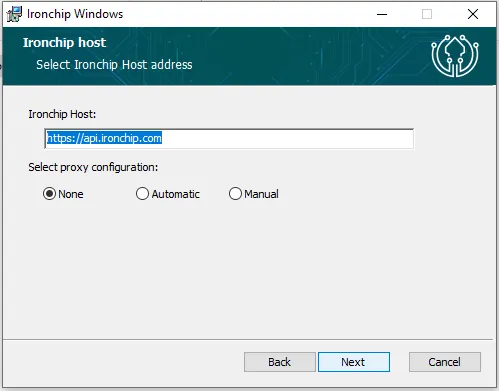
-
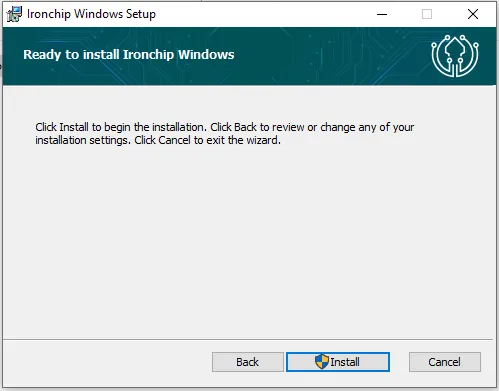
Click Install. Administrator permissions are required. When it finishes, you can check Launch Ironchip Authenticator to open the application.
Install from the command line
Section titled “Install from the command line”To install the authenticator unattended, for example in a mass deployment, use msiexec.exe from a console with administrator permissions:
msiexec.exe /i "C:\Path\To\File\IronchipWindowsAuthenticator.msi" IRONCHIP_HOST="https://api.ironchip.com" ADDLOCAL="AuthenticatorFeature,USBFeature" /qAll properties are optional:
| Property | Default value | Description |
|---|---|---|
IRONCHIP_HOST |
https://api.ironchip.com |
Ironchip API URL. Change it only if your company is in another environment. |
ADDLOCAL |
Authenticator without USB | Features to install: AuthenticatorFeature (the authenticator) and USBFeature (USB support). Separate them with commas. |
IRONCHIP_PROXY_SELECTED |
none |
Proxy mode: none, automatic or manual. |
IRONCHIP_PROXY_MANUAL_HOST |
Empty | Proxy host. Only needed with IRONCHIP_PROXY_SELECTED="manual". |
IRONCHIP_PROXY_MANUAL_PORT |
Empty | Proxy port. Only needed with IRONCHIP_PROXY_SELECTED="manual". |
For example, to install the authenticator without USB support and with a manual proxy:
msiexec.exe /i "C:\Path\To\File\IronchipWindowsAuthenticator.msi" IRONCHIP_HOST="https://api.ironchip.com" ADDLOCAL="AuthenticatorFeature" IRONCHIP_PROXY_SELECTED="manual" IRONCHIP_PROXY_MANUAL_HOST="proxy.example.com" IRONCHIP_PROXY_MANUAL_PORT="8080" /qEnroll the user
Section titled “Enroll the user”To learn how to enroll users, see Enrollment.
Was this page helpful?
Thank you. We will use it to improve the documentation. If you want to tell us what is missing or unclear, write to support@ironchip.com.