

HubSpot
HubSpot supports two-factor authentication with an authenticator app. This guide explains how to add Ironchip to HubSpot as an OTP code generator. To learn more about Ironchip OTPs, see One-time passwords (OTP).
Requirements
Section titled “Requirements”- Access to the Ironchip admin console.
- The Ironchip app installed on your device.
- A user with permission to configure HubSpot.
Configure HubSpot
Section titled “Configure HubSpot”-
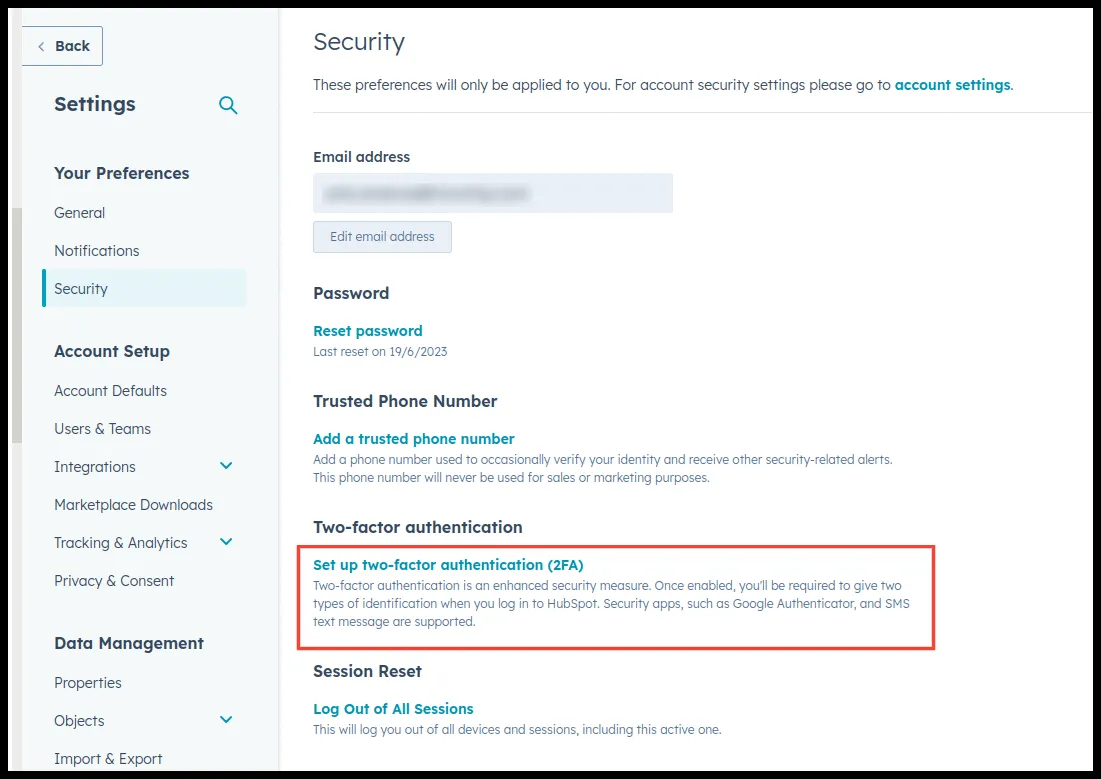
Sign in to your HubSpot account and go to Settings > Security > Two-factor authentication.
-
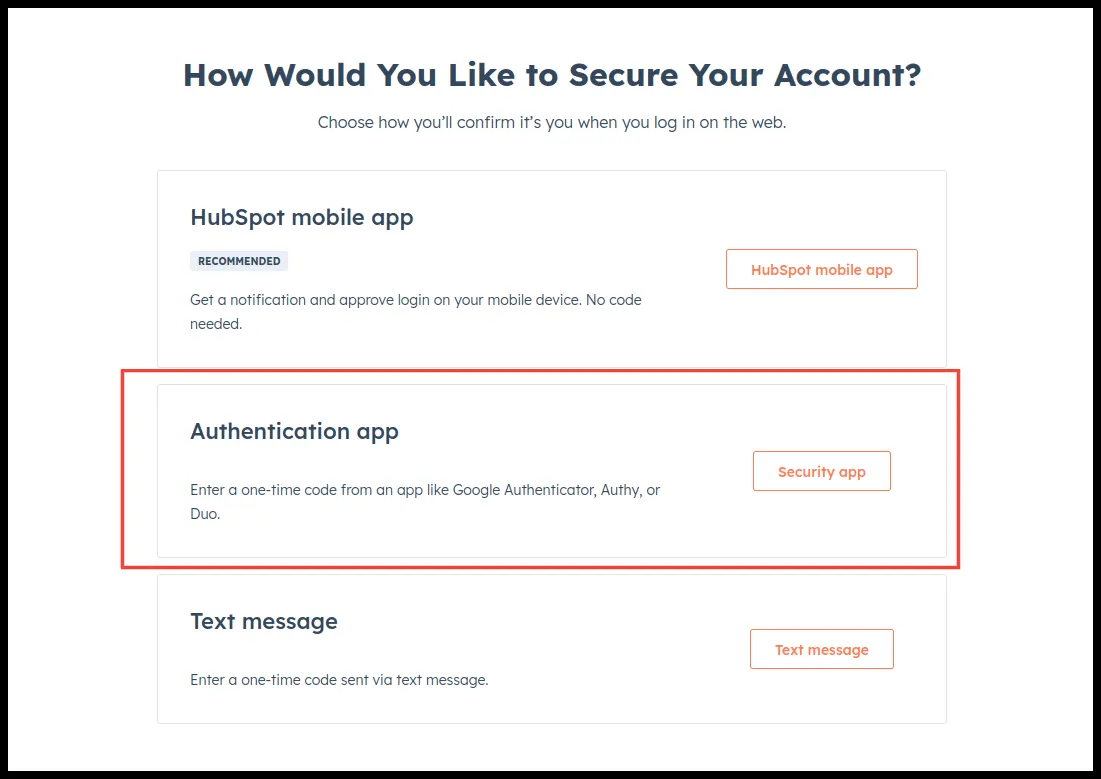
Select Authentication App.
-
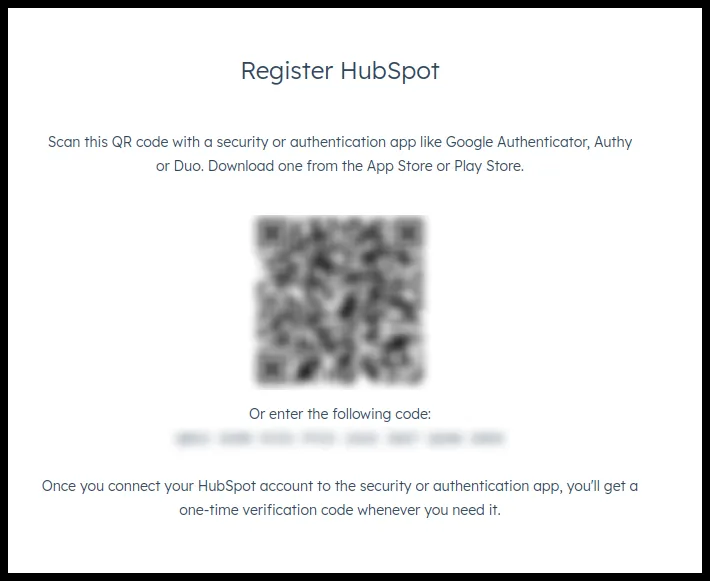
HubSpot shows a QR code.
Configure the Ironchip app
Section titled “Configure the Ironchip app”-

Scan the HubSpot QR code with the Ironchip app. In the app, open the three-dot menu and go to OTP > + > Scan a QR code.
-
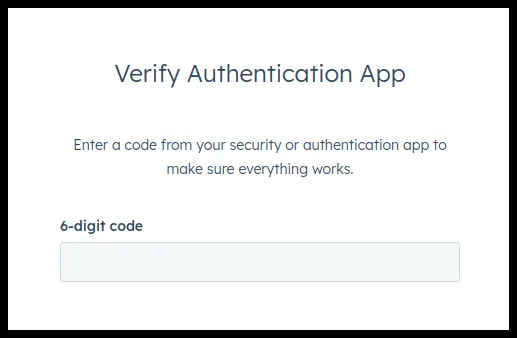
HubSpot asks you for a code to verify. Enter the one the app shows.
-
Save the backup codes in a safe place.
Was this page helpful?
Thank you. We will use it to improve the documentation. If you want to tell us what is missing or unclear, write to support@ironchip.com.