

Fortinet
This guide explains the ways to integrate Fortinet (FortiGate) with Ironchip: SSL VPN with SAML, SSL VPN with RADIUS through NPS, and remote access IPsec with SAML.
SSL VPN with SAML
Section titled “SSL VPN with SAML”Integrate the FortiGate SSL VPN with Ironchip authentication through SAML.
Requirements
Section titled “Requirements”- Access to the Ironchip admin console.
- A user with permissions to make changes in Fortinet.
Configure Ironchip
Section titled “Configure Ironchip”-
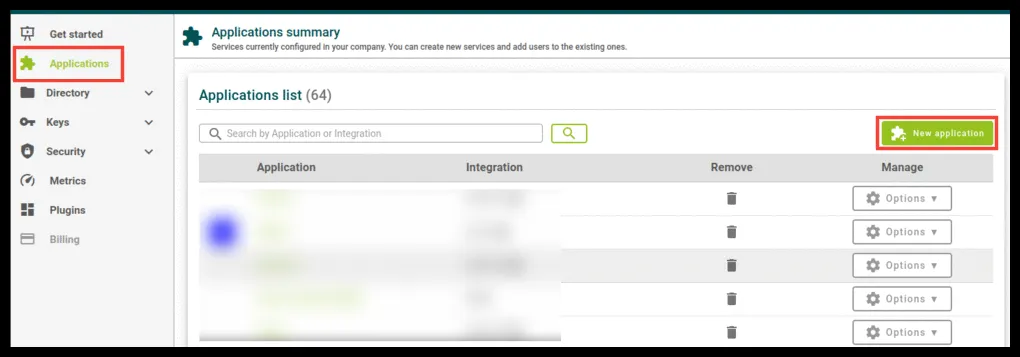
In the Ironchip admin console, go to Applications and click the green New application button.
-
Select the SAML type and download the metadata with Download metadata file. You use it in the next steps.
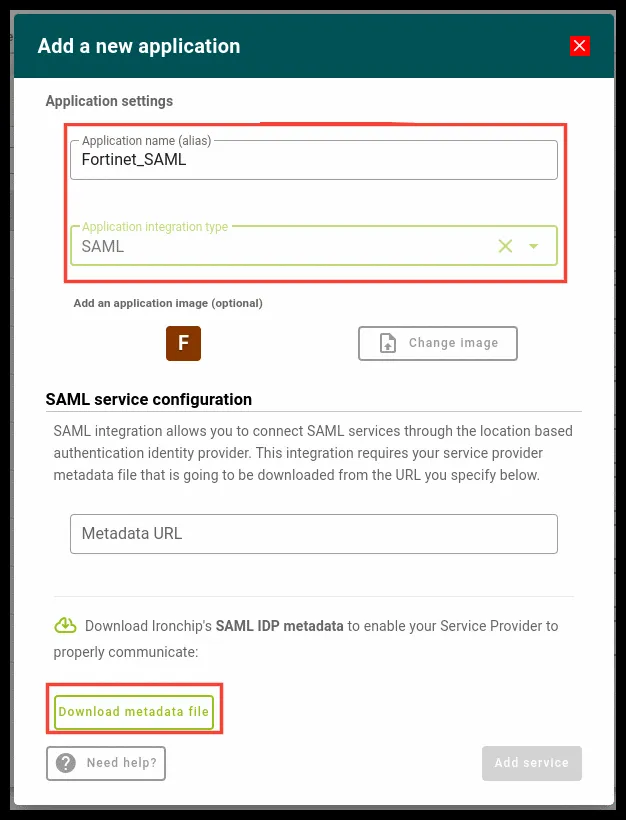
You come back to this application later to finish the configuration.
Configure FortiGate
Section titled “Configure FortiGate”-
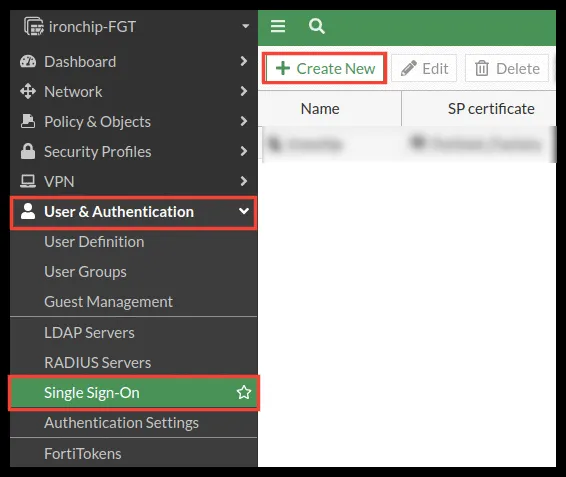
In the FortiGate admin interface, go to User & Authentication > Single Sign-On and click Create New, at the top left.
-
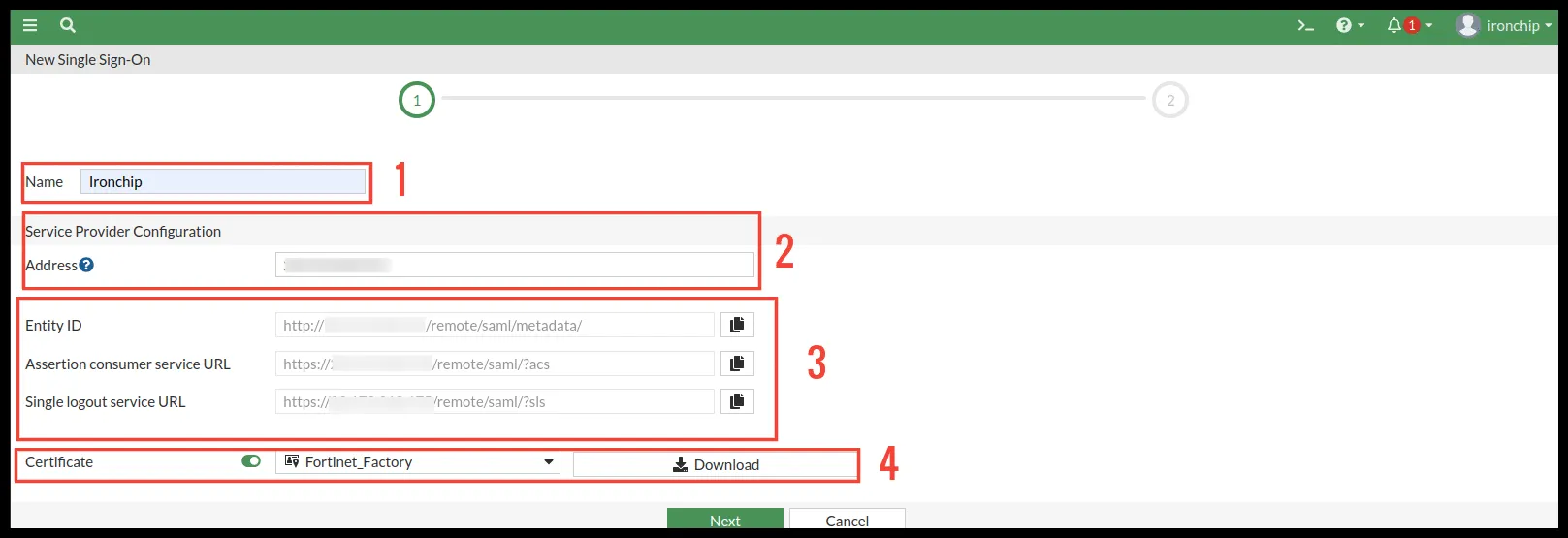
Set these parameters, all of them required:
- Name: a descriptive name.
- Address, under Service Provider Configuration: the public IP address the authentication request is sent to. It is usually the same IP as the VPN.
- Entity ID, Assertion consumer service URL and Single logout service URL: the URLs Ironchip uses to communicate with Fortinet.
- Certificate: the Fortinet certificate to use.
-
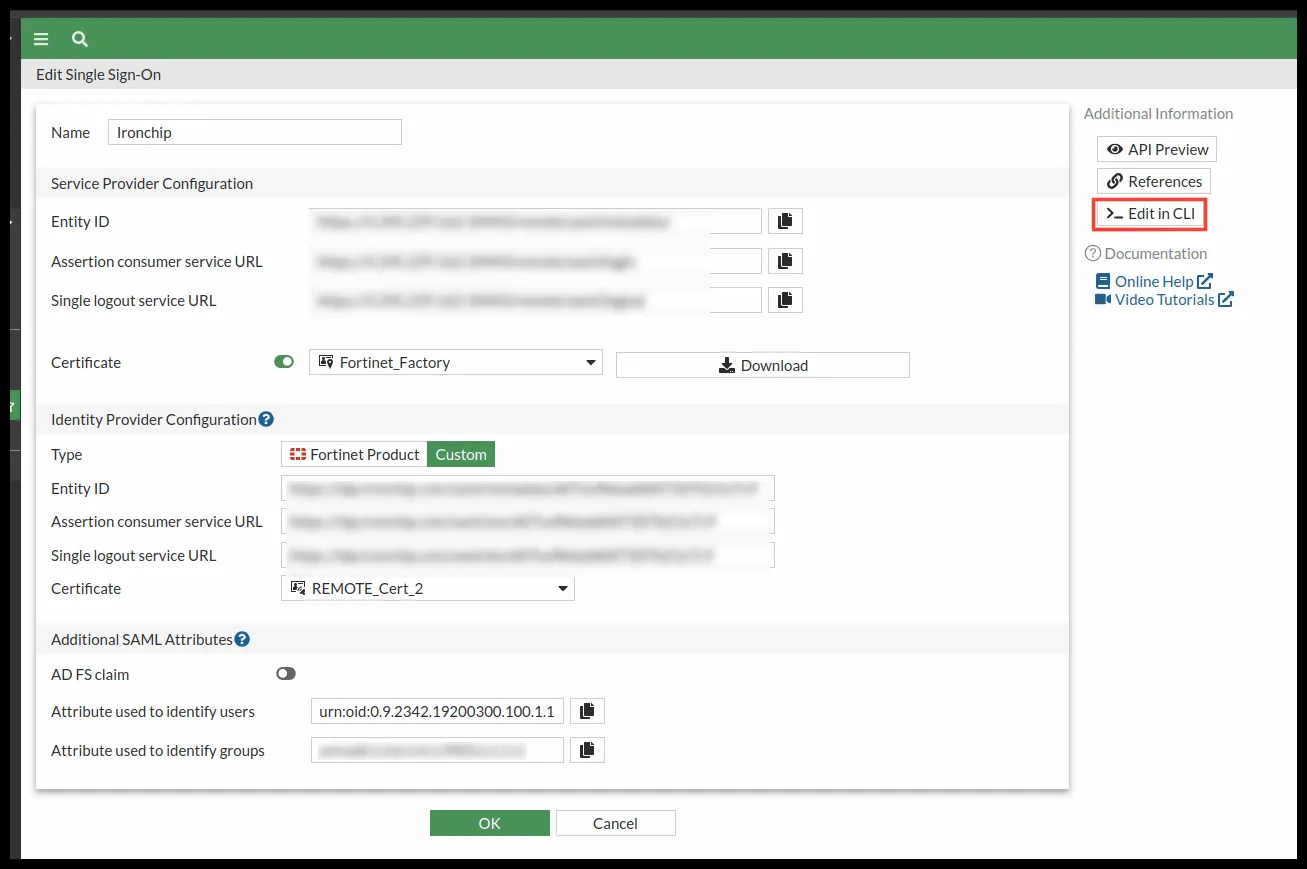
Click Next. The second section is edited with commands: click Edit in CLI.
-
In the console that opens, run these commands and replace
<VPN IP>with the IP of your VPN:set entity-id "https://<VPN IP>/remote/saml/metadata/"set single-sign-on-url "https://<VPN IP>/remote/saml/login"set single-logout-url "https://<VPN IP>/remote/saml/logout"end -
Close the terminal and click Cancel. This prevents the default values from being restored.
Back to Ironchip: FortiGate metadata
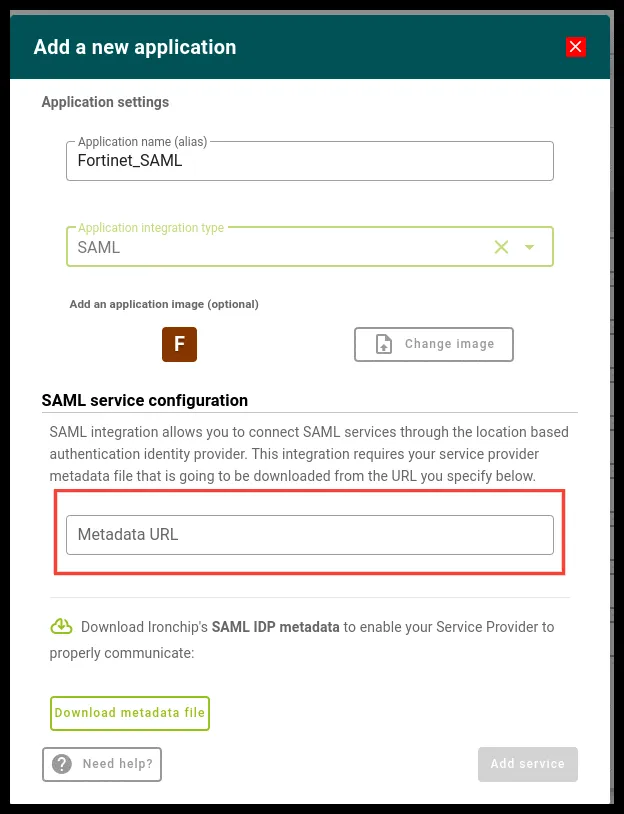
Section titled “Back to Ironchip: FortiGate metadata”In the Ironchip application you must enter the metadata URL it uses to communicate with Fortinet.
-
Open a terminal in Fortinet and run:
diag vpn ssl saml-metadata "<SAML NAME HERE>" -
Upload the output to a public internet address and copy its raw URL.
-
Paste that URL into the Metadata URL field of the Ironchip application.
-
Click Add service to finish the configuration in Ironchip.
Finish the FortiGate configuration
Section titled “Finish the FortiGate configuration”Go back to the Fortinet screen where you left off. Keep the metadata file you downloaded from Ironchip open.
-
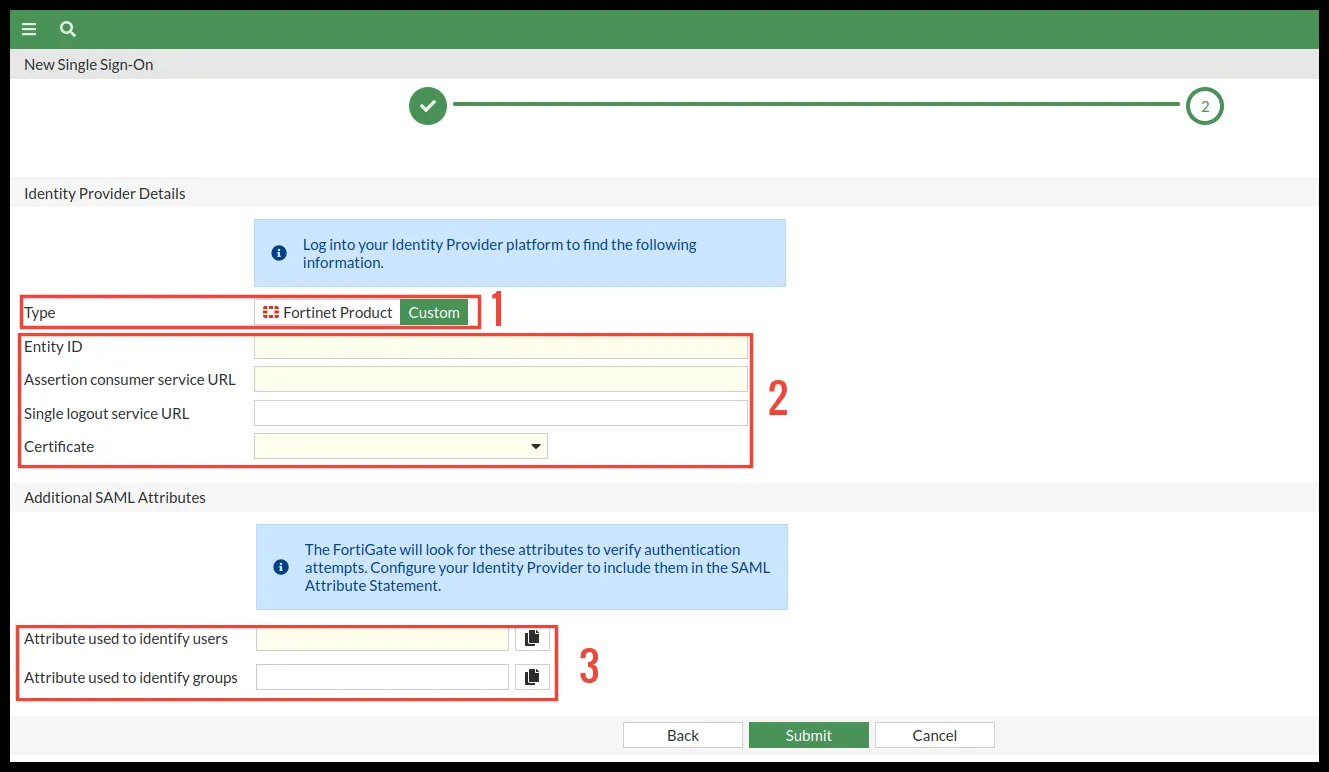
In Type, select
Custom. -
Fill in the IdP URLs with the data from the metadata file:
- EntityID: the
entityIDproperty of theEntityDescriptorXML tag. - Assertion consumer service URL: the
Locationproperty of theSingleSignOnServiceXML tag. - Single logout service URL: the
Locationproperty of theSingleLogoutServiceXML tag. - Certificate: create a file with the
.crtextension and paste into it the output of entering the content of theX509CertificateXML tag from the metadata file in the first field of SAML Tool. Both certificates are identical.
- EntityID: the
-
Enter the attributes:
- Attribute used to identify users:
urn:oid:0.9.2342.19200300.100.1.1 - Attribute used to identify groups:
urn:oid:1.3.6.1.4.1.5923.1.1.1.1
- Attribute used to identify users:
-
Click Submit to save the configuration.
Additional configuration
Section titled “Additional configuration”-
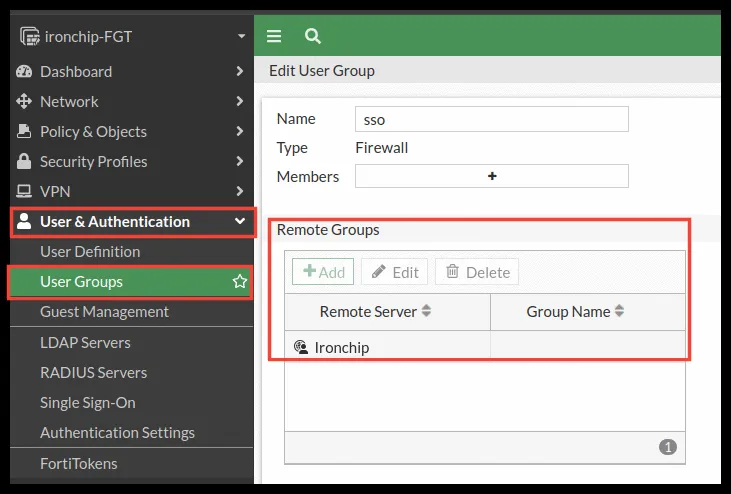
Create a group that has the Fortinet SSO configuration as a member.
-
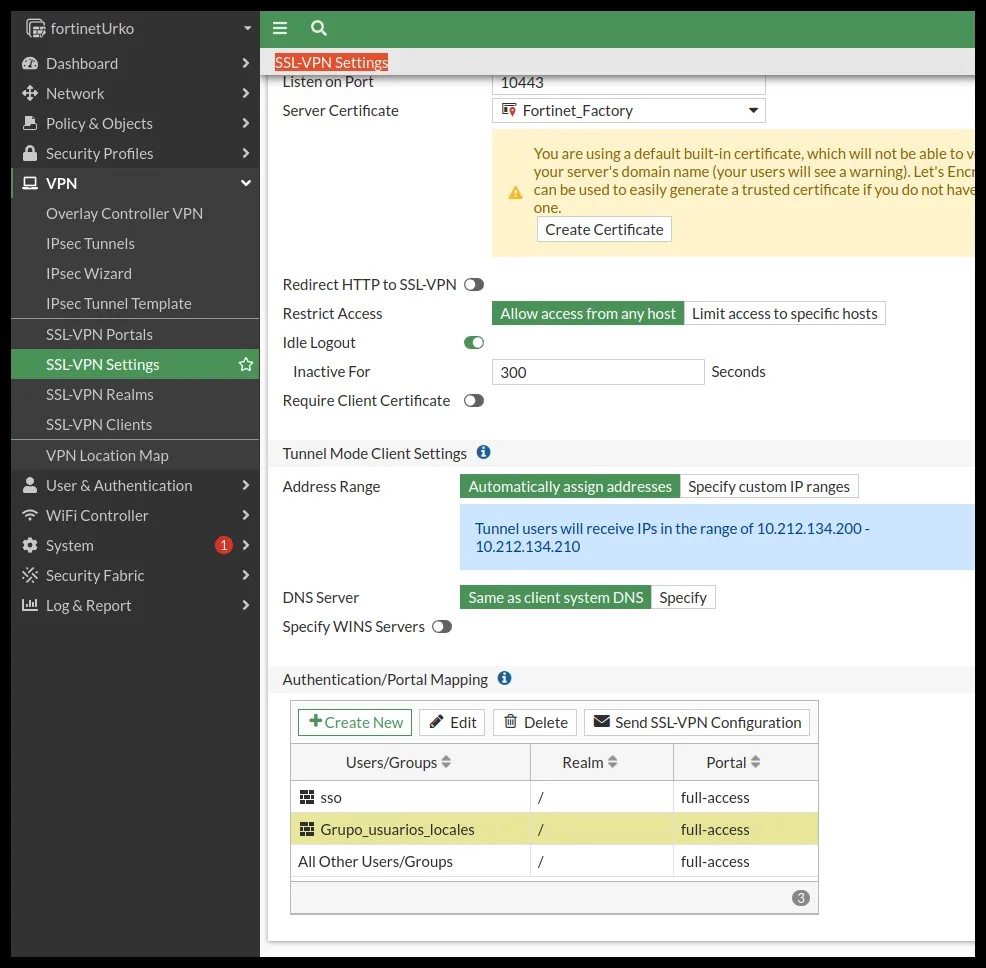
Add the group to the SSL VPN configuration, in Authentication/Portal Mapping.
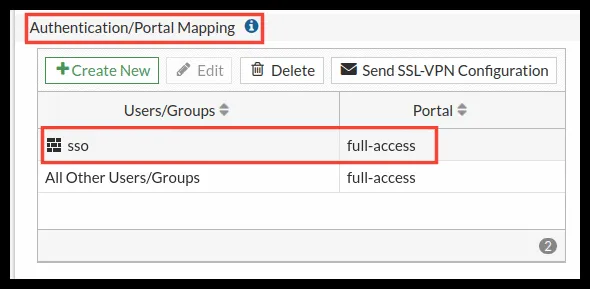
-
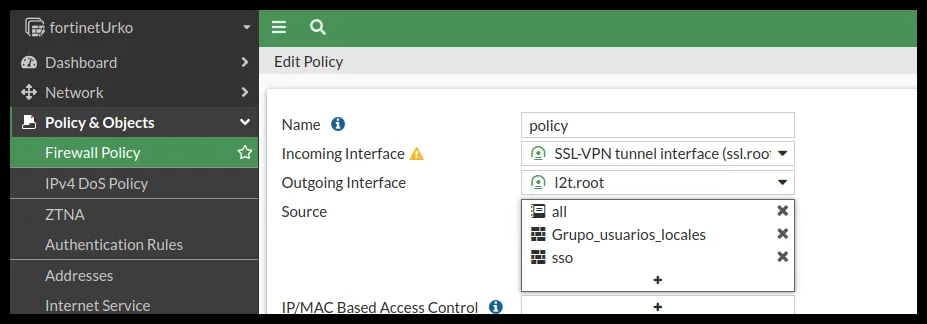
Add the group to the VPN policy, in the Source section.
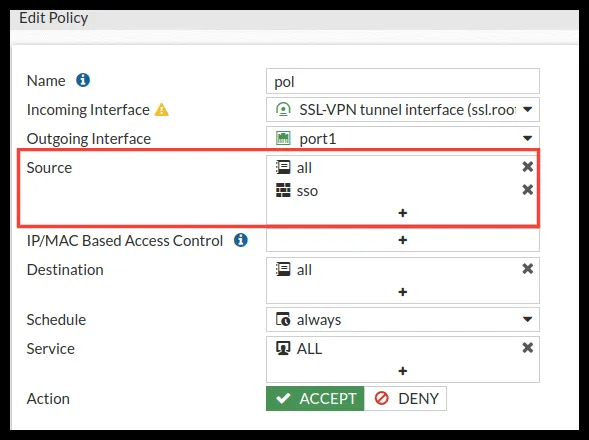
-
Configure the authentication timeouts. Open a Fortinet terminal with the icon in the upper right corner and run these commands, which give the users of the associated group 60 seconds to authenticate:
config user groupedit <PROTECTED_USER_GROUP_NAME>set authtimeout 60endconfig system globalset remoteauthtimeout 60end
SAML and password authentication at the same time (optional)
Section titled “SAML and password authentication at the same time (optional)”For users to be able to sign in both with SAML and with a local password, choose one of these options.
Option 1. Add the local users to the group you created earlier.
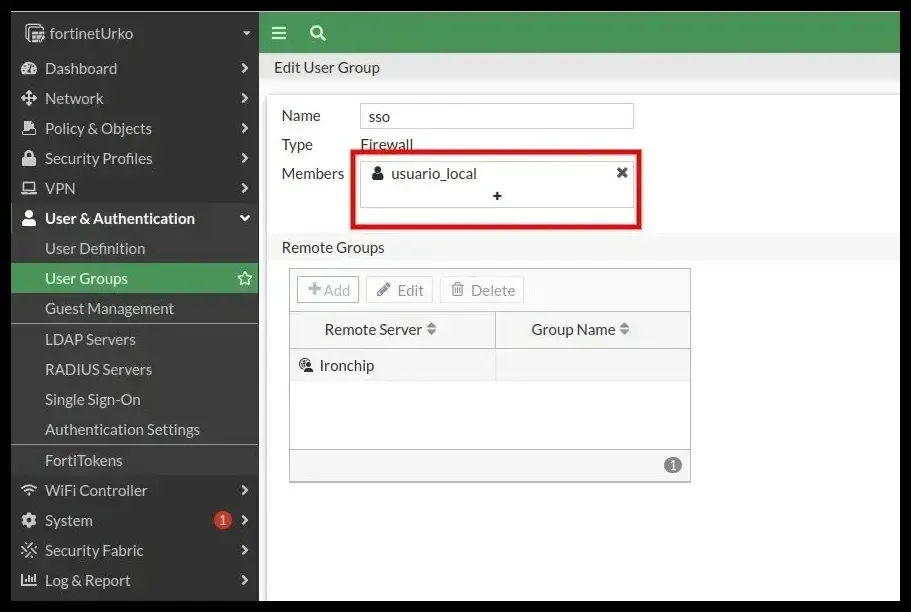
Option 2. Create a new group with the local users.
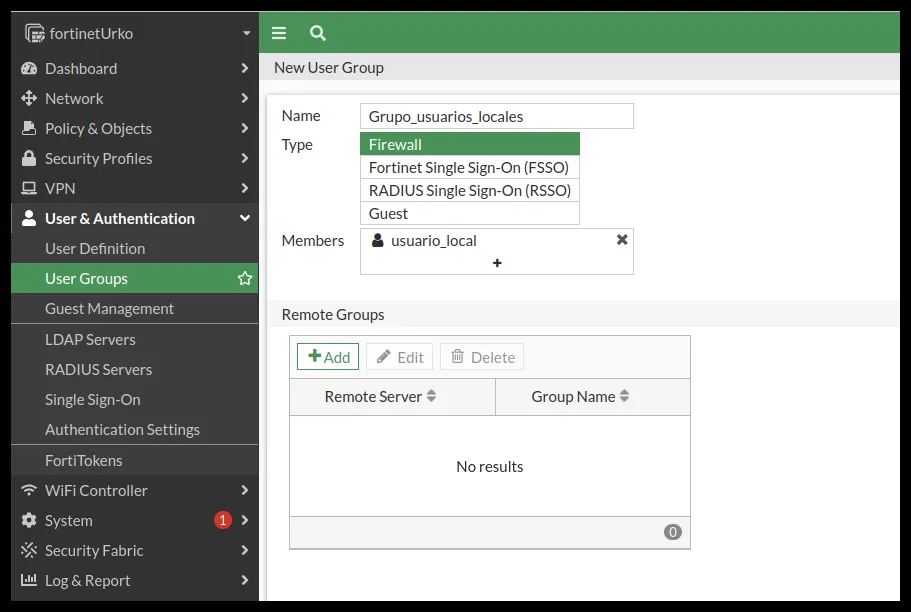
Then add that group to SSL-VPN Settings and to the policy you created earlier.
SSL VPN with RADIUS
Section titled “SSL VPN with RADIUS”Set up the RADIUS service in Fortinet and integrate it with an NPS server in an Active Directory environment.
Requirements
Section titled “Requirements”- A working Active Directory.
- The NPS role installed on a Windows Server and protected by Ironchip. See Microsoft NPS.
- An MFA application created in the Ironchip admin console.
- The Ironchip app downloaded.
Configure NPS
Section titled “Configure NPS”-
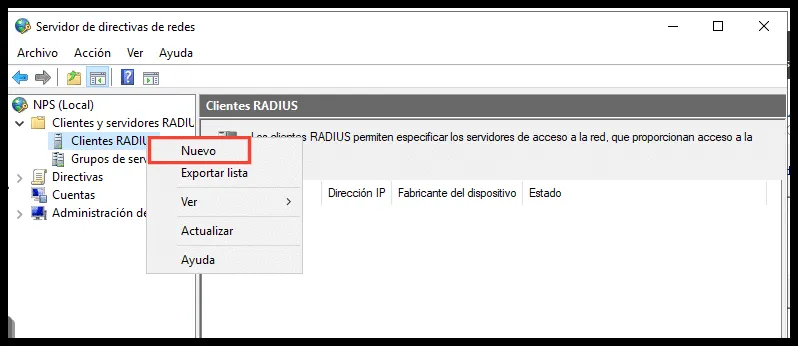
On your AD server, open the NPS (Network Policy Server) configuration and create a new RADIUS client that points to the Fortinet IP.
-
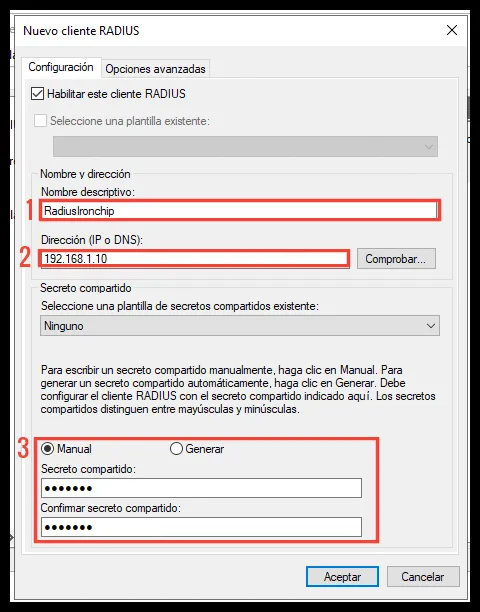
Enter these details:
- A descriptive name for RADIUS.
- The IP of Fortinet.
- A secret key for RADIUS.
Users and groups in FortiGate
Section titled “Users and groups in FortiGate”-
Open the Fortinet configuration panel in a browser, using the IP of your Fortinet device.
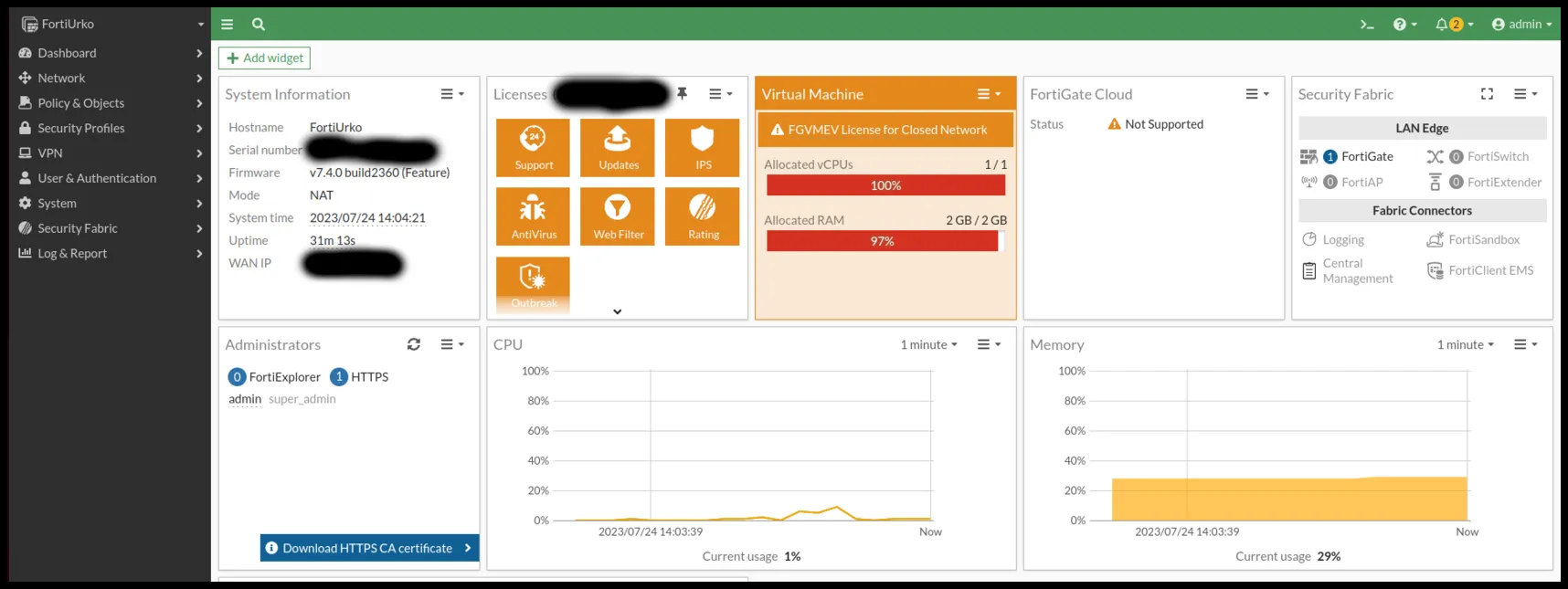
-
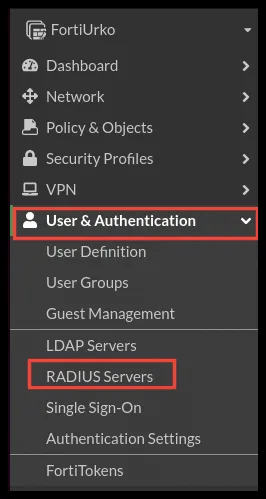
Go to User & Authentication > RADIUS Servers and add a new one.
-
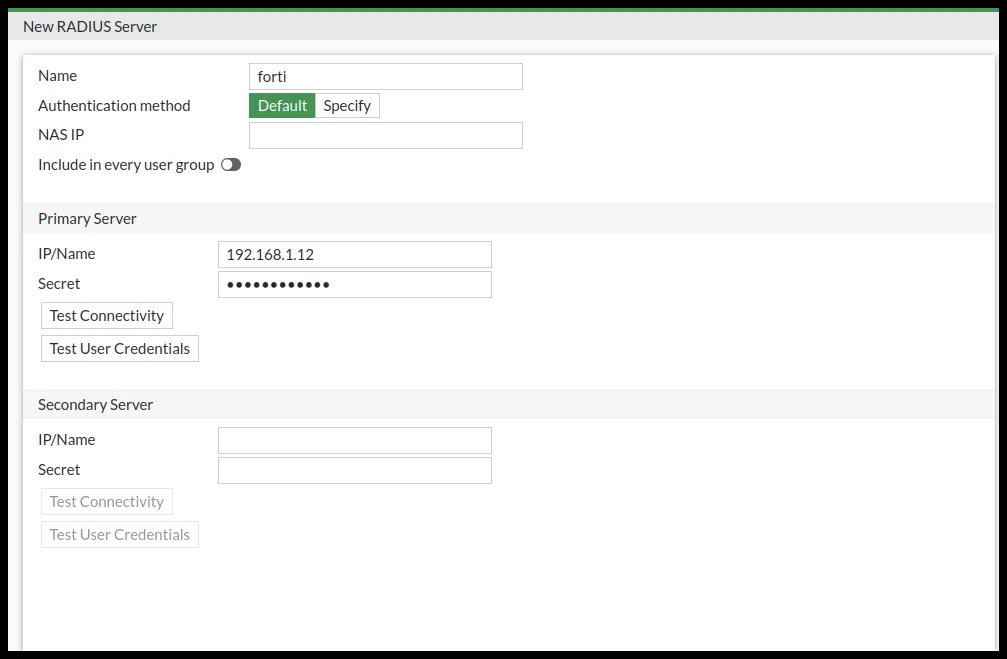
Fill in the details: a descriptive name, the IP of the server where you created RADIUS, and the RADIUS secret.
-
To confirm that it connected correctly, click Test Connectivity. If the result is
Successful, click Test User Credentials and sign in with a user from your domain. If it fails, check that the Windows Server firewall has an inbound rule that allows RADIUS (UDP) traffic from the Fortinet IP. -
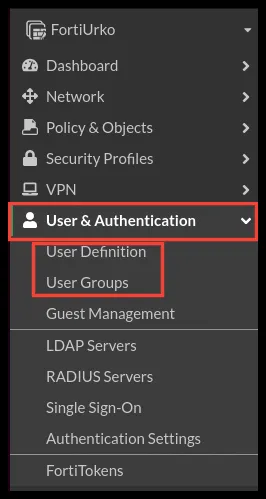
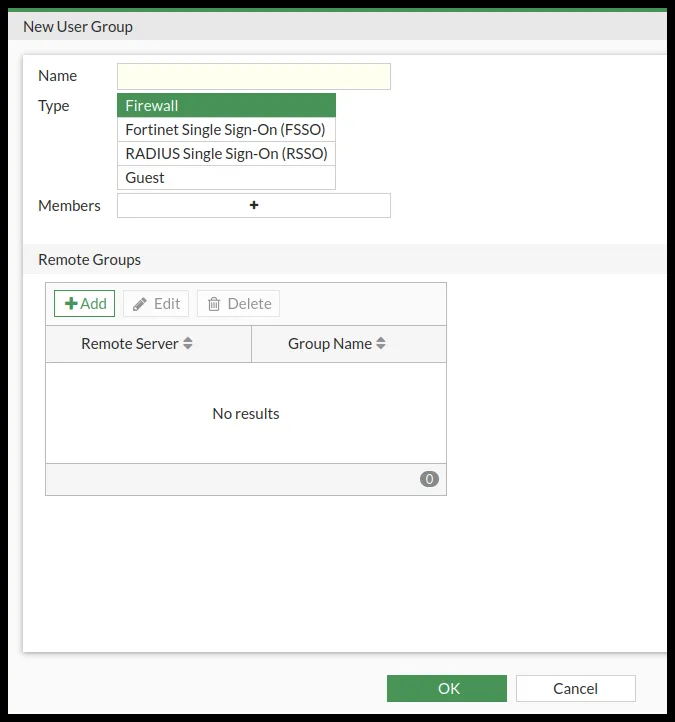
Create a group and users that refer to the domain in Fortinet. Go to User & Authentication > User Groups and add a new one.
-
Give it a name, select Firewall and in Remote groups select your RADIUS server.
-
To configure the users, go to the User Definition tab and repeat these steps for each user:
- Click Create New.
- Select Remote RADIUS User.
- Enter the user in
domain\usernameformat and select the RADIUS server you created earlier. - Leave Two-factor disabled.
- Enable User Group and select the group you created.
Attribute in the network policy (optional)
Section titled “Attribute in the network policy (optional)”To avoid creating the users one by one, add an attribute to the domain network policy.
-
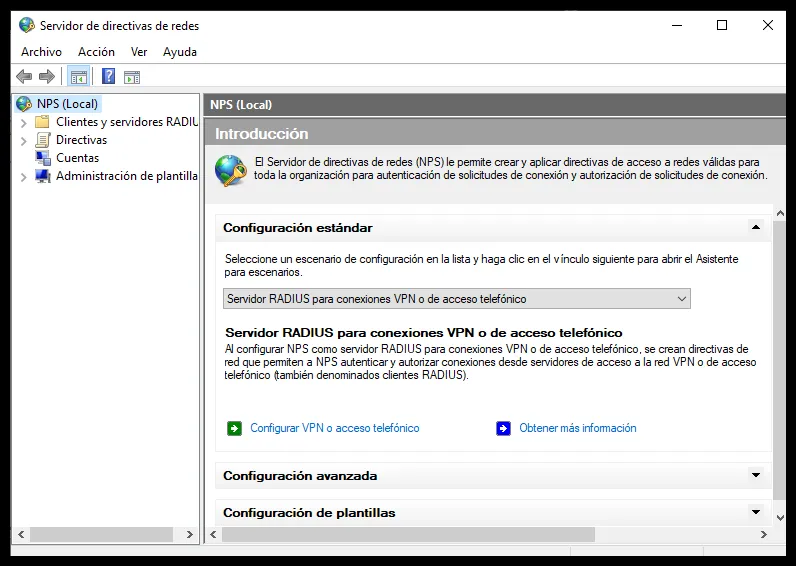
Open Network Policy Server.
-
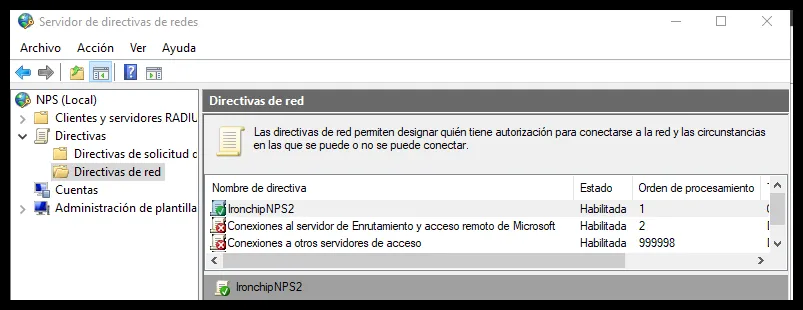
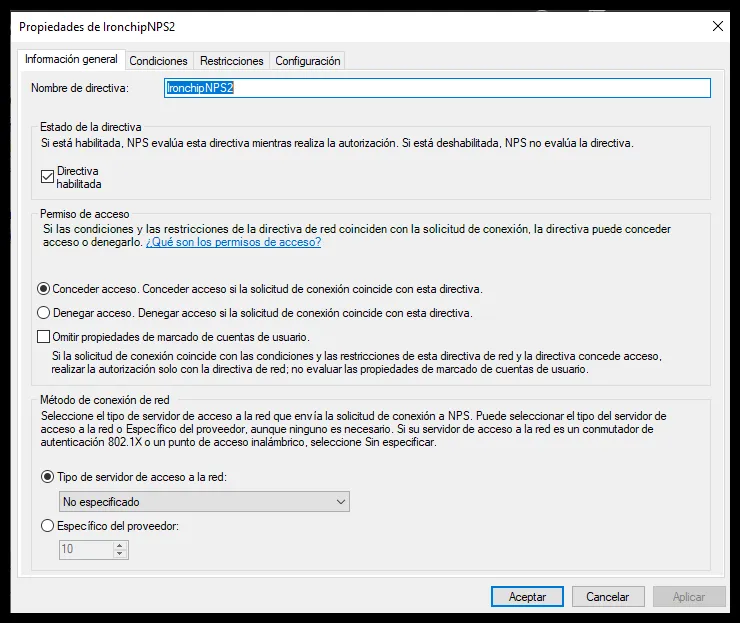
Go to Policies > Network Policies and double-click the policy.
-
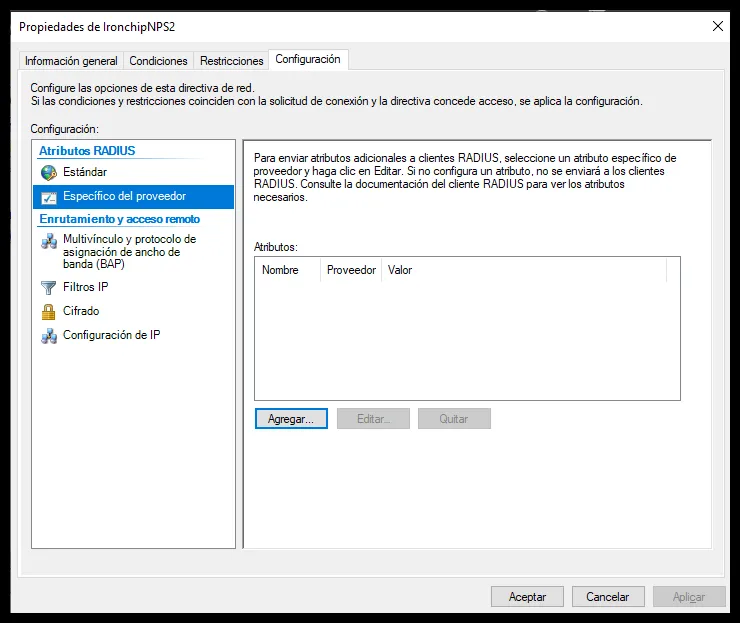
Go to Settings, under RADIUS Attributes select Vendor Specific and click Add.
-
In the Vendor drop-down, select Custom and then the
vendor-specificoption.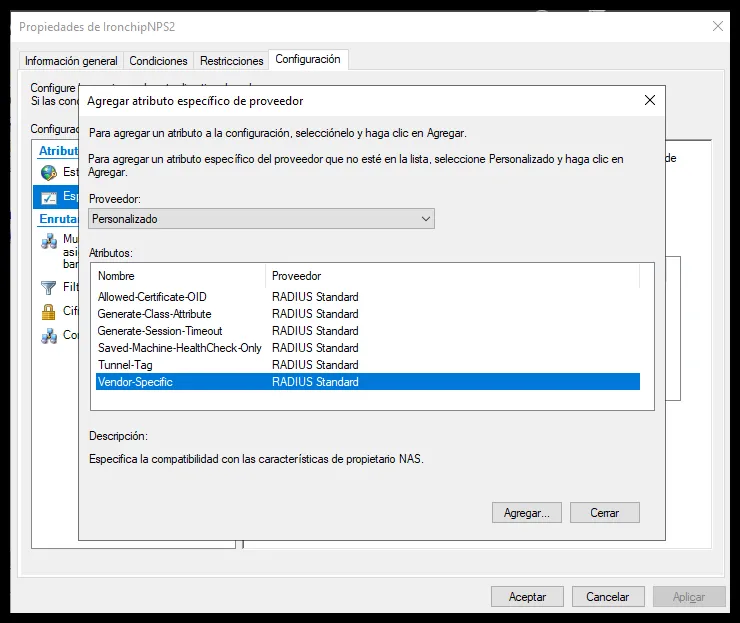
-
Click Add. This window appears:
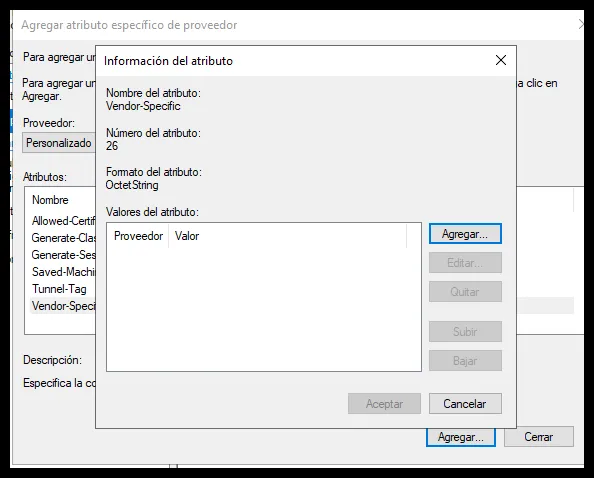
-
Click Add and set the next window as shown:
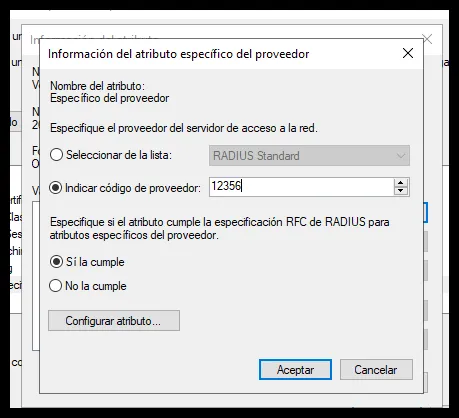
-
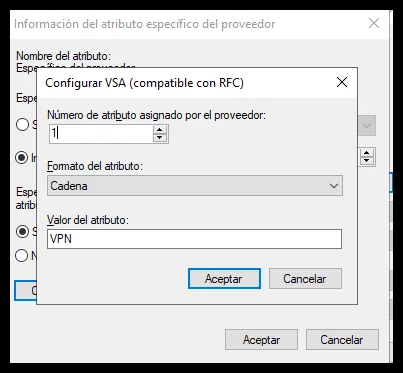
Click Configure Attribute and in the window that appears set:
- Vendor-assigned attribute number:
1. - Attribute format:
String. - Attribute value: the group you created earlier in Fortinet.
- Vendor-assigned attribute number:
Configure the VPN
Section titled “Configure the VPN”-
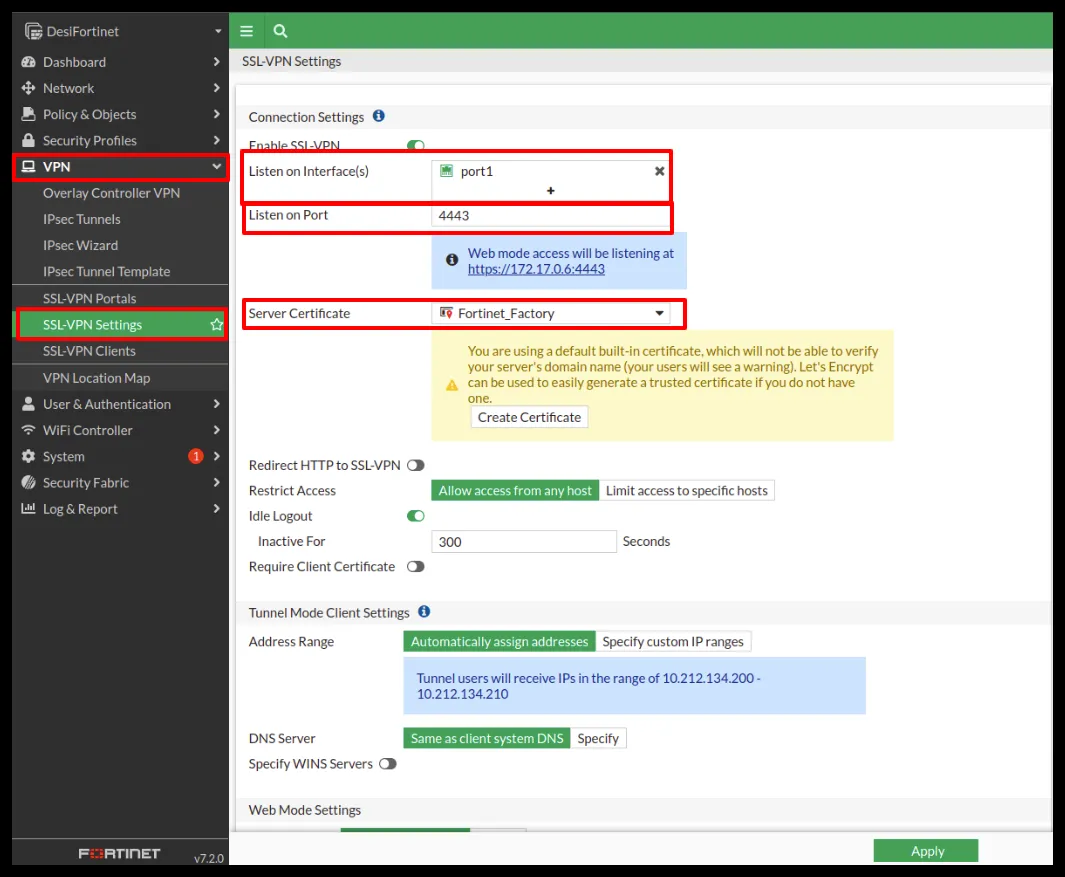
Go to VPN > SSL-VPN Settings.
-
Modify the fields as follows:
- Select the interfaces you will use, such as the WAN or LAN.
- Change the port to avoid conflicts. We recommend
4443or10443. - You do not need to create a certificate, but you can create a self-signed one if you need it.
-
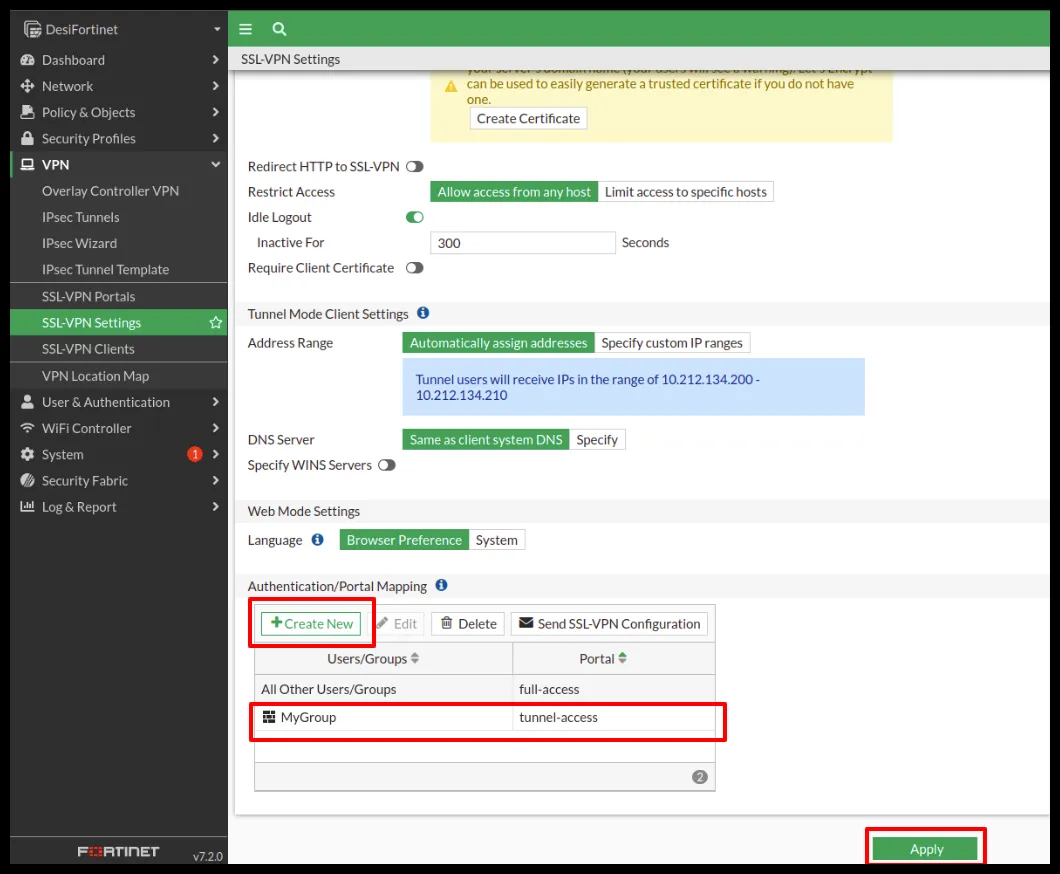
Scroll to the bottom of the page, where there are two more fields to configure.
-
In Authentication/Portal Mapping, click Create New, select your user group and assign it the
tunnel-accessportal. -
Click Apply.
Firewall policy
Section titled “Firewall policy”-
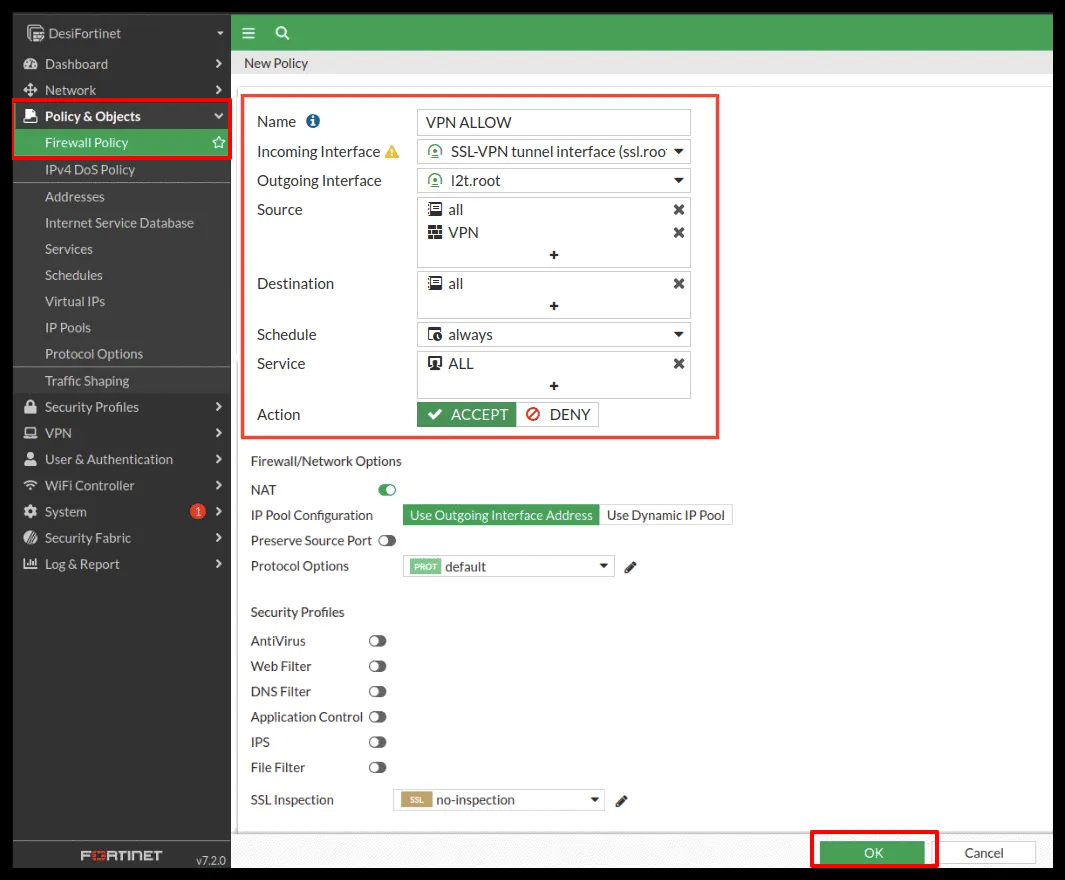
Go to Policy & Objects > Firewall Policy and create a new policy.
-
Configure it as follows:
- Name: a name for the policy. It is the one you enter in the application in the Ironchip console and in the plugin.
- Incoming Interface:
SSL-VPN tunnel interface. - Outgoing Interface: the physical interface.
- Source:
alland, very important, the group you created. - Destination:
all. - Service:
ALL.
-
Click OK.
-
Set the Fortinet and RADIUS connection timeouts to 60 seconds so users have time to complete authentication. Open a Fortinet terminal with the icon in the upper right corner. This command gives the users of the associated group 60 seconds:
config user groupedit <PROTECTED_USER_GROUP_NAME>set authtimeout 60end -
Do the same for the RADIUS connection:
config system globalset remoteauthtimeout 60end -
Change the configuration so that Fortinet does not send more than one request when you authenticate:
config user radiusedit <RADIUS_SERVER_NAME_IN_FORTIGATE>set timeout 60end
Application in Ironchip
Section titled “Application in Ironchip”Verify with FortiClient
Section titled “Verify with FortiClient”Both the NPS server and Fortinet must be running when you test.
-
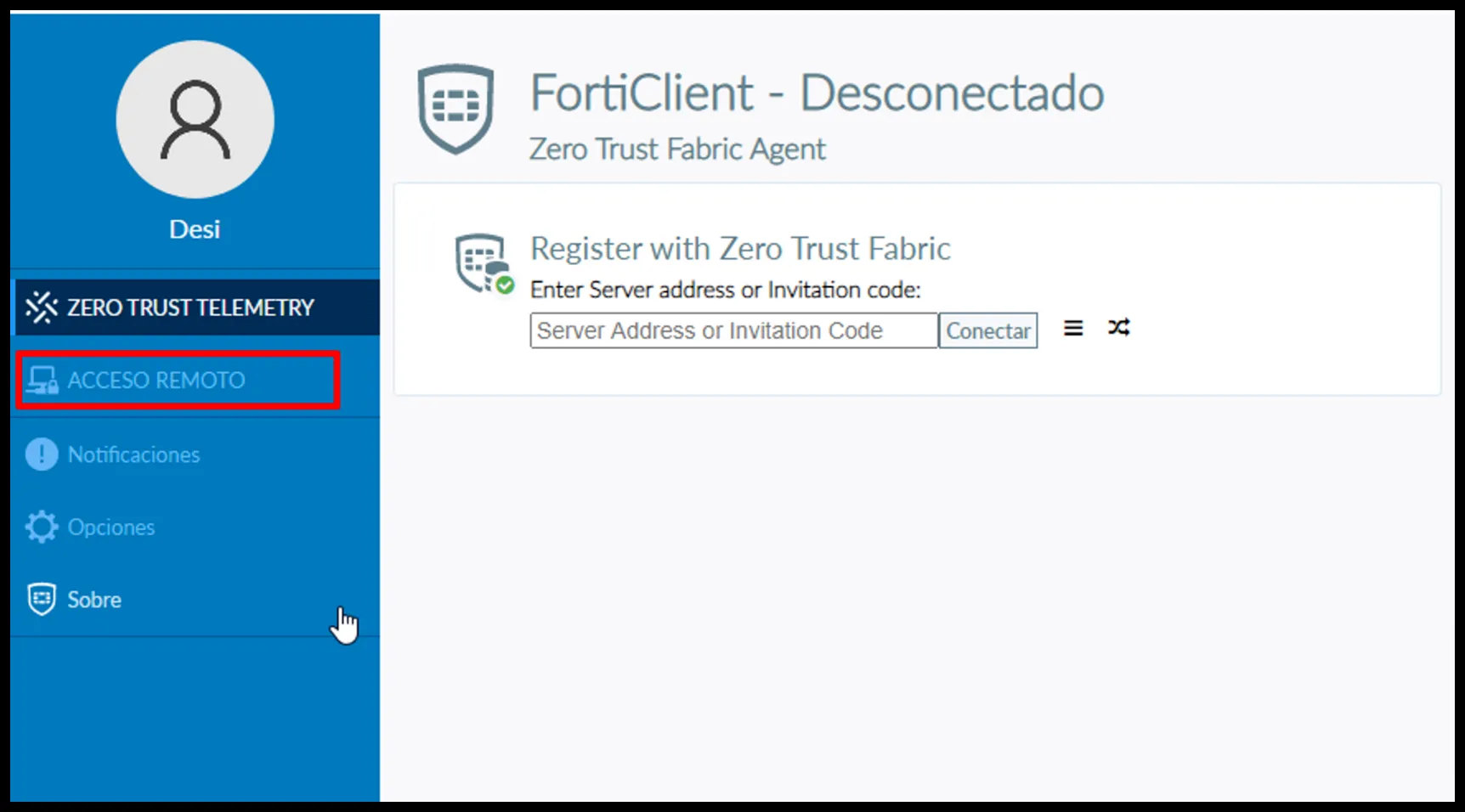
In FortiClient, select REMOTE ACCESS.
-
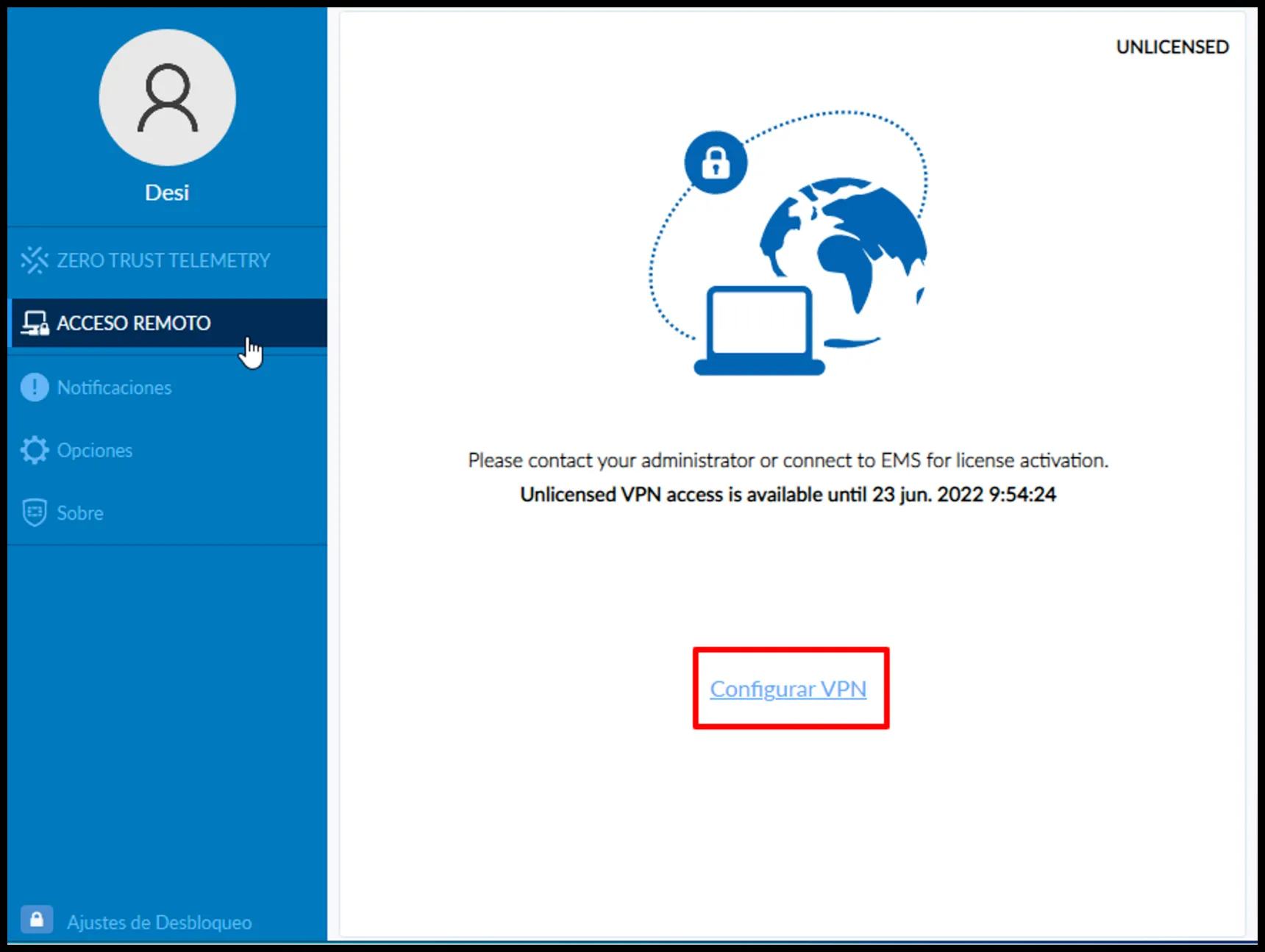
In the next window, select Configure VPN.
-
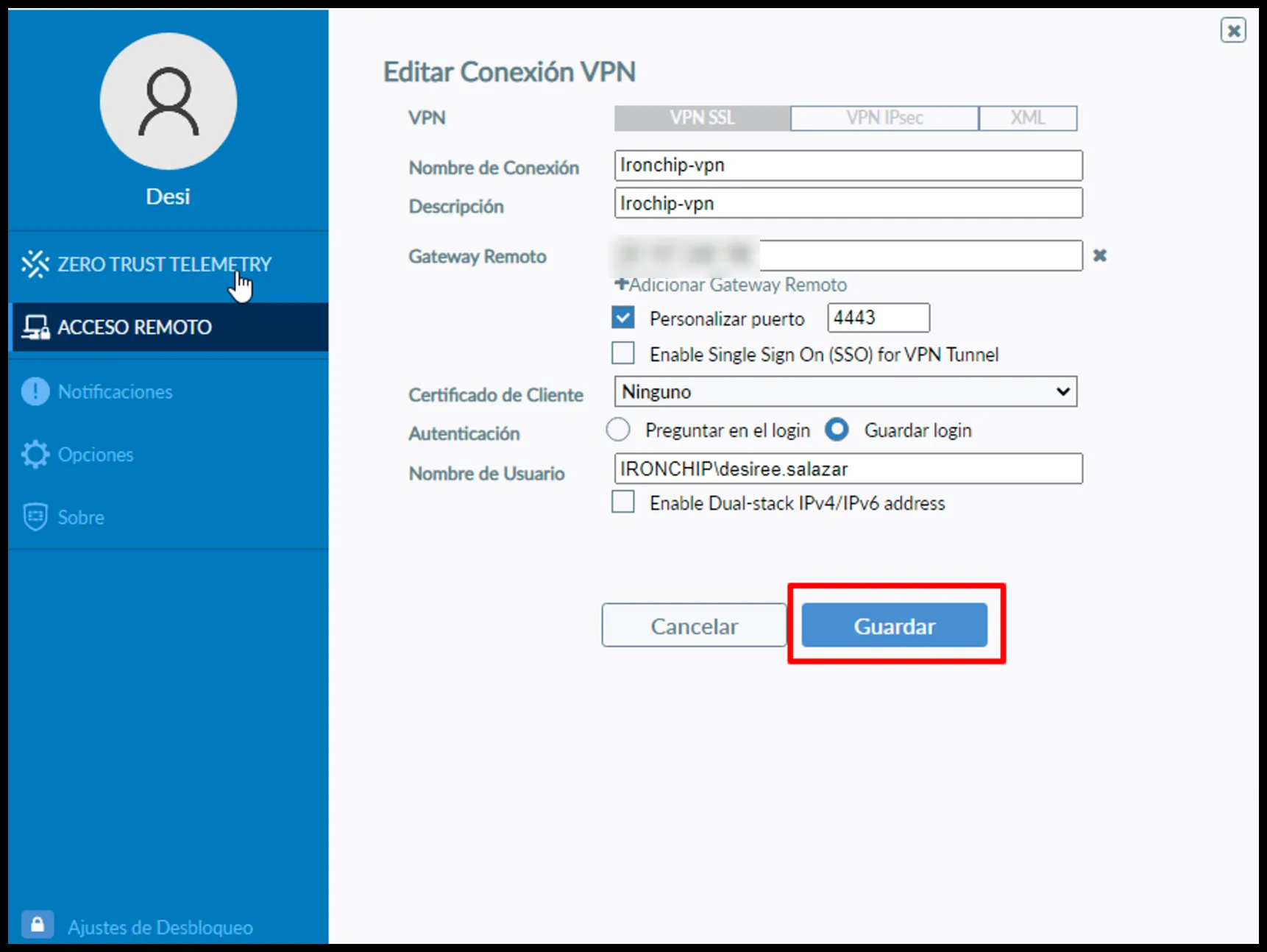
Enter the VPN details. Use the same user identification pattern that you set in the group and in the application in the Ironchip console. Click Save.
-
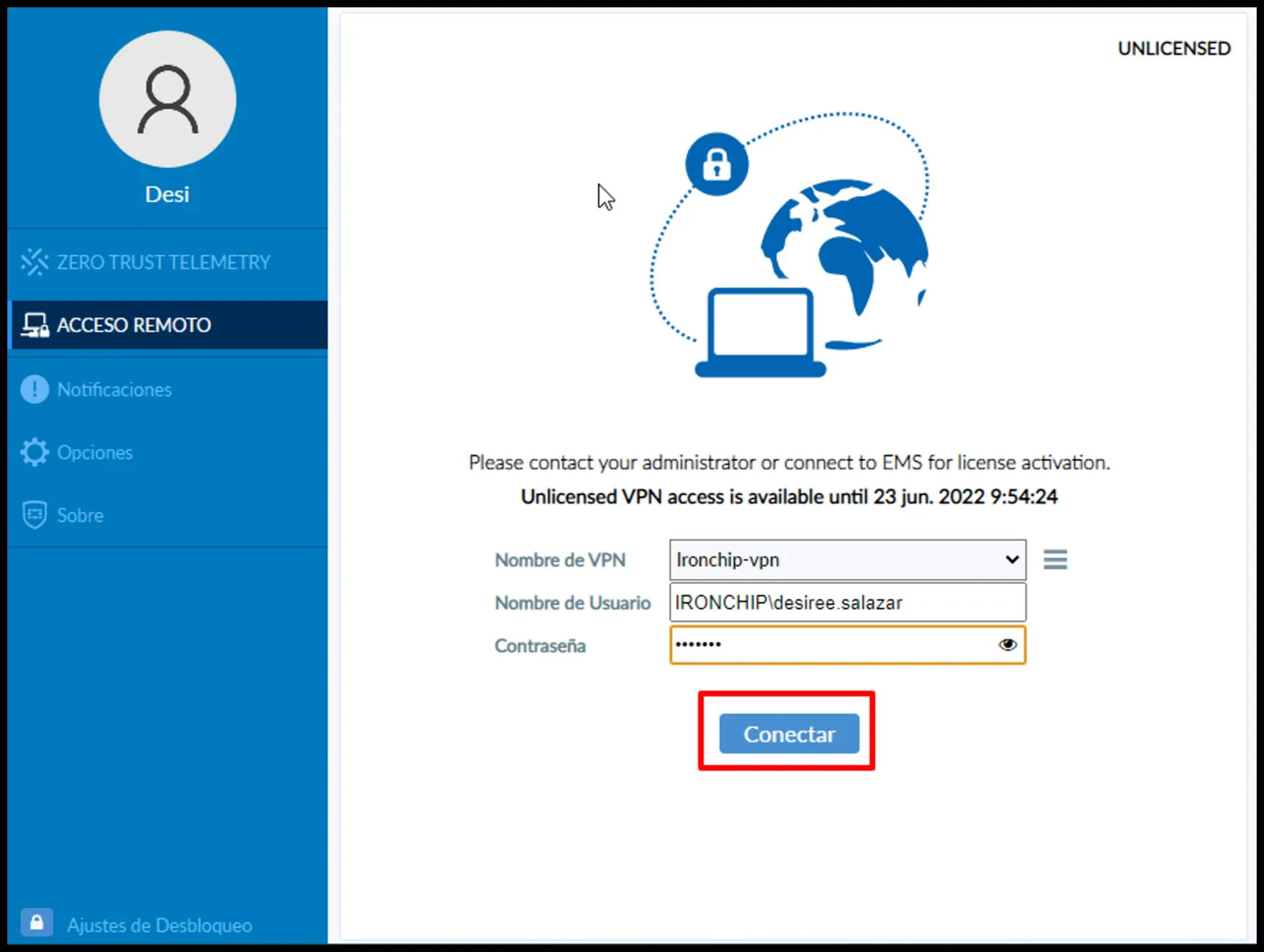
The next screen shows the connection name and the username. Enter the password and click Connect. If the computer firewall blocks the connection, create a rule that allows FortiClient to connect to the VPN IP and port instead of disabling the firewall.
-
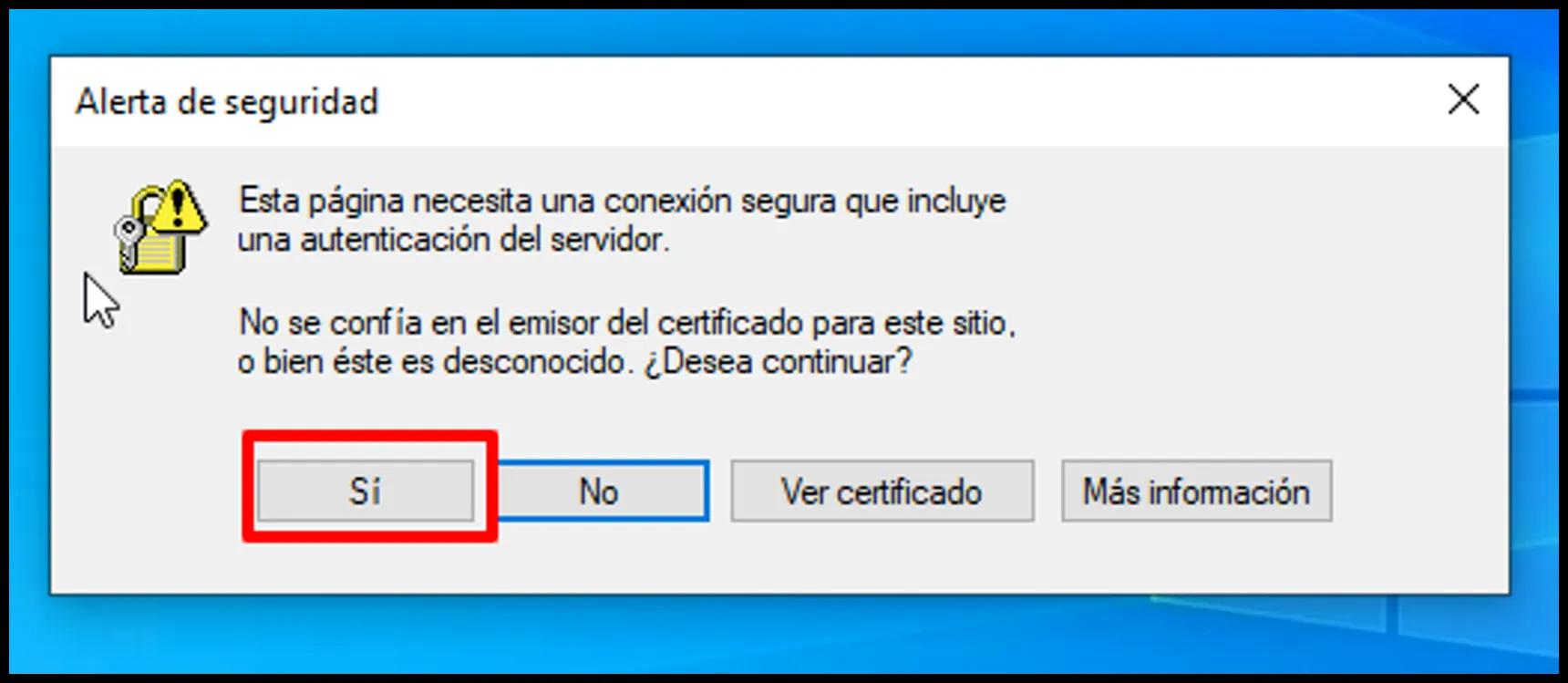
A security alert appears. Read it and click Yes.
-
The connection process continues. You receive a message to authorize access from the Ironchip app. When you accept it, the connection completes.
-
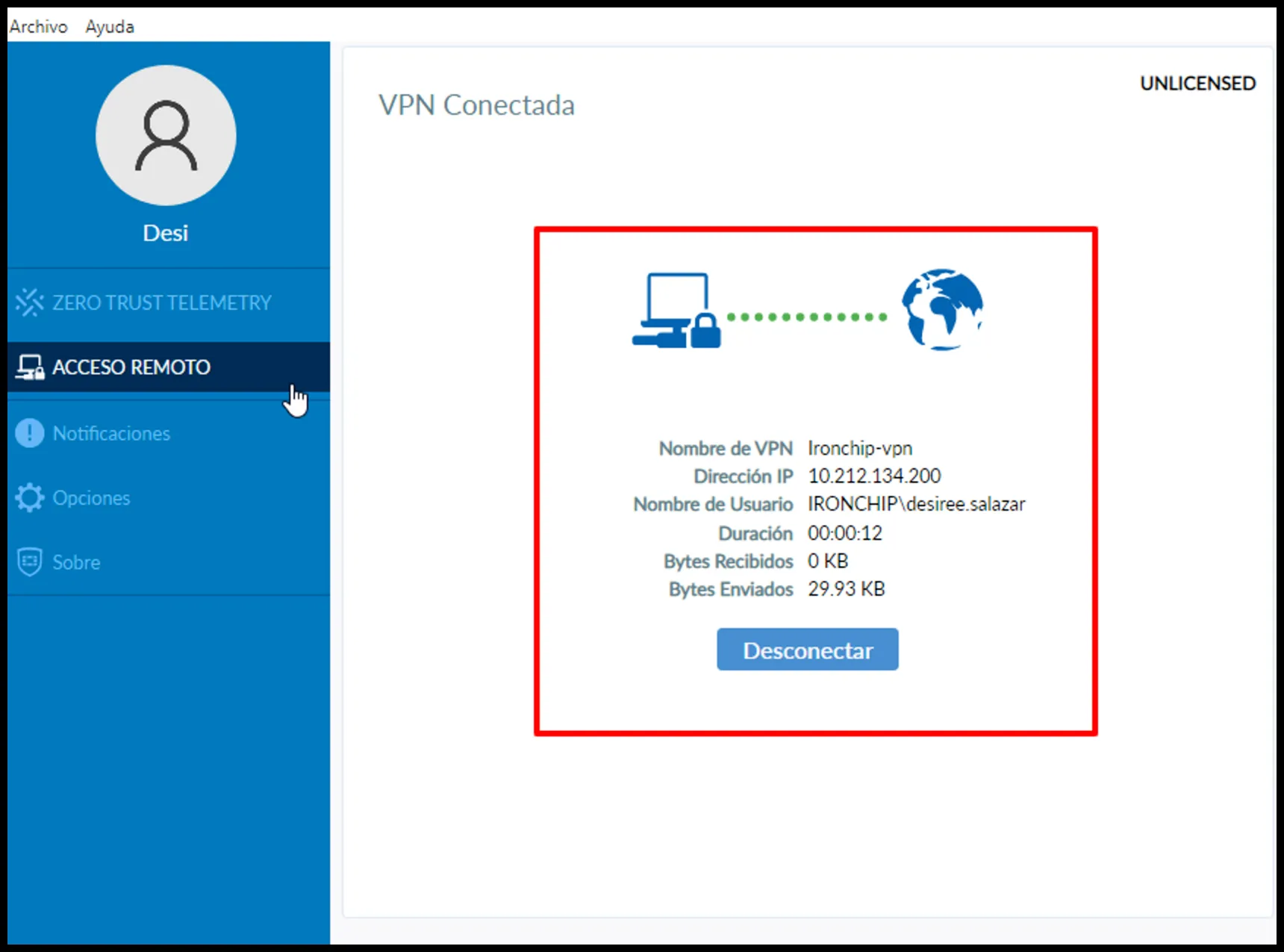
When the connection is established, a window with a brief description appears.
IPsec with SAML
Section titled “IPsec with SAML”Protect a remote access IPsec VPN tunnel (dial-up, IKEv2) on FortiGate with SAML authentication through Ironchip.
Requirements
Section titled “Requirements”- Administrative access to the FortiGate GUI and CLI.
- An administrator account in the Ironchip console with permissions to create SAML applications.
- FortiClient VPN installed on the client computers, with SSO/SAML support for IPsec.
- A remote access IPsec VPN (IKEv2).
Enable the global SAML port
Section titled “Enable the global SAML port”From the Fortinet CLI, run:
config system global set auth-ike-saml-port 1001endConfigure the SAML application
Section titled “Configure the SAML application”Configure SAML SSO in Fortinet and in Ironchip.
-
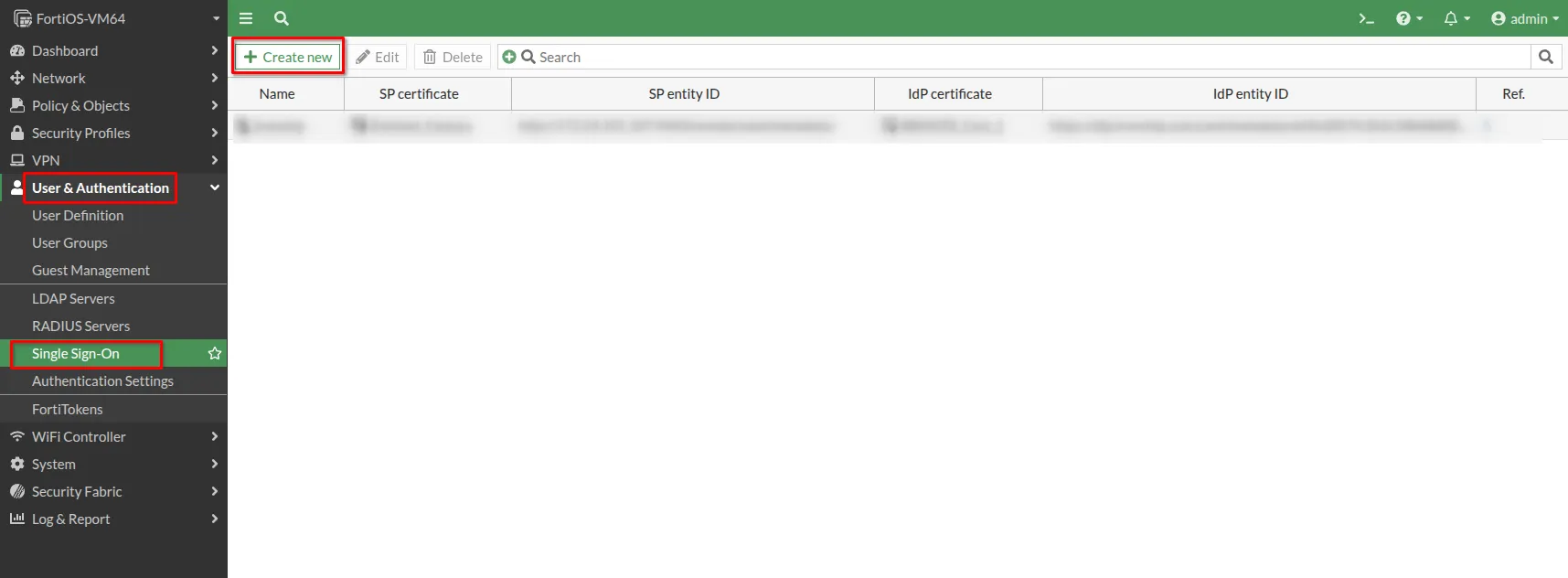
In FortiGate, go to User & Authentication > Single Sign-On and click Create New.
-
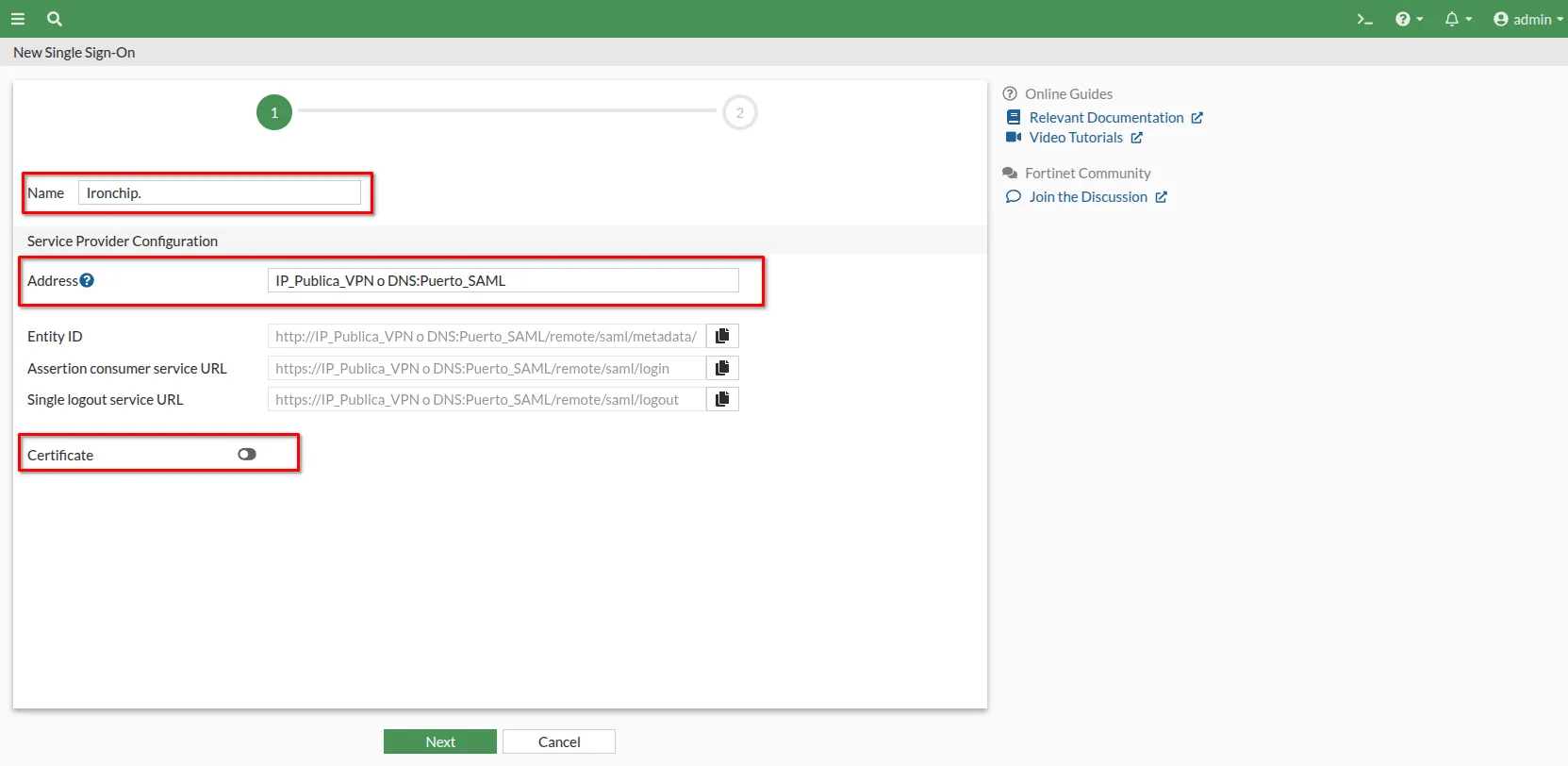
Enter a name for the configuration, the IP or DNS name of the VPN together with the SAML port you configured earlier, and the certificate you use in the VPN.
-
The next window asks for the identity provider (IdP) metadata, in this case Ironchip. To get it, go to the Ironchip admin console > Applications > New application > SAML.
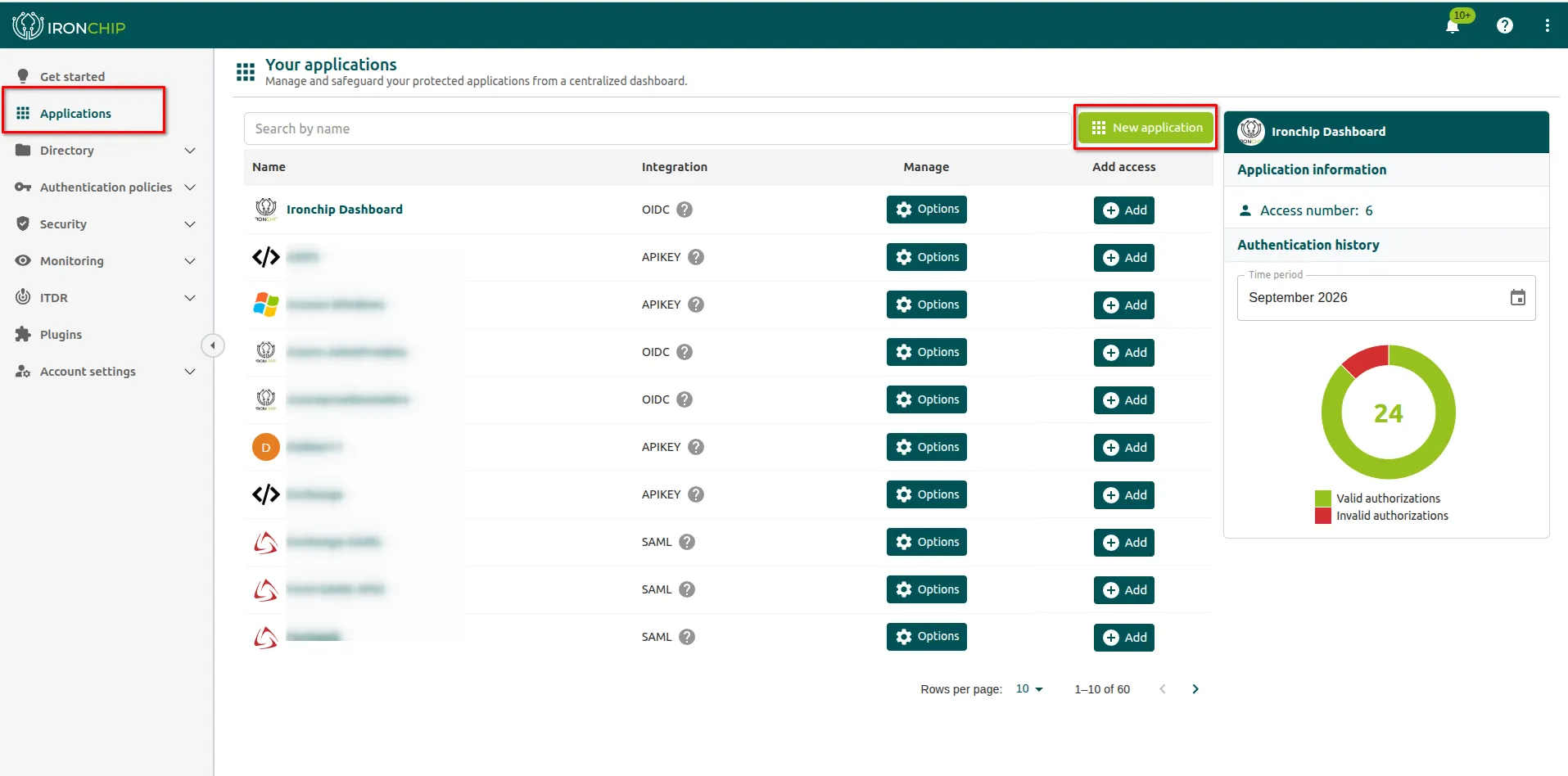
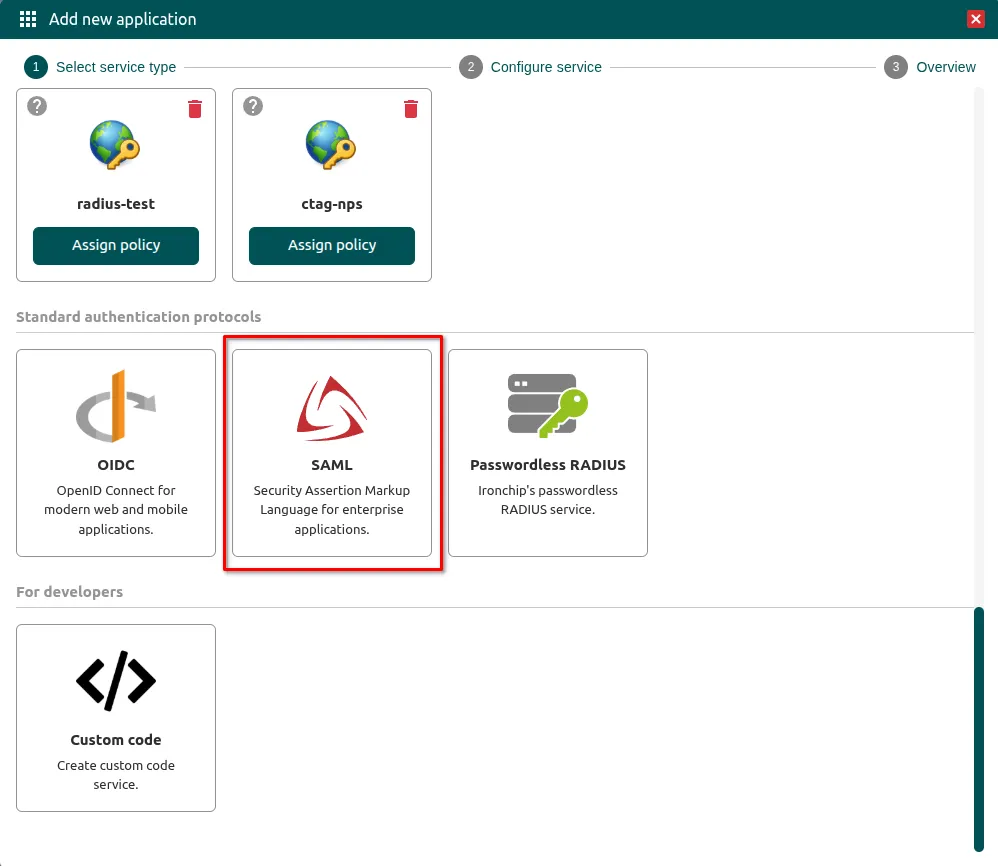
-
When you create the application, it asks for a name. Use a descriptive one, because it appears later on the users’ authenticator devices.
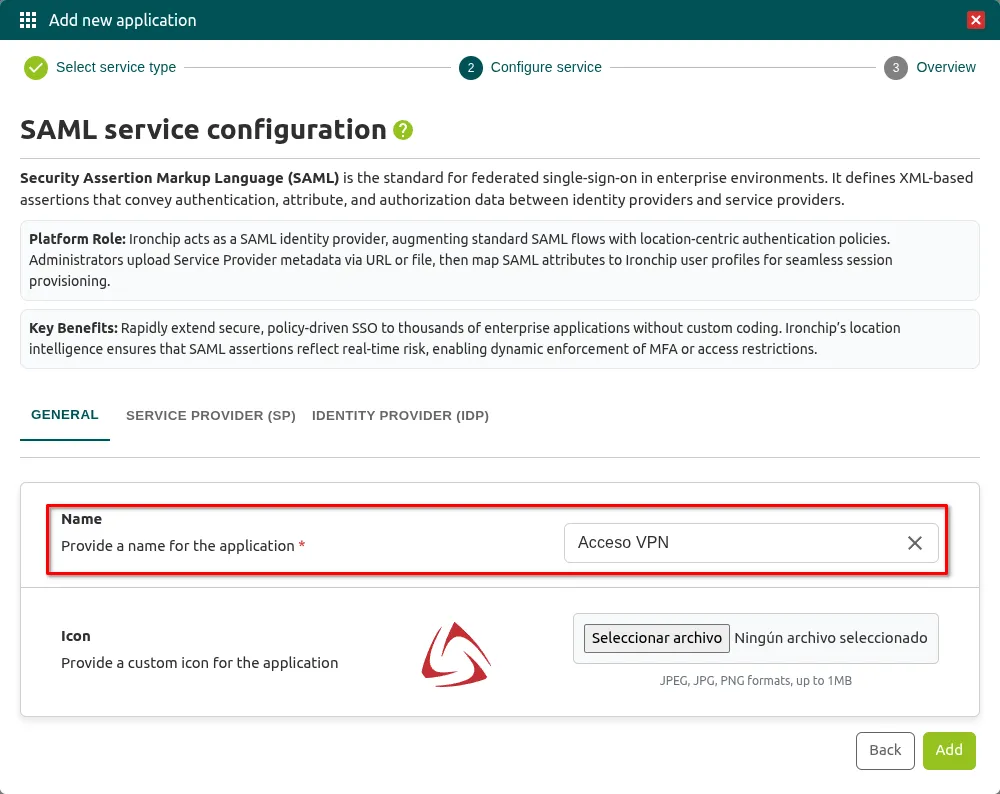
-
Go to the Identity Provider (IdP) section and copy this data:
- IdP Entity ID or Issuer
- Single Sign On Service (URL)
- Signing X.509 Certificate. You must import this certificate into Fortinet.
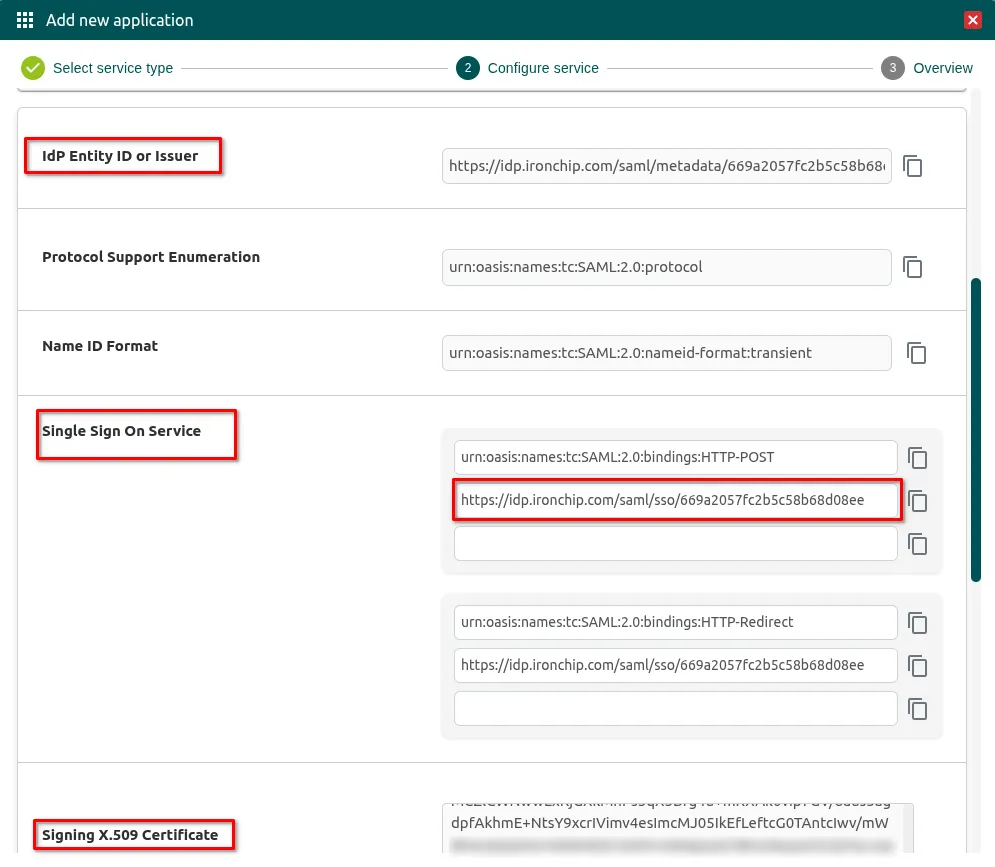
-
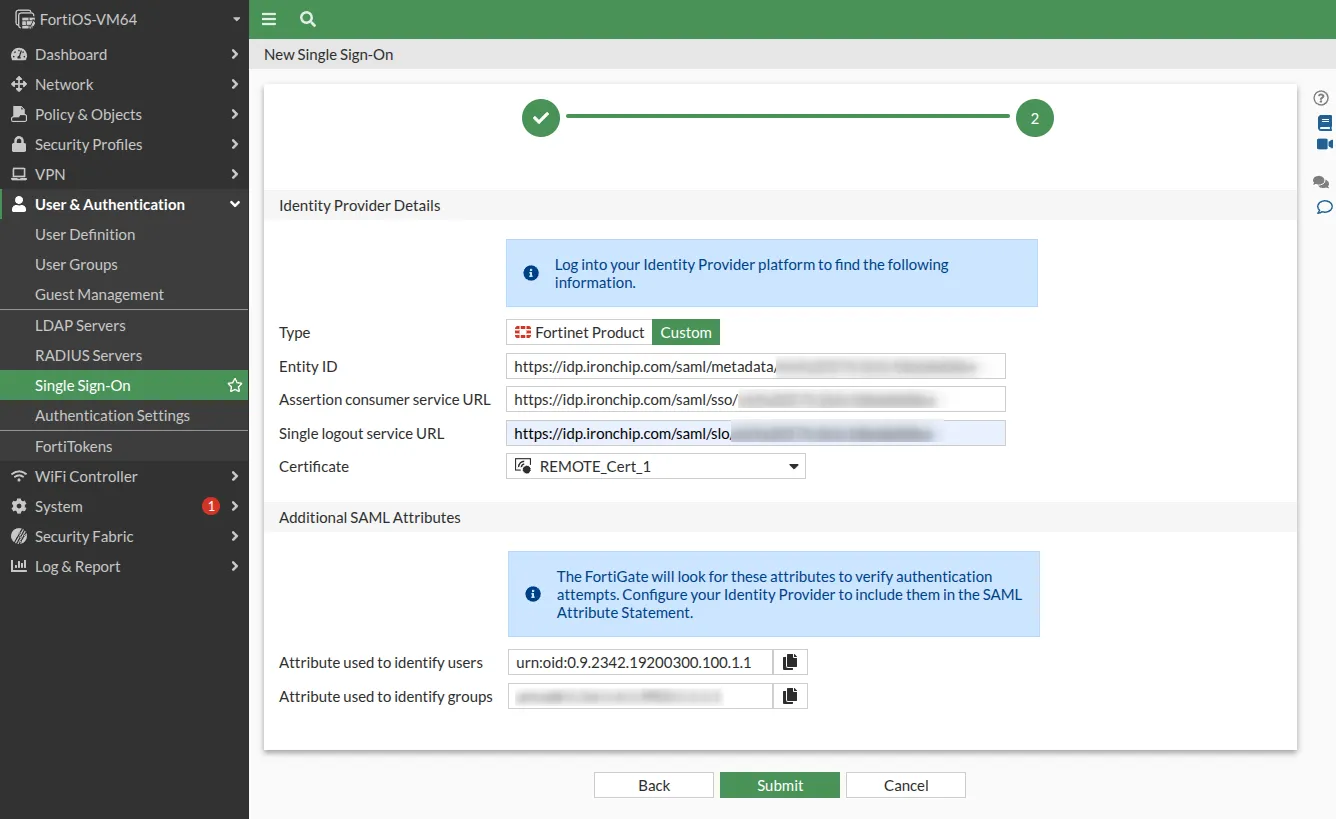
Paste the data into the Fortinet configuration:
- IdP Entity ID or Issuer in Entity ID.
- Single Sign On Service in Assertion consumer service URL.
- Single logout service URL: use the same URL as Assertion consumer service URL, but change
ssotosloin the path.
-
Enter the attributes Fortinet asks for to authenticate users:
- Attribute used to identify users:
urn:oid:0.9.2342.19200300.100.1.1 - Attribute used to identify groups:
urn:oid:1.3.6.1.4.1.5923.1.1.1.1
- Attribute used to identify users:
-
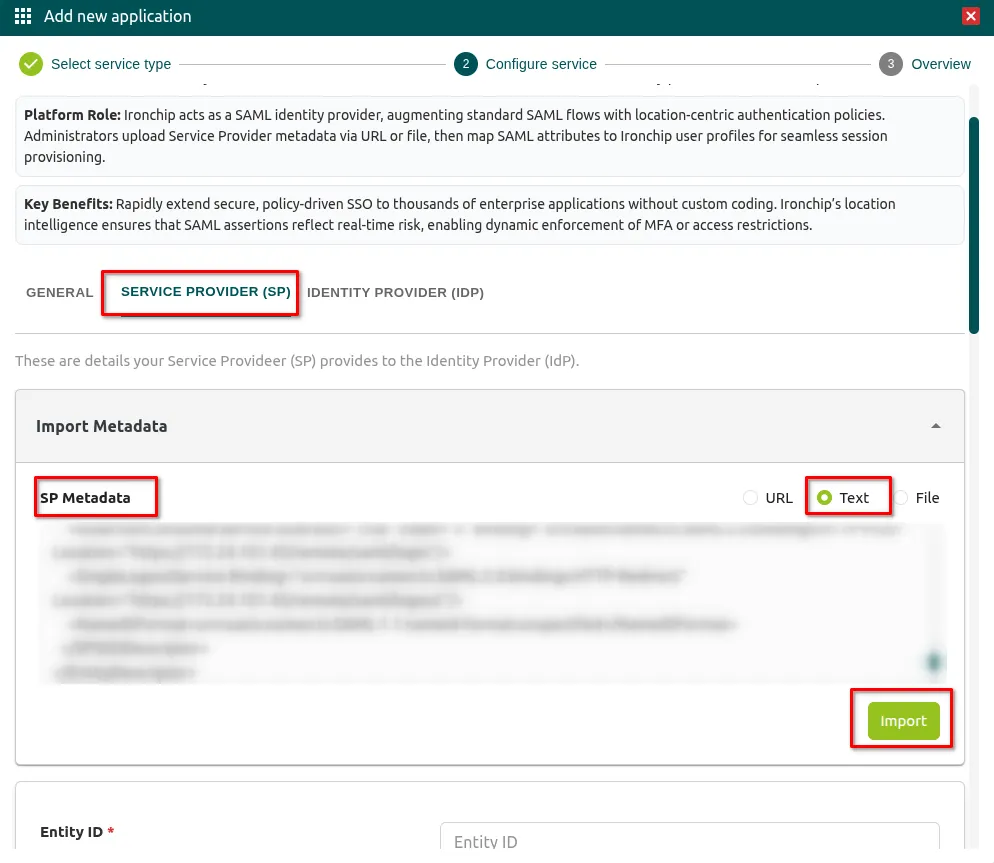
Get the Fortinet metadata to import it into Ironchip. Open the Fortinet global CLI and run:
diag vpn ssl saml-metadata "<SAML NAME HERE>" -
Copy the output. In the application you created in the Ironchip admin console, open the Service Provider (SP) section, select Text in SP Metadata, paste the output and click Import.
-
Click Add to finish creating the application in Ironchip.
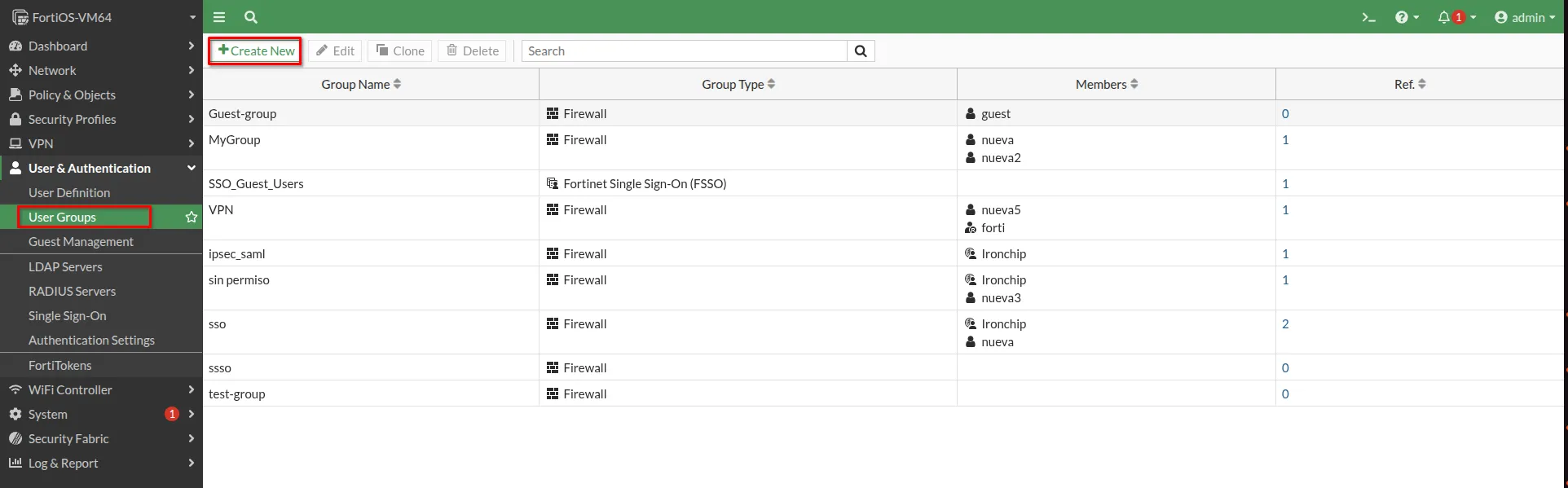
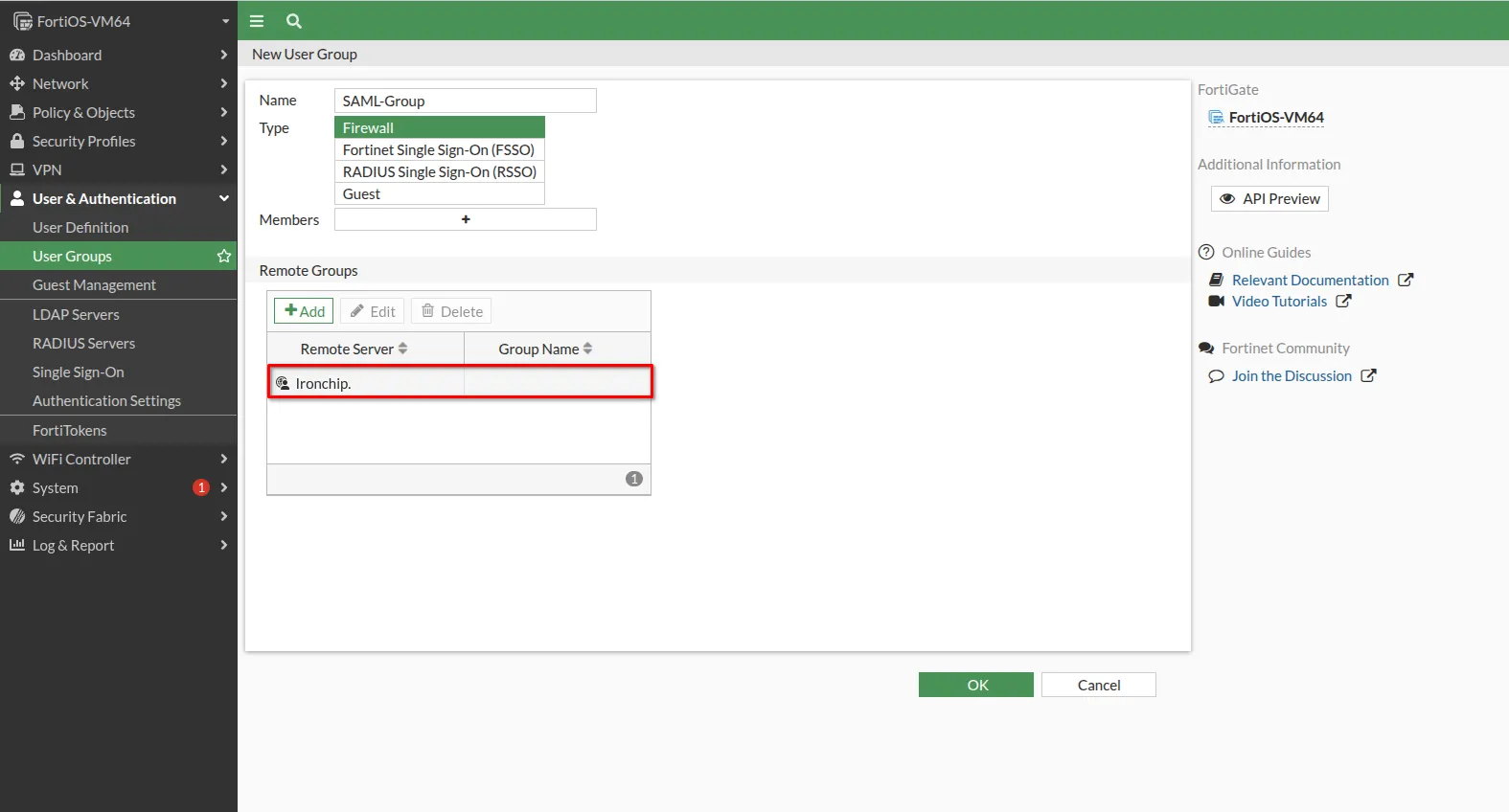
Create the user group
Section titled “Create the user group”Assign this SAML configuration to a group so you can later associate it with the firewall policies.
Enable EAP on the phase 1 interface
Section titled “Enable EAP on the phase 1 interface”Edit the phase 1 interface to replace PSK with EAP against the Ironchip user group:
config vpn ipsec phase1-interface edit IPSEC-DIALUP set eap enable set eap-identity send-request set authusrgrp SAML-GroupendWas this page helpful?
Thank you. We will use it to improve the documentation. If you want to tell us what is missing or unclear, write to support@ironchip.com.