

Get started with the identity platform
This guide walks you through, in order, what an administrator does the first time they sign in to the Ironchip admin console. Each step links to the corresponding detailed guide. When you finish, you will have a protected application and a first group of users authenticating from their safe zone.
Before you start
Section titled “Before you start”- An administrator account in the console. Ironchip creates it when the company is registered, in a kickoff meeting, with the emails and names of the first people who will administer it.
- The Ironchip app installed on the administrator’s phone (App Store or Google Play).
- Access to the organization’s directory (Active Directory, Entra ID, or LDAP) if you are going to synchronize users.
The six tasks
Section titled “The six tasks”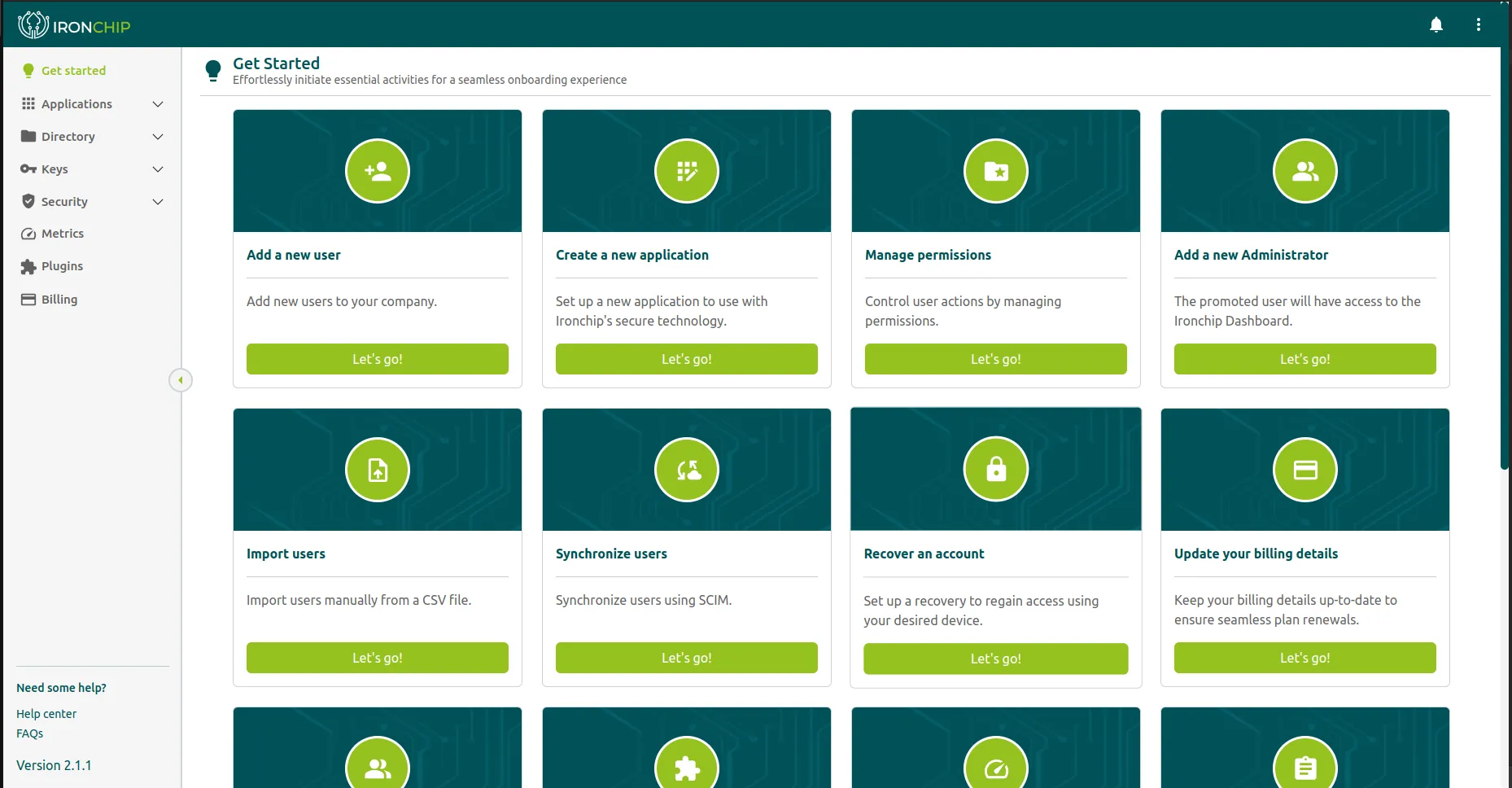
The console opens on the Get started screen, which has one card per task: each Let’s go! button takes you to the section where you do it. These are the six tasks to begin with; the rest of the cards are described in The Get started screen.
-
Add a safe zone to recover the account. This is the zone from which an administrator can recover access if they lose their device. Usually, the headquarters. Safe zones and geofencing.
-
Add a user. Create the first user by hand (it can be another person on the IT team) to test the full enrollment flow before synchronizing the whole workforce. Users and groups.
-
Synchronize users. Connect the directory to bring in users and groups automatically: AD Connect for Active Directory, enterprise application for Entra ID, or LDAP proxy. Identity synchronization.
-
Create an application. Add the first protected service and choose the protocol: OIDC or SAML for web applications, RADIUS for VPN and network, HTTP API for in-house applications. Protocols.
-
Make a user an administrator. Appoint at least one more administrator, so you do not depend on a single account. Assign an administrator.
-
Manage safe zones. Define the rest of the zones (floors, data center, homes of remote workers) and assign them to groups and applications through policies. Authentication policies.
Next steps
Section titled “Next steps”- Distribute the app to the workforce and turn on automatic invitation so each new user receives their enrollment email.
- Choose the authentication method for each workstation. For workstations without a phone, see the USB token and the RFID card.
- Turn on ITDR and use event export to download the events you need.
Was this page helpful?
Thank you. We will use it to improve the documentation. If you want to tell us what is missing or unclear, write to support@ironchip.com.