

Salesforce
Ironchip acts as the identity provider (IdP) for Salesforce over SAML. This guide explains how to enable single sign-on and, optionally, how to require users or groups to sign in with Ironchip only.
Requirements
Section titled “Requirements”- Access to the Ironchip admin console.
- A user with the permissions needed to configure Salesforce.
Configure single sign-on
Section titled “Configure single sign-on”-
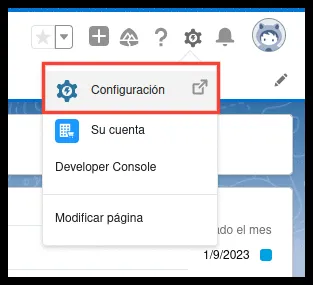
Sign in to Salesforce as an administrator and go to Setup.
-
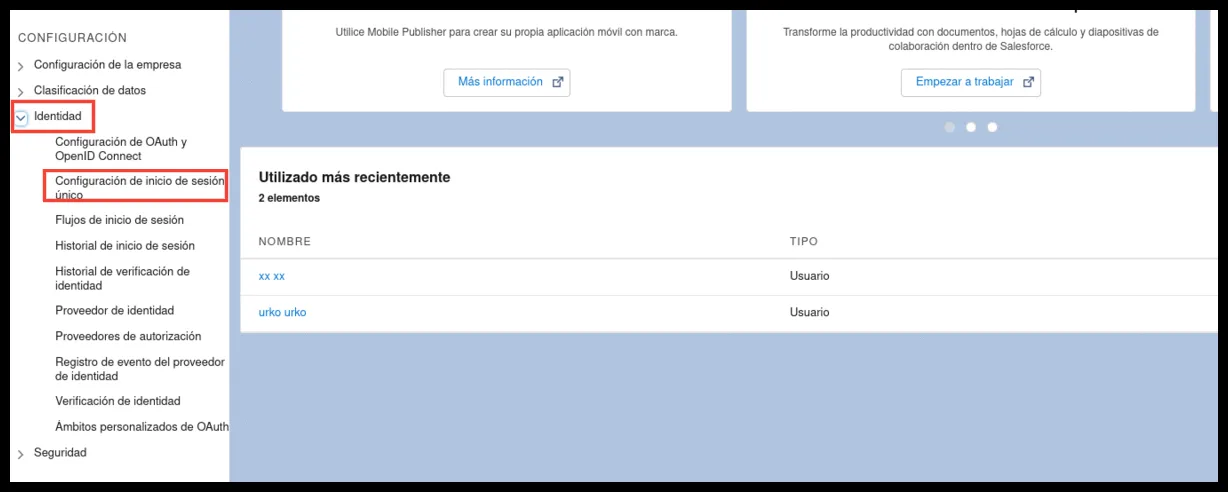
Go to Identity and then Single Sign-On Settings.
-
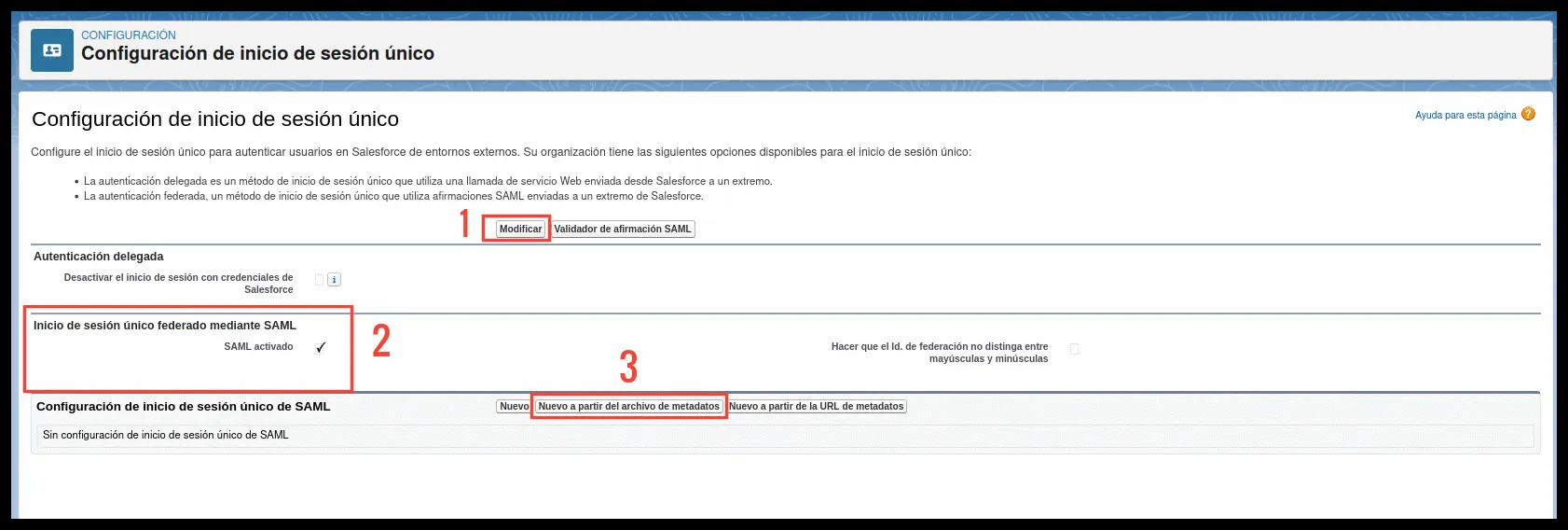
Click Edit, enable SAML Enabled, and click New from Metadata File.
-
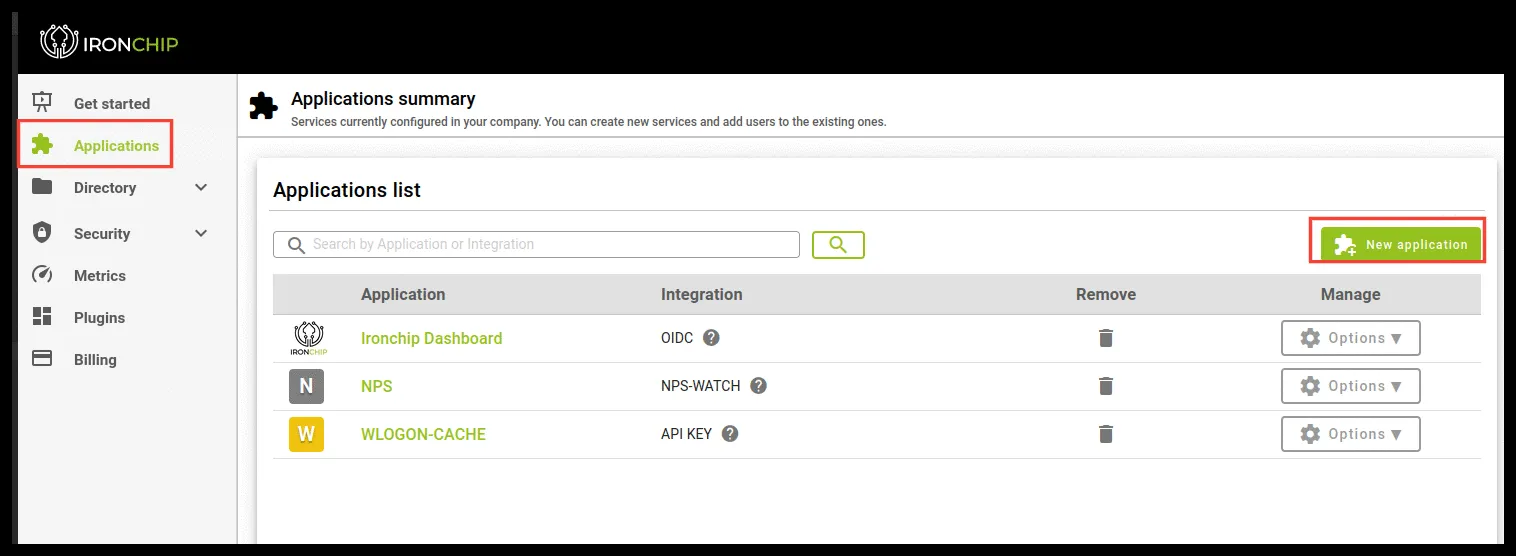
In the Ironchip admin console, go to Applications and click New application.
-
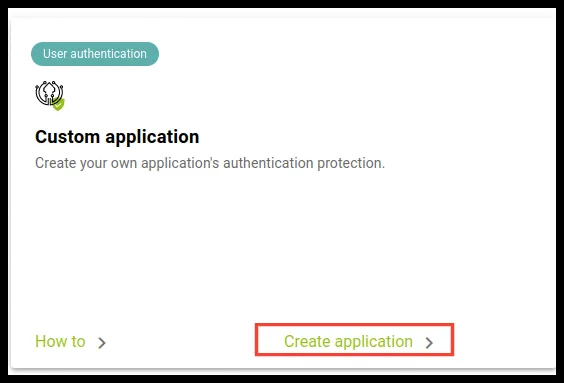
On the Custom application card, click Create application.
-
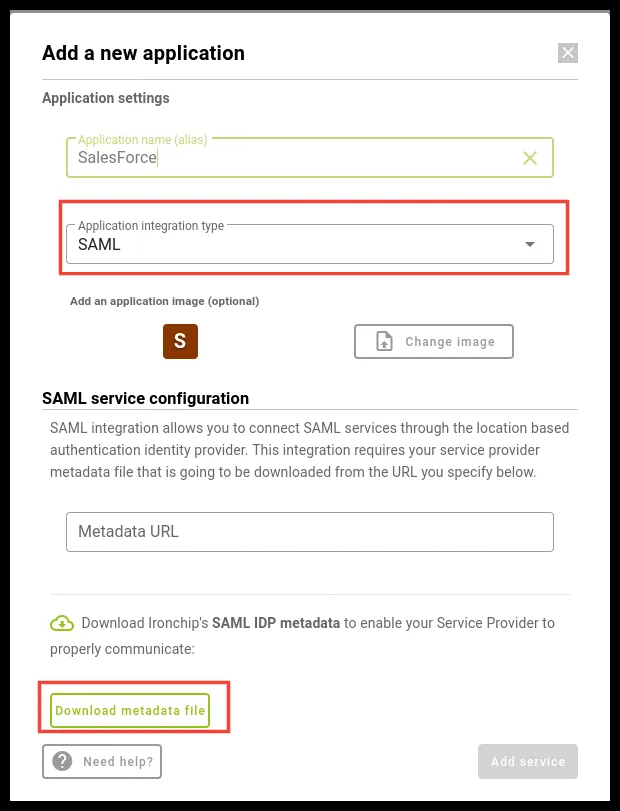
Select the SAML type and download the metadata file with Download metadata file.
-
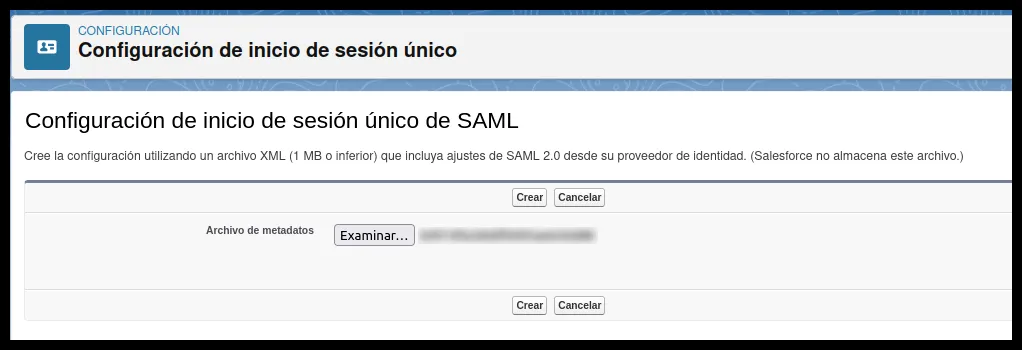
Upload the downloaded file to Salesforce and click Create.
-
Save the changes (change the name if you want) and download the Salesforce metadata with Download Metadata.

-
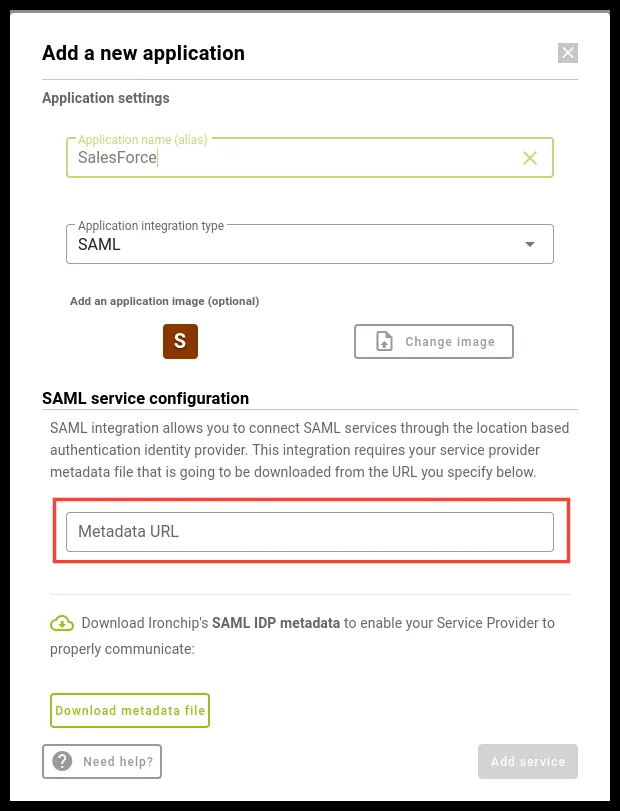
Upload that file to a public internet address and enter its URL, in raw format, in the Metadata URL field of the Ironchip form.
-
Click Add service to add the application.
-
Create the users in Ironchip as shown in the video. The username must be the same as in Salesforce.
Activate Ironchip as an authentication method
Section titled “Activate Ironchip as an authentication method”-
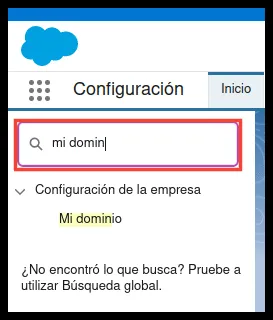
In Salesforce, search for My Domain with the search bar.
-
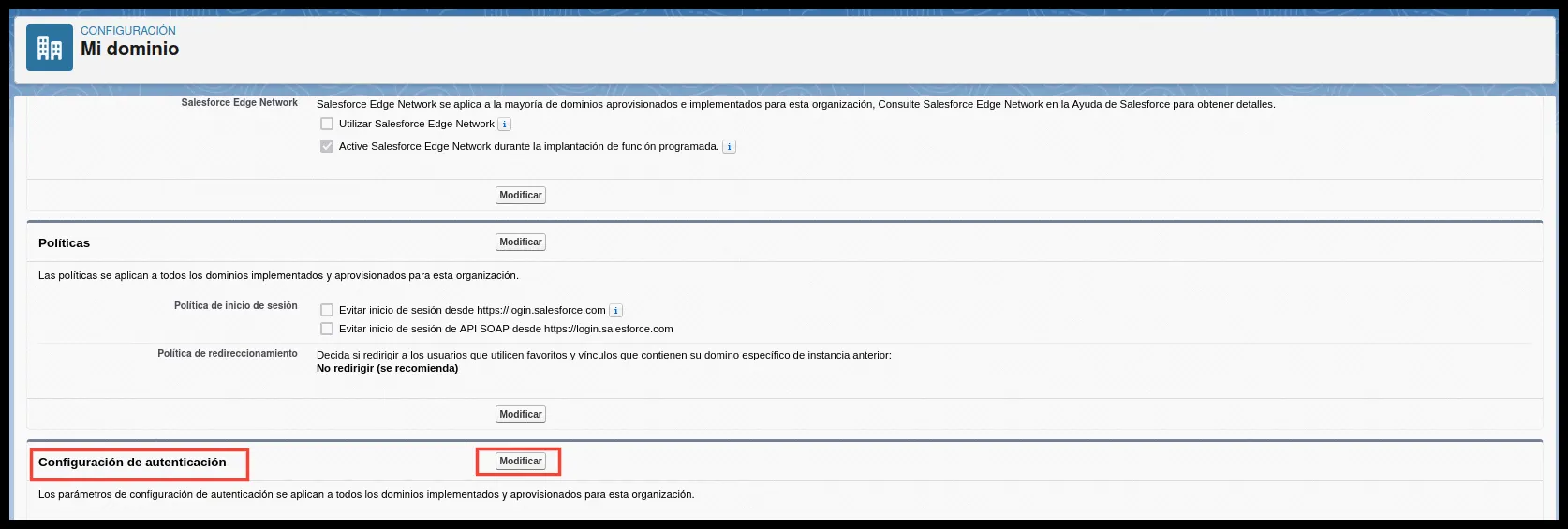
In Authentication Configuration, click Edit.
-
Under Authentication Service, select the new authentication method and click Save.
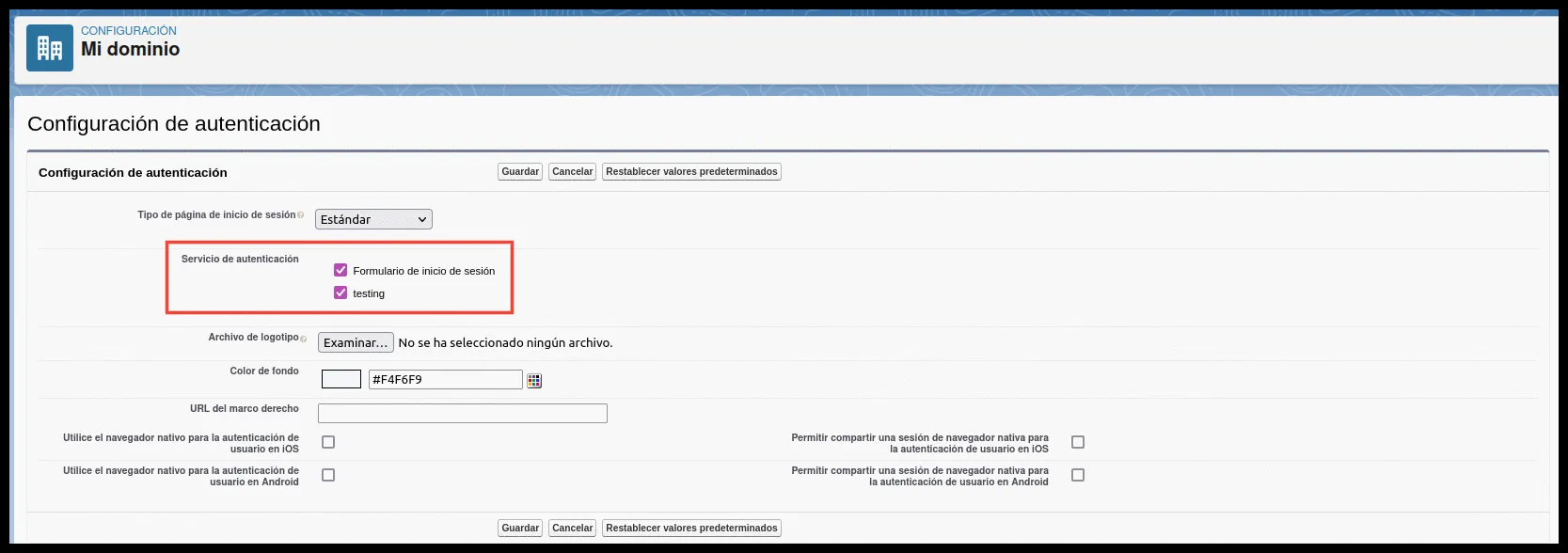
The integration is now configured.
Verify the integration
Section titled “Verify the integration”-
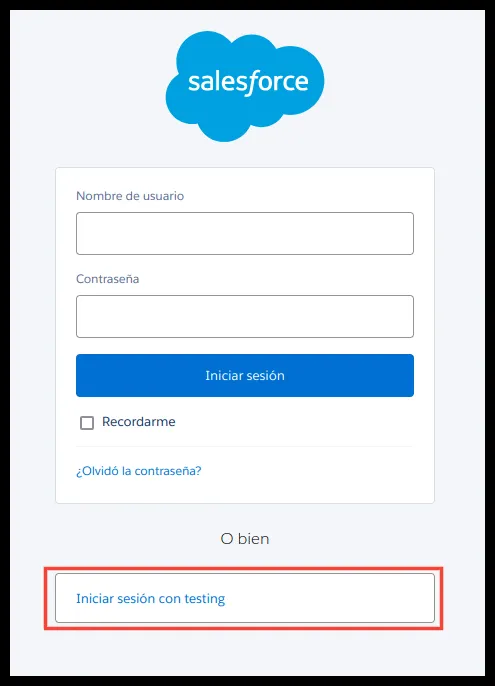
Go to the Salesforce sign-in page and select the Ironchip sign-in option shown below the form.
-
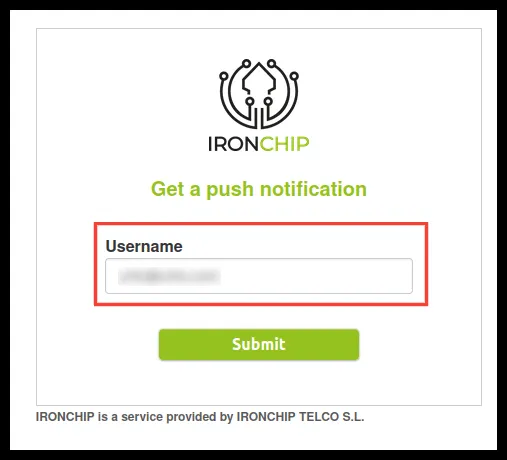
Enter the username.
-
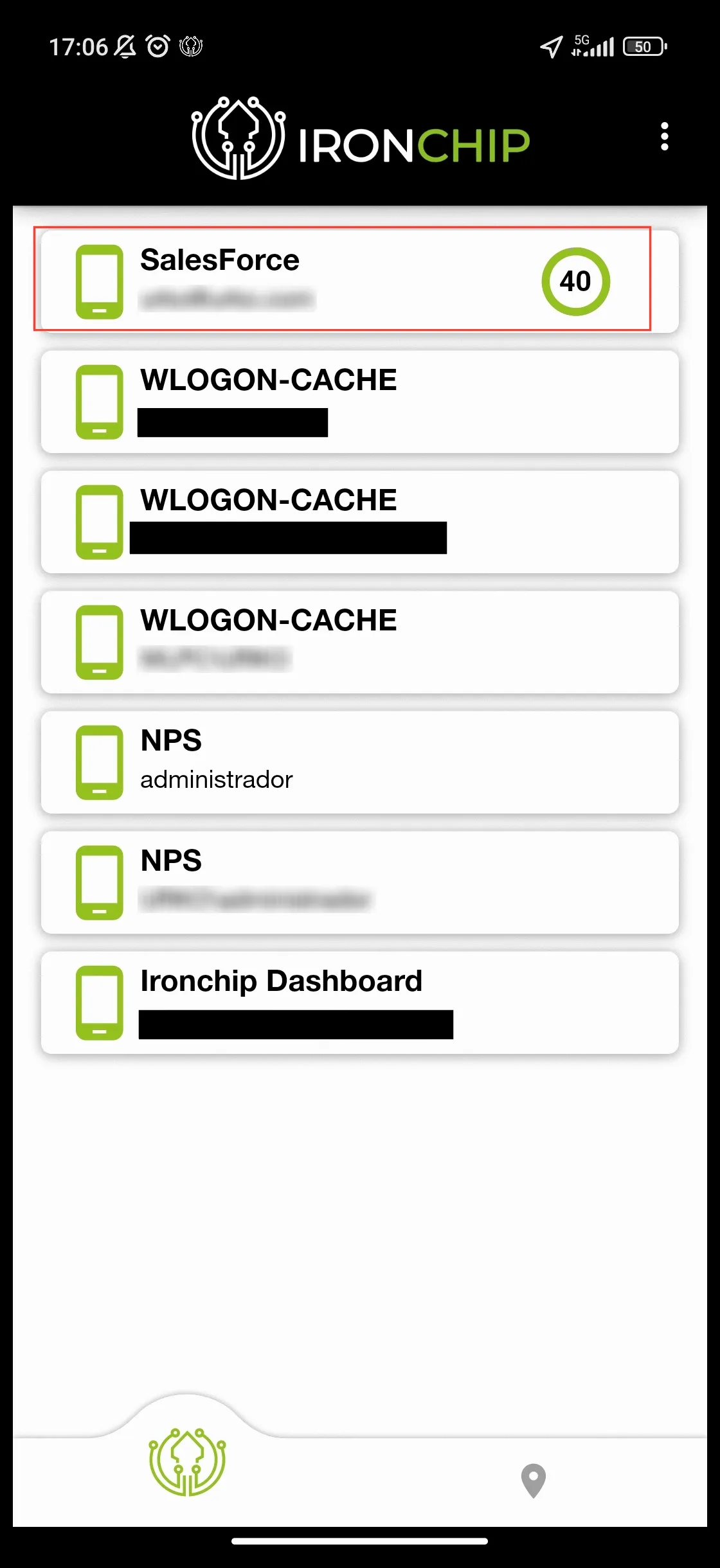
Authorize the connection from the Ironchip app.
Salesforce with Ironchip only
Section titled “Salesforce with Ironchip only”This part explains how to configure Salesforce so the users or groups you choose can only authenticate with Ironchip.
Requirements
Section titled “Requirements”- Salesforce protected by Ironchip.
- The users you are going to configure already added in Ironchip.
Configuration
Section titled “Configuration”-
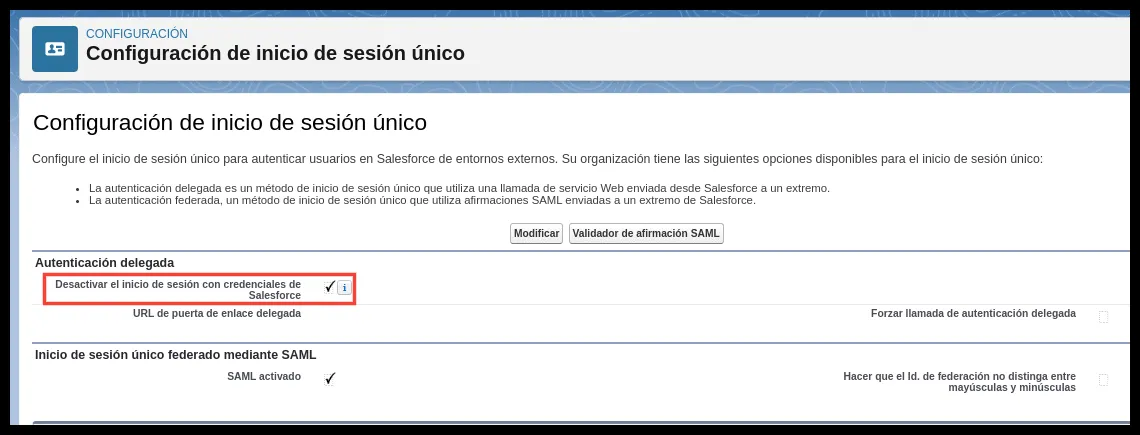
Go to Single Sign-On Settings and enable Disable login with Salesforce credentials.
-
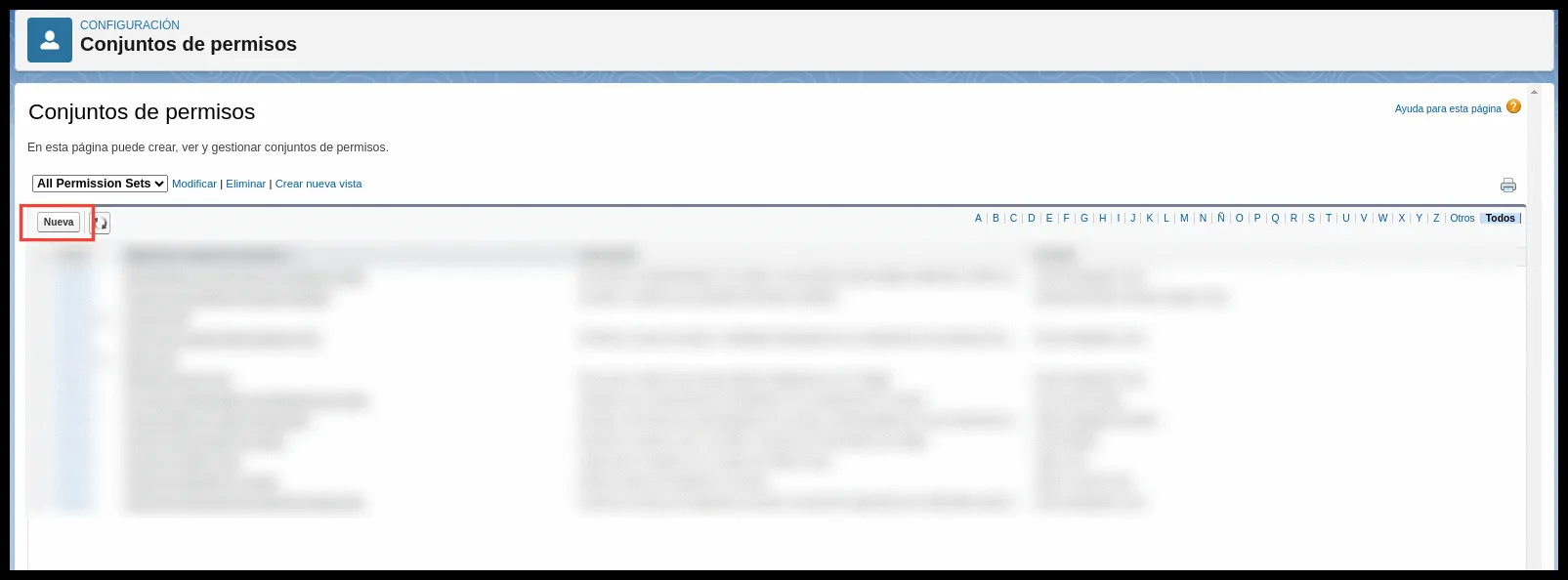
Go to Permission Sets and click New.
-
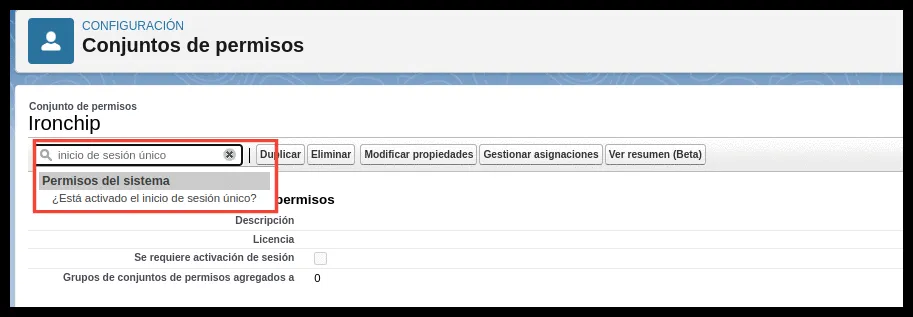
After you create the set, enter Single Sign-On in the search bar and click the only option that appears.
-
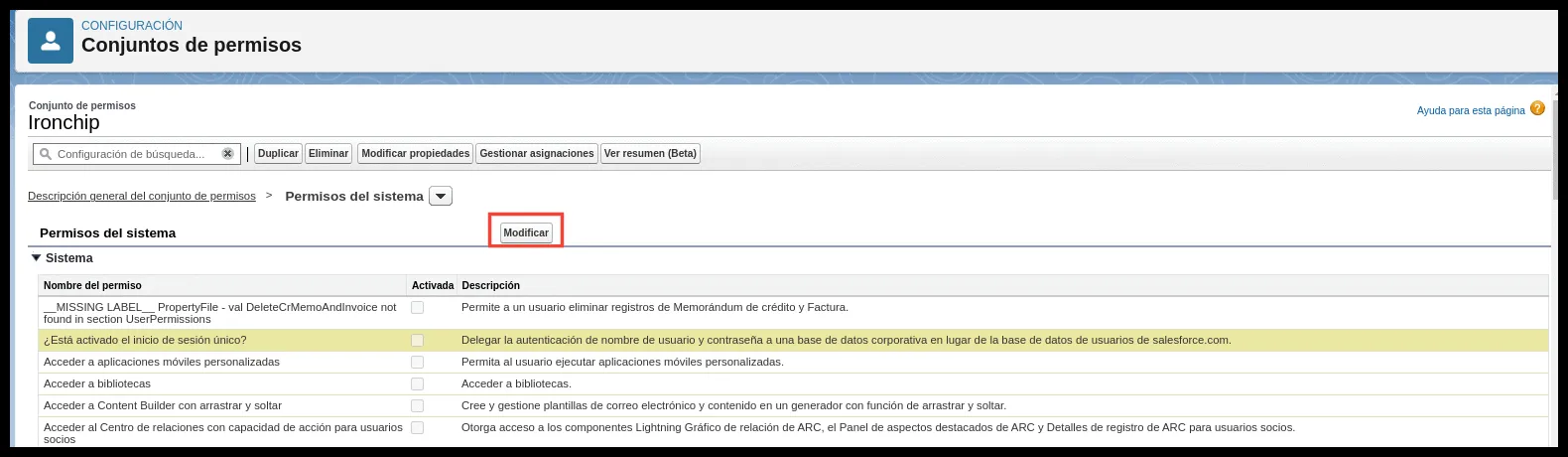
Click Edit, enable the marked option, and save the changes.
-
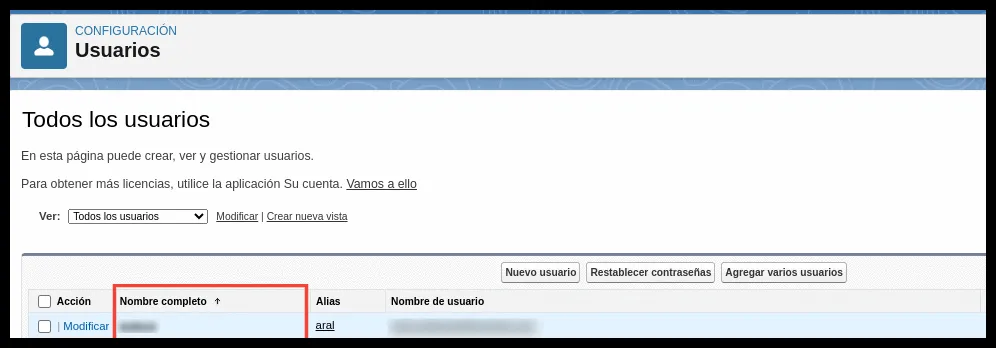
Go to the Users or Groups panel, depending on which one you want to modify, and click the name of the user or group.
-
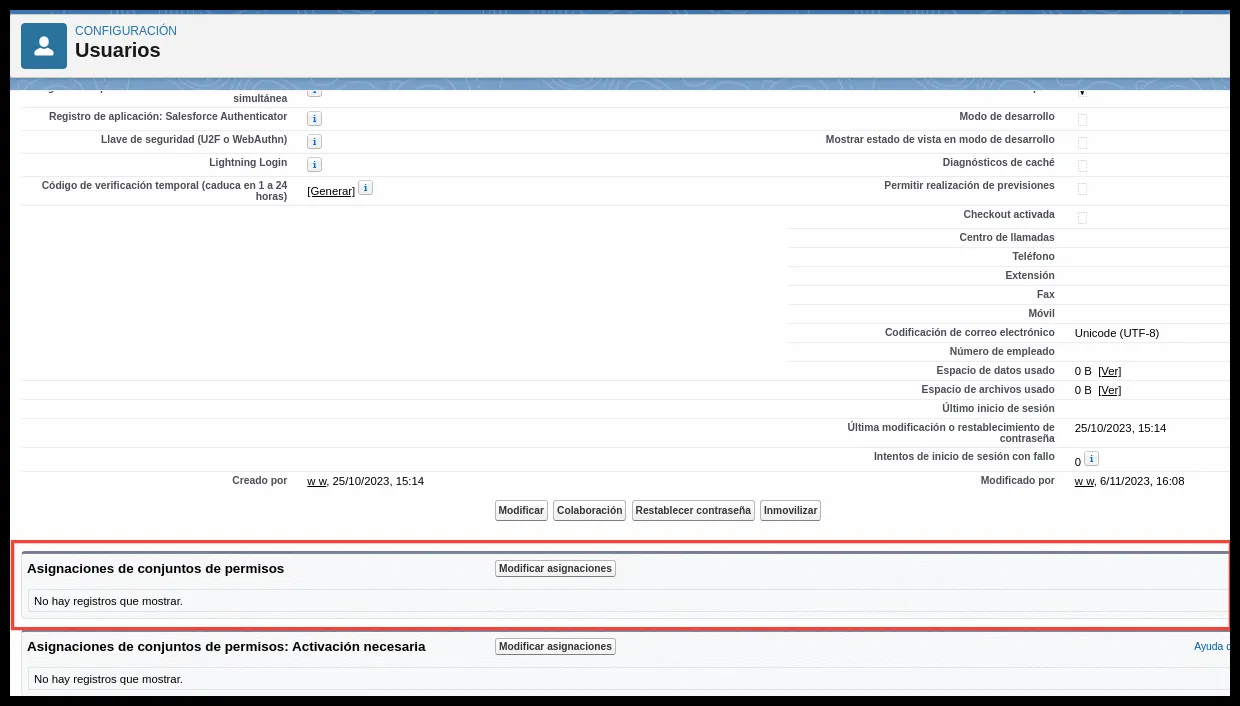
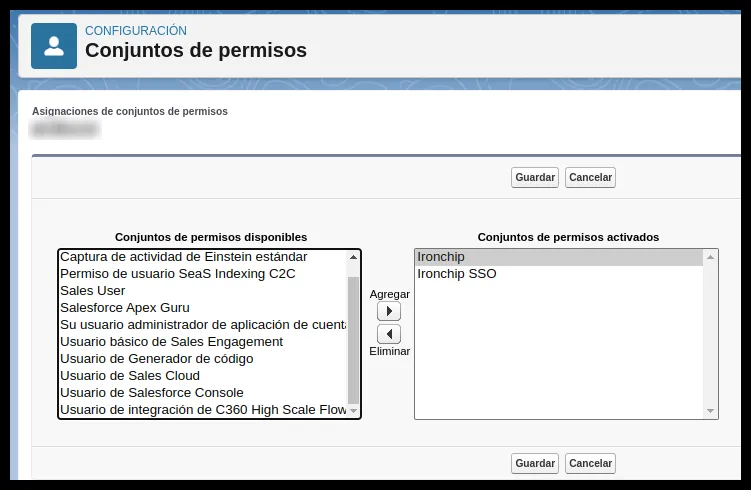
Scroll down to Permission Set Assignments and click Edit.
-
Add the set you created at the beginning and save the changes.
Verify the restriction
Section titled “Verify the restriction”Try to sign in with the credentials of a user configured with this rule. Entering a Salesforce username and password doesn’t let you in. Using Ironchip does.
Was this page helpful?
Thank you. We will use it to improve the documentation. If you want to tell us what is missing or unclear, write to support@ironchip.com.