

Roles and permissions (RBAC)
Ironchip includes a role-based access control system (RBAC). It lets you define which groups of administrators have access to which console resources and with which operations, and it enforces the principle of least privilege within your own IT team.
Permission management is a critical part of Ironchip administration, because it controls access to the resources and data of the organization. Assigning permissions to groups and subgroups simplifies administration, because you can grant or revoke access for many users at once.
Download the policies and security (RBAC) documentation as a PDF (in Spanish)
How RBAC works
Section titled “How RBAC works”The permission system is built around three elements:
- Group: the set of users or administrators the permission applies to (for example,
Ironchip Administrators,Presales,Mobility, orAdministration). - Resource: the object or section of the console the permission acts on (for example, Users, Groups, Keys, Applications, Synchronization, RADIUS Servers, or Permissions).
- Operation: the actions allowed on that resource: All, Read, Write, Update, and Delete.
The combination of the three defines a permission rule. Each group can have several rules on different resources, which lets you set up granular administration profiles.
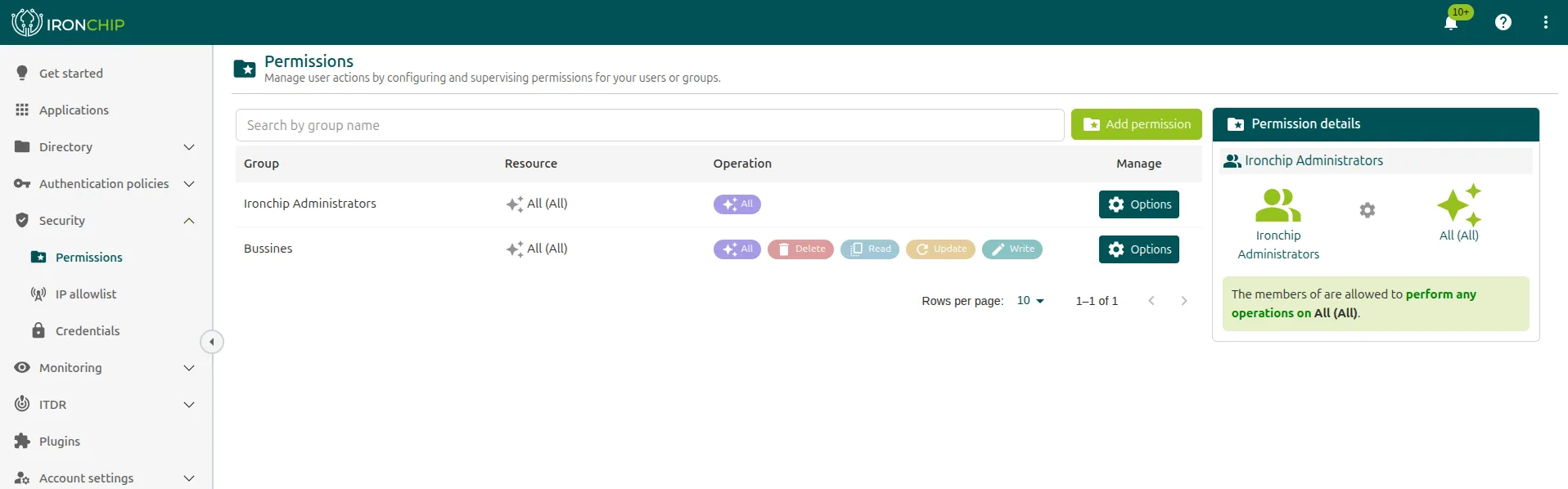
In Security > Permissions the console shows a table with the columns Group, Resource, Operation, and Manage, so you can view and manage all the configured permissions in one place.
Available operations
Section titled “Available operations”| Operation | Description |
|---|---|
| All | Full access to the resource: it includes all operations (Read, Write, Update, and Delete). It is equivalent to superadministrator rights on that resource. |
| Read | Read only. The group can view the resource but cannot modify or delete it. |
| Write | Can create new records in the resource. Cannot modify or delete existing ones. |
| Update | Can modify existing records. Cannot create new ones or delete. |
| Delete | Can delete records from the resource. Cannot create or modify. |
Resources you can manage
Section titled “Resources you can manage”| Resource | Description |
|---|---|
| Users (All) | Full user management: registrations, removals, roles, devices, and account recovery. |
| Groups (Ironchip) | Management of the user groups of the company in Ironchip. |
| Keys (Ironchip) | Safe zone management: creation, editing, deletion, and sharing. |
| Keys (Mobility) | Management of the safe zones of the mobility module. |
| Applications (All) | Creation and management of the applications integrated into the platform. |
| Synchronization (All) | Configuration and management of user synchronization (LDAP, SCIM, AD Connect, and CSV). |
| RADIUS Servers (All) | Management of the RADIUS servers configured on the platform. |
| Permissions (All) | Management of the RBAC permission system itself. For superadministrators only. |
| All (All) | Full access to all resources and operations. Equivalent to a global administrator. |
Create a permission
Section titled “Create a permission”-
Sign in to the console: https://app.ironchip.com.
-
Go to Security > Permissions.
-
Click Add permission. The Add a new permission window opens.
-
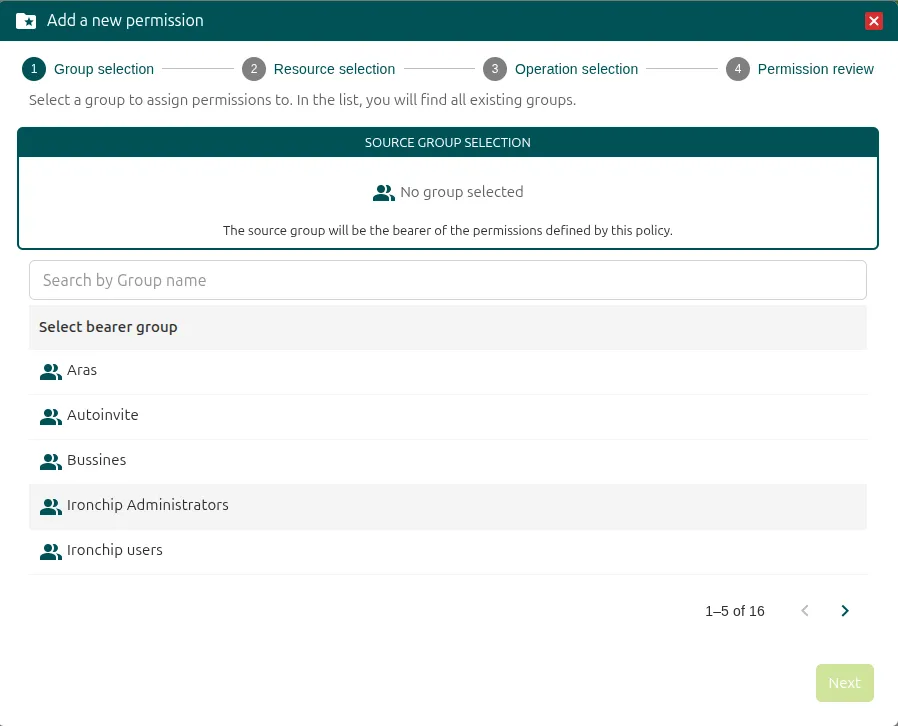
In Group selection, choose the group you want to assign the permission to and click Next.
-
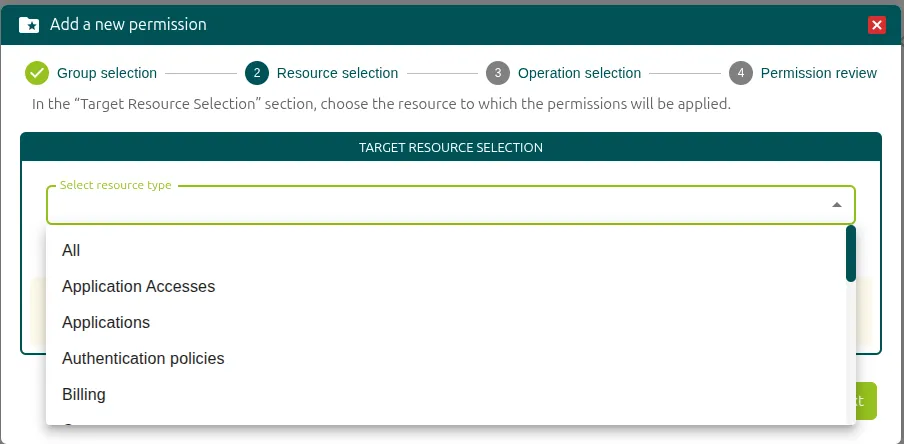
In Resource selection, choose in Select resource type the resource the permission applies to, for example All, Application Accesses, Applications, Authentication policies, or Billing, and click Next.
-
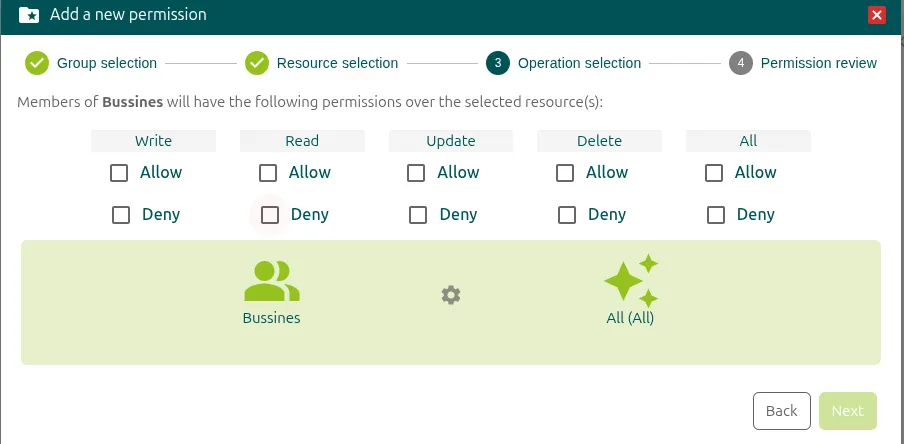
In Operation selection, configure the operations according to your needs (Write, Read, Update, Delete, or All). For each one, check Allow to permit it or Deny to deny it. Click Next.
-
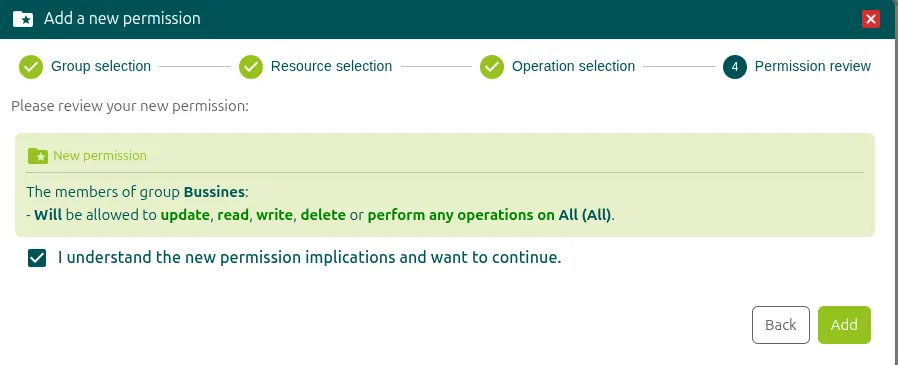
In Permission review, check the summary, select I understand the new permission implications and want to continue, and click Add. The permission becomes active immediately.
Edit and review permissions
Section titled “Edit and review permissions”The Permissions section lists all the permissions, with the assigned resources and the operations accepted for each one. You can delete them, and you can also edit them with the Edit permission button.
On the right, the details of the selected permissions appear so you can review them quickly.
Example configuration
Section titled “Example configuration”This table shows the permissions of an example configuration in Security > Permissions:
| Group | Resource | Operations |
|---|---|---|
Ironchip Administrators |
All (All) | All: full access to the platform |
Presales |
All (All) | All: full access to the platform |
Mobility |
Keys (Mobility) | All: full management of the mobility zones |
Administration |
Users (All) | All, Delete, Read, Update, Write |
Presales |
Groups (Ironchip) | Delete, Read, Update, Write |
Presales |
Keys (Ironchip) | Delete, Update, Write |
Presales |
Synchronization (All) | Delete, Update, Write |
Presales |
RADIUS Servers (All) | Delete |
Presales |
Permissions (All) | Delete, Update, Write |
Presales |
Applications (All) | Delete, Write |
User roles on the platform
Section titled “User roles on the platform”Independently of the console RBAC, every Ironchip user has one of these three roles:
| Role | Description |
|---|---|
| Administrator | Has access to the admin console. Can manage users, applications, accesses, and configuration according to the RBAC permissions assigned to their group. |
| User | Verified and active user in Ironchip. Has no access to the admin console: can only authenticate in the services they have access to. |
| Guest | User created on the platform who has not completed verification yet. The shield in the Protection column appears orange (invitation sent, not verified) or red (invitation not sent). |
To assign the administrator role, see Assign an administrator.
Was this page helpful?
Thank you. We will use it to improve the documentation. If you want to tell us what is missing or unclear, write to support@ironchip.com.