

NFC / RFID card
RFID authentication lets you use an access card as an authentication method with a reader connected to the computer. This guide explains how to prepare the console, install the agent and link the reader.
Requirements
Section titled “Requirements”- Administrator access to the Ironchip admin console.
- Administrator permissions on the system.
- Compatible readers and cards.
Install the agent
Section titled “Install the agent”-
Go to the Ironchip admin console and sign in with your credentials.
-
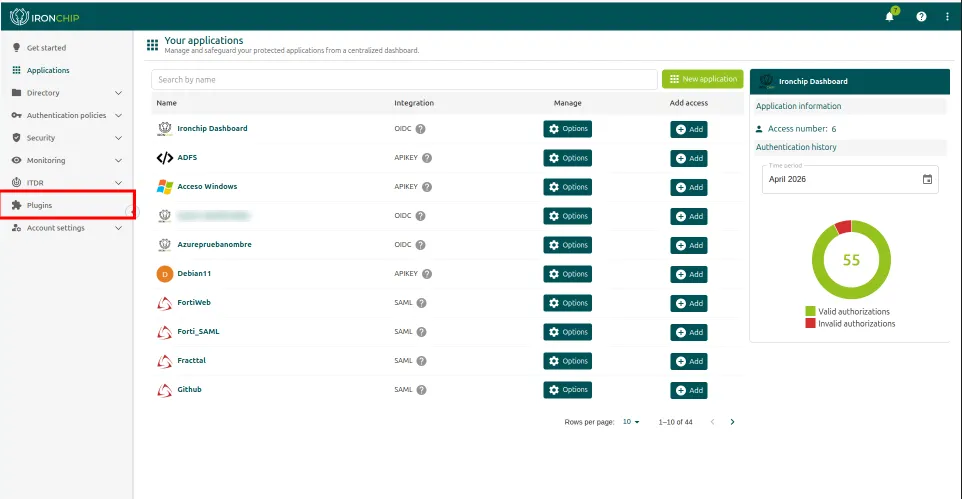
In the left side menu, select the Plugins section.
-
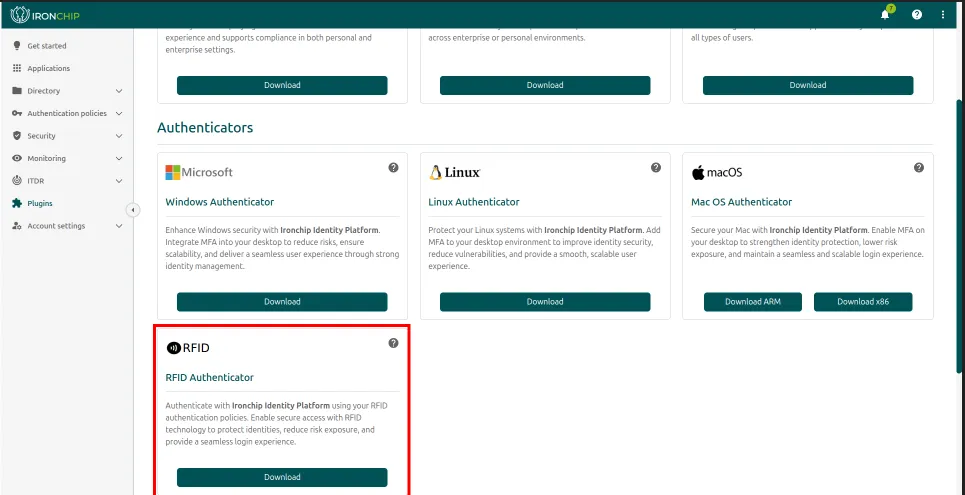
Find the RFID Authenticator package and download it. Save the file in an accessible location, because you will need it in later steps.
Generate the API key
Section titled “Generate the API key”The agent needs an API key to work. To generate it:
-
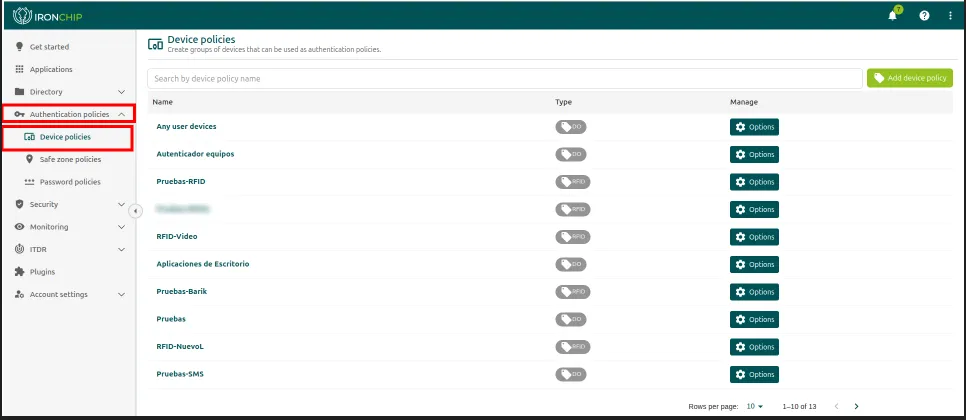
In the admin console, go to Authentication Policies > Device Policies.
-
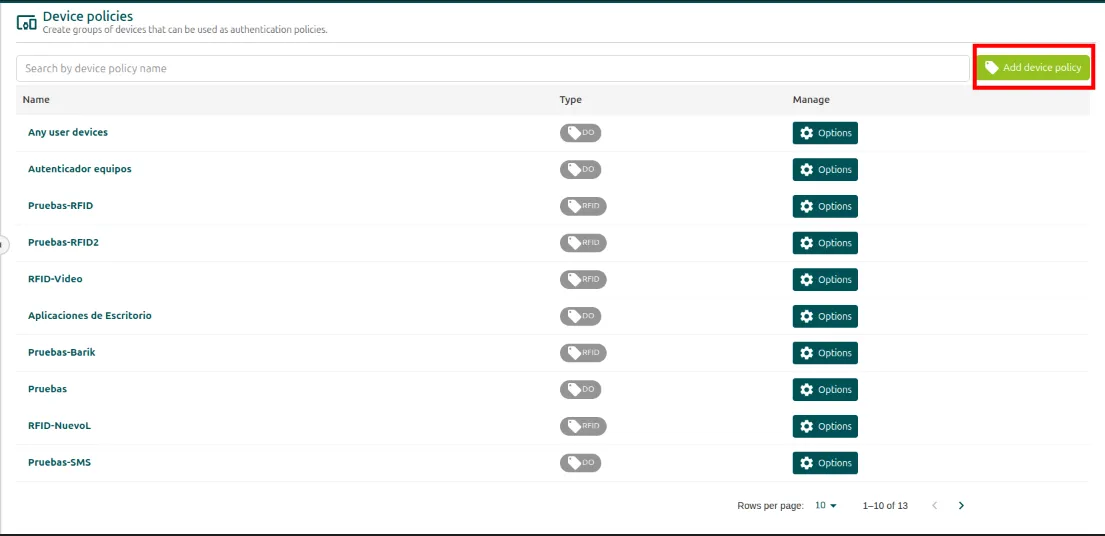
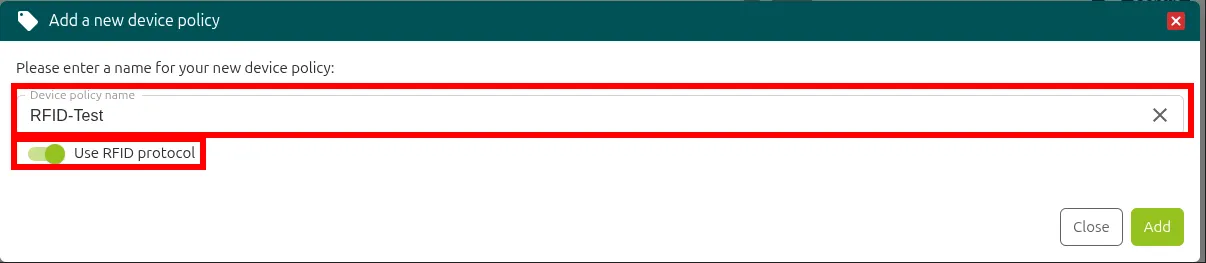
Click Add device policy to create a new entry.
-
Give the policy a descriptive name.
-
Turn on the Use RFID protocol option.
-
Click Add to confirm. The system automatically generates an API key.
Create the access
Section titled “Create the access”To create an RFID access, you must first have created a sign-in application. Once you have it:
-
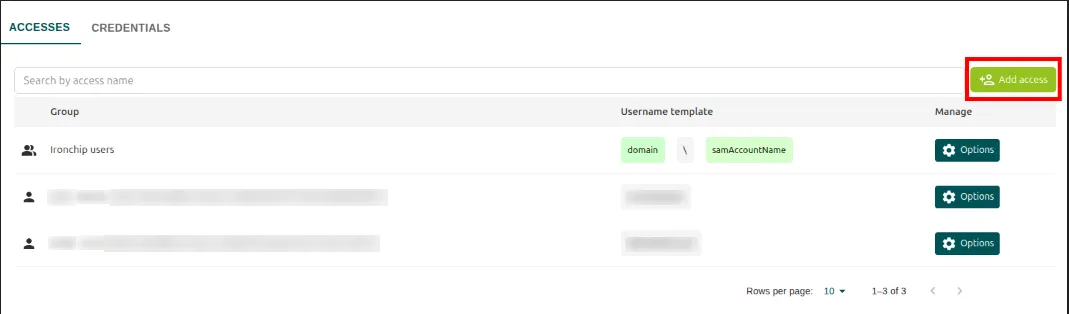
Click Add access to add a new access.
-
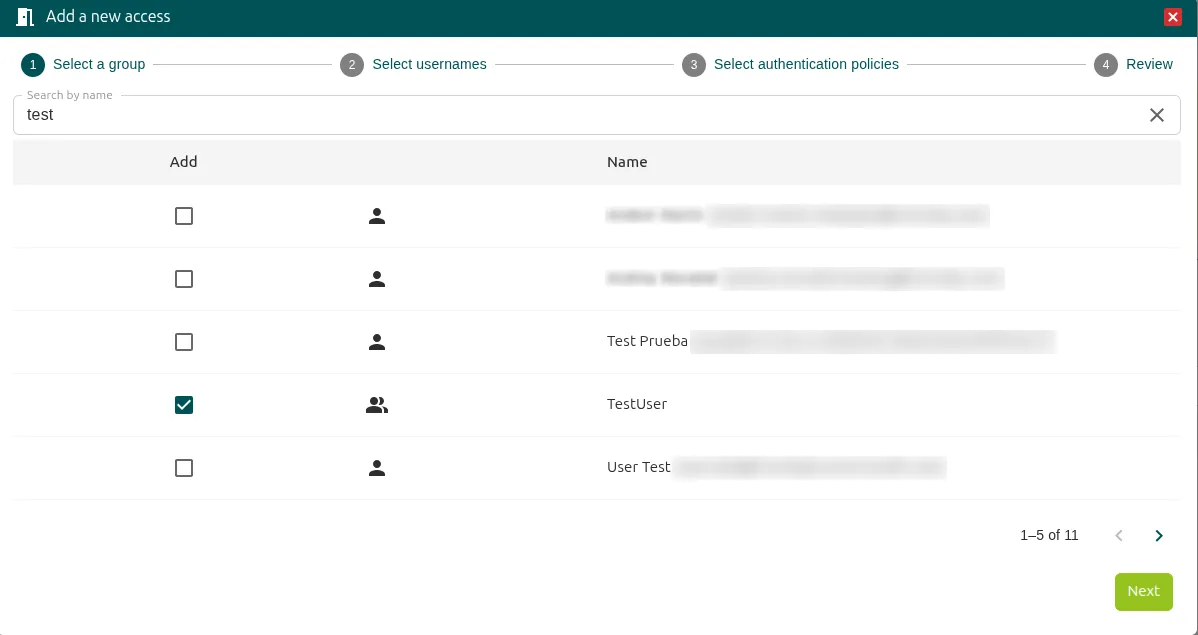
Select the authenticator user, that is, the person who is going to authenticate.
-
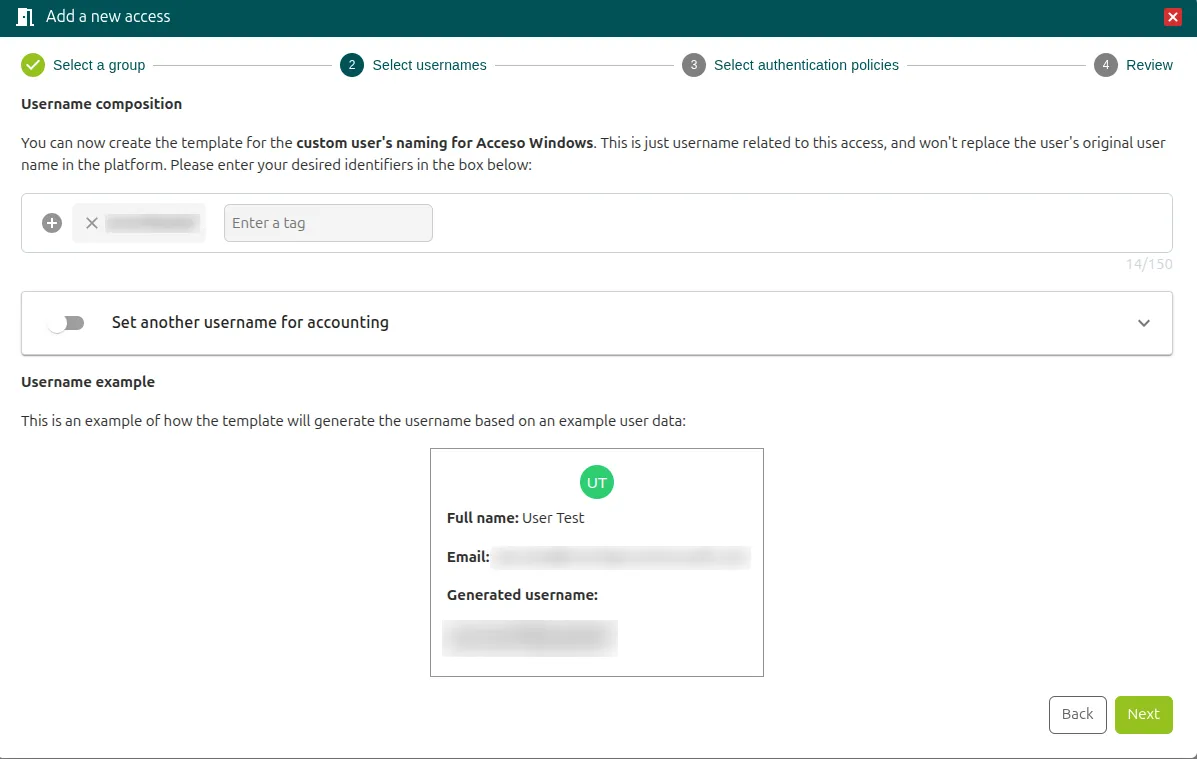
Enter the user to protect in the right format for the account type:
- Domain user:
DOMAIN\user - Local user:
COMPUTER_NAME\user
- Domain user:
-
Click Next.
-
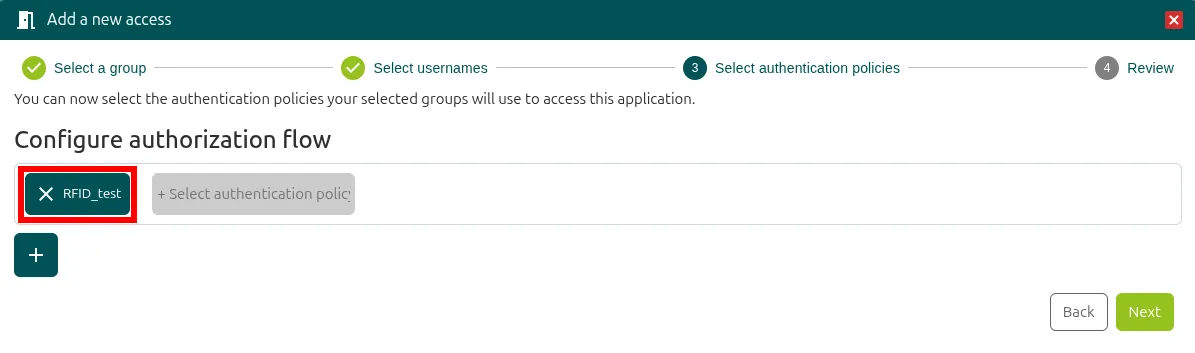
In the authentication method field, select the RFID policy you created earlier.
-
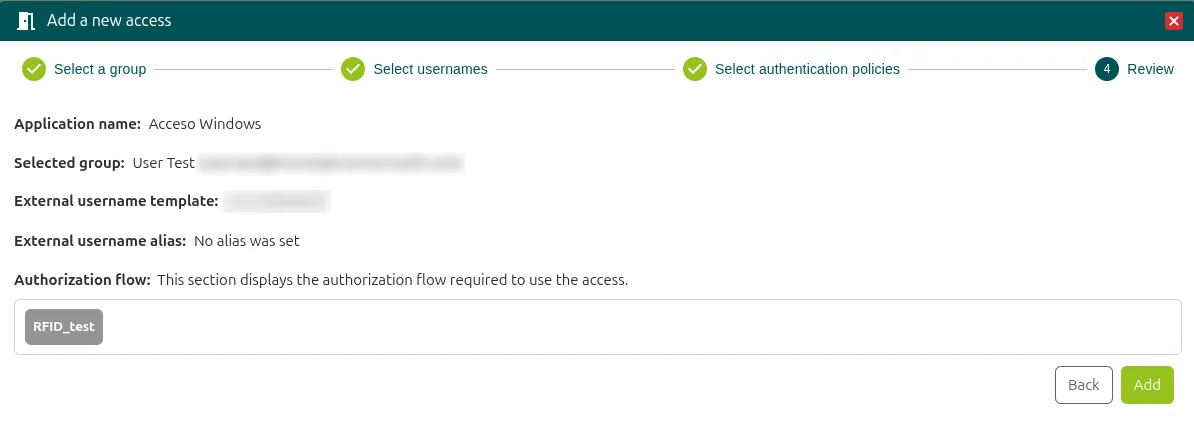
Click Add to finish. The access is created and active.
Create RFID cards in Ironchip
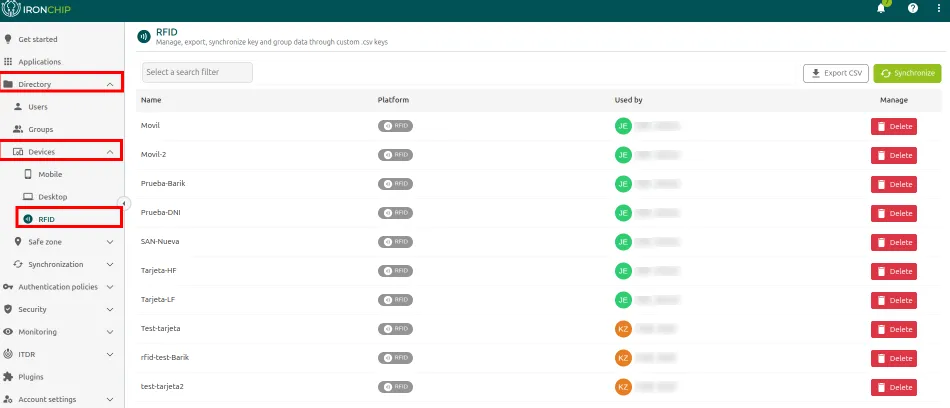
Section titled “Create RFID cards in Ironchip”To register RFID cards on the platform, go to Directory > Devices > RFID and follow these steps:
-
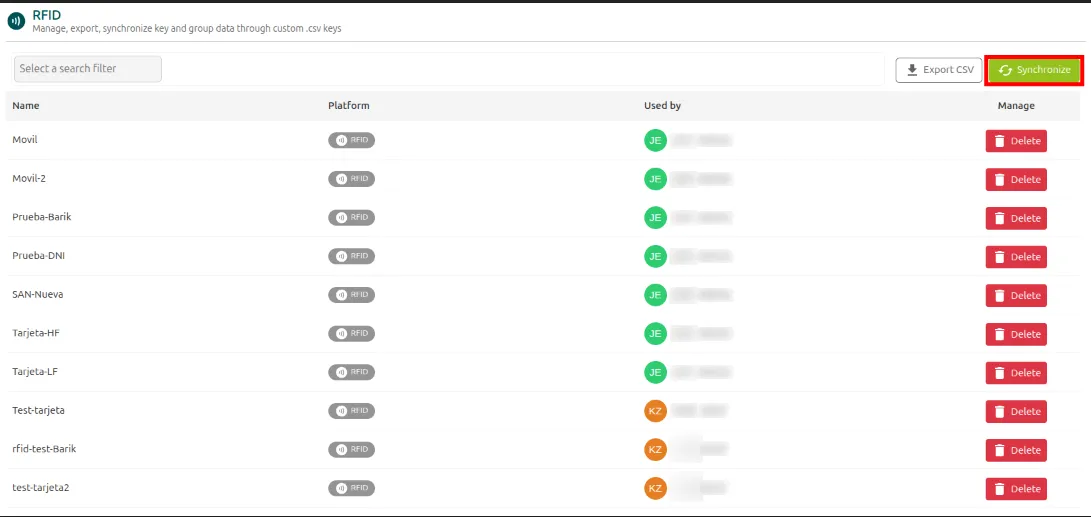
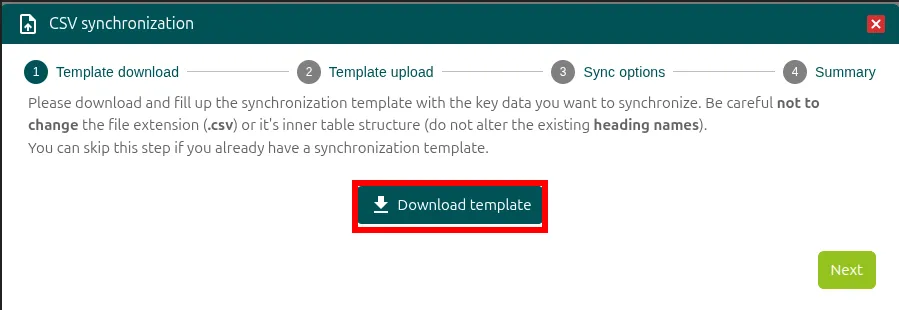
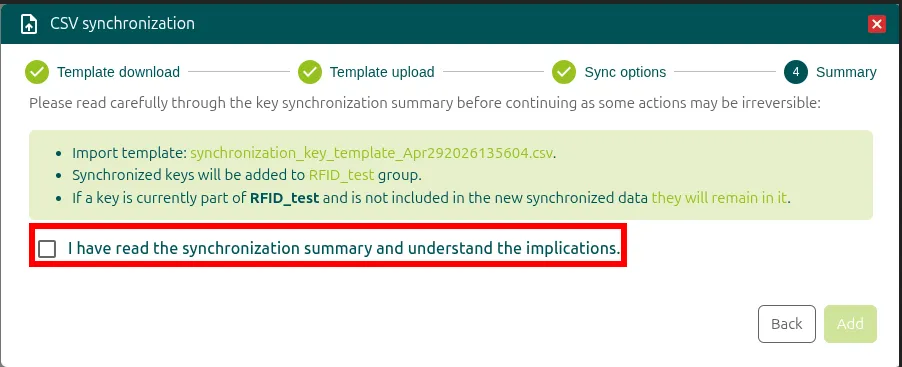
Click Synchronize to open the import process.
-
Download the template that the system provides.
-
Fill in the template with this data for each card:
Field Description UserIDThe user’s ID in Ironchip, available on the user’s page EmailThe user’s email address NameA name that identifies the card UUIDThe unique identifier of the RFID card 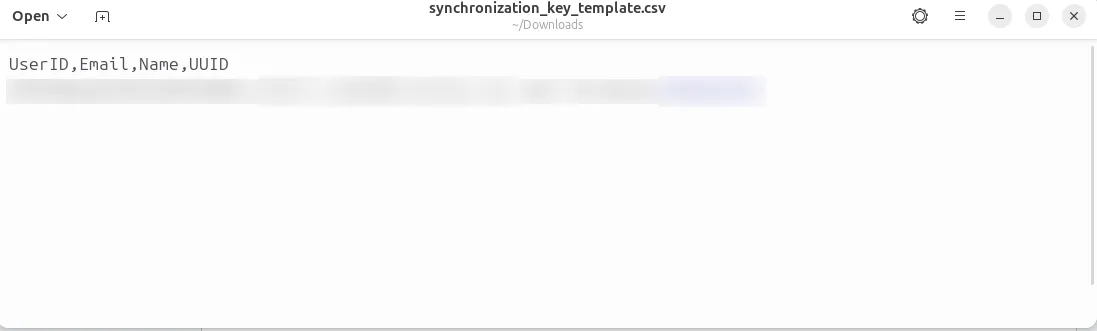
-
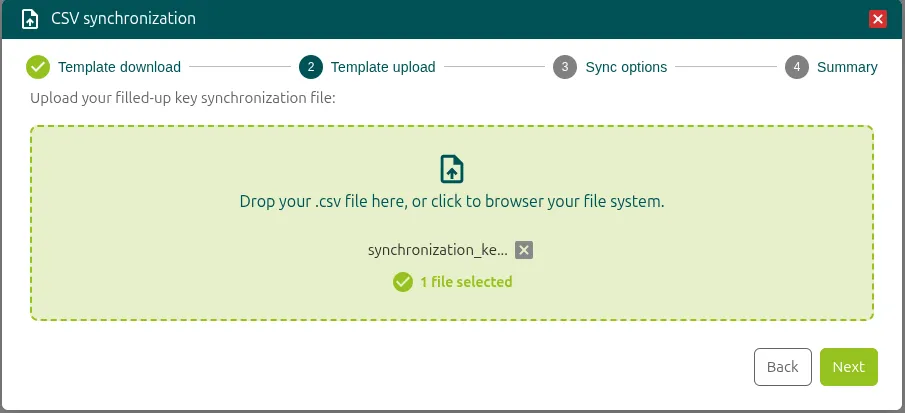
Upload the completed template to Ironchip and click Next.
-
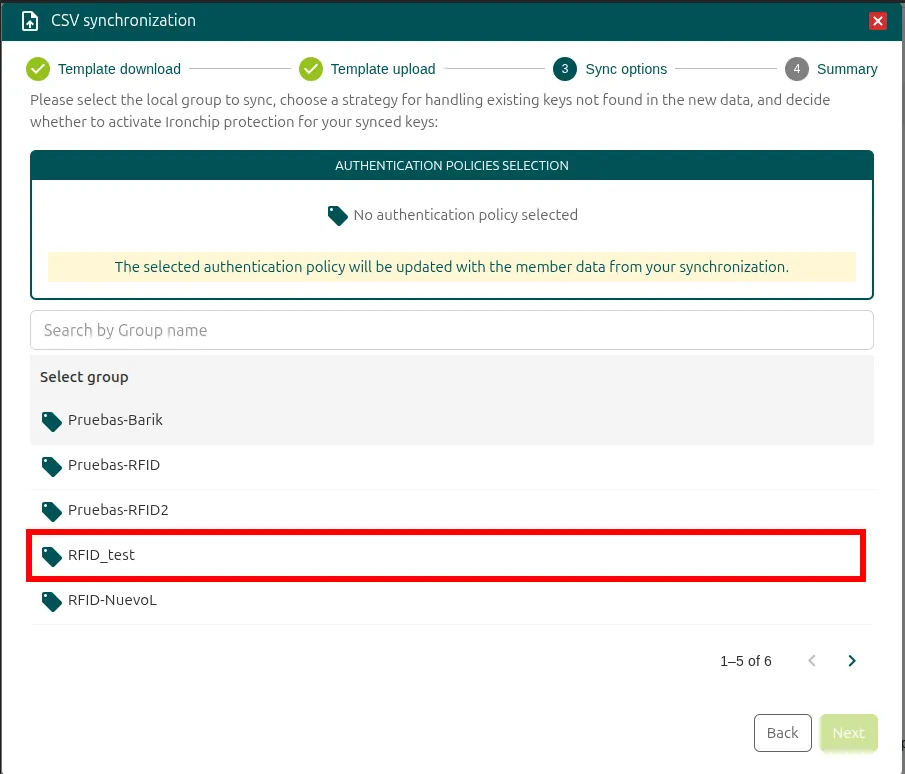
On the next screen, select the RFID policy you created earlier.
-
Confirm the operation by clicking Add. The cards are registered in the system.
Configure the agent
Section titled “Configure the agent”With the agent downloaded and the API key available, open a PowerShell window as administrator and go to the directory where the agent file is.
-
Link the API key to the agent. Replace
<API_KEY>with the key you generated earlier:Ventana de terminal .\IronchipRFID.exe c --api_key <API_KEY>
-
Check that the configuration was applied. This command shows the active parameters of the agent:
Ventana de terminal .\IronchipRFID.exe c show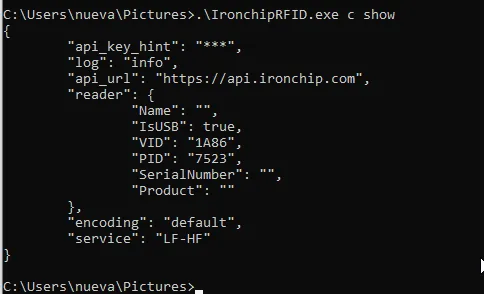
-
Install the agent as a system service:
Ventana de terminal .\IronchipRFID.exe s install
-
Start the agent service so it begins to work:
Ventana de terminal .\IronchipRFID.exe s start
Uninstall the agent
Section titled “Uninstall the agent”To uninstall the agent, you must stop it first. Follow these two steps in order:
-
Stop the service:
Ventana de terminal .\IronchipRFID.exe s stop
-
Once it is stopped, uninstall the agent from the system:
Ventana de terminal .\IronchipRFID.exe s uninstall
Configure the reader in the agent
Section titled “Configure the reader in the agent”When the agent service is installed and running, the last step is to link the RFID reader so the system can capture card reads.
HID reader
Section titled “HID reader”If your reader identifies itself as a human interface device (HID), use this command to open the interactive selection menu:
.\IronchipRFID.exe hidA list of the HID devices the system detects is shown. Enter the number of the reader you want to use to complete the link.

Serial reader
Section titled “Serial reader”If the reader connects through a serial port or a COM port emulator, use the command for serial devices. With it you define the COM port and the communication parameters the agent needs to talk to the hardware:
.\IronchipRFID.exe srlWas this page helpful?
Thank you. We will use it to improve the documentation. If you want to tell us what is missing or unclear, write to support@ironchip.com.