

Desktop application
Ironchip can provide the desktop application to customers who need it. It works exactly like the mobile application and is available for Windows, Linux and macOS. The installation instructions change depending on the operating system, but usage is the same on all of them.
| Component | Version | Released |
|---|---|---|
| Ironchip Windows Authenticator | v1.10.2 | Oct 21, 2026 |
| Ironchip Authenticator for macOS | 1.1.0 | Jan 20, 2026 |
| Ironchip Authenticator for Linux | 1.3.1 | May 19, 2026 |
Download
Section titled “Download”Download the application from the official Ironchip GitHub: github.com/Ironchip-Security.
Go to the installer section for your operating system. The desktop authenticator is available for Windows, Linux and macOS. Make sure you download the latest available version.
Installation
Section titled “Installation”Windows
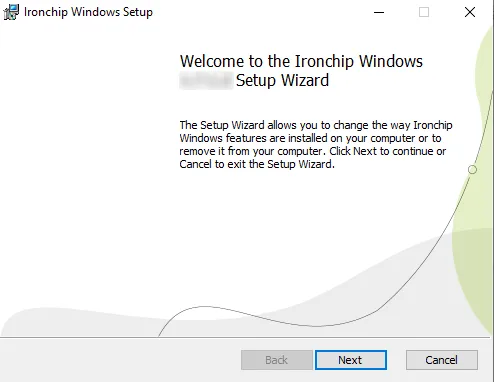
Section titled “Windows”Double-click the .msi file you downloaded and follow these steps:
-
Click Next.
-
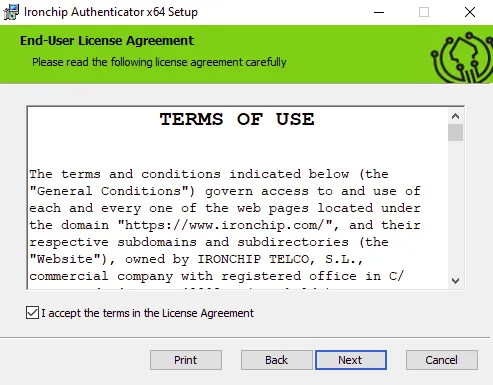
Select I accept the terms in the License Agreement and click Next.
-
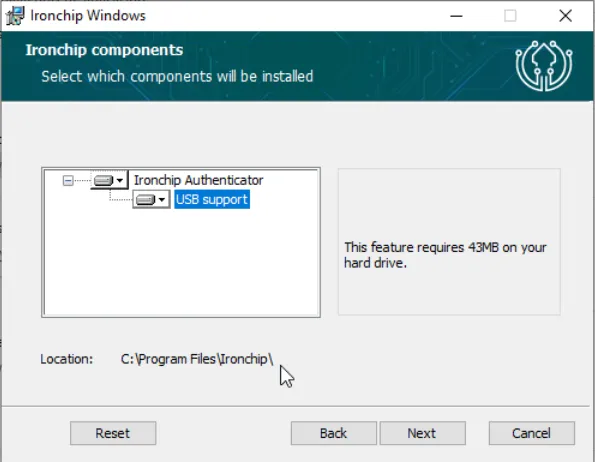
Select the components you want and click Next.
-
Click Next.
-
Click Finish to complete the installation.
To uninstall the desktop application, right-click the file and click Uninstall.
Linux and macOS
Section titled “Linux and macOS”To install the Ironchip authenticator on your computer, run this command with administrator permissions:
sudo dpkg -i <path to the .deb file>For security, the system asks for your password. Enter it to authorize the operation and the installation continues.
When the installation finishes, you only need to register the device and you can start using it.
To uninstall the application, run this command with administrator permissions. The system asks for your administrator password.
sudo dpkg -r ironchip-authenticatorDisable USB
Section titled “Disable USB”Type this command in the terminal and press Enter. The system asks for your administrator password.
sudo ironchip-service configure --restrict-usb=trueEnable the proxy
Section titled “Enable the proxy”With the automatic proxy, the application uses the proxy configured in the system. To enable it, type this command in the terminal and press Enter:
sudo ironchip-service configure --proxy-enable=trueWith the manual proxy, the application takes the proxy details from the config.json file:
sudo ironchip-service configure --proxy-manual=true --proxy-manual-uri 127.0.0.1:8080Enrollment
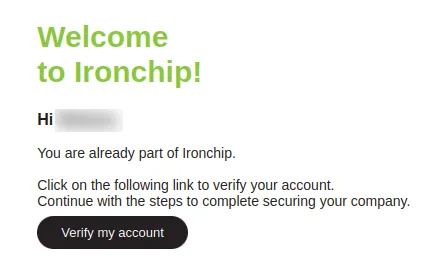
Section titled “Enrollment”Before you enroll, an administrator must have registered you in the admin console. You then receive a verification email. Follow these steps:
-
In the email, click the Verify my account button.
-
The desktop application is already downloaded, so click Continue.
-
Copy the security code that appears on the computer screen and paste it into the Ironchip desktop application.
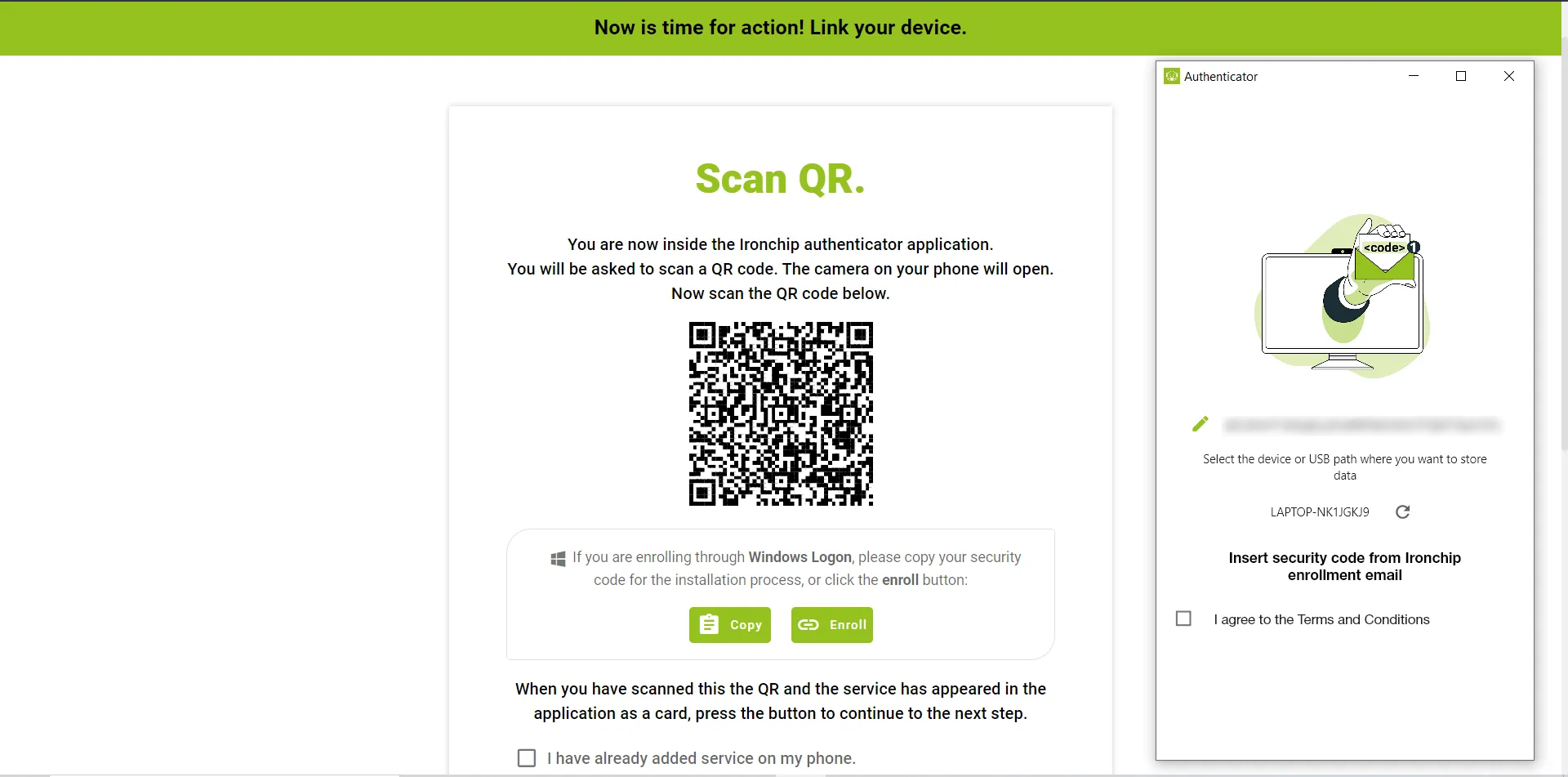
Enrollment is complete when the next image appears on the computer and the application opens.
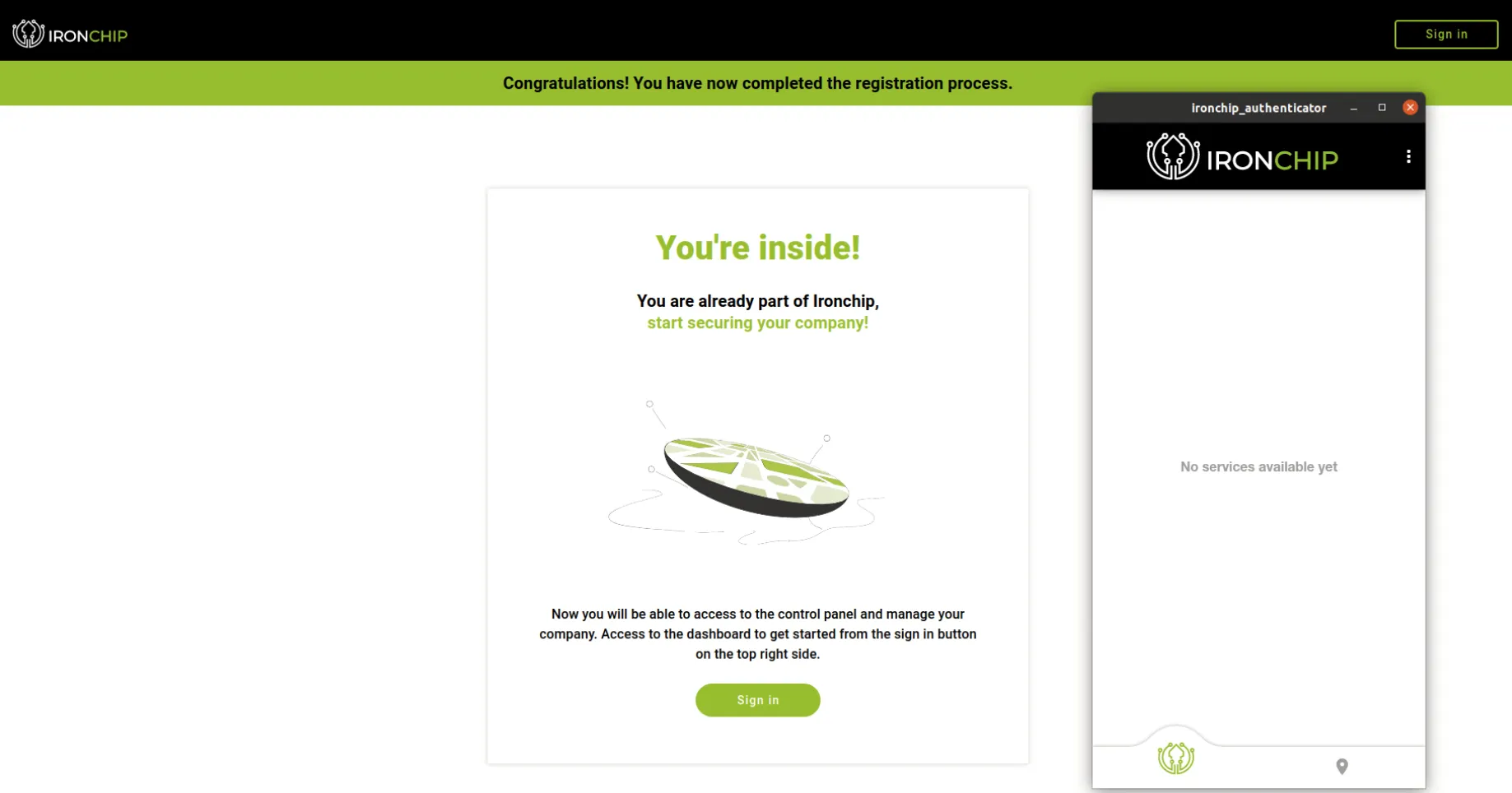
For the other ways to enroll (mobile app or USB), see Enrollment.
Carry your identity on an external device
Section titled “Carry your identity on an external device”This option lets you carry your identification credentials with you. Once you have enrolled with an external memory device, you can use it as an authentication mechanism on any Ironchip-compatible computer that has the Ironchip Desktop Services installed.
To enroll a new device as an identity provider for yourself, select the device to install on during enrollment, when you run the Ironchip desktop application:
-
Insert your external storage device.
-
Click the refresh button to scan your external device.
-
Click the device name, to the left of the refresh button, and choose the external device from the drop-down list.
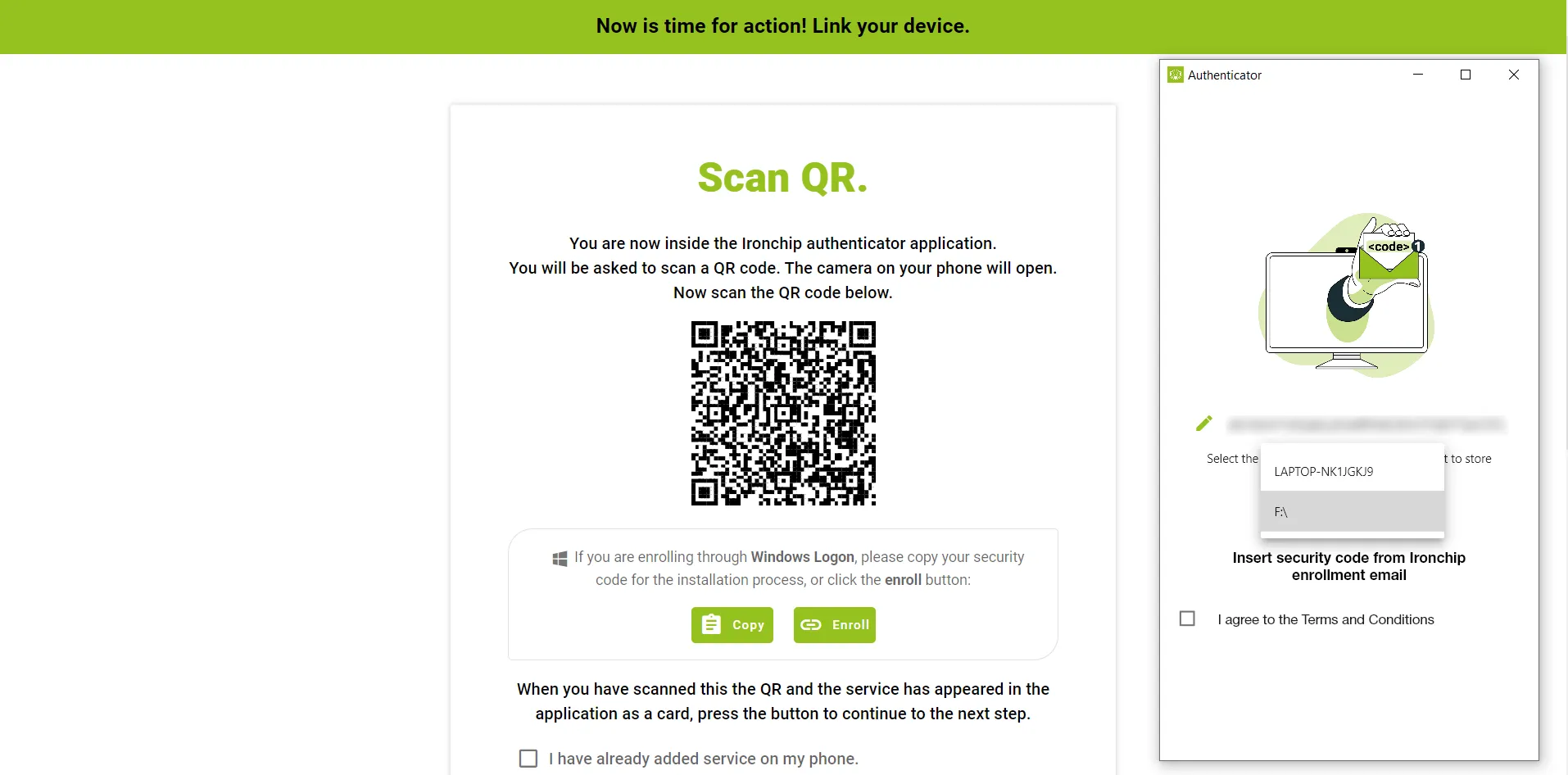
Set up a USB drive with an identity
Section titled “Set up a USB drive with an identity”To store an identity on a USB drive, you first need to generate an invitation.
Step 1: generate the invitation
Section titled “Step 1: generate the invitation”-
Go to the admin console.
-
Select the identity you want to store on the USB drive.
-
Send the invitation to the user. In the user list, the option is Options > Add a device.
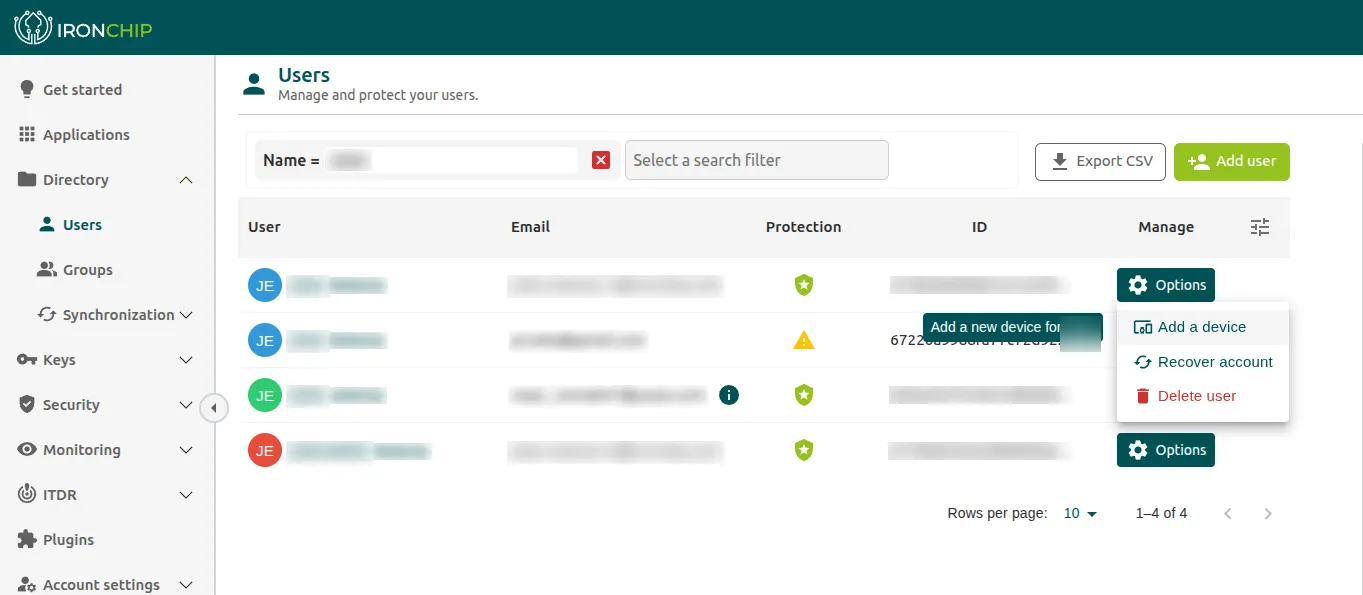
Step 2: accept the invitation
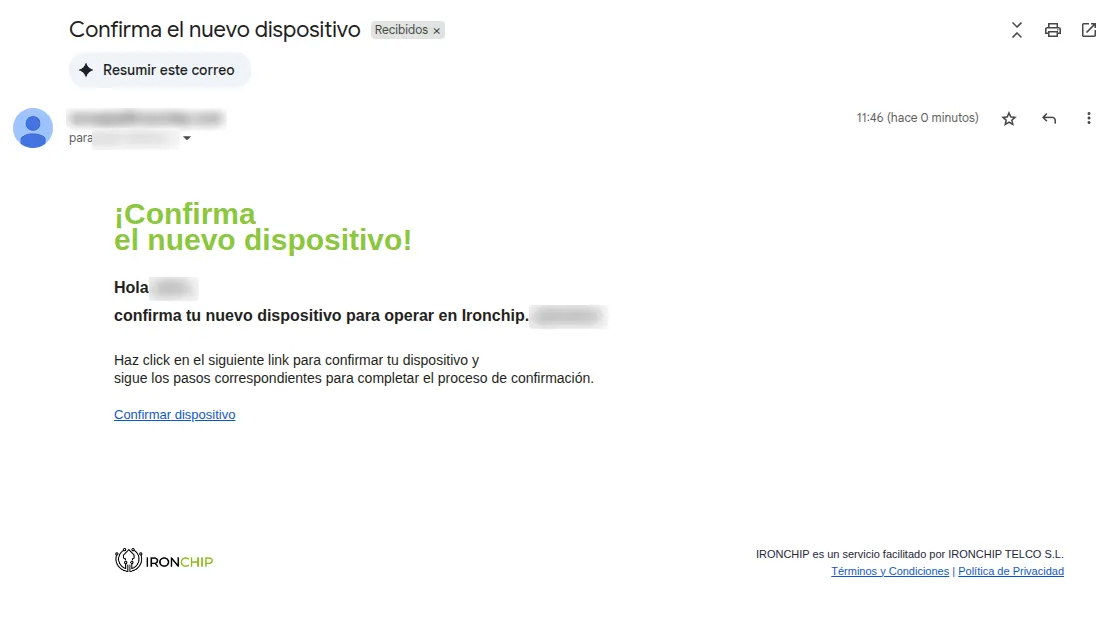
Section titled “Step 2: accept the invitation”The user receives an email with an enrollment link.
-
Open the email and click the link.
-
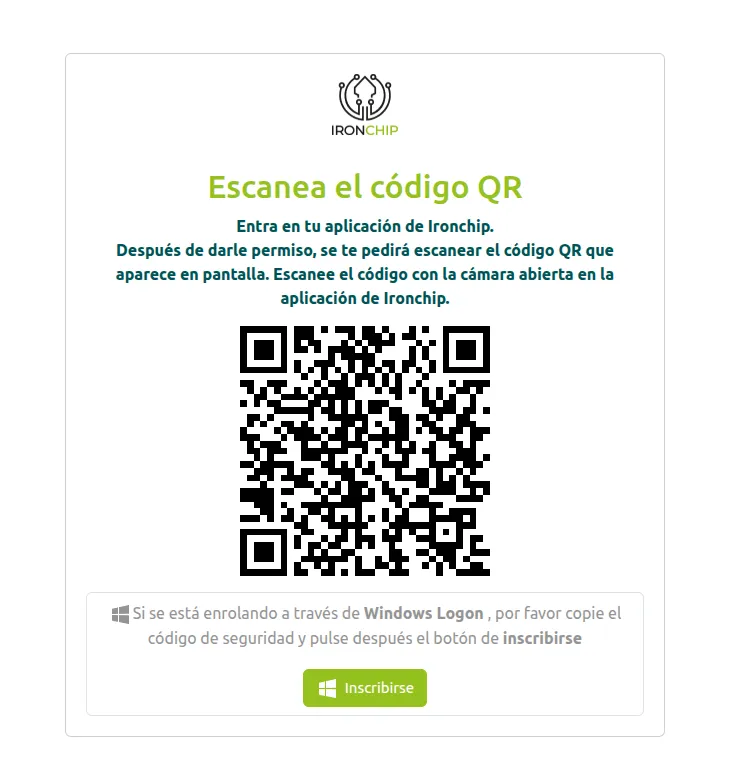
The enrollment screen opens, with a QR code and, below it, an Enrol button (Inscribirse when the page is in Spanish).
-
Click that button to start the enrollment process with the desktop authenticator.
Step 3: use the desktop authenticator
Section titled “Step 3: use the desktop authenticator”When you click the button:
-
The system asks whether you want to open the Ironchip authenticator. Confirm it.
-
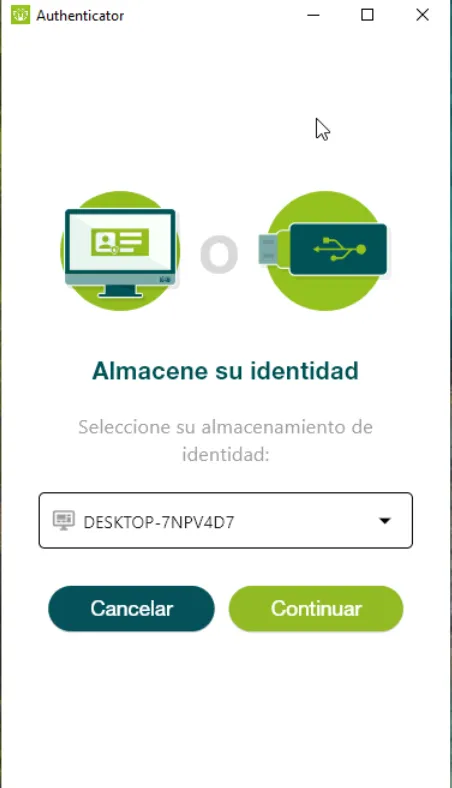
A window like this appears.
-
In this window, choose the USB drive where the identity will be stored.
Services
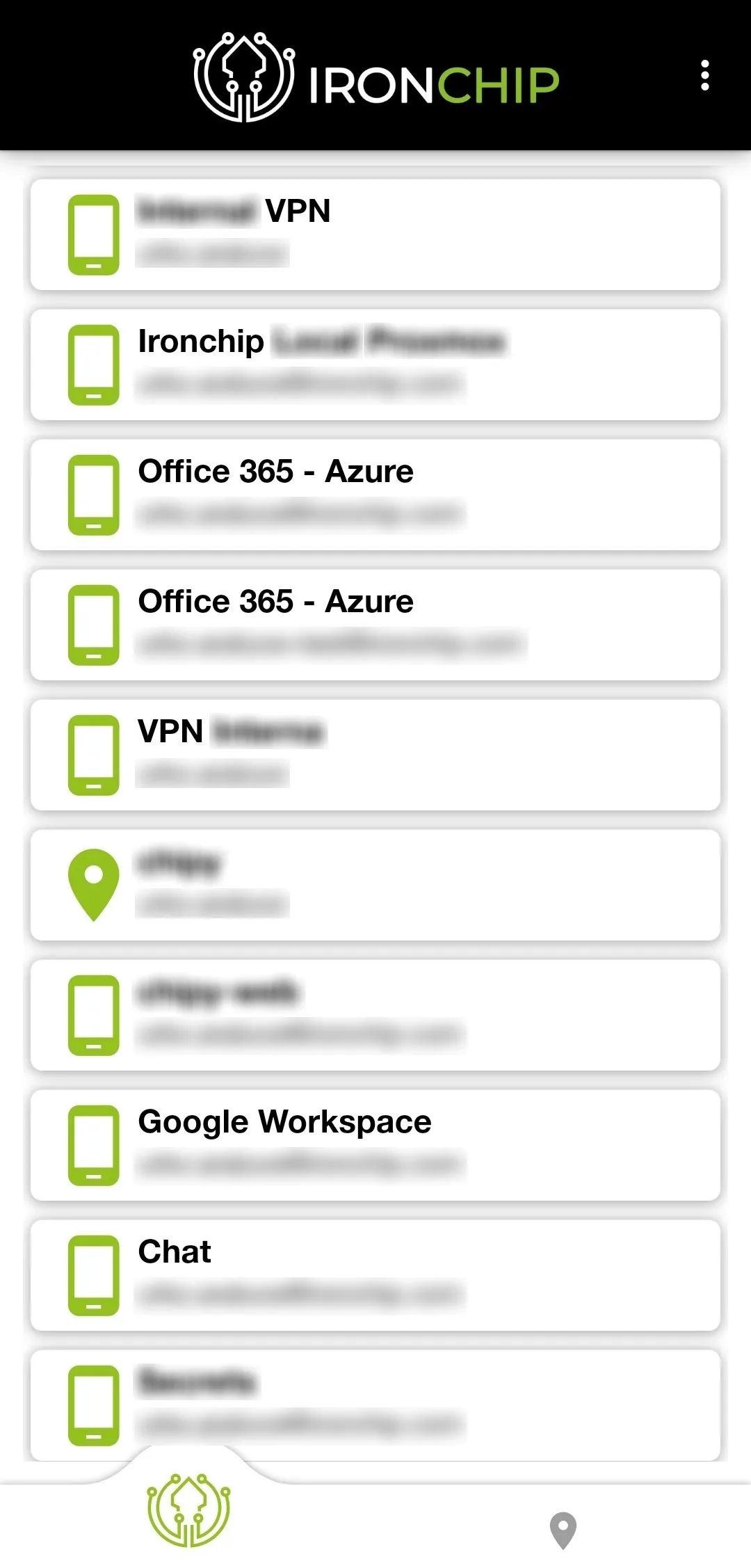
Section titled “Services”The services tab lists all the services you have access to. If your company so decides, it also includes the Ironchip Management Panel service, which is exclusive to the selected administrators who manage authentications and access to the services.
A countdown appears on these services if authentication has been requested for the service.
Version
Section titled “Version”To check the version of the desktop application:
-
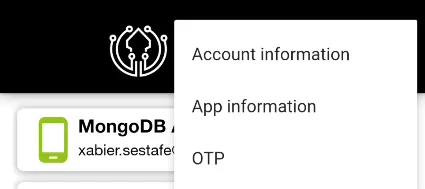
Open the application and click the three dots in the top bar.

-
In the drop-down menu, click App information.
-
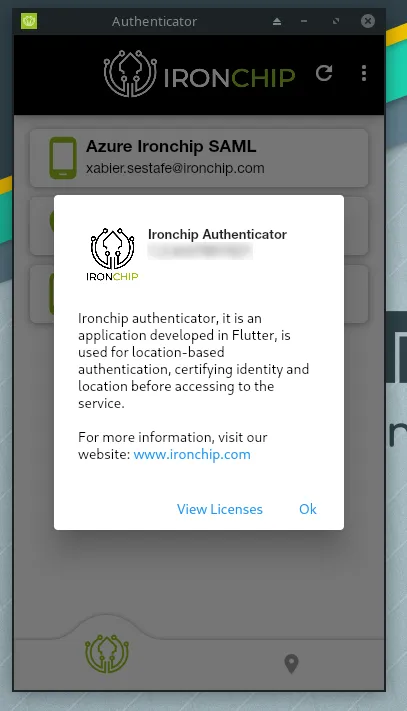
A window shows the application version.
Safe zones
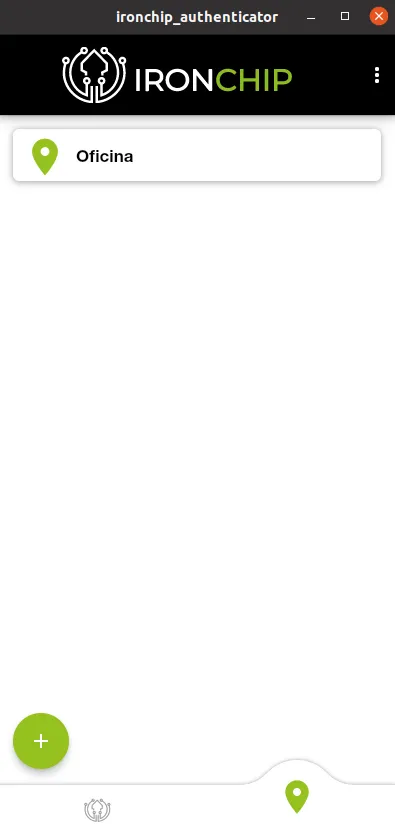
Section titled “Safe zones”The keys tab lists all the keys you have access to: the ones you created yourself and the ones shared by other members of your company.
To create a new safe zone:
-
Click the + icon.
-
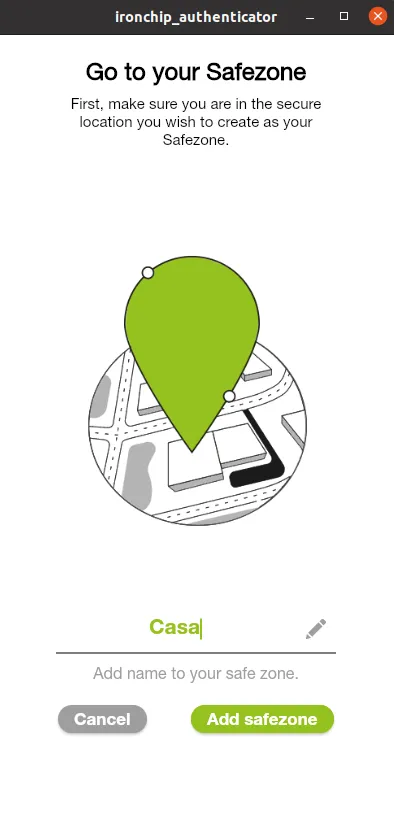
Enter a name for the safe zone.
-
Click Add Safe Zone.
-
When the progress wheel reaches its end, the key is created.
Authentication
Section titled “Authentication”Once the safe zones are created and linked to the corresponding services, you can authenticate in two ways.
From the notification
Section titled “From the notification”This is the most common method.
-
Enter your credentials in the service you want to access. A notification arrives on the device through the Ironchip app.
-
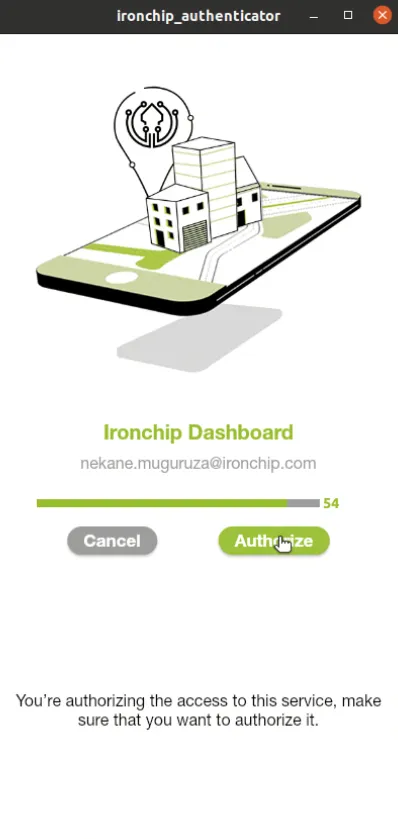
Click the notification. The Ironchip app opens.
-
Click Authorize. The signal scanning screen opens and verifies whether you are in the authorized location for accessing the service. If you are in the correct place, you get access to the service.
From the app
Section titled “From the app”-
Enter your credentials in the service you want to access. A notification arrives on the device.
-
Instead of clicking the notification, open the app directly and go to Services. On the service where you entered your credentials, a countdown shows how many seconds are left to run the signal scan and verify your identity. Click the service card.
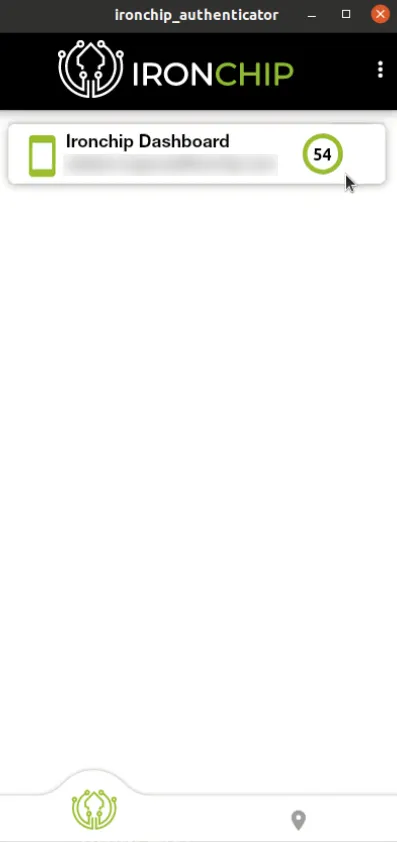
-
Click Authorize. The signal scanning screen opens and verifies whether you are in the authorized location. If you are in the correct place, you get access to the service.
Video tutorial
Section titled “Video tutorial”Was this page helpful?
Thank you. We will use it to improve the documentation. If you want to tell us what is missing or unclear, write to support@ironchip.com.