

LDAP proxy
The Ironchip LDAP proxy sits in front of your LDAP domain controller to protect the authentication of the users of a specific group with Ironchip, and it can synchronize users between LDAP and Ironchip. This page is for administrators who integrate their LDAP directory with the platform.
Requirements
Section titled “Requirements”- An administrator account in the Ironchip admin console.
- The company created in Ironchip. For the data to prepare, see Before you start in Integration protocols.
- An LDAP domain controller and a Windows computer to install the proxy on.
Create the application in Ironchip
Section titled “Create the application in Ironchip”The proxy connects to Ironchip with the API key of an application of type API KEY.
- Go to Applications and click New Application.
- Enter the application name in Name and choose API KEY in Application integration type.
- Follow the steps in the window until you finish. The application appears in the Applications list.
For more information, see Applications.
Give users access
Section titled “Give users access”- Go to Applications and, in the Add access column of the application, click Add. The Add a new access window opens.
- In Select a group, select the users or groups that authenticate through the proxy and click Next.
- In Select usernames, define the username. It must be the same as the one the user authenticates with. Click Next.
- In Select authentication policies, choose the authentication method and click Next.
- In Review, check the summary and click Add.
The access is created with the selected configuration, and you can change it at any time. For more information, see Grant access to users and groups.
Download
Section titled “Download”You can find the LDAP proxy service in the Plugins section of the Ironchip admin console.
Installation
Section titled “Installation”-
Move the downloaded executable to a system folder suitable for running services.
-
Run the executable with the
configurationflag to generate the default configuration file:Ventana de terminal ldap-windows.exe configuration -
Edit the configuration file (see the next section) and install the service:
Ventana de terminal ldap-windows.exe service install -
Start the service:
Ventana de terminal ldap-windows.exe service start
Configuration
Section titled “Configuration”You can modify the configuration file at any time. Restart the service to apply the changes:
ldap-windows.exe service restartThe configuration file has these properties:
- Path: the path of the configuration file.
ldap:server_address: the FQDN of the LDAP domain controller.server_port: the port of the LDAP domain controller.network: the communication scheme the client uses. Onlytcpis currently supported.base_dn: the base DN the proxy attaches to.
proxy:server_address: the address the proxy serves on.server_port: the port the proxy serves on.protected_group: the name of the group protected with Ironchip.network: the communication scheme the proxy uses. Onlytcpis currently supported.
ironchip:ironchip_api_key: the API key generated for the associated Ironchip service.ironchip_host: the address of your Ironchip environment. Usuallyhttps://api.ironchip.com.
An example configuration file:
{ "ldap": { "server_address": "localhost", "server_port": 389, "tls_enable": false, "key_file": "", "cert_file": "", "time_out_seconds": 5, "network": "tcp", "base_dn": "" }, "proxy": { "server_address": "0.0.0.0", "server_port": 4389, "tls_enable": false, "key_file": "", "cert_file": "", "protected_group": "", "time_out_seconds": 5, "network": "tcp" }, "ironchip": { "ironchip_api_key": "<API_KEY>", "ironchip_host": "https://api.ironchip.com" }}Protected groups
Section titled “Protected groups”Users who belong to the protected group are protected with Ironchip.
-
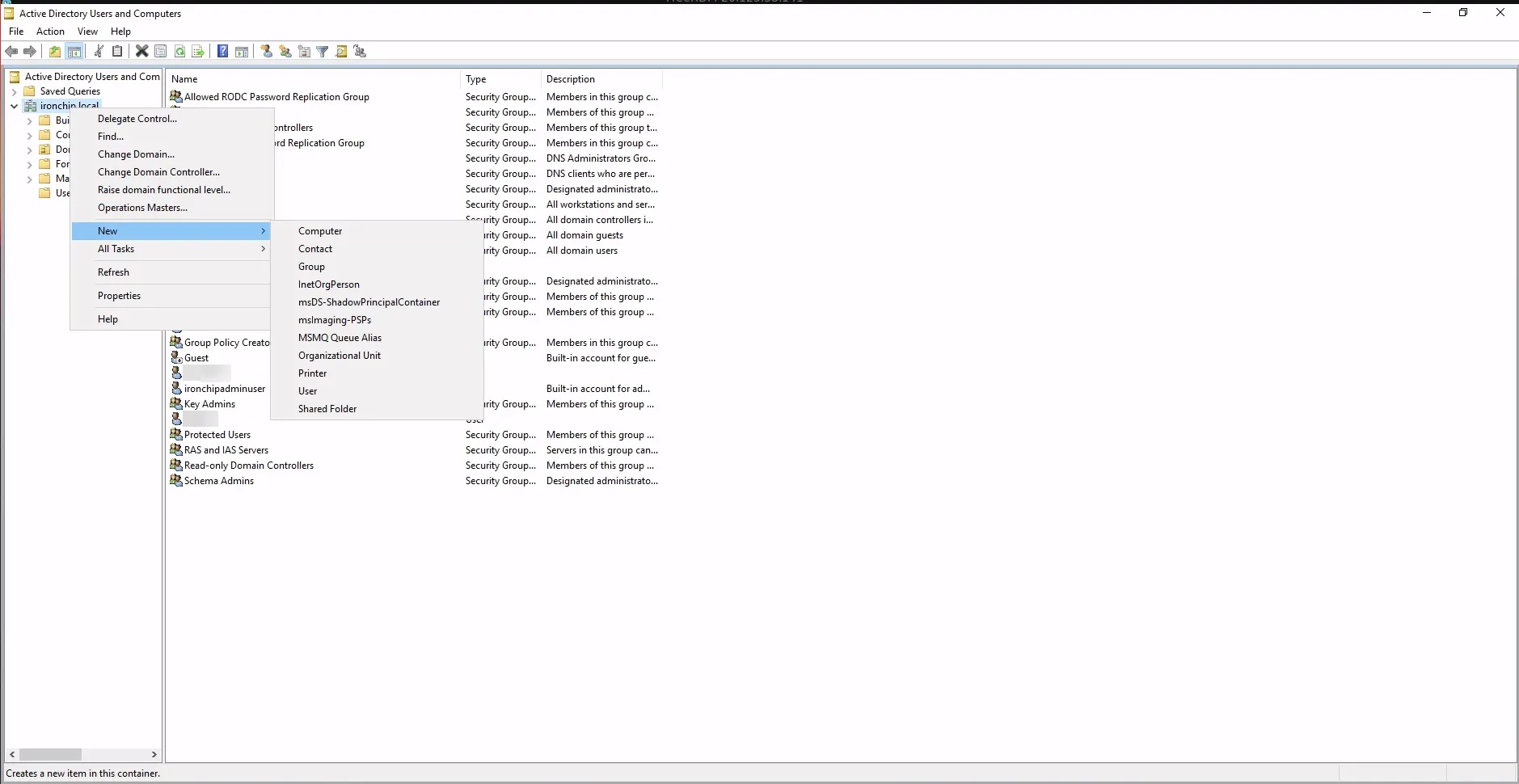
On the domain controller, right-click and select New > Group.
-
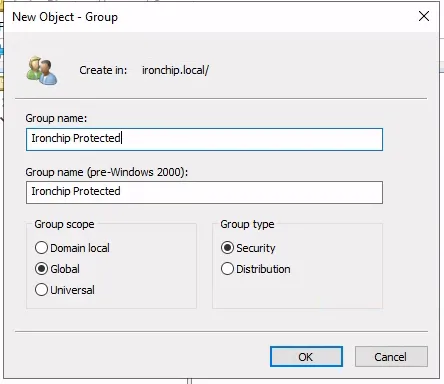
Create the group with a specific name.
-
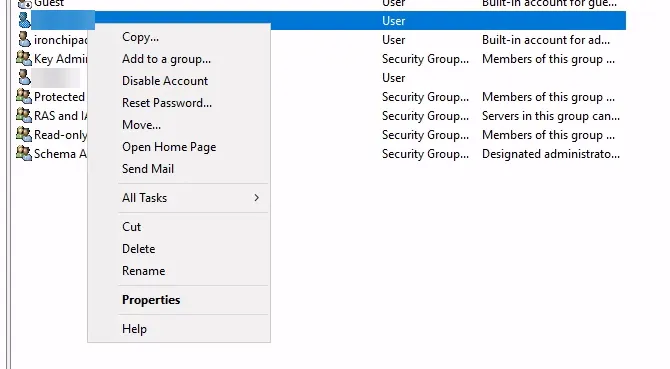
To add a user to the group, right-click the user and select Add to a group…
-
Select the group and click OK.
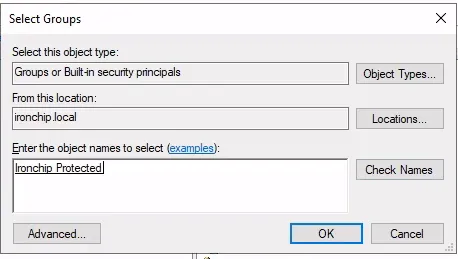
The user is now protected with Ironchip.
Verify the authentication with LDAP Admin
Section titled “Verify the authentication with LDAP Admin”With the service running and the user in the protected group, test the authentication in the LDAP Admin application:
- Start a connection: click Start and then Connect.
- Right-click Custom and select Properties.
- Set these properties and click OK:
- Host: the name or address of the computer where the proxy runs.
- Port: the port the proxy serves on (
server_portunderproxy). - Username: the username you used in the service configuration.
- Click OK again to start the authentication.
The user receives a notification for the service and authorizes the access. The authentication takes a few seconds. When it finishes, you see that the user has been authorized successfully.
User synchronization
Section titled “User synchronization”To synchronize users between LDAP and Ironchip, the proxy includes a tool:
ldap-windows.exe sync-users -ldap-user <user-used-for-bind> -ironchip-user <ironchip admin with access to the dashboard> -export-path <path for the exported users file creation>These are the parameters:
-ldap-user: the user used to bind to LDAP.-ironchip-user: an Ironchip administrator with access to the console.-export-path: the path where the file with the exported users is created.
When the import finishes, all the users are created in Ironchip.
Group synchronization
Section titled “Group synchronization”To synchronize only the users of a group, use sync-users with a search filter:
ldap-windows.exe sync-users -ldap-user <user-used-for-bind> -ironchip-user <ironchip admin with access to the dashboard> --ldap-search-filter "(&(objectClass=person)(memberOf=<group full DN>))"For example, if the users belong to the VPNAuthorized group with the DN CN=VPNAuthorized,DC=ironchip,DC=com, the command is:
ldap-windows.exe sync-users -ldap-user <user-used-for-bind> -ironchip-user <ironchip admin with access to the dashboard> --ldap-search-filter "(&(objectClass=person)(memberOf=CN=VPNAuthorized,DC=ironchip,DC=com))"sync-users also accepts the --ldap-search-dn flag. It defaults to the DN set in the configuration file, but you can use it to override the base DN of the search for that run.
Monitoring
Section titled “Monitoring”The proxy logs its events in the Windows Event Viewer under the name Ironchip LDAP Proxy.
Uninstallation
Section titled “Uninstallation”To uninstall the service, run:
ldap-windows.exe service uninstallConsole plugins
Section titled “Console plugins”Ironchip plugins are additional tools that integrate with other systems to improve security and authentication. The Plugins section of the admin console lists all the plugins available for the different integrations, with their downloads:
-
Windows NPS: integrates Ironchip with Windows Network Policy Server (NPS), so you can use Ironchip authentication for NPS-protected resources. See NPS.
-
ADFS: integrates Ironchip with Active Directory Federation Services (ADFS), so users can sign in to ADFS-based applications and services with their Ironchip credentials. See ADFS.
-
LDAP: integrates Ironchip with LDAP servers for automatic user synchronization and authentication with Ironchip credentials. This is the LDAP proxy described on this page.
-
Logon (Windows Logon, Linux Logon, and MacOS Logon): agents that protect access to Windows, Linux, and Mac computers. See Windows logon, Linux, and macOS.

-
Passwordless RADIUS: generates a RADIUS server to integrate Ironchip with that protocol. See RADIUS server.
-
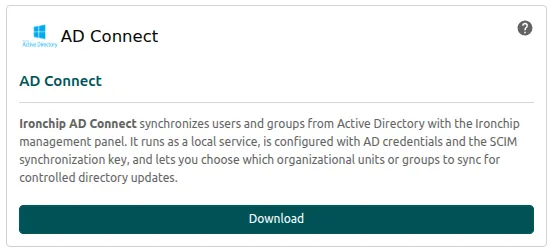
AD Connect: synchronizes users so you can manage identities directly from AD. See AD Connect.
For the documentation of each integration, see the integrations index.
Was this page helpful?
Thank you. We will use it to improve the documentation. If you want to tell us what is missing or unclear, write to support@ironchip.com.