

Entra ID synchronization
Synchronize the users and groups of Microsoft Entra ID (formerly Azure AD) with Ironchip using SCIM, with an enterprise application that provisions automatically.
Requirements
Section titled “Requirements”- A single Entra ID P1 or P2 license.
- A user with permissions in portal.azure.com.
- The SCIM synchronization information of your Ironchip company. To get the Tenant URL and the Secret Token, see SCIM in the console.
Create the enterprise application
Section titled “Create the enterprise application”-
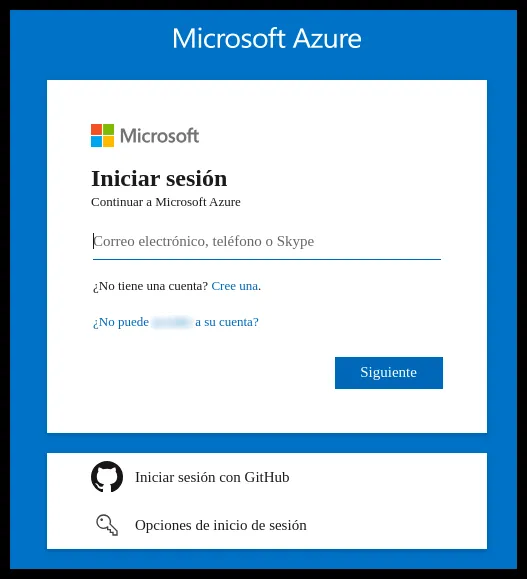
Sign in to the Azure portal with a user that has permissions.
-
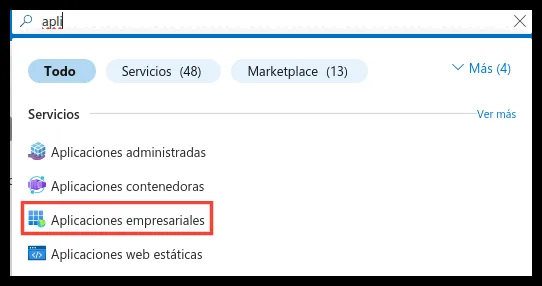
Search for Enterprise applications and open it.
-
Click New application.

-
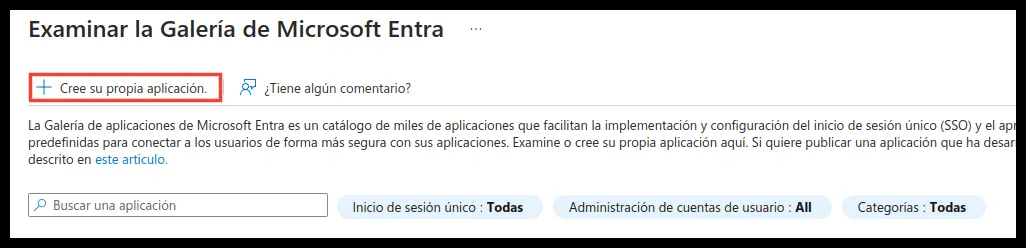
Click Create your own application.
-
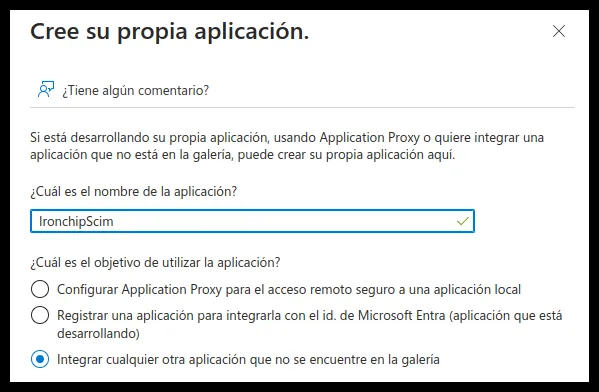
Give it a descriptive name, select the last of the three options, Integrate any other application you don’t find in the gallery (Non-gallery), and create the application.
Configure provisioning
Section titled “Configure provisioning”-
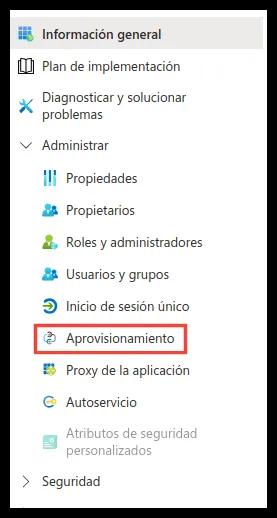
Inside the application, in the left side menu, select Provisioning.
-
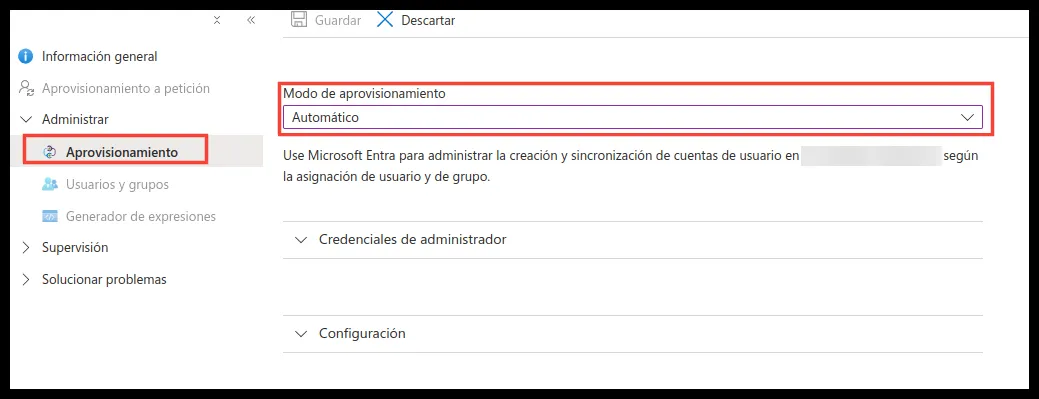
Select Provisioning again and set the mode to Automatic.
-
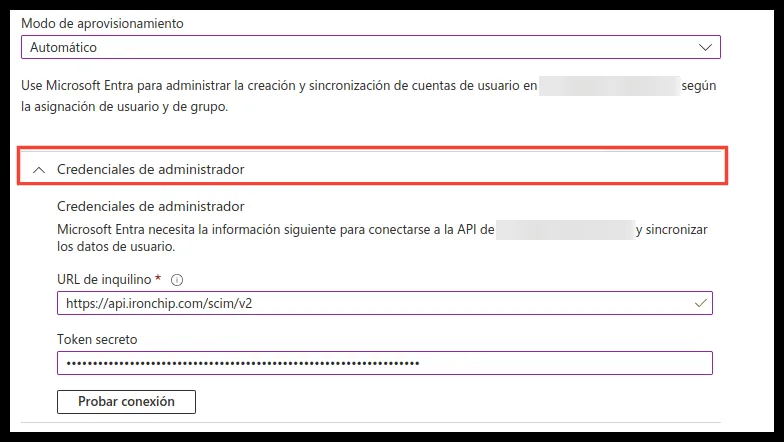
Expand Admin Credentials and enter the Tenant URL and the Secret Token of your Ironchip company.
-
Click Test Connection. If a notification says the connection is successful, save the configuration.
Configure attribute mapping
Section titled “Configure attribute mapping”-
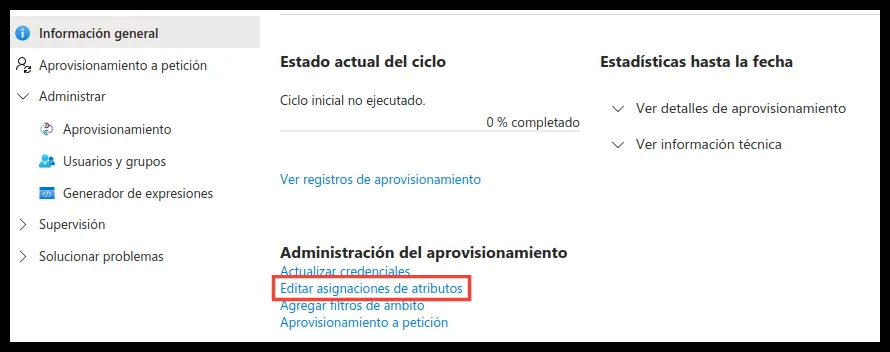
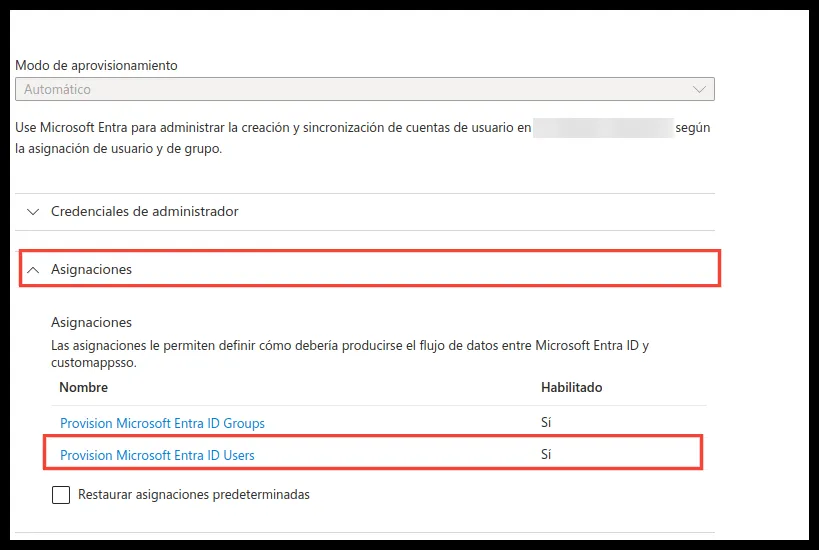
In the application’s provisioning, open Edit attribute mappings.
-
Expand the Mappings section and click Provision Microsoft Entra ID Users.
-
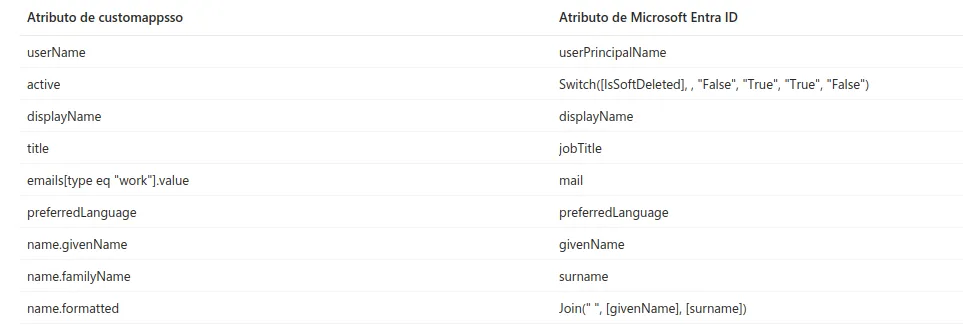
Set only the required attributes, or the recommended ones as well.
Required attributes:

Recommended attributes:
Immutable ID attribute
Section titled “Immutable ID attribute”We recommend that you also map the immutable ID attribute (immutableId). Some services require it. To add it:
-
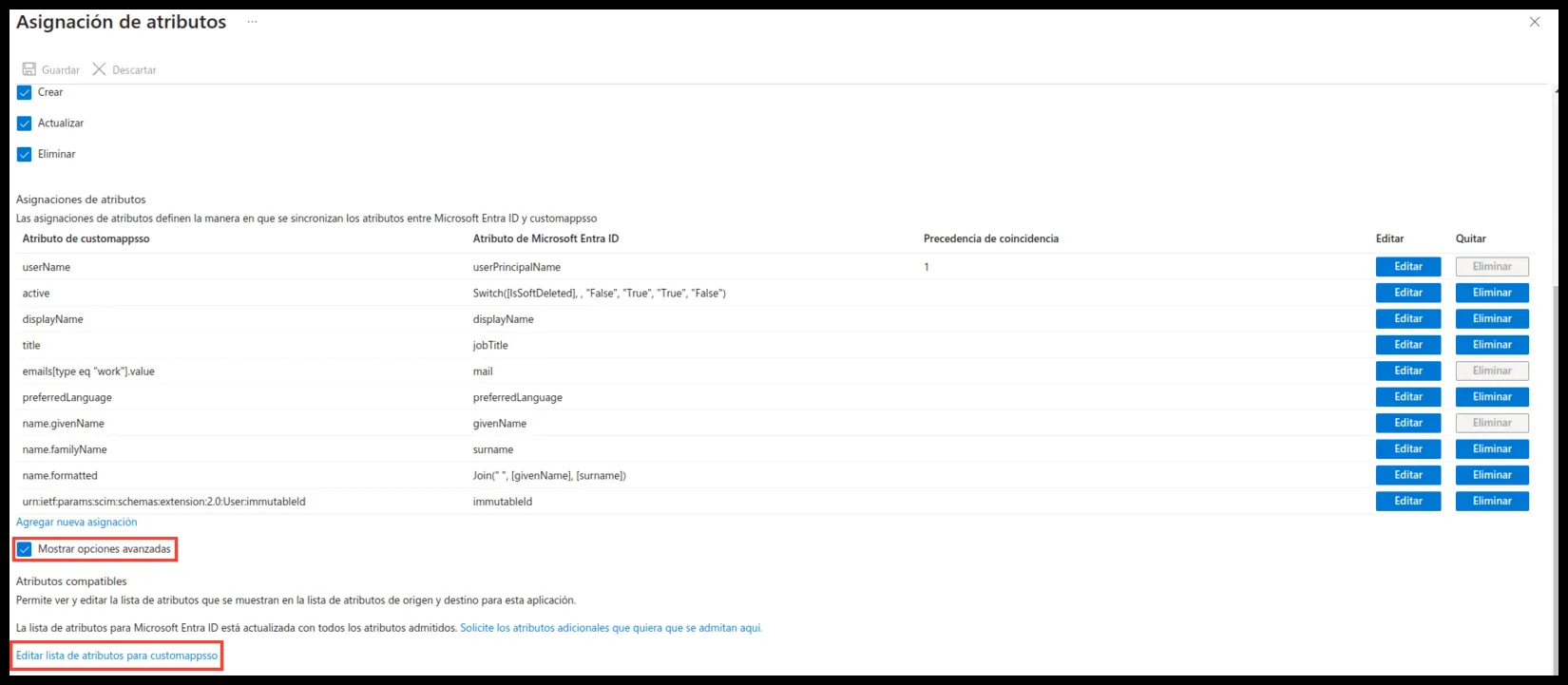
In the attribute mapping panel, select Show advanced options and open Edit attribute list.
-
Scroll to the end of the list and add an attribute of type
Stringnamedurn:ietf:params:scim:schemas:extension:2.0:User:immutableId. Save the changes.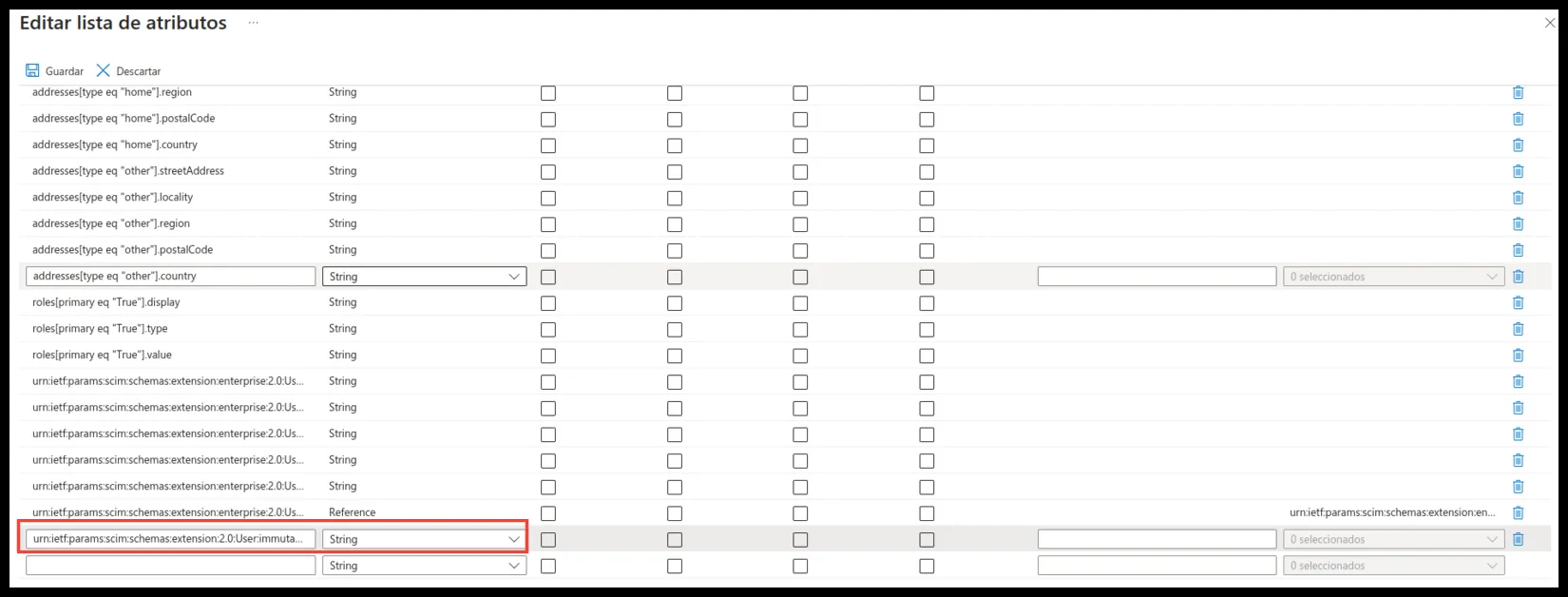
-
Back on the attribute mapping tab, click Add New Mapping.
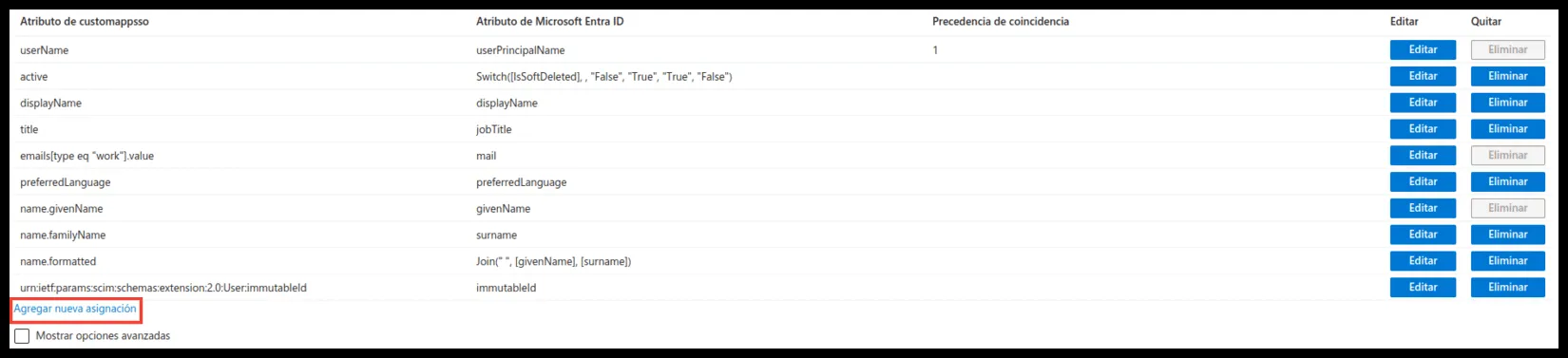
-
Keep Mapping type as Direct, select
immutableIdas the Source attribute andurn:ietf:params:scim:schemas:extension:2.0:User:immutableIdas the Target attribute, and save.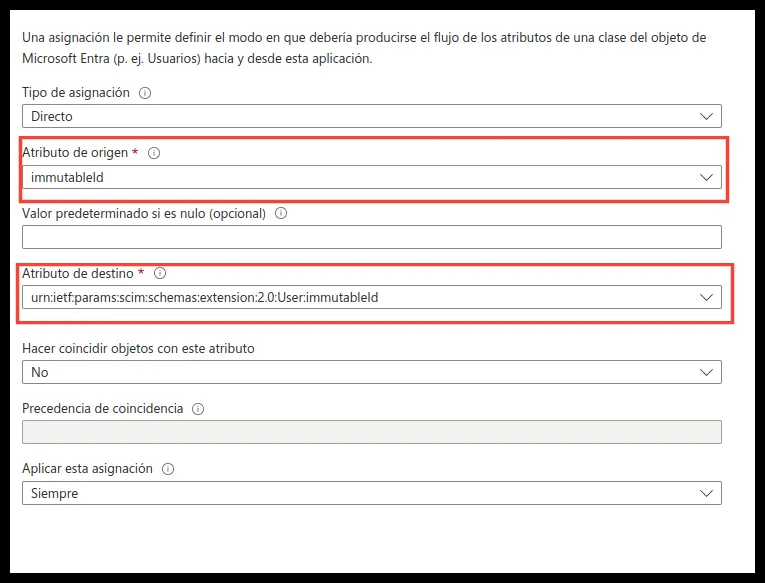
Assign users
Section titled “Assign users”To choose which users are synchronized:
-
In the enterprise application, open Users and groups.
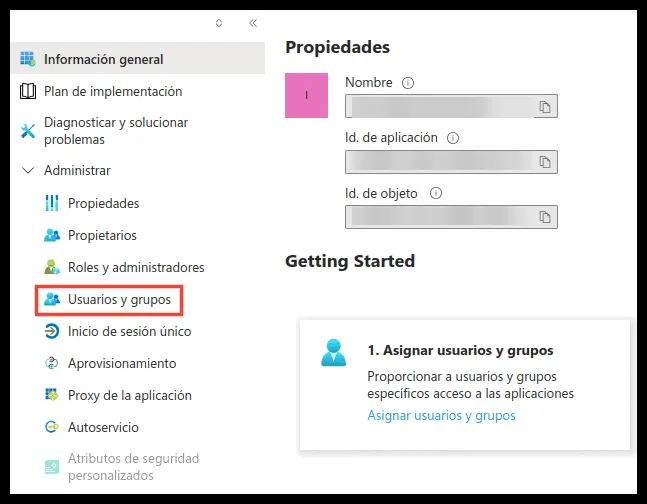
-
Click Add user/group and select the users and groups you want to synchronize.
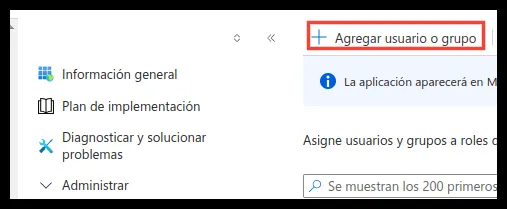
Start the synchronization
Section titled “Start the synchronization”With this, the basic configuration is complete. If needed, adjust the parameters for your case, then restart or turn on the enterprise application so it starts synchronizing.
Was this page helpful?
Thank you. We will use it to improve the documentation. If you want to tell us what is missing or unclear, write to support@ironchip.com.