

Microsoft 365
This guide explains how to federate Microsoft 365 with your AD FS server integrated with Ironchip, so that users in protected groups must pass Ironchip MFA.
Requirements
Section titled “Requirements”- The Windows Server machine must have an assigned domain and an associated FQDN accessible from the internet.
- To integrate AD FS on a local server, you need a certificate associated with that domain, issued by a valid certificate authority. AD FS must have access to the private key and needs the certificate in PFX format.
- The domain assigned to the machine in Azure must be validated. To do so, add to your DNS the record Azure requires to verify domain ownership.
Configure Ironchip
Section titled “Configure Ironchip”The first step is to configure AD FS and the Ironchip AD FS plugin. Follow the ADFS guide.
Once AD FS is configured correctly, continue with the Microsoft 365 federation.
Configure Microsoft 365
Section titled “Configure Microsoft 365”Install Microsoft Entra Connect
Section titled “Install Microsoft Entra Connect”-
Download Microsoft Entra Connect (formerly Azure AD Connect).
-
When the download finishes, run the installer on the Windows Server where you set up AD FS integrated with Ironchip.
-
When prompted, select Express settings.
-
In the Connect to Azure AD step, enter the credentials of a Microsoft Entra ID (formerly Azure AD) global administrator.
-
In the Connect to AD DS step, enter the credentials of an Active Directory administrator on the Windows Server.
-
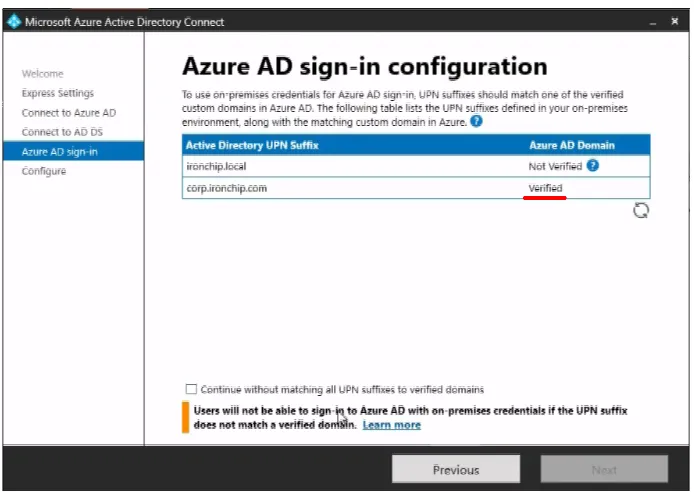
In the Azure AD sign-in step, check that the domain shown in the Azure AD Domain column has a Verified state. If the domain you want to federate isn’t verified, follow this Microsoft guide to verify it.
-
If the installer doesn’t let you continue, you can select the Continue without matching all UPN suffixes to verified domains checkbox. You create the UPN suffixes later, if needed.
-
Click Next. The installation starts at the Configure step.
Configure the UPN suffixes
Section titled “Configure the UPN suffixes”Skip this section if the installer didn’t ask you to select the Continue without matching all UPN suffixes to verified domains checkbox.
-
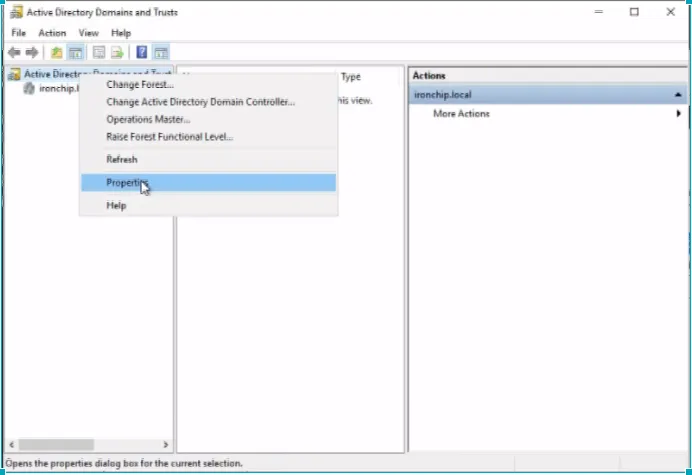
On the Windows Server, open Active Directory Domains and Trusts.
-
Right-click the first item in the list and select Properties.
-
Enter the domain exactly as it appears in Azure and click Add to enable the UPN suffix.
-
Close the tool. The suffix is now configured.
Federate the domain with your local AD FS
Section titled “Federate the domain with your local AD FS”-
Open Microsoft Entra Connect on the Windows Server and click Configure.
-
In the task list, select Manage federation and then Federate Azure AD domain.
-
In the Connect to Azure AD step, enter the credentials of an Entra ID global administrator.
-
In the Connect to AD FS step, enter the credentials of an Active Directory administrator on the local server.
-
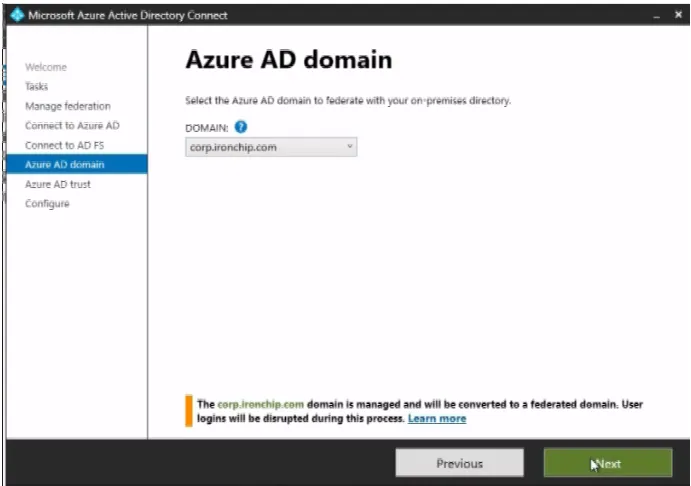
In the Azure AD domain step, select a federable Entra ID domain under DOMAIN. For the domain to be available, it must already be validated. The installer warns that the domain will be converted from managed to federated and that user sign-ins will be disrupted during the process.
-
Read the messages in the Azure AD trust step and click Next. The federation process starts.
Verify the integration
Section titled “Verify the integration”AD FS synchronization can take a while. While it runs, users may keep signing in to the service as before, without being asked for multi-factor authentication.
-
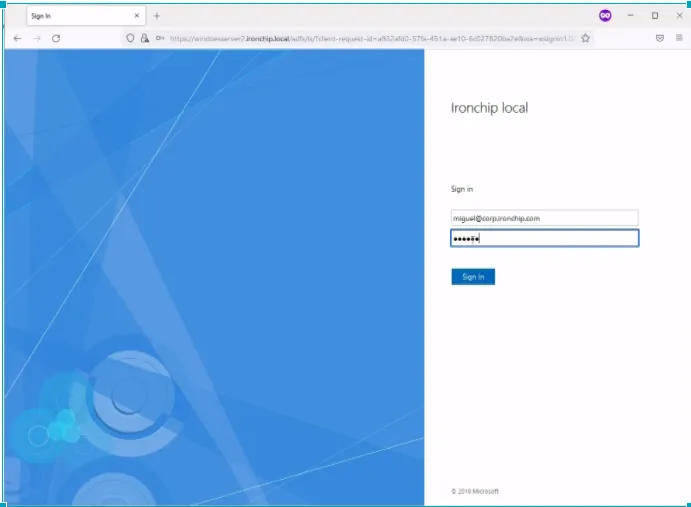
Try to sign in to your Microsoft 365 account. The sign-in process should have changed and redirect you to your Windows Server for a unified SSO experience.
-
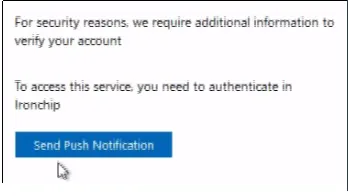
If the Ironchip plugin is configured correctly and the user belongs to a group protected with Ironchip MFA, the user is asked to allow access with a push notification on their authenticator.
Ask for credentials when local Windows applications start
Section titled “Ask for credentials when local Windows applications start”To make local Windows applications ask for credentials each time the user connects, set up a GPO with these parameters:
-
Delete all files in this folder each time the user signs out:
%LOCALAPPDATA%\Packages\Microsoft.AAD.BrokerPlugin_cw5n1h2txyewy\AC\TokenBroker\Accounts -
Add this entry to the Windows registry:
HKLM\SOFTWARE\Policies\Microsoft\Windows\WorkplaceJoinDWORD: BlockAADWorkplaceJoinVALUE: 1 -
Set this value in the GPO:
Computer Configuration > Policies > Windows Settings > Security Settings > Local Policies > Security OptionsValue: Users can't add Microsoft accounts
Was this page helpful?
Thank you. We will use it to improve the documentation. If you want to tell us what is missing or unclear, write to support@ironchip.com.