

Google Workspace
Google Workspace integrates with Ironchip over the SAML protocol. The users you assign authenticate with the Ironchip second factor.
Requirements
Section titled “Requirements”- Access to the Ironchip admin console.
- A user with permission to configure Google Workspace.
Configure Ironchip
Section titled “Configure Ironchip”-
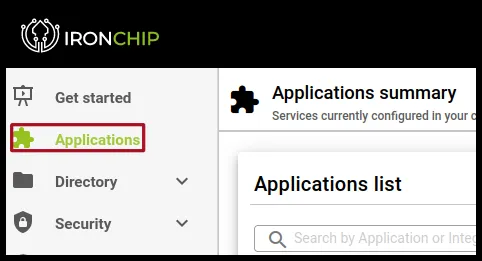
In the Ironchip admin console, go to Applications.
-
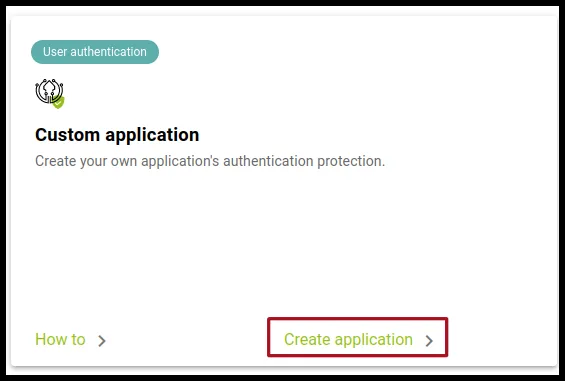
Click New application and, on the Custom application card, click Create application.
-
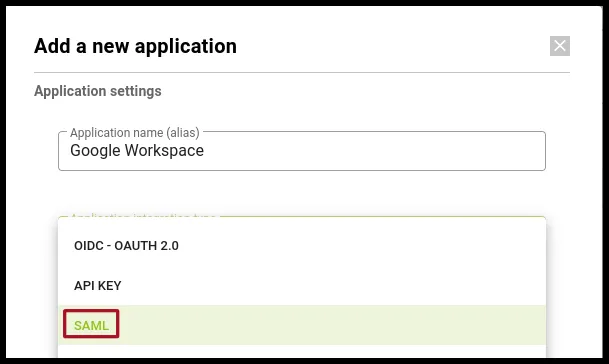
Give it an identifying name, select the SAML type, and, if you want, add an image as the application logo. Don’t close this tab.
-
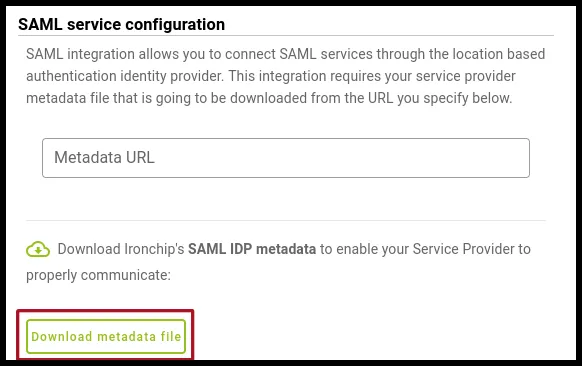
Before you sign in to the Google admin console, download the Ironchip metadata file with Download metadata file.
Configure Google Workspace
Section titled “Configure Google Workspace”Add the SAML profile
Section titled “Add the SAML profile”-
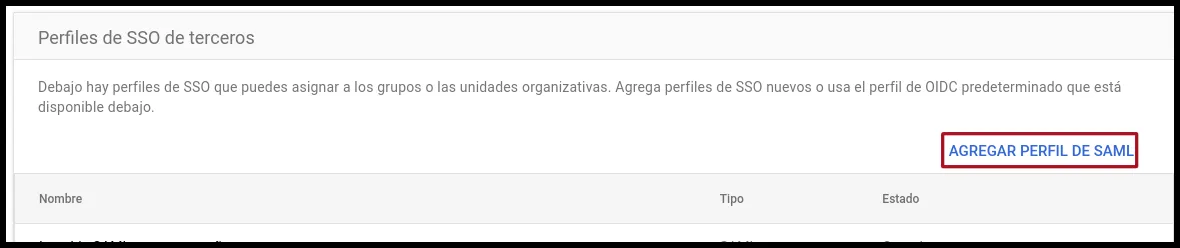
Sign in to the Google admin console and go to Security > Authentication > SSO with third-party IdP. Under Third-party SSO profiles, click Add SAML profile.
-
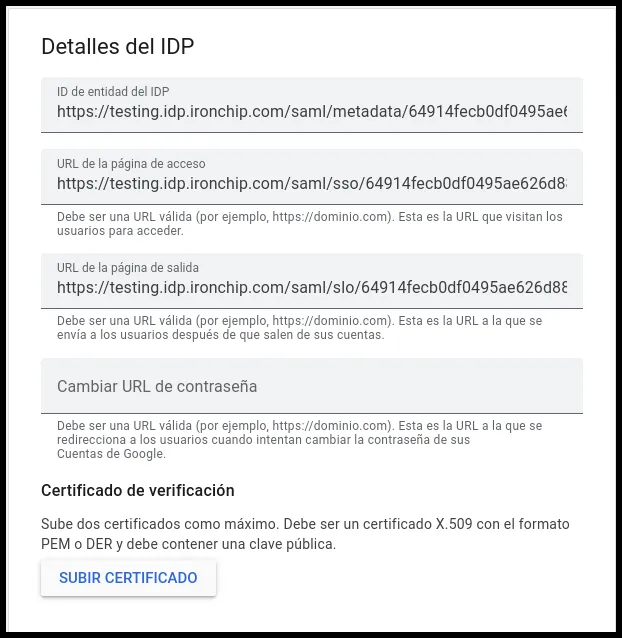
Open the metadata file you downloaded and fill in the IDP details fields with this data:
- IDP entity ID: the
entityIDproperty of theEntityDescriptorXML tag. - Sign-in page URL: the
Locationproperty of theSingleSignOnServiceXML tag. - Sign-out page URL: the
Locationproperty of theSingleLogoutServiceXML tag. - Verification certificate: paste the content of the
X509CertificateXML tag into the first field of this tool and save the result in a new file with a.crtextension. The metadata contains two identical certificates: use either one. The tool adds the headers Google needs to detect the certificate as valid. Upload the file with Upload certificate.
- IDP entity ID: the
-
Leave the remaining fields as default and save the changes.
Get the metadata URL for Ironchip
Section titled “Get the metadata URL for Ironchip”Ironchip asks for the URL of the service provider metadata. To get it, modify this code with the data from the Google SAML profile:
<?xml version="1.0" encoding="UTF-8"?><md:EntityDescriptor xmlns:md="urn:oasis:names:tc:SAML:2.0:metadata" validUntil="2122-09-16T10:40:54Z" cacheDuration="PT604800S" entityID="google.com"> <md:SPSSODescriptor AuthnRequestsSigned="false" WantAssertionsSigned="false" protocolSupportEnumeration="urn:oasis:names:tc:SAML:2.0:protocol"> <md:NameIDFormat>urn:oasis:names:tc:SAML:1.1:nameid-format:emailAddress</md:NameIDFormat> <md:AssertionConsumerService Binding="urn:oasis:names:tc:SAML:2.0:bindings:HTTP-POST" Location="https://www.google.com/a/<YOUR_DOMAIN>/acs" index="1" /> </md:SPSSODescriptor></md:EntityDescriptor>- Replace the content of
entityIDwith the Entity ID shown under SP details. - Replace the content of
Locationwith the ACS URL shown under SP details.
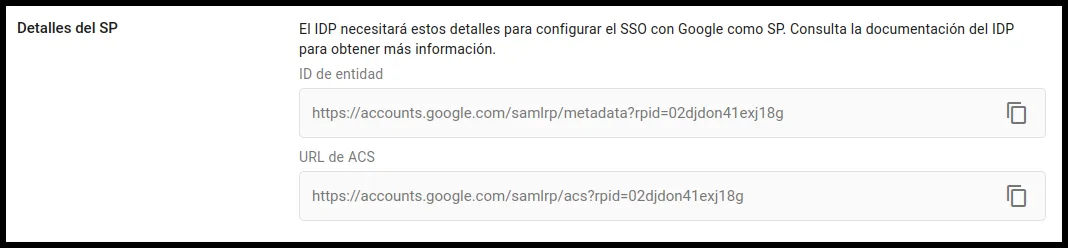
When you have generated the file, upload it to a public internet address. Enter that URL, in raw format, in the Metadata URL field of the new application dialog in Ironchip.
Enable SSO
Section titled “Enable SSO”- In the Google admin console, go back to Security > Authentication > SSO with third-party IdP.
- Click Manage SSO profile assignments.
- On the left, configure the groups or individuals who authenticate with the Ironchip second factor.
- Configure those same users in the SAML application you created in Ironchip.
Verify the integration
Section titled “Verify the integration”- Ask a user or group you assigned to sign in to a Google Workspace service.
- Google redirects them to Ironchip to authenticate with the second factor.
- When the user completes the authentication, they return to Google with their session started.
Was this page helpful?
Thank you. We will use it to improve the documentation. If you want to tell us what is missing or unclear, write to support@ironchip.com.