

Palo Alto
This guide explains how to integrate Palo Alto devices with Ironchip through SAML or RADIUS. The integration lets you centralize user management and strengthen access security.
Requirements
Section titled “Requirements”- Access to the Ironchip admin console.
- A user with permissions to make changes in Palo Alto.
- GlobalProtect configured, with a portal and a gateway.
Configure the SAML profile in Palo Alto
Section titled “Configure the SAML profile in Palo Alto”-
Sign in to the Palo Alto Networks admin console with sufficient privileges.
-
Go to Device > Server Profiles > SAML Identity Provider and click Import to define a new SAML IdP.
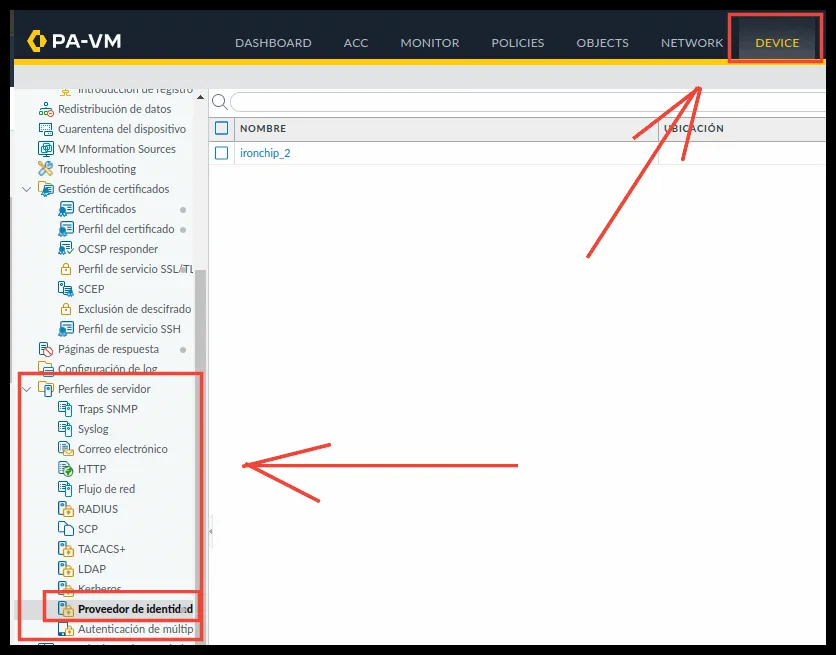

-
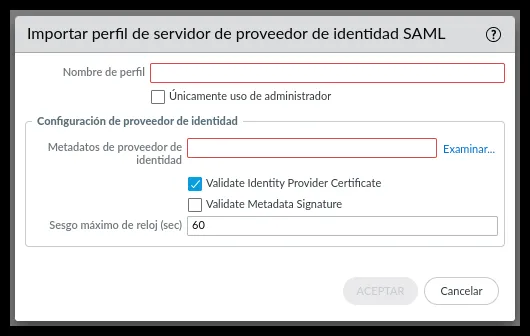
Enter these details:
-
Profile Name: a unique, descriptive name.
-
Identity Provider Metadata: you get it when you create a SAML application in Ironchip. Download it and upload it with Browse.
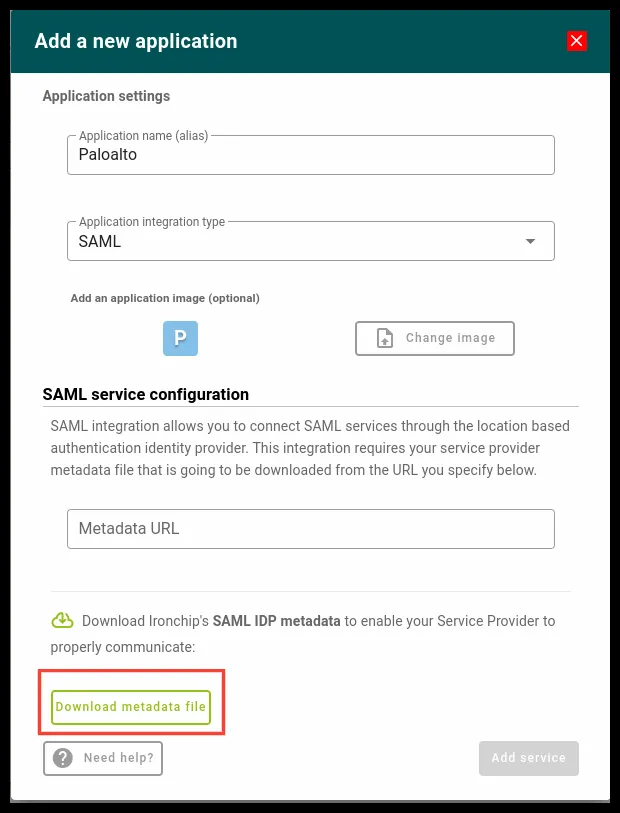
-
Maximum Clock Skew (seconds):
60.
-
-
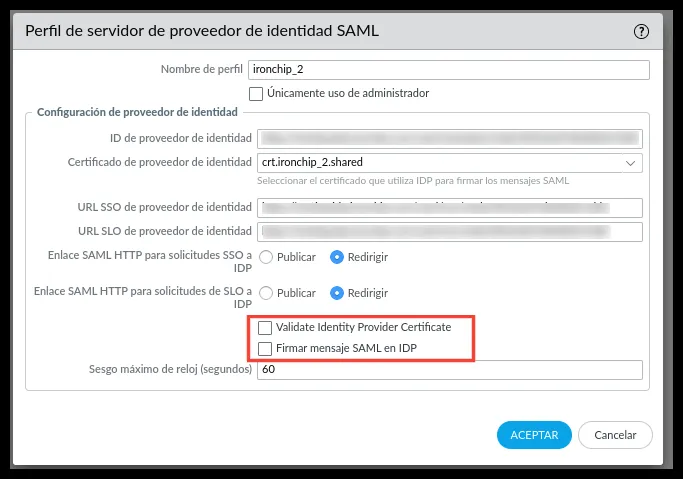
Click OK and open the profile you created.
-
Clear Validate Identity Provider Certificate and Sign SAML Message to IDP.
-
Click OK to save.
Get the metadata for Ironchip
Section titled “Get the metadata for Ironchip”-
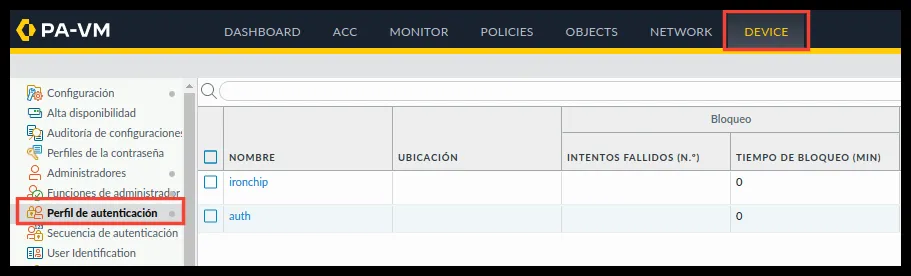
Go to Device > Authentication Profile and click Add.
-
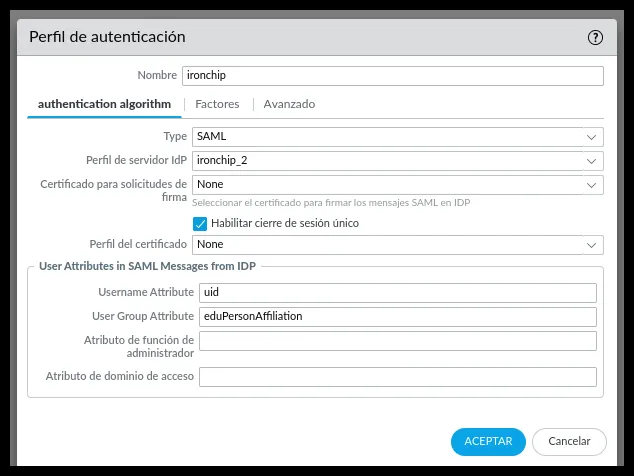
Change these parameters:
- Name: a descriptive name.
- Type:
SAML. - IdP Server Profile: the SAML profile you created.
- Enable Single Logout: selected.
- Username Attribute:
uid. - User Group Attribute:
eduPersonAffiliation.
-
Click OK. In the list of authentication profiles, click the Metadata link of the profile you just created.

-
In the Export SAML Metadata window, select
managementin Service, enter the connection IP of your VPN and download the metadata.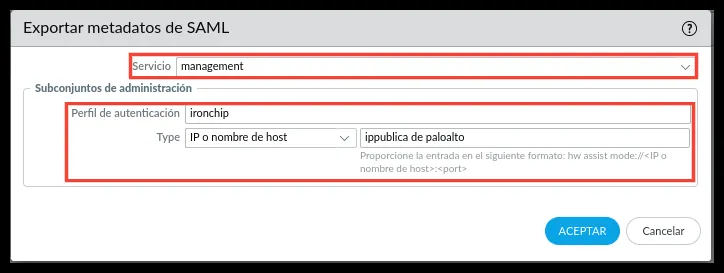
-
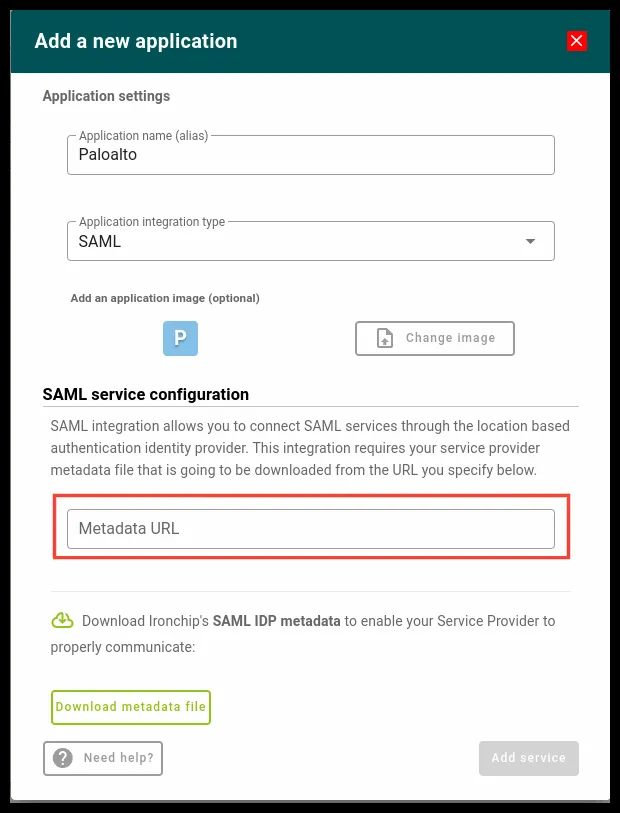
Upload the downloaded file to a public internet address and copy its raw URL into the Metadata URL field of the Ironchip application.
Apply the SAML profile to the gateway
Section titled “Apply the SAML profile to the gateway”-
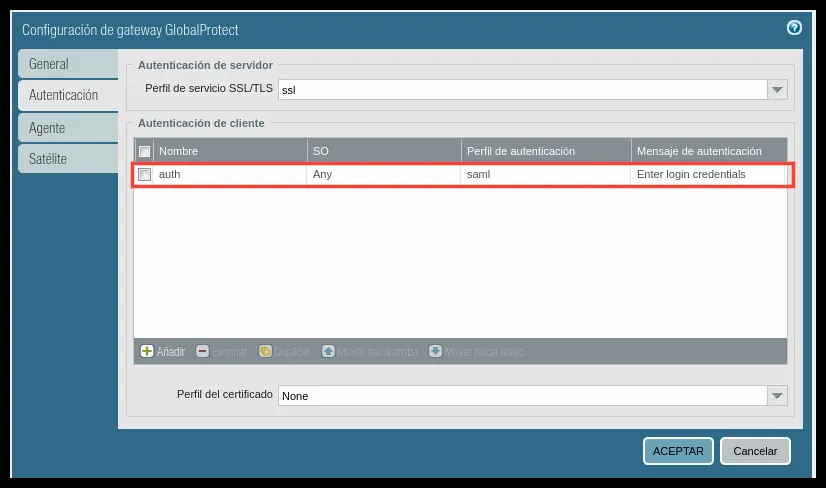
Go to Network > GlobalProtect > Gateways and open your GlobalProtect gateway.
-
On the Authentication tab, under Client Authentication, click Add to update client authentication with the profile you just configured.
-
Leave the default settings except for these fields:
- Name: a unique, descriptive name.
- OS:
Any. - Authentication Profile: the authentication profile you configured earlier.
- Authentication Message: instructions for end users, such as
Enter login credentials.
-
Click OK to save.
Apply the SAML profile to the GlobalProtect portal
Section titled “Apply the SAML profile to the GlobalProtect portal”Apply to the portal the same configuration you just applied to the gateway.
-
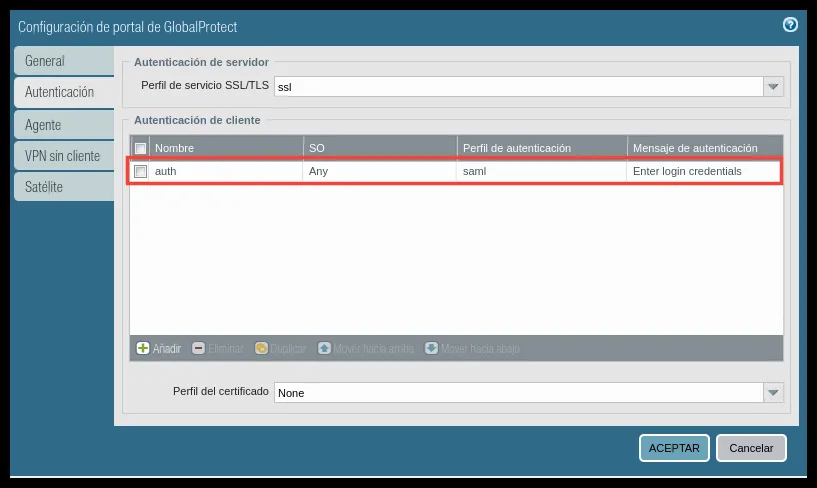
Go to Network > GlobalProtect > Portals and open your GlobalProtect portal.
-
On the Authentication tab, under Client Authentication, click Add to update client authentication with the SAML profile.
-
Leave the default settings except for these fields:
- Name: a unique, descriptive name.
- OS:
Any. - Authentication Profile: the authentication profile you configured earlier.
- Authentication Message: instructions for end users, such as
Enter login credentials.
-
Click OK to save.
Verify the integration
Section titled “Verify the integration”Give users access to the application created in the Ironchip console. Connect with the GlobalProtect client as one of them: when you sign in, you are asked to authenticate with Ironchip.
Administrator with SAML (optional)
Section titled “Administrator with SAML (optional)”-
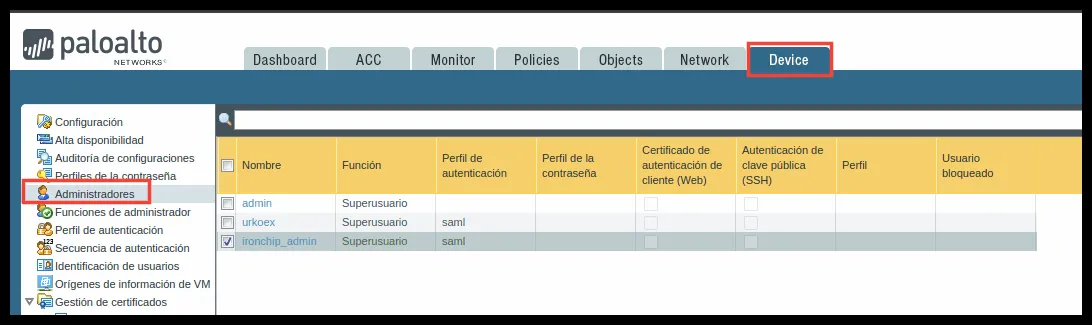
Go to Device > Administrators and create an administrator profile or edit an existing one.
-
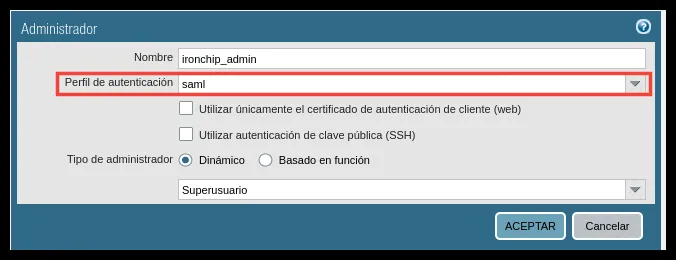
In Authentication Profile, select the SAML profile you created.
-
Go to Device > Setup and, on the Management tab, edit Authentication Settings with the gear icon.
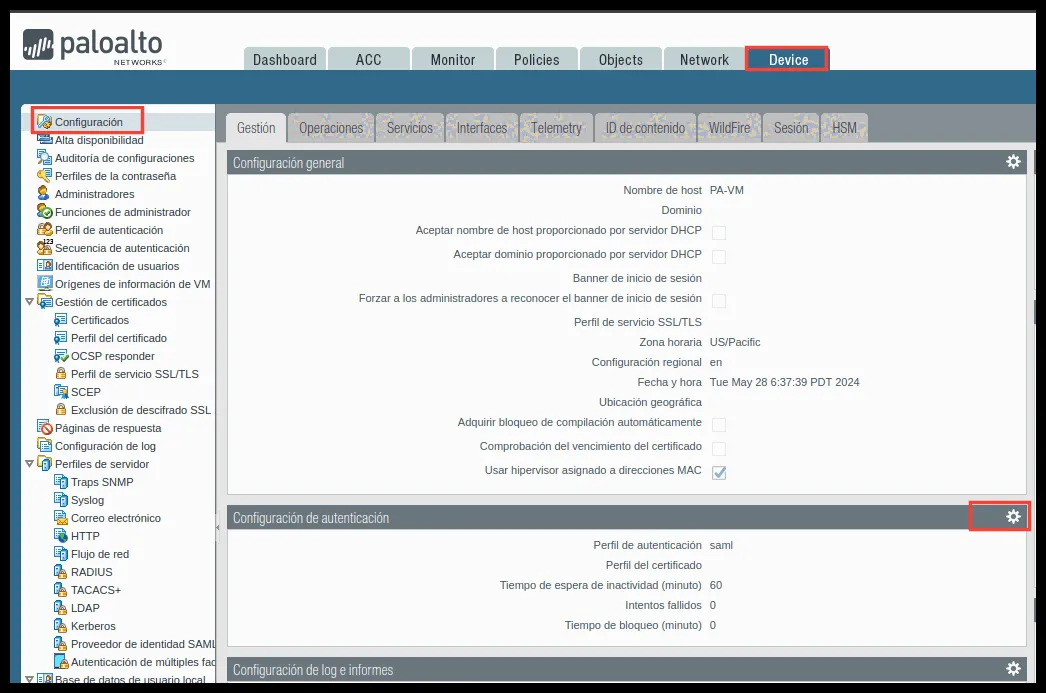
-
In Authentication Profile, select the SAML profile you created.
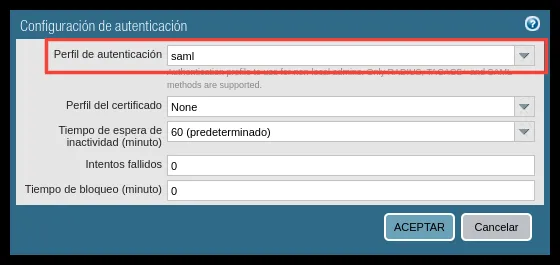
RADIUS
Section titled “RADIUS”Configure Palo Alto to authenticate against RADIUS and integrate it with an NPS server in an Active Directory environment. If you prefer not to use NPS, you can use the Ironchip RADIUS server: the connection details (IP, secret and port) are those of that server.
Requirements
Section titled “Requirements”- A Windows server with the NPS role configured and protected by Ironchip.
- A RADIUS client created in NPS that points to the Palo Alto IP, with its shared secret.
- Access to the Ironchip admin console.
- A user with permissions to make changes in Palo Alto.
- A working VPN service.
Create the RADIUS server profile
Section titled “Create the RADIUS server profile”-
Sign in to the Palo Alto Networks admin console with sufficient privileges.
-
Go to Device > Server Profiles > RADIUS and click Add to define a RADIUS server profile.
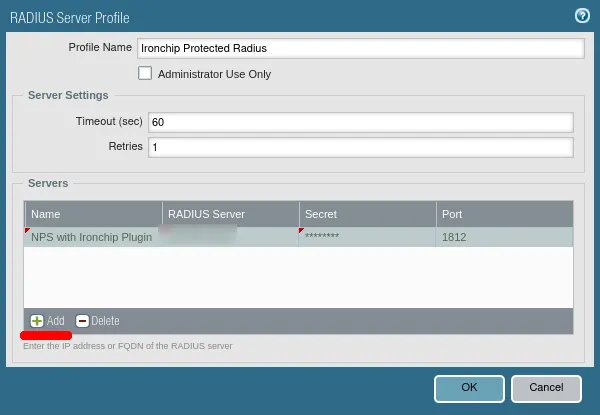
-
Enter a unique, descriptive Profile Name and set:
- Timeout (sec):
60. - Authentication Protocol:
PAP. - Retries:
1.
- Timeout (sec):
-
Under Servers, click Add and enter:
- Name: a unique, descriptive name.
- RADIUS Server: the IP address of the NPS server.
- Secret: the shared secret you defined in the NPS RADIUS client.
- Port: the UDP port NPS listens on for RADIUS, such as
1812.
-
Click OK to save.
Define the authentication profile
Section titled “Define the authentication profile”-
Go to Device > Authentication Profile and click Add.
-
On the Authentication tab, leave the default values except:
- Type:
RADIUS. - Server Profile: the server profile you defined in the previous section.
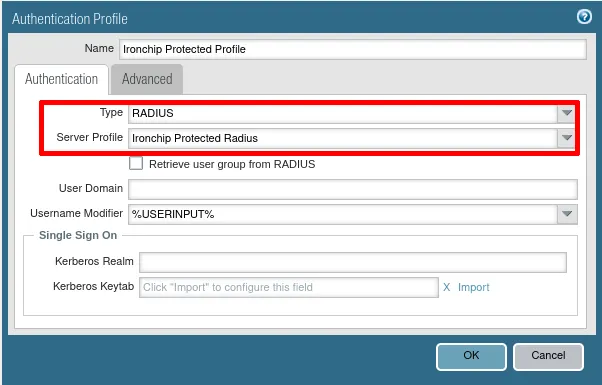
- Type:
-
On the Advanced tab, under Allow List, click Add and select
all.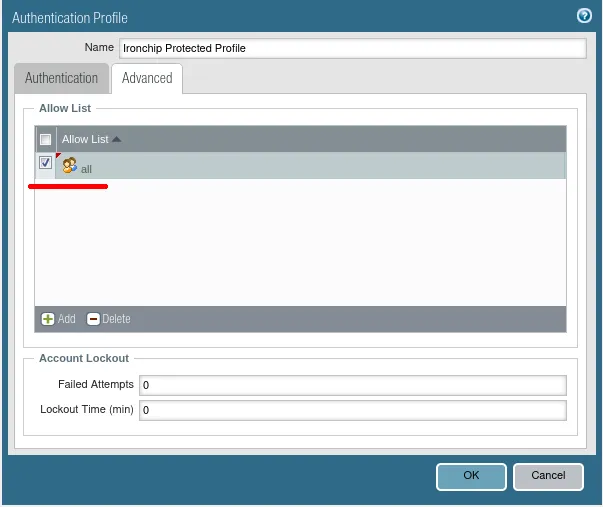
-
Click OK and then Commit to save the RADIUS authentication profile.
-
Open the Palo Alto Networks CLI and test the authentication profile.
Apply the RADIUS profile to the gateway
Section titled “Apply the RADIUS profile to the gateway”-
Go to Network > GlobalProtect > Gateways and open your GlobalProtect gateway.
-
On the Authentication tab, click Add to update client authentication with the RADIUS profile you just configured.
-
Leave the default settings except for these fields:
- Name: a unique, descriptive name.
- OS:
Any. - Authentication Profile: the authentication profile you configured earlier.
- Authentication Message: instructions for end users, such as
Enter login credentials.
-
Go to Agent > Client Settings, open the client configuration and, on the Authentication Override tab, select Generate cookie for authentication override and Accept cookie for authentication override.
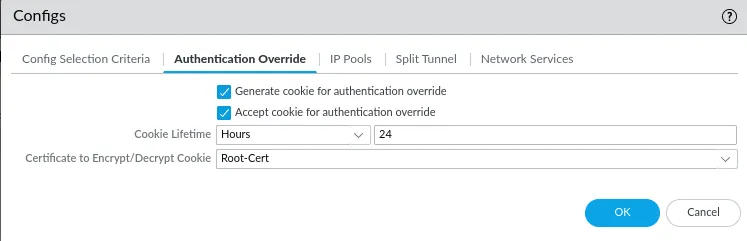
-
Click OK to save.
Apply the RADIUS profile to the GlobalProtect portal
Section titled “Apply the RADIUS profile to the GlobalProtect portal”Apply to the portal the same configuration you just applied to the gateway.
-
Go to Network > GlobalProtect > Portals and open your GlobalProtect portal.
-
On the Authentication tab, click Add to update client authentication with the RADIUS profile you just configured.
-
Leave the default settings except for these fields:
- Name: a unique, descriptive name.
- OS:
Any. - Authentication Profile: the authentication profile you configured earlier.
- Authentication Message: instructions for end users, such as
Enter login credentials.
-
Go to Agent, open the agent configuration and, on the Authentication tab, under Authentication Override, select Generate cookie for authentication override and Accept cookie for authentication override.
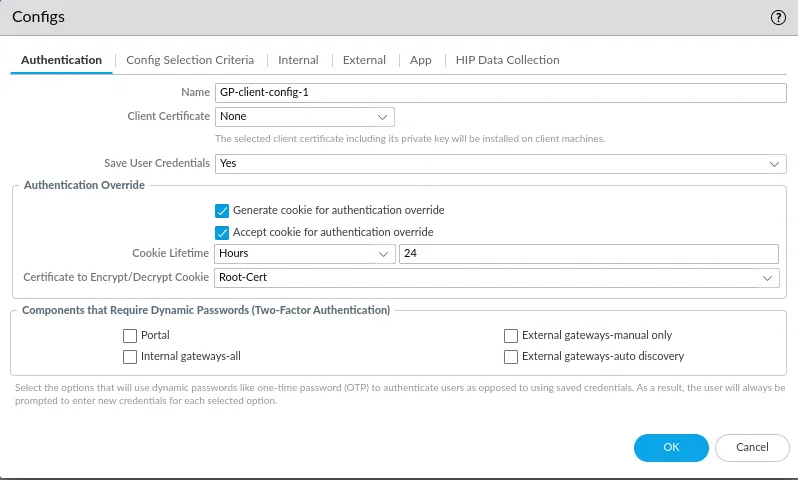
-
Click OK to save.
Commit the configuration
Section titled “Commit the configuration”Click Commit to save the RADIUS configuration in the Palo Alto Networks admin console.
By default, RADIUS connections go out through the management interface. To change this, see the Palo Alto Networks knowledge base.
Verify the integration
Section titled “Verify the integration”Give users access to the application created in the Ironchip console. Connect with the GlobalProtect client as one of them: after you enter your username and password, you are asked to authenticate with Ironchip.
Troubleshooting
Section titled “Troubleshooting”- Authentication fails with a timeout: check that the RADIUS server profile timeout is
60seconds and retries is1, to give the user time to respond to Ironchip. - The RADIUS server rejects the connection: check that the Palo Alto IP is configured as a RADIUS client in NPS and that the shared secret is the same on both sides.
Was this page helpful?
Thank you. We will use it to improve the documentation. If you want to tell us what is missing or unclear, write to support@ironchip.com.