

AD Connect
Ironchip AD Connect is a tool that synchronizes the users and groups of your Active Directory with the Ironchip admin console. It installs as a Windows service and is configured from a local panel.
Installation
Section titled “Installation”-
Download Ironchip AD Connect from the Plugins section of the admin console.
-
Open a PowerShell terminal as administrator and go to the folder where the executable is.
-
Install the service and start it:
Ventana de terminal .\ironchip-ad-connect.exe s install.\ironchip-ad-connect.exe s start
-
Open
http://localhost:10300in a browser. It is a local address that hosts the user synchronization panel.
To stop or uninstall the service, run:
.\ironchip-ad-connect.exe s stop.\ironchip-ad-connect.exe s uninstallTo see the rest of the available commands, run:
.\ironchip-ad-connect.exe hConfiguration
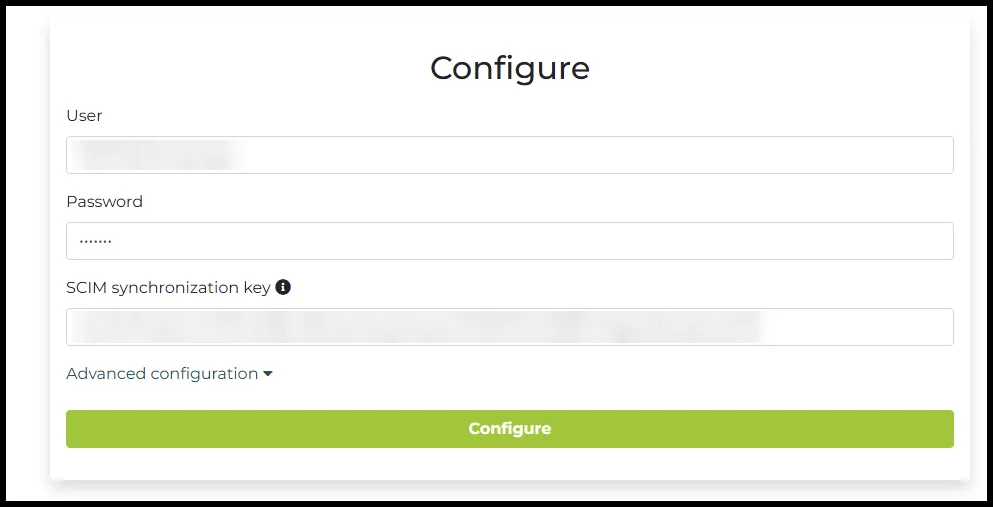
Section titled “Configuration”The first step is to establish the connection between Ironchip and Active Directory. In the panel, fill in the configuration section and click the green Configure button:
- User: the domain and name of an Active Directory user with administrator permissions.
- Password: the password of that user.
- SCIM synchronization key: the SCIM synchronization key of your company, which you get in the Ironchip console (see the next section).
Get the SCIM synchronization key
Section titled “Get the SCIM synchronization key”The SCIM synchronization key is the secret of a SCIM credential of your company. To create it, go to Directory > Synchronization > SCIM, open the Credentials tab, and click Add credential. The steps, with screenshots, are in SCIM in the console.
Select users and groups
Section titled “Select users and groups”Once configured, choose which users and groups to synchronize.
-
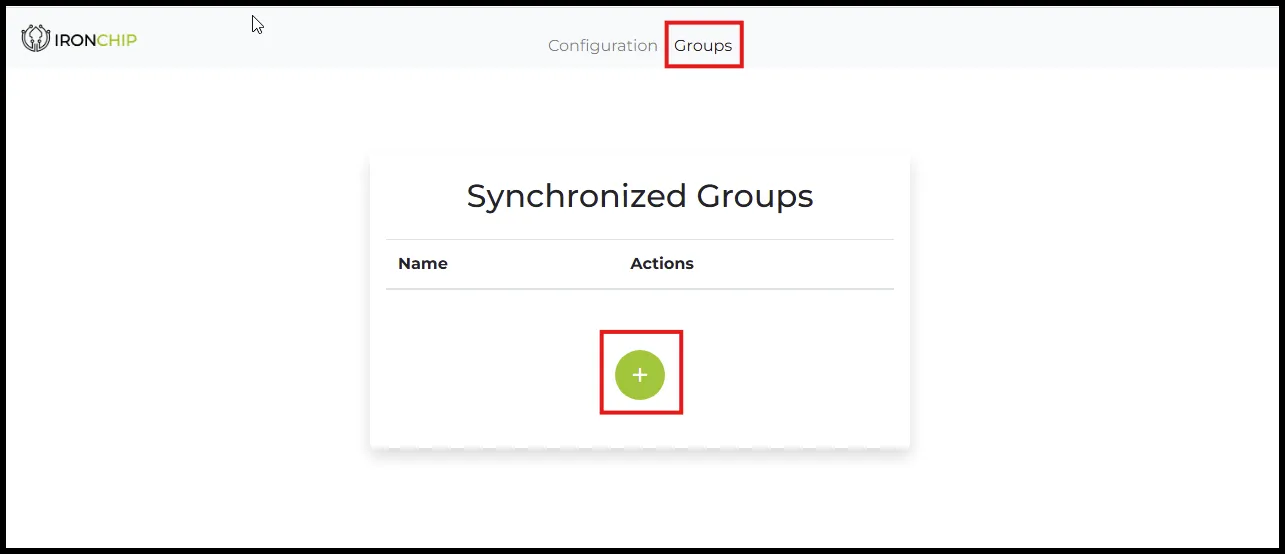
In the Groups section, click the green + button.
-
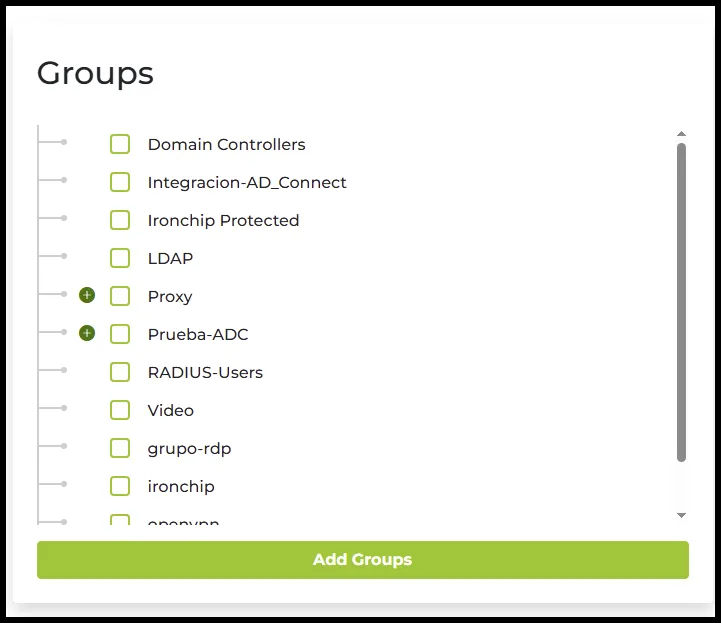
In the new tab, select the units or groups you want to synchronize with the Ironchip console and click Add Groups.
-
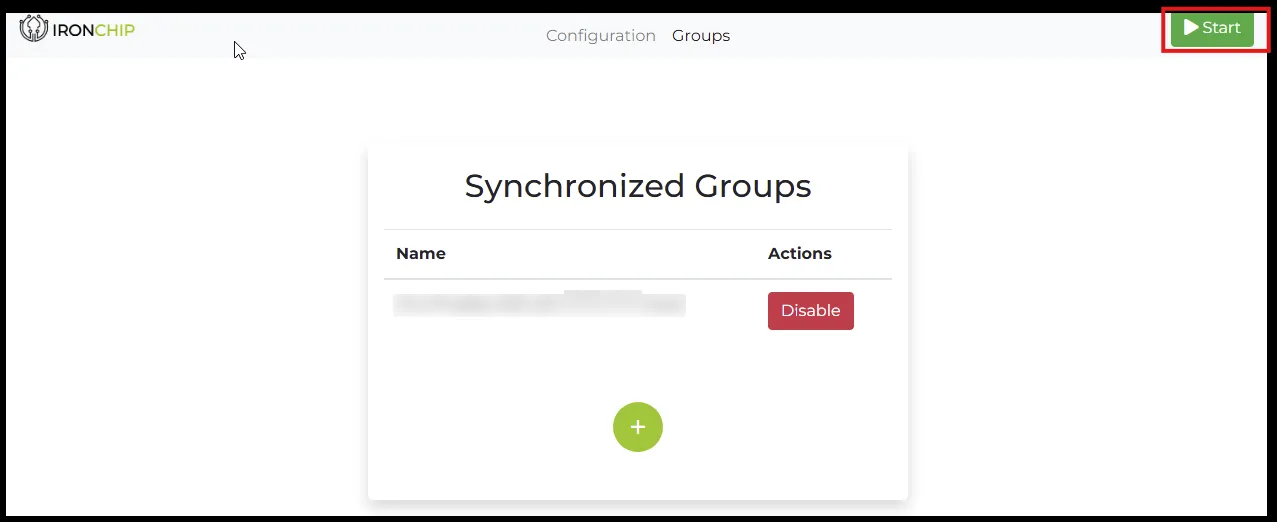
Click Start to begin the synchronization.
Was this page helpful?
Thank you. We will use it to improve the documentation. If you want to tell us what is missing or unclear, write to support@ironchip.com.