

Safe zones and geofencing
A safe zone is a place, or a set of places, from which a policy allows an action. Safe zones are unique, non-replicable geographical locations from which users typically operate, and you configure them to secure access and prevent fraudulent operations from unauthorized locations. Administrators manage safe zones and assign users to them from the admin console.
What is a safe zone?
Section titled “What is a safe zone?”A safe zone is an area from which the user typically operates. Fraudulent activity tends to come from locations far from safe zones.
A safe zone is also a unique geographical location that cannot be spoofed. An administrator can enforce that users authenticate only from the established safe zone.
The Ironchip device recognition system complements the concept of safe zones.
Personal and corporate safe zones
Section titled “Personal and corporate safe zones”Safe zones appear in Directory > Safe zone in the console, split into two sections: Personal and Corporate.
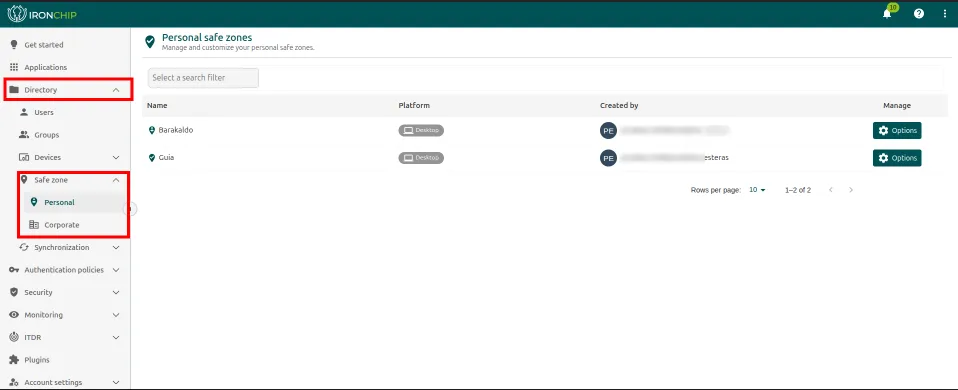
Personal safe zone
Section titled “Personal safe zone”In this section, each user can create their own safe zone from their enrolled device:
- In the Ironchip app, open the left menu and select Keys.
- Tap the + icon.
- Enter a name for the key to generate the personal safe zone.
The full steps are in Create a safe zone.
Corporate safe zone
Section titled “Corporate safe zone”In this section, the administrator configures and manages a global safe zone and applies the security policies to all the users of the organization:
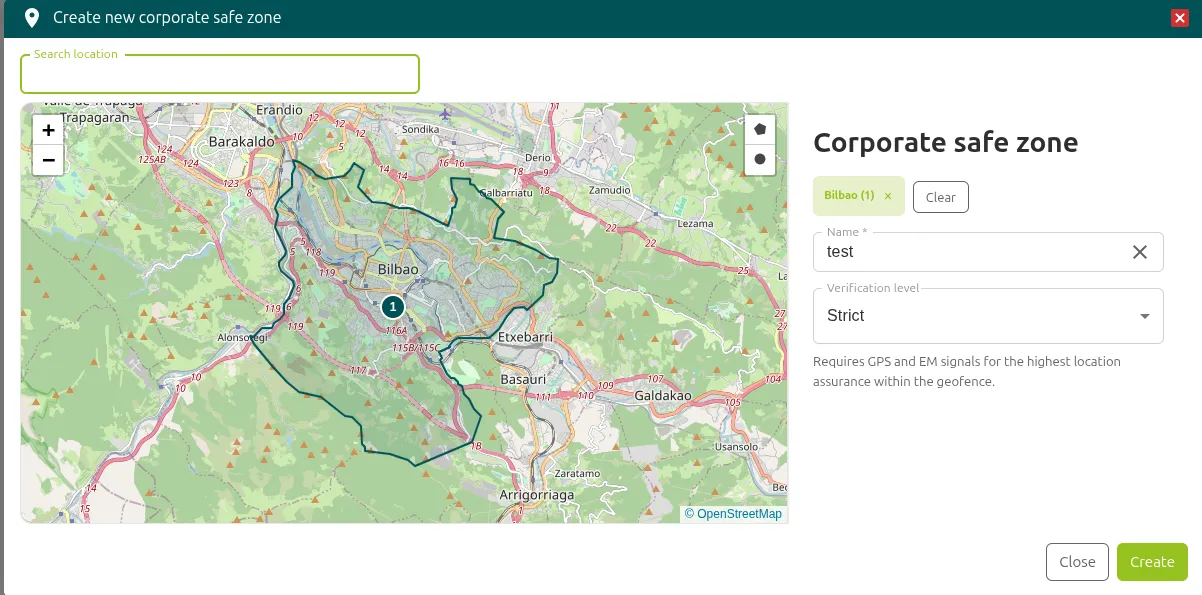
- Go to the Corporate section.
- Click New corporate safe zone.
- Set the location: search for it in Search location or draw a polygon or a circle on the map.
- Enter a name in Name.
- Choose the verification level in Verification level: Standard or Strict. With Strict, the zone requires GPS and electromagnetic (EM) signals for the highest location assurance within the geofence.
- Click Create.
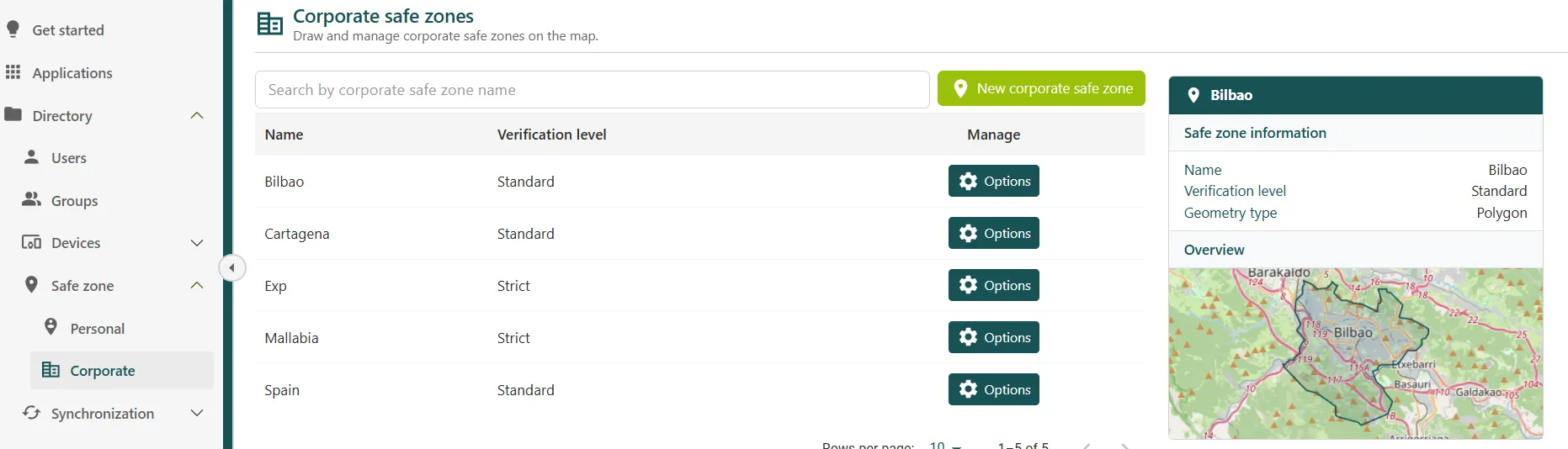
The Corporate list shows each zone with its verification level. When you select one, the panel on the right shows its name, verification level, geometry type (for example, polygon), and a map.
Make a safe zone public
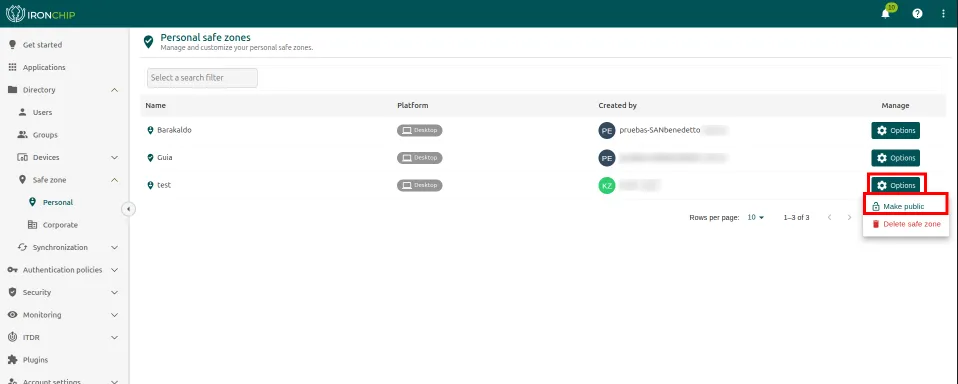
Section titled “Make a safe zone public”A personal safe zone can be made visible to all the users in the company. For example, a common public zone could be the office.
- Create the safe zone from your mobile device as usual.
- In the console, go to Directory > Safe zone > Personal. The list of your safe zones appears.
- Click Options and then Make public.
Frequently asked questions
Section titled “Frequently asked questions”These are the questions that come up most often when defining safe zones.
Can I create a safe zone and apply it only to a critical group of users?
Section titled “Can I create a safe zone and apply it only to a critical group of users?”Yes. Safe zones are assigned granularly to specific groups:
- Create the safe zone with the signals of the physical environment you want (server room, executive room, a specific floor).
- Create or use a user group (for example, “IT team” or “Executives”).
- Assign the safe zone to the group. Users in other groups are not affected.
Practical example: the IT team can access critical systems only from the server room, while standard employees have wider zones.
How does Ironchip geofencing work without GPS?
Section titled “How does Ironchip geofencing work without GPS?”Ironchip creates a unique electromagnetic fingerprint of the physical environment: it captures wifi, GSM, LTE, and Bluetooth signals and generates a “wave map” of the space.
When authenticating, the device generates a new sample and compares it with the stored map.
- It requires no GPS or location permission on the phone.
- It cannot be forged with GPS spoofing or a VPN.
- It works indoors, where GPS fails.
- It allows room-level granularity inside a building.
Corporate zones with the Strict verification level add GPS signals to the electromagnetic ones.
Can I define a zone by room, by floor, or by building?
Section titled “Can I define a zone by room, by floor, or by building?”Yes, all three. The granularity depends on the electromagnetic differences of the space. A server room has very different signals from the adjacent room, which allows that precision. Calibration is done on site during commissioning.
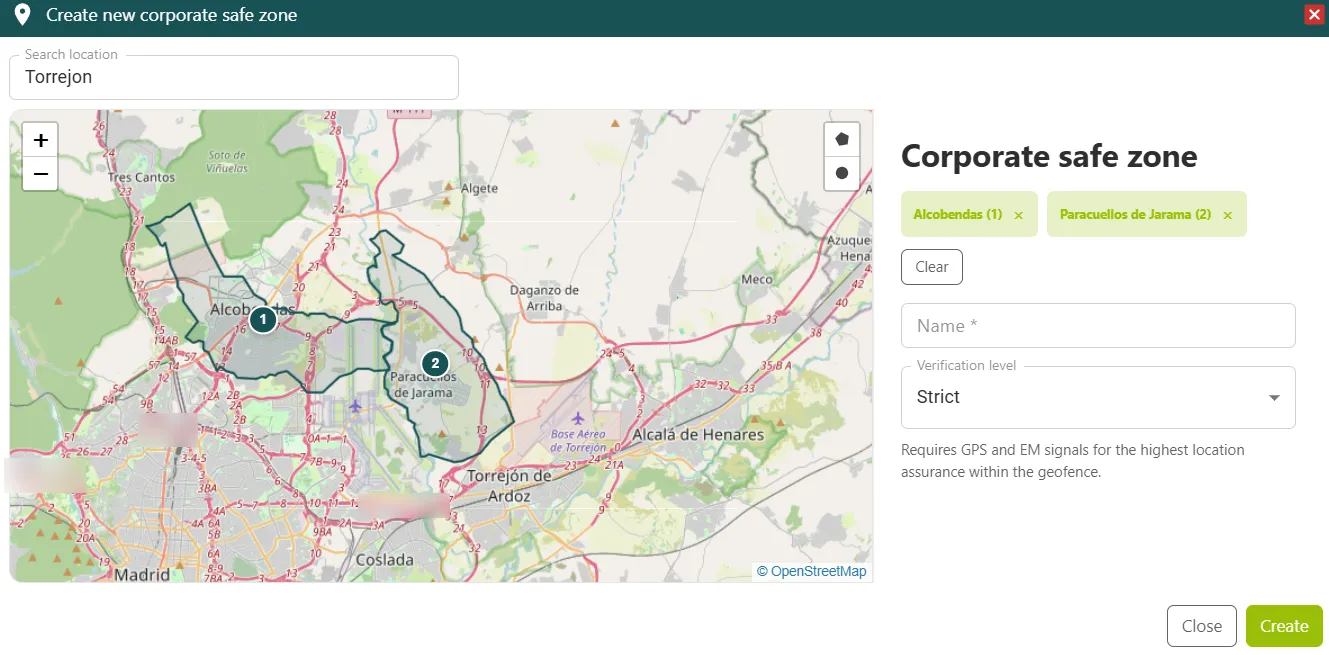
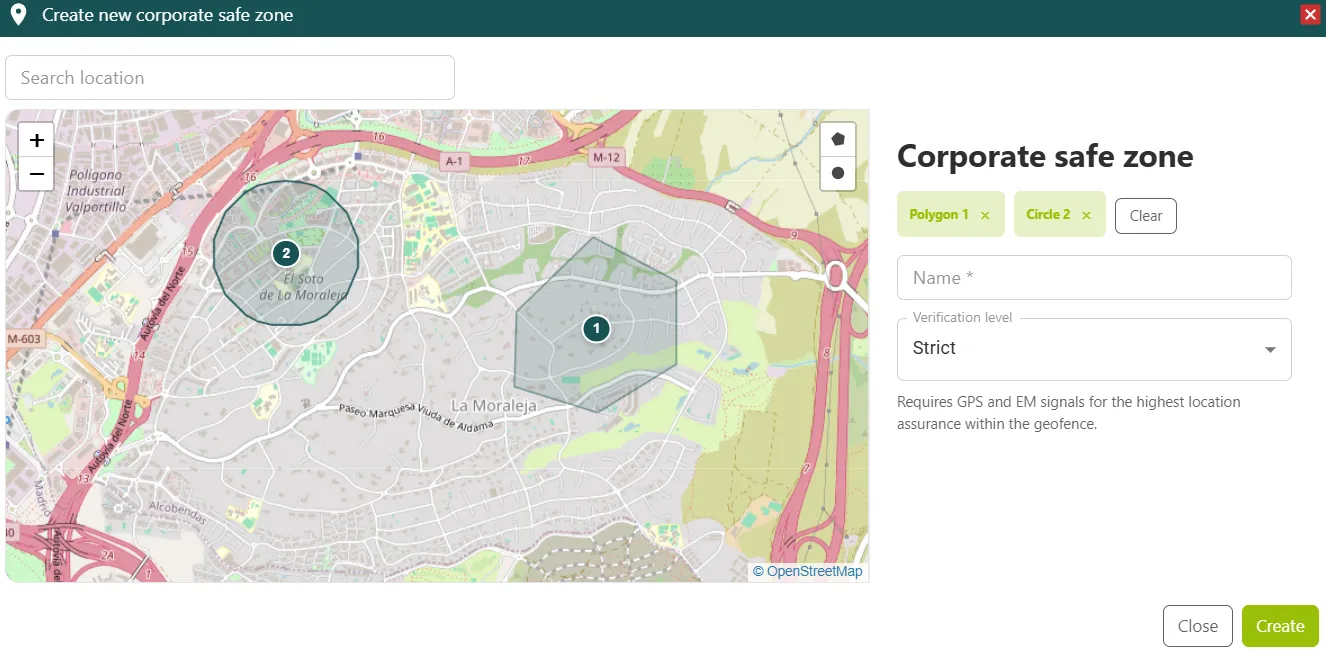
In the console you can create locations in two ways:
-
By towns, regions, and countries.
-
With custom locations, drawing polygons or circles.
What happens if a user tries to authenticate outside their safe zone?
Section titled “What happens if a user tries to authenticate outside their safe zone?”There are three possible responses, depending on the configured policy:
- Immediate block and an alert to the administrator.
- Step-up authentication: an additional factor is requested before granting access.
- Alert and access allowed: useful during the initial calibration period.
The response is configured per group and per application.
Can a user work from home and authenticate in Ironchip?
Section titled “Can a user work from home and authenticate in Ironchip?”- With a home safe zone configured: Ironchip validates that the user is at home.
- Without a home zone: the access is flagged as “outside the usual zone” (step-up or alert).
- With a VPN and Ironchip: a double layer of protection for remote access.
Was this page helpful?
Thank you. We will use it to improve the documentation. If you want to tell us what is missing or unclear, write to support@ironchip.com.