

Windows logon
Ironchip Windows Logon adds a second factor to Windows sign-in, both local and remote over RDP. Use this page to create the application in Ironchip, install the plugin on your computers and deploy it at scale.
Requirements
Section titled “Requirements”- Access to the Ironchip admin console, with permissions in the company to create applications and give accesses.
- Computers running 64-bit Windows 8 or later (x64 or ARM64).
- Administrator permissions on every computer where you install the plugin.
- HTTPS connectivity to
api.ironchip.com(or to the host of your environment). - The Let’s Encrypt ISRG Root X1 root certificate among the trusted certification authorities of the computer. See Let’s Encrypt certificate.
Configure Ironchip
Section titled “Configure Ironchip”Create the application
Section titled “Create the application”-
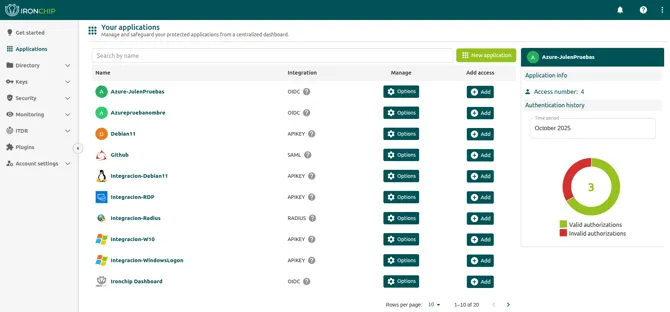
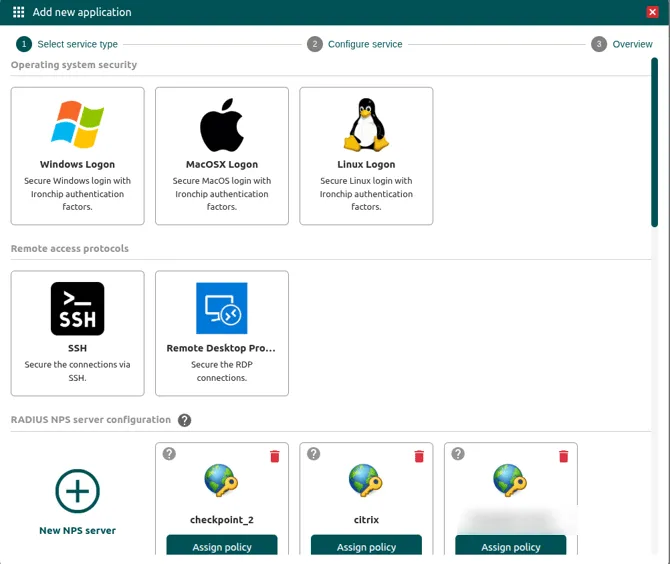
Go to Applications > New application and choose the Windows Logon integration, in the Operating system security section.
-
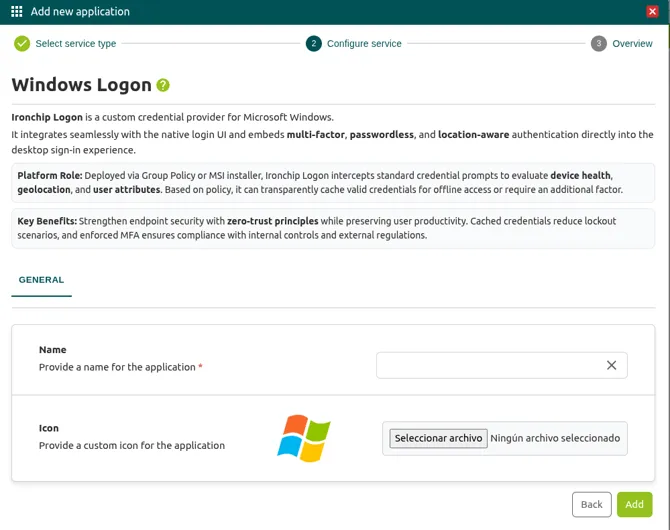
Enter a descriptive name. This name appears in the authenticator, so it helps you identify the application.
-
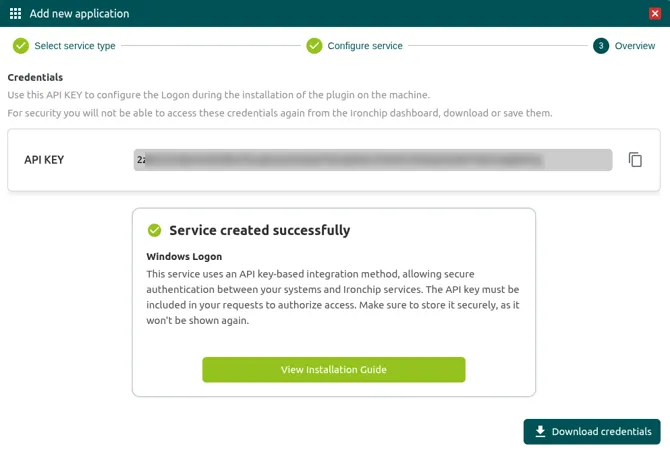
Save the API key shown when you create the application. It is shown only at that moment and you need it when you install the plugin.
Give users access
Section titled “Give users access”Accesses determine which group of users can authorize the sign-in and with which authentication policies.
-
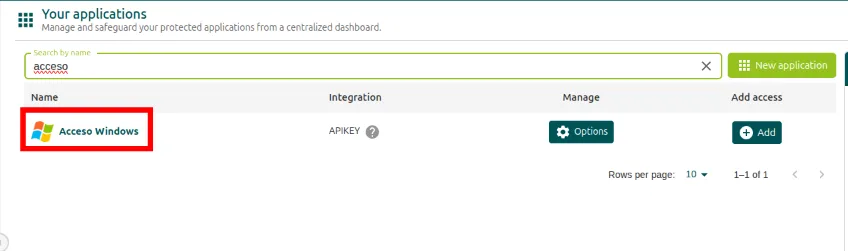
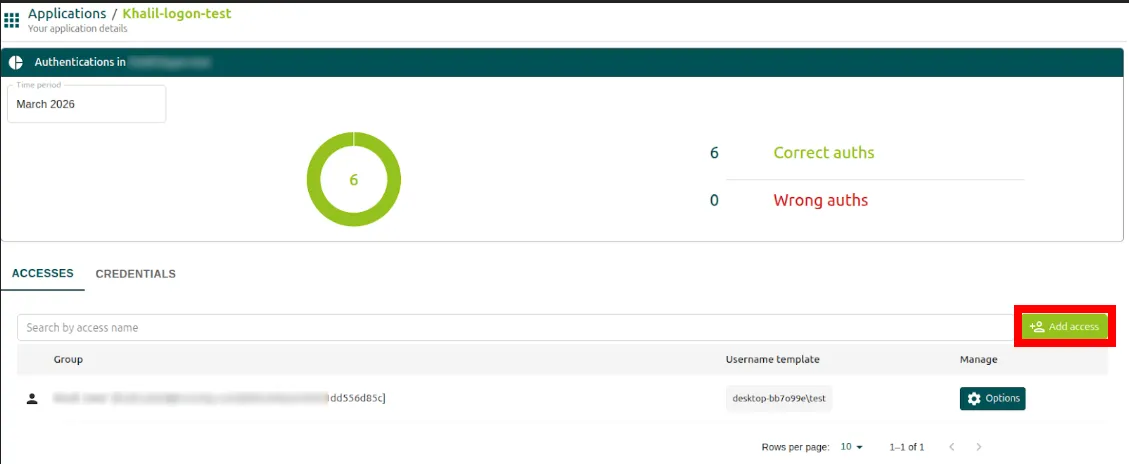
Open the application you just created and click Add access.
-
In Select a group, select the group that will use the service. If it does not exist yet, create it first in Directory > Groups.
-
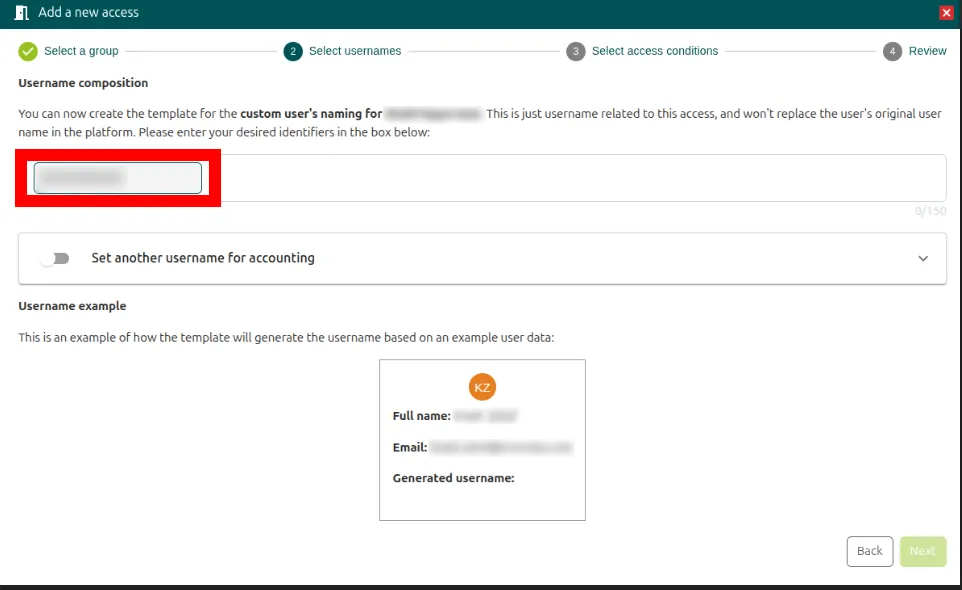
In Select usernames, create the username template. Ironchip Logon works with the SAM format by default, so the template must match
computer\userordomain\user. For example:- Local users:
computer-name\user, such asPC-test\test. - Domain users:
domain\user, such asSERVER0\test.
- Local users:
-
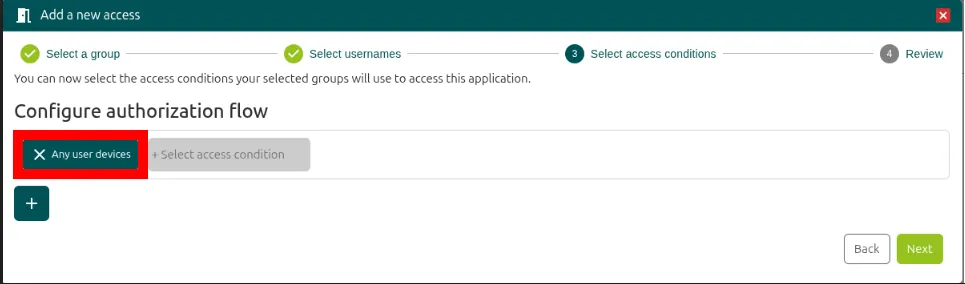
In Select authentication policies, click + Select authentication policy and choose how the user must authorize the sign-in. For example, with a push notification to the phone, a magic link or an RFID card.
-
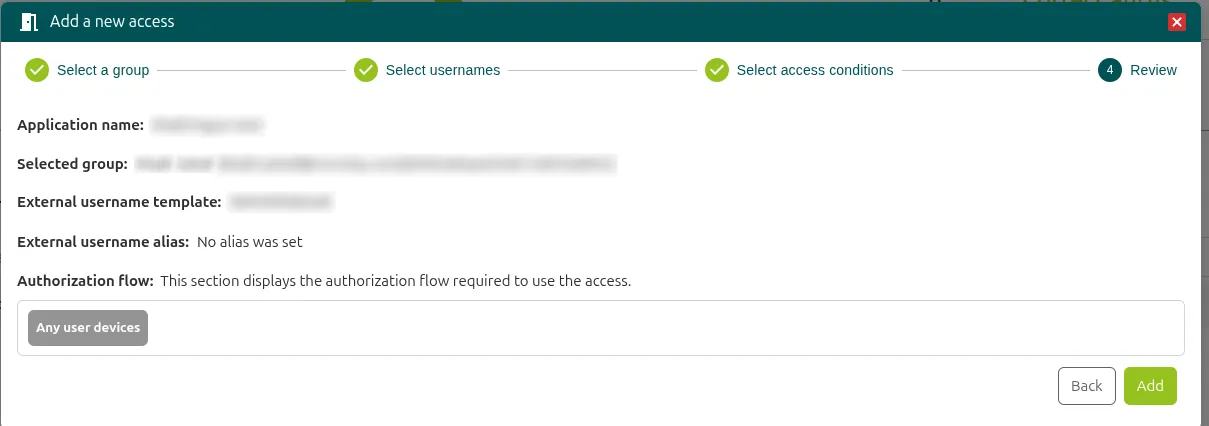
Review the summary in Review and click Add. The result should look like this:
Configure Windows
Section titled “Configure Windows”Install the plugin with the wizard
Section titled “Install the plugin with the wizard”-
Download the Windows Logon plugin from the Plugins section of the Ironchip admin console. In the Logon section, find the Windows Logon card and click Download x64 or Download ARM, depending on the computer architecture. The installers are named
IronchipWindowsLogon_x64.msiandIronchipWindowsLogon_arm64.msi.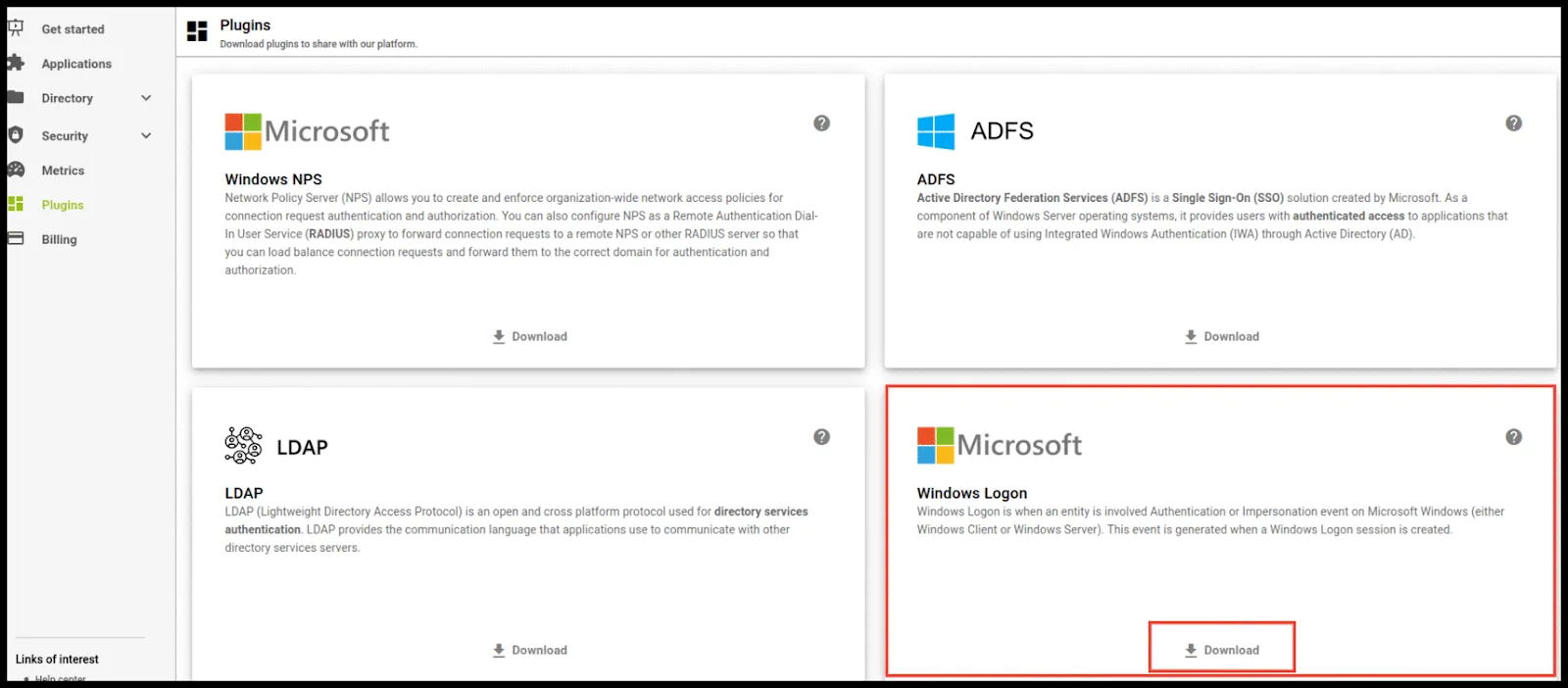
-
Run the
.msiinstaller on the computer whose sign-in you want to protect. -
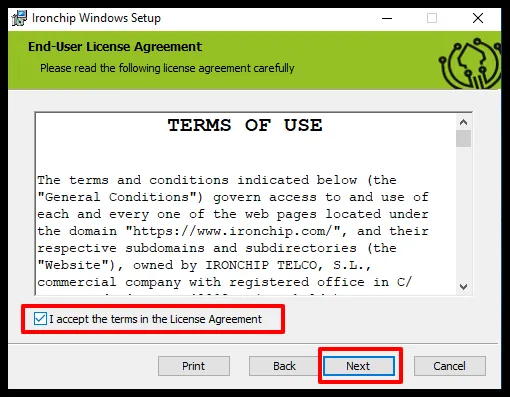
Click Next, accept the terms of use and click Next again.
-
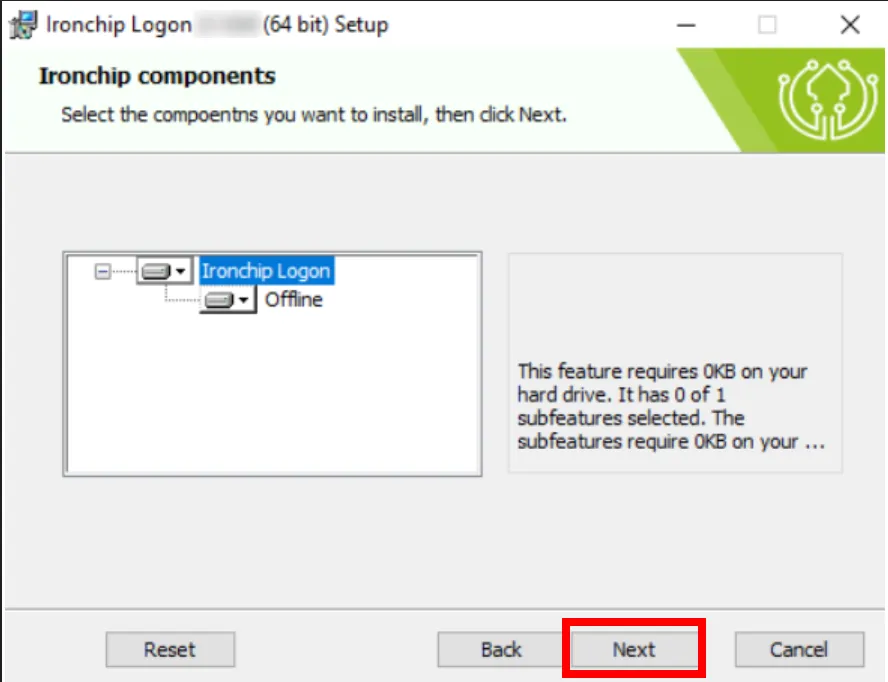
Choose the components to install:
- Ironchip Logon installs the Ironchip credential provider and its filter.
- Offline installs the OTP service (Ironchip Offline Service) for offline sign-in. It generates an OTP code that lets you sign in when the computer has no internet connection.
You can change the installation options with the drop-down to the left of each component name. Click Reset to go back to the default values and, when you are happy with your choice, click Next.
-
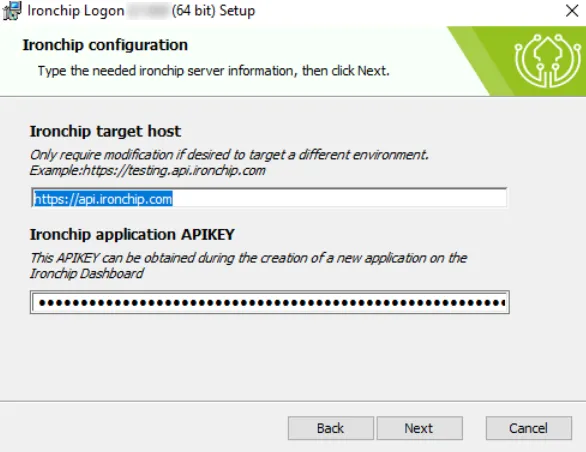
Fill in both fields. Neither can be empty.
- Ironchip target host: the API URL. Leave it as it is for production (
https://api.ironchip.com) and change it only if your company is in another environment. - Ironchip application APIKEY: the API key you generated when you created the application.
Click Validate to check the configuration. It needs an internet connection, so you can skip it if you install offline.
- Ironchip target host: the API URL. Leave it as it is for production (
-
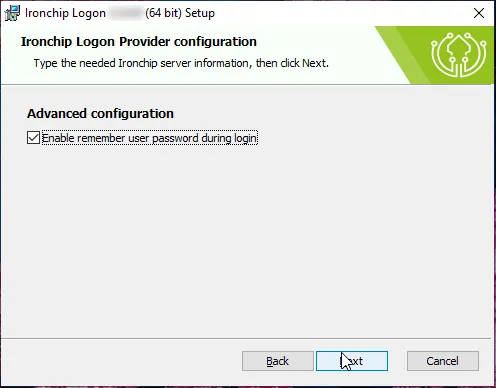
In Advanced configuration, use Enable remember user password during login to choose whether to remember the credentials of the users who sign in with the agent. It is on by default. If you leave it on, the user sees a button at sign-in to remember their credentials and not type them again.
-
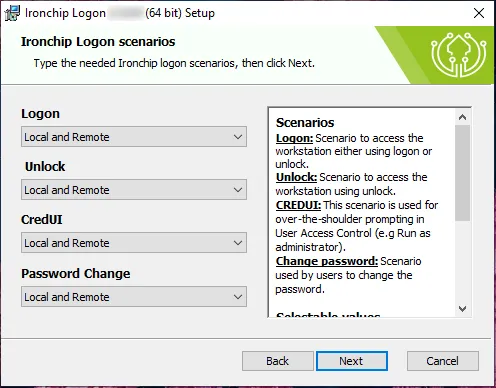
In Ironchip Logon scenarios, choose for each scenario how the agent protects the computer. You can turn it on in these scenarios:
- Logon: when signing in to the computer.
- Unlock: when signing in to a computer that was locked.
- CredUI (privilege escalation): when Windows asks for credentials to elevate privileges, for example with Run as administrator.
- Password Change: when changing the password.
Each scenario has a drop-down with these options:
- None: turns Ironchip off in that scenario.
- Local and Remote, Only Remote or Only Local: applies Ironchip to local and remote (RDP) access, only remote access or only local access.
- The same three options with (Exclude other providers): they also hide the other Windows credential providers in that scenario.
By default, all four scenarios use Local and Remote.
To make Ironchip the only sign-in method, see Use Ironchip as the only sign-in method.
-
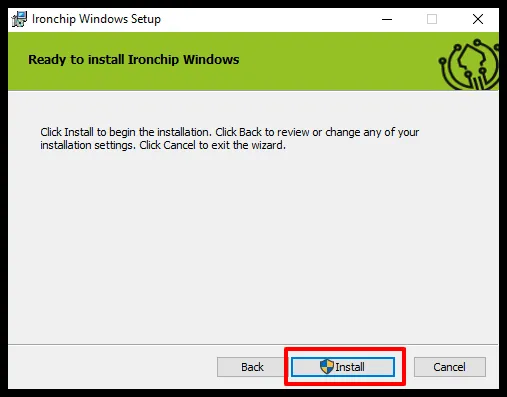
With all parameters correct, click Install.
-
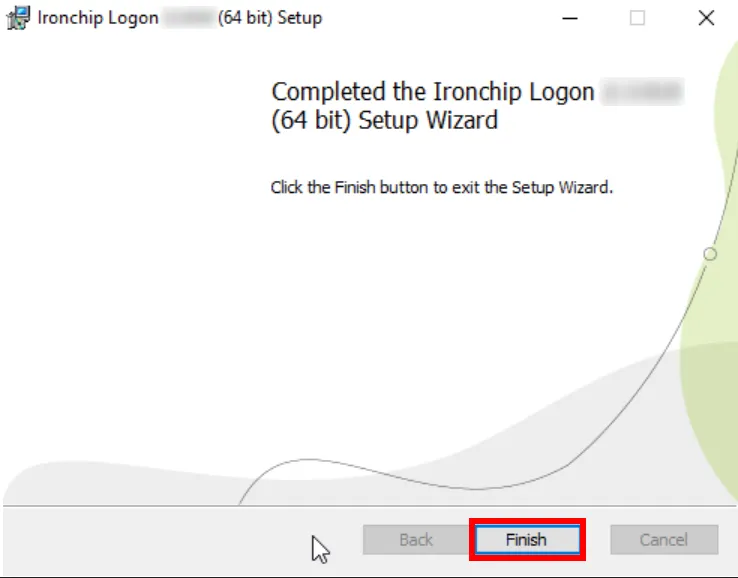
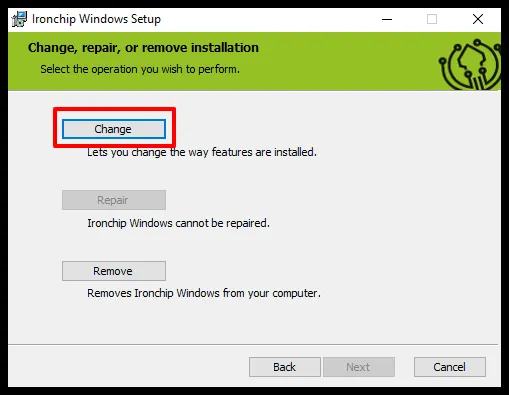
When the installation finishes, click Finish.
Install the plugin from the command line
Section titled “Install the plugin from the command line”You can install Ironchip Windows Logon unattended with msiexec.exe. It is the most useful method for mass deployments and remote setups.
-
Press
Win + R, typecmdand pressCtrl + Shift + Enterto open the console as administrator. The installer needs administrator permissions. -
Find the full path of the Ironchip installer, for example in the downloads folder or on a network drive.
-
Run the install command. The
/iparameter means install and/qmakes it silent, with no graphical interface.Ventana de terminal msiexec.exe /i "C:\Path\To\File\IronchipWindowsLogon_x64.msi" IRONCHIP_SECRET="<API_KEY>" IRONCHIP_REMEMBER_CREDENTIALS="1" CPUS_LOGON="0d" CPUS_UNLOCK="0d" CPUS_CREDUI="0d" CPUS_CHANGE_PASSWORD="0d" /q
The installation can take a few seconds. Because you used /q, the terminal returns control when it finishes.
Installer properties
Section titled “Installer properties”The only required property is IRONCHIP_SECRET. The others are optional and you only need to pass them to change the default value. If the computer already had Ironchip Logon installed, the properties you do not pass keep the value they had.
| Property | Default value | Description |
|---|---|---|
IRONCHIP_SECRET |
None | API key of the application. |
IRONCHIP_URL |
https://api.ironchip.com |
API URL. Change it only if your company is in another environment. |
IRONCHIP_REMEMBER_CREDENTIALS |
1 |
1 allows remembering credentials at sign-in; 0 turns it off. |
CPUS_LOGON |
0d |
Sign-in scenario. Values in the next table. |
CPUS_UNLOCK |
0d |
Session unlock scenario. |
CPUS_CREDUI |
0d |
Privilege elevation scenario (CredUI). |
CPUS_CHANGE_PASSWORD |
0d |
Password change scenario. |
IRONCHIP_TIMEOUT |
5 |
Seconds to wait when checking the connection to Ironchip. |
IRONCHIP_TIMEOUTCP |
60 |
Seconds the agent waits for the user to authorize the access. |
IRONCHIP_CACHE |
1 |
1 saves the users who sign in so they appear as tiles; 0 turns it off. |
IRONCHIP_COMPANY_NAME |
Empty | Company name shown on the sign-in screen. |
IRONCHIP_COMPANY_LOGO_PATH |
Empty | Path of the logo shown on the sign-in screen. |
IRONCHIP_LOG_LEVEL |
info |
Log level: error, warning, info or debug. See Logs. |
Scenario values
Section titled “Scenario values”The CPUS_* parameters combine a number (0 to 3) and a letter (e or d):
| Value | Effect |
|---|---|
0 |
Applies Ironchip to local and remote (RDP) access. |
1 |
Applies Ironchip only to remote (RDP) access. |
2 |
Applies Ironchip only to local access. |
3 |
Completely disables the Ironchip credential provider. |
e |
Allows only Ironchip and disables any other sign-in method. |
d |
Lets the user choose other credential providers. |
For example, CPUS_LOGON="0d" applies Ironchip to local and remote access and allows other providers.
In the wizard installer, these values match the options of each scenario drop-down: 3d is None, 0d is Local and Remote, 1d is Only Remote, 2d is Only Local, and 0e, 1e and 2e are the same options with (Exclude other providers).
Sign in offline
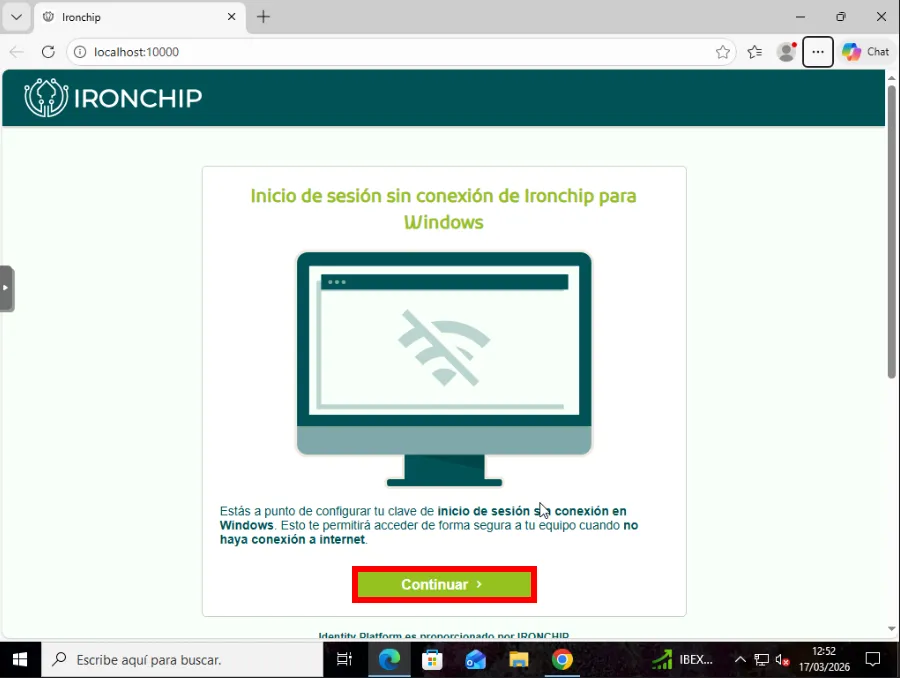
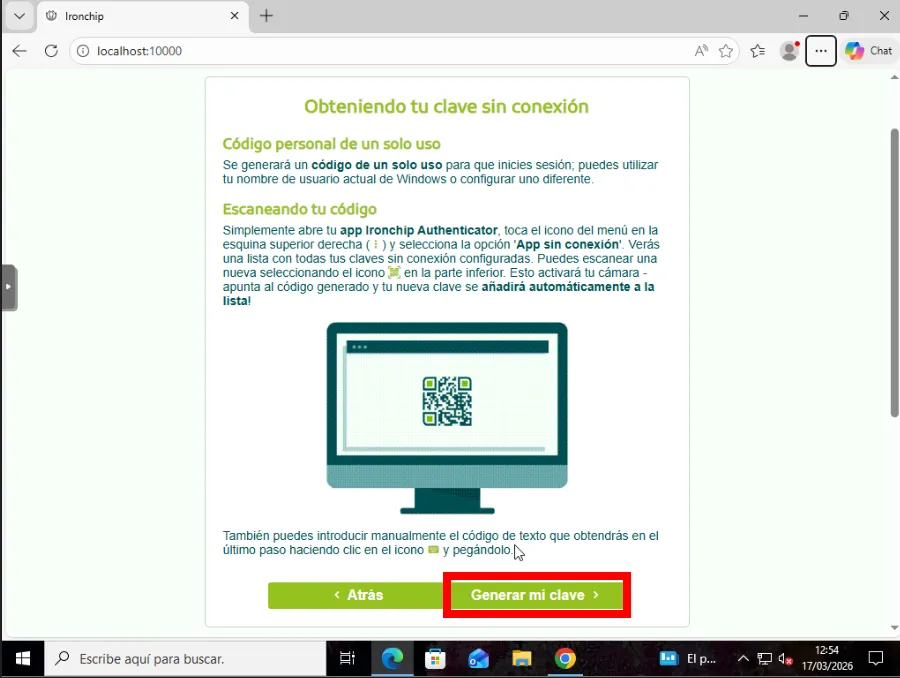
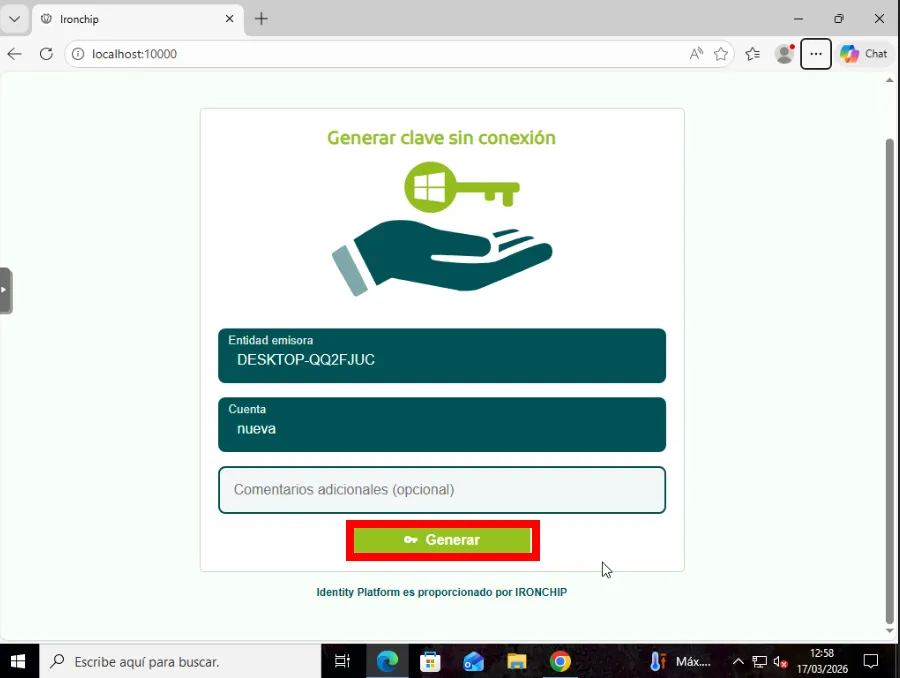
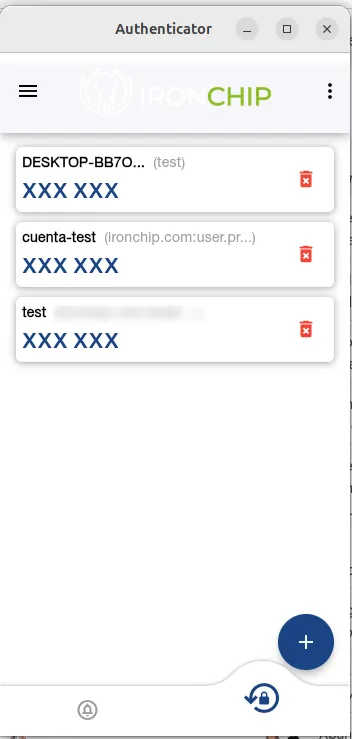
Section titled “Sign in offline”To use the agent offline, install the Offline component and set up the OTP for each user. Sign in to the computer with that user and open the Ironchip Offline Setup shortcut, which is on the desktop and in the Ironchip folder of the Start menu, or go to localhost:10000 in a browser. The screenshots show the setup in Spanish, so each button name is followed by its English meaning in parentheses.
-
Click Continuar (Continue) and then Generar mi clave (Generate my key).
-
In Generar clave sin conexión (Generate offline key), click Generar (Generate).
-
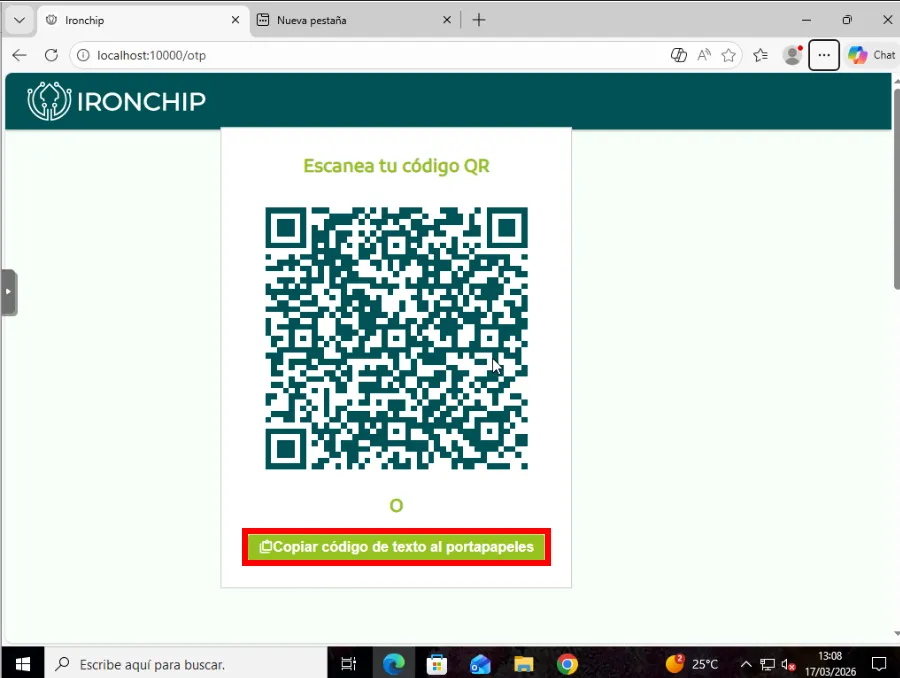
A QR code and the option to enter the code manually appear.
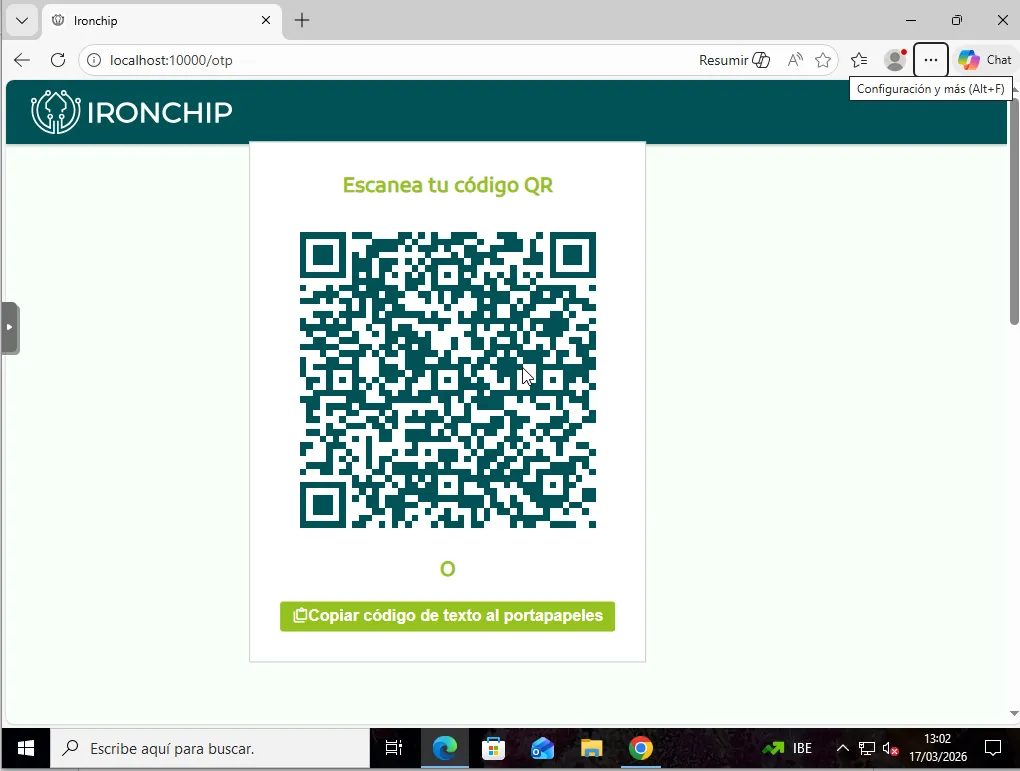
To add the OTP to the Ironchip authenticator on your phone, choose one of these two options.
Scan the QR code
Section titled “Scan the QR code”-
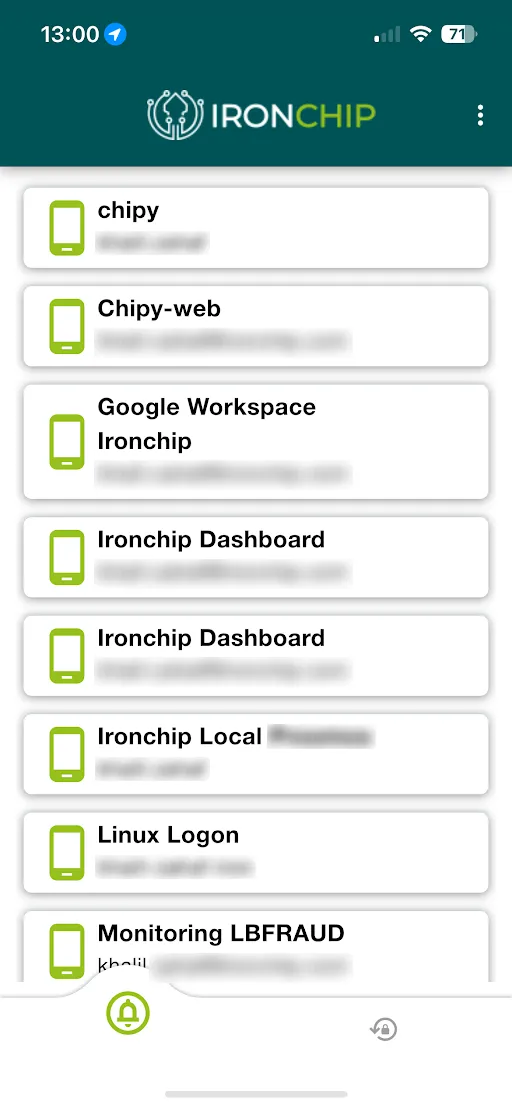
Open the Ironchip authenticator on your phone.
-
Go to the OTPs section, at the bottom right.
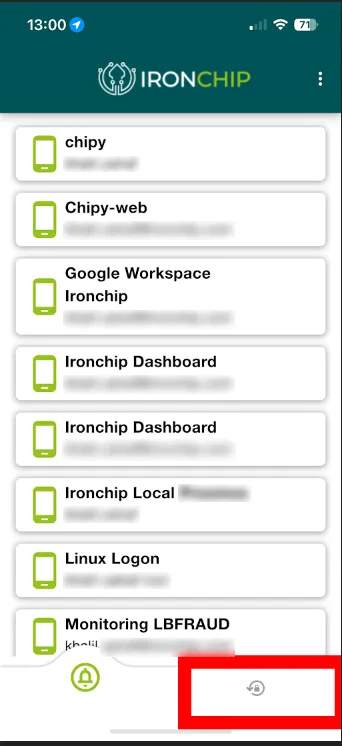
-
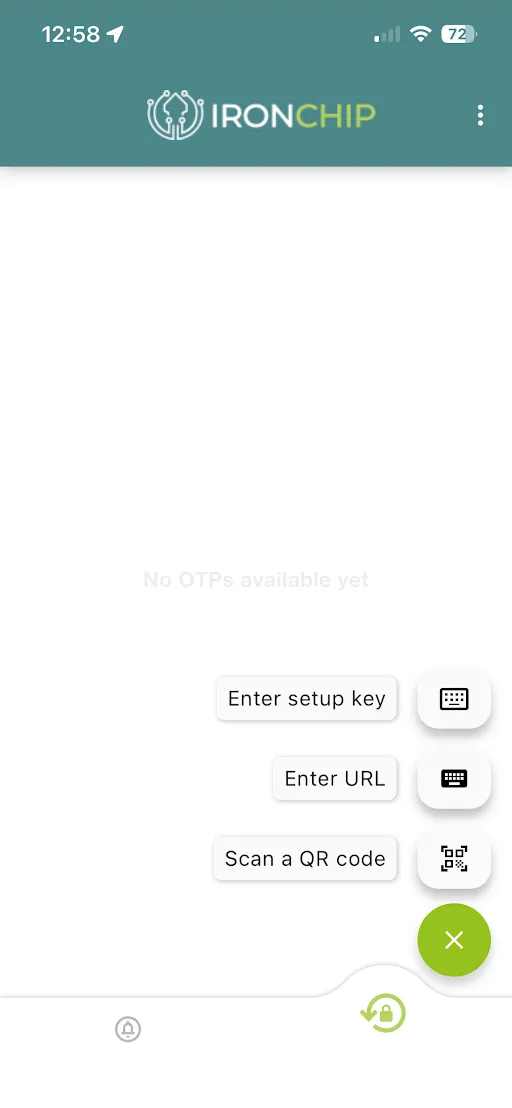
Tap the + button, choose Scan a QR code and scan the QR code. The OTP is now available.
Enter the code manually
Section titled “Enter the code manually”-
On the computer screen, click Copiar código de texto en portapapeles (Copy text code to clipboard).
-
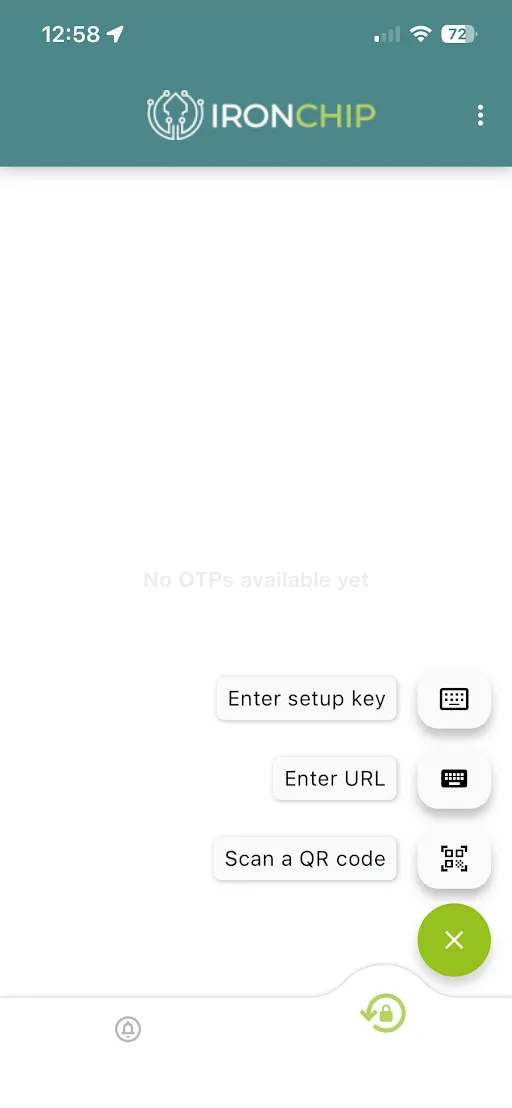
In the Ironchip authenticator, go to OTPs, tap + and choose Enter URL.
-
Paste the code you copied.
Once the code is added, offline sign-in with OTP is available. Keep the QR code or the text code: it is how you sign in when the computer has no internet.
Verify the integration
Section titled “Verify the integration”To sign in to Windows, enter your username and password as usual. Depending on the policies of the access, the user authorizes the sign-in with a notification on the phone, a code received by SMS or an OTP code. The process takes a few seconds. When it finishes, the user is authorized.
Mass deployment with GPO
Section titled “Mass deployment with GPO”To deploy Windows Logon with a group policy (GPO) you need a tool that edits the MSI. This guide uses Orca, included in the Windows components for installer developers.
Generate the .mst file
Section titled “Generate the .mst file”The .mst file contains the configuration that is applied when the MSI is installed through the GPO.
-
Download the
.msiinstaller you want to transform (IronchipWindowsLogon_x64.msiorIronchipWindowsLogon_arm64.msi), right-click the file and choose Edit with Orca.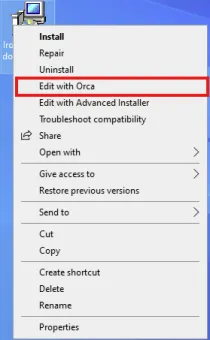
-
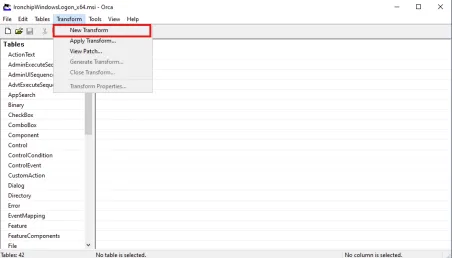
In Orca, click Transform > New transform.
-
Go to Property and set the
CPUS_properties to the values you want to apply at installation. The options are the same as in the scenario table. If a property is not in the table, add it as a new row, as explained in the next step.If you work in an environment other than production, also edit
IRONCHIP_URLand set the API URL of the right environment.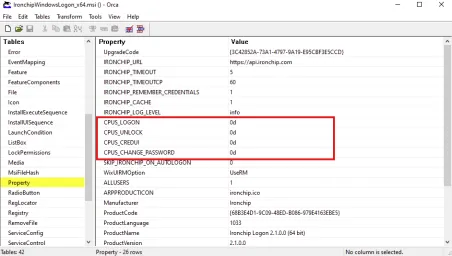
-
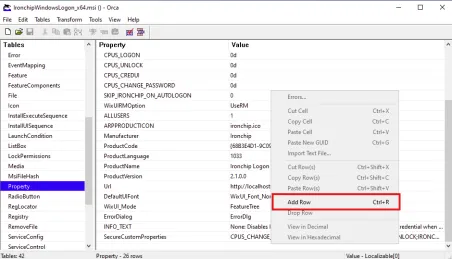
Add the API key: right-click and add a new row.
-
Name the property
IRONCHIP_SECRETand enter the API key in Value.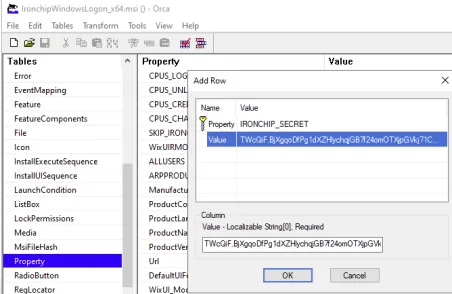
-
Configure
IRONCHIP_REMEMBER_CREDENTIALS, which turns on the option to remember credentials after sign-in:1to turn it on or0to turn it off. If it is not in the table, add it as a new row.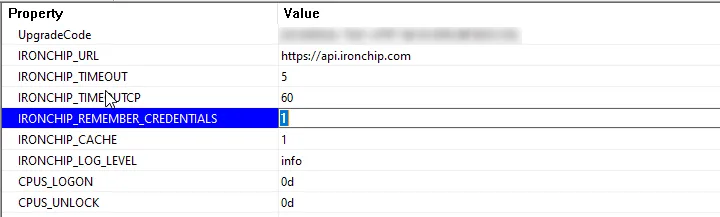
-
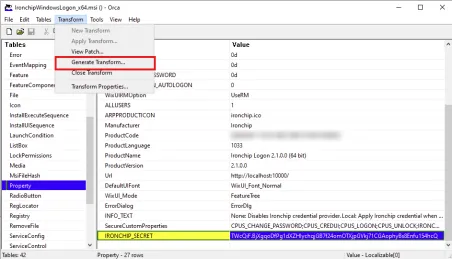
Click Transform > Generate Transform to save the configuration.
Publish the installer
Section titled “Publish the installer”Create a shared folder, put the installer and the .mst file in it and share it with everyone with read permissions.
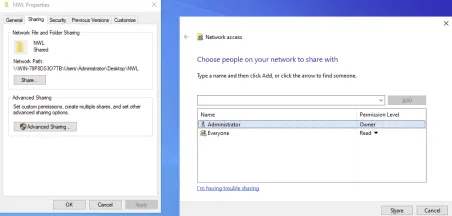
Create the GPO
Section titled “Create the GPO”-
On the server, open Group Policy Management. Expand your domain node and, in the Domains folder, choose Create a GPO in this domain, and Link it here. Give it a name that describes what it does, click OK, and edit it by right-clicking it and choosing Edit.
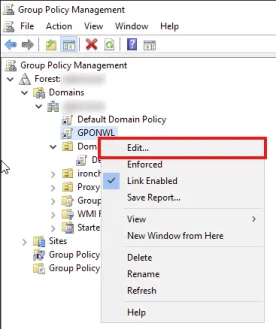
-
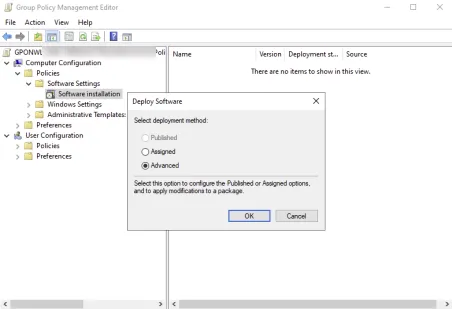
Go to Computer Configuration > Policies > Software Settings > Software installation, right-click Software installation and select New > Package. Choose the
.msifrom the shared folder you created at the beginning and click Open.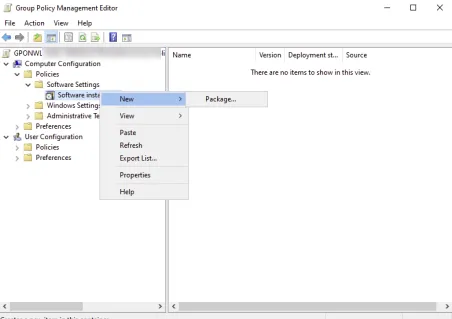
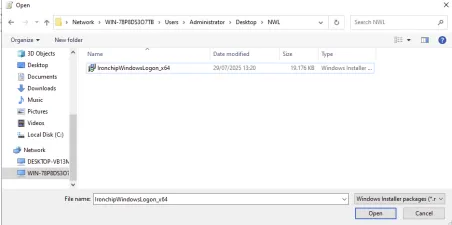
-
In the next window, select Advanced and click OK.
-
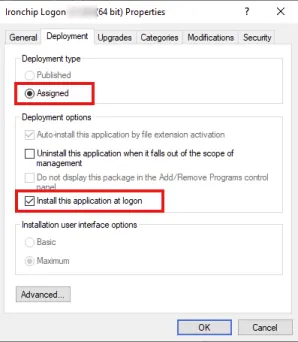
In the policy properties, select Assigned (even if it is already checked). This enables Install this application at logon, which you must also check.
-
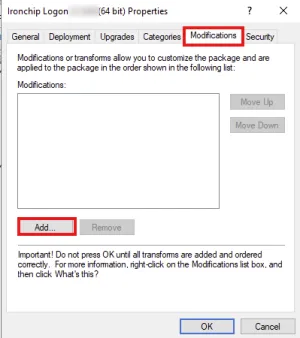
Go to the Modifications tab and click Add.
-
Choose the
.mstfile you generated, from the same shared folder that holds the.msi, and click Open.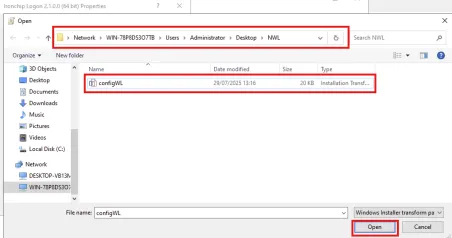
-
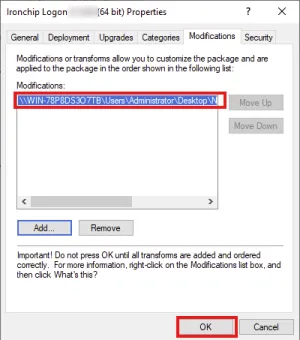
Check the path of the selected file and click OK.
-
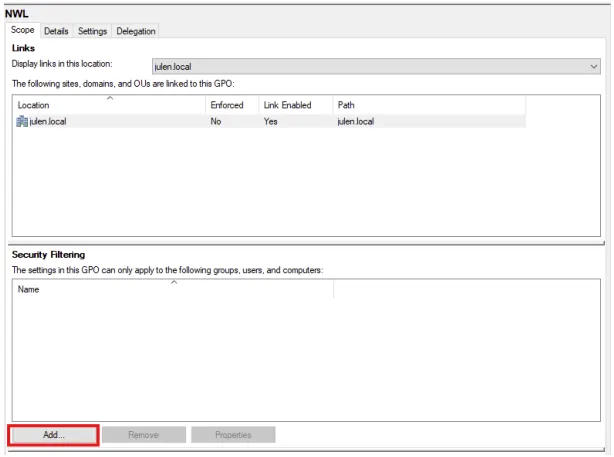
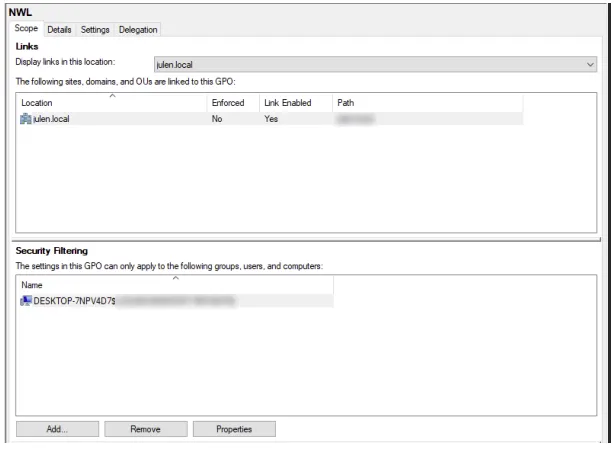
Go back to the GPO settings and choose which computers Windows Logon is installed on.
-
Close Group Policy Management, open a Windows command console and run
gpupdate /force. -
The server warns that it cannot apply the installation policy without restarting and offers to do it. Type
Yand press Enter: the system restarts one minute later. You can also restart the server from the Start menu.
Windows Logon is then installed on all the computers included in the GPO.
Exclude users from Ironchip with a GPO
Section titled “Exclude users from Ironchip with a GPO”You can exempt a list of users from Ironchip authorization, for example service accounts, when you distribute Windows Logon with a GPO.
-
On the server, open Group Policy Management.
-
Create a new GPO with Create a GPO in this domain, and Link it here. You can also reuse the GPO you use to distribute the application to a group of users, as explained in Create the GPO.
-
Edit the GPO. Go to Computer Configuration > Preferences > Windows Settings > Registry, right-click and choose New > Registry Item.
-
In the window that opens, enter these values on the General tab:
- Action:
Update - Hive:
HKEY_LOCAL_MACHINE - Key Path:
SOFTWARE\Classes\CLSID\{D2CBBFE7-22CC-4FF0-A7C4-8FCDCFB141B7} - Value name:
ironchipExcludedUsers - Value type:
REG_MULTI_SZ - Value data: one user per line, in the format
DOMAIN\userorCOMPUTER\user.
Ironchip compares each line with the user who signs in, ignoring case. The match is exact: wildcards and regular expressions are not supported. A user written without a domain is treated as a local user of the computer.
- Action:
-
Click Apply and then OK.
Use Ironchip as the only sign-in method
Section titled “Use Ironchip as the only sign-in method”You can exclude the Windows password credential provider so that users can only authenticate with Ironchip Windows Logon. The simplest way is to do it when you install the plugin, with the e value of the CPUS_* scenarios or with an (Exclude other providers) option of the installer: the Ironchip credential filter then hides the other providers in that scenario. If you cannot reconfigure the plugin, use a group policy as explained below. See Login agent deployment.
Automatic sign-in
Section titled “Automatic sign-in”If you configured automatic sign-in with Sysinternals Autologon and you do not exclude the other providers, Windows shows its default provider. To make Ironchip the default provider:
- Press
Win + R, typegpedit.mscand press Enter. - Go to Local Computer Policy > Computer Configuration > Administrative Templates > System > Logon and open Assign a default credential provider.
- Enable the policy and enter the Ironchip provider GUID:
{D2CBBFE7-22CC-4FF0-A7C4-8FCDCFB141B7}.
Configure it in a local or existing policy
Section titled “Configure it in a local or existing policy”- Go to Edit Group Policy.
- Select the Administrative Templates folder, then the System folder.
- Open the Logon folder and choose Exclude credential providers.
- Change the setting from Not configured to Enabled.
- In the Exclude the following credential providers field, enter the GUID of the credential provider named
PasswordProvider. - Click Apply and then OK. Authentication is now enabled only with Ironchip Windows Logon.
Distribute it with a GPO
Section titled “Distribute it with a GPO”- On the server, open Group Policy Management.
- Expand your domain node and, in the Domains folder, choose Create a GPO in this domain, and Link it here.
- Give the policy a name that describes what it does and click OK.
- Right-click the policy name and choose Edit.
- Go to Policies > Administrative Templates > System > Logon and choose Exclude credential providers.
- Change the setting from Not configured to Enabled.
- In the Exclude the following credential providers field, enter the GUID of the credential provider named
PasswordProvider. - Click Apply and then OK. Authentication is now enabled only with Ironchip Windows Logon.
- Close Group Policy Management, open a Windows command console and run
gpupdate /force. When the server offers to restart, typeYand press Enter, or restart the server from the Start menu.
After the restart, the policy applies to all the computers included in the GPO.
Windows registry
Section titled “Windows registry”You can use the Windows registry to customize the sign-in screen and adjust the behavior of the agent. Open the registry editor and go to the key Computer\HKEY_LOCAL_MACHINE\SOFTWARE\Classes\CLSID\{D2CBBFE7-22CC-4FF0-A7C4-8FCDCFB141B7}. Only administrators and the system can read and change it.
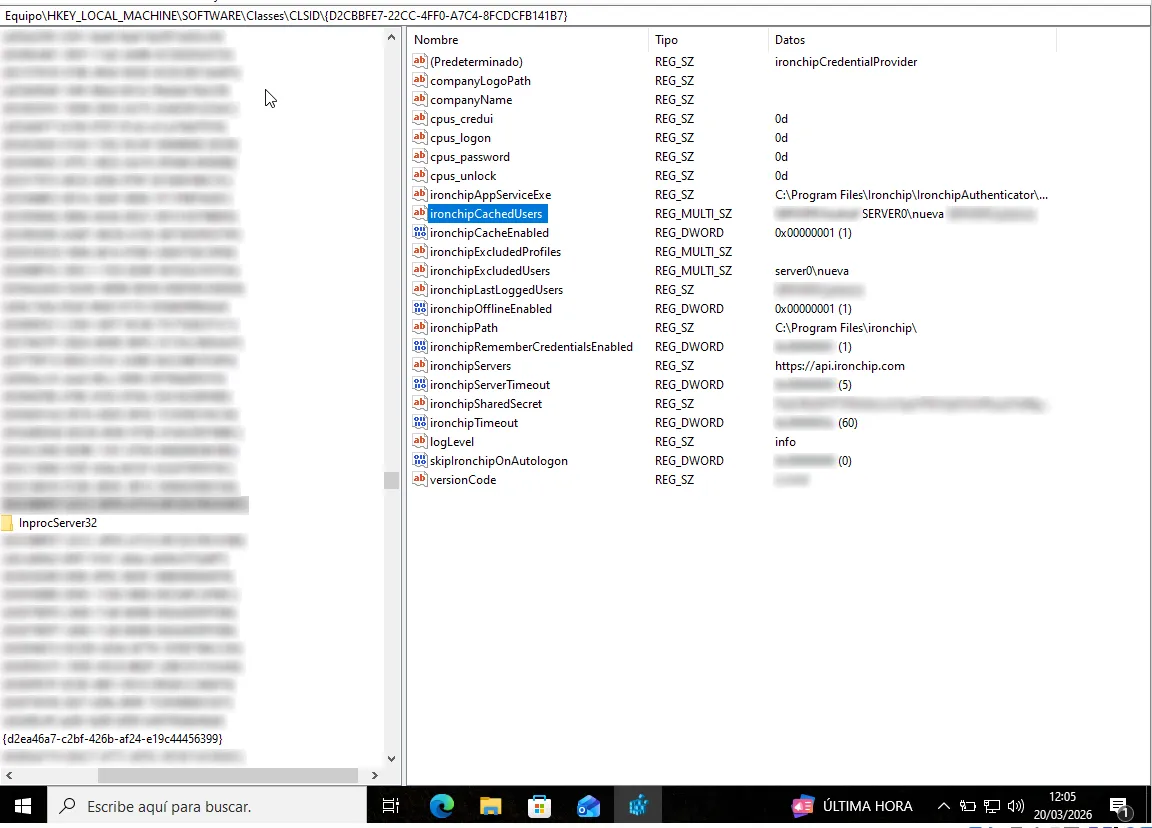
Registry values
Section titled “Registry values”| Value | Type | Description |
|---|---|---|
ironchipServers |
REG_SZ |
Ironchip API URL. |
ironchipSharedSecret |
REG_SZ |
API key of the application. Do not share it. |
ironchipServerTimeout |
REG_DWORD |
Seconds to wait when checking the connection to Ironchip. Default: 5. |
ironchipTimeout |
REG_DWORD |
Seconds the agent waits for the user to authorize the access. Default: 60. |
ironchipRememberCredentialsEnabled |
REG_DWORD |
1 allows remembering credentials; 0 turns it off. |
ironchipCacheEnabled |
REG_DWORD |
1 saves the users who sign in so they appear as tiles. |
ironchipCachedUsers |
REG_MULTI_SZ |
Saved users. |
ironchipExcludedUsers |
REG_MULTI_SZ |
Users exempt from Ironchip authorization. |
cpus_logon, cpus_unlock, cpus_credui, cpus_password |
REG_SZ |
Scenarios, with the scenario values. |
companyName, companyLogoPath |
REG_SZ |
Company name and logo on the sign-in screen. |
logLevel |
REG_SZ |
Log level. Default: info. |
Company logo and name
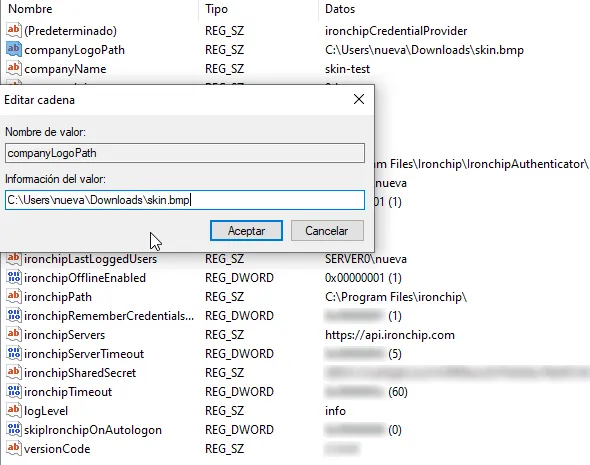
Section titled “Company logo and name”companyLogoPath customizes the logo shown on the sign-in screen. Edit these two fields:
- Value name: leave it as it is.
- Value data: enter the location of the company logo.
The logo must meet these requirements:
- Dimensions of 512x512 px.
.bmpextension.- Under 1 MB.
- 24 bits.
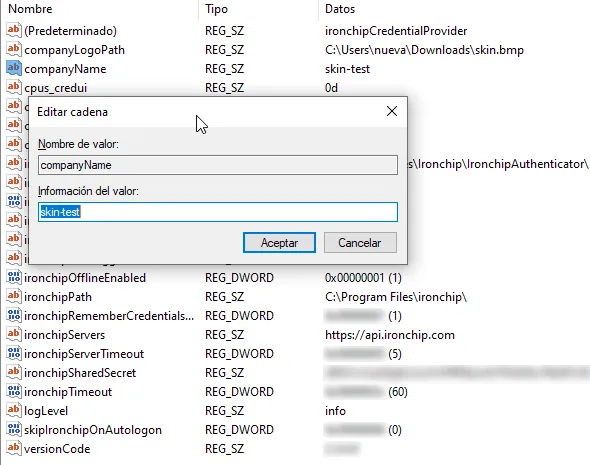
companyName customizes the company name shown on the sign-in screen.
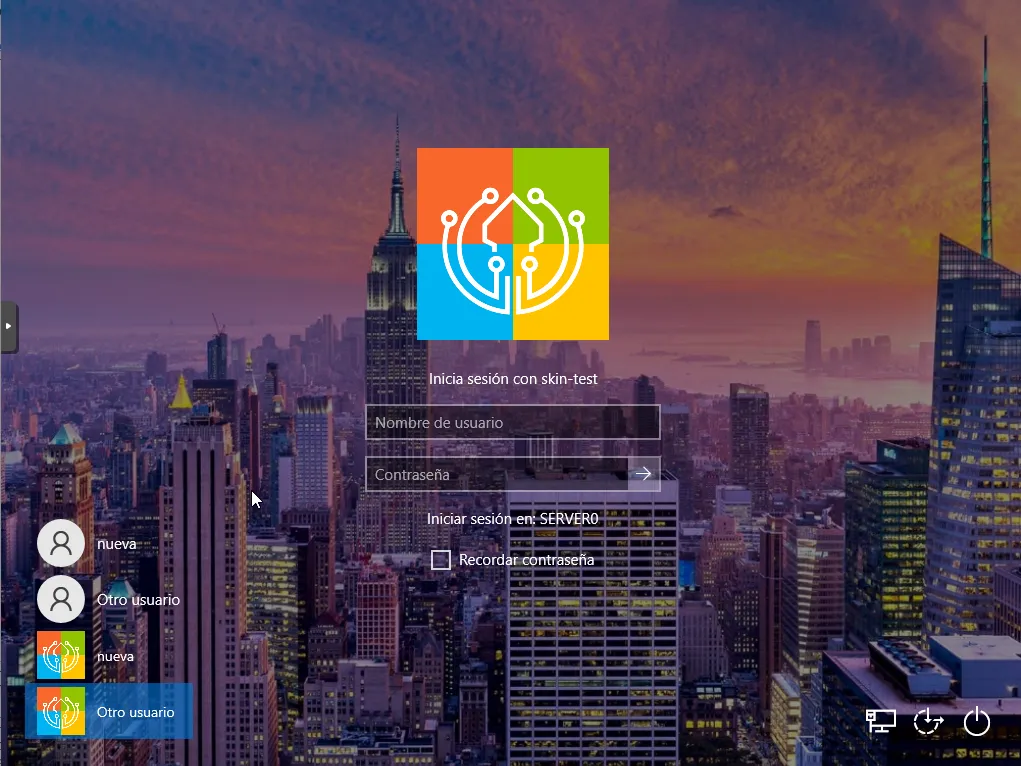
With both parameters configured, the sign-in screen shows your company logo and name:
Cached users and excluded users
Section titled “Cached users and excluded users”ironchipCachedUsers stores usernames to make future sign-ins easier. It is turned on with ironchipCacheEnabled.
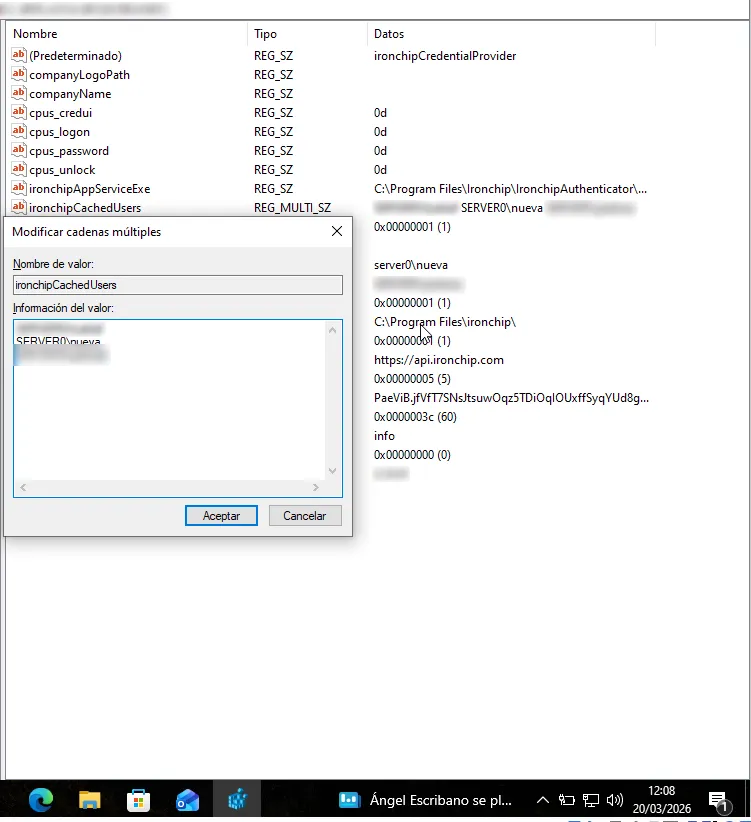
ironchipExcludedUsers defines a list of users exempt from authorization. The users listed here do not need an additional validation to sign in to the computer. Write one user per line in the format DOMAIN\user or COMPUTER\user. To distribute it with a GPO, see Exclude users from Ironchip with a GPO.
Change the registry with a GPO
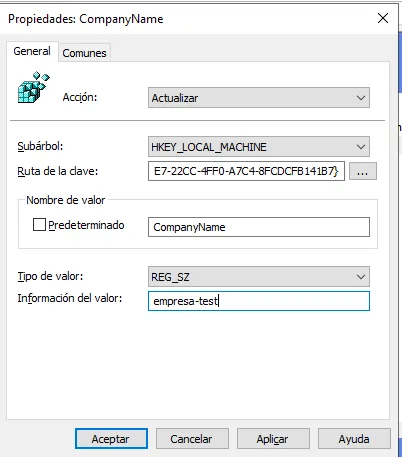
Section titled “Change the registry with a GPO”Follow this procedure to change registry keys on several computers with group policies. The example changes the company name.
-
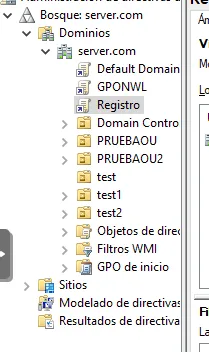
Open Group Policy Management on the server and create a new GPO in the corresponding organizational unit (OU).
-
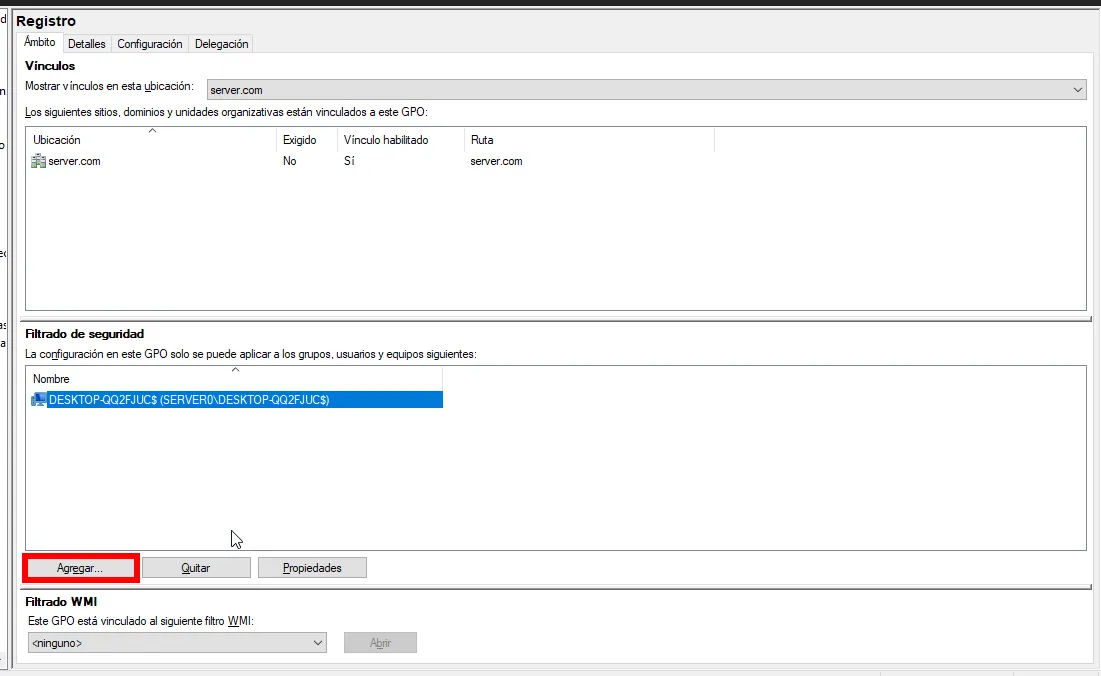
Under Security Filtering, add the computers or groups the policy applies to.
-
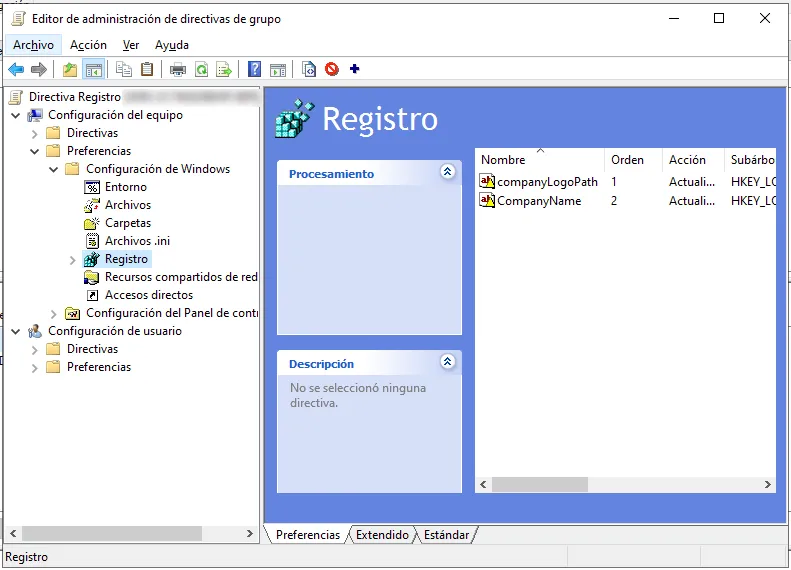
Edit the GPO and go to Computer Configuration > Preferences > Windows Settings > Registry.
-
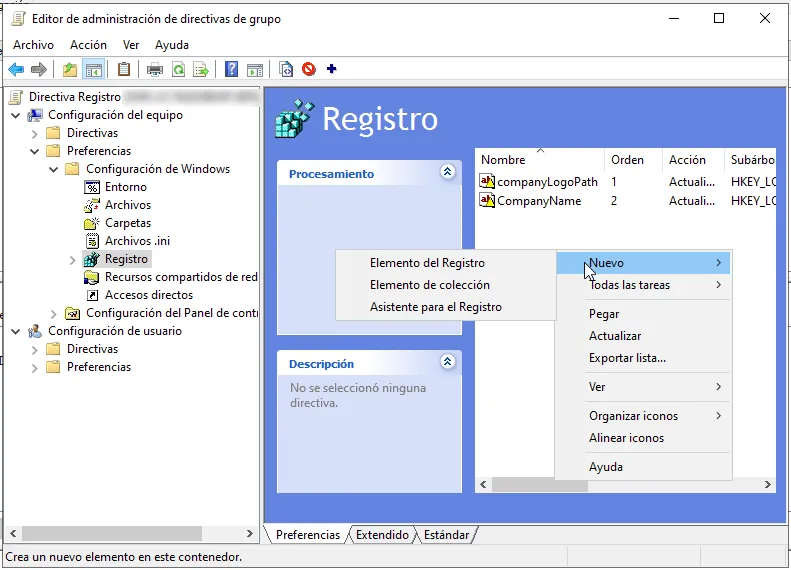
Right-click the right pane and select New > Registry Item.
-
Fill in the item:
- Hive:
HKEY_LOCAL_MACHINE - Key Path:
SOFTWARE\Classes\CLSID\{D2CBBFE7-22CC-4FF0-A7C4-8FCDCFB141B7} - Value name: the value to change, for example
companyName. - Value type:
REG_SZ - Value data: the company name as it should appear on screen.
- Hive:
-
On the client computer, open a command prompt or PowerShell with administrator privileges and run
gpupdate /force. -
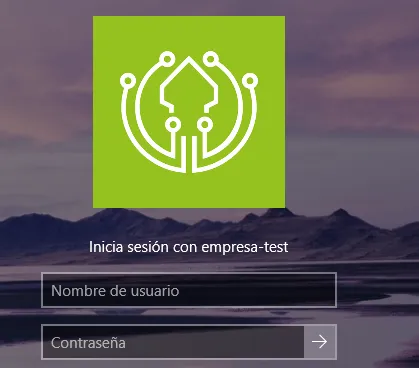
Click Apply and sign in to one of the assigned computers to check the result. The company name should appear on the sign-in screen.
Change the company image with a GPO
Section titled “Change the company image with a GPO”-
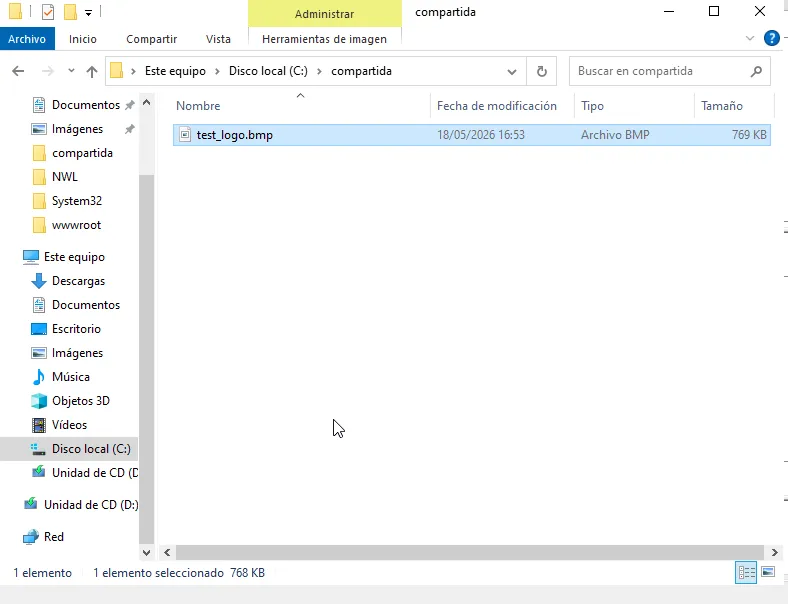
Create a shared folder on the server and save the corporate image in it. Grant read permissions to the users or computer groups the policy applies to.
-
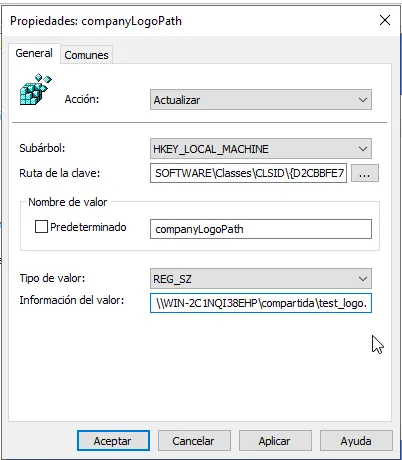
In the corresponding GPO, go to the Registry section and create a new item with these parameters:
- Hive:
HKEY_LOCAL_MACHINE - Key Path:
SOFTWARE\Classes\CLSID\{D2CBBFE7-22CC-4FF0-A7C4-8FCDCFB141B7} - Value name:
companyLogoPath - Value type:
REG_SZ - Value data: the network address of the shared folder with the image.
- Hive:
-
On the client computer, open a command prompt or PowerShell with administrator privileges and run
gpupdate /force. -
Lock the computer (
Win + L) or sign out. The corporate image should appear on the sign-in screen of every computer the policy applies to.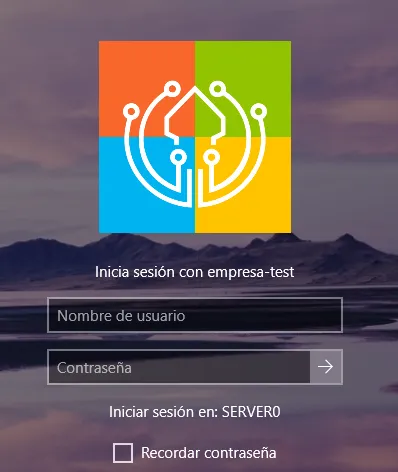
Troubleshooting
Section titled “Troubleshooting”The credential provider writes its logs to the Windows Event Viewer.
- Open Event Viewer (
eventvwr.msc). - Go to Windows Logs > Application.
- Look for events from the
Ironchip Logonsource.
To change the level of detail, edit the logLevel value of the Ironchip registry key:
| Value | What it logs |
|---|---|
error |
Errors only. |
warning |
Warnings and errors. |
info |
General operating information, warnings and errors. This is the default. |
debug |
Detailed diagnostic information. Do not use it routinely: it generates many events. |
Diagnostics
Section titled “Diagnostics”The Ironchip Logon Diagnostic Tool checks whether a computer meets the requirements for Ironchip Windows Logon. Download IronchipLogonDiagnoseTool.exe from the releases published on GitHub and run it on the computer. It shows the Windows version, the user and the domain, the DLL dependencies, the OpenSSL version, whether the ISRG Root X1 certificate is installed and whether the computer connects to the Ironchip servers. If Windows Logon is installed, it also uses its configuration to query the access conditions of the current user and send them a test authorization request. When it finishes, you can save the report in the Documents folder.
Let’s Encrypt certificate
Section titled “Let’s Encrypt certificate”Since version 2.2.0, Windows Logon uses OpenSSL instead of Schannel for communications. This improves compatibility with older Windows versions (mainly Windows 8) and allows TLS 1.3.
The Ironchip servers use a certificate signed by Let’s Encrypt, so the computer must have its ISRG Root X1 root certificate among the trusted certification authorities. If it is missing, download it from the Let’s Encrypt documentation and install it in the trusted root certification authorities store of the computer.
Was this page helpful?
Thank you. We will use it to improve the documentation. If you want to tell us what is missing or unclear, write to support@ironchip.com.