

Authentication policies
The Authentication policies section of the console holds the access policies, organized in groups so it is easier to grant access to sets of users. An access policy groups, for example, all the personal policies or all the ones used in an office.
Policies take effect when you grant access to an application: in the Select authentication policies step you choose which ones each user or group must meet. See Grant access to users and groups.
Under Authentication policies there are three sections: Device policies, Safe zone policies, and Password policies. This page covers device policies and password policies.
Device policies
Section titled “Device policies”In Authentication policies > Device policies you group the devices and safe zones that can be used as authentication policies in accesses.
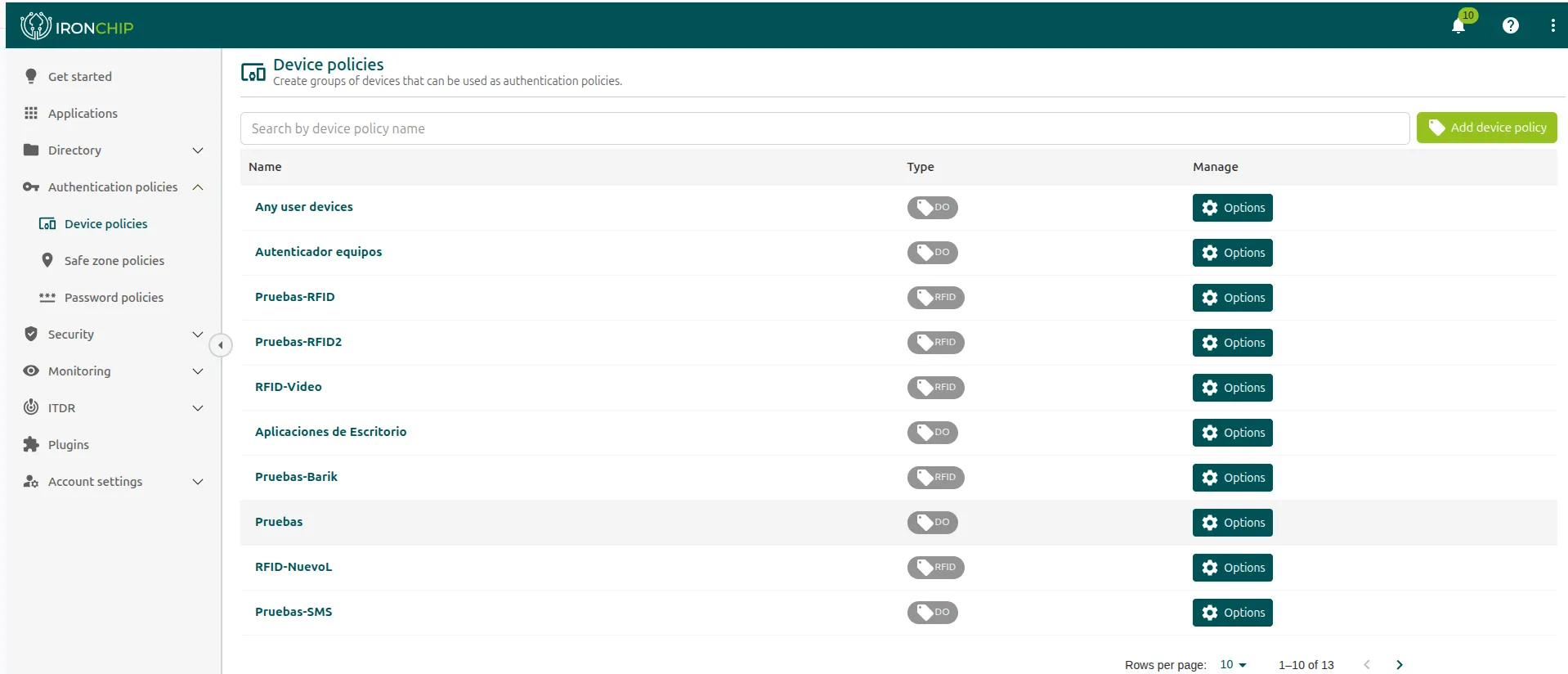
The list includes groups added by default, such as Any user devices and Any user safe zones, and the access groups you have created in the company.
Create a device policy
Section titled “Create a device policy”- Click Add device policy, at the top right.
- Enter a name for the policy and click Continue.
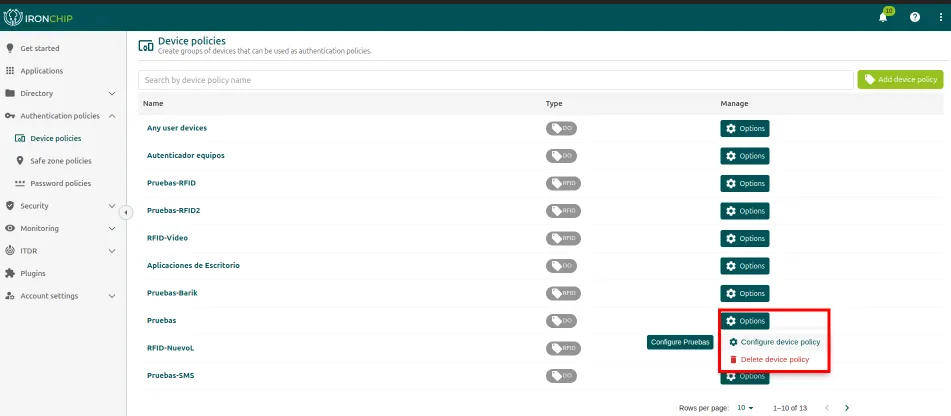
The new policy appears in the list. From its Options menu you can delete it (Delete device policy) or assign the accesses that belong to it (Configure device policy).
Configure the accesses of the policy
Section titled “Configure the accesses of the policy”-
Click Configure device policy.
-
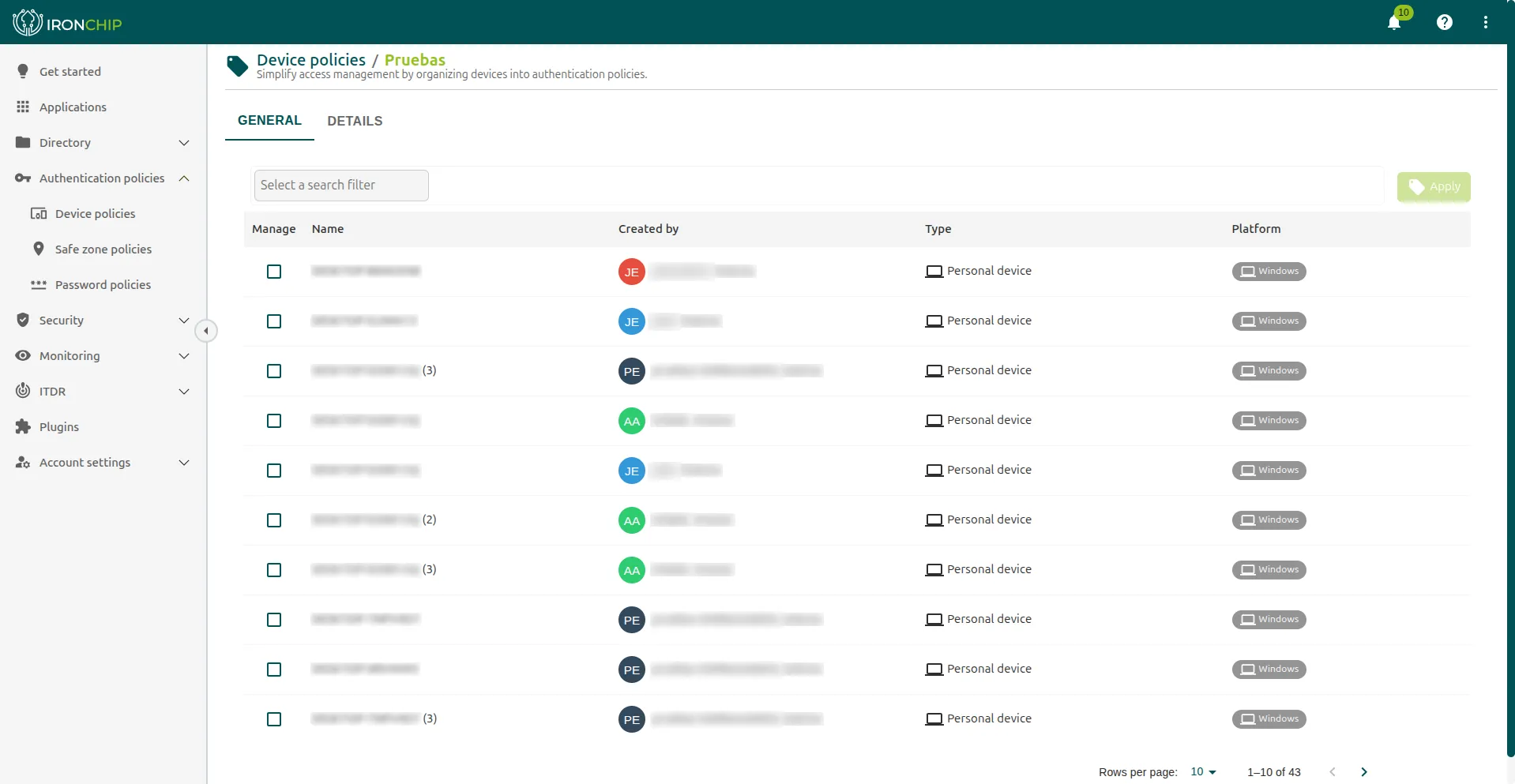
The page that opens shows the name of the policy and a table with all the devices and safe zones configured in the company, with their name, type, and platform. Check, in the left column, the accesses you want to include.
-
If you want, sort the table to see the chosen accesses more clearly before continuing.
-
Click Apply.
You can change this configuration at any time with Configure device policy.
LDAP password integration
Section titled “LDAP password integration”The integration creates key groups (password policies) with the LDAP protocol. To set it up:
-
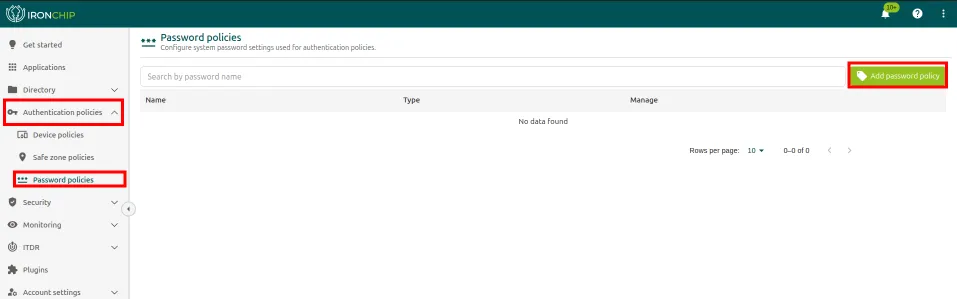
In Authentication policies, open the Password policies section.
-
Click Add password policy, in the upper right corner.
-
Add the required configuration: the name (LDAP name), the server (Server host), and, if you want to enable secure TLS (Enable TLS), the certificate.
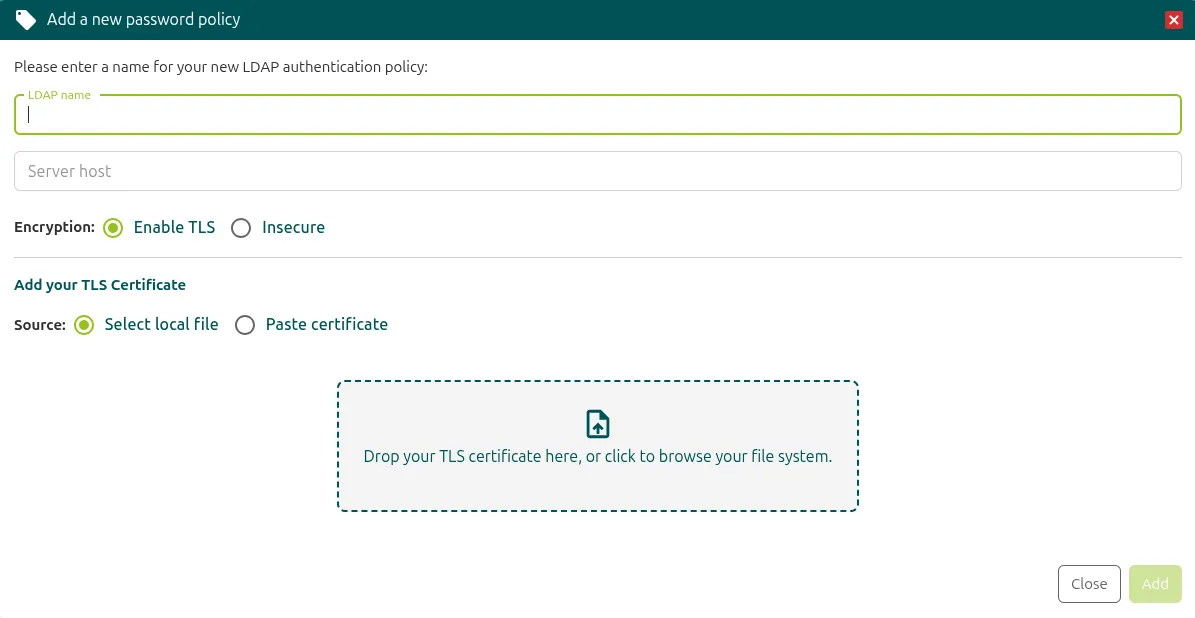
You can modify any field you added earlier. When you add a key group with LDAP, the console checks that it works by asking for a sample username and password. After you create it, you can also test it with different users from the key group options. The test credentials are not stored: they are used only to check the connection.
Authentication with LDAP
Section titled “Authentication with LDAP”Once you have a key group through LDAP, configure it in an access to start the authentication process.
-
The user starts the authentication in the service as usual, with the Username that was configured.
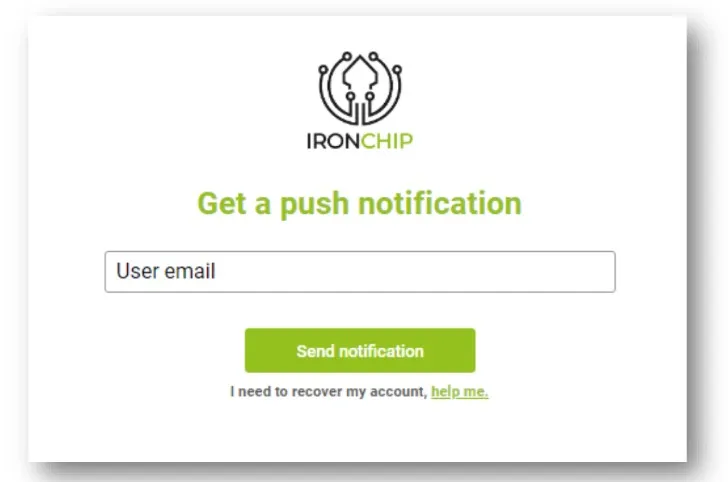
-
If the access requires a key group with LDAP, a warning appears asking the user to enter the password for their email.
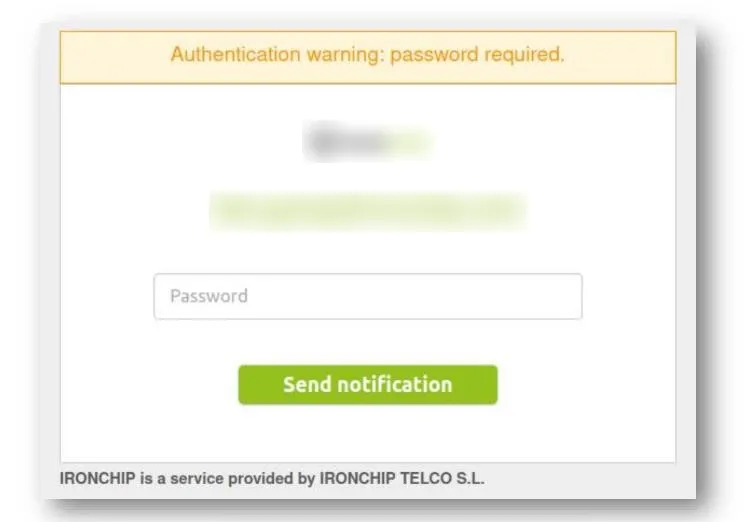
-
If the access uses another type of key group, such as the device, the user must open their Ironchip app to finish the process and enter the service.
Risk rules
Section titled “Risk rules”Besides authentication policies, ITDR analyzes authentication attempts with a set of rules that you manage in ITDR > Ruleset. Each rule detects a condition (Tor network, rooted device, spoofed GPS, different countries in a short time…) and assigns it a risk from 0 to 100 and an action: allow, log, ask for an additional factor, or deny. The access takes the highest risk of all the rules that are met, never the sum.
Rules are customizable per company. This table shows an example ruleset:
| Rule | Detects | Risk | Action |
|---|---|---|---|
| Tor network | The connection comes from the Tor network | Fraud · 100 | Deny |
| IPs in different countries | The connections come from different countries | High · 50 | Additional factor |
| VPN network | The connection goes through a VPN, a proxy, or hosting | Low · 10 | Log |
| Tampered device | The phone is rooted or jailbroken | Fraud · 100 | Deny |
| Known device | The phone is already registered for the user | Clear · 0 | Allow |
| Usual location | At least 10 previous operations from this place | Clear · 0 | Allow |
| On a call | The user is on a phone call | High · 50 | Additional factor |
| Spoofed GPS | The location is being manipulated | Fraud · 100 | Deny |
Was this page helpful?
Thank you. We will use it to improve the documentation. If you want to tell us what is missing or unclear, write to support@ironchip.com.