

Remote Desktop (RDP)
RDP (Remote Desktop Protocol) is a protocol that allows communication between a terminal and a Windows server to run an application remotely. This guide protects RDP with Ironchip using RD Gateway and an NPS server protected by Ironchip.
Requirements
Section titled “Requirements”- A functional Active Directory.
- DHCP and DNS services active.
- RDP installed on the server.
- NPS protected by Ironchip. See Microsoft NPS.
- An HTTP-MFA integration (MFA application) created in Ironchip. See Create an HTTP-MFA integration.
Prepare the Windows environment
Section titled “Prepare the Windows environment”If you already have an Active Directory domain with DHCP and DNS, and RDP enabled on the server and on the clients, skip to Configure Ironchip. Otherwise, prepare the environment as follows.
Install Active Directory
Section titled “Install Active Directory”-
In Server Manager, open Add Roles and Features and add these roles:
- Active Directory Domain Services.
- DHCP Server.
- DNS Server.
-
Click Next until you reach the end. A progress bar appears.
-
Back on the main page of Server Manager, check that the three roles appear in the left menu. Two alerts also appear in the top menu.
-
Click the first alert, Promote this server to a domain controller.
-
Select Add a new forest and enter the domain name you want.
-
Follow the steps to the end and click Install. When it finishes, you get another alert about DNS, which you resolve later.
Configure DHCP
Section titled “Configure DHCP”- Click the second alert to apply the default configuration, and click Next until you reach the end.
- Open DHCP from the administrative tools.
- Right-click IPv4, select New Scope… and enter an IP range, for example
192.168.11.50to192.168.11.100. Leave the other settings at their defaults and click Finish. - Right-click the server name under DHCP and click Authorize. When you refresh the page, the IPv4 icon changes from red to green.
Configure DNS
Section titled “Configure DNS”Add a forwarder:
- Open DNS from the administrative tools.
- Right-click the server and select Properties.
- On the Forwarders tab, add the external DNS servers you need, such as
8.8.8.8and8.8.4.4.
Enable RDP and join the client to the domain
Section titled “Enable RDP and join the client to the domain”Enable RDP on the server and on the client computer:
- Client computer: from Start, go to Developers settings and click Allow remote connections.
- Server, if the previous option does not work: in Server Manager, open Local Server. Among the properties you see Remote Desktop. Click Disabled, select Allow remote connections to this computer and click Apply. Then click Select Users… and choose the users who can access the server.
Then join the client computer to the domain:
- Right-click This PC and, under Computer name, domain, and workgroup settings, click Change settings.
- Enter the computer name and the domain it belongs to.
- When the Active Directory sign-in appears, enter the Active Directory user and password.
- Restart the computer and sign in with Other user, using the same username and password you entered in Active Directory.
- Open an RDP connection with Remote Desktop Connection. It asks for the administrator credentials.
Configure Ironchip
Section titled “Configure Ironchip”-
In the admin console, create an application that references the HTTP-MFA integration. Set the External ID to the name of the RD CAP policy you configure in Windows (in this guide,
IronchipCAP).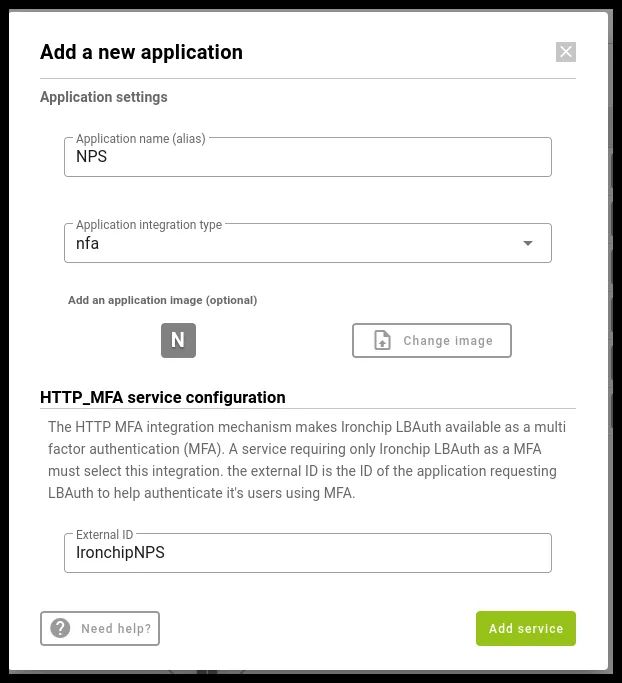
-
Add users to the application, using the format
Domain\Username.
Configure Windows
Section titled “Configure Windows”Install RD Gateway
Section titled “Install RD Gateway”-
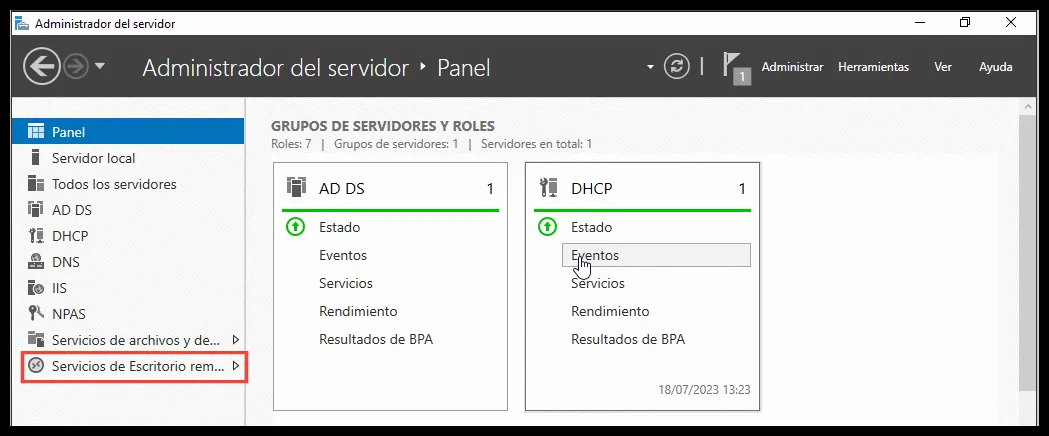
In Server Manager, go to Remote Desktop Services.
-
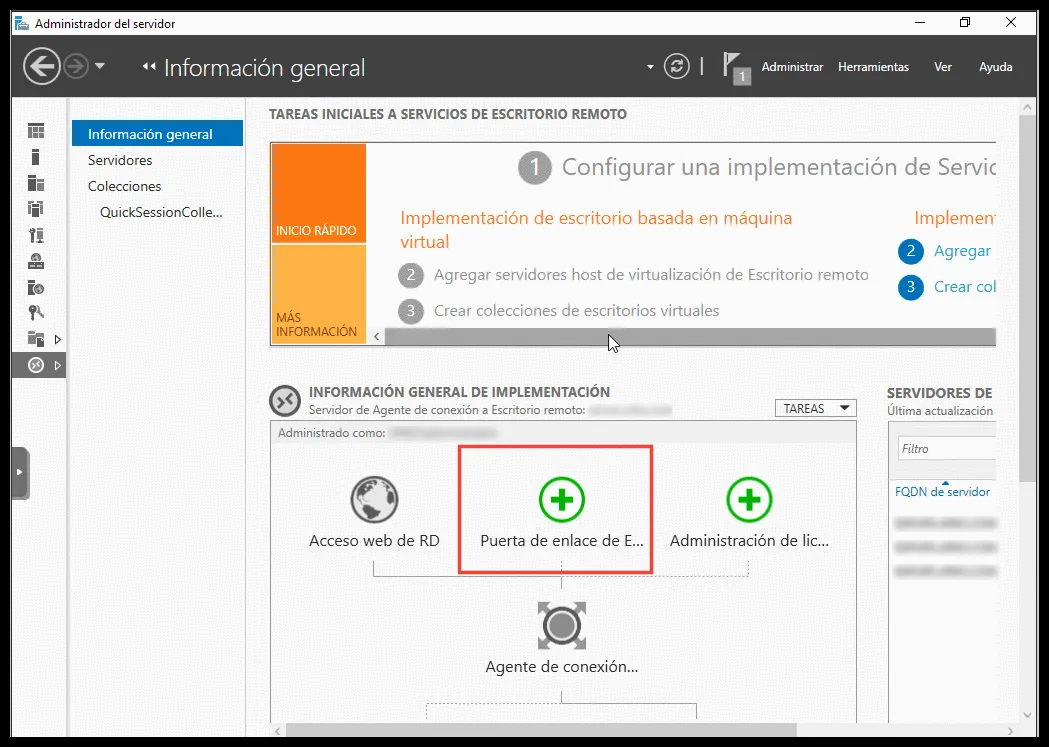
Click the Remote Desktop Gateway button.
-
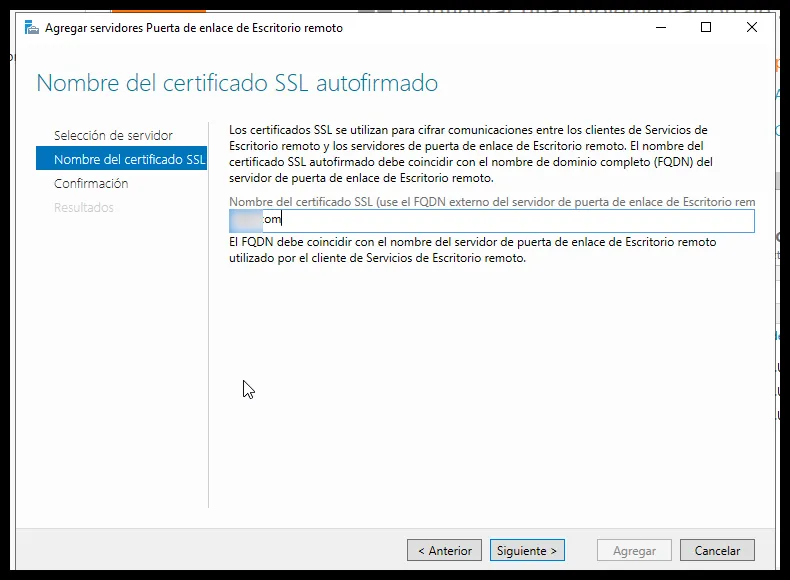
Select the server where you will install the service. On the next screen, enter the full domain name.
-
Click Next and then Add.
-
When the process finishes, Windows asks you to configure a certificate. This example uses a self-signed certificate.
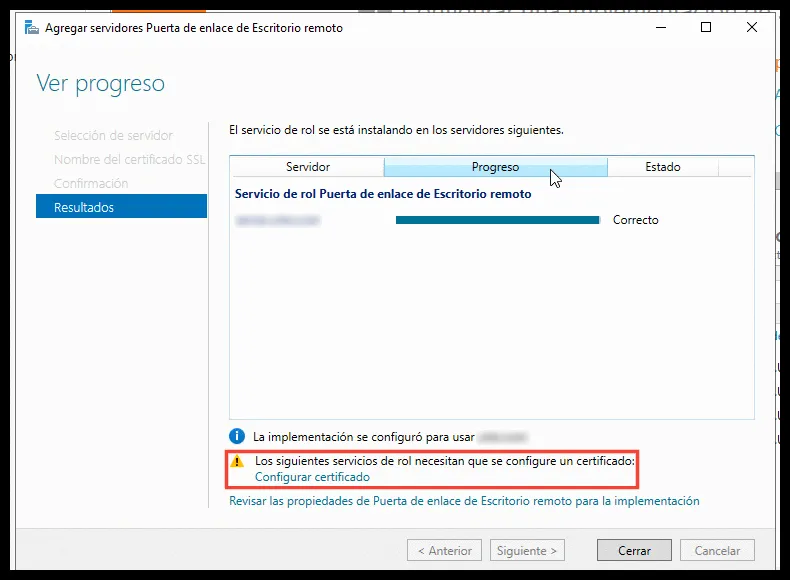
-
If you do not have a certificate, click Create new certificate.
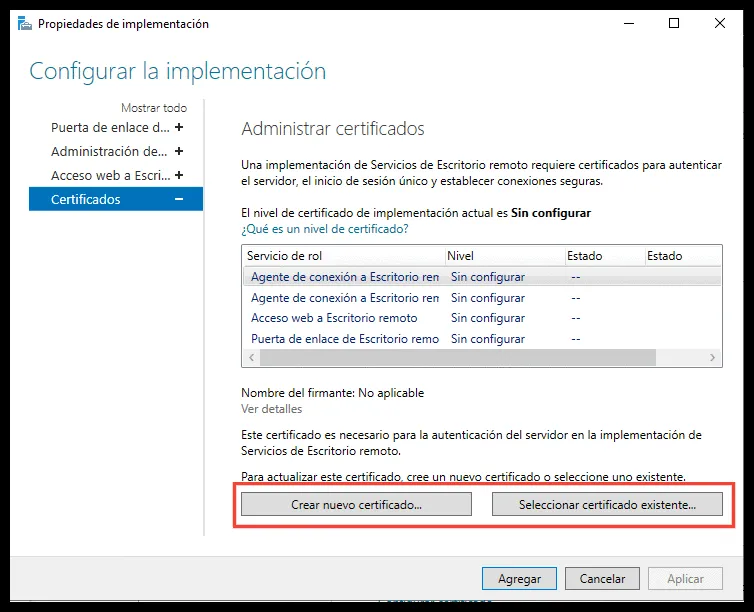
-
Enter the full domain name, a password, and a path to save the certificate, and check the box at the end. Click OK and then Apply.
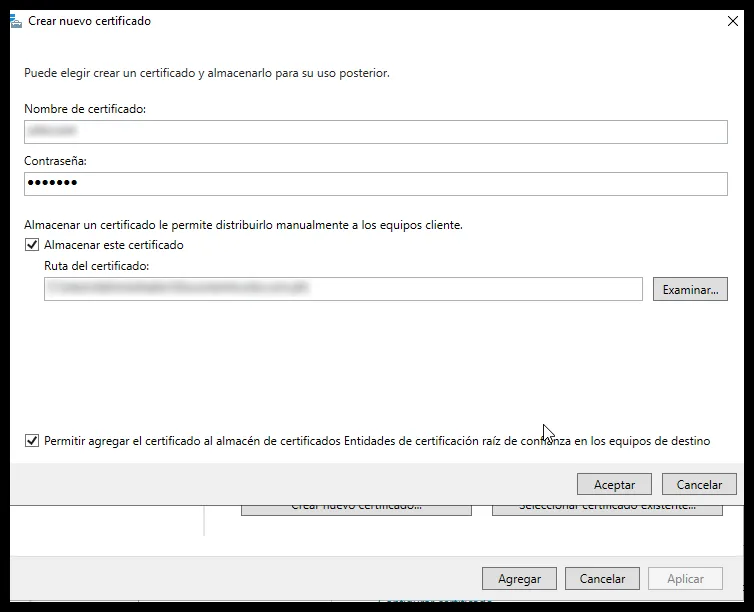
-
Add the same certificate to all the services in the list by selecting the certificate.
Create or change the RD Gateway certificate
Section titled “Create or change the RD Gateway certificate”If RD Gateway is already installed, or you want to create the certificate later, do it from the manager:
-
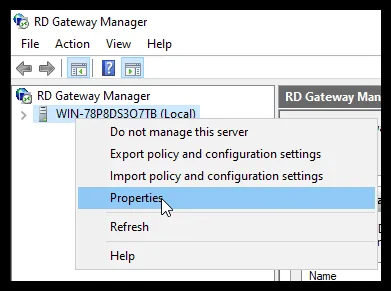
In Tools, go to Remote Desktop Services and select Remote Desktop Gateway Manager.
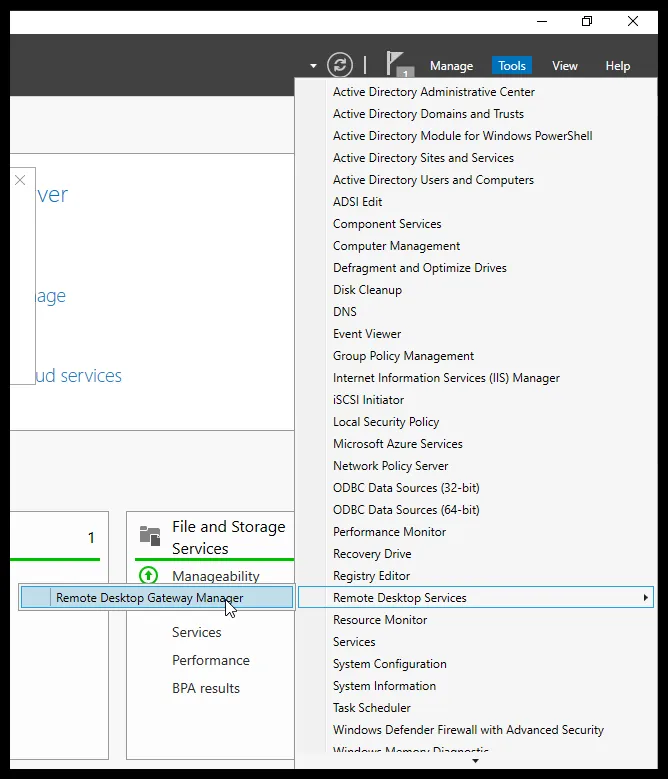
-
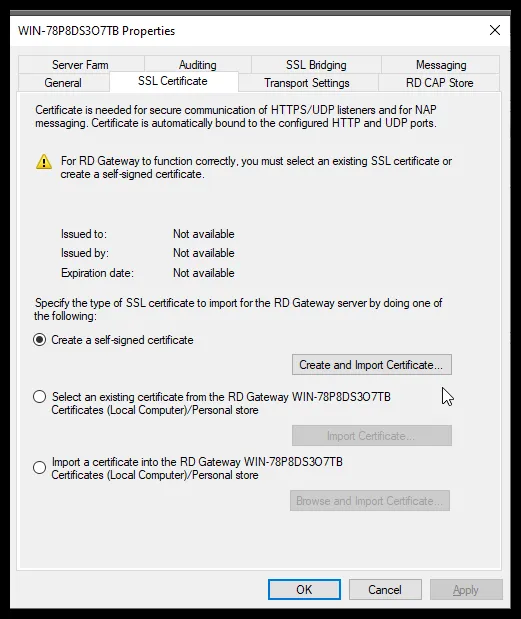
Right-click the server, open Properties and go to the SSL Certificate tab.
-
Select Create a self-signed certificate, click Create and Import Certificate… and then OK. The certificate is saved in the Documents folder of the computer.
Install the certificate on the machines
Section titled “Install the certificate on the machines”Copy the certificate to all the machines, the server itself and the clients, and install it on each one with the same process:
- Right-click the certificate.
- Select Install Certificate.
- Select Local Machine and click Next.
- Select Place all certificates in the following store and click Browse….
- In the window that opens, select the Trusted Root Certification Authorities folder and click OK.
- Click Next and then Finish.
Create the RD CAP and RD RAP policies
Section titled “Create the RD CAP and RD RAP policies”-
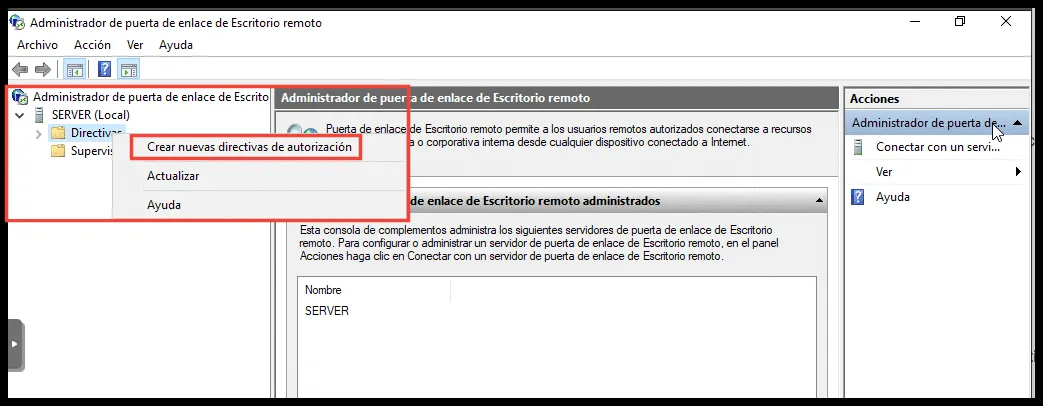
In the Remote Desktop Gateway Manager, select your server and create a new policy by right-clicking Policies.
-
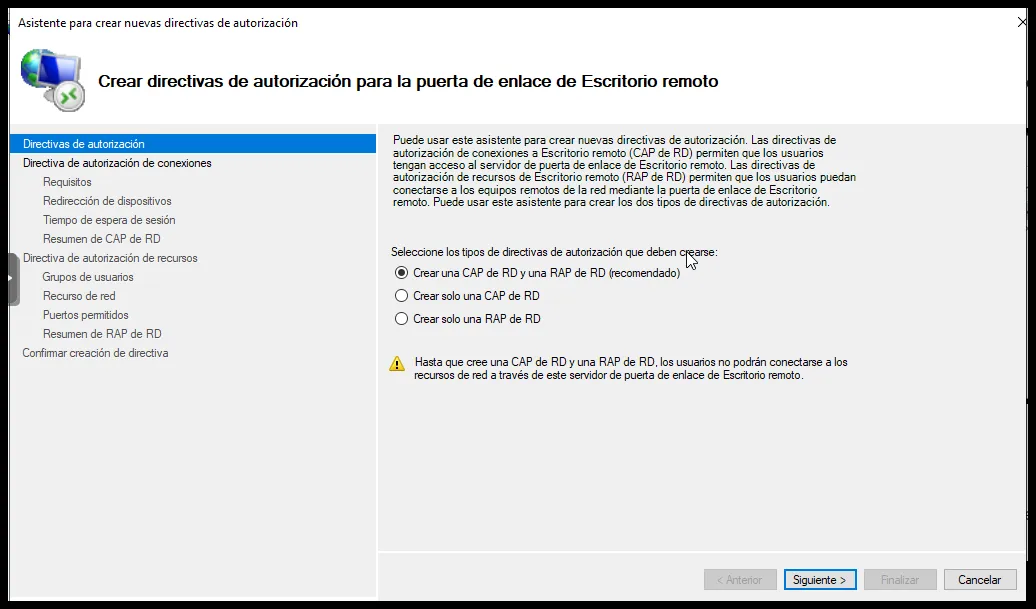
Select Create a RD CAP and a RD RAP.
-
Give the policy an identifying name. The name of the RD CAP policy (here,
IronchipCAP) must match the External ID of the application you created in the Ironchip admin console.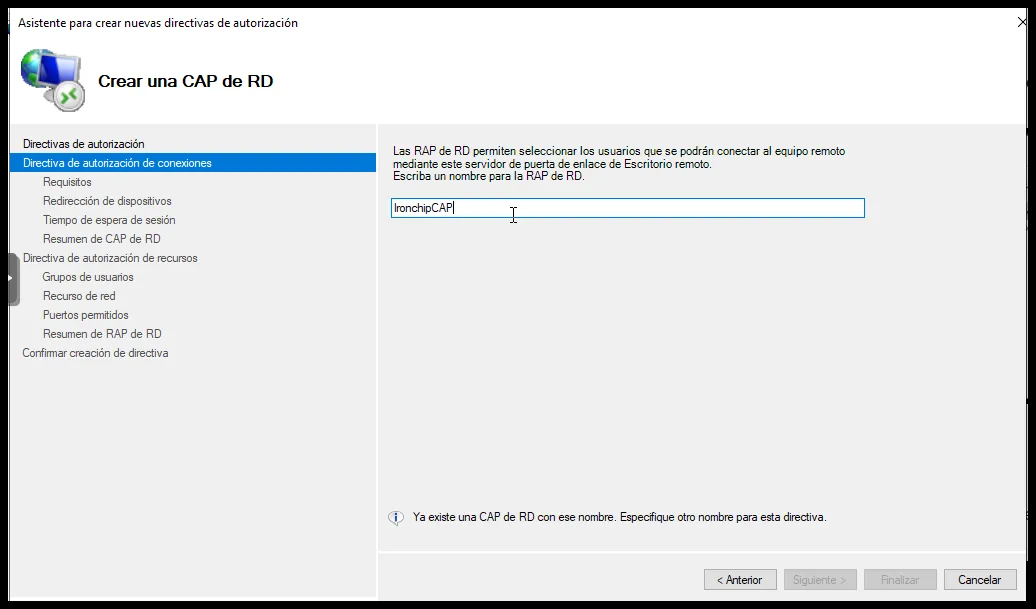
-
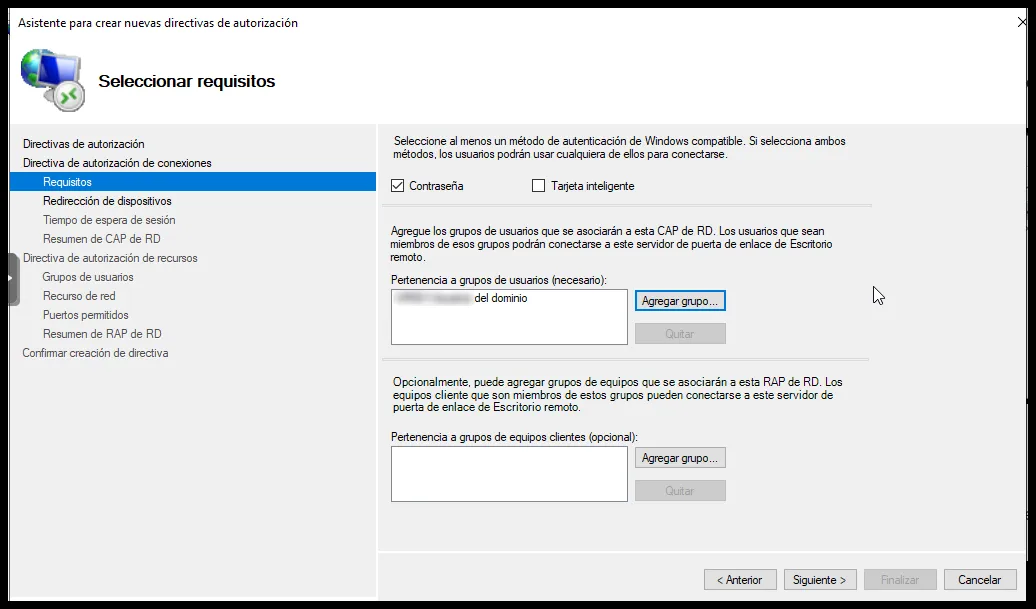
Add the domain user groups the policy applies to: click Add Group…, then Advanced… and Find Now to see all the groups you can select.
-
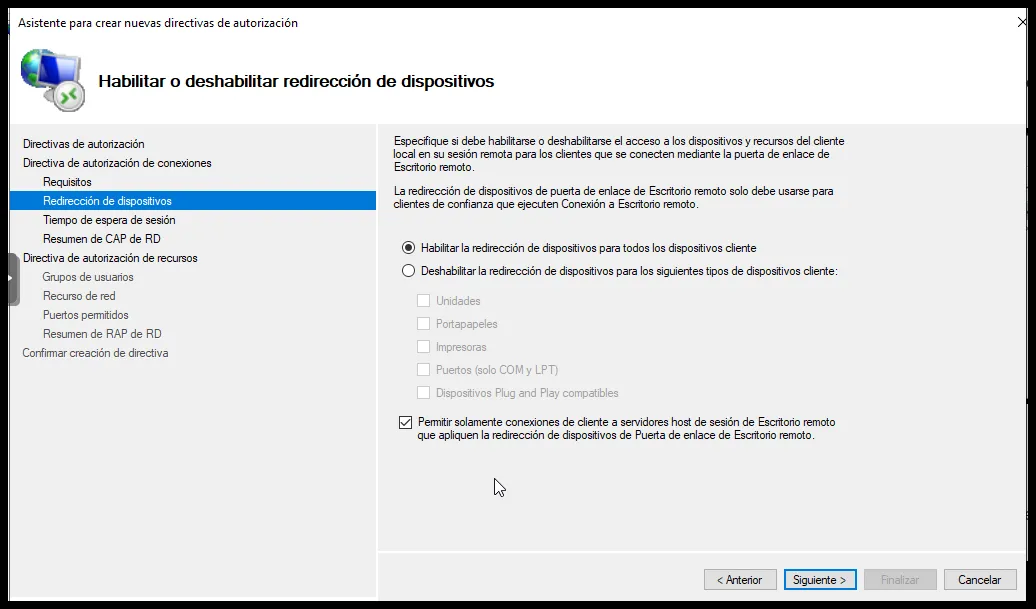
On the next tab, select the first option and check the box at the end, Only allow client connections to Remote Desktop Session Host servers that enforce RD Gateway device redirection. The following options are not necessary: click Next until you reach the Resource Authorization Policy.
-
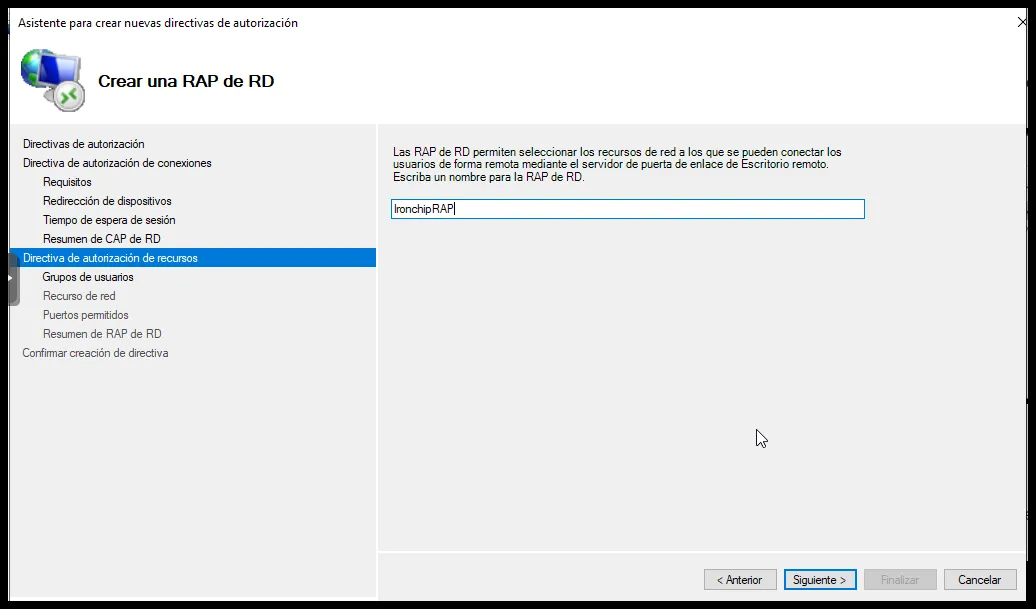
Give the resource authorization policy an identifying name.
-
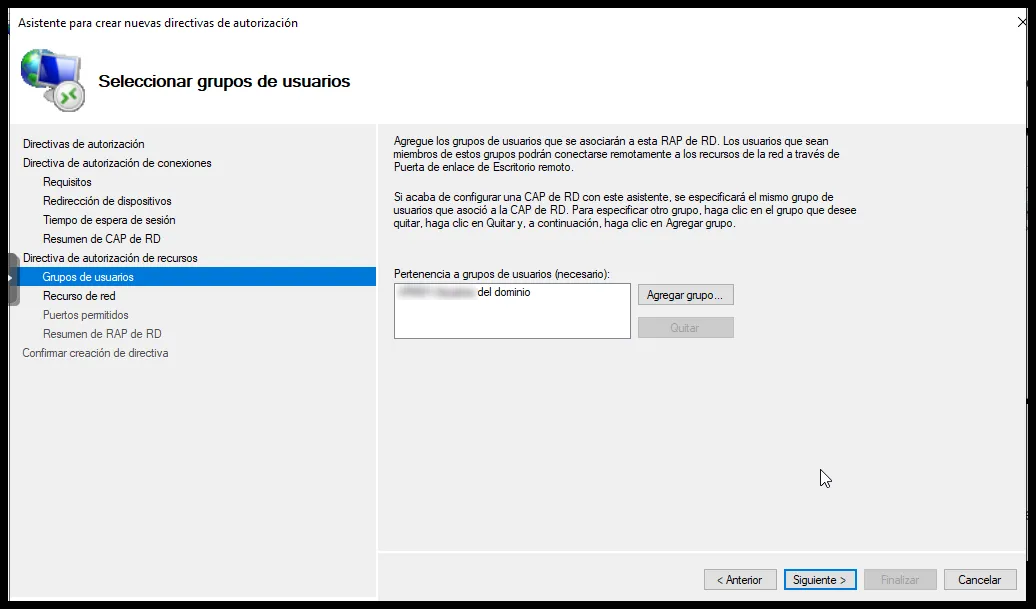
Add the domain user groups the policy applies to, using the same procedure.
-
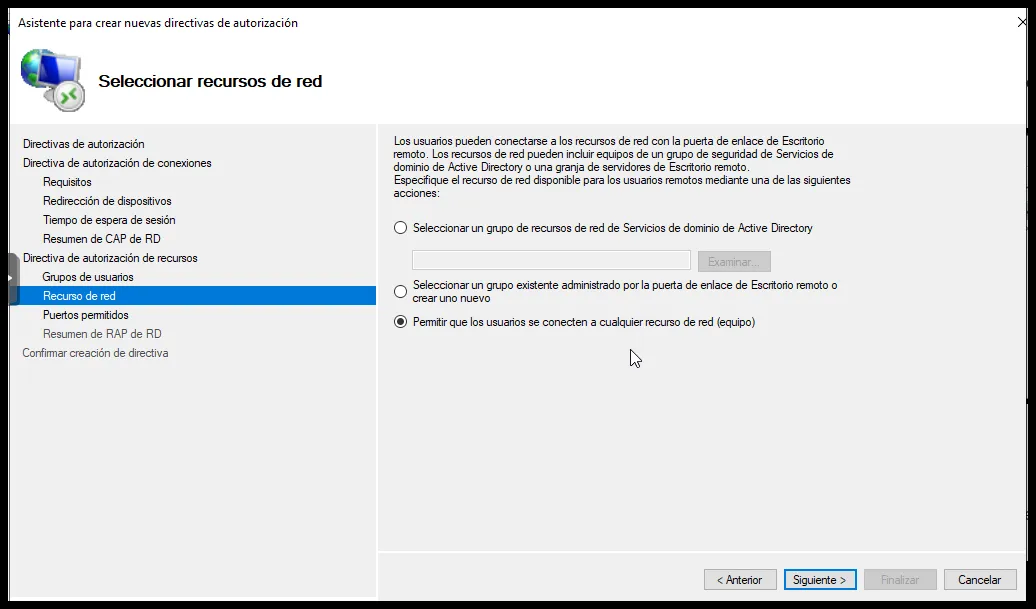
Select the last option, Allow users to connect to any network resource. The following option is not necessary: click Next until the configuration is complete.
Create the group policy
Section titled “Create the group policy”-
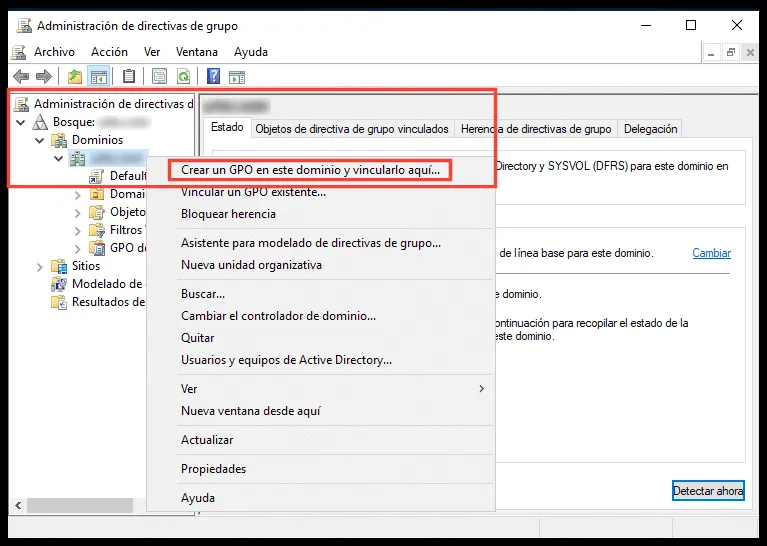
Open Group Policy Management, right-click your server, and select Create a GPO in this domain, and Link it here.
-
Enter a name, for example
Ironchip. -
Right-click the GPO you created and select Edit.
-
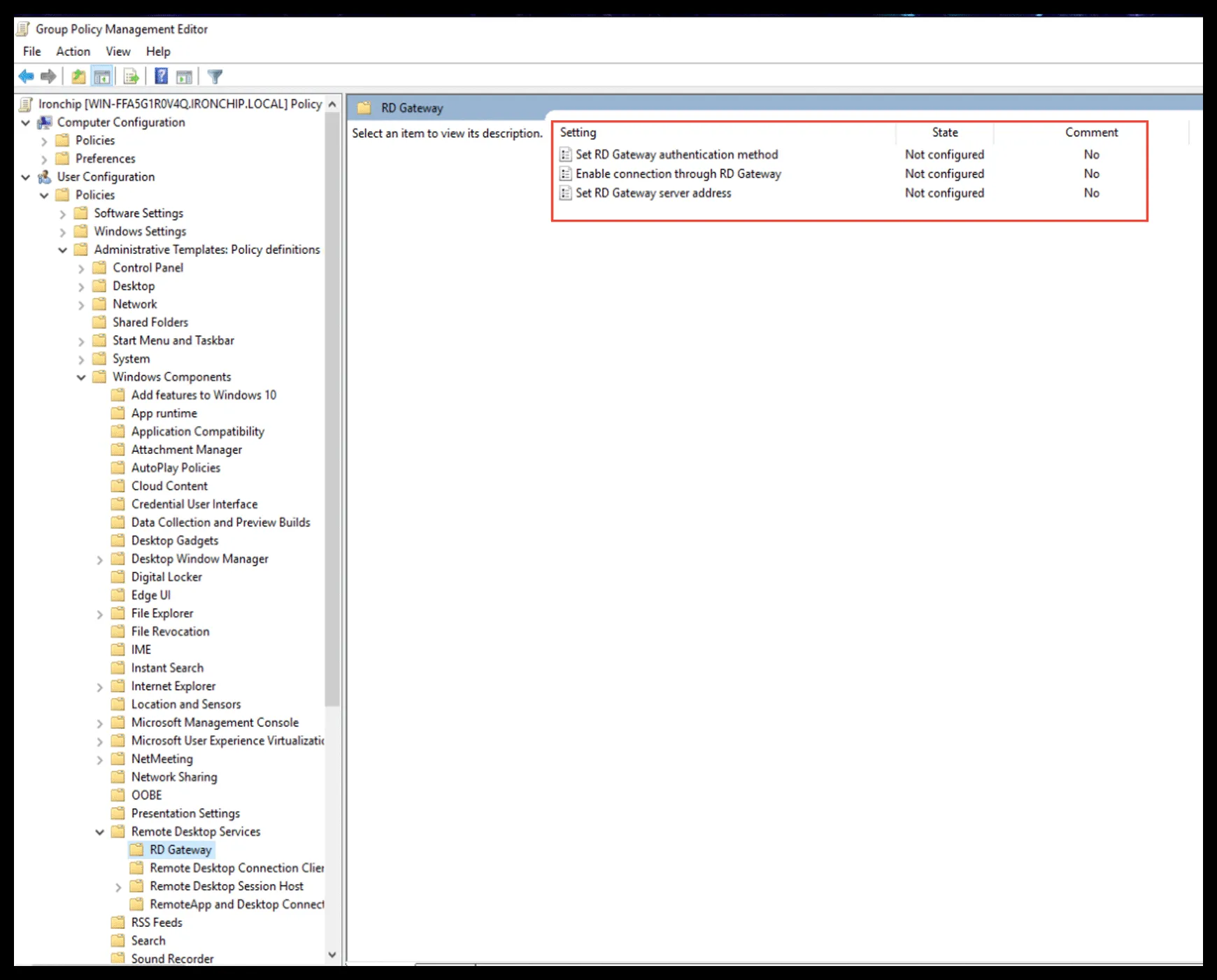
In the Group Policy Management Editor, go to User Configuration > Policies > Administrative Templates > Windows Components > Remote Desktop Services > RD Gateway.
-
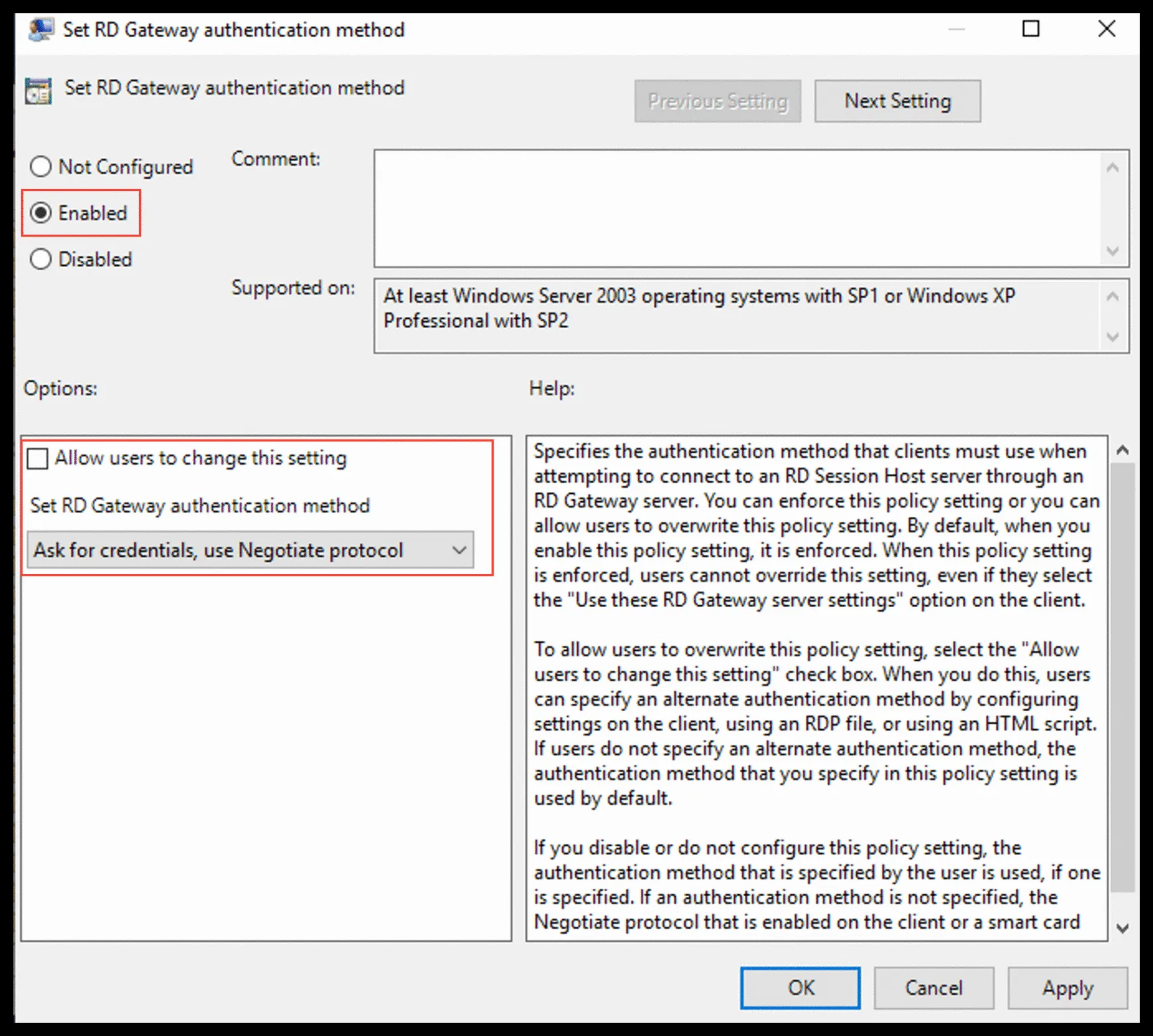
Select Set RD Gateway authentication method, enable it by clicking Enabled, and select Ask for credentials, use Negotiate protocol.
-
Select Enable connection through RD Gateway and enable it by clicking Enabled.
-
Select Set RD Gateway server address, enable it by clicking Enabled, and enter the address of your server, for example
10.0.0.2. -
Run
gpupdatein PowerShell on all related machines.
Add the policies to the plugin
Section titled “Add the policies to the plugin”If you have not installed the NPS plugin yet, follow Install the NPS plugin. Then add the policies you created to the plugin:
-
Run the plugin installer again and click Change.
-
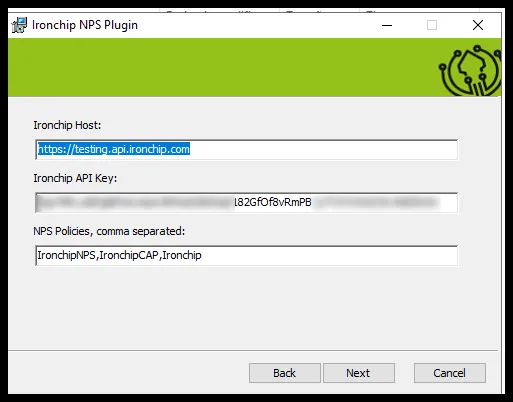
In NPS Policies, add the network policy protected by Ironchip and the RD CAP, separated by commas.
-
Restart the NPS and RDP services.
Verify the integration
Section titled “Verify the integration”You need a client computer connected to the domain. Follow the steps in the video.
Video tutorial
Section titled “Video tutorial”Allow RDP only through Gateway
Section titled “Allow RDP only through Gateway”Configure the server firewall so that it only accepts RDP connections through the gateway.
-
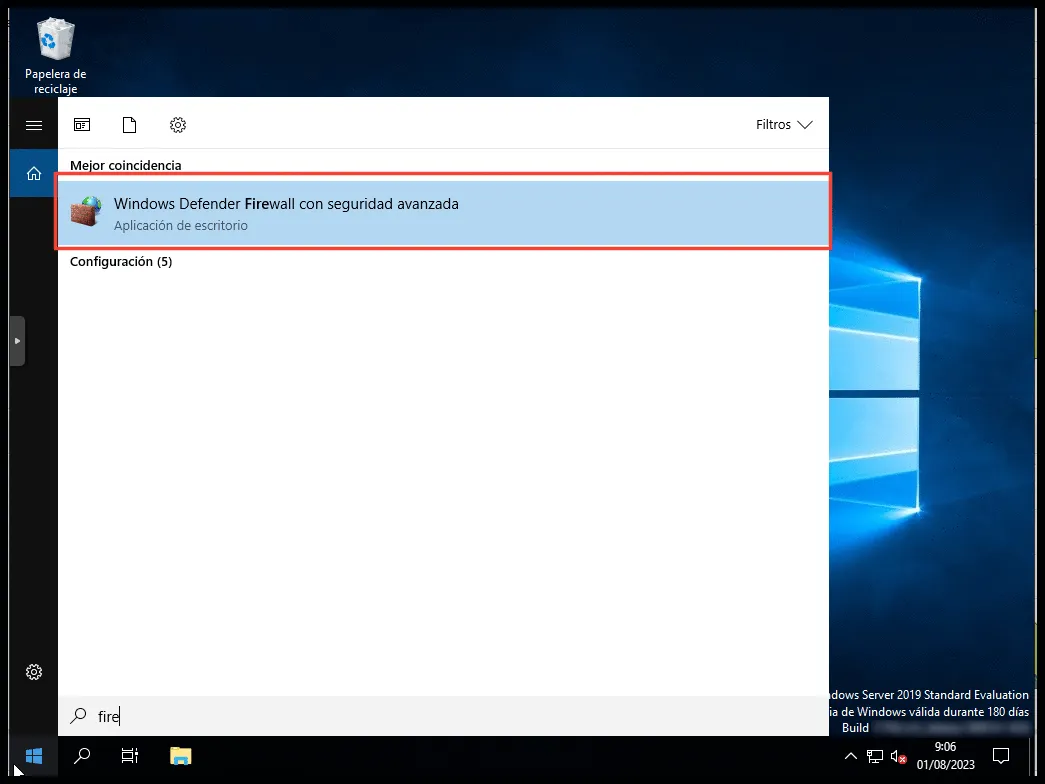
Open Windows Defender Firewall with Advanced Security.
-
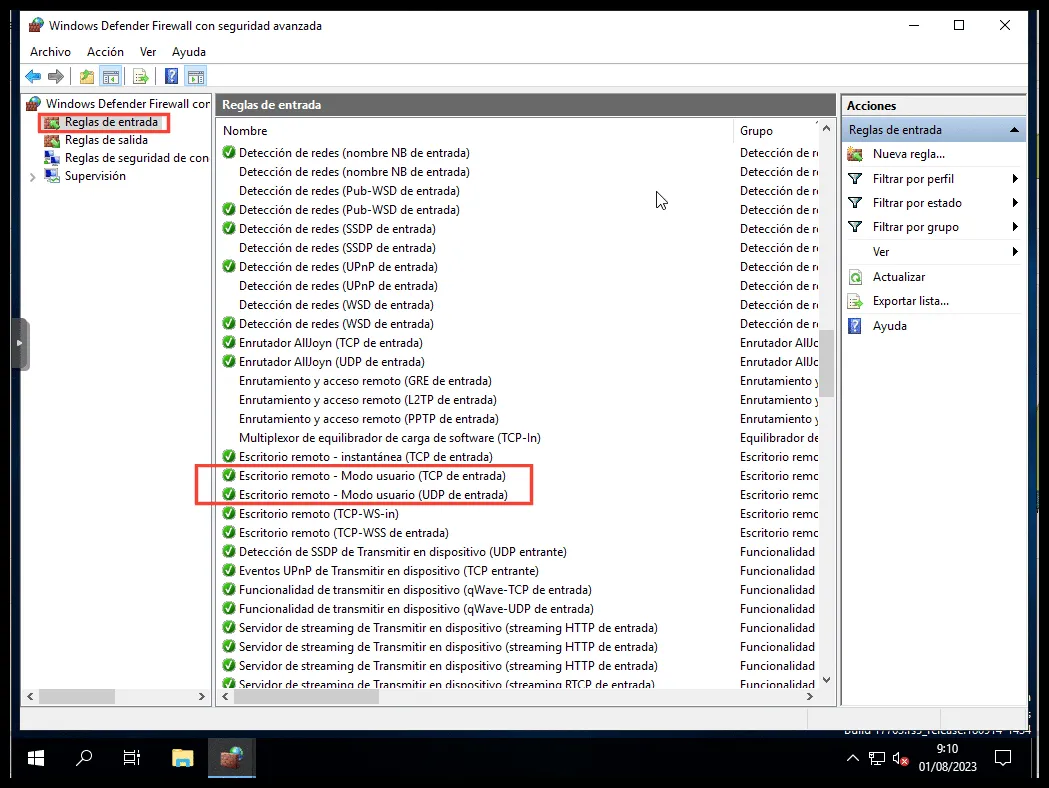
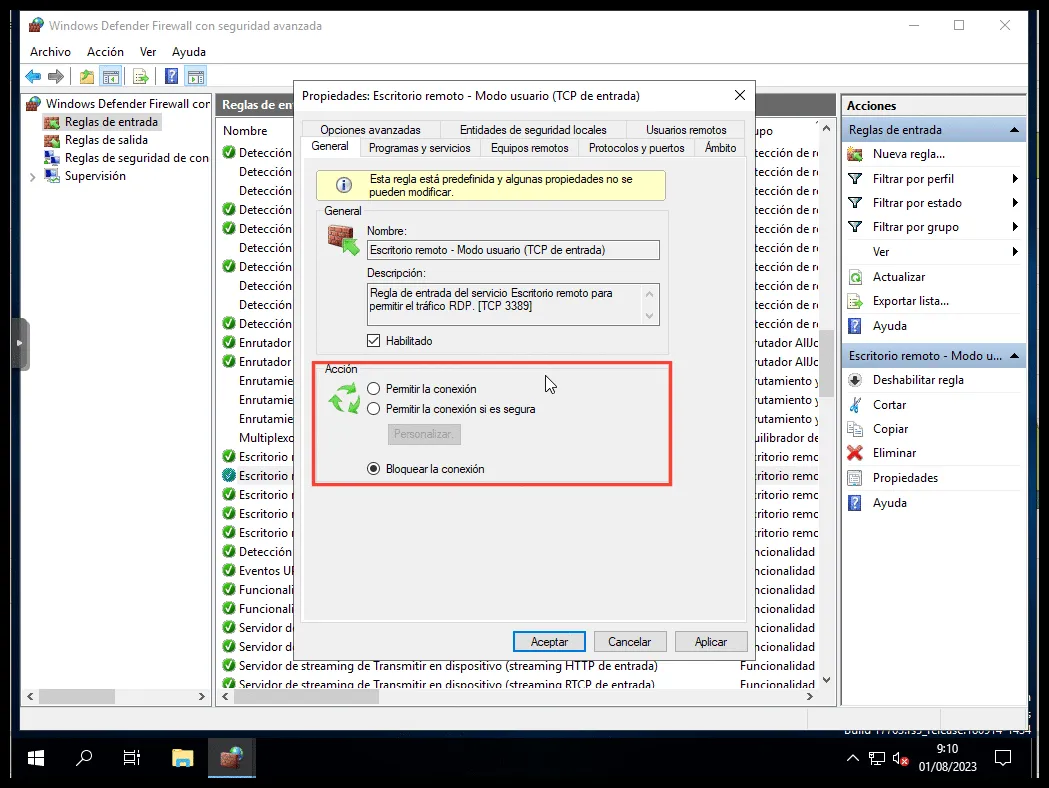
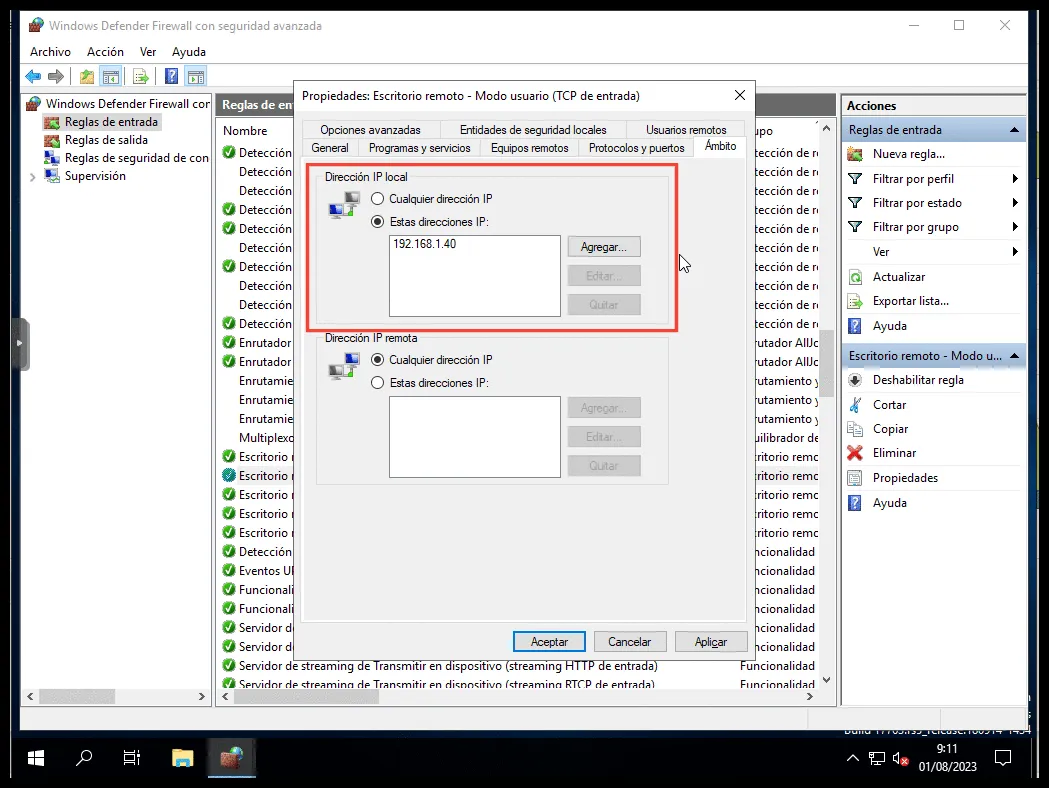
Go to Inbound Rules and find Remote Desktop - User Mode (TCP Inbound) and Remote Desktop - User Mode (UDP Inbound).
-
Open the TCP rule. Both configurations are exactly the same:
- On the General tab, select Block the connection.
- On the Scope tab, add your server’s IP under Local IP address.
- Apply the changes.
-
Repeat the previous steps with the UDP rule.
Was this page helpful?
Thank you. We will use it to improve the documentation. If you want to tell us what is missing or unclear, write to support@ironchip.com.