

WatchGuard
This guide explains how to protect the WatchGuard SSL VPN with Ironchip over RADIUS through NPS.
Requirements
Section titled “Requirements”- A functional Active Directory.
- A configured and working WatchGuard VPN.
- NPS protected by Ironchip. See Microsoft NPS.
- An MFA application created in the Ironchip admin console.
- The Ironchip app downloaded.
Configure NPS
Section titled “Configure NPS”Create a RADIUS client that points to the IP address you use to connect to your WatchGuard VPN.
-
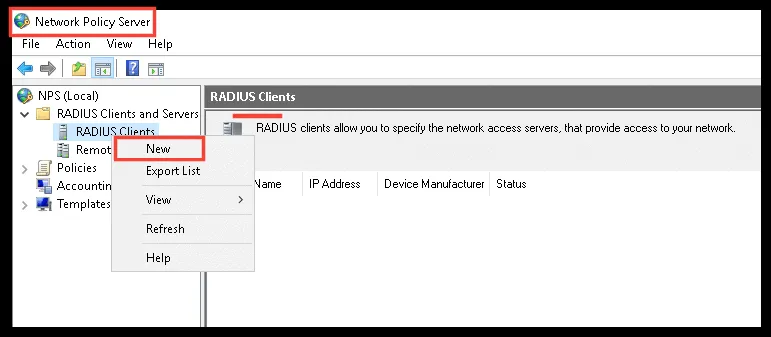
In the NPS (Network Policy Server) of your Active Directory, create a new RADIUS client.
-
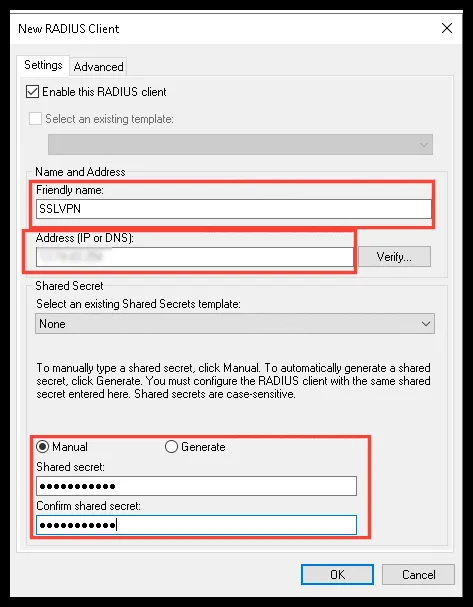
Give it an identifying name, the IP you use to connect to the VPN, and a shared secret that you should write down or remember.
Configure WatchGuard
Section titled “Configure WatchGuard”RADIUS server
Section titled “RADIUS server”Give WatchGuard the data it needs to connect to RADIUS.
-
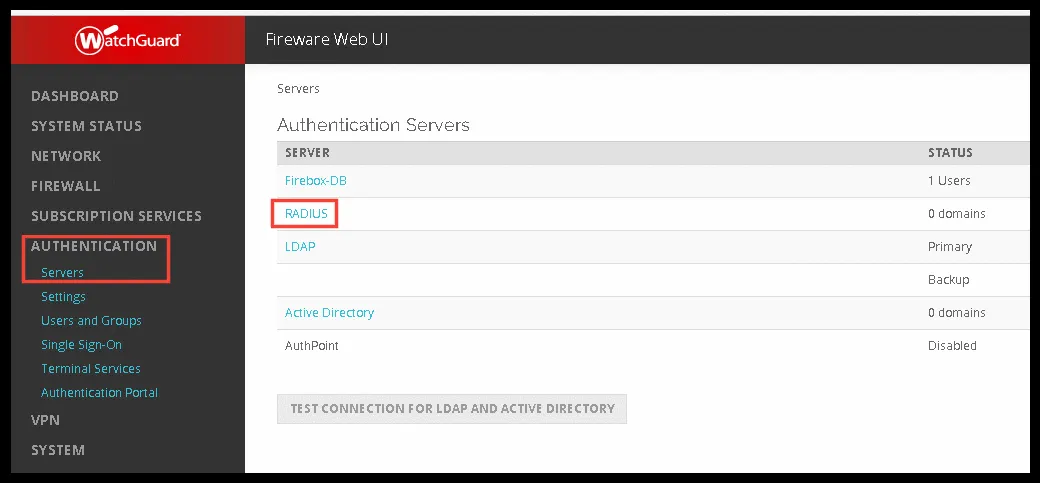
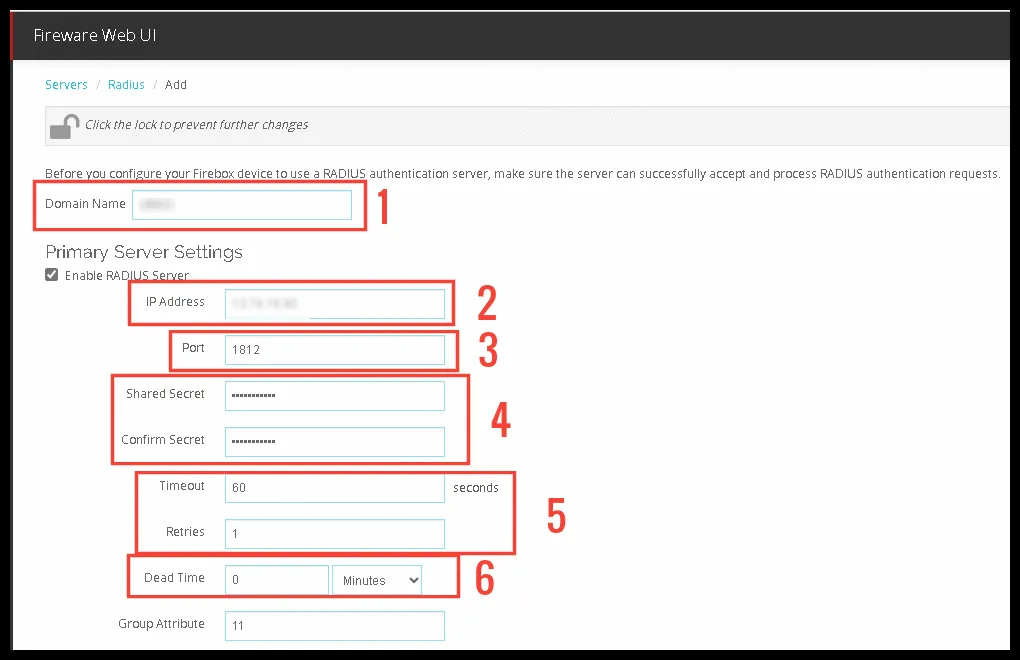
Go to Authentication > Servers and select RADIUS.
-
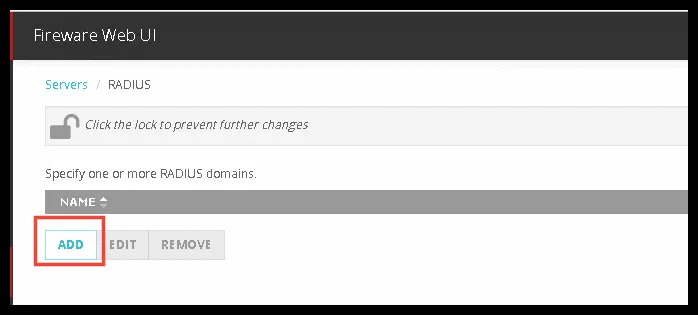
Click ADD.
-
Fill in the fields:
- Domain Name: the name of your Active Directory domain where RADIUS is located.
- IP Address: the public IP of your Active Directory domain where RADIUS is located.
- Port: the RADIUS port (
1812or1645). - Shared Secret and Confirm Secret: the RADIUS shared secret you set earlier.
- Timeout at
60seconds and Retries at1, so the user has time to authorize the connection. - Dead Time, optional: you can change it as you like.
0means disabled.
-
Save the changes.
Users and groups
Section titled “Users and groups”Create users that refer to the users in your AD.
-
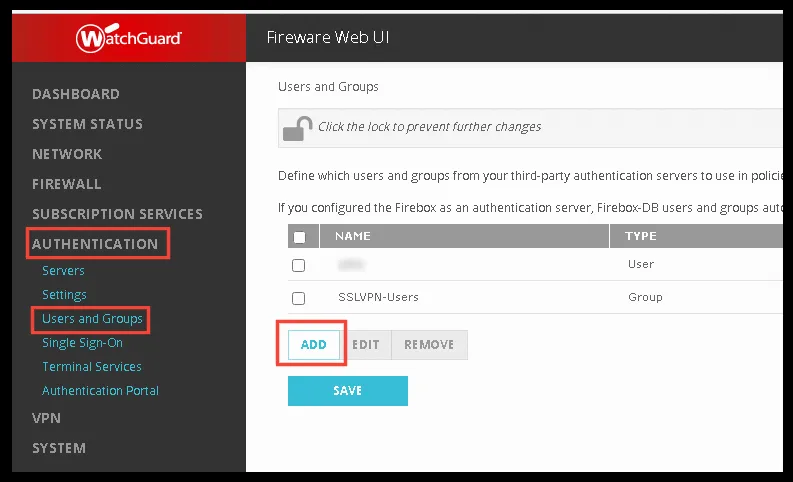
Go to Users and Groups and click ADD.
-
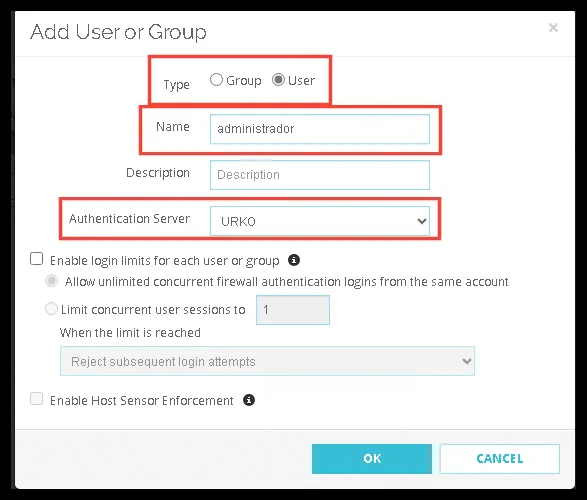
Select whether you want to create a group or a user.
-
The name must be exactly the same as the user’s name in your Active Directory.
-
In Authentication Server, select the RADIUS server you just created.
-
Click OK and save the changes.
SSL VPN
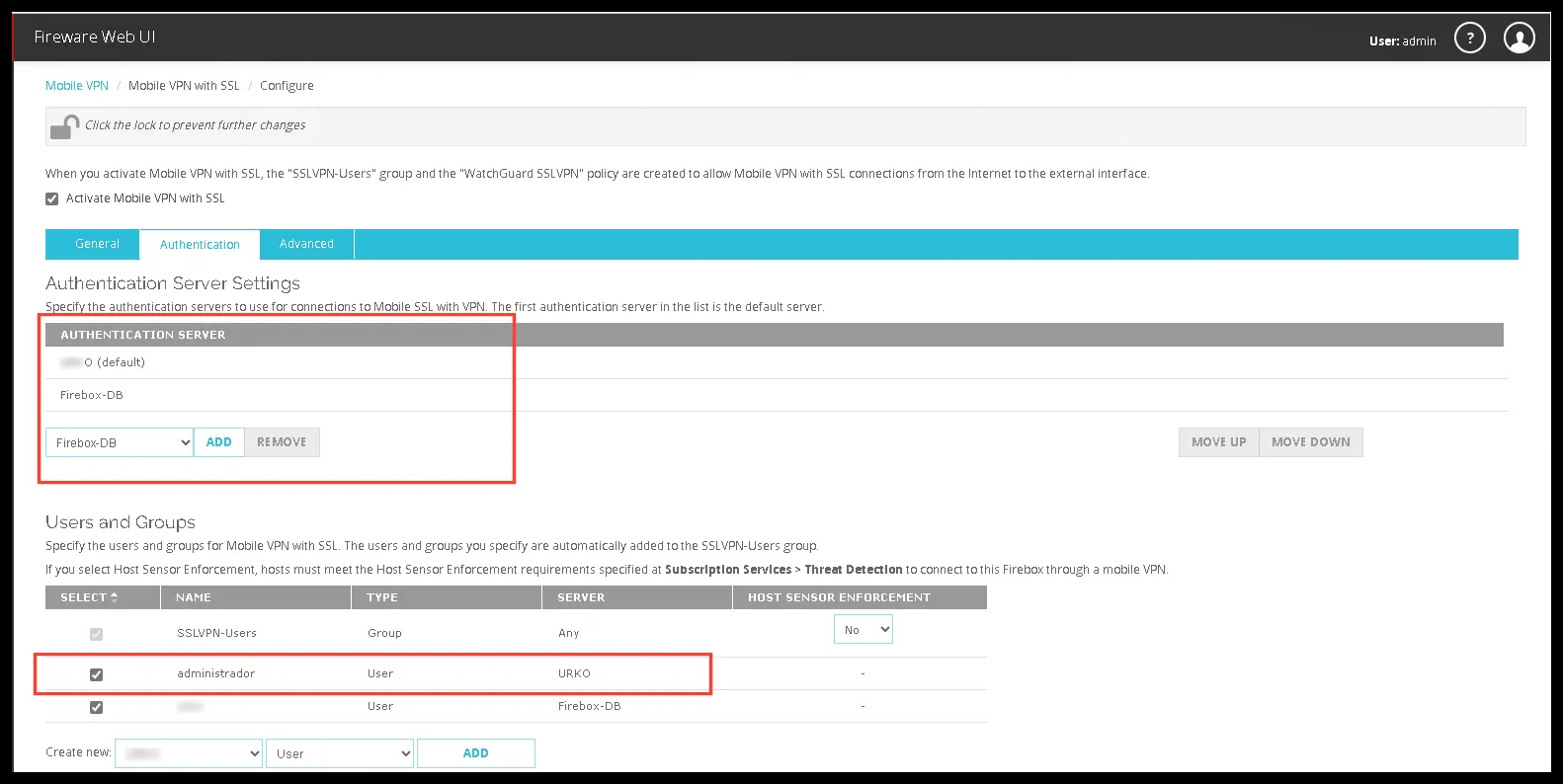
Section titled “SSL VPN”Change the VPN authentication method.
-
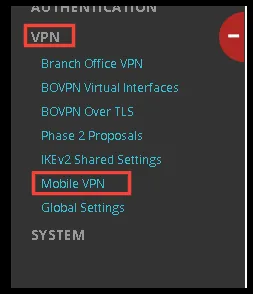
Go to VPN and, under Mobile VPN, open SSL. If this VPN connection method is not configured, configure it before continuing.
-
In Authentication Server, add the RADIUS server you created and set it as Default.
-
Check the boxes for the users and groups you want to use.
-
Save the changes.
Configure Ironchip
Section titled “Configure Ironchip”Add the users to the NPS application created in the Ironchip admin console. The usernames must be the same as in WatchGuard.

Verify the integration
Section titled “Verify the integration”Sign in to the WatchGuard SSL VPN with a user added to the application: after you enter your username and password, you are asked to authenticate with Ironchip.
Was this page helpful?
Thank you. We will use it to improve the documentation. If you want to tell us what is missing or unclear, write to support@ironchip.com.