

Users and groups
In the users section you manage everyone registered on the platform: you can add users, assign them roles and permissions, control the protection of their accounts, and organize them into groups to grant access and permissions together.
View the user list
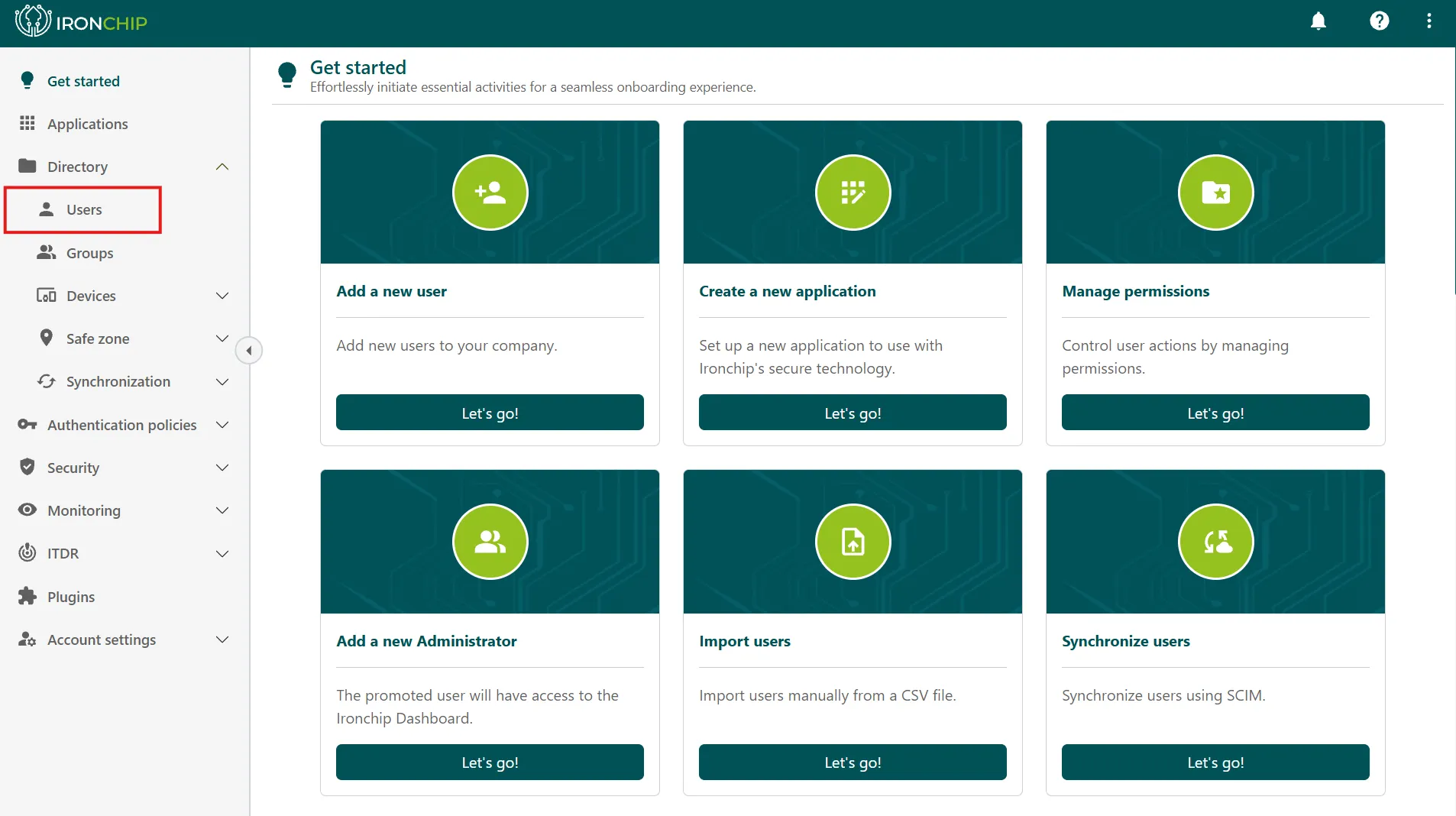
Section titled “View the user list”In the admin console, inside Directory, click Users to see all the users of the company.
Add a user
Section titled “Add a user”-
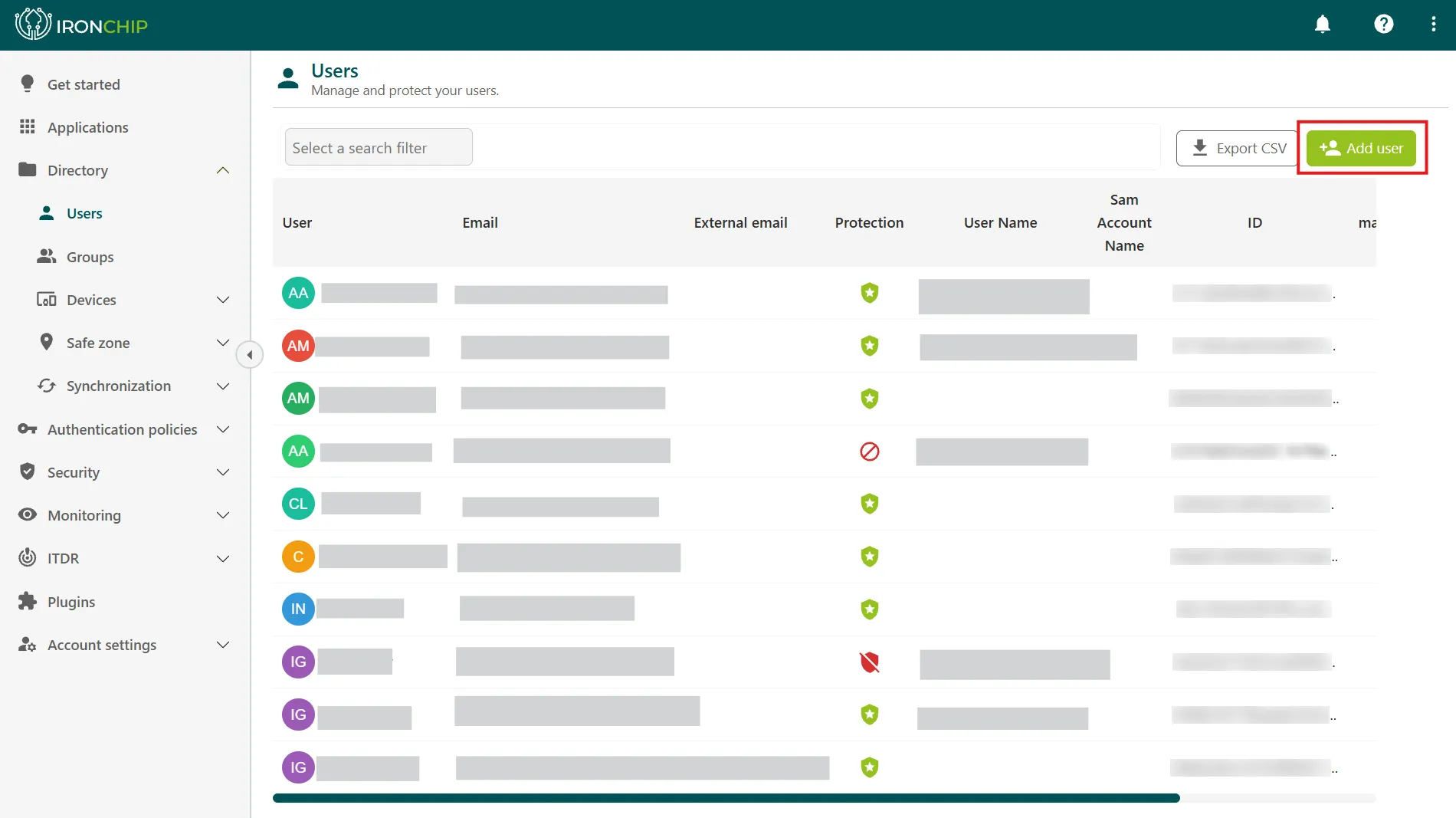
In Directory > Users, click Add user.
-
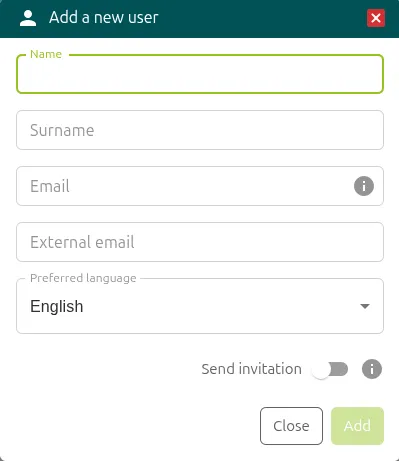
In the window that opens, enter the details of the user: name (Name), surname (Surname), email address (Email), external email (External email), and preferred language (Preferred language).
-
Turn on Send invitation if you want to register the user in Ironchip.
-
Click Add, in the bottom right corner.
If you do not turn on Send invitation, the user is created but does not receive any Ironchip email to register. A red crossed-out shield appears in the protection column: the registration is incomplete. It is common to leave the switch off when users arrive through LDAP synchronization.
To complete the registration, the user must verify: the user receives a QR code by email and must scan it to be securely registered on the platform.
If you have many users, you can also add or update them automatically with user synchronization, which keeps the platform database up to date.
Protection status
Section titled “Protection status”The Protection column of the list shows how far each user’s registration has progressed:
| Shield | Meaning |
|---|---|
| Red | The user has not completed the registration. |
| Orange | The invitation was sent and the user received the email, but has not verified yet. |
| Green | The user has verified and the registration is finished. The account is active and protected by Ironchip. |
| Gray | The account is disabled. See how to enable it. |
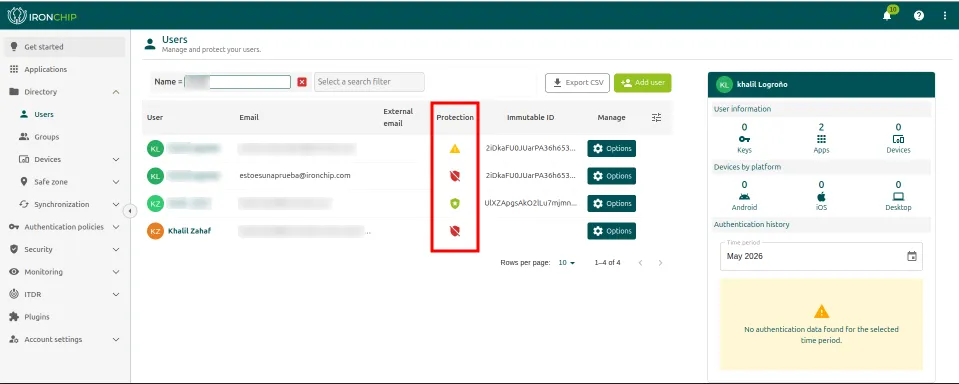
The shield states follow this cycle:
Red      Incomplete registration: the invitation has not been sent.  ↓      The invitation is sent.Orange   Invitation sent: the user has not verified yet.  ↓      The user scans the QR code.Green    Verified: the account is active and protected.
Gray     Disabled account. Enable Ironchip turns it back to green.
Options for each user
Section titled “Options for each user”The list shows, for each user:
- Their details: User, Email (the email address used to register), External email, User Name, Sam Account Name, and ID.
- Protection: the status of the account, that is, whether it is registered in Ironchip or not.
- Options: a dropdown with these actions:
- Add a device: add a device.
- Recover account: recover the account.
- Delete user: delete the user.
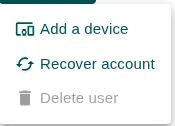
For the first two actions, see Devices.
Assign an administrator
Section titled “Assign an administrator”To assign an administrator, the user must already be registered on the platform. If not, add the user first.
- Go to the Users tab, inside the Directory folder.
- Add the user to the Ironchip Administrators group. See how to add users to a group.
Export the list to CSV
Section titled “Export the list to CSV”-
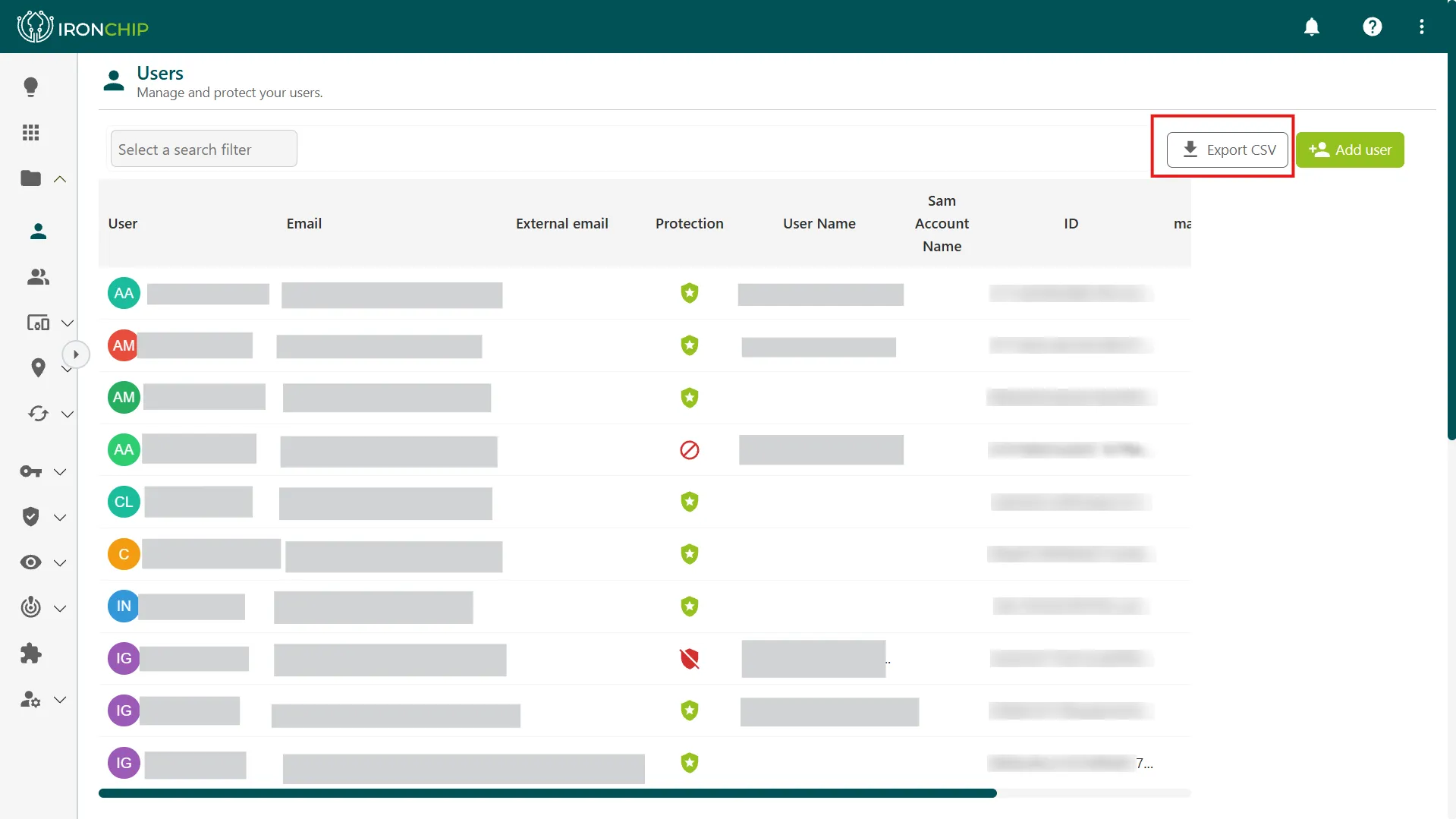
In Directory > Users, click Export CSV, to the left of Add user. The complete list of users of the company is downloaded.
-
When the download finishes, click Close to close the export window.
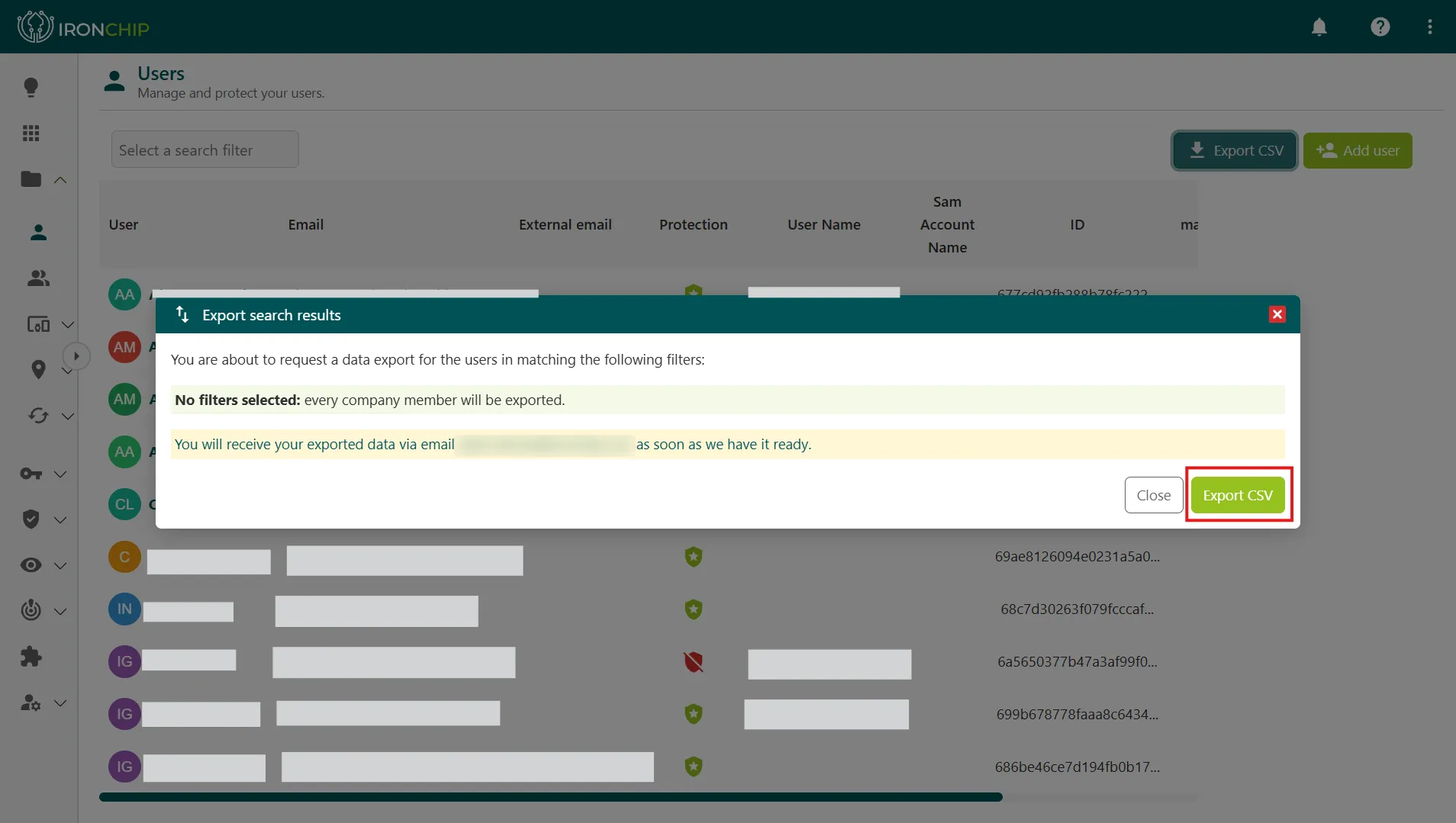
The CSV is useful for audits, periodic reviews of the directory, or for cross-checking the data with other systems (Active Directory, SCIM, etc.).
Groups
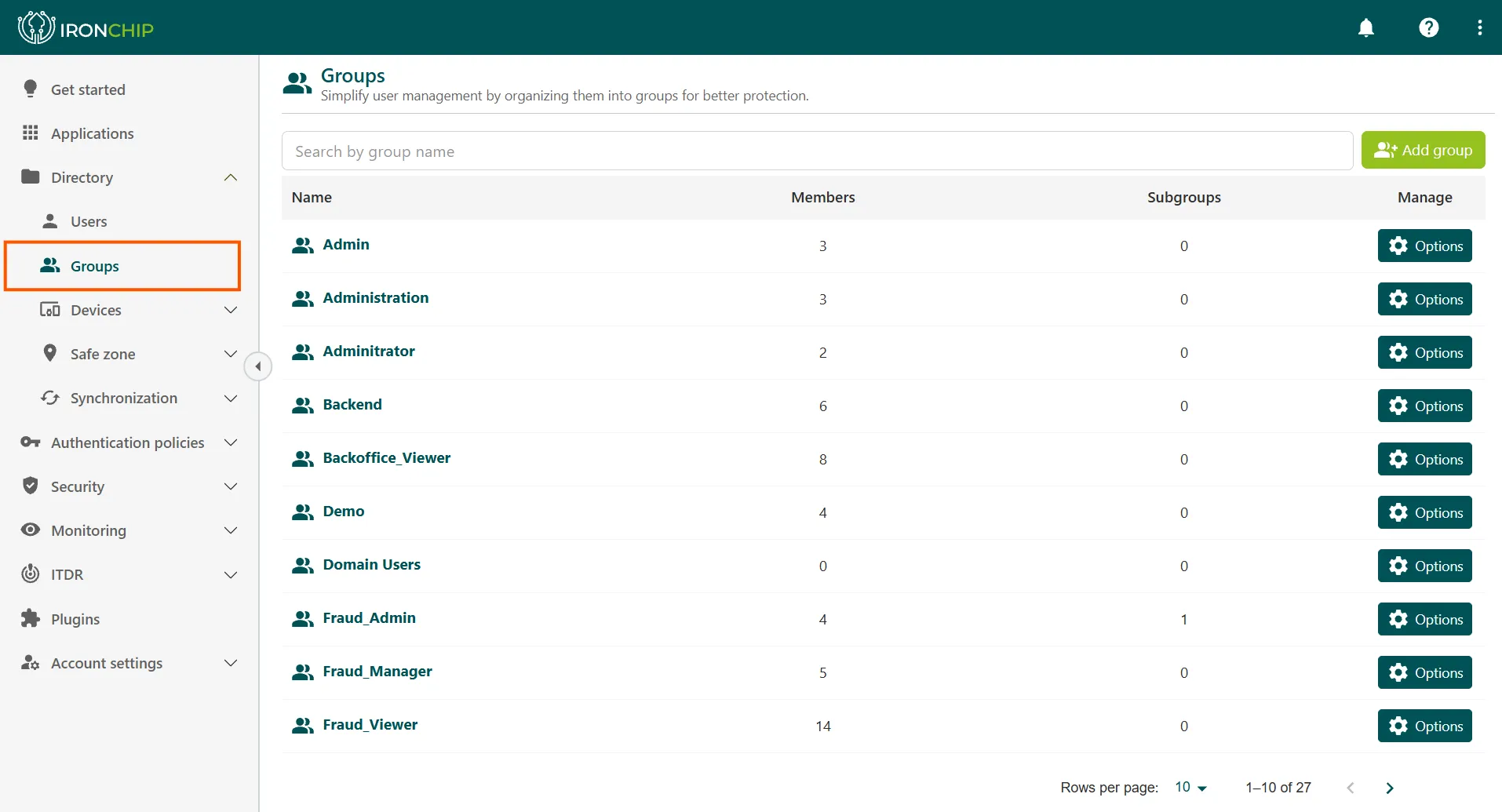
Section titled “Groups”Groups organize users hierarchically and speed up permission management: instead of assigning access user by user, you grant access to a whole group and every member inherits those permissions.
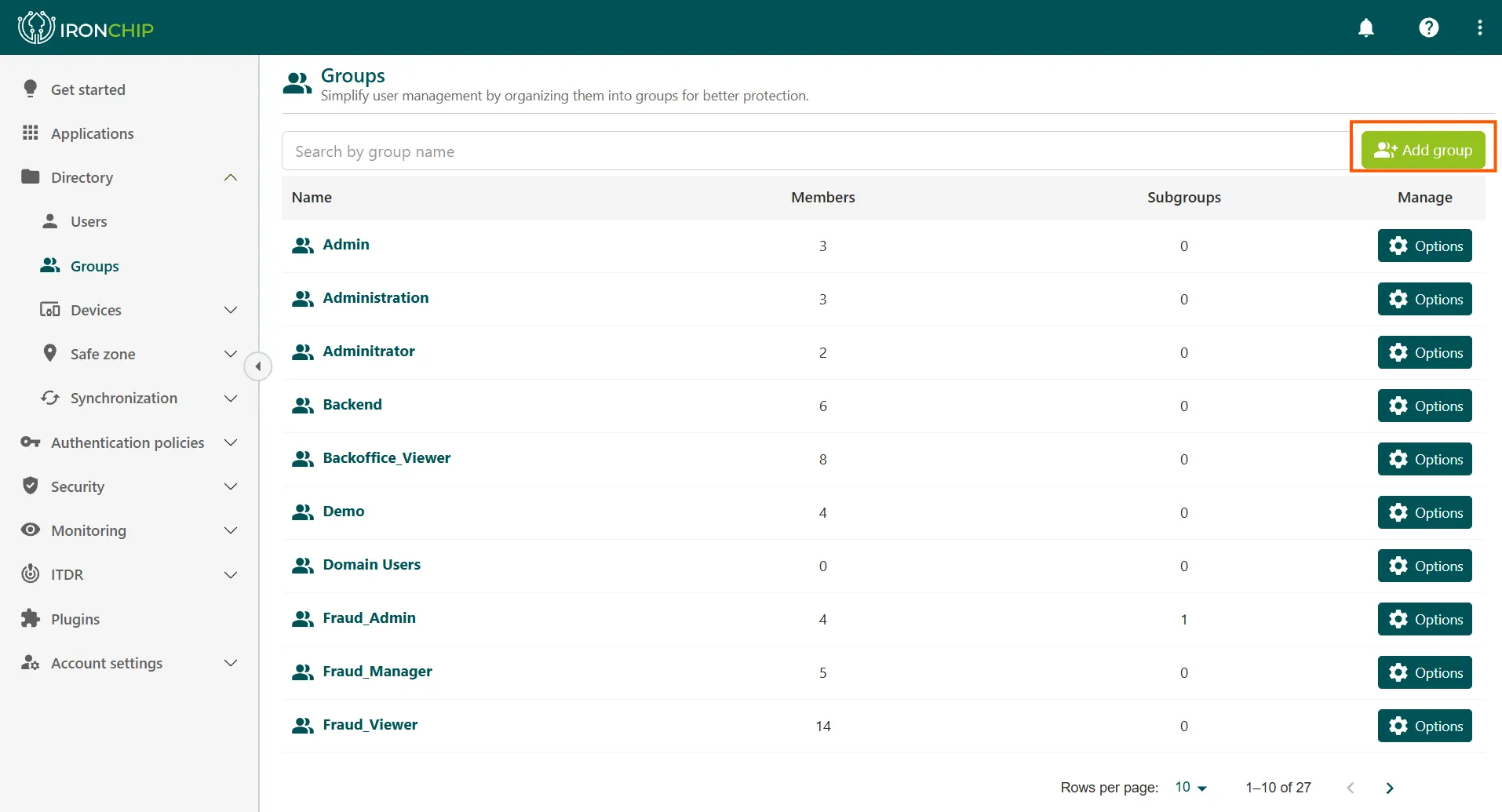
In Directory > Groups you see the groups created in the company. Two always exist:
- All users: includes every user registered on the platform. It cannot be modified or deleted.
- The administrators group (Ironchip Administrators): it can be modified but not deleted.
Create a group
Section titled “Create a group”-
In Groups, click Add group, at the top right.
-
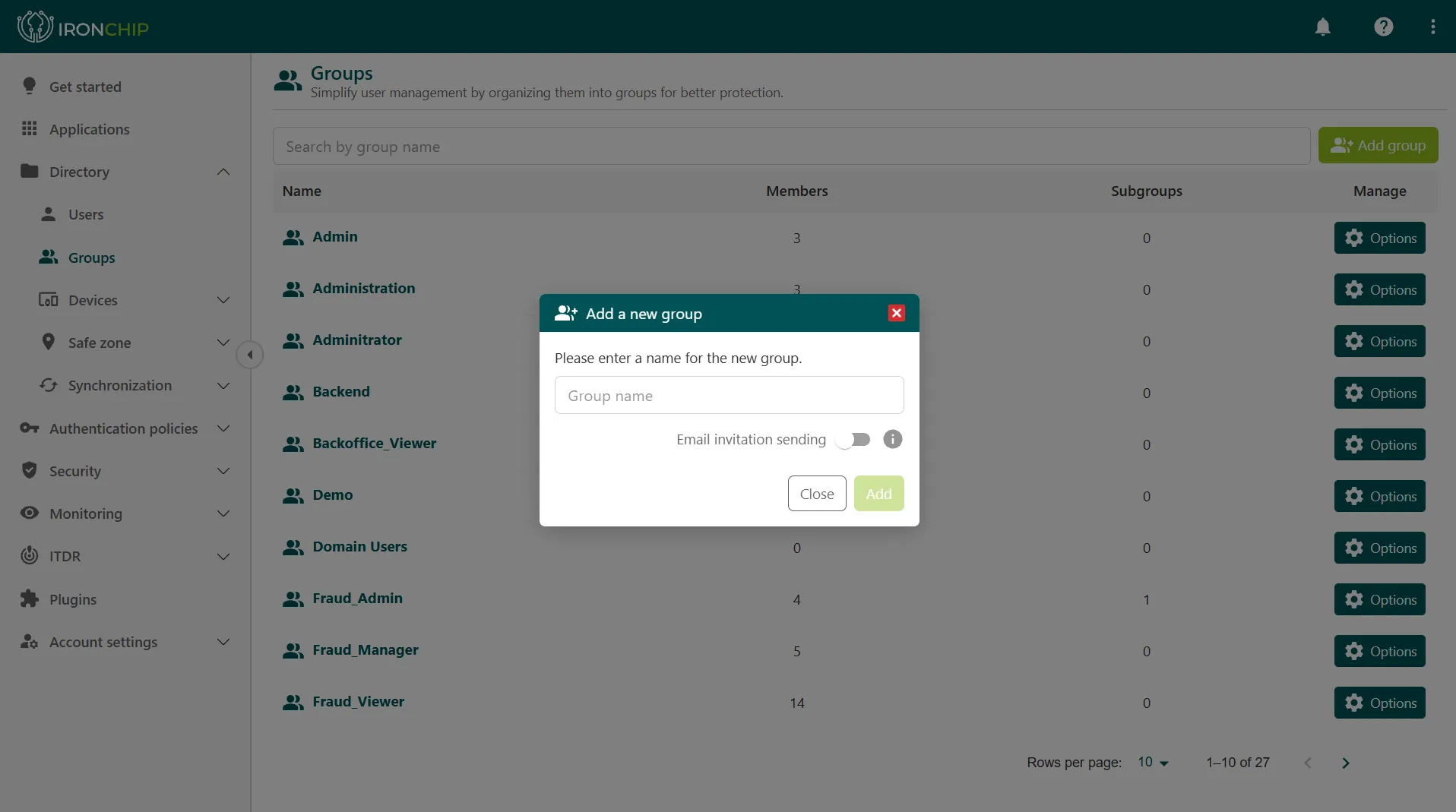
Enter the group name in Group name. In this same step you can turn on Email invitation sending to send the invitation by email to the users you add to the group.
-
Click Add.
Add users to a group
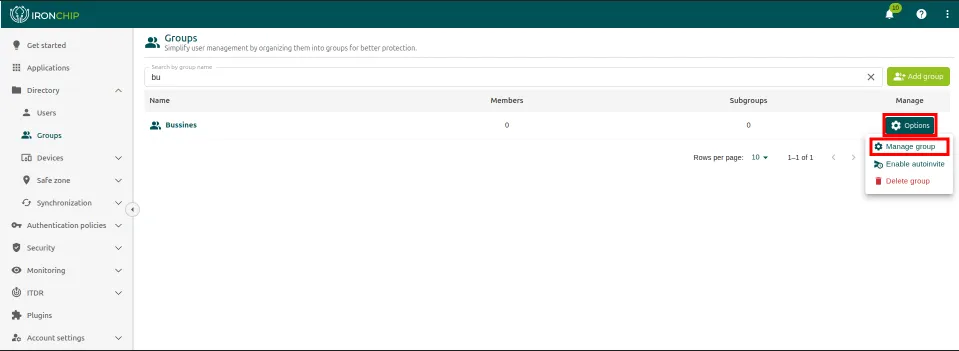
Section titled “Add users to a group”The new group appears on the main screen with the rest of the groups, with the user counter at 0.
-
In the group row, click Options and then Manage group.
-
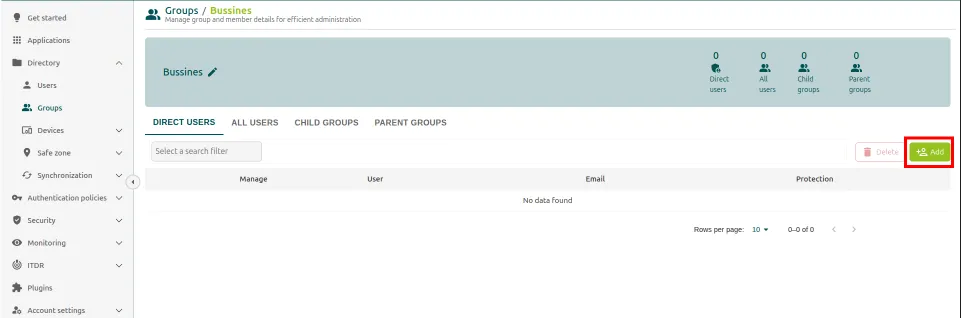
On the group page, click Add.
-
In the window that opens, select the users you want to add.
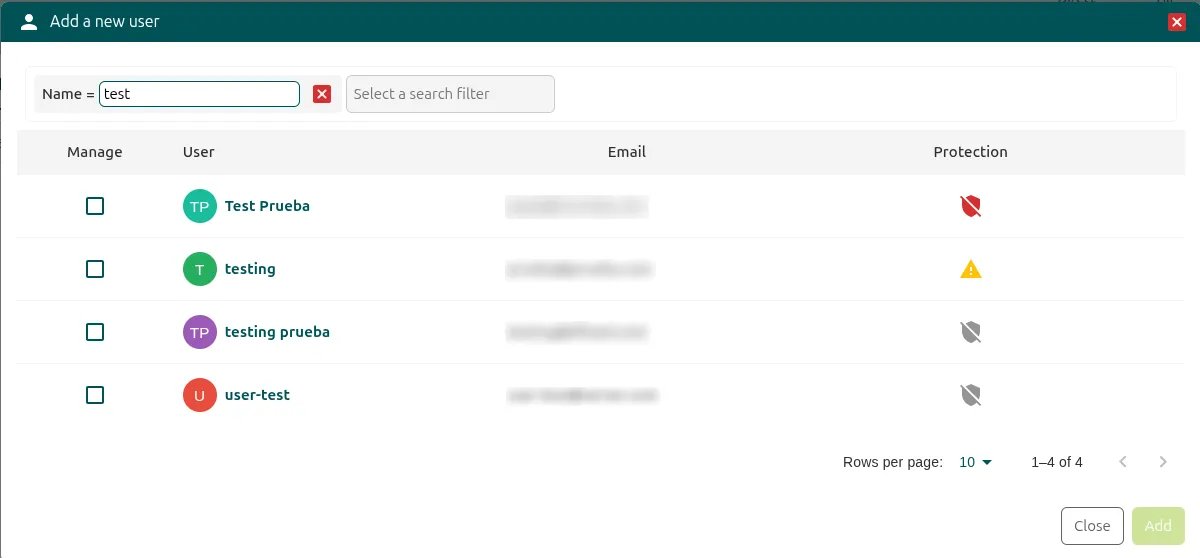
-
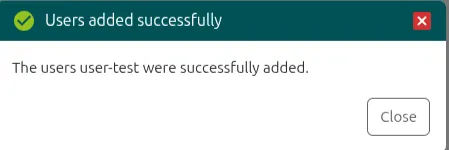
Click Add. The console confirms that the users were added successfully.
Subgroups
Section titled “Subgroups”Subgroups are an essential part of user and permission management in Ironchip: they let you organize users hierarchically and manage rights and privileges more efficiently within your security structure.
To add a subgroup:
-
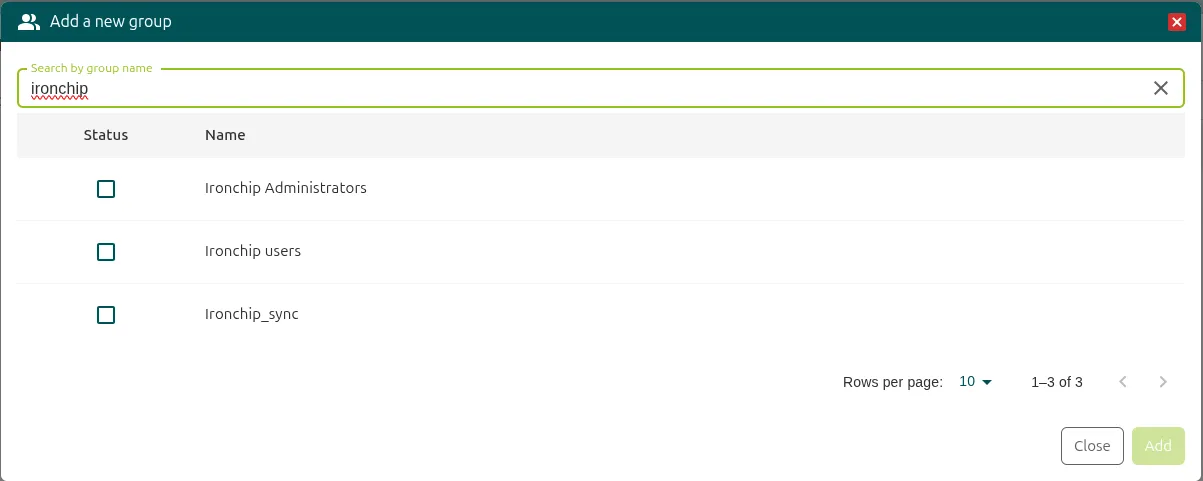
On the group page, open the Child Groups section and click Add. A window opens with the available groups.
-
Select the subgroups you want to add.
-
Click Add to confirm.
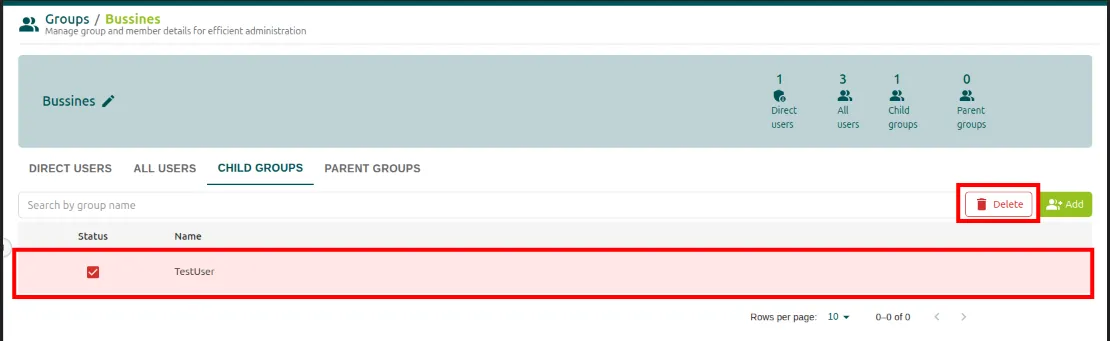
To remove a subgroup, select it in the same section and click Delete.
Was this page helpful?
Thank you. We will use it to improve the documentation. If you want to tell us what is missing or unclear, write to support@ironchip.com.