

Virtual desktops (VDI)
In virtual desktop (VDI) environments, Ironchip Authenticator can store the identity in a shared folder so the same user can use it from different domain computers without enrolling again. This page explains how to prepare the folder, install the authenticator and test it.
Requirements
Section titled “Requirements”- Computers joined to the domain.
- A shared folder reachable through a UNC path.
- The user must have read and write permissions on the shared folder.
- Connectivity to the server that hosts the share.
Prepare the shared folder
Section titled “Prepare the shared folder”- Create the folder on the server that will be used as the share.
- Share it with the users who will use the Ironchip identity and check that they have read and write permissions.
The path to the share has this format:
\\<server>\<share>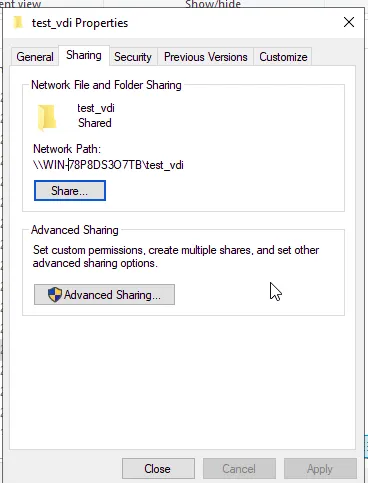
Install Ironchip Authenticator
Section titled “Install Ironchip Authenticator”Download IronchipWindowsAuthenticator.msi as explained in Install the authenticator on Windows and install it from a terminal with this command:
msiexec.exe /i IronchipWindowsAuthenticator.msi IRONCHIP_HOST="https://<api-host>" ADDLOCAL="AuthenticatorFeature" IRONCHIP_REMOTE_PATH="\\<server>\<share>" /qb| Parameter | Description |
|---|---|
IRONCHIP_HOST |
Ironchip API URL (https://api.ironchip.com by default). |
ADDLOCAL |
Component to install (AuthenticatorFeature, without USB support). |
IRONCHIP_REMOTE_PATH |
UNC path of the shared folder. |
/qb |
Runs the installation showing only the basic installer interface. |
Verify the setup
Section titled “Verify the setup”Use two computers to check that the identity can be used from different domain computers.
- Install and configure Ironchip Authenticator on Computer 1.
- Enroll the Authenticator with the corresponding user.
- When enrollment finishes, the identity is created in the shared folder.
- Configure Computer 2 with the same configuration and keep it joined to the domain.
- Sign in to Computer 2 with the same user you used for the first enrollment.
- Open Ironchip Authenticator.
Enroll the first computer
Section titled “Enroll the first computer”On Computer 1, enroll Ironchip Authenticator.
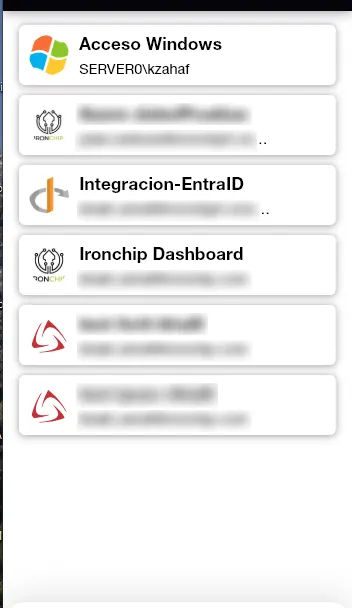
When it finishes, open the shared folder: it contains a new folder with the identity you just created.

Access from a second computer
Section titled “Access from a second computer”With the identity created, you can use it from Computer 2 without enrolling again. Computer 2 must:
- Be joined to the same domain.
- Have Ironchip Authenticator installed and configured.
- Use the same user as the first enrollment.
- Have access to the shared folder.
When you open Ironchip Authenticator on Computer 2, the application reads the identity stored on the share and shows the same identity that was enrolled on Computer 1.
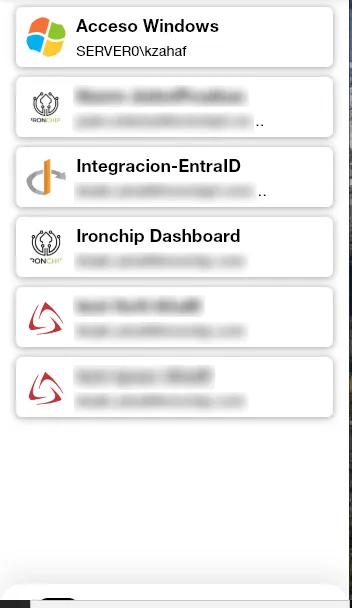
This way, the identity is available to the same user on different domain computers, without enrolling again on each one.
Was this page helpful?
Thank you. We will use it to improve the documentation. If you want to tell us what is missing or unclear, write to support@ironchip.com.