

OIDC
OpenID Connect (OIDC) is the identity protocol on top of OAuth 2.0 used by modern web and mobile applications. Ironchip acts as the identity provider: the application redirects the user to Ironchip, which authenticates them with their method and safe zone, and returns a token with their identity.
Requirements
Section titled “Requirements”- An administrator account in the Ironchip admin console.
- A service that supports OIDC and whose Redirect URI you know (the address Ironchip sends the user back to after authentication).
- The users enrolled in Ironchip, or identity synchronization configured.
- The company created in Ironchip. See Integration protocols for the data to prepare.
Add the application to the company
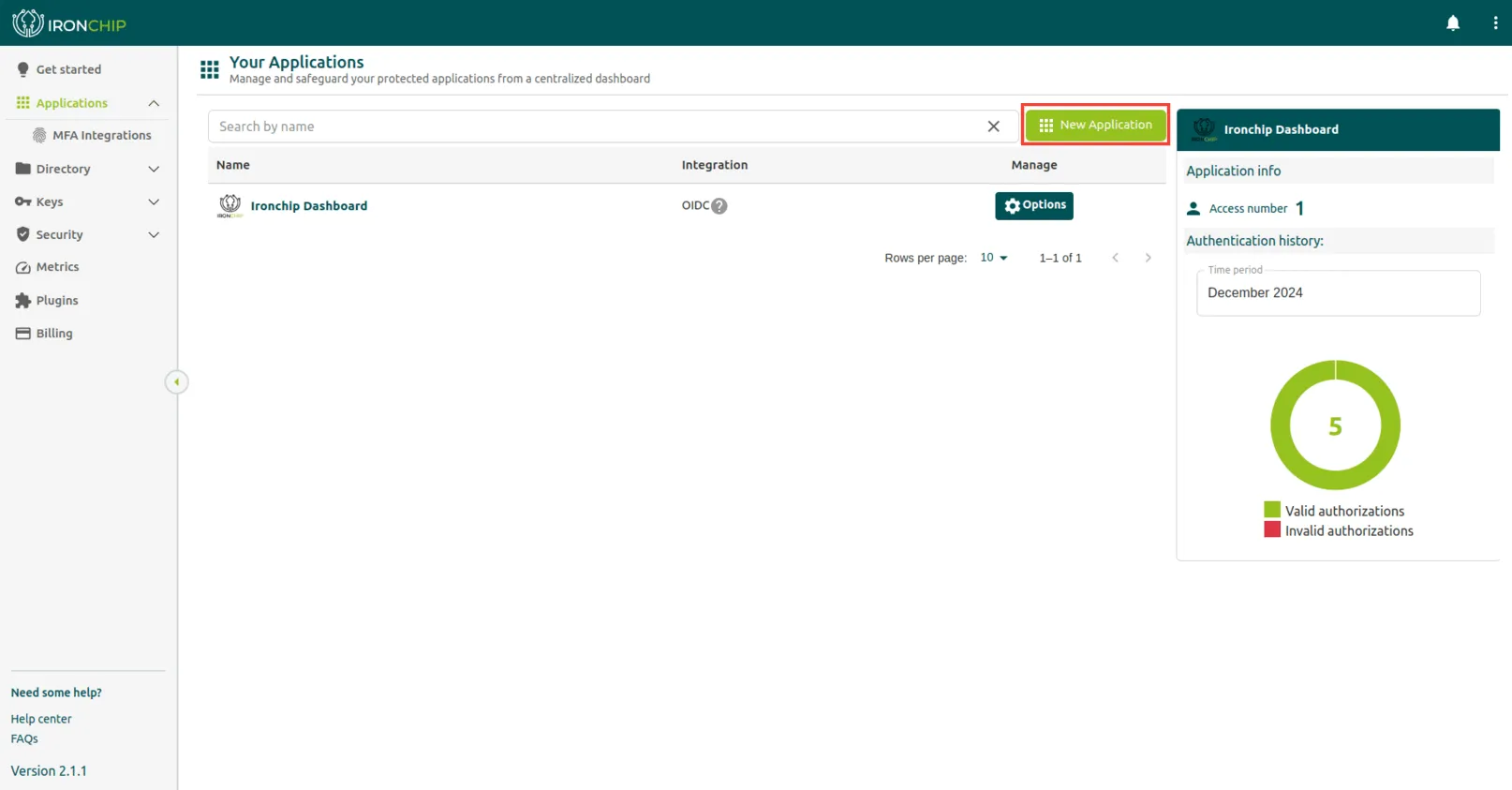
Section titled “Add the application to the company”The Applications section lists all the protected services that have been added to Ironchip and their integration type.
-
Click New Application. The Add new application window opens.
-
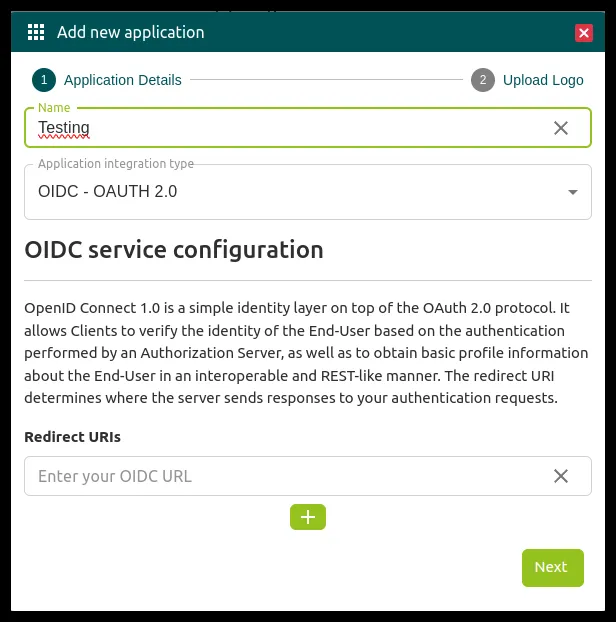
In the Application Details step, enter the application name in Name.
-
In Application integration type, select OIDC - OAUTH 2.0.
-
In Redirect URIs, enter the Redirect URI. To get it, look up its path in the service you want to integrate.
-
Click Next and complete the Upload Logo step to finish. The service appears in the Applications section.
Grant access to users and groups
Section titled “Grant access to users and groups”The information page of each application (go to Applications and select it) shows the number of successful (Correct auths) and failed (Wrong auths) authentications and the list of accesses already configured.
To grant new access:
-
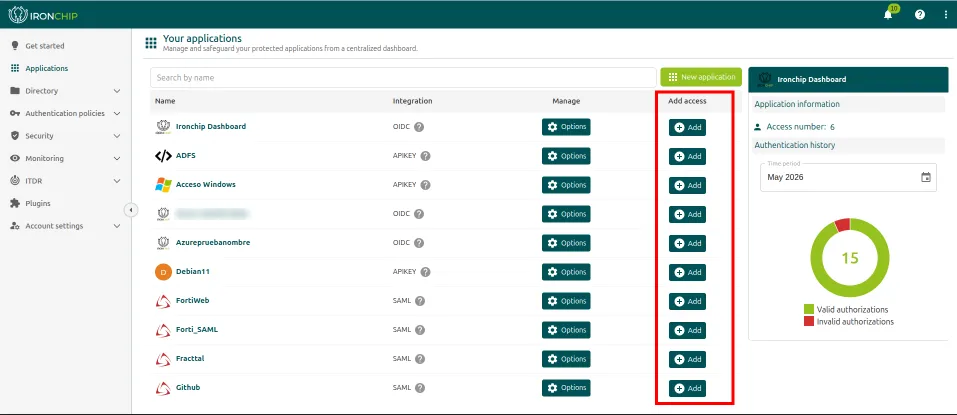
In Applications, click Add in the Add access column of the application. The Add a new access window opens, with four steps.
-
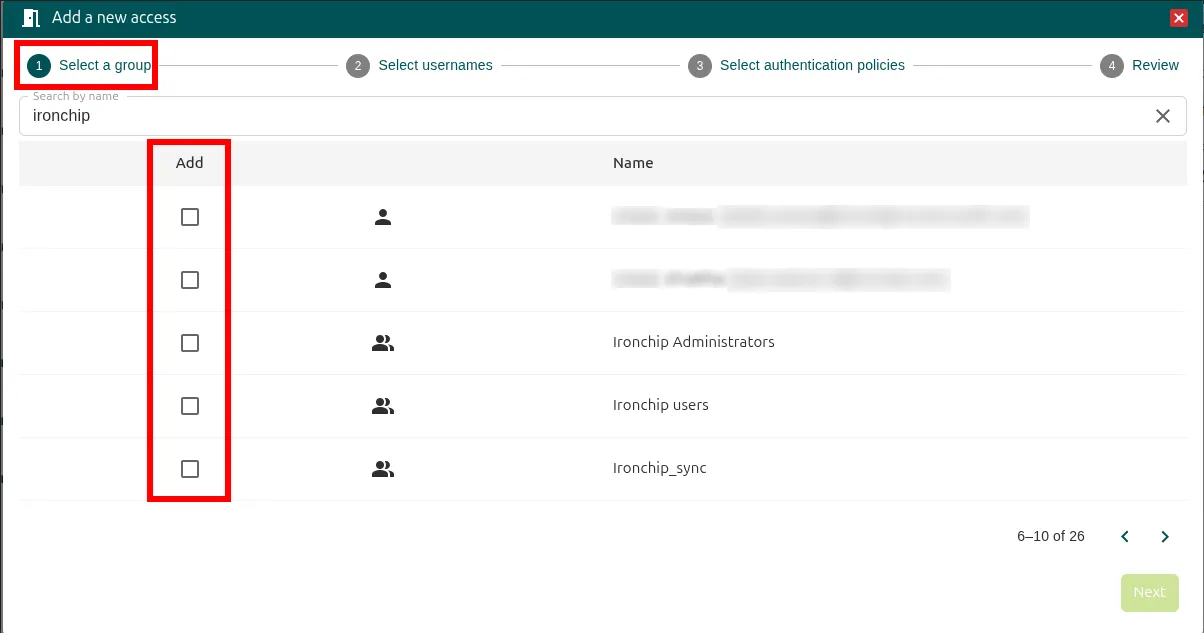
In Select a group, search by name with Search by name and check the Add box of each group or user you want to grant access to. Then click Next.
-
In Select usernames, choose the format of the external username (External Username) used to access the application. The
emailtag is selected by default, but you can build another format with tags (name,surname,domain, etc.): type them in the Enter a tag box. Below it, Username example shows the username that would be generated for a sample user. This username applies only to this access: it does not replace the user’s name on the platform. Then click Next. -
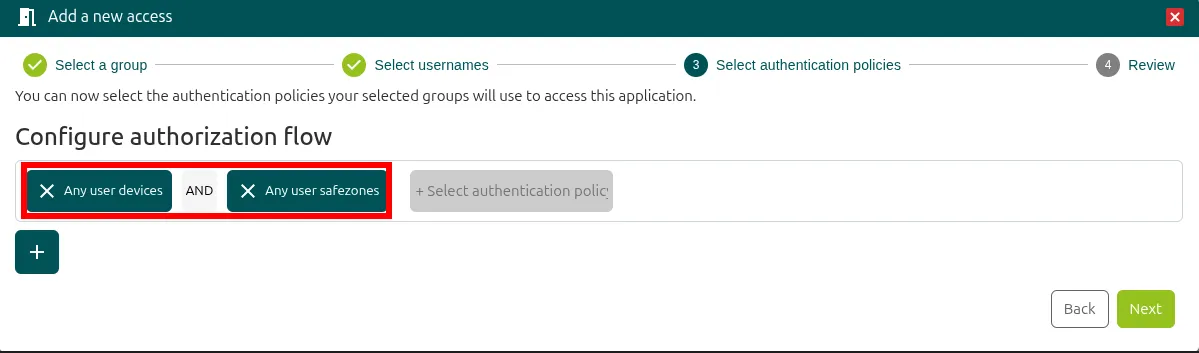
In Select authentication policies, select the authentication policies required for the group or user. You can combine several on the same line with AND (all of them must be met) or OR (one is enough). Use the + button to add policies and the x button to remove them. Then click Next.
-
In Review, check the summary: the application name, the selected group or user, the external username template and the authorization flow (Authorization flow). Then click Add to create the access.
The access appears in the list of accesses of the application. You can manage it at any time with the Options button: see Manage an access.
Was this page helpful?
Thank you. We will use it to improve the documentation. If you want to tell us what is missing or unclear, write to support@ironchip.com.