

Enrollment
This guide explains how to download the authentication application and enroll your device with Ironchip, so that you can use the services of your company that rely on Ironchip as an authentication method.
Download the application
Section titled “Download the application”How you download the authentication application depends on the platform you want to install it on.
Android
Section titled “Android”-
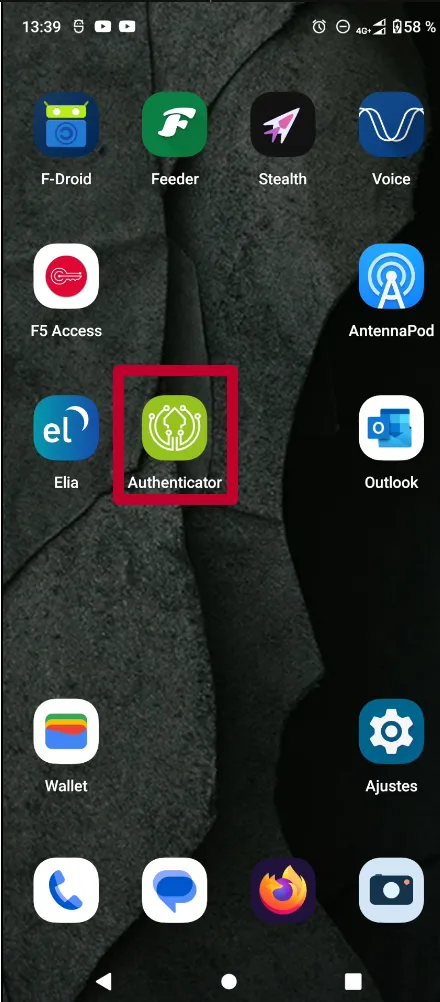
Open the Play Store app, which you can recognize by this icon.

-
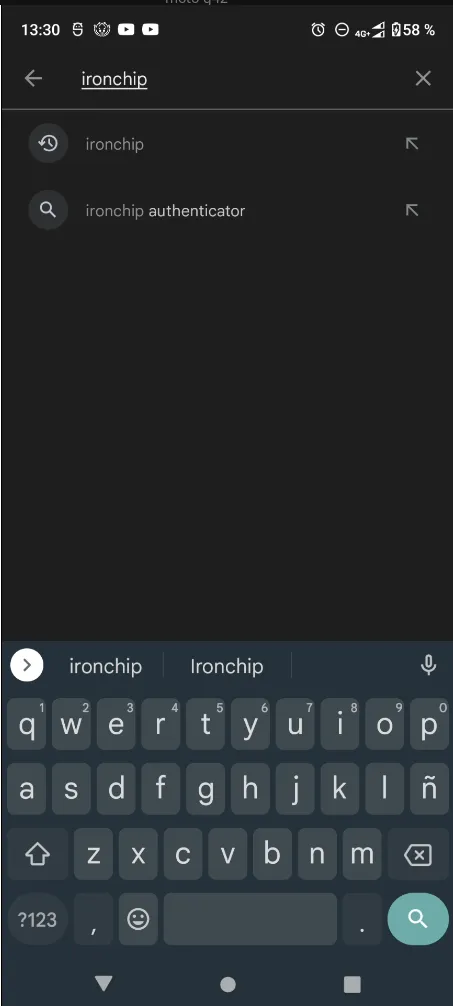
In the search bar at the top, enter Ironchip.
-
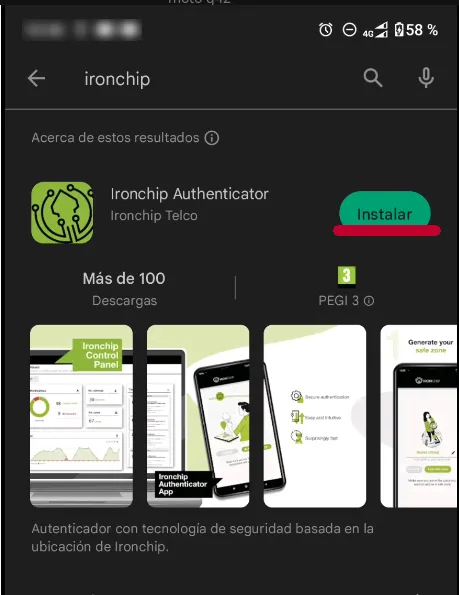
Tap the magnifying glass at the lower left to search. Select the Ironchip Authenticator app and tap Install.
-
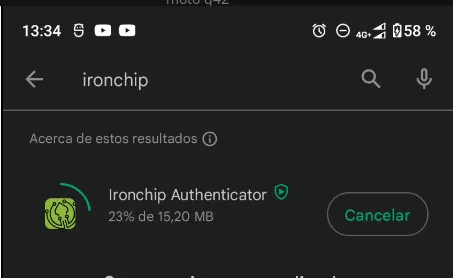
Wait for the download and installation to finish.
-
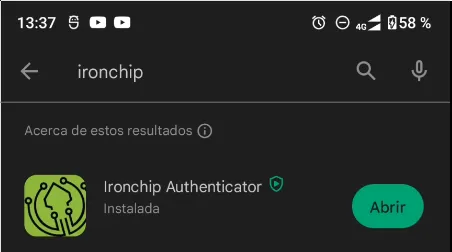
When it finishes, the Install button changes to Open and the app appears among your installed apps.
-
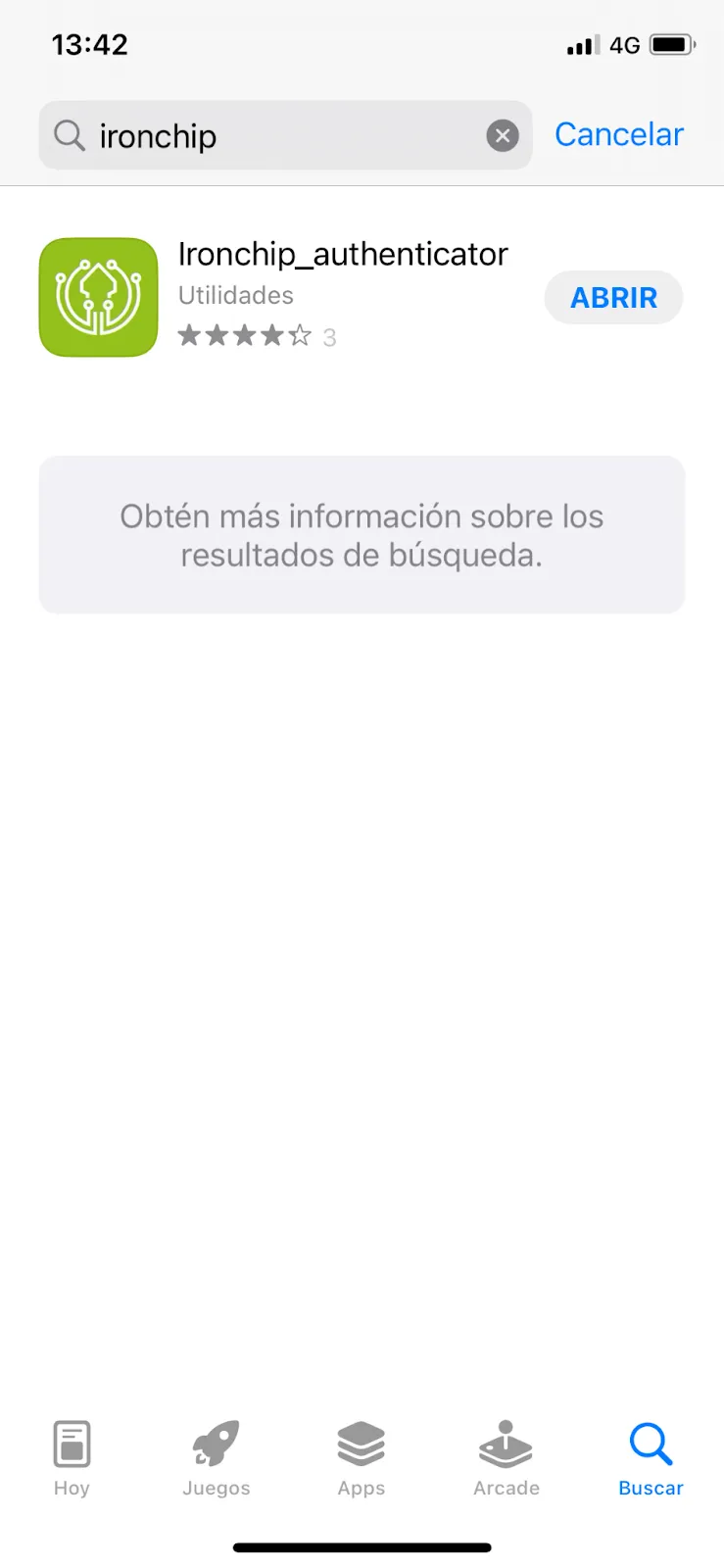
Open the App Store app, which you can recognize by this icon. Tap the magnifying glass at the lower left to search, select Ironchip Authenticator and tap Install.
-
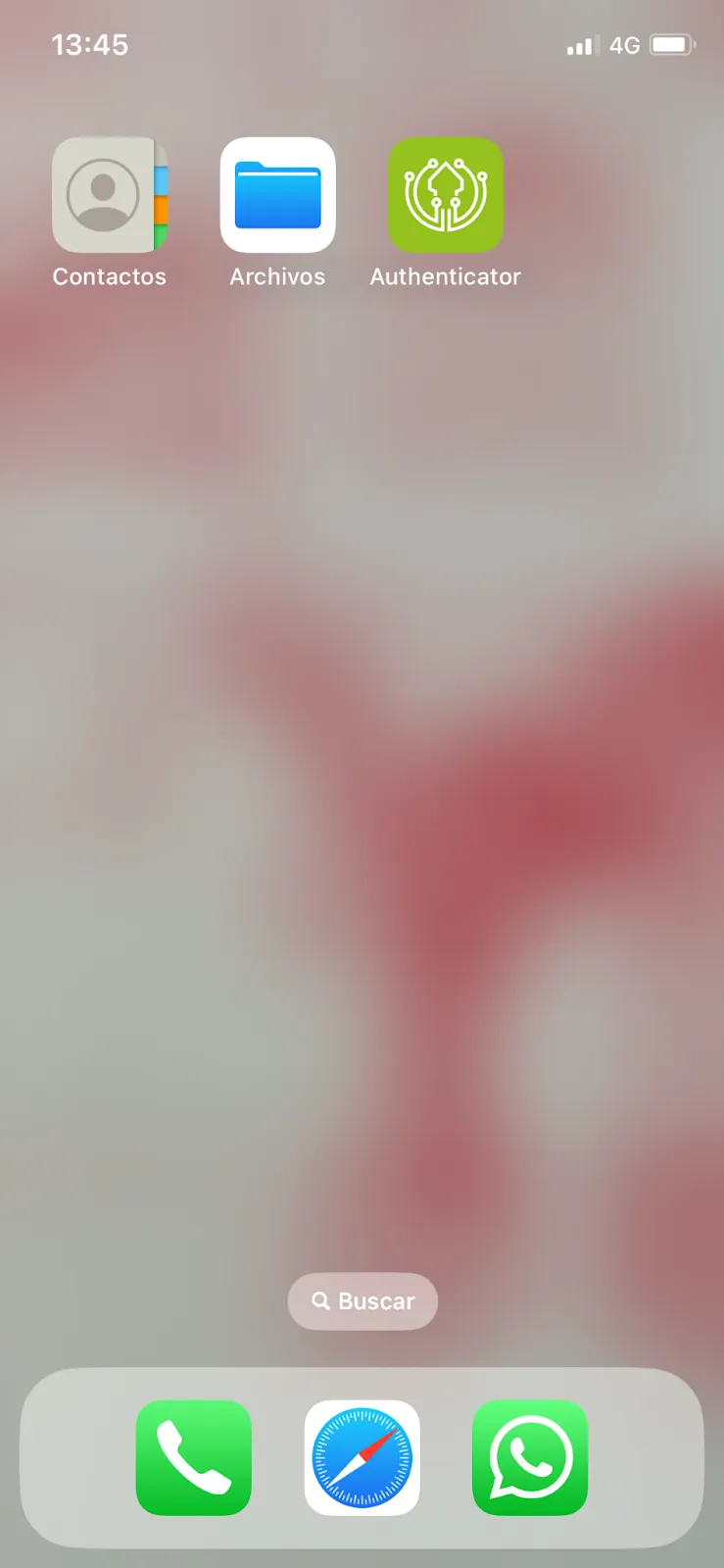
When the installation finishes, the Install button changes to Open and the app appears among your installed apps.
Check the version of the mobile app
Section titled “Check the version of the mobile app”-
Open the Ironchip Authenticator app.
-
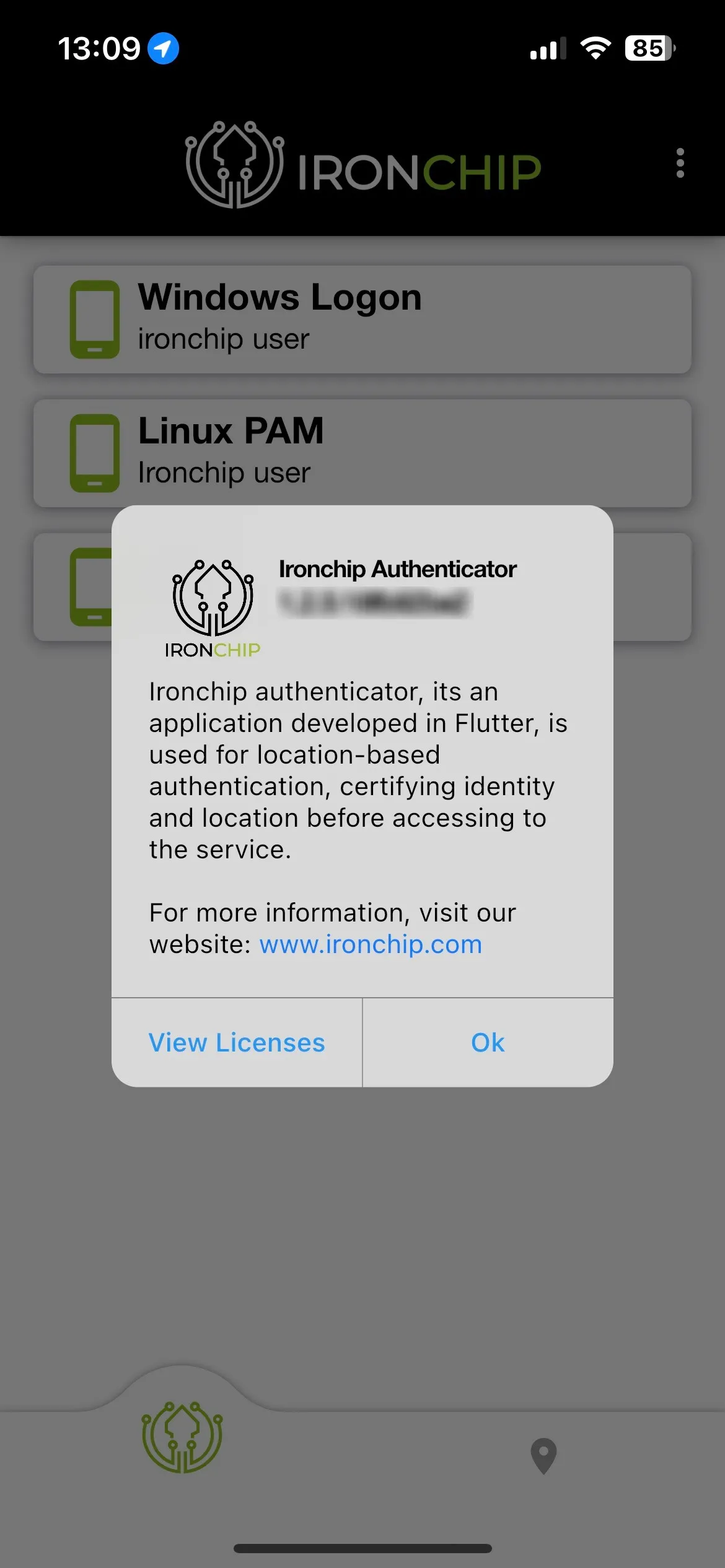
At the top right, tap the three-dot icon. A panel opens with three options: Account information, App Information and OTP.
-
Tap App Information. A message shows the version currently installed on your device.
Desktop application on Windows
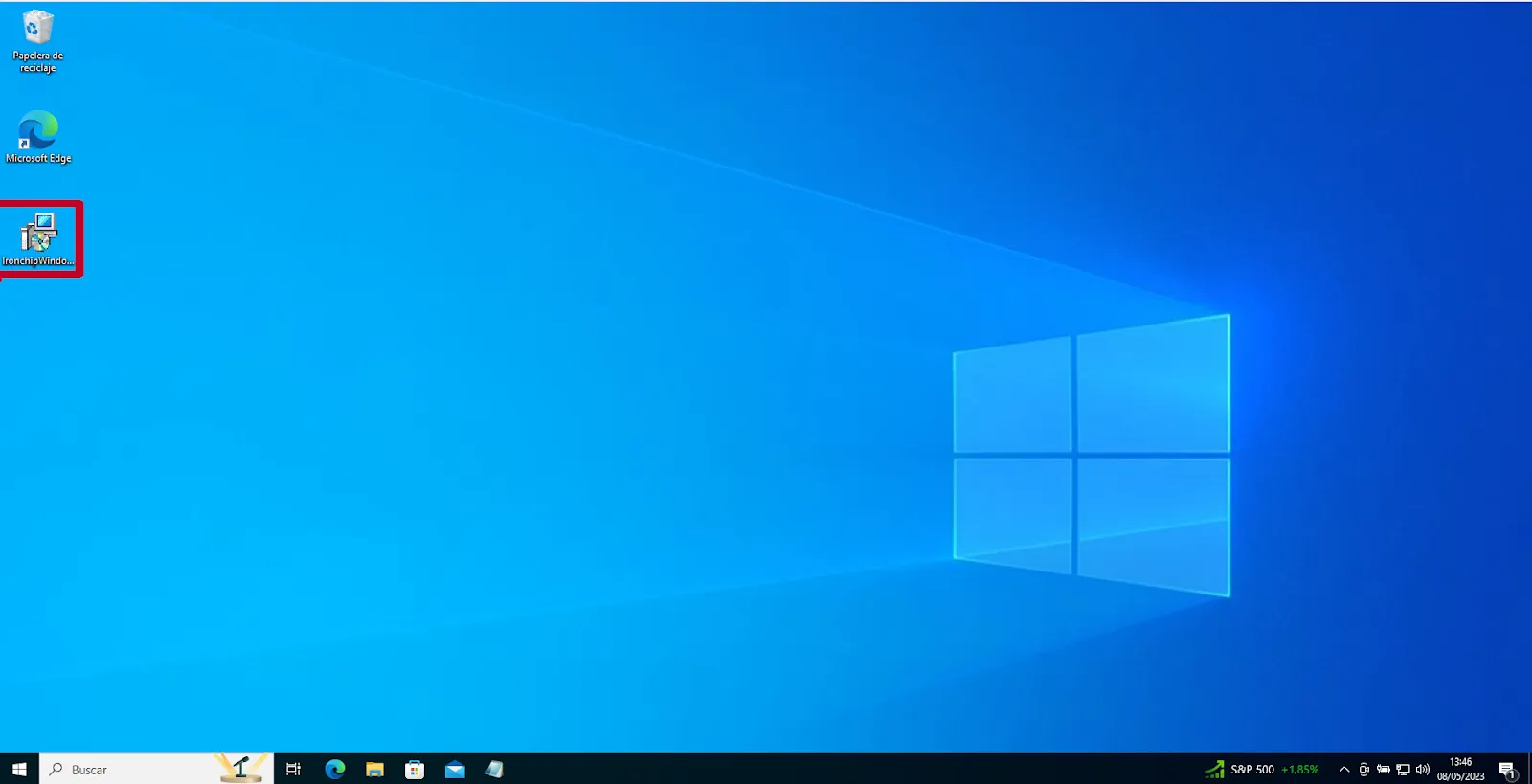
Section titled “Desktop application on Windows”A technical administrator at your company must provide the installer for the Windows desktop application. Once you have it, run it by double-clicking its icon.
-
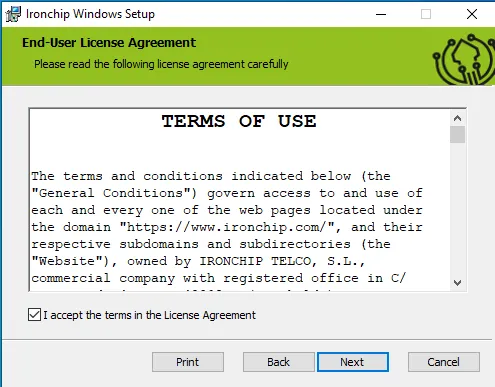
Read the Ironchip license, select I accept the terms in the License Agreement and click Next.
-
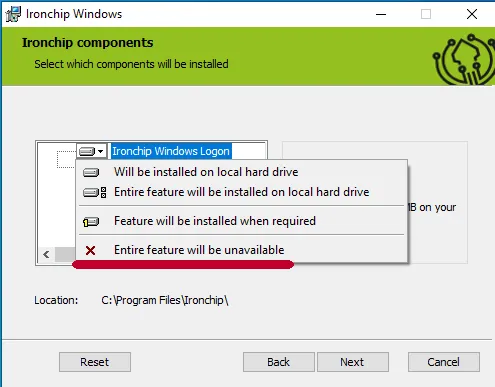
Select Ironchip Windows Logon and choose Entire feature will be unavailable so that the Windows Logon product is not installed.
-
Click Next. On the next screen, keep the default value
https://api.ironchip.com.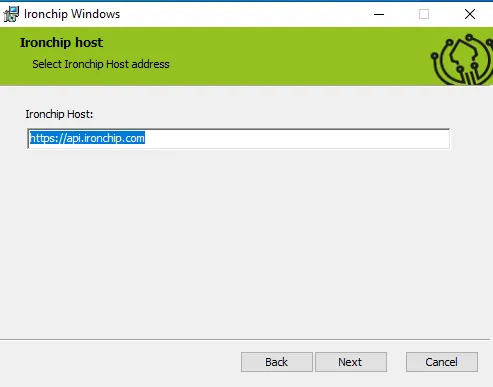
-
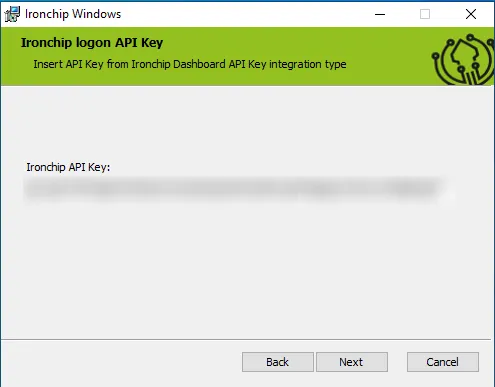
Click Next. On the next screen, enter the API key your administrator gave you. If you don’t have one, ask your administrator for it.
-
Click Next and then Install on the next screen.
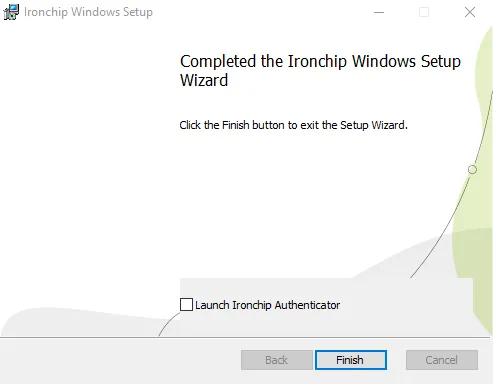
Click Finish to close the installer.
Enroll your device
Section titled “Enroll your device”There are four ways to enroll your device. Choose the one that matches the method your company uses.
Before you start, an administrator must have registered you on the platform from the admin console. You then receive a verification email at your company email address. If you have not received it, contact your company administrator.
With the mobile app and a QR code
Section titled “With the mobile app and a QR code”-
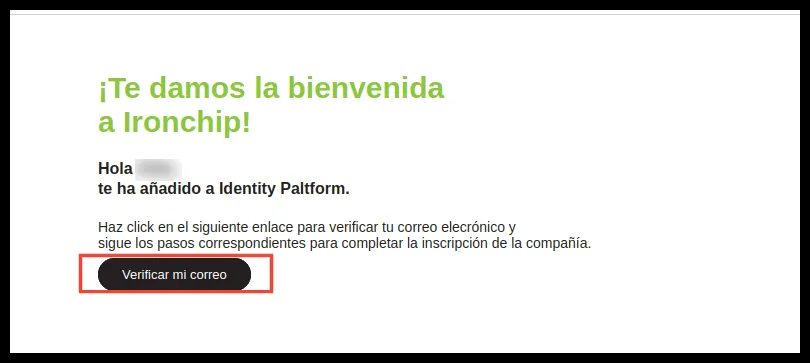
Open the email you received from a PC or laptop and click Verify my email.
-
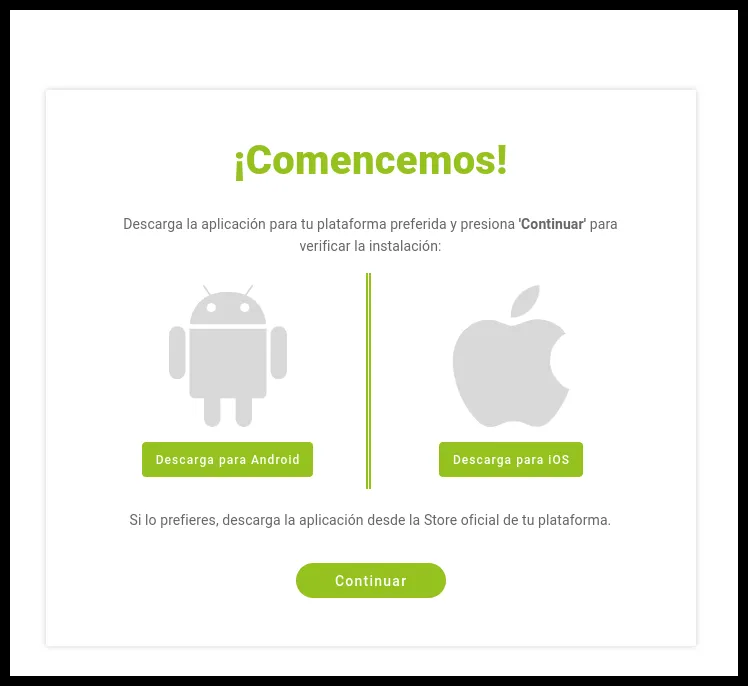
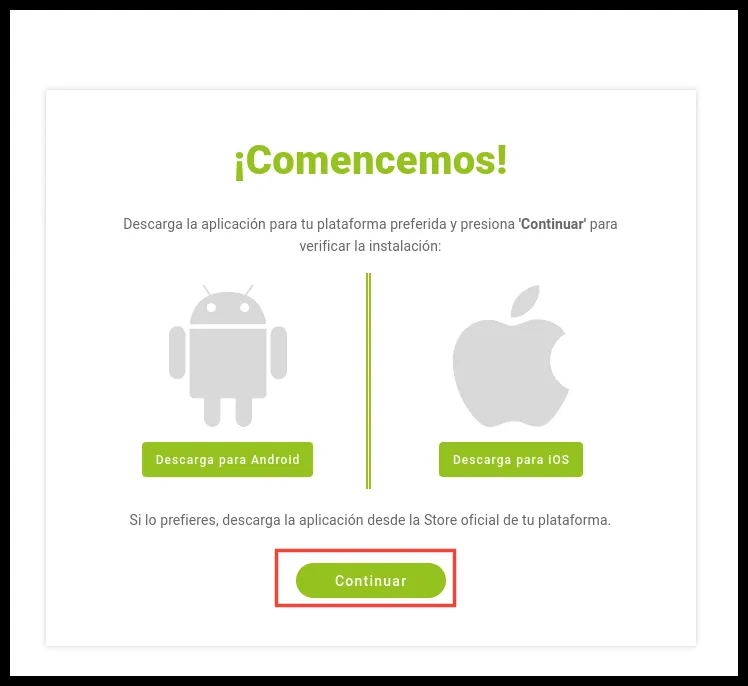
A new tab opens and prompts you to download the Ironchip application. Don’t close it.
-
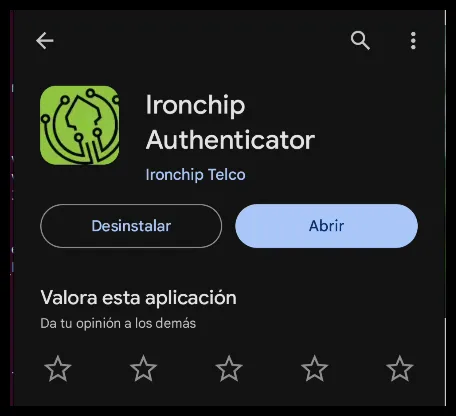
On your phone, download Ironchip Authenticator from Google Play Store or the App Store, as described in Download the application.
-
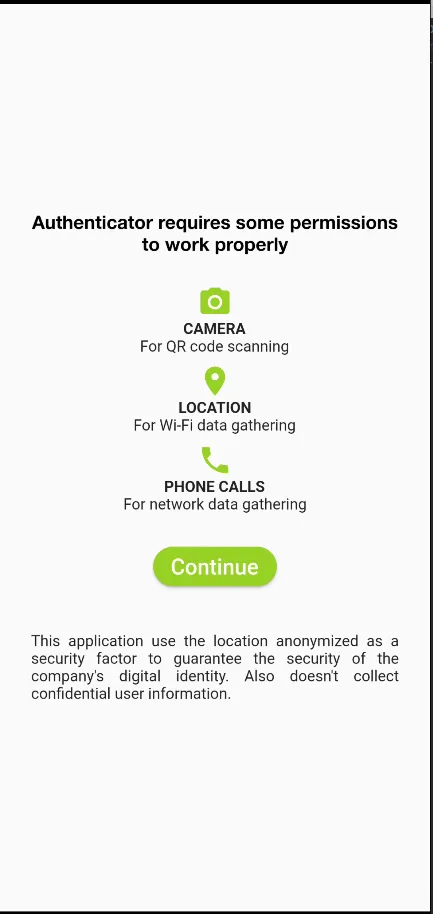
Open the app. It asks for a series of permissions:
- Camera, to scan the QR code.
- Location, to collect data from nearby Wi-Fi networks.
- Phone calls, to collect data on nearby mobile networks.
-
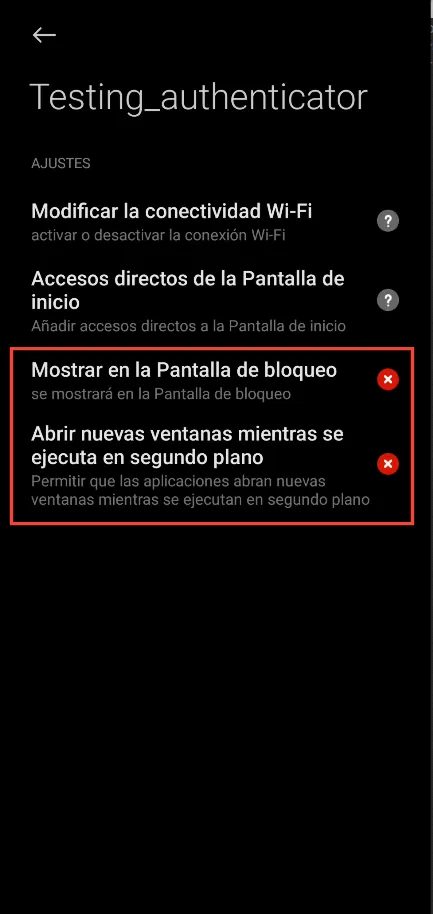
On a Xiaomi device, the app asks for two more permissions: display on the lock screen and open windows in the background, so that app notifications arrive correctly.
-
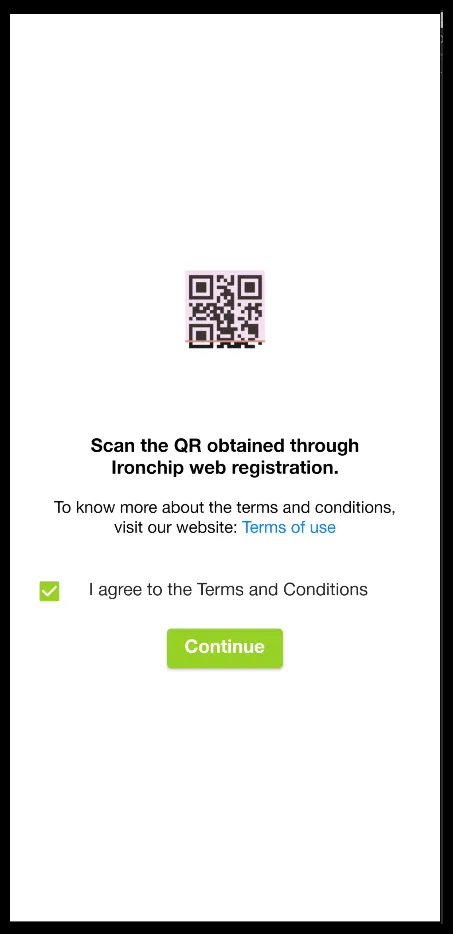
Accept the terms and conditions. When you tap Continue, the app asks you to scan a QR code.
-
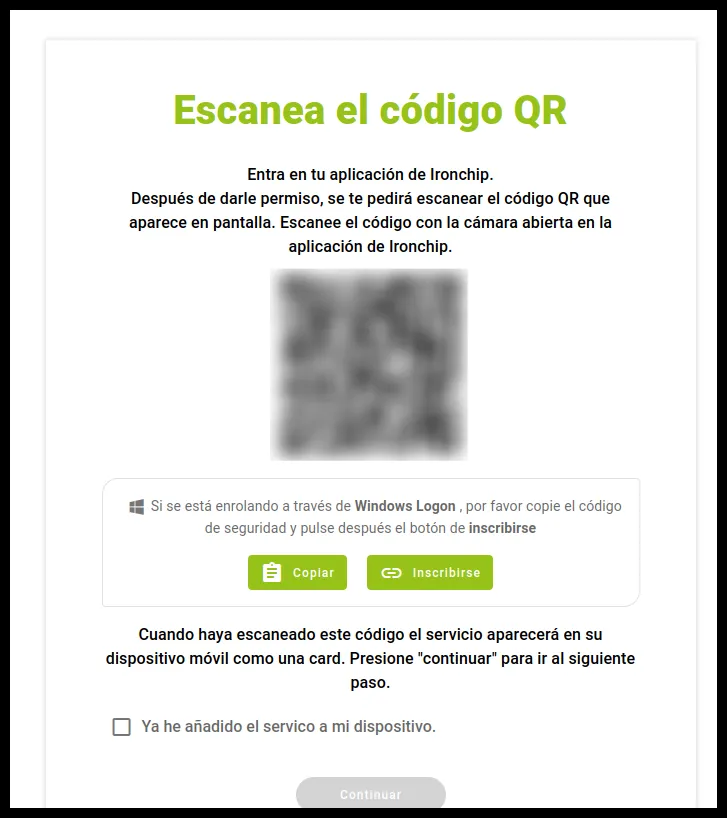
Get that QR code by clicking Continue in the tab that asked you to download the app, then scan it with the app.
-
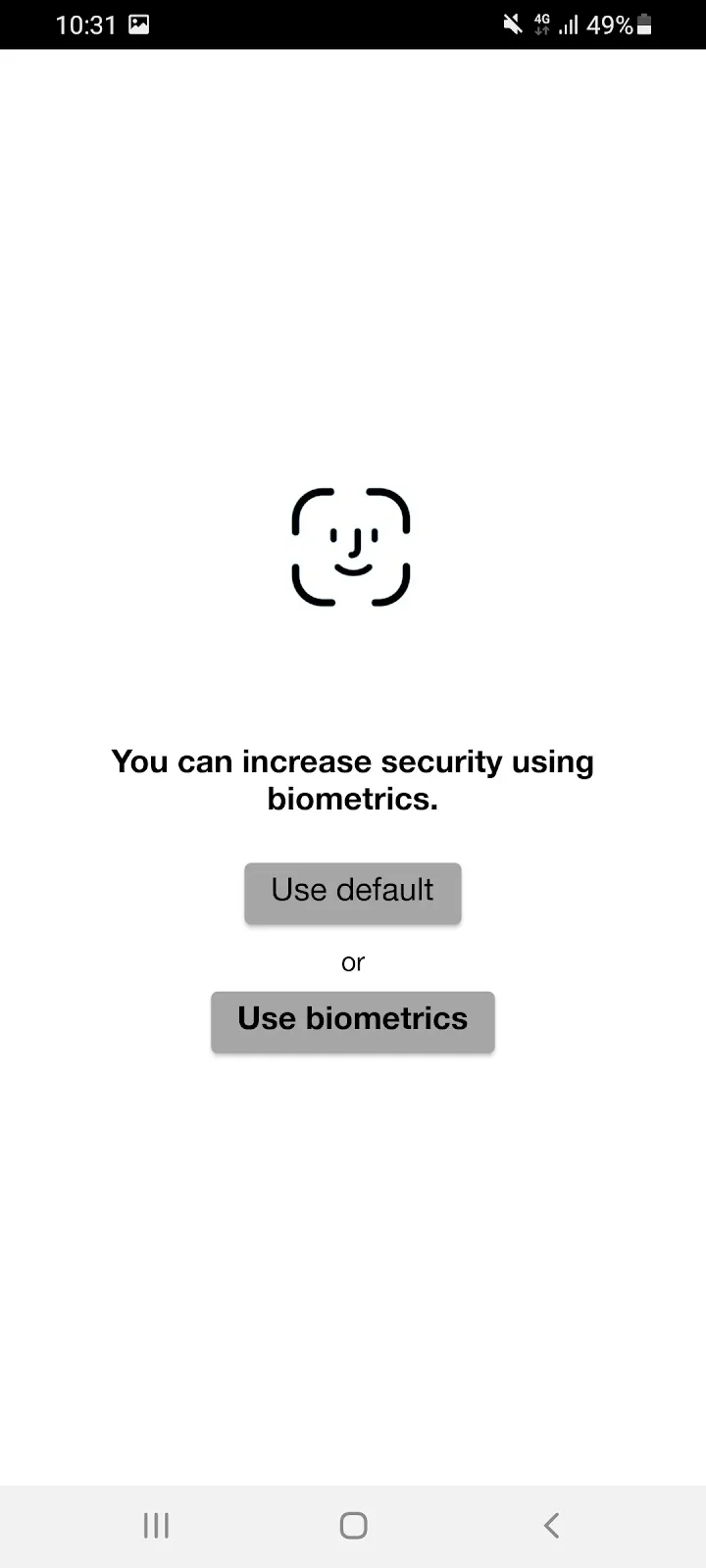
Optionally, the app lets you choose whether to use biometrics. Biometrics verifies a user’s identity through unique physical or behavioral characteristics, which improves security and convenience.
-
The process is complete when the confirmation screen appears on the computer and the app opens on the phone.
With the mobile app and a direct link
Section titled “With the mobile app and a direct link”-
Open the email you received from your mobile phone and click Verify my email.
-
A new tab opens and prompts you to download the Ironchip application. Don’t close it.
-
Download Ironchip Authenticator from Google Play Store or the App Store.
-
Open the app. It asks for a series of permissions:
- Camera, to scan the QR code. In this case it is not needed.
- Location, to collect data from nearby Wi-Fi networks.
- Phone calls, to collect data on nearby mobile networks.
-
On a Xiaomi device, the app asks for two more permissions: display on the lock screen and open windows in the background, so that app notifications arrive correctly.
-
When the QR scan screen appears, go back to the Ironchip tab that asked you to download the app and click Continue.
-
Click Register. The process completes automatically.
With the desktop app
Section titled “With the desktop app”-
Open the email you received from a PC or laptop and click Verify my email.
-
A new tab opens and prompts you to download the Ironchip application. Don’t close it.
-
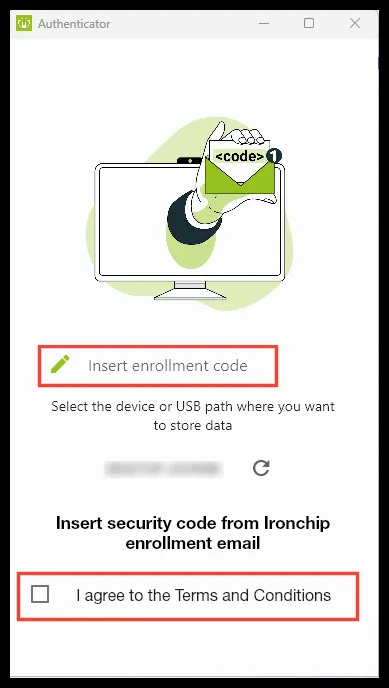
Ask your administrator to provide the Ironchip desktop authenticator. Once it is installed on your computer, open it. You see a window like this.
-
Accept the terms and conditions. In the box that appears, paste the enrollment code. You get it by clicking Continue in the tab that asked you to download the app.
-
In that new tab, click the copy button and paste the code into the box in the desktop authenticator.
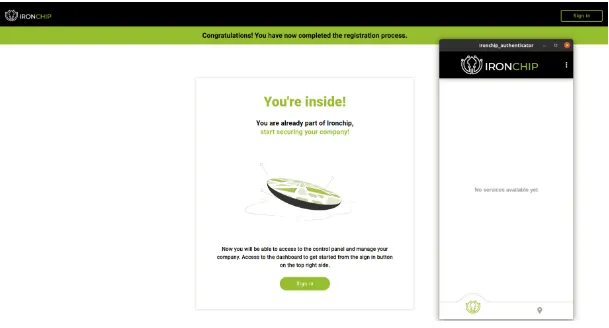
Enrollment is complete when the confirmation screen appears on the computer and the application opens.
With a USB drive
Section titled “With a USB drive”This option lets you carry your identification credentials with you. Once you have enrolled with an external memory device, you can use it as an authentication mechanism on any Ironchip-compatible computer that has Ironchip Desktop Services installed.
-
Open the email you received from a PC or laptop and click Verify my email.
-
A new tab opens and prompts you to download the Ironchip application. Don’t close it.
-
Ask your administrator to provide the Ironchip desktop authenticator. Once it is installed on your computer, open it. You see a window like this.
-
Insert your external storage device and click the refresh button to scan it.
-
Click the box with your computer name, to the left of the refresh button, and choose the external device from the drop-down list (for example, the
D:drive). If it does not appear, check that the USB drive is properly connected and click the reload wheel.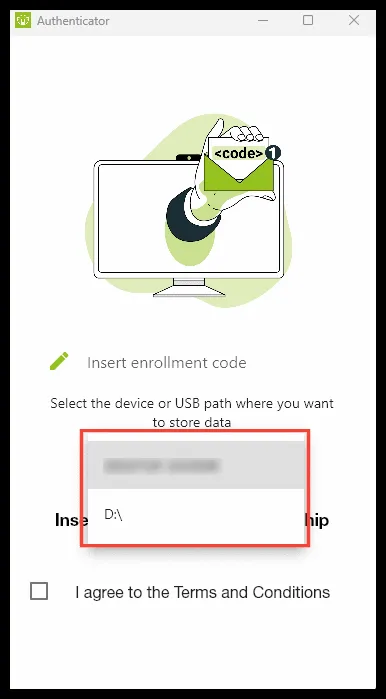
-
Accept the terms and conditions. In the box that appears, paste the enrollment code. You get it by clicking Continue in the tab that asked you to download the app.
-
In that new tab, click the copy button and paste the code into the box in the desktop authenticator.
After enrollment
Section titled “After enrollment”The services tab lists all the services you have access to. If your company so decides, it also includes the Ironchip Management Panel service, which is exclusive to the selected administrators who manage authentications and access to the services.
A countdown appears on these services when authentication has been requested for the service. To learn how to authenticate, see Authenticate with Ironchip.
Was this page helpful?
Thank you. We will use it to improve the documentation. If you want to tell us what is missing or unclear, write to support@ironchip.com.