

WordPress
Ironchip integrates with WordPress over SAML to protect the admin panel. Two plugins are available: WP SAML Auth and miniOrange. Choose one and follow its section.
Requirements
Section titled “Requirements”- Access to the Ironchip admin console.
- Access to WordPress with administrator permissions.
With the WP SAML Auth plugin
Section titled “With the WP SAML Auth plugin”With this plugin, WordPress acts as the service provider (SP) and Ironchip as the identity provider (IdP).
Configure WordPress (SP)
Section titled “Configure WordPress (SP)”With the plugin already installed, first generate the metadata you will give to the application you will create in Ironchip.
- In the WordPress left menu, go to Settings > WP SAML Auth.
- Go to the Service Provider Settings section and copy the Entity ID and Assertion Consumer Service values.
- Generate the metadata with an online tool, for example samltool.com.
- Upload the generated metadata to a public server and copy the link. This guide uses pastebin.com.
Configure Ironchip
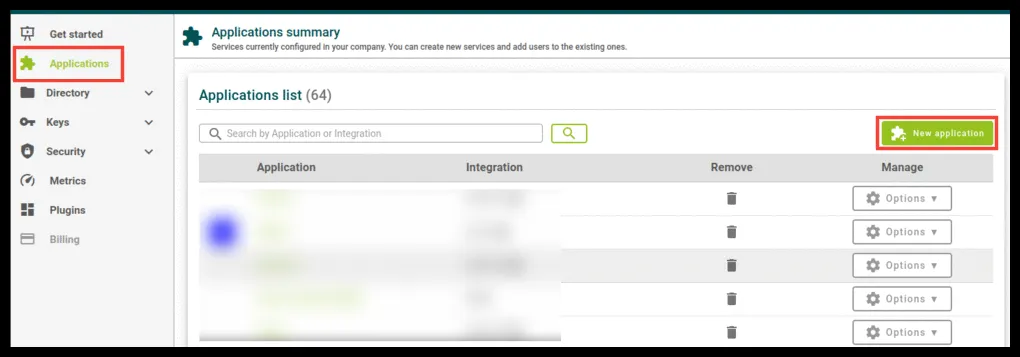
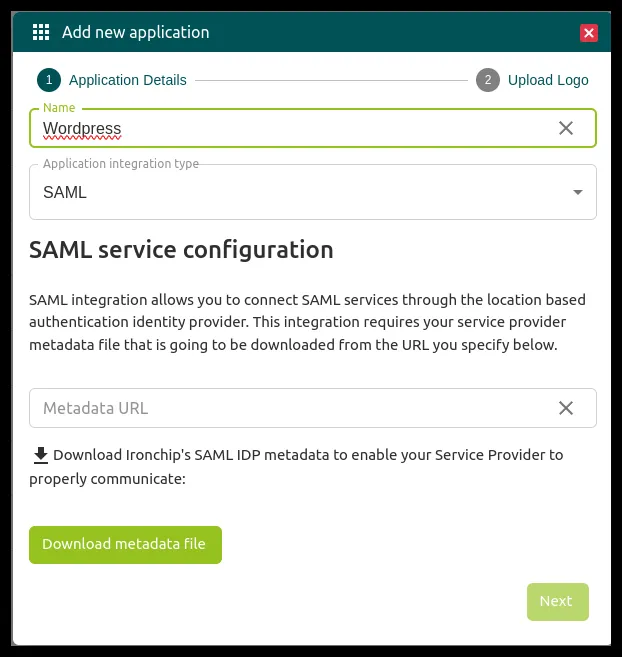
Section titled “Configure Ironchip”- In the Ironchip admin console, create a SAML application.
- In Metadata URL, paste the link to the WordPress metadata.
- Before clicking Next, download the Ironchip metadata with Download metadata file.
Configure the identity provider in WordPress (IdP)
Section titled “Configure the identity provider in WordPress (IdP)”- Go back to WordPress, to the same Settings > WP SAML Auth section, and configure Identity Provider Settings with the metadata file you just downloaded.
- For the certificate, copy the certificate from the Ironchip metadata and format it with a tool such as samltool.com’s Format X.509 Certificate. The result starts with
-----BEGIN CERTIFICATE-----and ends with-----END CERTIFICATE-----. - Copy the formatted content and create a certificate file with a
.crtextension. Save it in a WordPress folder. - Copy the path of that certificate into x509 Certificate Path.
- Set the
user_loginattribute to this value so the communication works:urn:oid:0.9.2342.19200300.100.1.1.
With the miniOrange plugin
Section titled “With the miniOrange plugin”Configure WordPress
Section titled “Configure WordPress”-
Install the miniOrange plugin. When it finishes, the plugin appears in the right column so you can configure it.
-
In the first tab, the plugin asks you to configure the IdP. You can do it manually or automatically. To get the metadata, create a SAML application in Ironchip.
-
Download the Ironchip metadata with Download metadata file and import it into WordPress.
Configure Ironchip
Section titled “Configure Ironchip”- Add the plugin metadata to the Ironchip application. To do so, open the plugin metadata file and copy its content.
- Upload that content to a web service that lets you share text publicly. This guide uses pastebin.com.
- Copy the resulting URL and add it as the Metadata URL in the Ironchip SAML application.
Verify the integration
Section titled “Verify the integration”Before you test, give the user you will sign in with access to the Ironchip application. The steps are in Add users to the service.
- WP SAML Auth: sign out of WordPress and start a new sign-in with SAML. WordPress redirects you to Ironchip to authenticate and then returns you to the admin panel.
- miniOrange: go back to Service Provider Setup in WordPress and click Test Configuration to test sign-in with Ironchip.
Troubleshooting
Section titled “Troubleshooting”| Problem | Likely cause | Solution |
|---|---|---|
| WordPress rejects the certificate | The certificate has no format or header | Format it with samltool.com, check that it starts with -----BEGIN CERTIFICATE-----, and save it as .crt |
| WordPress does not recognize the user | The user_login attribute does not match what Ironchip sends |
Use urn:oid:0.9.2342.19200300.100.1.1, the username that Ironchip sends (see the SAML attributes) |
| Ironchip cannot read the metadata | The metadata URL is not public | Check that the URL opens without signing in and returns only the XML |
Was this page helpful?
Thank you. We will use it to improve the documentation. If you want to tell us what is missing or unclear, write to support@ironchip.com.