

FortiWeb
This guide explains how to protect access to a website published with FortiWeb using Ironchip and SAML.
Requirements
Section titled “Requirements”- Access to the Ironchip admin console.
- A user with permissions to make changes in FortiWeb.
Configure Ironchip
Section titled “Configure Ironchip”-
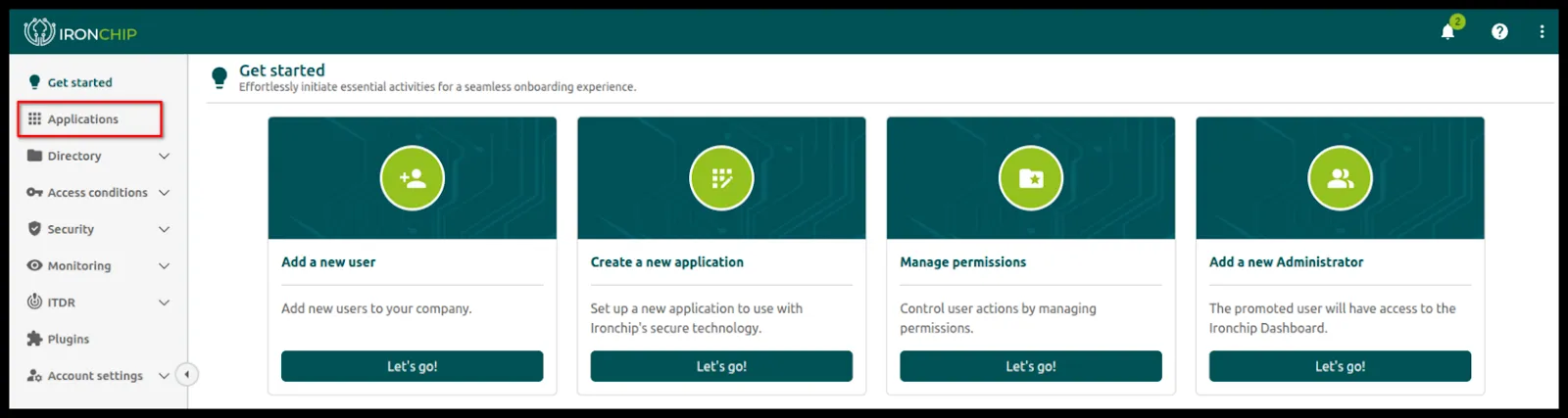
In the Ironchip admin console, go to Applications.
-
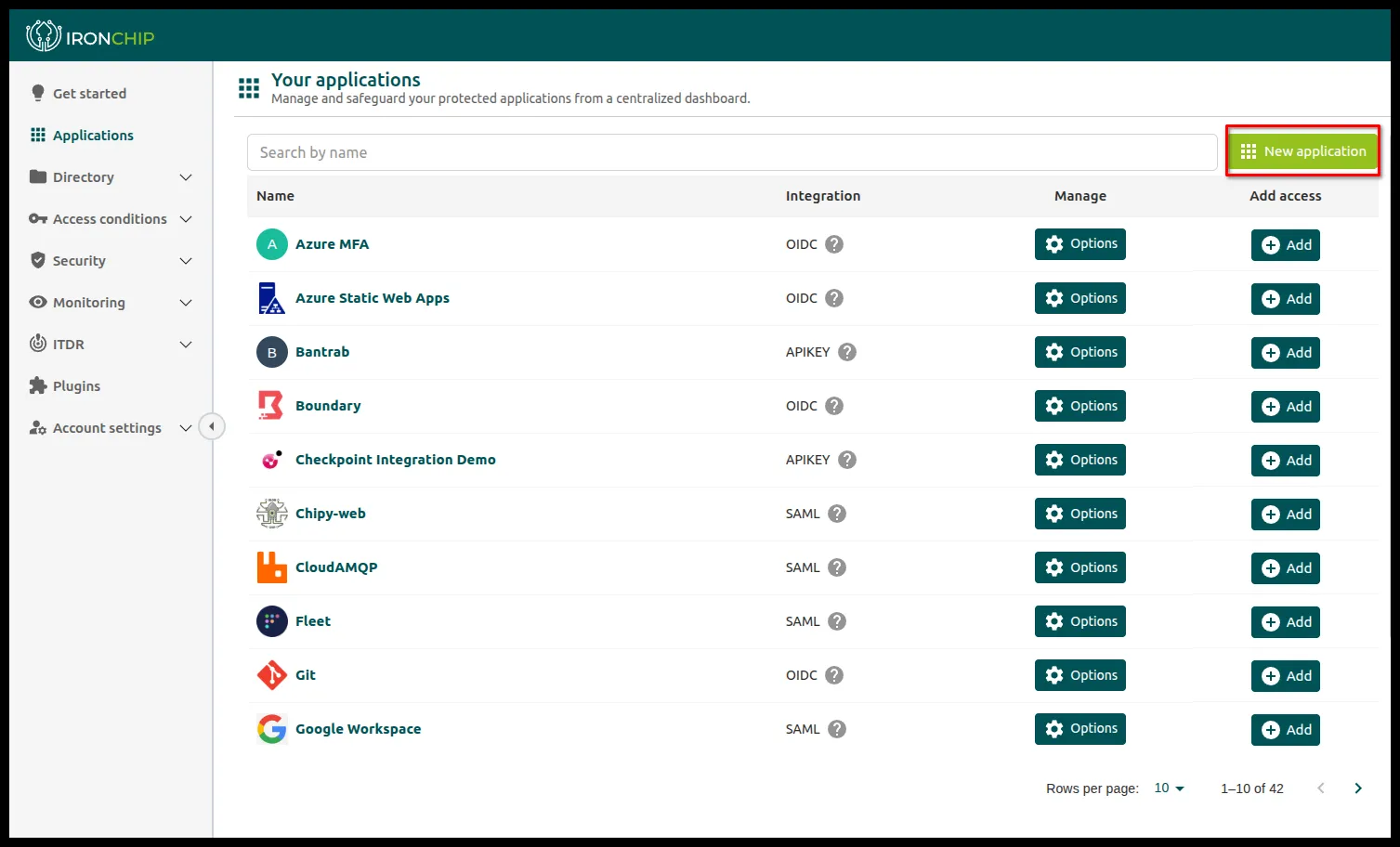
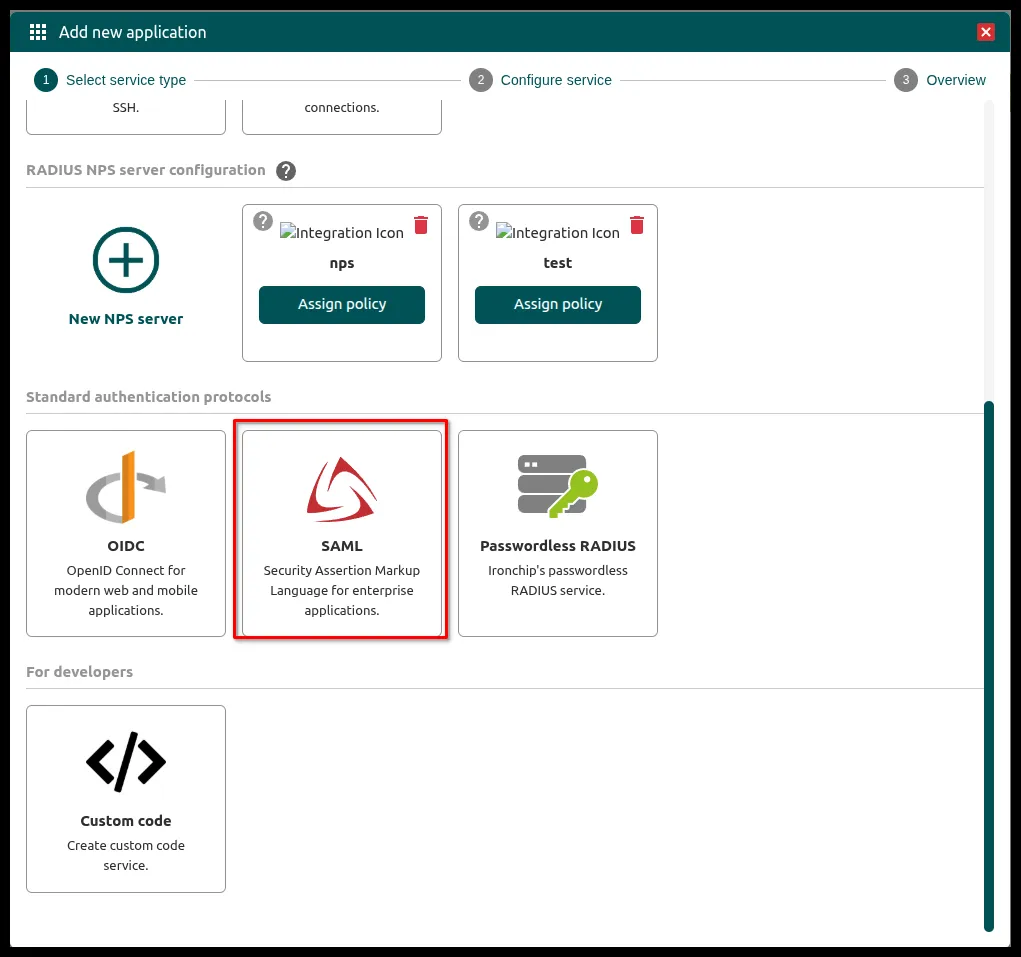
Click New Application and select SAML.
-
Above the application name you see the Service Provider and Identity Provider sections.
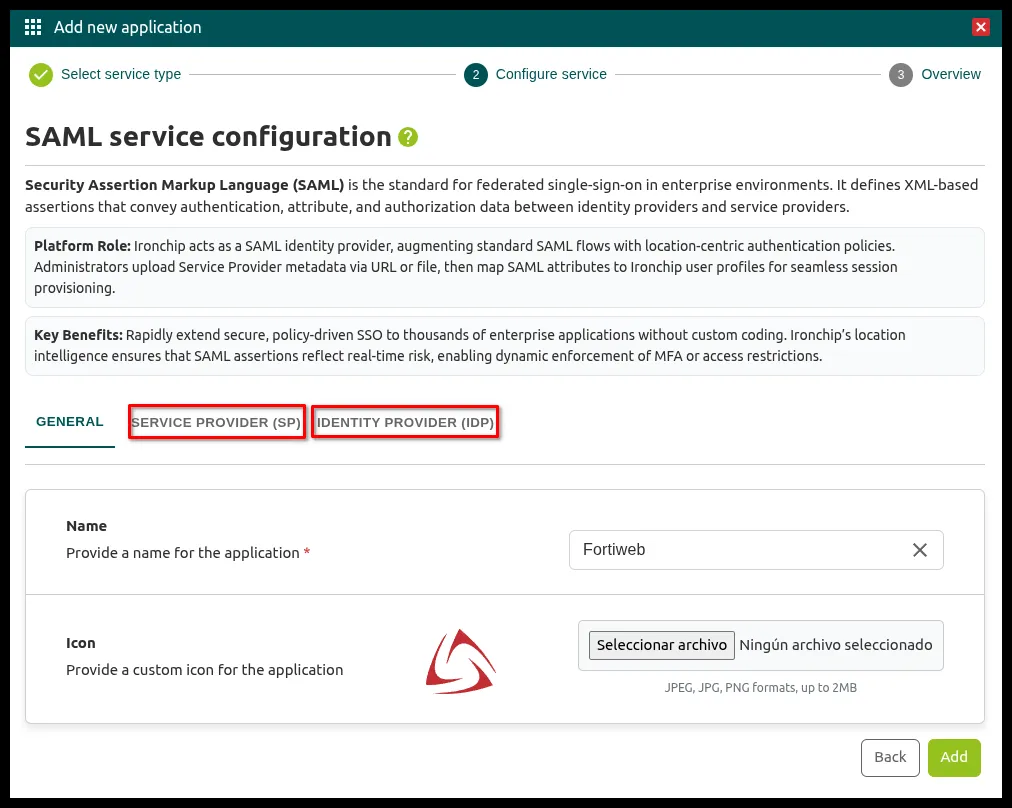
- In Service Provider you import the FortiWeb metadata.
- Identity Provider holds the Ironchip metadata, which you import into FortiWeb.
Configure FortiWeb
Section titled “Configure FortiWeb”SAML server
Section titled “SAML server”-
In FortiWeb, go to User > Remote Server > SAML Server and click Create New.
-
Give the SAML server a name (Name) and, in Entity ID, enter the IP or DNS name of the website you want to protect.
-
Get the Ironchip metadata. Its URL is in the URL Metadata field, at the bottom of the Identity Provider section of the application in the Ironchip admin console.
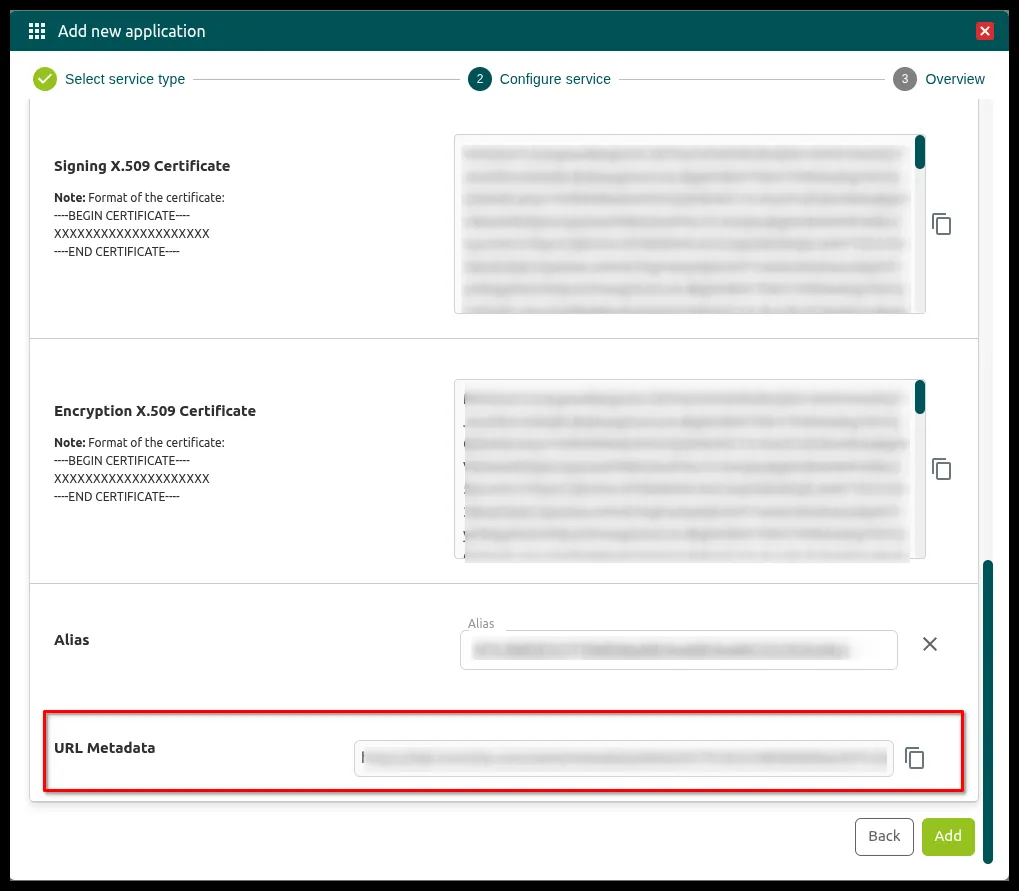
-
Open that URL in a browser to download the XML file. In FortiWeb, under Identity Provider Metadata, click Upload and upload that XML file. Click OK.
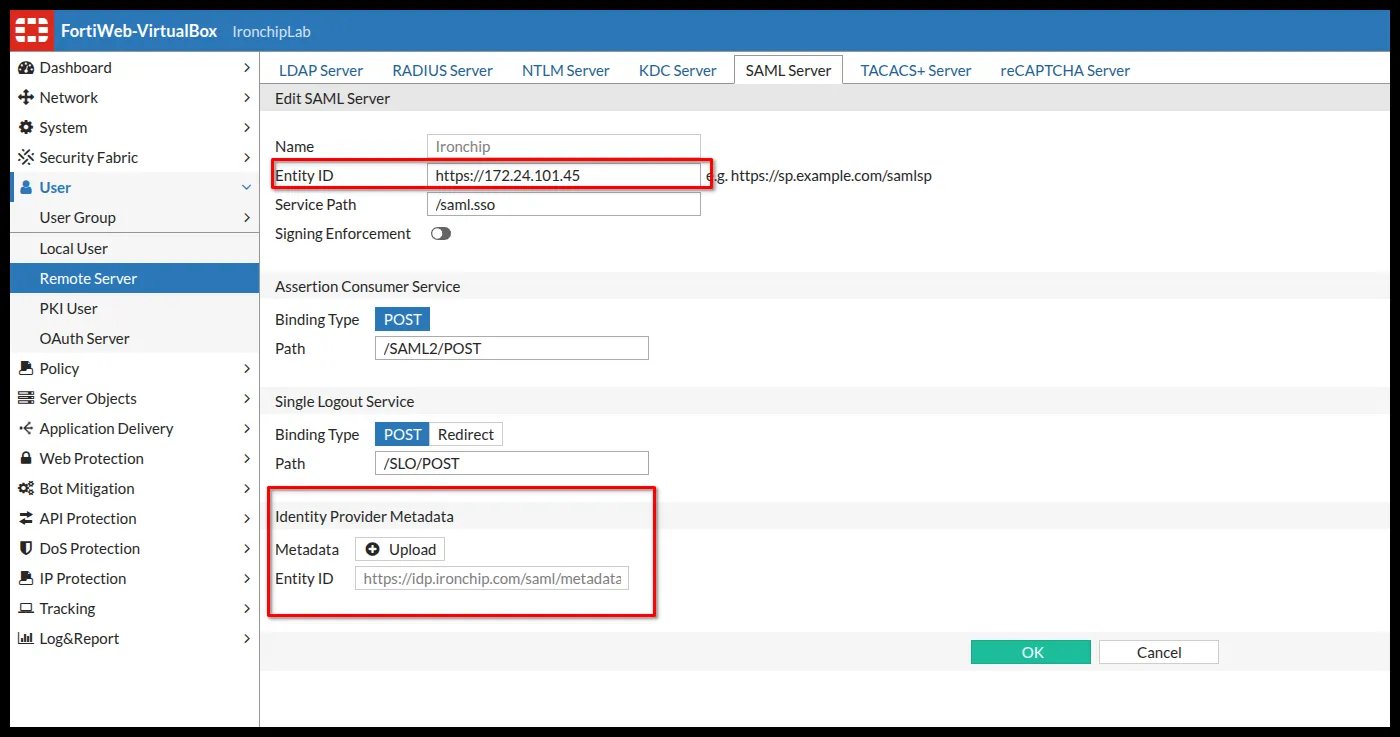
-
With the SAML server created, select it on the SAML Server tab and click Generate Service Provider Metadata. Another XML file downloads.
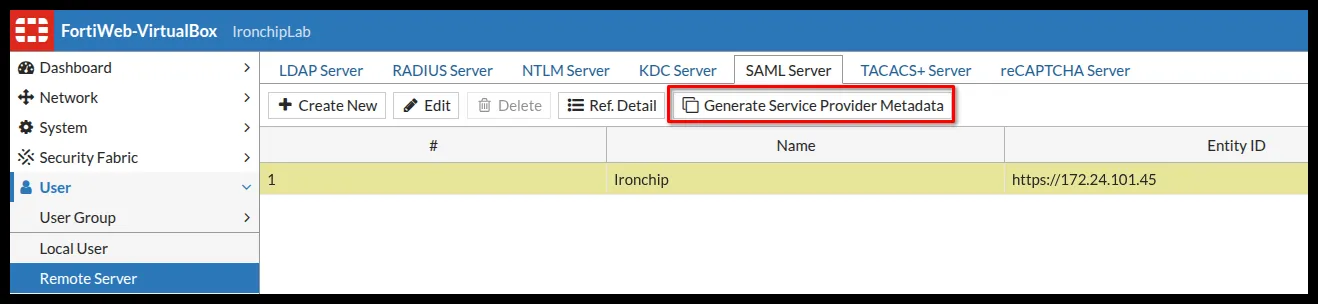
-
In the application in the Ironchip admin console, open the Service Provider (SP) section. In SP Metadata, select File, choose that XML file and click Import.
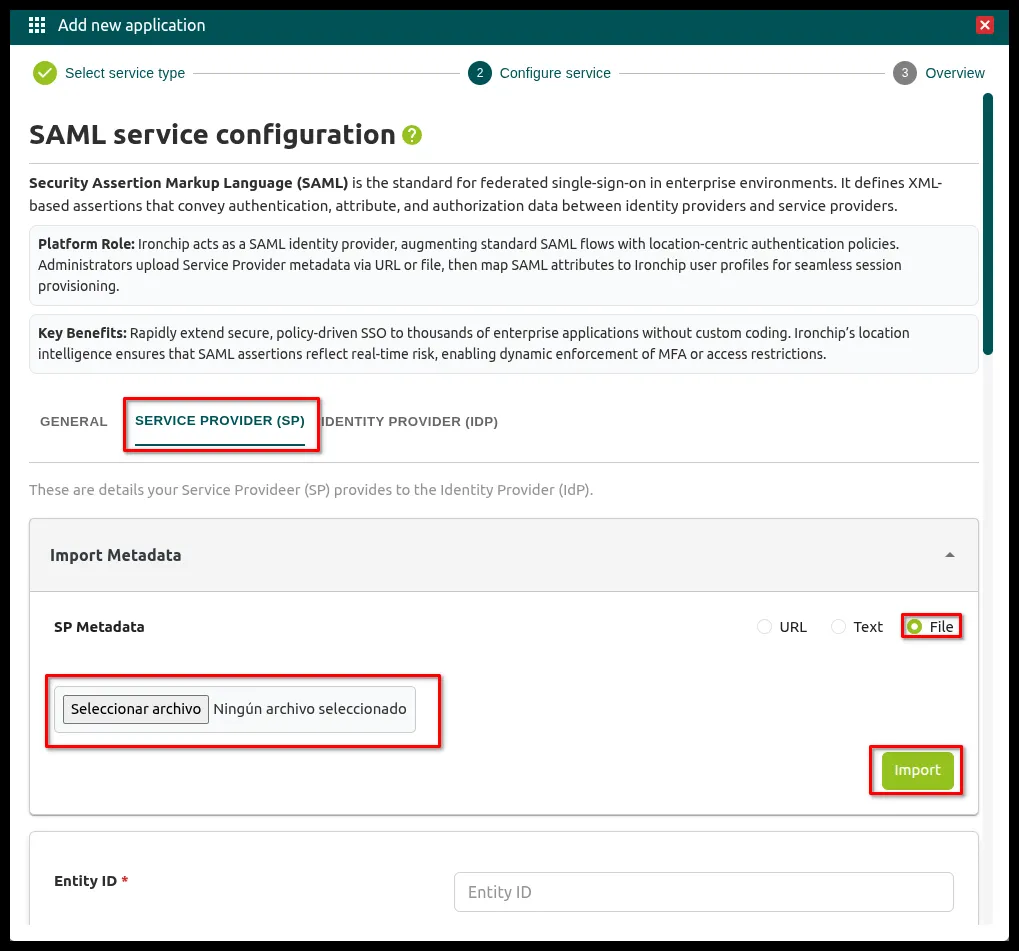
-
Click Add to finish creating the application.
Site Publish rule
Section titled “Site Publish rule”Apply the SAML server to the Site Publish rule so that it asks for authentication on access.
-
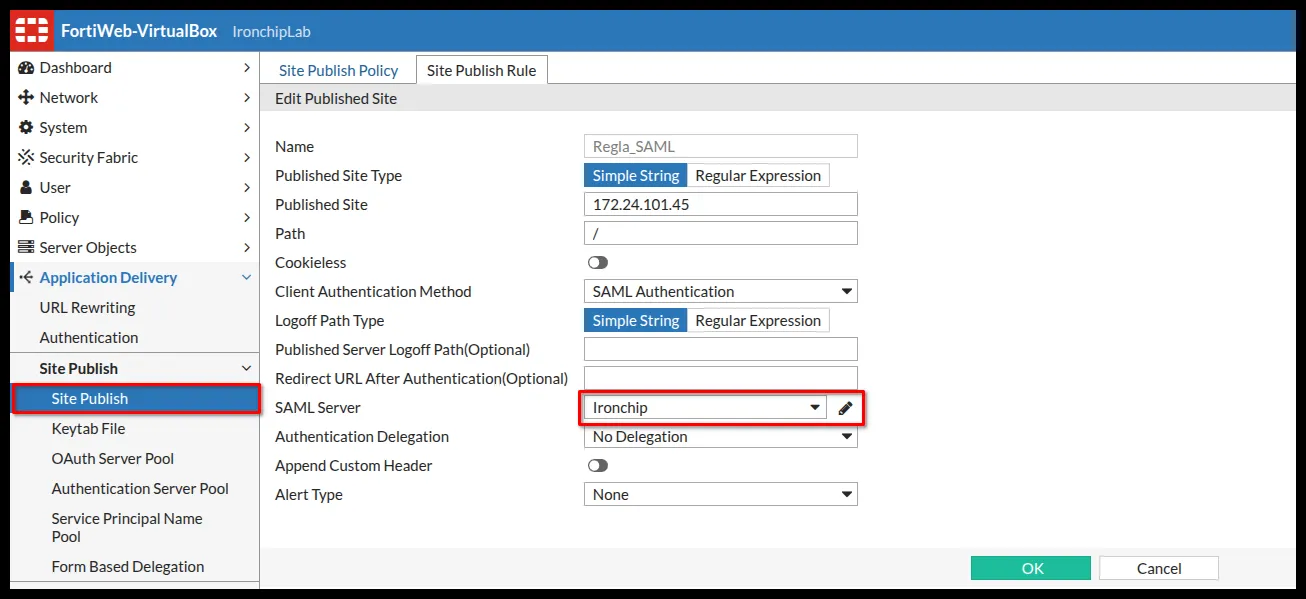
In FortiWeb, go to Application Delivery > Site Publish > Site Publish and edit the rule on the Site Publish Rule tab.
-
In Client Authentication Method, select SAML Authentication.
-
In SAML Server, select the SAML server you created and click OK.
Give users access
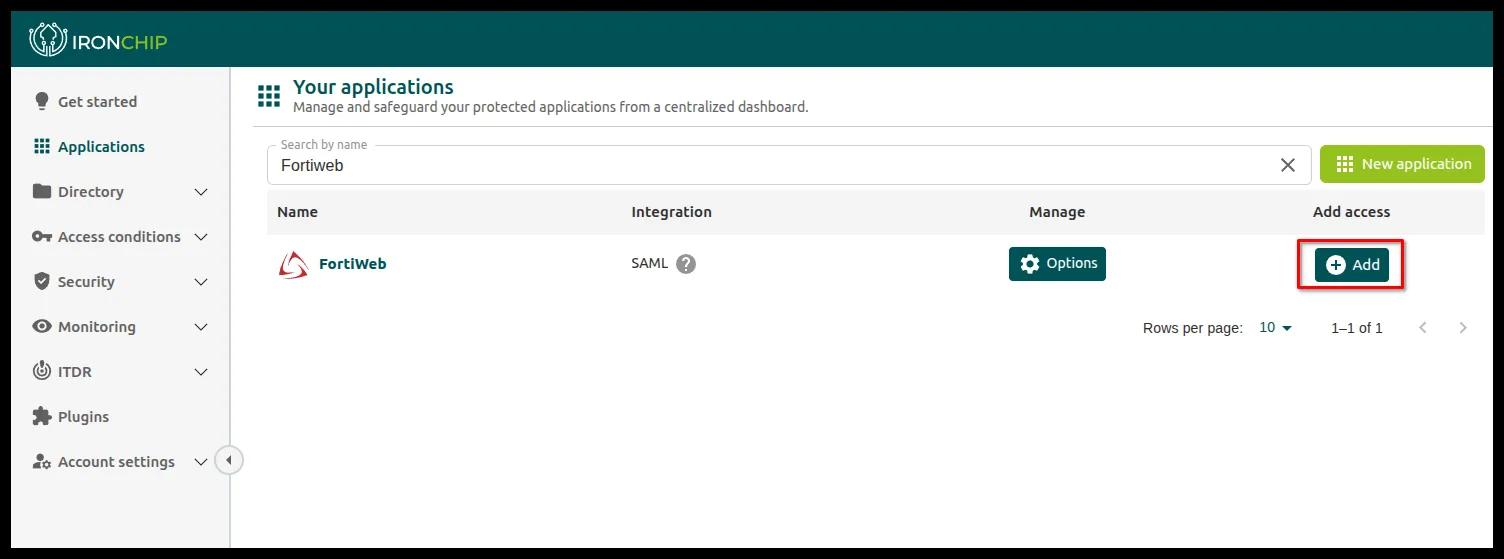
Section titled “Give users access”Give users access in the application you created in the Ironchip admin console: go to Applications, find the FortiWeb application and, in the Add access column, click Add.
Verify the integration
Section titled “Verify the integration”Open the published website as a user who has access to the application. FortiWeb asks you to authenticate with Ironchip before it lets you in.
Was this page helpful?
Thank you. We will use it to improve the documentation. If you want to tell us what is missing or unclear, write to support@ironchip.com.