

Zoho One
Ironchip acts as the SAML identity provider for Zoho One. This guide explains how to configure both sides and assign the users who can authenticate with Ironchip.
Requirements
Section titled “Requirements”- Access to the Ironchip admin console.
- A user with permissions to make the configuration in Zoho One.
Configure Ironchip
Section titled “Configure Ironchip”Create the SAML application
Section titled “Create the SAML application”-
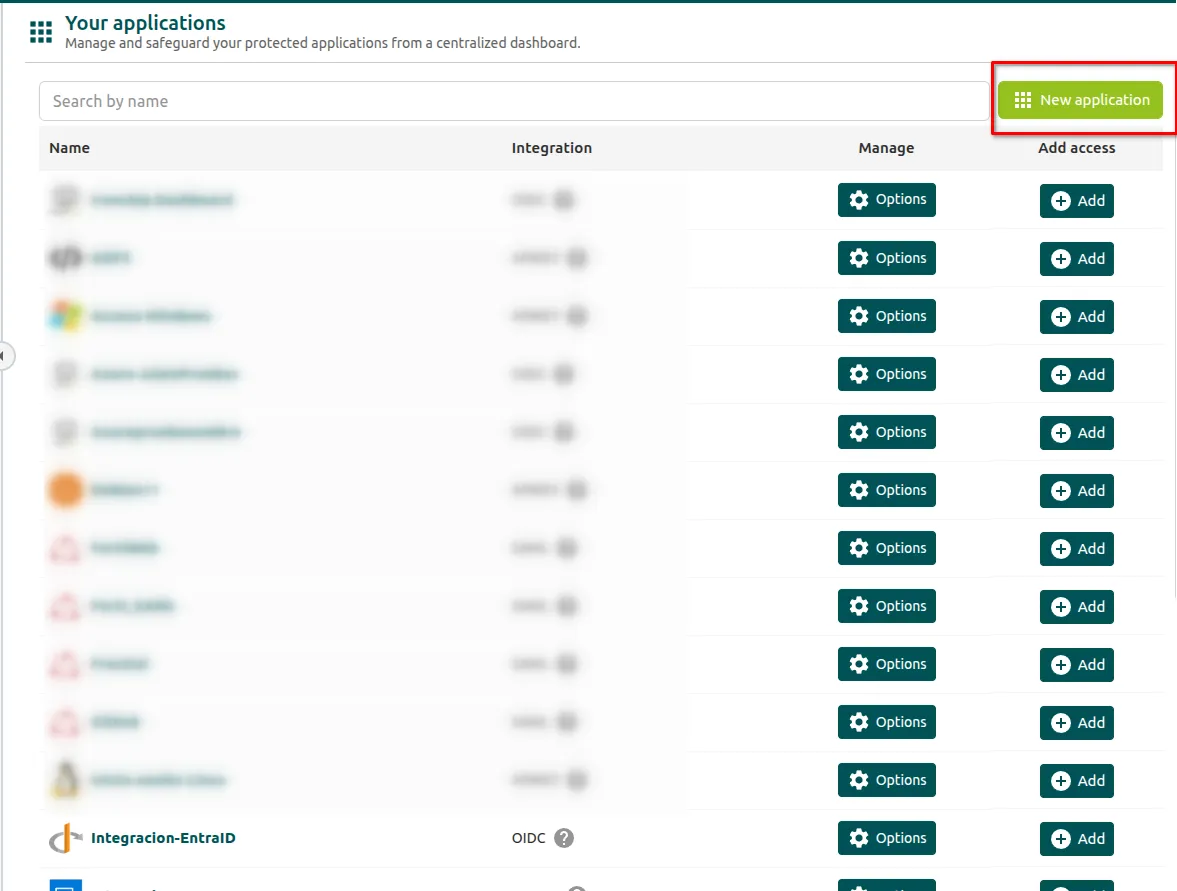
In the Ironchip admin console, go to Applications and click the green New application button.
-
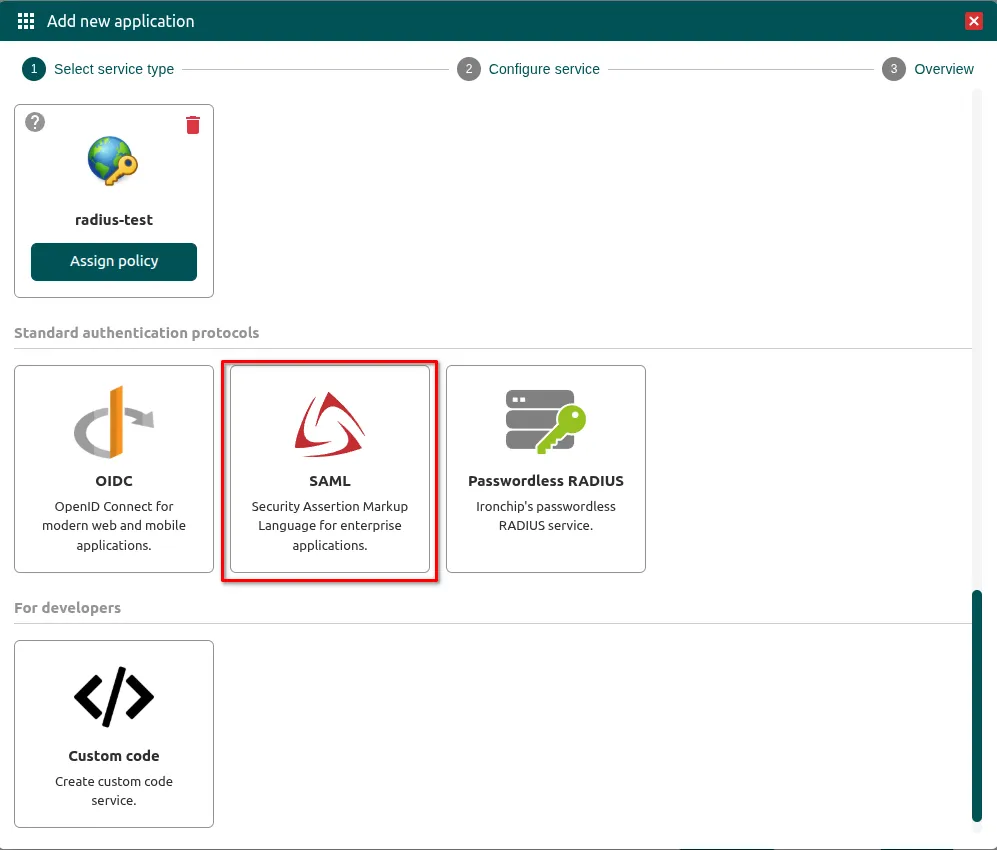
In the dialog, select SAML under Standard authentication protocols.
-
Give the application a descriptive name, for example
Zoho One.
Get the Identity Provider data
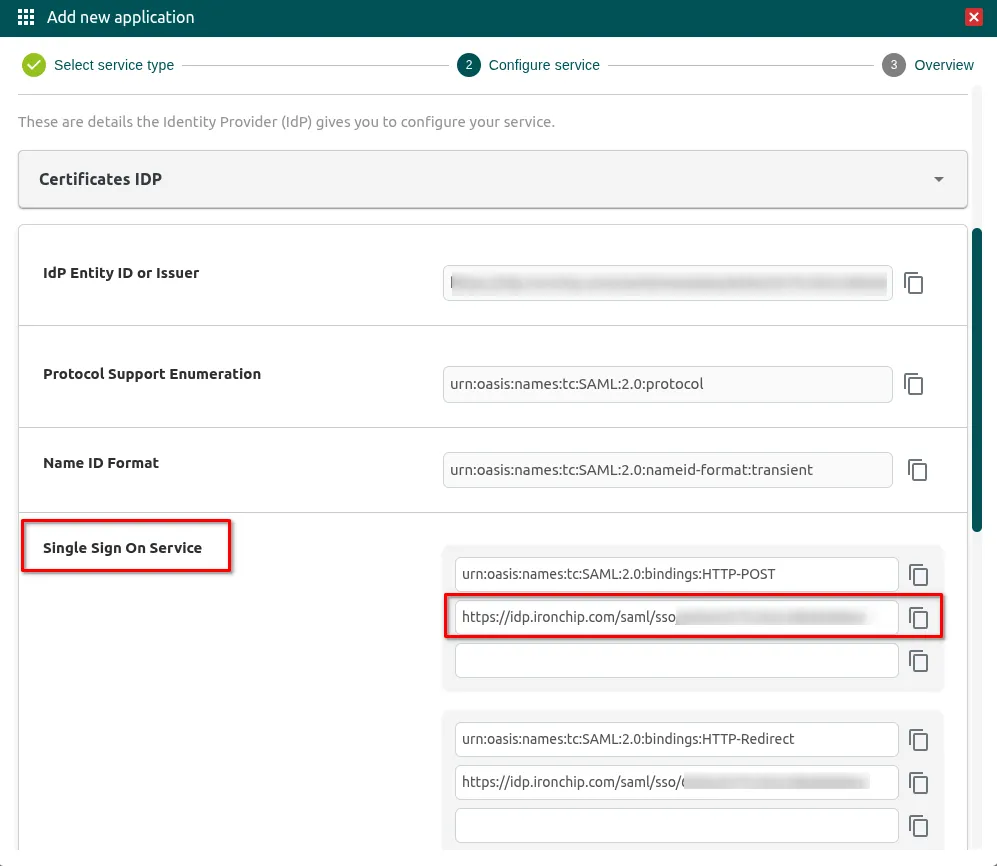
Section titled “Get the Identity Provider data”In the Configure service step of the application, open the Identity Provider tab. Under Single Sign On Service, copy these values, which you will need in Zoho One:
- SSO URL (Single Sign On Service): this will be your sign-in URL in Zoho.
- SLO URL: obtained by replacing
/ssowith/sloin the previous URL. - X.509 certificate: copy it with its copy button.
Configure Zoho One
Section titled “Configure Zoho One”Add the identity provider
Section titled “Add the identity provider”-
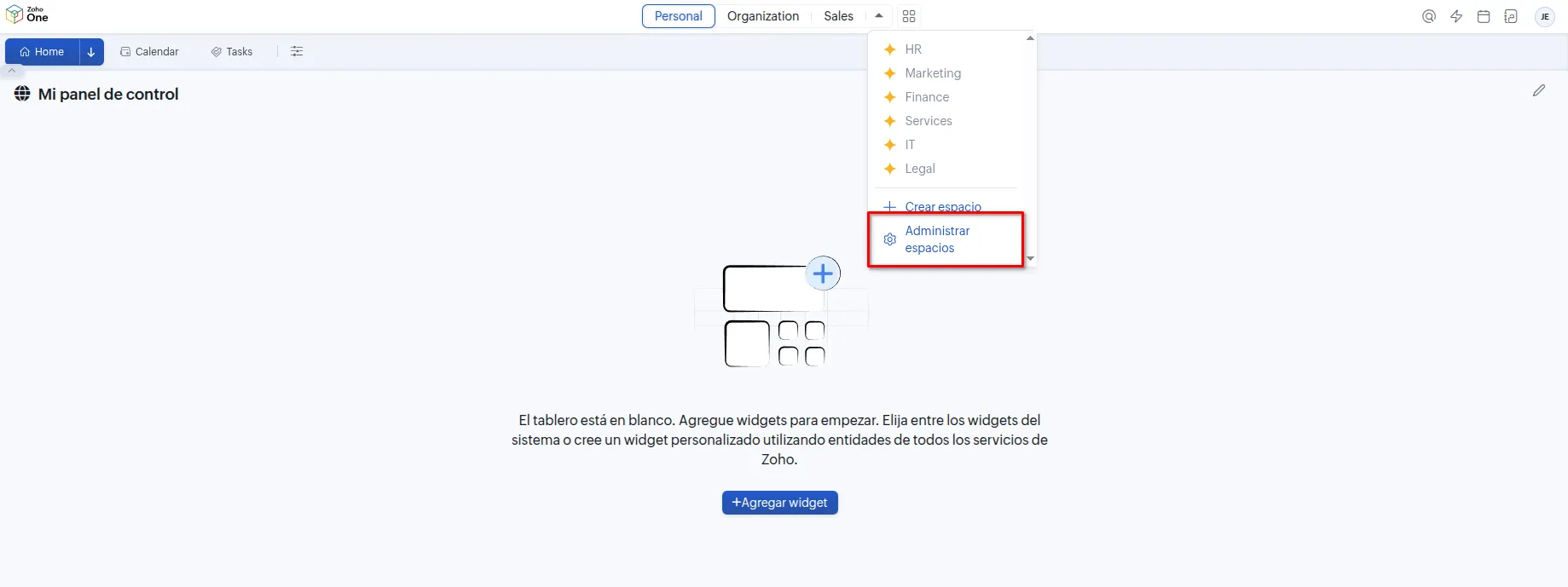
Open the Zoho One admin panel. In the top menu, open the space selector and click Manage spaces.
-
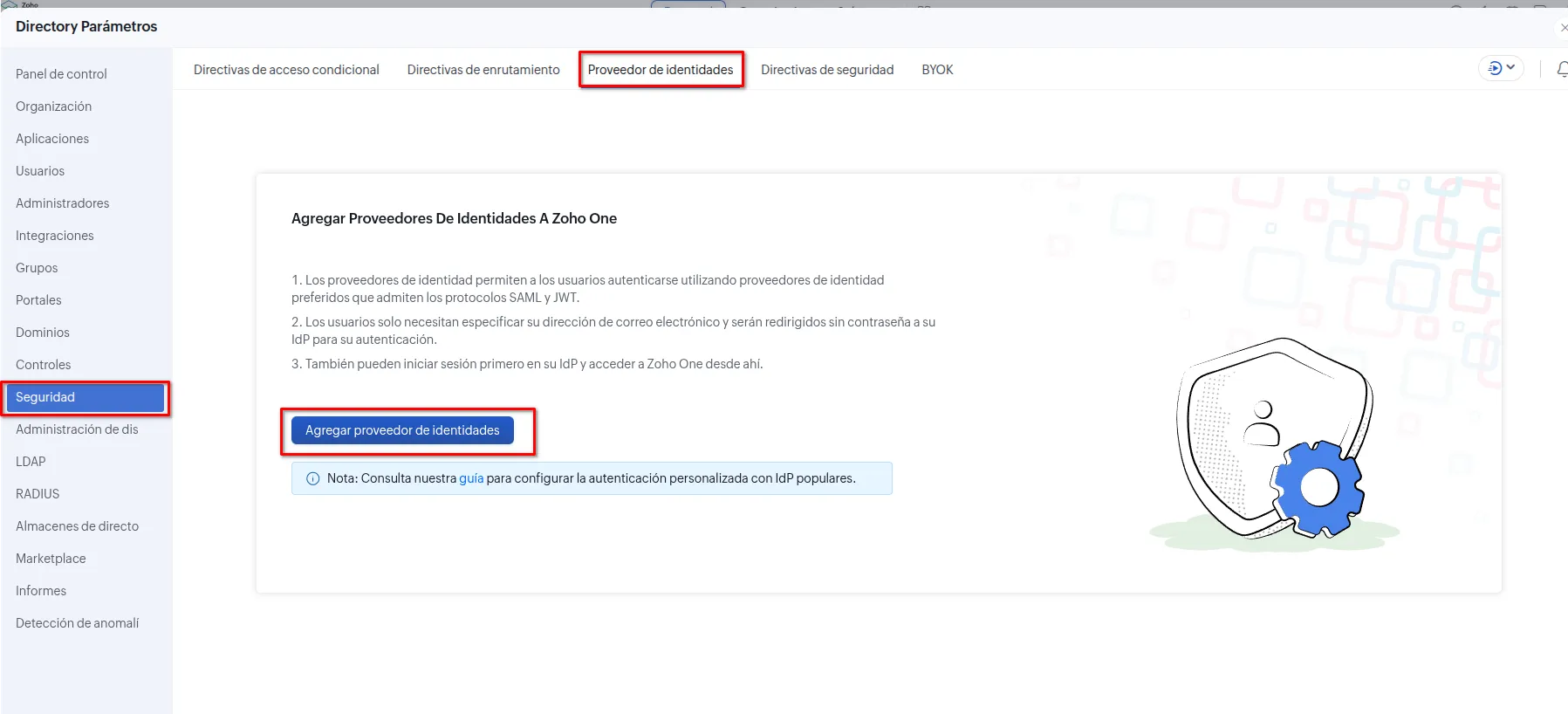
In the left side panel, go to Security > Identity provider and click Add identity provider.
-
Select the SAML type and fill in the fields with the data you copied from Ironchip:
- Sign-in URL: paste the Ironchip SSO URL.
- Sign-out URL: paste the same URL, changing
/ssoto/slo. - Name ID format: select Email address.
- X509 certificate: upload the
.crtfile with the formatted certificate (see the next section).
Format the X.509 certificate
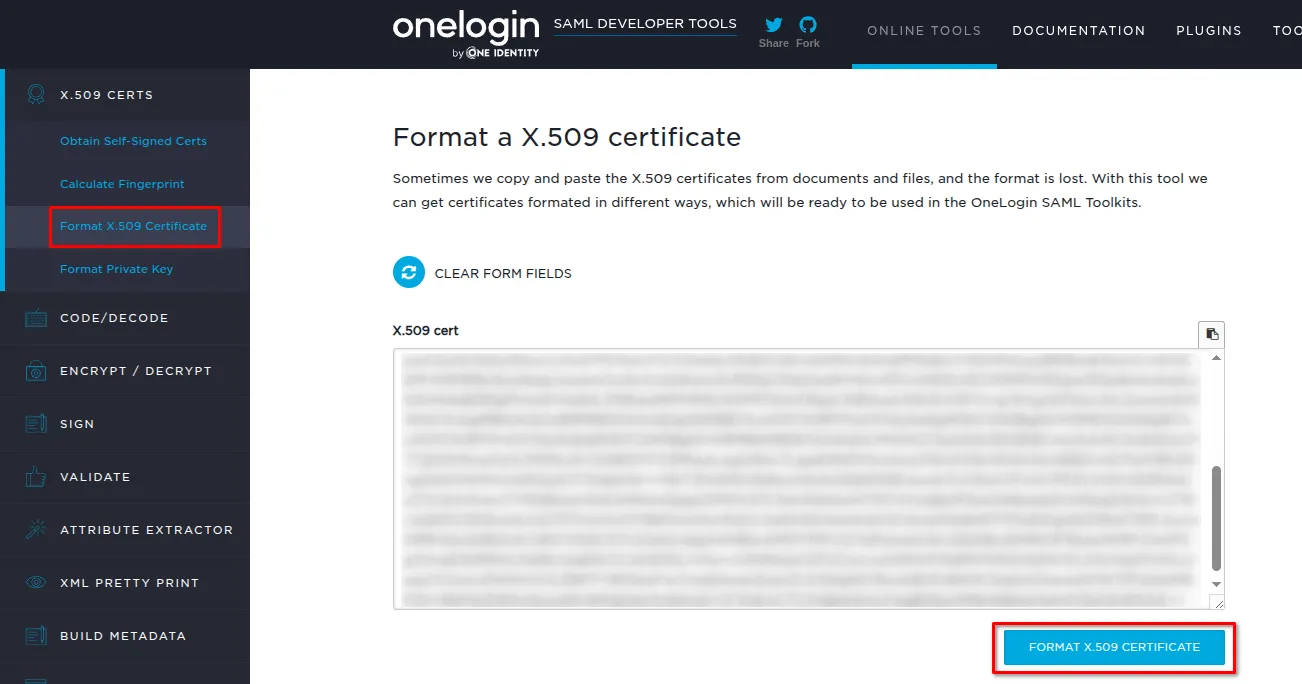
Section titled “Format the X.509 certificate”The certificate you copied from Ironchip must have the right format before you import it.
-
Paste the certificate content into the X.509 cert field and click FORMAT X.509 CERTIFICATE.
-
Copy the result and save it as a text file with a
.crtextension (for example,SAMLcert.crt). -
Go back to Zoho One and import the
.crtfile into the X509 certificate field.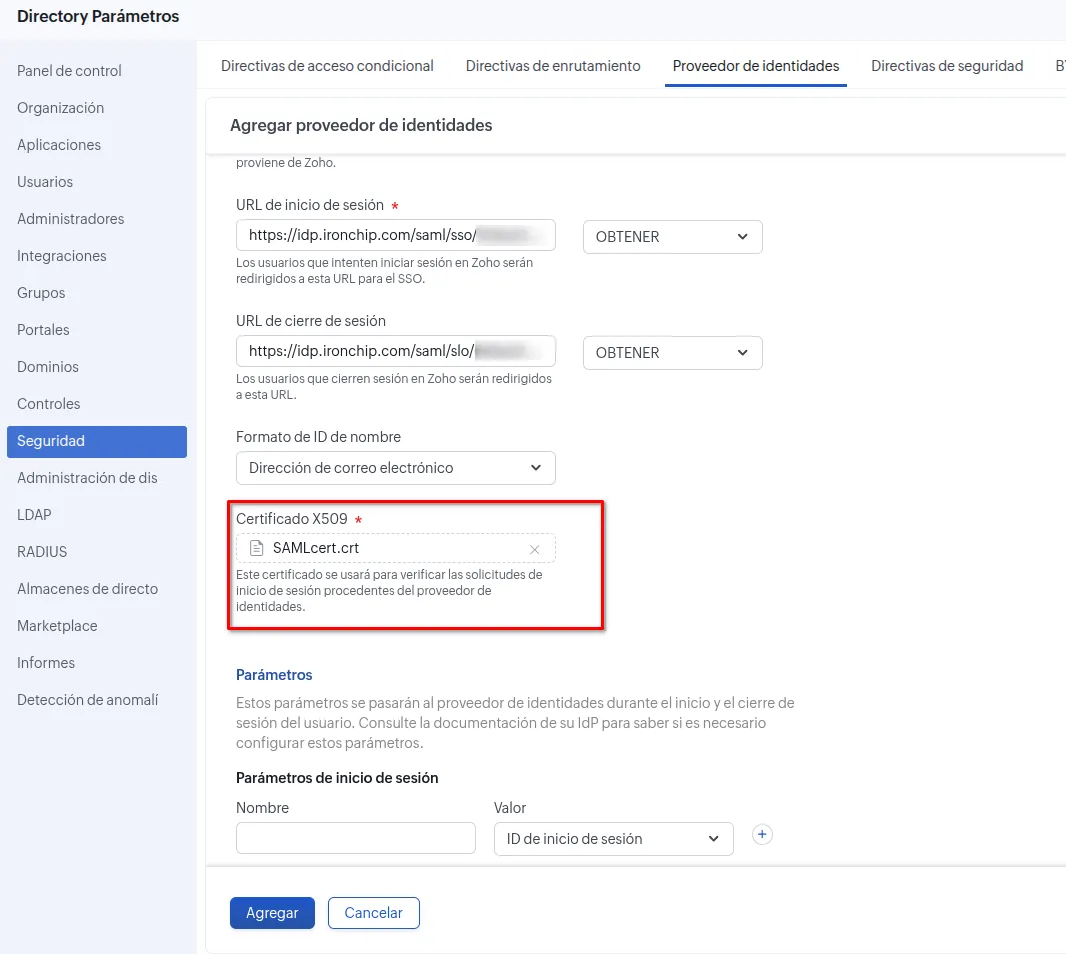
Exchange the metadata
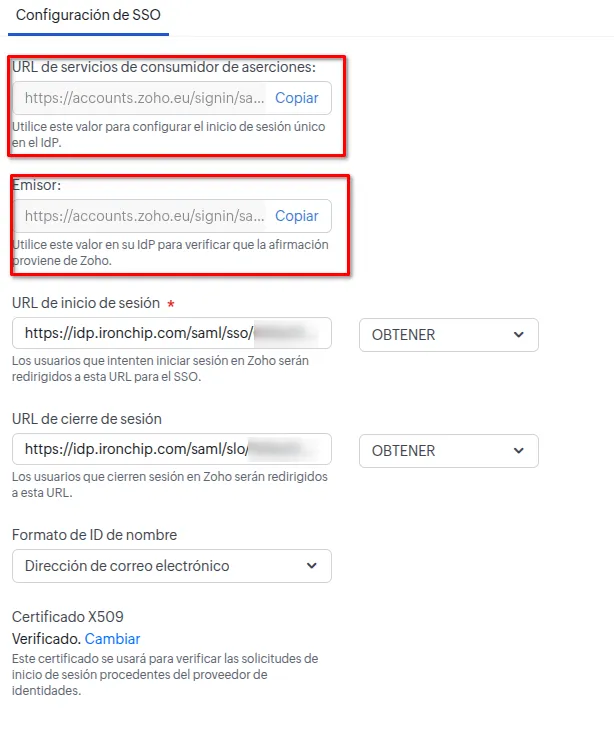
Section titled “Exchange the metadata”When you save the identity provider in Zoho One, the system shows the Service Provider metadata.
-
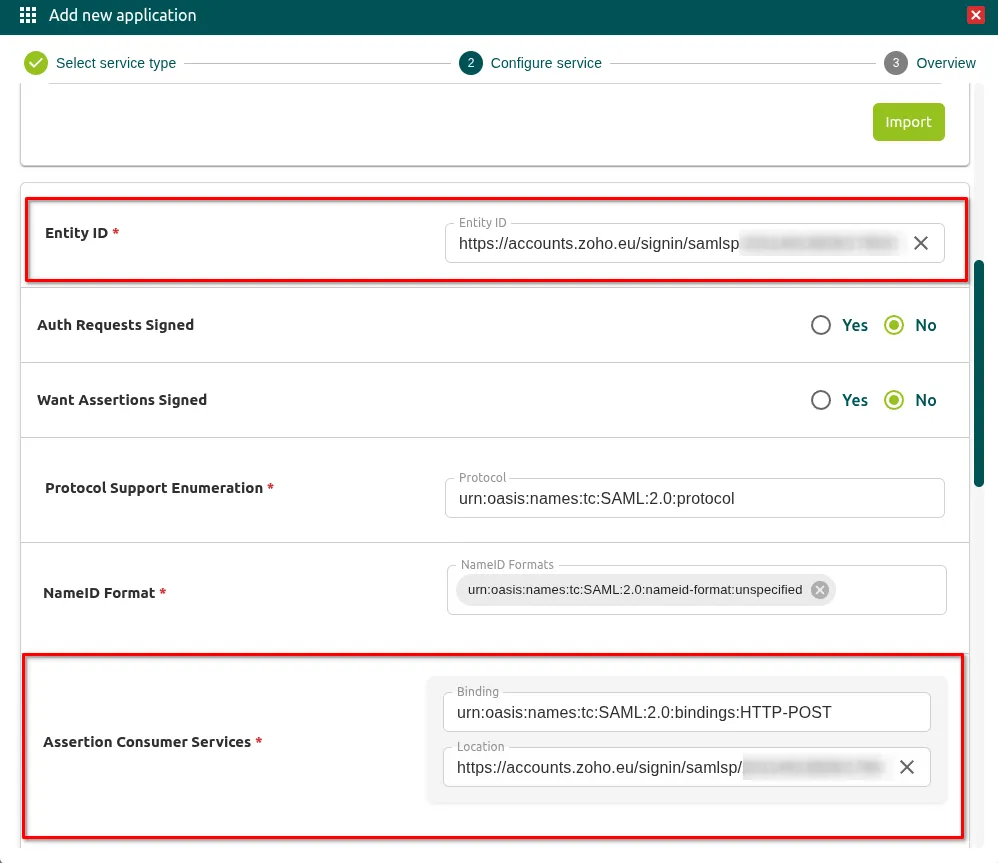
Copy these values:
- EntityID / Issuer.
- Assertion Consumer Service (ACS) URL.
-
Go back to the Ironchip admin console, open the SAML application you created and open the Service Provider tab.
-
Paste the copied values into the matching fields and save the changes.
Enable the identity provider in the policy
Section titled “Enable the identity provider in the policy”-
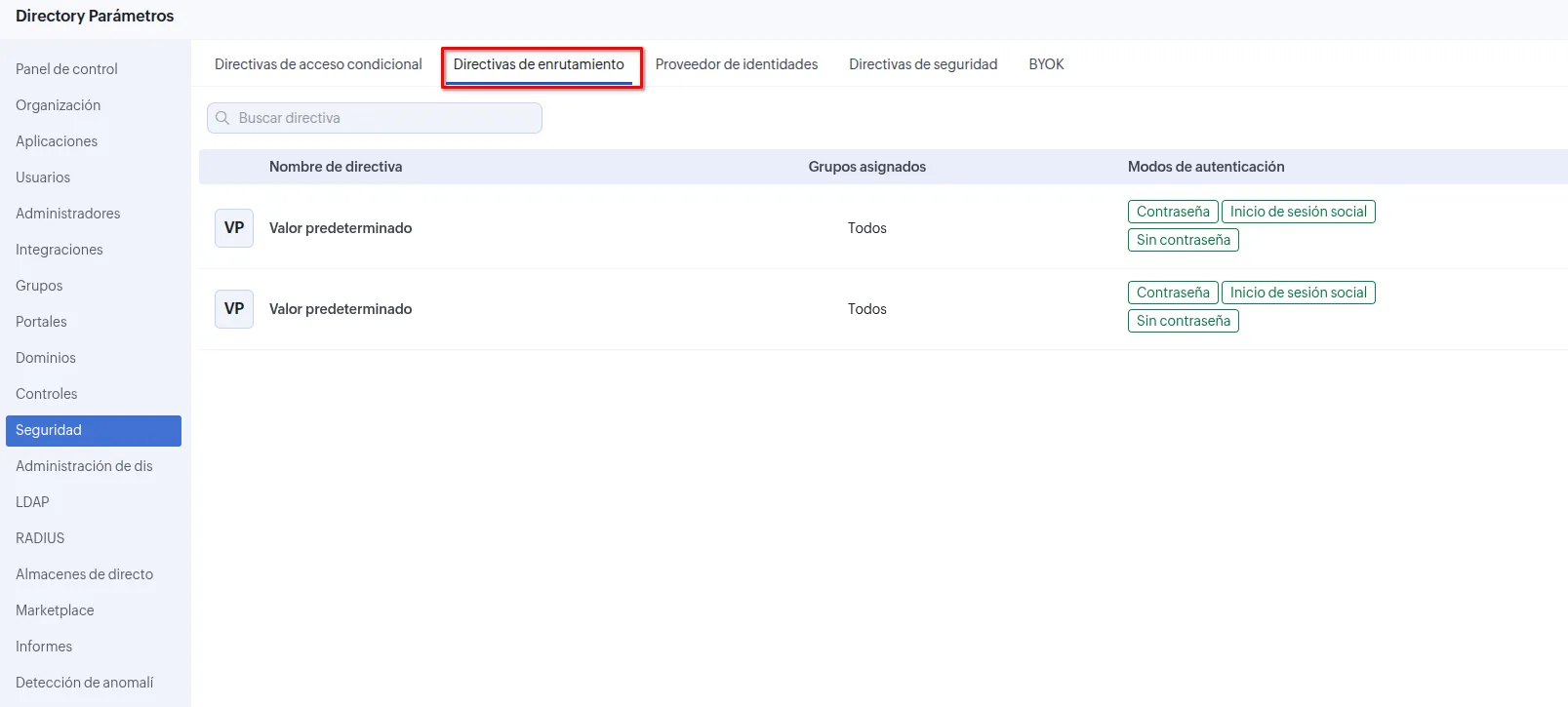
In Zoho One, go to Security > Routing policies and edit the Default policy.
-
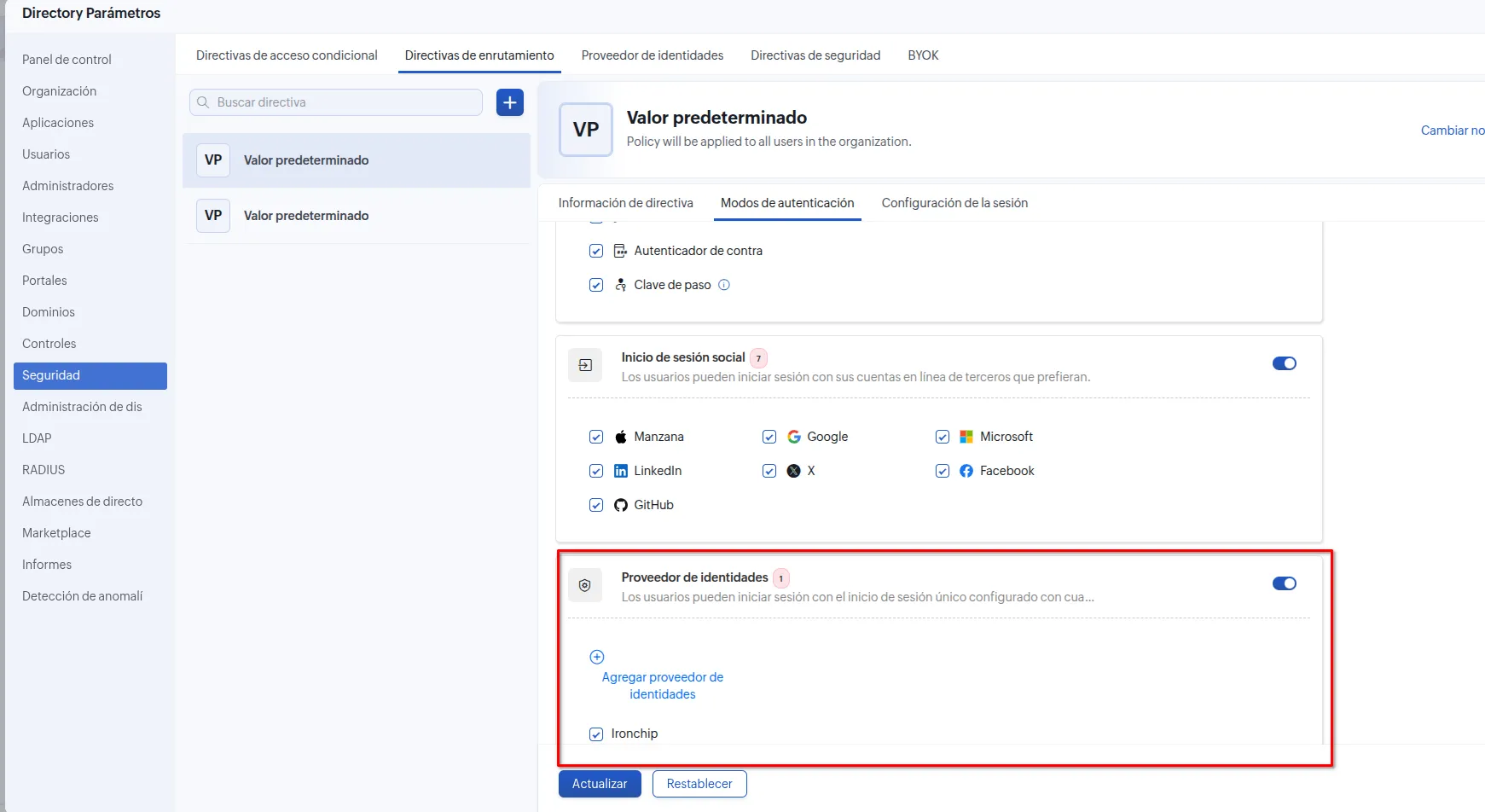
Open the Authentication modes tab, turn on the Identity provider option and select the Ironchip checkbox.
-
Click Update.
Generate access for users
Section titled “Generate access for users”-
Go back to the Ironchip admin console and finish creating the application by clicking ADD.
-
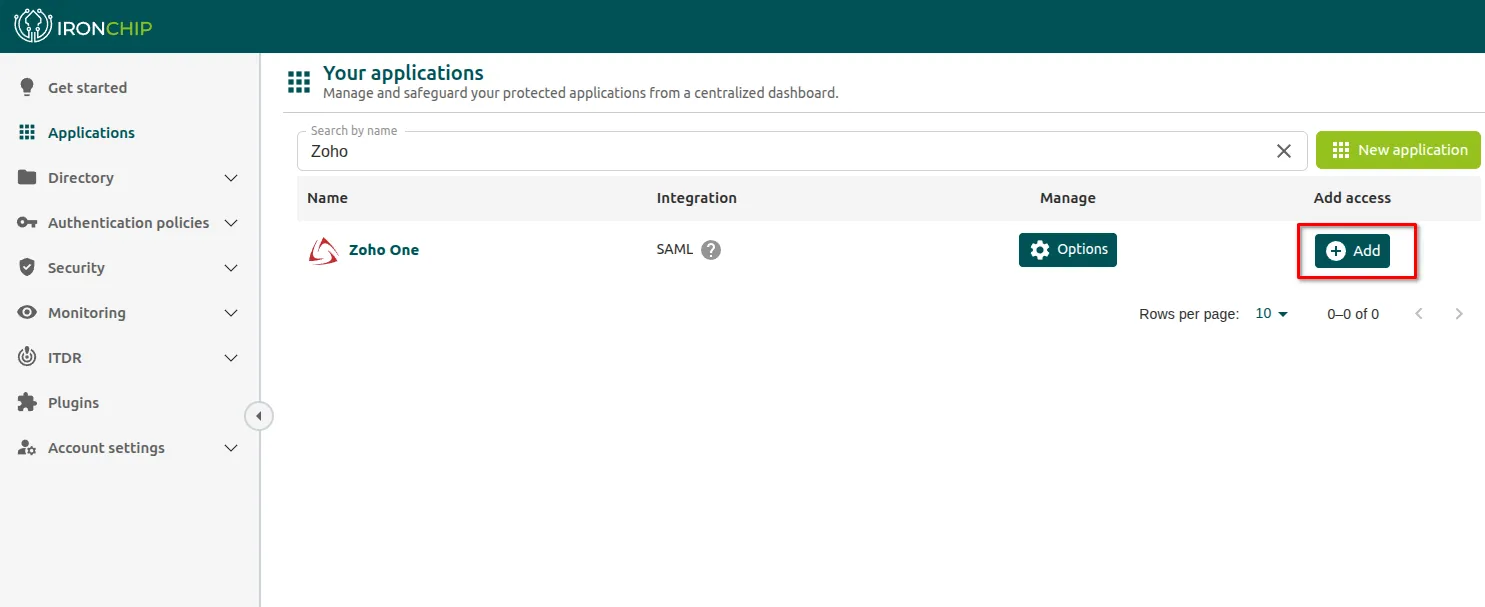
In Your applications, find the application and, in the Add access column, click Add.
-
Assign the users or groups who can authenticate in Zoho One through Ironchip.
Verify the integration
Section titled “Verify the integration”- Ask a user you gave access to sign in to Zoho One with the Ironchip identity provider.
- Zoho One redirects the user to Ironchip to authenticate.
- When the user completes the authentication on their device, they return to Zoho One with their session started.
Troubleshooting
Section titled “Troubleshooting”| Problem | Likely cause | Solution |
|---|---|---|
| Sign-in fails after importing the certificate | The certificate does not have the right format | Format it again with the tool above and check that it starts with -----BEGIN CERTIFICATE----- and ends with -----END CERTIFICATE----- |
| Zoho One does not recognize the user | The Name ID format is not Email address, or the username of the access in Ironchip is not the user’s email | Fix the format in Zoho One and edit the user’s access to the application in Ironchip to set the username to their Zoho One email |
| The user cannot authenticate | The user has no access to the application in Ironchip | In the application’s Add access column, click Add and assign the user or their group |
Was this page helpful?
Thank you. We will use it to improve the documentation. If you want to tell us what is missing or unclear, write to support@ironchip.com.