

Keeper Security
This guide describes how to integrate Keeper Security with Ironchip over SAML. Ironchip acts as the identity provider and Keeper Security, with SSO Connect Cloud, as the service provider.
Requirements
Section titled “Requirements”- Access to the Ironchip admin console.
- A user with permissions to make the configuration in Keeper Security.
Configure Keeper Security
Section titled “Configure Keeper Security”-
Sign in to the Keeper Security admin console.
-
Open the Admin tab.
-
In Node, select the node you want to apply the Ironchip configuration to.
-
Go to the Provisioning tab.
-
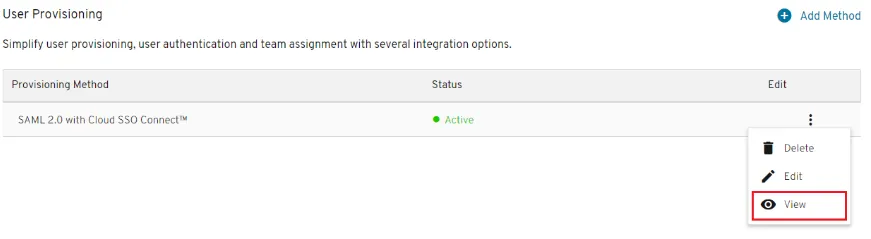
Click Add Method and create an SSO Connect Cloud single sign-on method.
-
Open the three-dot menu on the right of the method and select View.
-
Click Export Metadata to download the Keeper Security metadata. Upload the file content to a public URL so Ironchip can read it, and save that URL, because you will use it later.

-
Before continuing in Ironchip, edit the method from the three-dot menu. Under the identity provider attribute mappings, enter
uidin Email. Ironchip only needs the email: leave the other fields empty.
Configure Ironchip
Section titled “Configure Ironchip”-
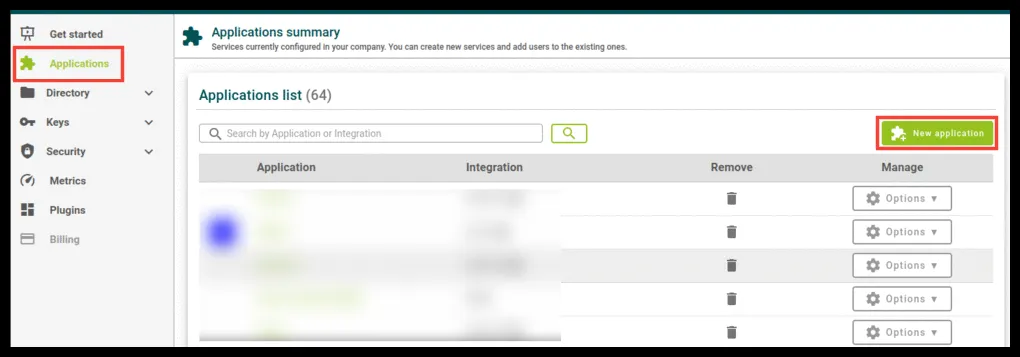
In the Ironchip admin console, go to Applications and click the green New application button.
-
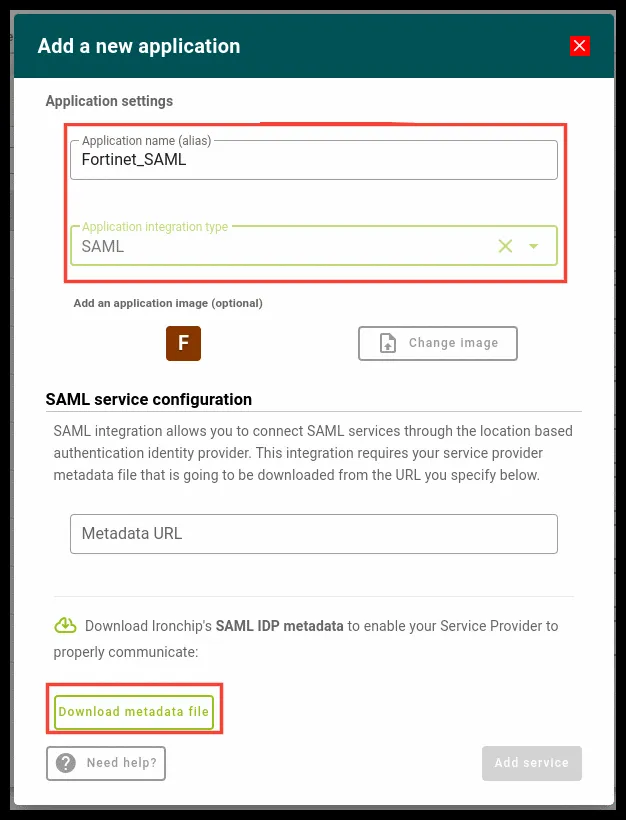
Select the SAML type and download the Ironchip metadata with Download metadata file.
-
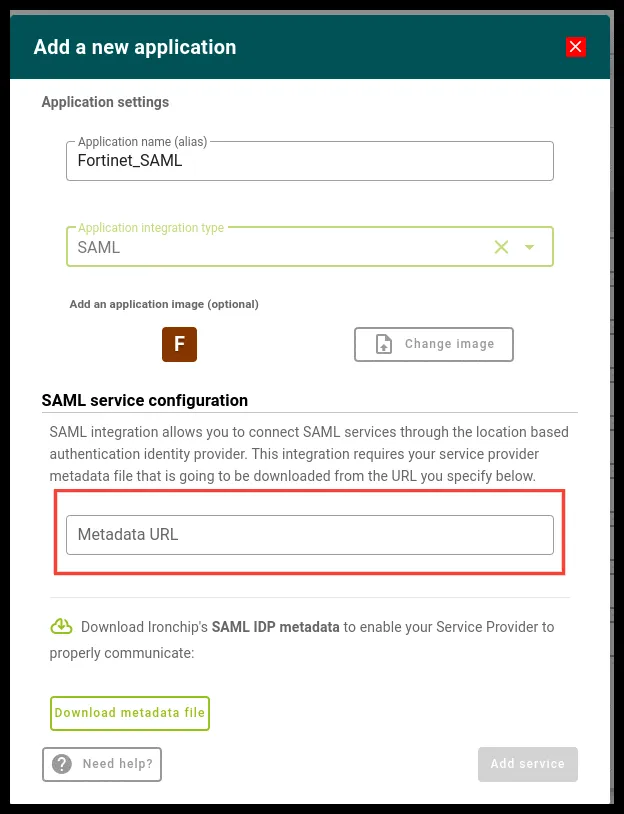
In the Metadata URL field, enter the Keeper metadata URL you got earlier. This is the URL Ironchip uses to communicate with Keeper.
-
Click Add service to finish the configuration in Ironchip.
-
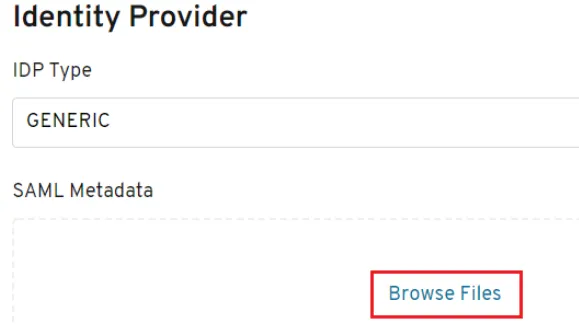
Back in Keeper Security, edit the SSO Connect Cloud method again. Under Identity Provider, set IDP Type to GENERIC, click Browse Files under SAML Metadata, and select the metadata file you downloaded from Ironchip.
Verify the integration
Section titled “Verify the integration”Before you test, give the user you will sign in with access to the Ironchip application. The steps are in Add users to the service.
- Open the Keeper Security sign-in page and sign in with SSO using an email address from a domain associated with your organization.
- Keeper Security redirects you to Ironchip to authenticate.
- Complete the authentication on your device. Ironchip returns you to Keeper Security with your session started.
Troubleshooting
Section titled “Troubleshooting”Node error
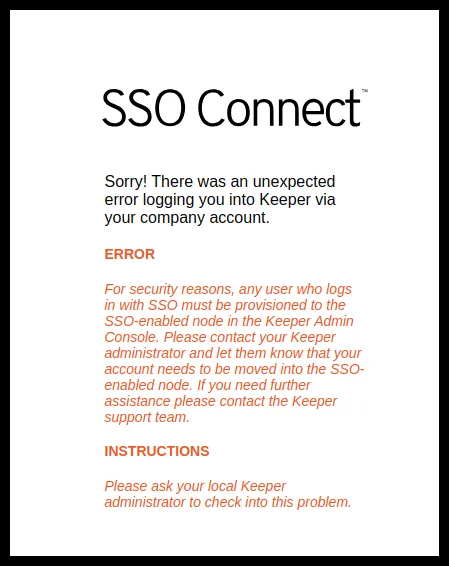
Section titled “Node error”Keeper shows this error when the user does not belong to the node where SSO Connect is configured:
For security reasons, any user who logs in with SSO must be provisioned to the SSO-enabled node in the Keeper Admin Console.
Move the user to the node where you configured SSO Connect.
Email domain error
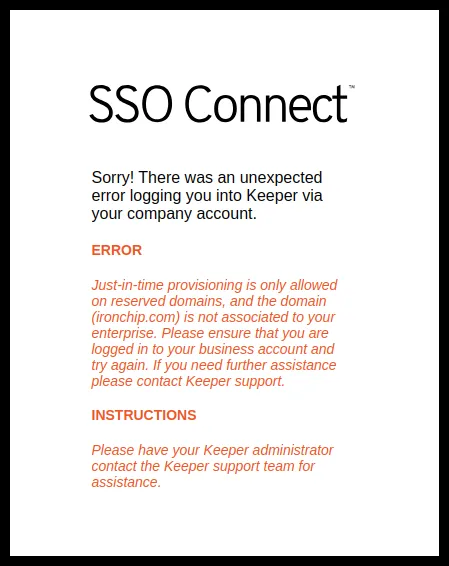
Section titled “Email domain error”Keeper shows this error when the email domain is not associated with your organization:
Just-in-time provisioning is only allowed on reserved domains, and the domain (example.com) is not associated to your enterprise.
Keeper Security only accepts domains associated with your organization. Associate the domain in Keeper or use another email address.
Was this page helpful?
Thank you. We will use it to improve the documentation. If you want to tell us what is missing or unclear, write to support@ironchip.com.