

App distribution
The Ironchip mobile app is distributed publicly, privately, or as a custom-branded app. Desktop agents are deployed at scale with GPO, MDM, or other management tools.
Mobile app
Section titled “Mobile app”Public distribution
Section titled “Public distribution”Download the app from your device’s store.
Google Play (Android):
- Open the Play Store app on your device.
- Search for Ironchip.
- Download the app.
App Store (iOS):
- Open the App Store app on your device.
- Search for Ironchip.
- Download the app.
Private distribution
Section titled “Private distribution”Ironchip has a private app repository for organizations that need one, such as those that centrally manage their corporate mobile devices. There are two options:
- MDM: on-demand private distribution, integrated into the corporate MDM platform (for example, Microsoft Intune, VMware Workspace ONE, JAMF for iOS, or Kandji). Ironchip provides the app package so you can distribute it silently.
- Private link: Ironchip provides a private link for direct download within the organization, without going through the public stores.
Custom app
Section titled “Custom app”Ironchip offers a custom app that matches your company’s look: logo, colors, and application name. You can deploy it publicly (stores) or privately (MDM or link). Contact the Ironchip team so that all your requirements are included.
Supported devices
Section titled “Supported devices”- Android 6.0 or later. Electromagnetic signals are available from Android 8.0.
- iOS 10.0 or later.
Desktop agent for Windows
Section titled “Desktop agent for Windows”The desktop agent (Ironchip Desktop App) for Windows is distributed as an .msi installer. You can download it from the Plugins section of the console or from GitHub (Ironchip-Windows-Logon). There are three deployment methods.
Mass deployment with GPO
Section titled “Mass deployment with GPO”This is the recommended method for on-premises AD.
- Download the
.msiinstaller from the Plugins section of the console. - On the domain server, open the Group Policy Management Console (GPMC).
- Create or edit a GPO and link it to the organizational unit (OU) that contains the target computers.
- Go to Computer Configuration > Policies > Software Settings > Software installation and add the
.msipackage. - The software installs automatically on all domain computers at the next restart or when policies refresh (
gpupdate /force).
You can preconfigure the Ironchip company API key in the GPO so the installation is fully silent, with no user interaction.
Deployment with MDM or Intune
Section titled “Deployment with MDM or Intune”This is the recommended method for cloud or hybrid environments.
- Upload the
.msiinstaller to Microsoft Intune (or an equivalent MDM tool). - Create an app deployment policy assigned to the target device group.
- Configure the silent installation parameters (API key and production environment).
- Intune deploys the app to the assigned devices at the next sync cycle.
It is compatible with Microsoft Intune, SCCM / Microsoft Endpoint Configuration Manager, Jamf (macOS), Kandji (macOS), and ManageEngine MDM.
Manual installation
Section titled “Manual installation”For pilots or small groups: run the .msi installer directly on the computer and enter the API key in the installation wizard. This isn’t recommended for deployments of more than 20 computers.
For more information about the agent, see Windows logon.
Desktop agent for Linux and macOS
Section titled “Desktop agent for Linux and macOS”The Ironchip PAM module for Linux (pam_ironchip_auth.so) is distributed from the Plugins section of the console. To deploy it across a fleet of Linux servers, use Ansible, Puppet, or Chef to automate copying the module and editing the files in /etc/pam.d/ on all target servers.
Example with Ansible:
ansible-playbook ironchip_pam.yml -i inventario.iniThe PAM module for macOS is distributed with JAMF Pro or Kandji. The flow is:
- Upload the
.pkgof the PAM module to JAMF. - Create a deployment policy assigned to the corporate Macs.
- Run a post-installation script that automatically edits the file in
/etc/pam.d/with the company API key.
For more information, see macOS logon.
RFID agent
Section titled “RFID agent”The IronchipRFID.exe agent is distributed from the Plugins section of the console. To deploy it on several computers with RFID readers:
-
Distribute the executable with GPO or with a software deployment tool.
-
Configure the API key with a PowerShell script that runs as a logon task or as a GPO script. The configuration command is:
Ventana de terminal .\IronchipRFID.exe c --api_key <API_KEY>
You can fully automate this process on domain computers, with no user intervention. For more information, see RFID.
USB allowlist with GPO
Section titled “USB allowlist with GPO”To allow only specific USB devices on domain computers:
Get the hardware ID of the USB device
Section titled “Get the hardware ID of the USB device”- Open Device Manager.
- Find the USB device and open its properties.
- Go to the Details tab and select Hardware Ids in the drop-down menu. Write down the hardware ID.
Allow specific devices
Section titled “Allow specific devices”-
Open the Group Policy Editor (
gpedit.msc). -
Go to Computer Configuration > Administrative Templates > System > Device Installation > Device Installation Restrictions.
-
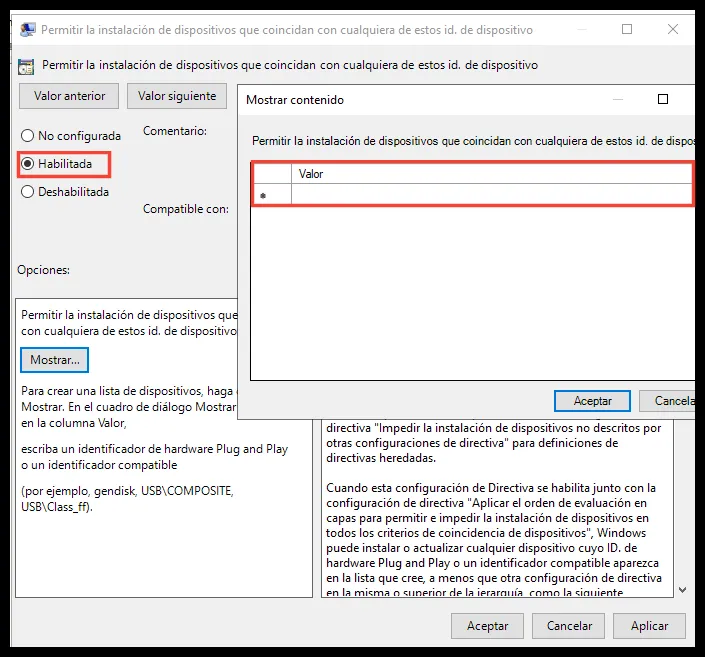
Open the policy Allow installation of devices that match any of these device IDs.
-
Set it to Enabled.
-
Click Show.
-
Enter the hardware ID of the USB device you wrote down.
Block unapproved devices
Section titled “Block unapproved devices”-
In the Group Policy Editor, go to Computer Configuration > Administrative Templates > System > Device Installation > Device Installation Restrictions.
-
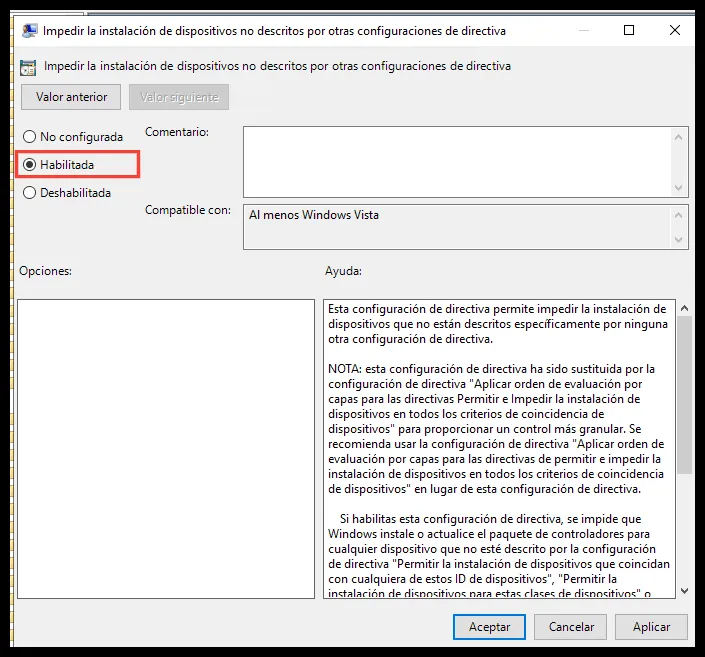
Open the policy Prevent installation of devices not described by other policy settings.
-
Set it to Enabled.
Was this page helpful?
Thank you. We will use it to improve the documentation. If you want to tell us what is missing or unclear, write to support@ironchip.com.