

Nextcloud
Ironchip acts as the OIDC provider for Nextcloud. Users sign in to Nextcloud from a button that redirects them to Ironchip to authenticate.
Requirements
Section titled “Requirements”- Administrator access to the Ironchip admin console.
- Administrator privileges on the Nextcloud instance.
- Access to the file system of the Nextcloud server.
Prepare Nextcloud
Section titled “Prepare Nextcloud”Install the OpenID Connect app
Section titled “Install the OpenID Connect app”-
Sign in to your Nextcloud instance.
-
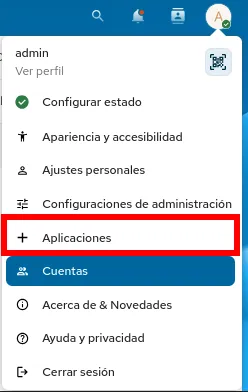
Click your profile icon (top right corner) and select Apps.
-
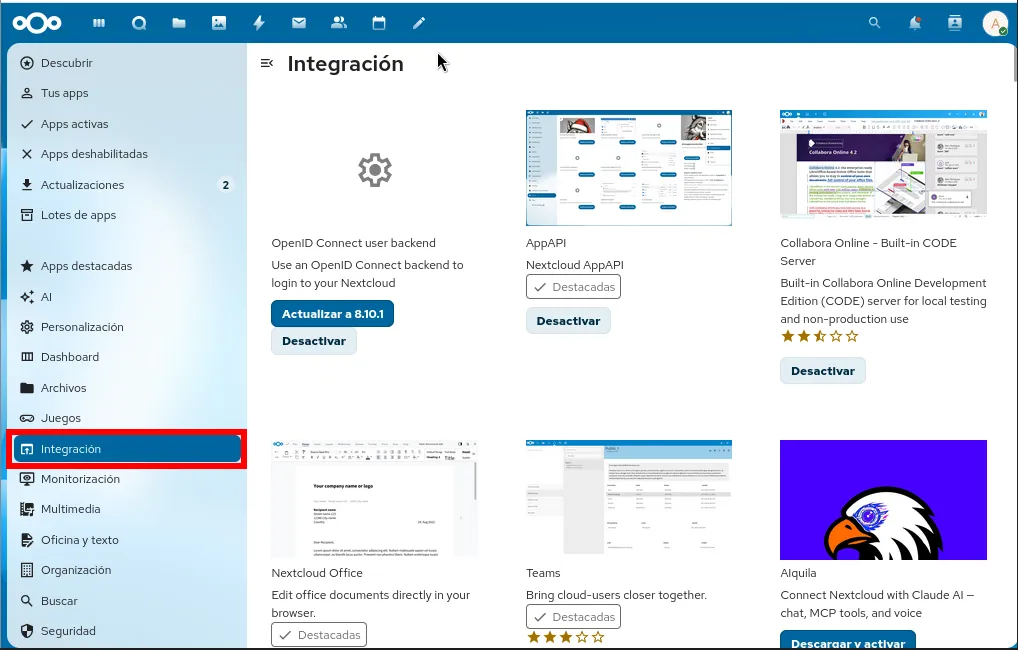
In the left side menu, select the Integration category.
-
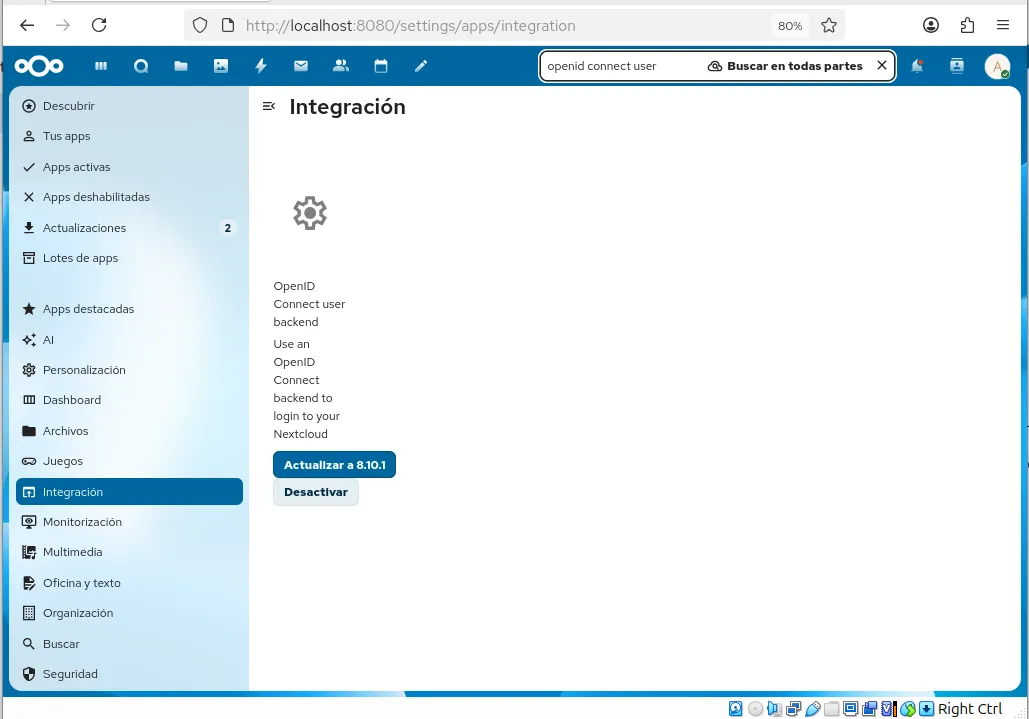
Use the search (magnifying glass icon) to find the OpenID Connect user backend app.
-
Click Download and enable.
Adjust the configuration file
Section titled “Adjust the configuration file”Before continuing in the web interface, adjust the security and network settings of Nextcloud:
-
Find and edit the
config/config.phpfile on your server. -
Add or change these lines inside the configuration array:
config/config.php 'allow_local_remote_servers' => true,'debug' => true,
Configure Ironchip
Section titled “Configure Ironchip”Create the OIDC application
Section titled “Create the OIDC application”-
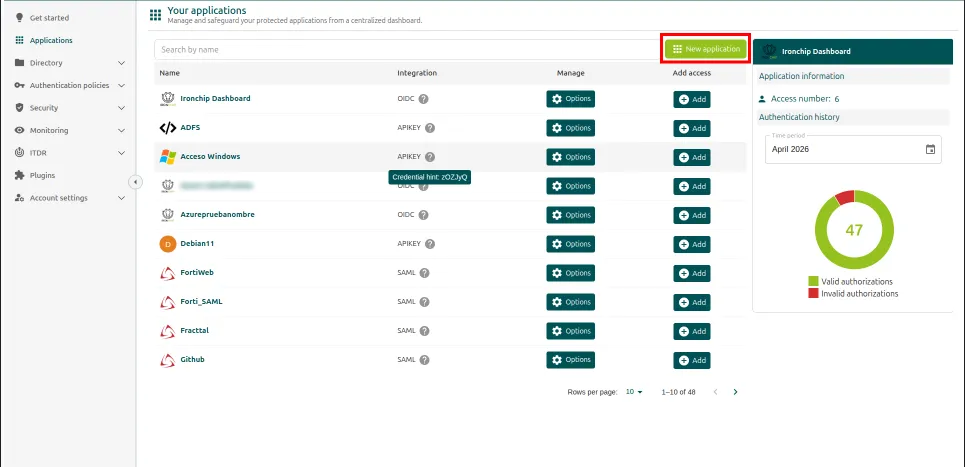
Sign in to the Ironchip admin console and go to Applications > New Application.
-
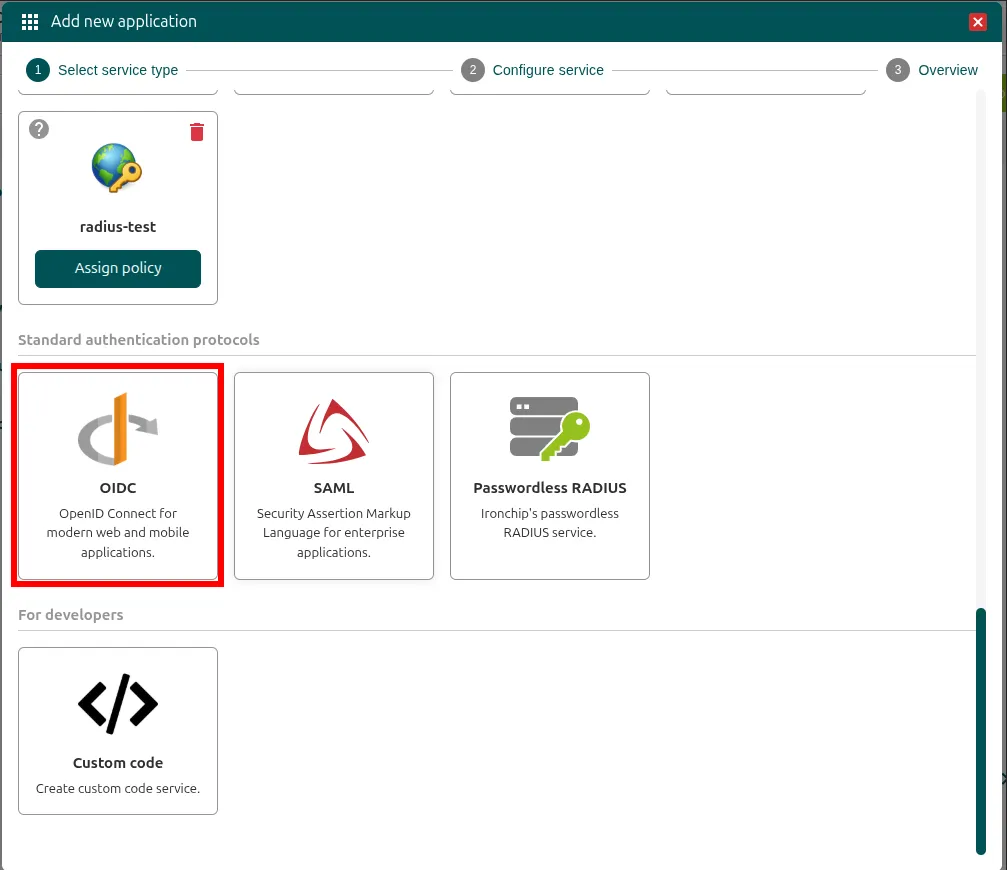
Select the OIDC protocol.
-
On the General tab, enter a descriptive name in Name (for example,
Nextcloud Access) and click Add.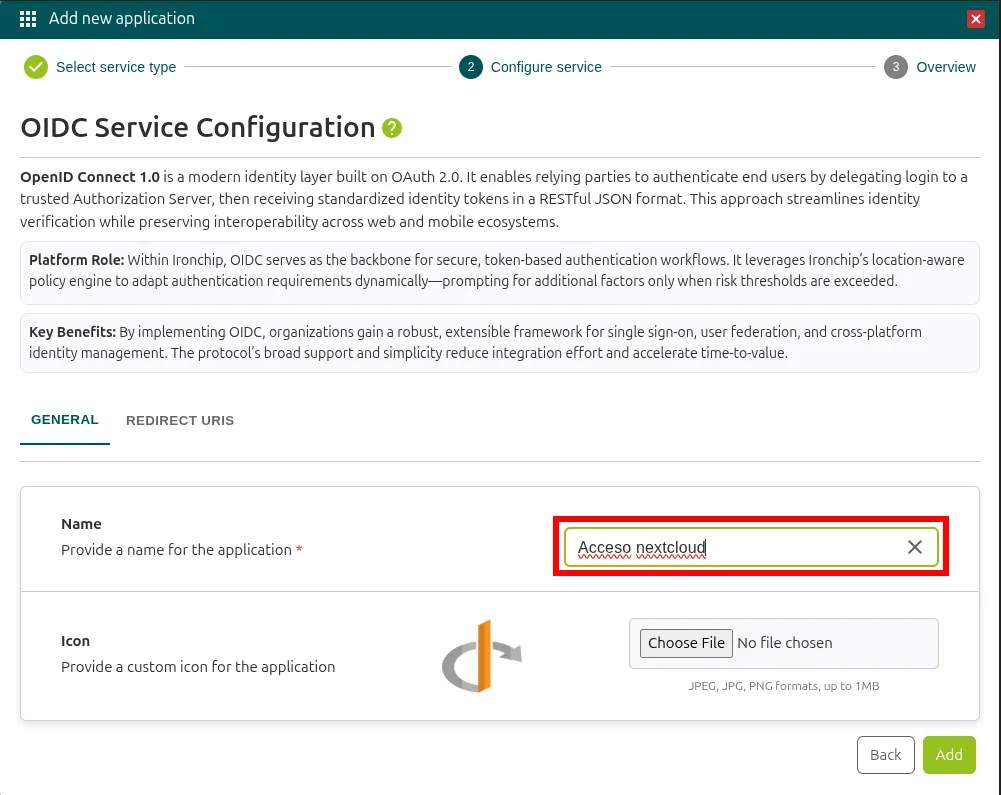
-
In Redirect URIs, enter the return URL of your server:
http://<YOUR_SERVER_IP_OR_DOMAIN>/apps/user_oidc/codeFor example:
http://my-domain/apps/user_oidc/code. -
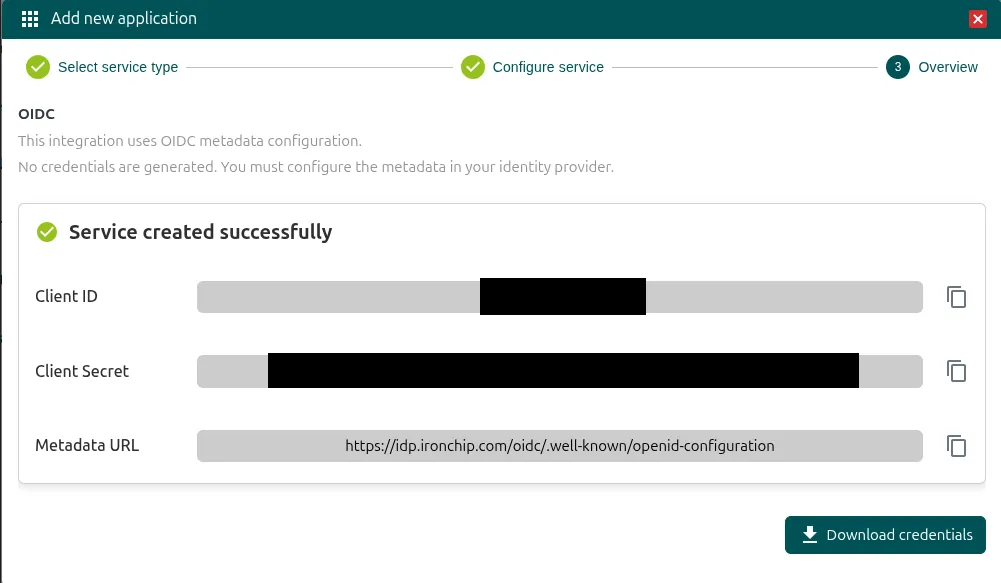
Click Save. Store the generated Client ID and Client Secret in a safe place; you can also download them with Download credentials.
Authorize the users
Section titled “Authorize the users”Authorize which users can use this access method.
-
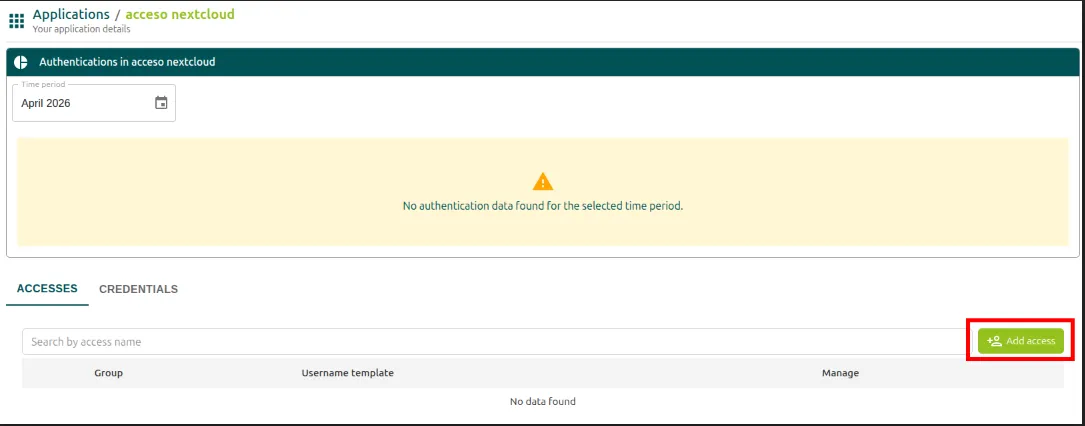
Open the application you just created.

-
Click Add Access.
-
In Select a group, search for and select the user who will authenticate. Click Next.
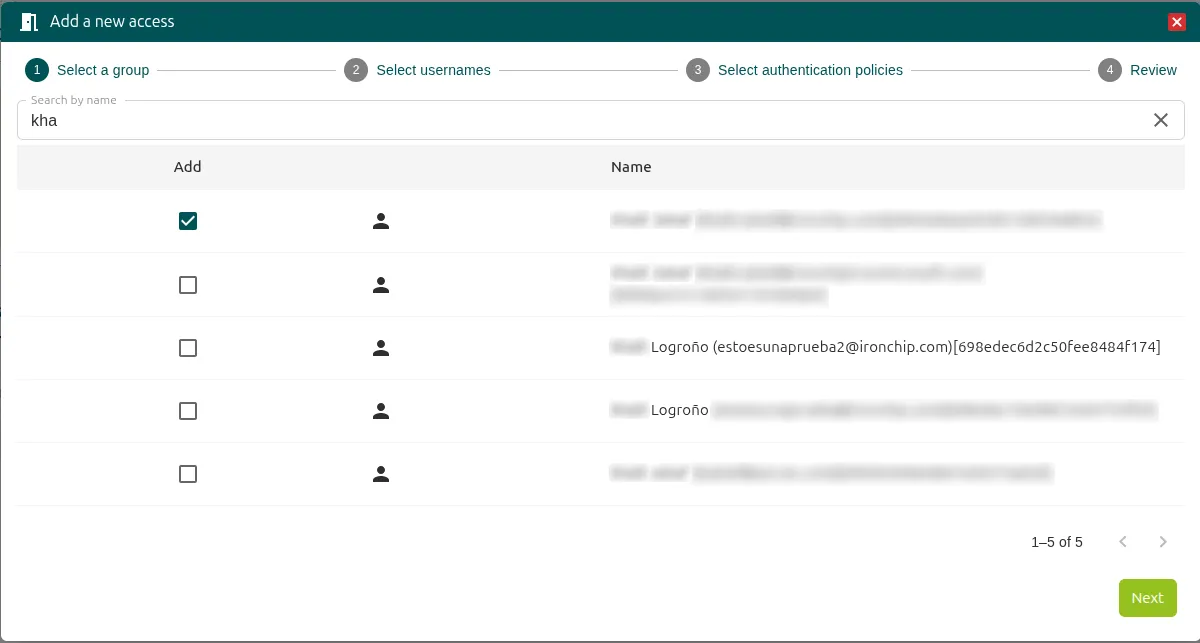
-
In Select usernames, define how the access username is built. In this example, with the
emailtag, that is, the user’s email address. Click Next.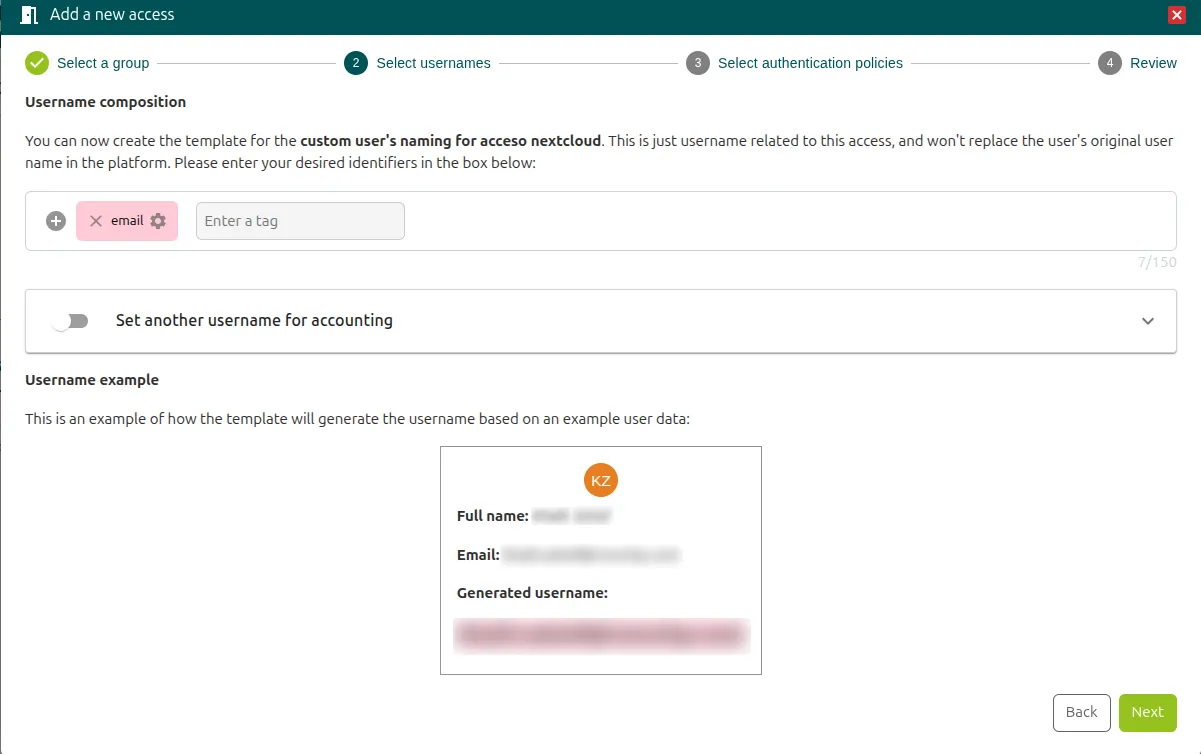
-
In Select authentication policies, choose the policy the user will authenticate with. In this example, Any user devices. Click Next.
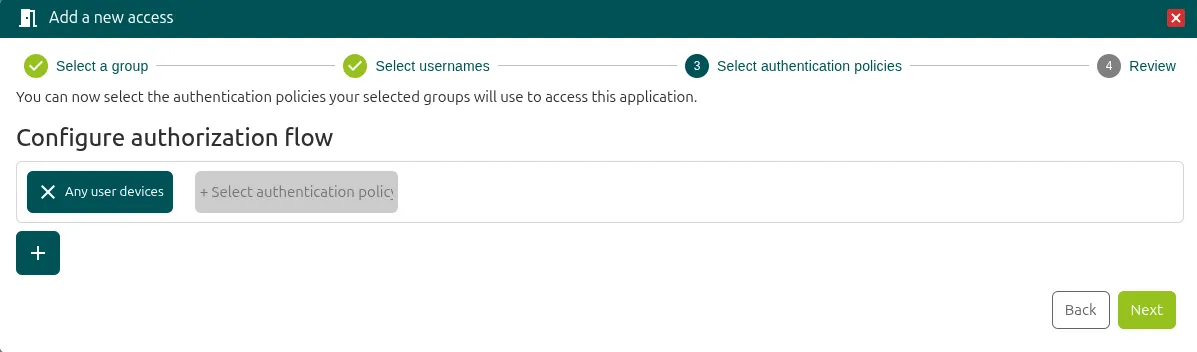
-
In Review, check the configuration and click Add. The user’s access is created.
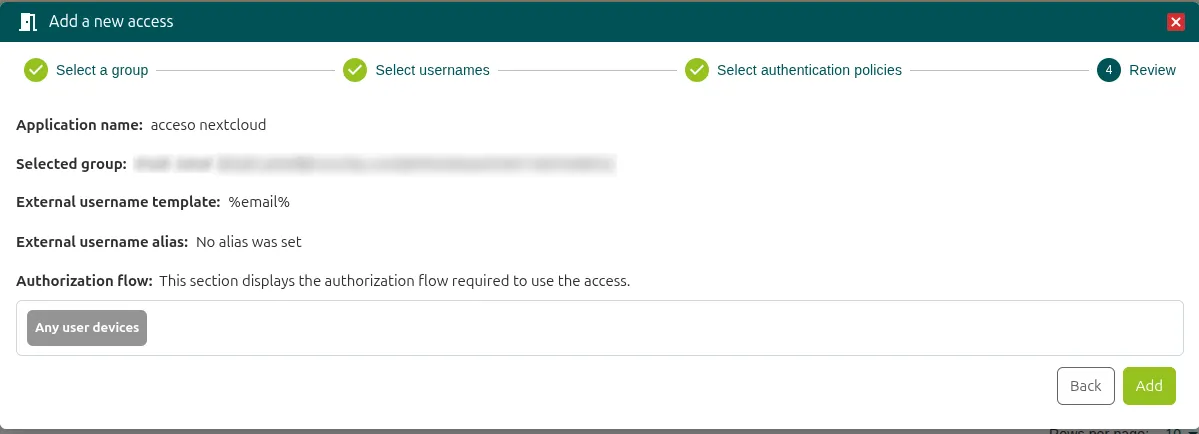
Configure Nextcloud
Section titled “Configure Nextcloud”-
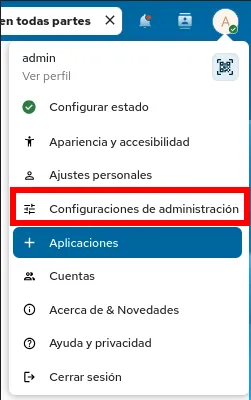
Go back to Nextcloud, open your profile and select Administration settings.
-
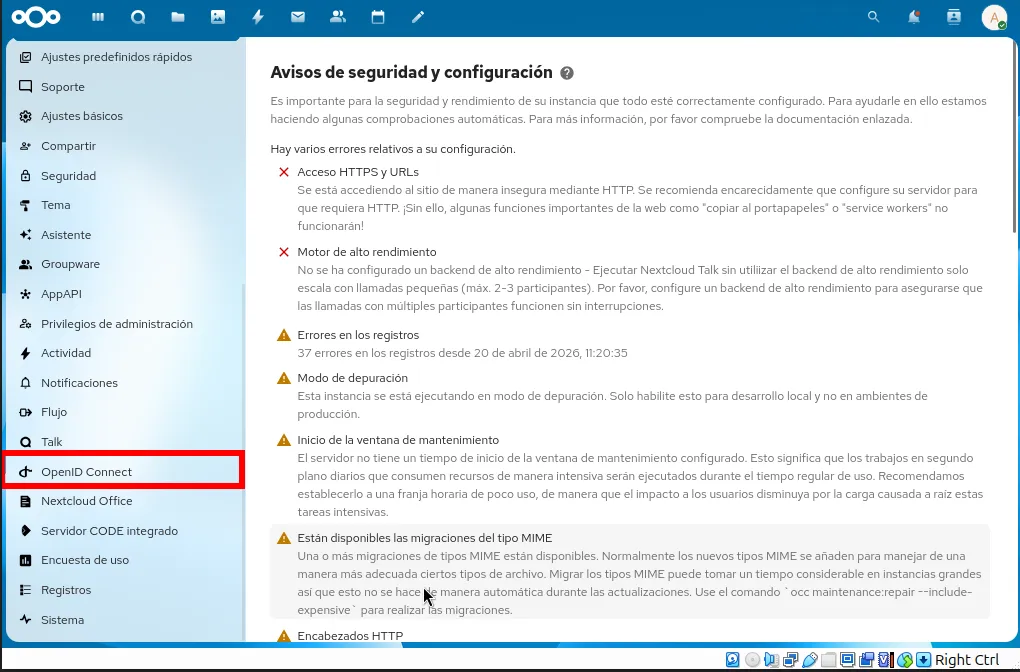
In the left menu, open the OpenID Connect section.
-
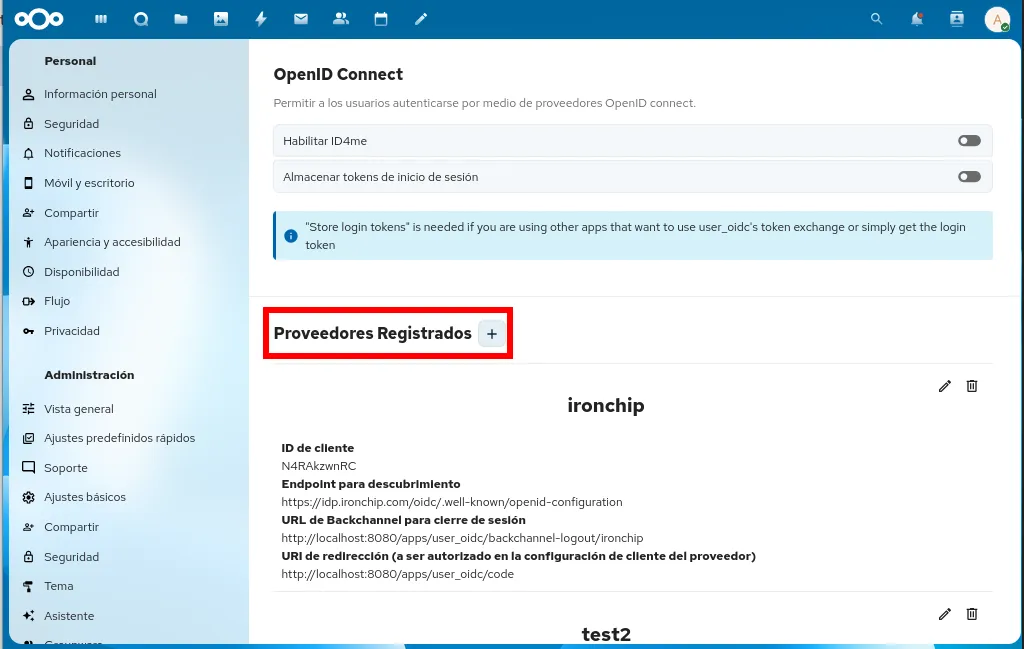
Under Registered Providers, click + to create a new registration. The Register a new provider dialog shows the return URL of your server, which must match the one you entered in Redirect URIs in Ironchip.
-
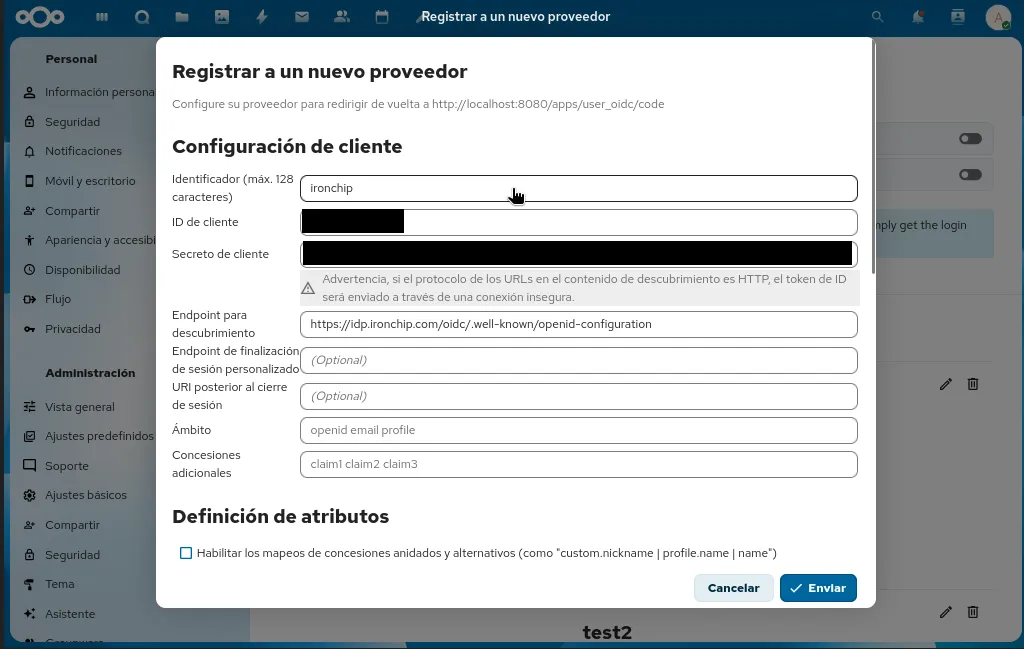
Fill in the fields:
- Identifier: a display name (for example,
Ironchip Login). - Client ID: paste the Client ID provided by Ironchip.
- Client secret: paste the Client Secret provided by Ironchip.
- Discovery endpoint:
https://idp.ironchip.com/oidc/.well-known/openid-configuration.
- Identifier: a display name (for example,
-
Click Submit. Ironchip is now integrated into Nextcloud.
Verify the integration
Section titled “Verify the integration”-
Sign out of your current Nextcloud session.
-
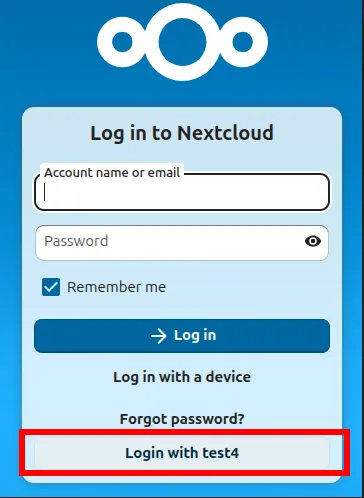
A new button appears on the sign-in screen: Login with followed by the identifier you chose (for example, Login with Ironchip Login).
-
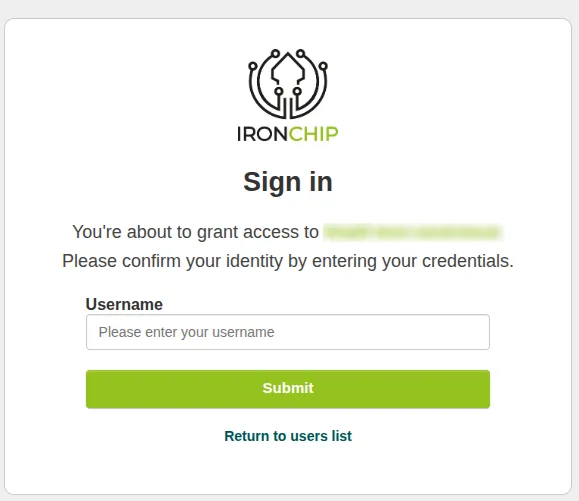
Click the button. Nextcloud redirects you to the Ironchip gateway to authenticate.
-
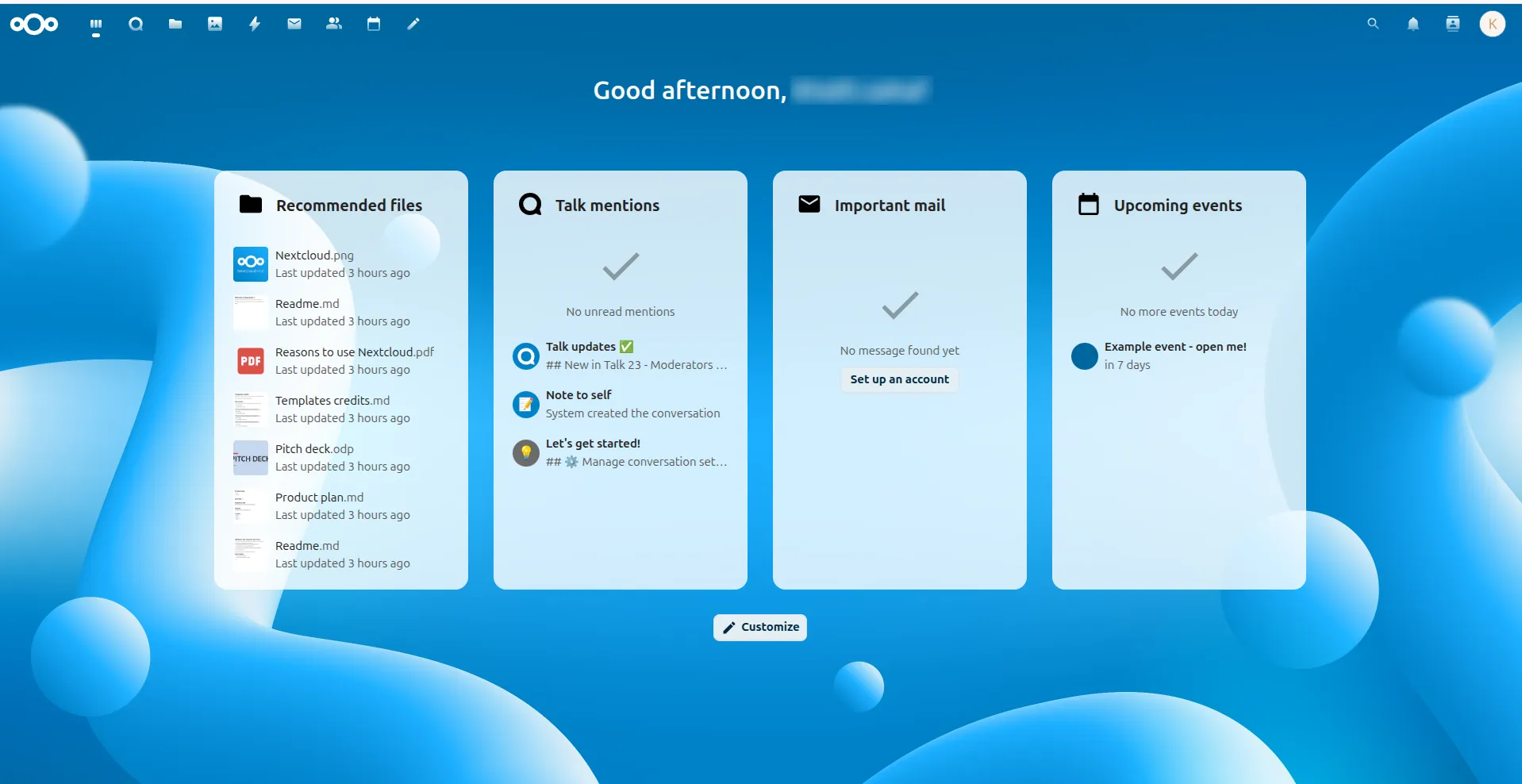
Complete the process on your device. Nextcloud automatically redirects you to its main dashboard.
Was this page helpful?
Thank you. We will use it to improve the documentation. If you want to tell us what is missing or unclear, write to support@ironchip.com.