

SonicWall
This guide explains how to protect SonicWall with Ironchip over RADIUS through NPS or over SAML.
RADIUS with NPS
Section titled “RADIUS with NPS”Requirements
Section titled “Requirements”- A functional Active Directory.
- NPS protected by Ironchip. See Microsoft NPS.
- An MFA application created in the Ironchip admin console.
- The Ironchip app downloaded.
Configure SonicWall
Section titled “Configure SonicWall”-
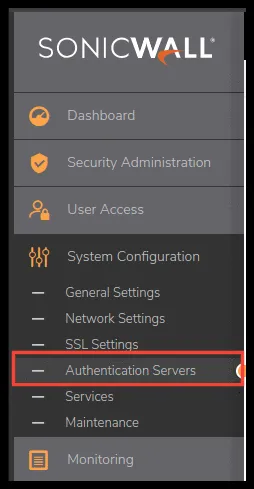
In the left menu, under System Configuration, go to Authentication Servers.
-
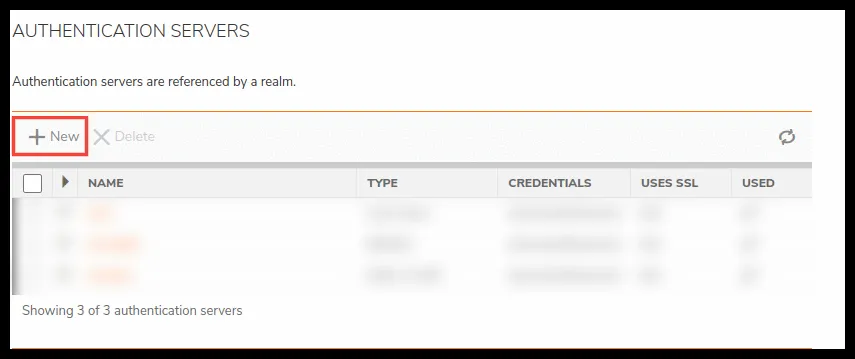
Click New to create a configuration.
-
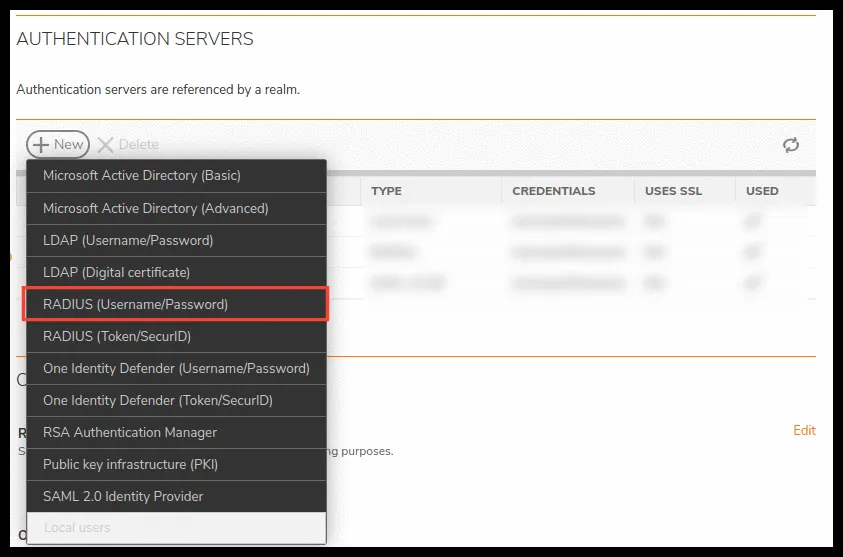
Select the RADIUS (Username/Password) type.
-
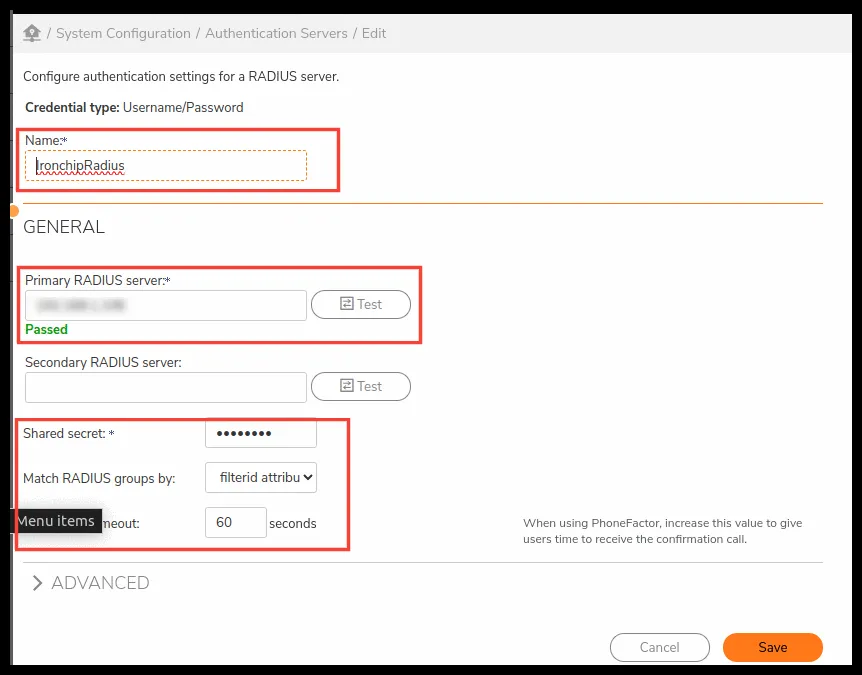
Enter the details of your RADIUS server:
- Name: a descriptive name for the configuration.
- Primary RADIUS server: the IP of your RADIUS server. Click Test to check that SonicWall can reach the server.
- Shared secret: the RADIUS shared secret.
- Match RADIUS groups by: the Filter-ID attribute (11), which appears as
filterid attributein the drop-down list. - Timeout:
60seconds.
-
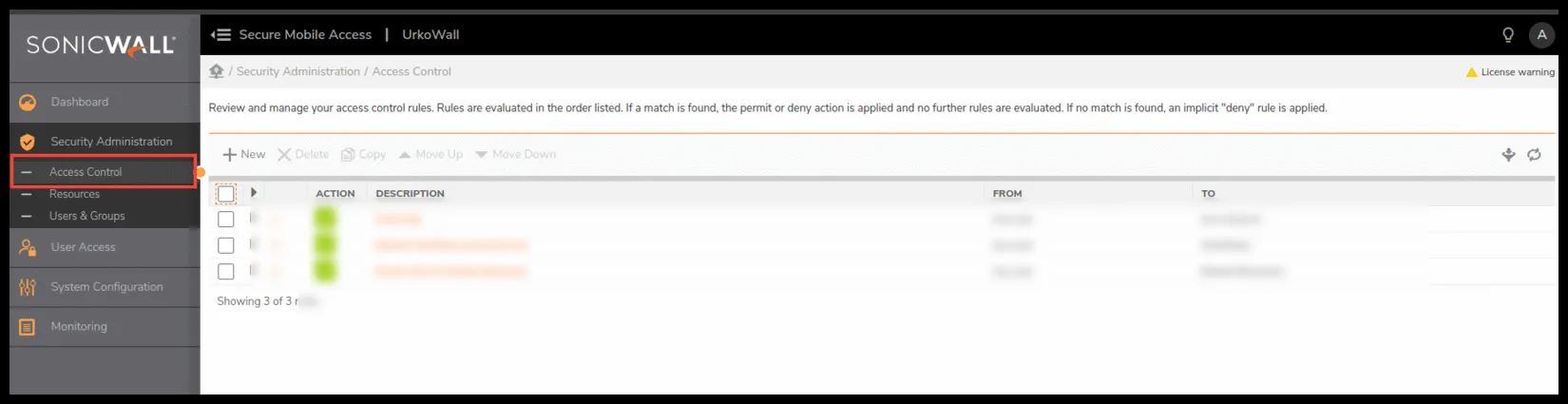
Save the changes, go to Security Administration, and create a new entry in Access Control.
-
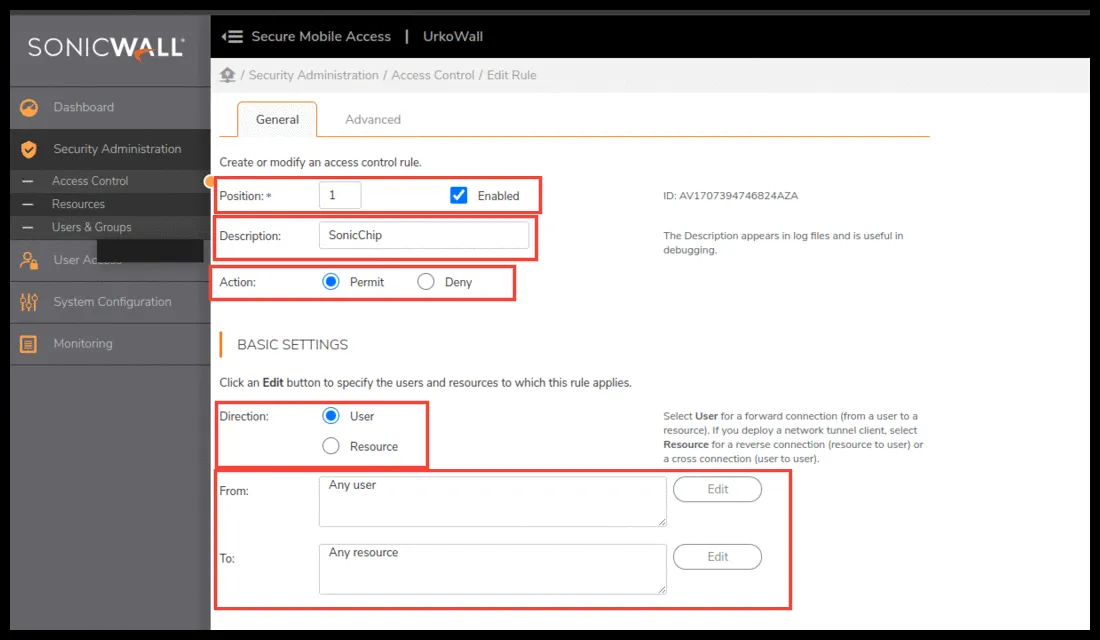
Fill in the fields as shown in the image. The description can be anything you like:
- Position:
1, with Enabled selected. - Description: any text you prefer.
- Action:
Permit. - Direction:
User. - From:
Any user. - To:
Any resource.
- Position:
-
Save the changes.
-
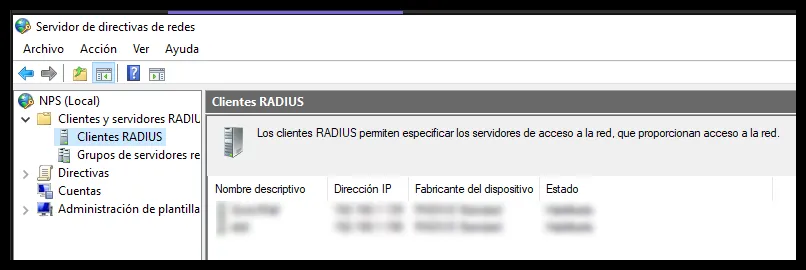
Finally, in NPS (Network Policy Server), create a RADIUS client that points to the SonicWall IP.
Verify the integration
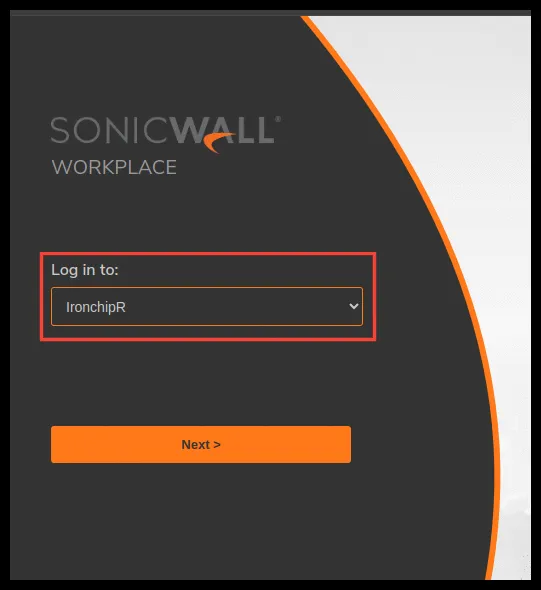
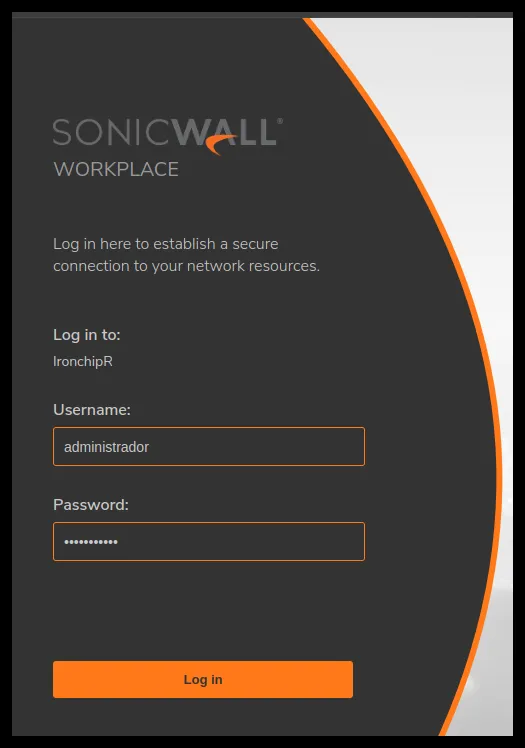
Section titled “Verify the integration”When you sign in to SonicWall Workplace, select the authentication server you created in Log in to, enter your user credentials, and accept the Ironchip notification on your phone to sign in.
Requirements
Section titled “Requirements”- Access to the Ironchip admin console.
- The Ironchip app downloaded.
Configure SonicWall
Section titled “Configure SonicWall”-
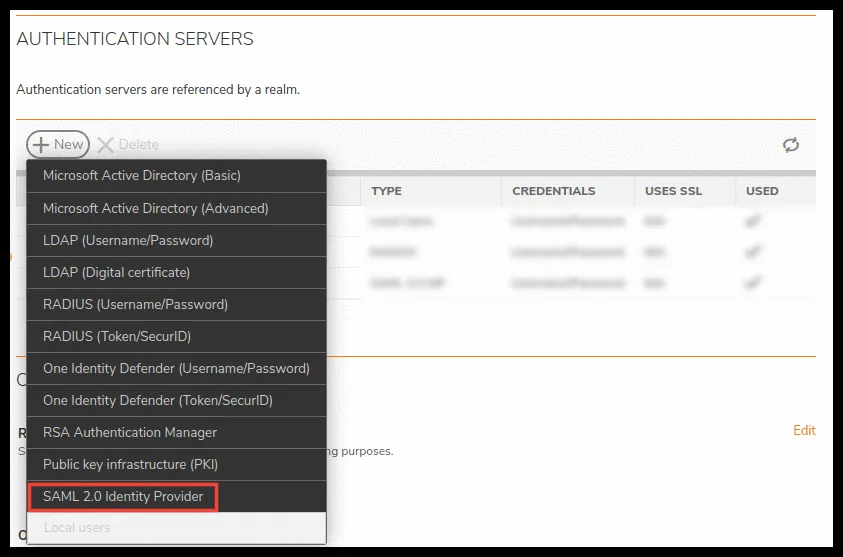
In the left menu, under System Configuration, go to Authentication Servers.
-
Click New to create a configuration.
-
Select SAML 2.0.
Exchange metadata with Ironchip
Section titled “Exchange metadata with Ironchip”-
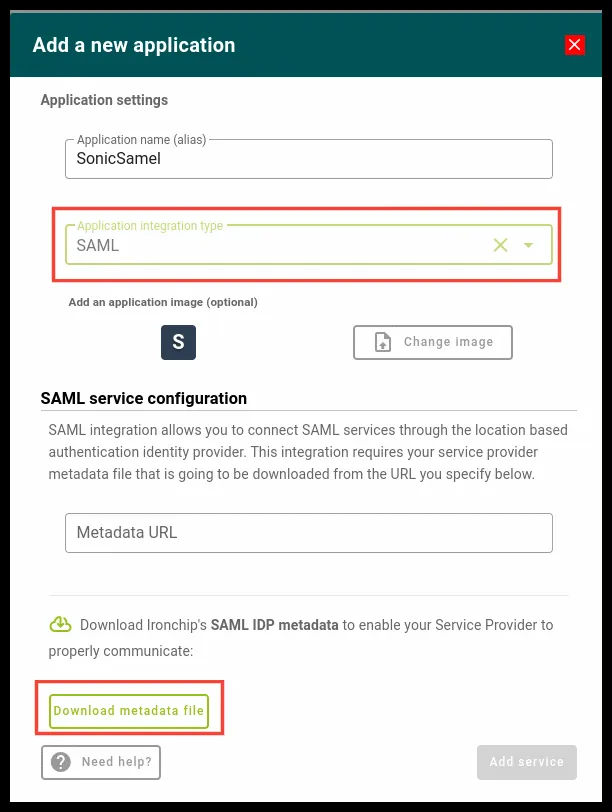
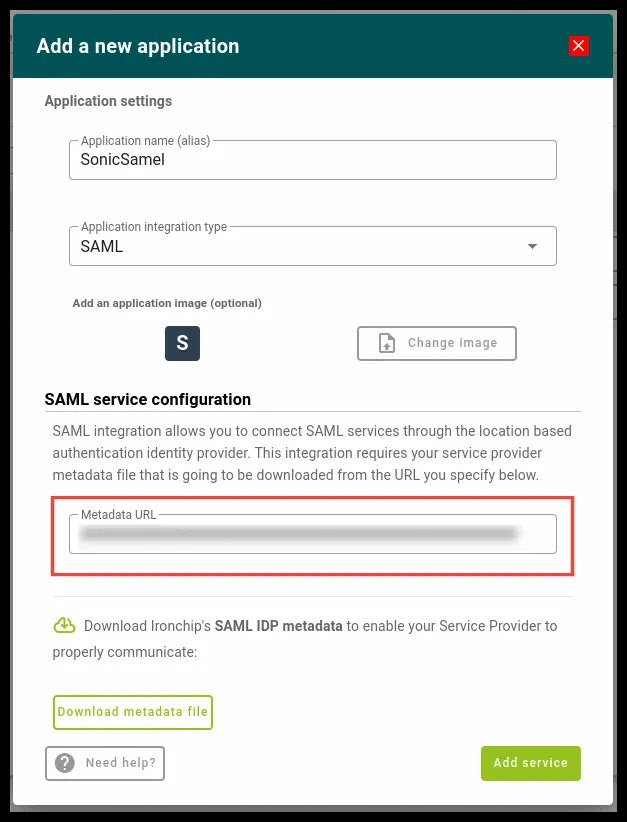
Before continuing, go to the Ironchip admin console, create a SAML application, and download the metadata file.
-
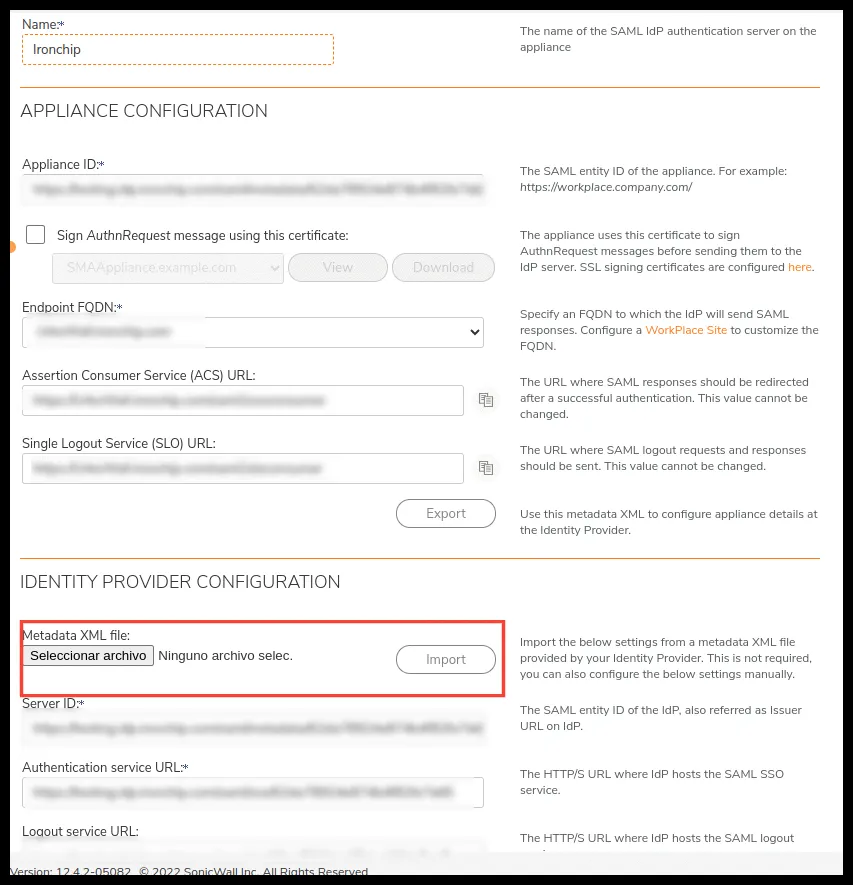
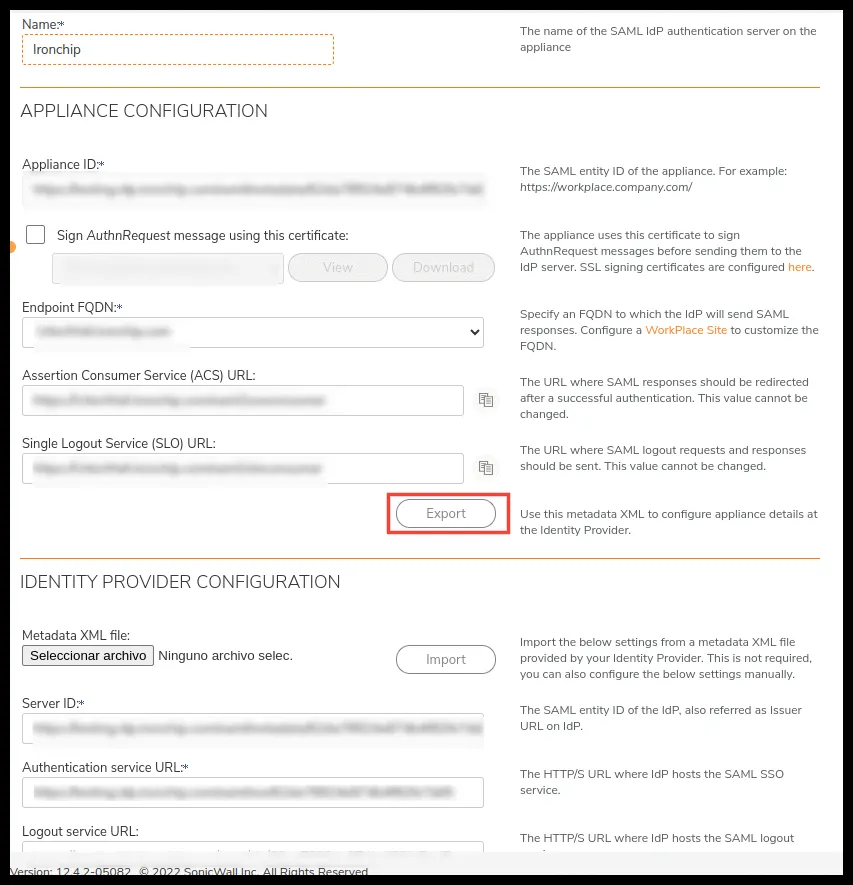
Go back to SonicWall and upload the file in the new configuration.
-
Once imported, export the file that SonicWall generated.
-
Copy the content of that file, upload it to a public address, and paste the URL in the Metadata URL field of the SAML application you created.
-
Give users access to this application, with the same username as in SonicWall.
Verify the integration
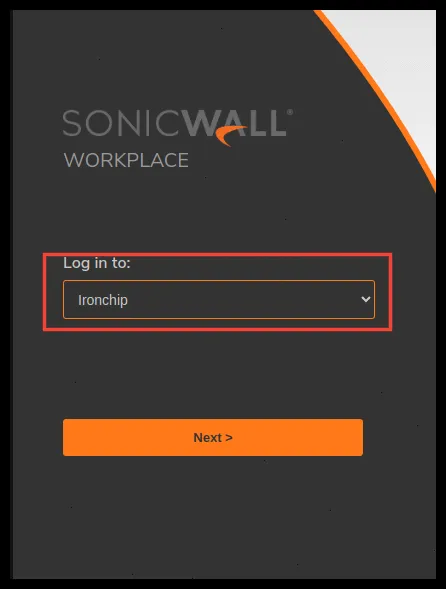
Section titled “Verify the integration”When you sign in to SonicWall Workplace, select the SAML authentication server you created in Log in to.
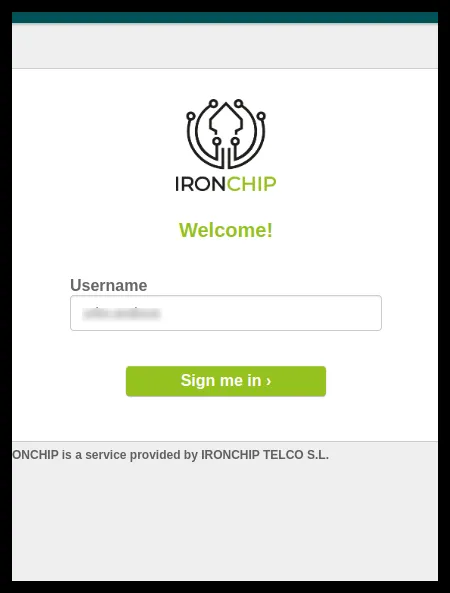
A new Ironchip tab opens where you enter your username. A notification is sent to the app.
Was this page helpful?
Thank you. We will use it to improve the documentation. If you want to tell us what is missing or unclear, write to support@ironchip.com.