

Atlassian
Ironchip acts as the SAML identity provider of your Atlassian organization (Atlassian Guard). This guide explains how to set up single sign-on (SSO) and enforce it for your users.
Requirements
Section titled “Requirements”- Be an administrator of an Atlassian organization.
- Subscribe to Atlassian Guard Standard from your organization and get familiar with how it works.
- Verify one or more domains in your organization. See how to verify a domain.
- Make sure both your Atlassian product and your identity provider use HTTPS to communicate, and that the product’s configured base URL is an HTTPS URL.
- Keep in mind that only email accounts from the domains associated with the policy can use SSO.
Configure Ironchip
Section titled “Configure Ironchip”-
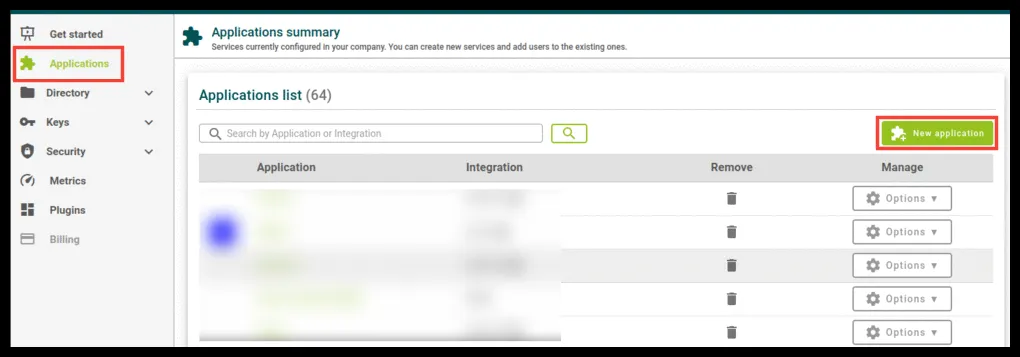
In the Ironchip admin console, go to Applications and click the green New application button.
-
Select the SAML type and download the metadata. You will use it in the next steps.
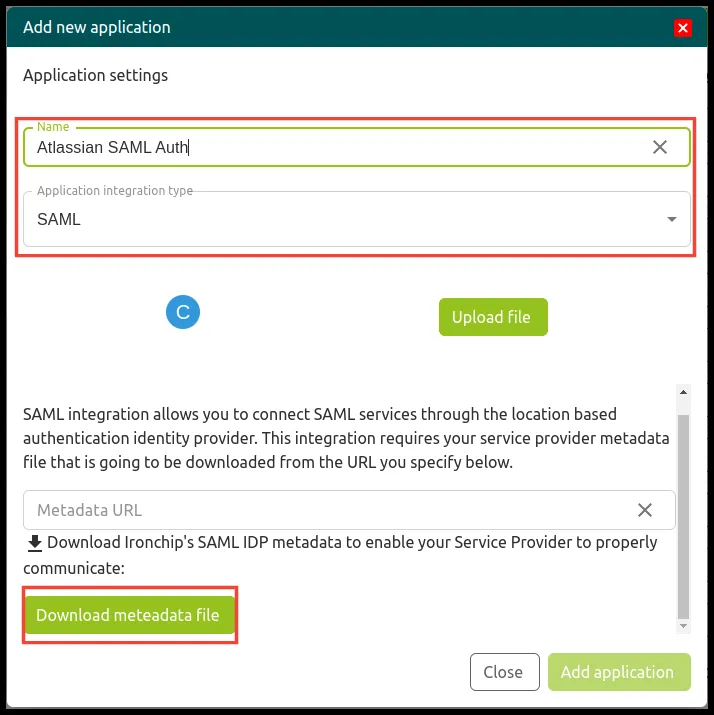
You will come back here later to finish the Ironchip configuration.
Configure Atlassian
Section titled “Configure Atlassian”-
Go to
admin.atlassian.comand select your organization if you have more than one. -
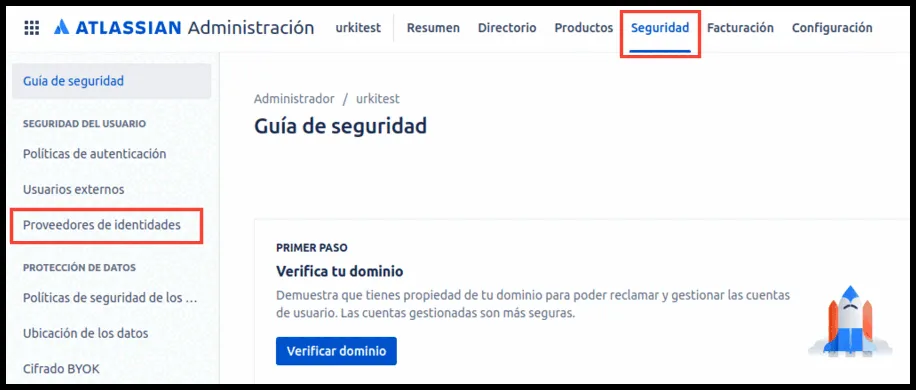
Select Security > Identity providers.
-
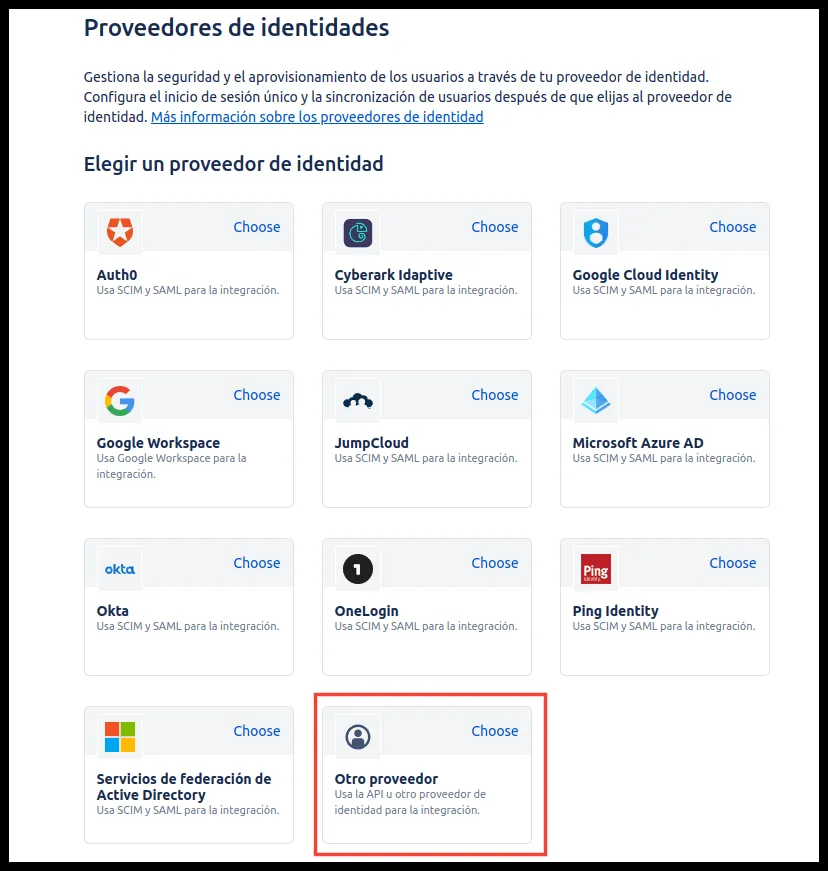
Choose Other provider as the identity provider.
-
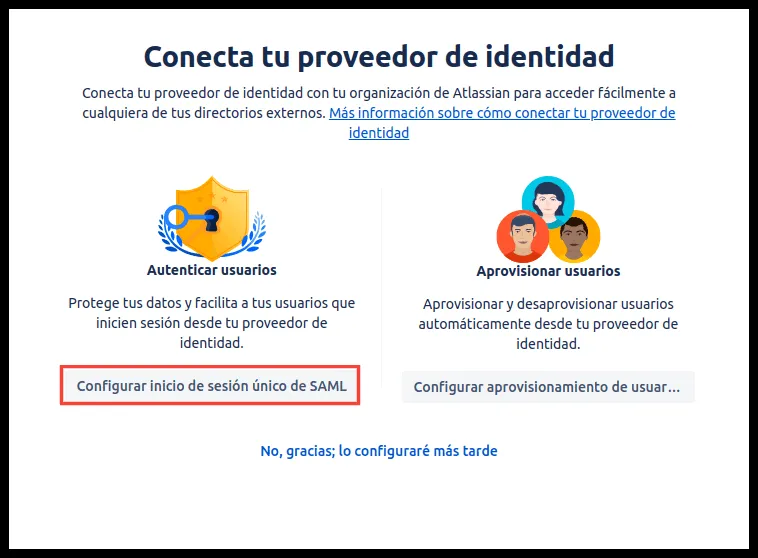
Click Set up SAML single sign-on.
-
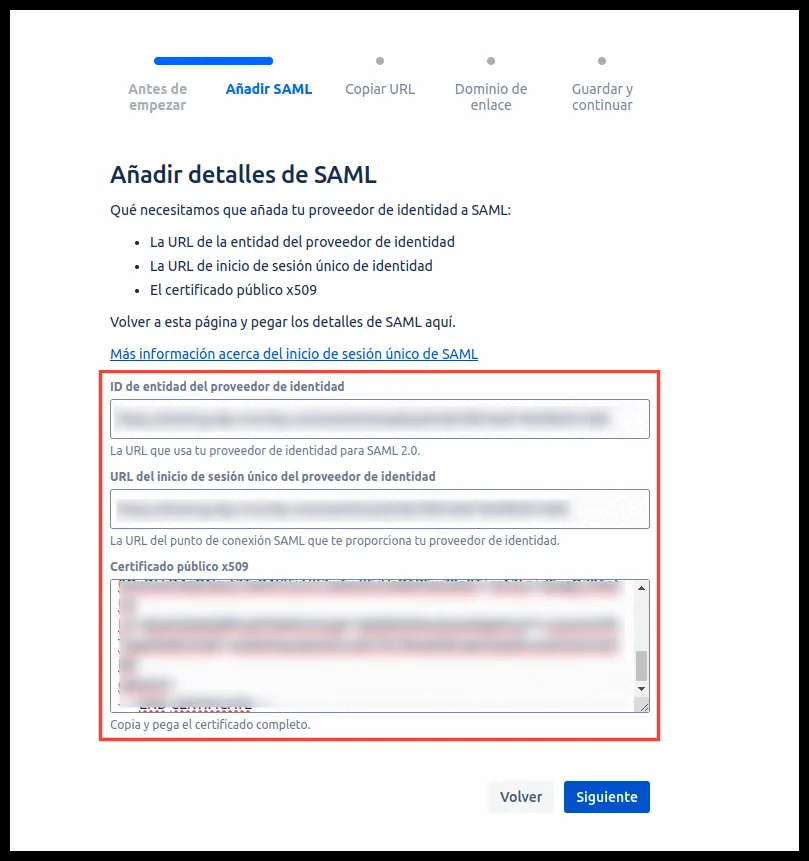
Add the SAML details, which are in the metadata file you downloaded from Ironchip.
-
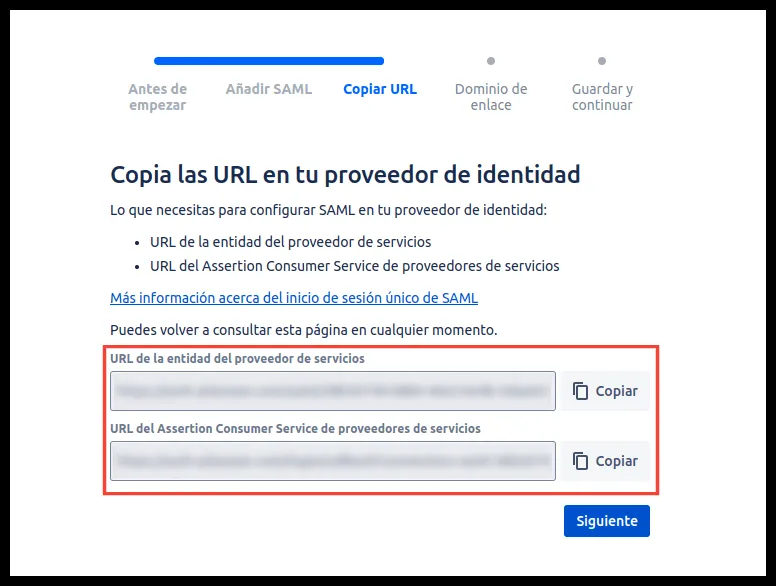
Ironchip asks for a service provider metadata URL. To get one, edit this code with the Atlassian values:
<?xml version="1.0" encoding="UTF-8"?><md:EntityDescriptor xmlns:md="urn:oasis:names:tc:SAML:2.0:metadata" validUntil="2122-09-16T10:40:54Z" cacheDuration="PT604800S" entityID="XXXXXXX"><md:SPSSODescriptor AuthnRequestsSigned="false" WantAssertionsSigned="false" protocolSupportEnumeration="urn:oasis:names:tc:SAML:2.0:protocol"><md:NameIDFormat>urn:oasis:names:tc:SAML:1.1:nameid-format:emailAddress</md:NameIDFormat><md:AssertionConsumerService Binding="urn:oasis:names:tc:SAML:2.0:bindings:HTTP-POST" Location="XXXXXXXXXXXXXXXX" index="1" /></md:SPSSODescriptor></md:EntityDescriptor>- Replace the
entityIDvalue with the service provider entity URL. - Replace the
Locationvalue with the service provider Assertion Consumer Service URL.
- Replace the
-
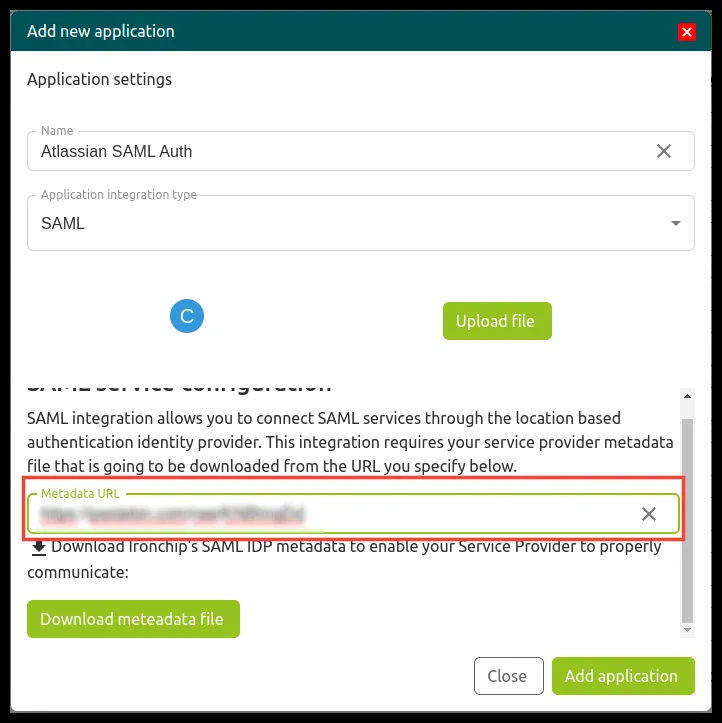
Once you have generated the file, upload it to a publicly reachable address. Enter that URL, in raw format, in the Metadata URL field of the Ironchip new application dialog and click Add application.
-
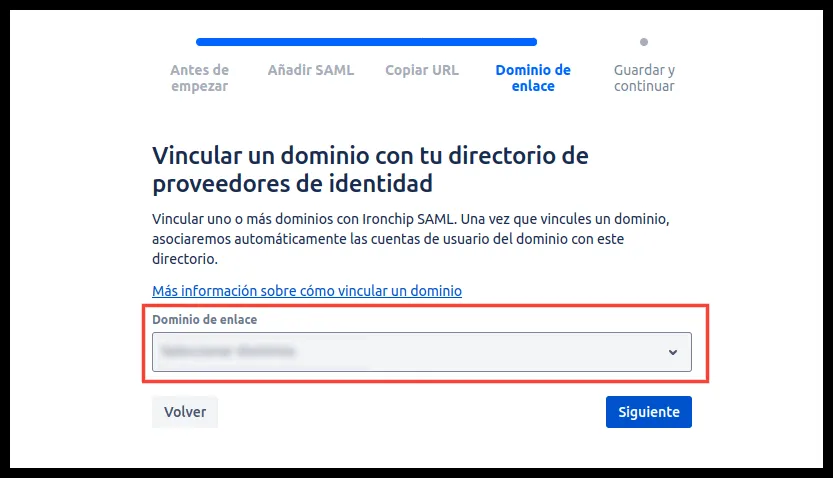
In Atlassian, select your domain.
-
Save the configuration.
Enforce SSO for your users
Section titled “Enforce SSO for your users”To make Ironchip the authentication method for your users:
-
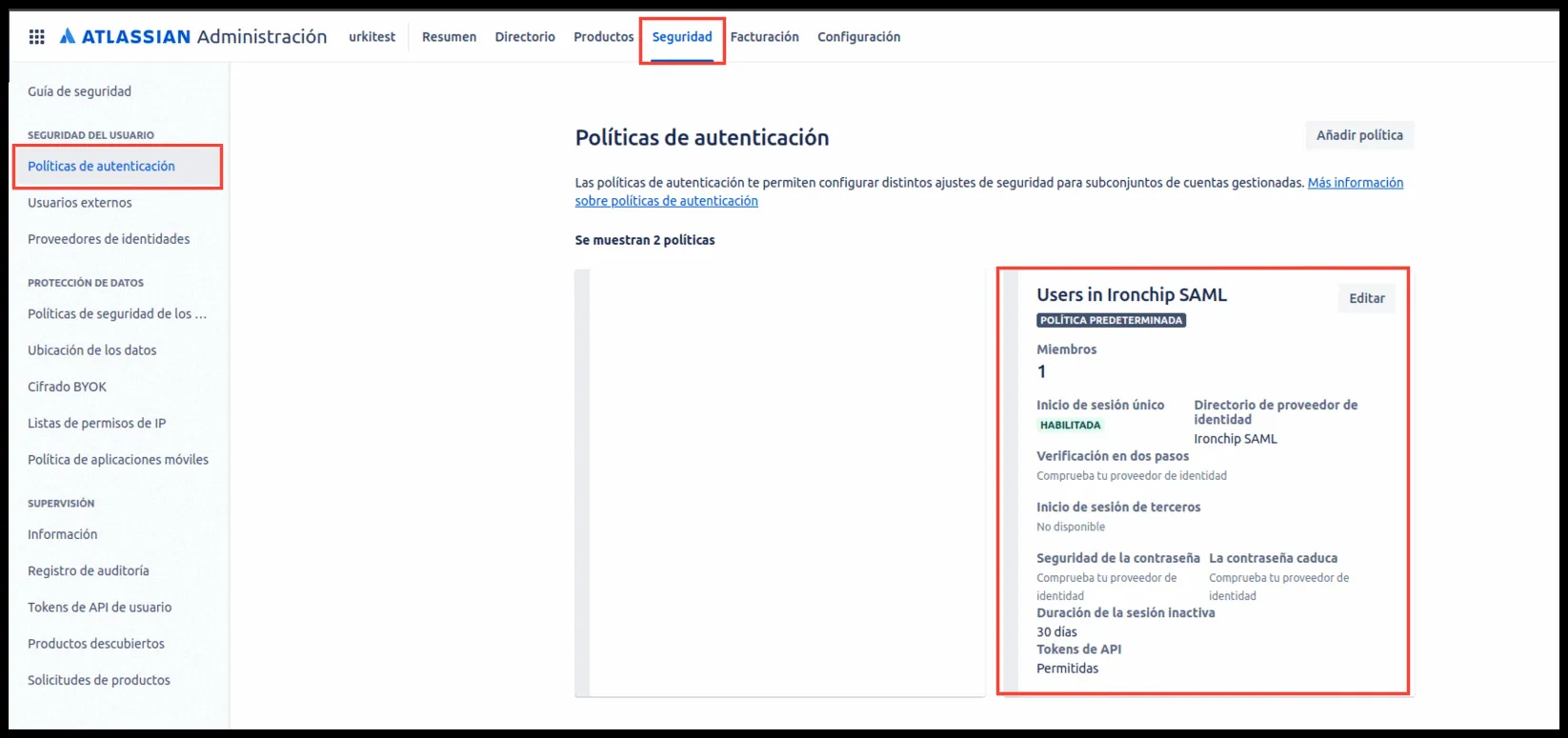
Go to Security > Authentication policies.
-
Find the Ironchip policy you created and click Edit.
-
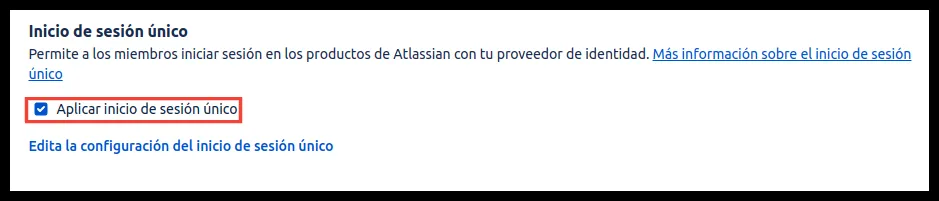
Under Settings, select the Enforce single sign-on checkbox.
-
Under Members, click Add members, choose one of the two methods (individual or bulk) and add the accounts you want to use Ironchip as their authentication method.

Verify the integration
Section titled “Verify the integration”Before you test, give the user you will sign in with access to the Ironchip application. The steps are in Add users to the service.
- Open a private window and sign in to your Atlassian product with an email account from a domain associated with the policy.
- Atlassian redirects you to Ironchip to authenticate.
- Complete the authentication on your device. Ironchip returns you to Atlassian with your session started.
Troubleshooting
Section titled “Troubleshooting”| Problem | Likely cause | Solution |
|---|---|---|
| Atlassian does not redirect to Ironchip | The account is not in the policy or its domain is not verified | Add the account under Members in the policy and check that the domain is verified |
| Ironchip cannot read the metadata | The XML is malformed, or the URL is not public or not in raw format | Check that entityID and Location are replaced and that the URL returns only the XML |
| Atlassian does not recognize the user | The metadata asks for the emailAddress NameIDFormat and the username of the access in Ironchip is not the account email |
Edit the user’s access to the application in Ironchip and set the username to their Atlassian email |
Was this page helpful?
Thank you. We will use it to improve the documentation. If you want to tell us what is missing or unclear, write to support@ironchip.com.