

USB token with fingerprint encryption
The fingerprint-encrypted USB drive uses a financial-grade security encryption chip. Data is stored encrypted and the user accesses it with their fingerprint. This guide explains how to use it and how to store an Ironchip identity on it.
Supported systems and fingerprints
Section titled “Supported systems and fingerprints”The device is compatible with these operating systems:
- Windows XP
- Windows 7
- Windows 10
- Windows 11
- Linux
The system supports enrolling up to 10 fingerprints.
Use the device
Section titled “Use the device”Disk management tools
Section titled “Disk management tools”When you plug the USB drive into the computer, three drive letters appear:
- Optical disc (CD): contains the management software.
- Public disk: a freely accessible storage drive.
- Removable disk (encrypted, private disk): a protected-access drive.
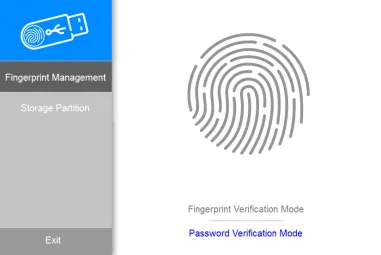
When you plug the device into the PC, the disk management tool interface opens automatically. If it does not open on its own because of the PC settings or the antivirus, double-click the UserTool.exe file.
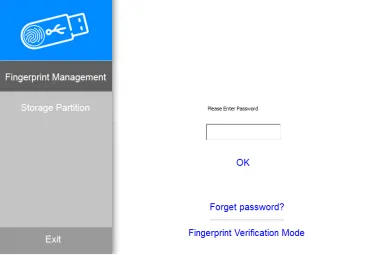
The system also offers a password sign-in mode (Password Verification Mode), which starts with a factory default password.
Enroll fingerprints
Section titled “Enroll fingerprints”The first time you open the software, you go straight to the administrator’s fingerprint enrollment interface.
Adding or deleting fingerprints requires the right permissions, which you get by authenticating with the administrator’s fingerprint. If no administrator is registered, the system asks you to enroll their fingerprint.
To enroll a fingerprint:
- When adding a fingerprint, enter the name of the user who is going to enroll it.
- Authenticate as administrator.
- When the authentication finishes, the normal enrollment starts.
- Press your finger on the sensor six times, until the successful enrollment message appears.
- After enrollment, you can go back to the user management interface to see the information of the enrolled fingerprint.
To delete a fingerprint, go to the fingerprint management interface and select the name of the fingerprint you want to delete.
Disk partitioning
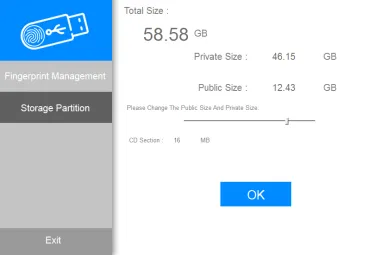
Section titled “Disk partitioning”You can resize the ordinary disk and the encrypted disk according to your needs. To split the space, you must authenticate with the administrator’s fingerprint.
General use
Section titled “General use”To access the encrypted disk in everyday use, place the enrolled finger directly on the fingerprint sensor. Once it is verified, you access the encrypted disk as usual.
Store an Ironchip identity on the USB drive
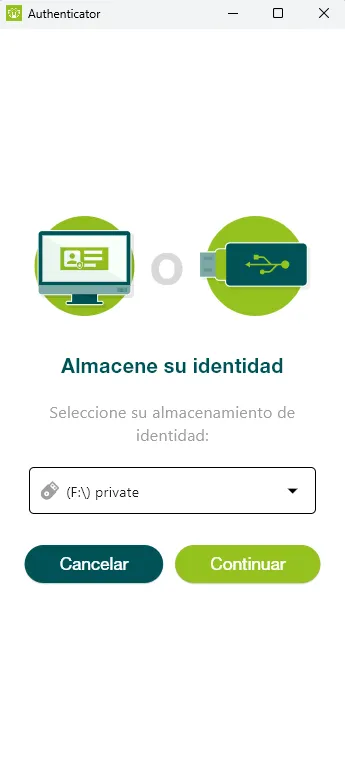
Section titled “Store an Ironchip identity on the USB drive”To store a user’s identity in the private storage of the USB drive, you need the desktop authenticator app installed on your computer. Then, send the user an invitation to add a new device.
When you have the invitation, unlock the private drive with your fingerprint and use the invitation to enroll the user’s identity on it.
Was this page helpful?
Thank you. We will use it to improve the documentation. If you want to tell us what is missing or unclear, write to support@ironchip.com.