

Generic users and aliases
This page collects the everyday user management tasks in the console: adding users, setting up generic or shared accounts with aliases, recovering an account, and reviewing access periodically.
Download the PDF manual (in Spanish): User management.
Add a user
Section titled “Add a user”- Sign in to the admin console as an administrator.
- Go to Directory > Users and click Add user.
- Enter the new user’s data: Name, Surname, Email, External email, and Preferred language.
- Turn on Send invitation so the user receives the Ironchip enrollment email.
- Click Add. The user is now registered on the platform.
To give a user administrator permissions or check their enrollment status, see Users and groups.
Set up generic users or shared accounts
Section titled “Set up generic users or shared accounts”When you grant access to an application (Add a new access window), select a group or a user and, in the Select usernames step, link it to an alias: the username they use to authenticate in that application. This name only applies to that access and doesn’t replace the user’s original username on the platform. For more information, see Grant access to users and groups.
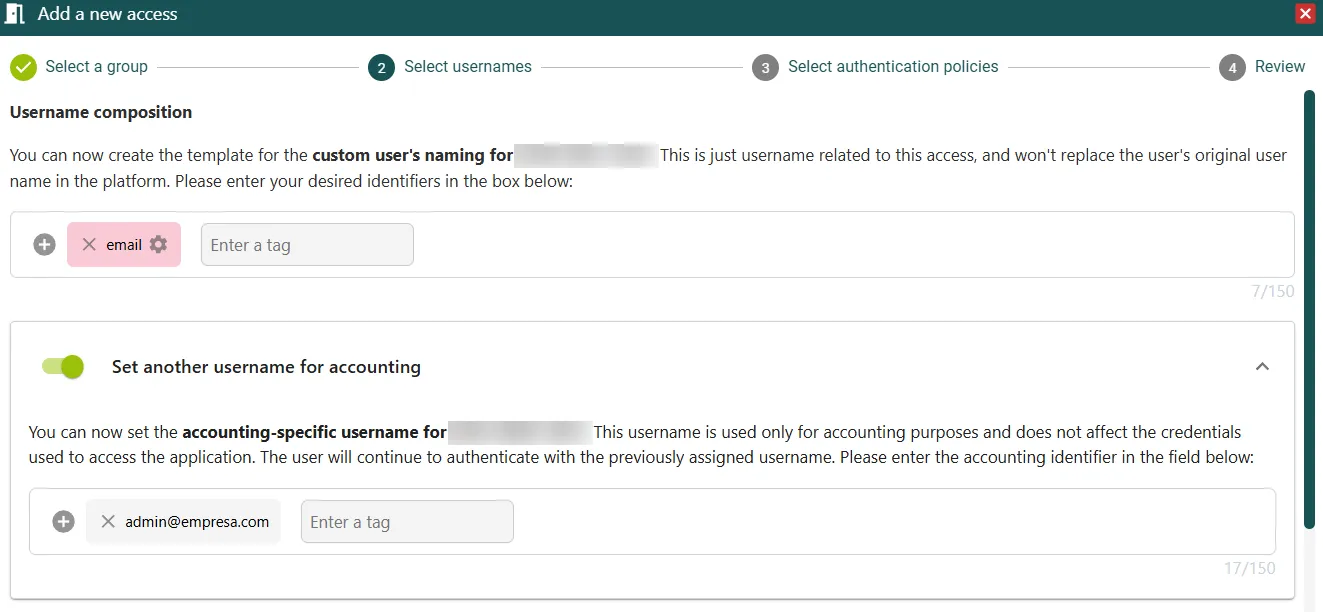
There are three recommended approaches:
- An individual USB or NFC token per person, even if they use the same system account. It keeps individual traceability even when the account is shared.
- User alias: create the user in Ironchip with the alias of the generic account and link it to the authenticator of the responsible person.
- Temporary Magic Link for occasional users without a paired device.
Automatic invitation (Autoinvite)
Section titled “Automatic invitation (Autoinvite)”Automatic invitation sends the enrollment invitation automatically to users added to an AD group configured with this option, with no manual intervention from the administrator.
It requires:
- An AD group linked to the Ironchip group with automatic invitation turned on.
- AD Connect synchronizing.
- The correct email attribute in AD.
To set it up, see Automatic invitation and AD Connect.
Role changes
Section titled “Role changes”With SCIM or AD Connect active, a group change in AD is propagated automatically to Ironchip and updates the user’s access. Without automatic synchronization, the administrator makes the change by hand in the console.
Best practice: recertify access every 6 months for standard access and every 12 months for functional roles.
A user doesn’t receive the invitation or activation email
Section titled “A user doesn’t receive the invitation or activation email”The most common causes and their solutions are:
- The email is in the spam folder: add
ironchip.comto the allowed senders list of your mail server. - The email attribute is empty or incorrect in AD: fix the attribute in the directory.
- Manual resend: the administrator can resend the invitation from the Ironchip console.
Recover an account
Section titled “Recover an account”If a user loses access, the administrator starts the recovery from the console and the user completes the process with the Ironchip app.
- The user contacts the system administrator to start the account recovery.
- The administrator sends the user the recovery email from Directory > Users > Options > Recover account. The console sends an email with a recovery link.
- In the email, the user clicks Recuperar mi acceso (Recover my access).
- A window with a QR code opens. The user grants the required permissions, accepts the terms and conditions, and scans the QR code with the Ironchip mobile app.
- After scanning the code, the account is recovered and the user can sign in again.
If the user recovers access with the Ironchip desktop app, the correct process is:
- Open the Ironchip desktop app on the PC.
- Select Introducir código manualmente (Enter code manually).
- Copy the alphanumeric code from the recovery email. Don’t scan the QR with the phone camera.
- Paste the code in the desktop app and complete the re-pairing.
For the user’s view, see Account recovery.
Access recertification
Section titled “Access recertification”Recertification is the periodic review that each user only has access to what corresponds to their current role:
- Every 6 months for standard access.
- Every 12 months for access tied to functional roles.
Ironchip generates exportable audit reports with all active access by user, group, and application.
Was this page helpful?
Thank you. We will use it to improve the documentation. If you want to tell us what is missing or unclear, write to support@ironchip.com.