

Identity synchronization
Keep the users and groups in the admin console aligned with your directory. This page summarizes the available synchronization methods, explains how to synchronize with SCIM or with a CSV file from the console, and collects the frequently asked questions.
| Source | Mechanism | Guide |
|---|---|---|
| On-premises Active Directory | Ironchip AD Connect agent installed in the domain | AD Connect |
| Microsoft Entra ID | Enterprise application with SCIM provisioning | Entra ID |
| LDAP directory | sync-users command of the Ironchip LDAP proxy |
LDAP proxy |
| Other directory | SCIM credential created in the console | SCIM in the console |
| CSV file | Template you upload from the console | Synchronize users with a CSV file |
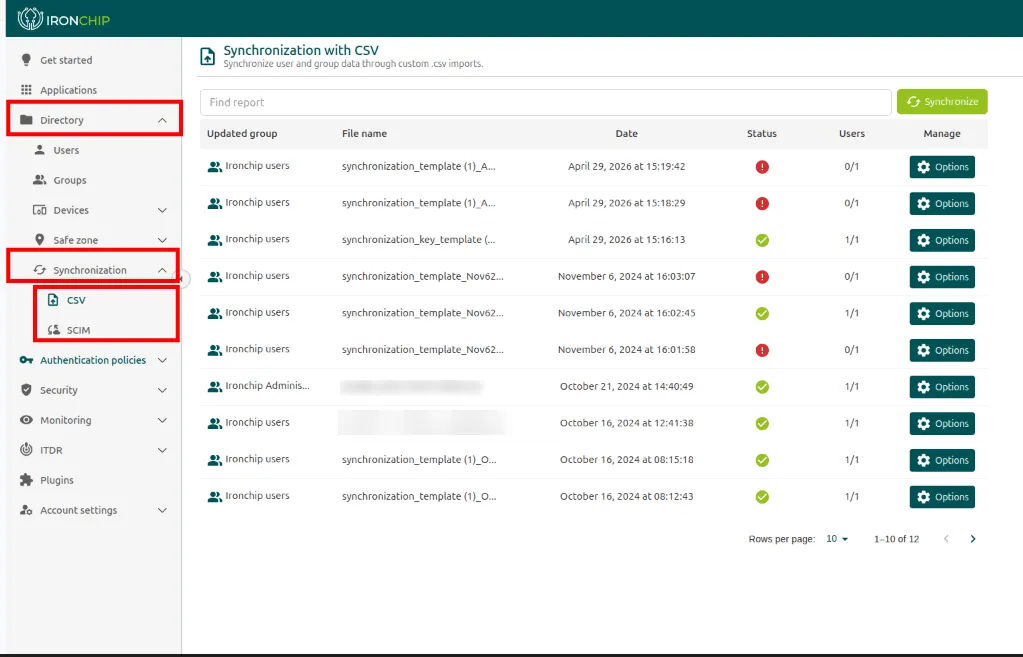
In the console, the Directory > Synchronization menu has two options: CSV, to synchronize with a file, and SCIM, for automatic synchronization.
SCIM in the console
Section titled “SCIM in the console”SCIM (System for Cross-domain Identity Management) automatically synchronizes the users and groups of your directory with Ironchip. Any addition, change, or removal in the directory is reflected in the console without managing users by hand. To use it, create a SCIM credential in the console and configure it at the source: AD Connect, Entra ID, or another SCIM 2.0 compatible system.
-
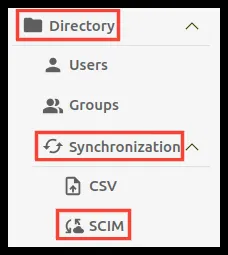
Go to Directory > Synchronization > SCIM. The Synchronization with SCIM page has two tabs: Get started and Credentials.
-
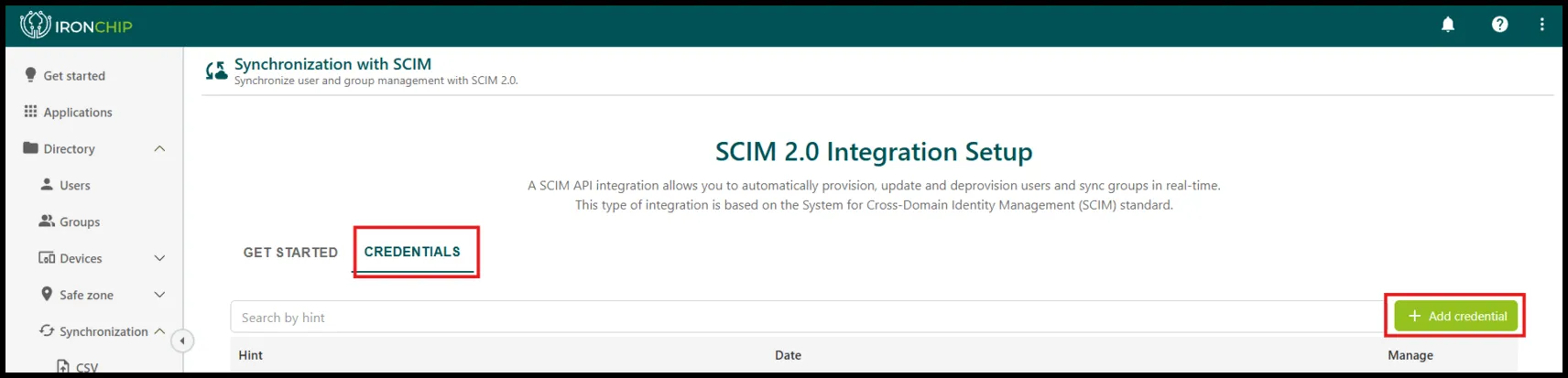
Open Credentials and click Add credential to create your company’s secret. The list shows each credential with its hint (Hint) and date, and you can search by hint.
-
Copy the secret and store it in a safe place.
-
Configure the source with these values:
- Tenant URL:
https://api.ironchip.com/scim/v2. - Secret Token: the secret of the credential you just created. In AD Connect it is called SCIM synchronization key.
- Tenant URL:
Automatic synchronization with LDAP
Section titled “Automatic synchronization with LDAP”LDAP synchronization keeps the Ironchip user database up to date from your company’s Active Directory. Any change to the users or groups in AD is reflected in the console without managing users by hand. It can also synchronize specific attributes, such as the phone number, so the information is the same in both systems.
To set it up, follow the AD Connect guide. The LDAP proxy also includes a tool to synchronize users from LDAP.
Synchronization with Entra ID using SCIM
Section titled “Synchronization with Entra ID using SCIM”This integration automatically synchronizes your organization’s users from Microsoft Entra ID (formerly Azure AD) to the Ironchip console. With the SCIM protocol, any user or group you assign to your enterprise application is provisioned in Ironchip without manual management. You can also map Entra ID user attributes to Ironchip fields.
The process in short:
- Configure Ironchip. Create a SCIM credential in the admin console to get the Tenant URL and the Secret Token for your company. See SCIM in the console.
- Provision in Entra ID. In the Microsoft Entra ID portal, add the Ironchip application and set the credentials under Provisioning.
- Map attributes. Define which fields (name, email, groups) are synchronized. Ironchip uses this data to create, update, or deactivate users automatically.
- Real-time synchronization. Any change in the directory, such as deactivating an employee or moving them to another department, is reflected in Ironchip immediately.
The full guide is in Synchronize users with Entra ID.
Synchronize users with a CSV file
Section titled “Synchronize users with a CSV file”CSV synchronization lets you add as many users as you want with a single file. Go to Directory > Synchronization > CSV. The wizard has four steps: Template download, Template upload, Sync options, and Summary.
-
Click Synchronize, on the right side of the window.
-
In the Template download step, read the information in the window. It explains how to fill in the template and that you must not change the
.csvextension or the column names. Click Download template, then Next. If you already have a template, you can skip this step.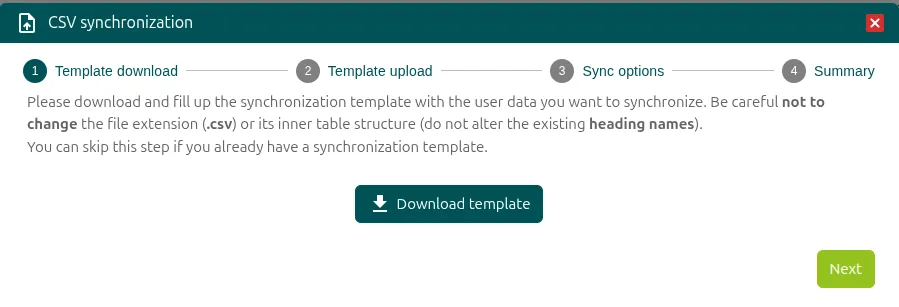
-
Fill in the template with the users you want to synchronize.
-
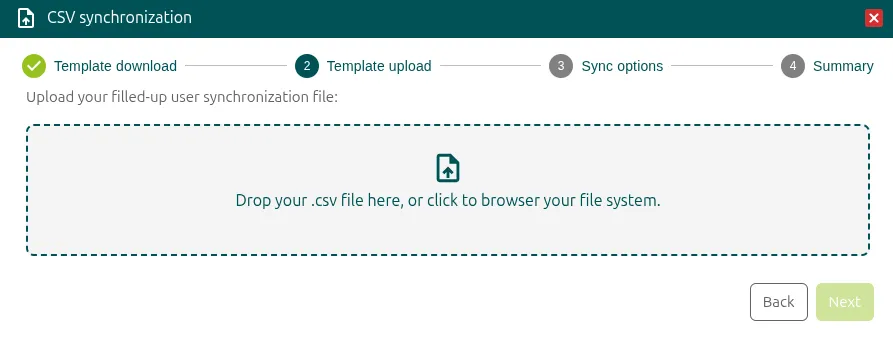
In the Template upload step, drag the completed template to the indicated area, or click the area to select the file from your computer.
-
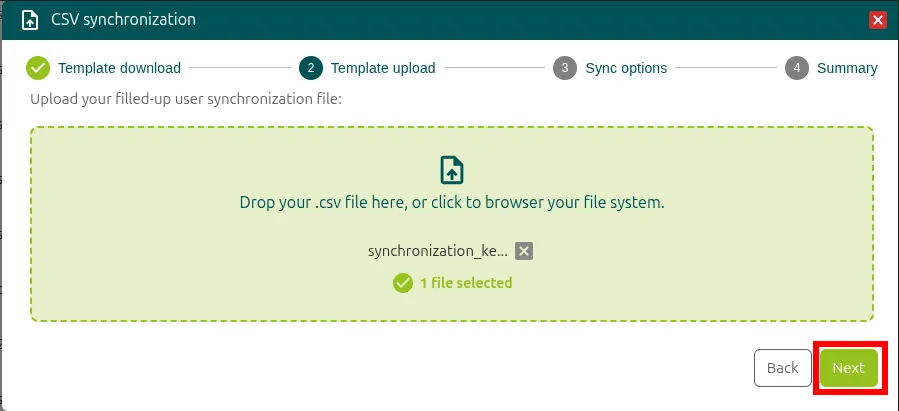
When the template has loaded correctly, click Next. Use Back to return to the previous step.
-
In the Sync options step, choose which group receives the users and how to treat users that are not in the new data:
- Delete them from the selected group. If a user in the group is not in the new data, the user is removed from the selected group.
- Also delete them from the platform. The user is also deleted from the platform.
- Enable invitation to Ironchip for the synchronized users. Turns on Ironchip protection for the synchronized users. If you leave it cleared, the synchronized users are not protected by Ironchip.
If you choose a default group (
AllUsers,Personal-Group), the console warns you that you are about to update the company user group with new user data and that this can permanently remove users from the company. Confirm the warning to continue.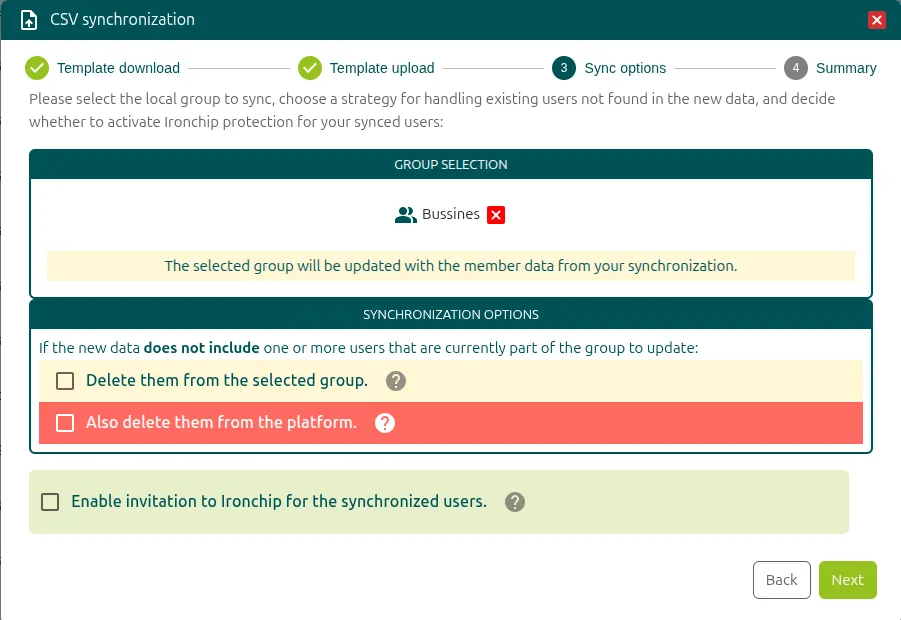
-
Click Next.
-
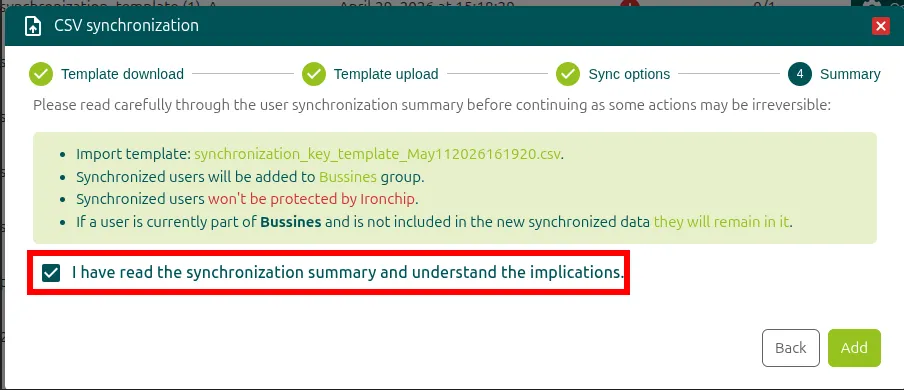
In the Summary step, review the final synchronization summary:
- The imported template:
{filename}.csv. - The group the synchronized users are added to.
- Whether the synchronized users are protected by Ironchip.
- What happens to a user in the group who is not in the new data: the user stays in the group or is removed, depending on what you chose.
- The imported template:
-
Select I have read the synchronization summary and understand the implications. and click Add. If you’re unsure, go back to the previous screens with Back.
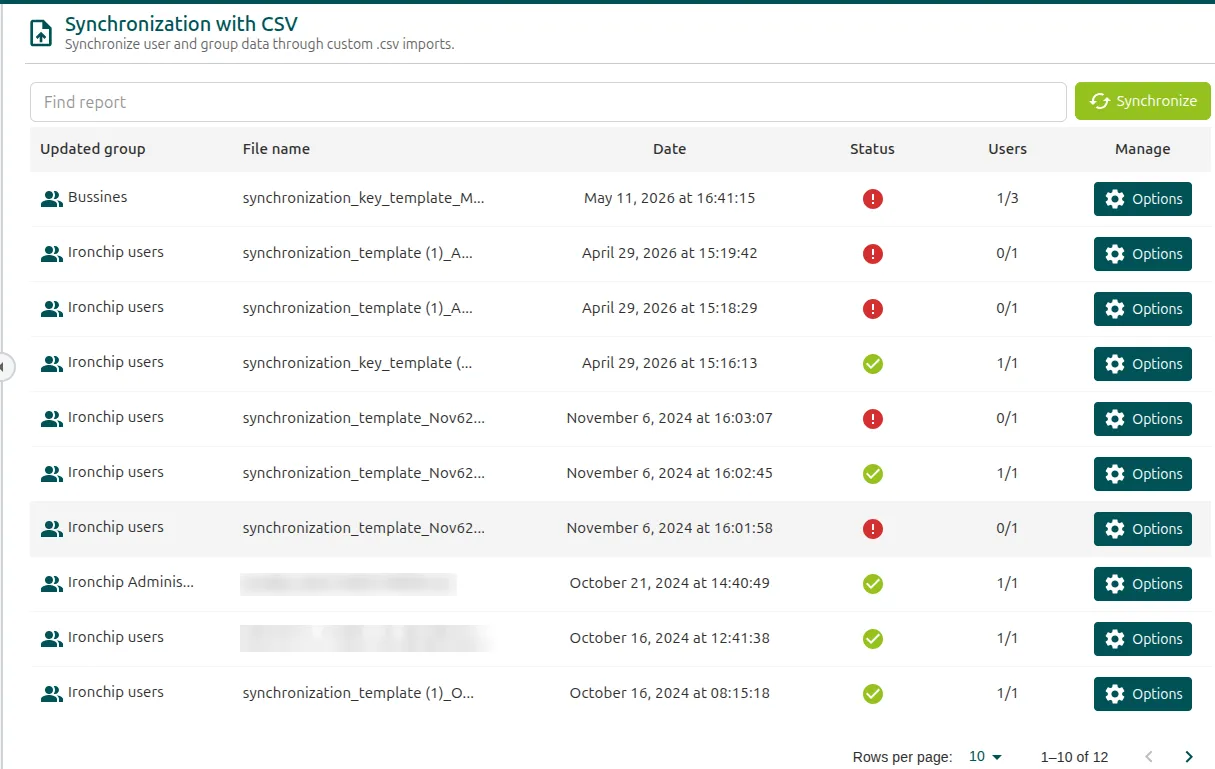
When the process ends, the main screen lists the synchronizations: the updated group, the file name, the date, the status, and the number of synchronized users out of the total in the file. This way you can see at a glance whether anything failed.
MFA integrations
Section titled “MFA integrations”Ironchip integrates with third-party MFA systems to add a layer of security when you use external services to authenticate. You create HTTP-MFA integrations in the console, under Applications > MFA integrations: first you create the integration and then you create a service of that type. See Applications.
Frequently asked questions
Section titled “Frequently asked questions”What methods are there to integrate Ironchip with Active Directory?
Section titled “What methods are there to integrate Ironchip with Active Directory?”There are four:
- AD Connect agent: the most common method for on-premises AD. It synchronizes users and groups automatically and in real time.
- Direct LDAP: no local agent, with periodic synchronization. It is for LDAP directories that are not Windows-based.
- Entra ID with SCIM or the native connector: for cloud or hybrid environments.
- AD with Windows logon: the agent adds Ironchip as an additional credential provider on top of AD. See Windows logon.
What is the difference between integrating AD over LDAP and with AD Connect?
Section titled “What is the difference between integrating AD over LDAP and with AD Connect?”- AD Connect: installs software on the network and synchronizes in real time. It is ideal for on-premises AD and supports complex groups and advanced attributes.
- Direct LDAP: needs no agent and synchronizes periodically (pull). It is simpler and works for LDAP directories that are not Windows-based, or when you can’t install software on the server.
The console shows fewer users than Active Directory
Section titled “The console shows fewer users than Active Directory”The most common causes are:
- Child groups that are not synchronized: the agent may not synchronize all the members of nested subgroups.
- Incorrect configuration of the group with automatic invitation (
Autoinvite) in Ironchip. See Automatic invitation.
To resolve it, write to support with the name of the affected group so they can verify the agent version and the configuration.
How are nested Active Directory groups (child groups) handled?
Section titled “How are nested Active Directory groups (child groups) handled?”When you set up synchronization, state explicitly whether the members of child groups are synchronized. The child group must be linked to the corresponding Ironchip group. Child groups you add after the initial configuration may need a manual adjustment.
How do I update the AD Connect agent?
Section titled “How do I update the AD Connect agent?”The update requires a joint technical session between Ironchip and your IT team. Ironchip validates the update before the session. Write to support@ironchip.com to coordinate it.
Can I migrate the Ironchip configuration between AD environments?
Section titled “Can I migrate the Ironchip configuration between AD environments?”Yes, but it requires prior coordination with the Ironchip technical team. The process includes:
- Exporting the source configuration.
- Validating the compatibility of the new AD.
- Configuring the connector.
- Verifying the synchronization.
- Keeping a coexistence period if the migration is gradual.
Was this page helpful?
Thank you. We will use it to improve the documentation. If you want to tell us what is missing or unclear, write to support@ironchip.com.