

macOS logon
This guide explains how to install the Ironchip Mac Logon service on a macOS device. It relies on a PAM module that adds a second factor to login, sudo, or SSH.
Requirements
Section titled “Requirements”- Access to the Ironchip admin console.
- Administrator permissions on the device.
- The Ironchip PAM file, provided by the Ironchip team.
Configure Ironchip
Section titled “Configure Ironchip”-
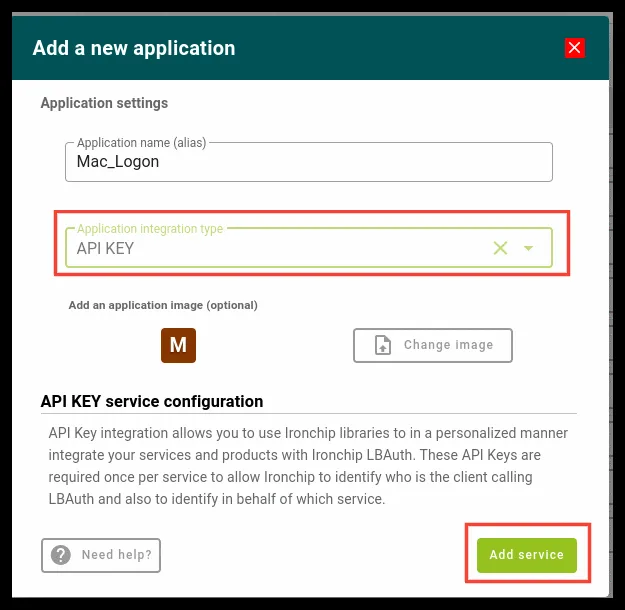
Sign in to the Ironchip admin console and create a new application of type API Key. Store the key in a safe place.
-
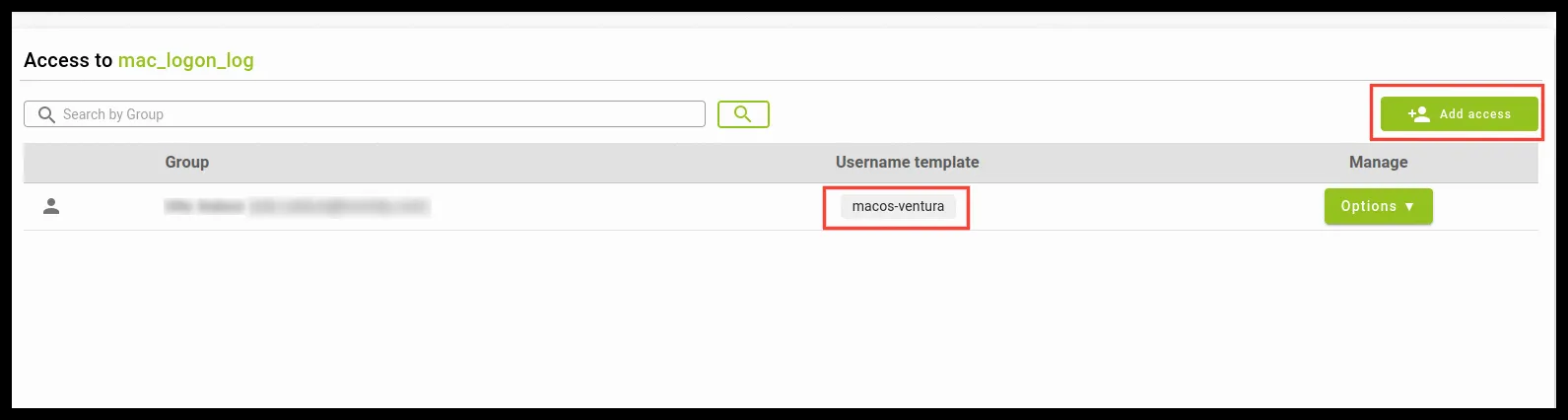
Add an access with the username of your Mac user.
-
To find the exact username, open a terminal on the Mac and run
whoami.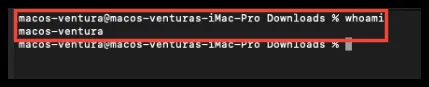
Configure macOS
Section titled “Configure macOS”-
Download the PAM file to your computer and copy it to
/opt/local/lib/pam.Ventana de terminal cp <PAM file path> /opt/local/lib/pamIf the folder does not exist, create it first.
Ventana de terminal mkdir /opt/local/lib/pam -
Go to
/etc/pam.d. Depending on what you need to protect, add a line at the beginning of one of these files:File Protects sudoAuthentication when you run administrator actions, such as sudo suor similar.authorizationandscreensaverAuthentication when the user starts a session. sshdAuthentication when you establish an SSH connection. 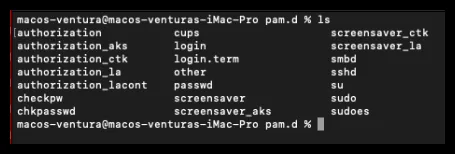
-
Edit one of those files and add the following line at the beginning, with the API key of your Ironchip application.
auth required /opt/local/lib/pam/pam_ironchip_auth.so host=https://api.ironchip.com api_key=<API_KEY> -
Run this command to disable the unidentified-developer software protection for this file only. Otherwise, macOS does not allow the PAM file to run.
Ventana de terminal xattr -dr com.apple.quarantine <PAM file path>
To follow the Ironchip PAM module logs live, run this in a terminal:
log stream --predicate 'sender == "pam_ironchip_auth.so"' --level debugWas this page helpful?
Thank you. We will use it to improve the documentation. If you want to tell us what is missing or unclear, write to support@ironchip.com.