

Devices
In the admin console you manage the devices associated with each user: you can register them, unregister them, and recover them. This is especially useful when a device is lost or stolen, because it lets you deactivate access from that device and recover the account on another one.
Register or recover: which one to use
Section titled “Register or recover: which one to use”There are two ways to add a device, and it is important to tell them apart:
- To register a new device or a new user, follow the process in Register a device.
- To recover an account from a device that is already registered, follow the recovery process. A device that is already registered cannot be registered again.
Register a device
Section titled “Register a device”-
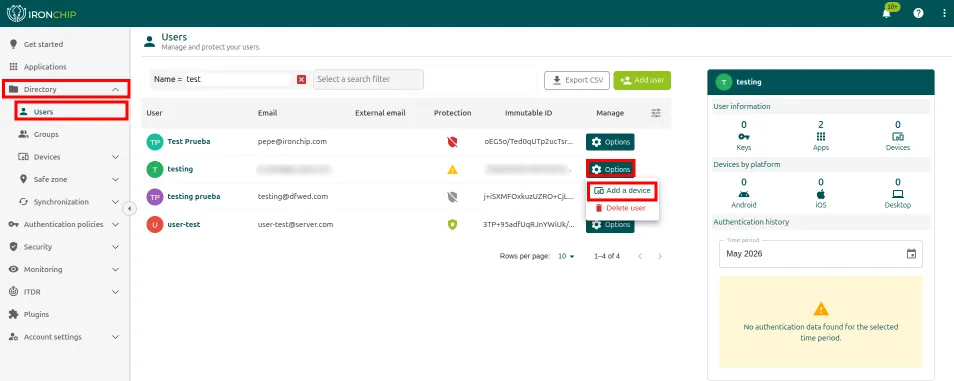
Go to Directory > Users and find the user.
-
Click Options and then Add a device.
-
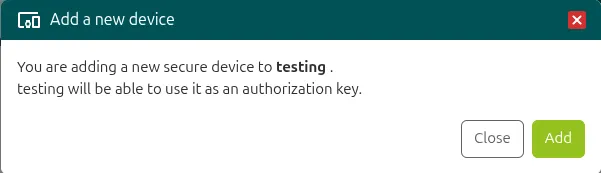
In the Add a new device window, click Add. The user receives an email to add the device, which they can then use as an authorization key.
Unregister a device
Section titled “Unregister a device”-
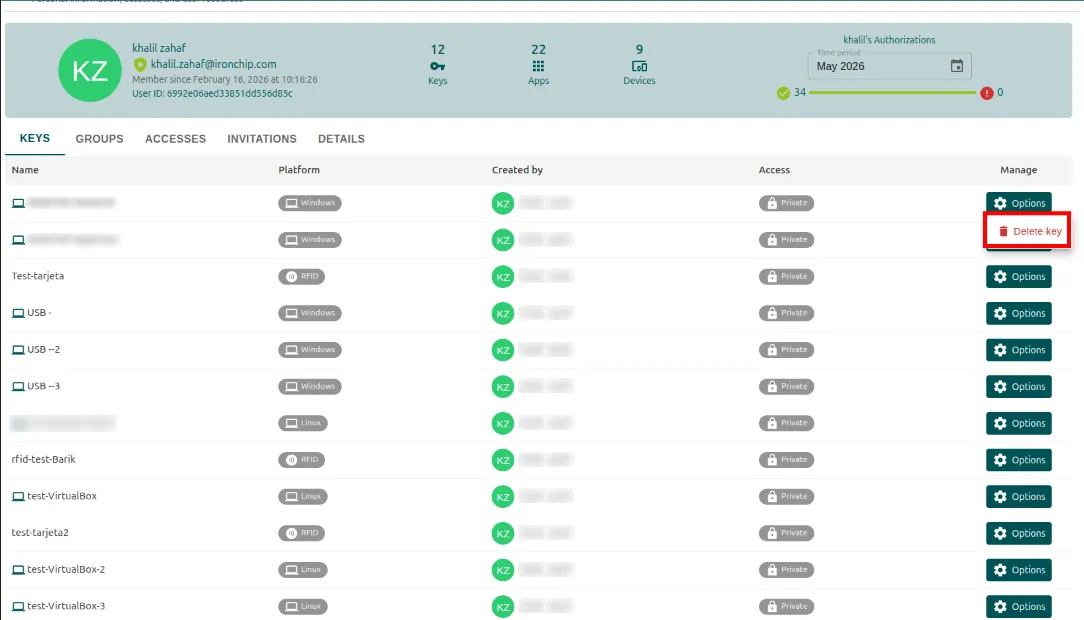
In Directory > Users, click the user’s name to open their page.
-
The Keys tab shows the user’s devices and safe zones.
-
To unregister a device or delete a safe zone, click Options and then Delete key.
You can delete only the personal keys that are not associated with a service.
Recover a device
Section titled “Recover a device”Use this process when a user has lost access to the platform and wants to recover their account from a device that is already registered.
-
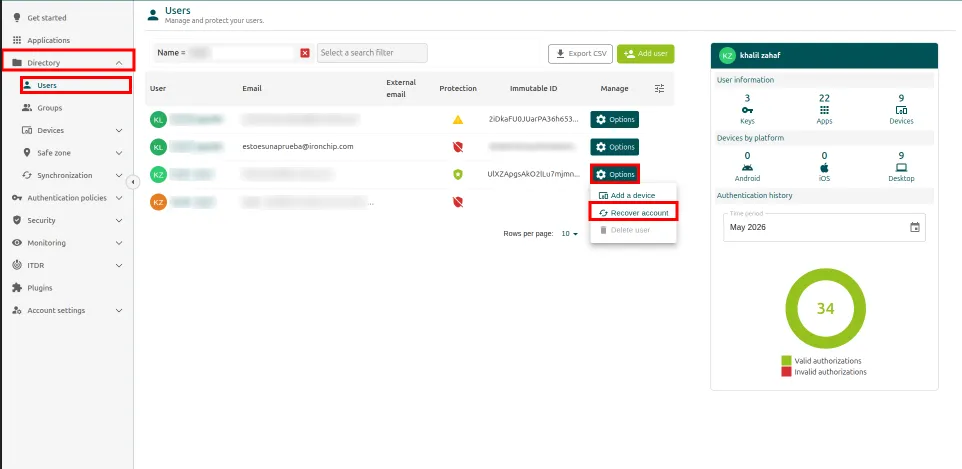
Go to Directory > Users and find the user.
-
Click Options and then Recover account.
-
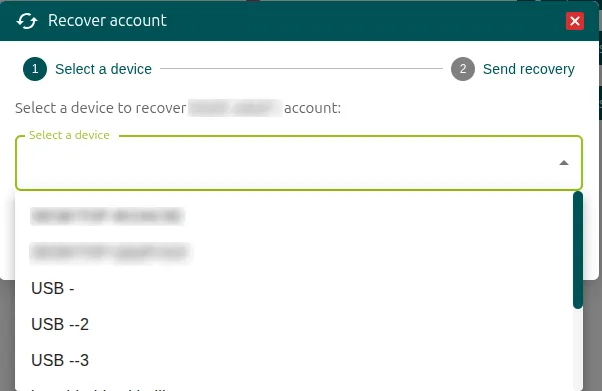
In the Select a device step, choose the device the user wants to recover access from.
-
In the Send recovery step, check the selected user and device and click Add.
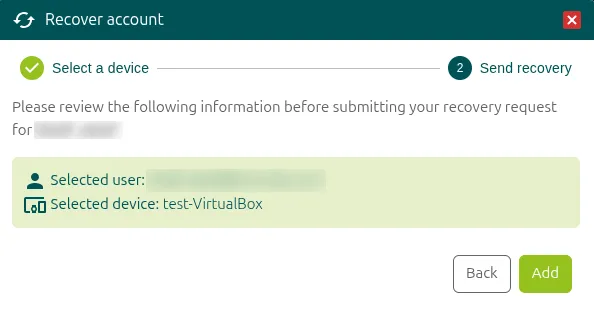
The user receives a recovery email and follows the same process as when registering to recover the device. If the app already has an active session, the user can delete it by clearing the app data.
Enable an account
Section titled “Enable an account”To enable a disabled account (gray Ironchip shield):
-
Find the user in Directory > Users.
-
Click Options and select Enable Ironchip.
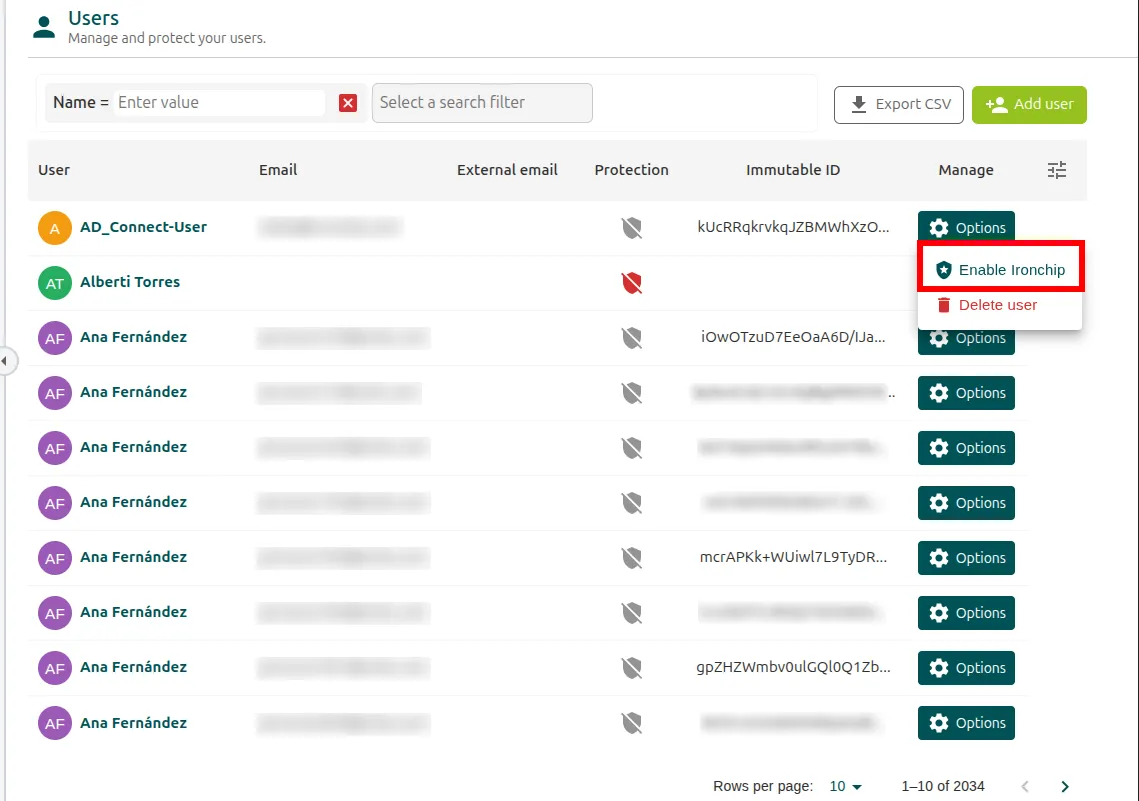
Once enabled, the shield turns green: the account is active and protected by Ironchip.
View a user’s page
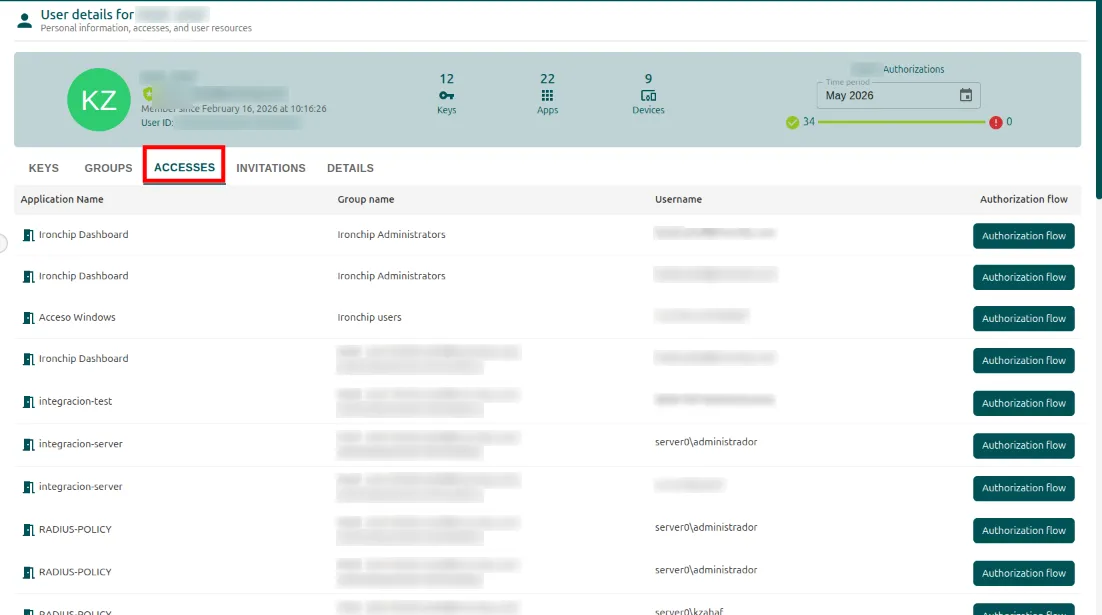
Section titled “View a user’s page”When you click a user’s name in Directory > Users, their page opens. The header shows how many keys, applications, and devices the user has (Keys, Apps, and Devices) and their successful and failed authorizations for the period you choose. Below it there are five tabs: Keys, Groups, Accesses, Invitations, and Details.
The Accesses tab shows the applications the user has access to, the group that grants that access, and the user’s username in each one. The Authorization flow button of each access shows the conditions it requires.
View all devices
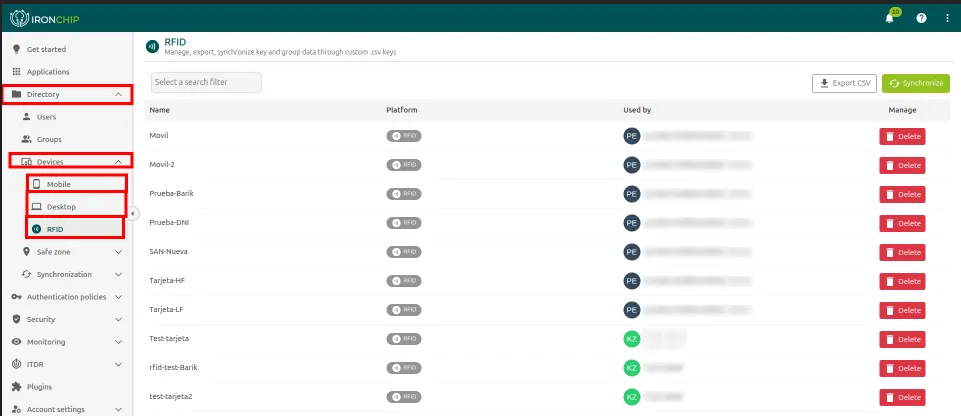
Section titled “View all devices”Directory > Devices holds the devices of the company’s users, split into three sections: Mobile, Desktop, and RFID. For each device you can see its type, who created it, and the related users. Safe zones have their own section, Directory > Safe zone: see Safe zones.
In RFID you see each card with its platform and the user who uses it (Used by). You can delete a card with Delete and export or synchronize the data through CSV files with Export CSV and Synchronize. To register a card, see NFC / RFID card.
To share a safe zone with the whole company, see Make a safe zone public. To group devices and use them in accesses, see Device policies.
Was this page helpful?
Thank you. We will use it to improve the documentation. If you want to tell us what is missing or unclear, write to support@ironchip.com.