

ADFS
Ironchip integrates with ADFS (Active Directory Federation Services) through a multi-factor authentication plugin. This guide covers everything from preparing the server to testing access with Claims X-Ray.
Requirements
Section titled “Requirements”- A Windows server with the Active Directory domain and federation roles.
- Access to the Ironchip admin console.
- A user with permission to configure the server.
Configure Ironchip
Section titled “Configure Ironchip”Create an API Key application. You need its key when you install the plugin.
-
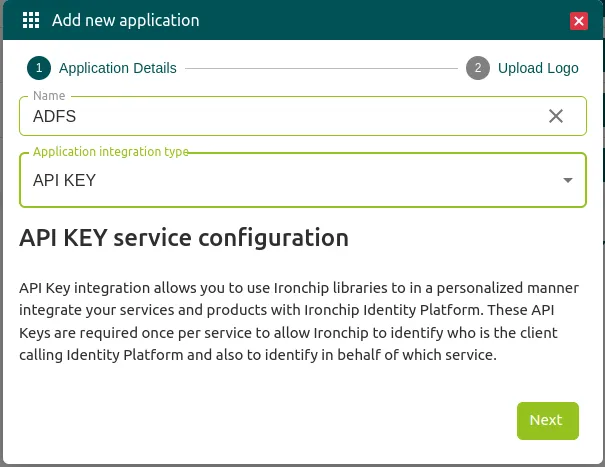
In the Ironchip admin console, go to Applications and create a new application.

-
In Application integration type, select API KEY and enter any name you like.
-
Copy the API key that is shown and save it for the plugin installation step.
Configure ADFS
Section titled “Configure ADFS”Activate Active Directory
Section titled “Activate Active Directory”-
In Server Manager, open Add Roles and Features.
-
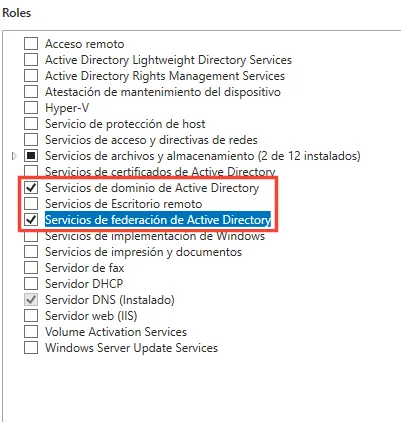
Add the roles Active Directory Domain Services and Active Directory Federation Services.
-
Click Next until you reach the end of the wizard and wait for the installation to finish. When you return to Server Manager, the two roles appear in the left menu and an alert appears in the top menu.
-
Click the alert Promote this server to a domain controller.
-
Select Add a new forest and enter the domain name you want.
-
Follow the steps to the end and click Install. When it finishes, you get a DNS alert that you resolve in the next section.
Configure DNS
Section titled “Configure DNS”-
From the administrative tools, open the DNS configuration program.
-
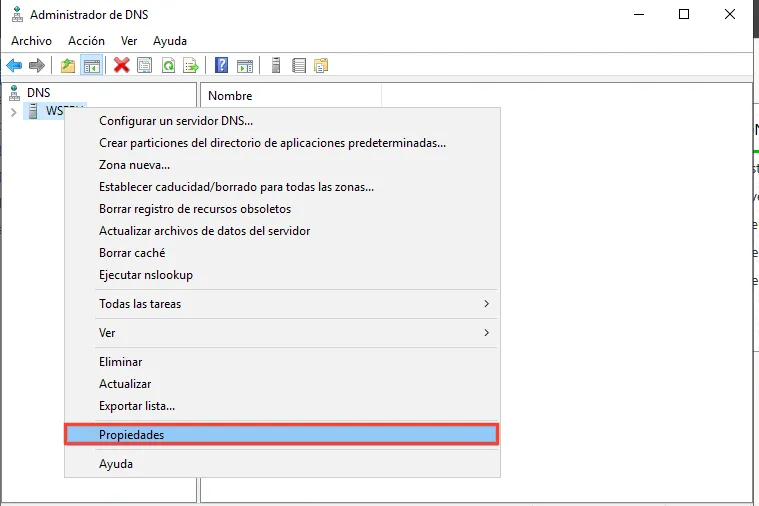
Right-click your server name and open Properties.
-
Go to the Forwarders tab and add the external DNS servers you need, such as
4.2.2.1,4.2.2.2,8.8.8.8, and8.8.4.4.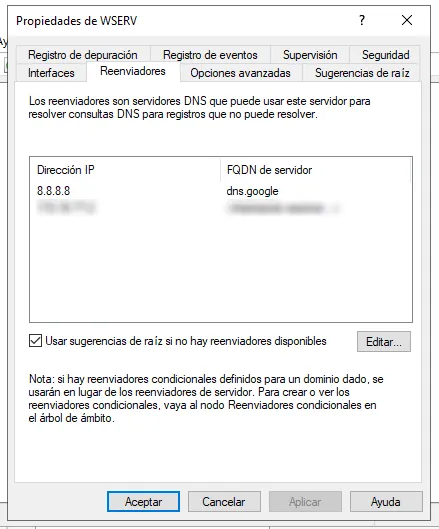
After this, the machine restarts automatically.
Create the SSL certificate
Section titled “Create the SSL certificate”-
Create a self-signed certificate with this PowerShell command:
Ventana de terminal New-SelfSignedCertificate -DnsName server.ironchip.local -
The certlm.msc program opens. The new certificate is in the Personal folder.
-
Right-click the certificate and select Open. On the Details tab, click Copy to File.
-
In the export wizard, select Yes, export the private key. Leave everything else as default and save the file, for example on the desktop.
-
Run the exported file to import it. In the window that opens, select Local Machine.
-
When you reach the step where you choose where to store it, select Place all certificates in the following store, click Browse, and choose the Trusted Root Certification Authorities folder.
Configure the federation service
Section titled “Configure the federation service”-
In Server Manager, open the alert and select Configure the federation service on this server.
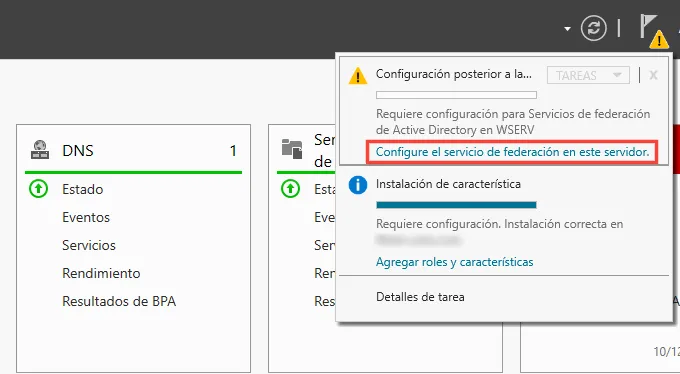
The Active Directory Federation Service Configuration Wizard opens.
-
On the Welcome page, select Create the first federation server in a federation server farm and click Next.
-
On the Connect to AD DS page, specify an account with domain administrator rights for the Active Directory domain this computer is joined to (in this example,
ironchip.local) and click Next. -
On the Specify Service Properties page, do the following and click Next:
- Select the SSL certificate you created earlier from the drop-down. This is the service authentication certificate.
- For the federation service name, enter
adfs.ironchip.local. This must match the value you used when you enrolled the SSL certificate in Active Directory Certificate Services (AD CS). - For the display name, enter
Ironchip Corporation.
-
On the Specify Service Account page, select Use an existing domain user account or group Managed Service Account. For this you first need to create a dedicated user for the service, for example
service-adfs. Then go back to the wizard and select it. -
On the Specify Configuration Database page, select Create a database on this server using Windows Internal Database and click Next.
-
On the Review Options page, verify your selections and click Next.
-
On the Pre-requisite Checks page, verify that all checks completed successfully and click Configure.
-
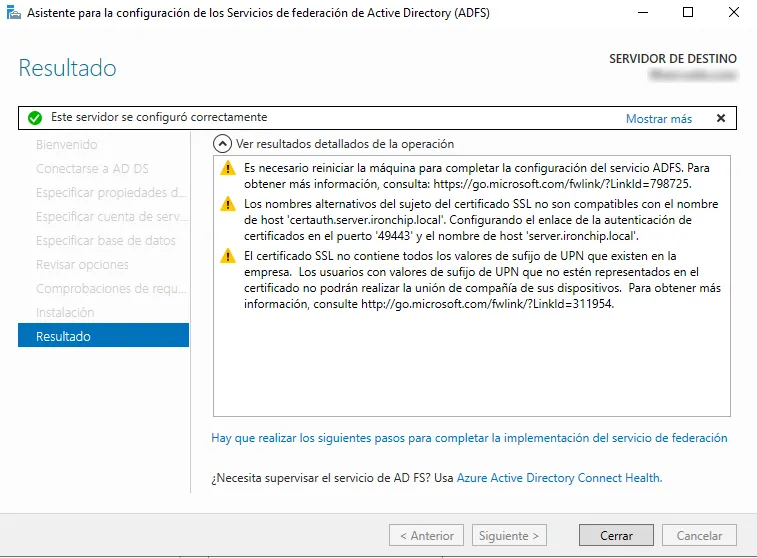
On the Results page, check that the configuration completed. Four warnings appear, which you can ignore for now.
Install the ADFS plugin
Section titled “Install the ADFS plugin”-
Download the plugin installer from the plugins section of the Ironchip admin console.
-
Run the installer.
-
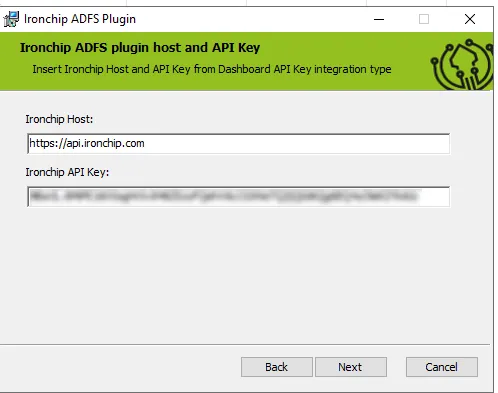
Fill in only these fields: Ironchip Host (leave the default if in doubt) and Ironchip API Key, with the API key you got when you created the API Key application.
-
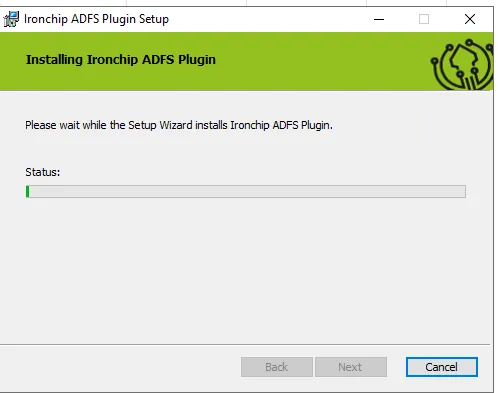
If the configuration is correct, the installer adds the plugin to AD FS and restarts the AD FS service to apply the changes.
Protect an application with Ironchip MFA
Section titled “Protect an application with Ironchip MFA”The ADFS administrator interface differs between versions 3.0 and 4.0. Follow the instructions for yours. In the examples, the protected service is Claims X-Ray (see Set up Claims X-Ray as a test application).
ADFS 3.0
Section titled “ADFS 3.0”- Go to Authentication Policies and click Edit Global MFA.
- Select Ironchip MFA Adapter as the multi-factor authentication method.
- Go to Per Relying Party Trust and right-click the service you want to protect.
- Click Edit Custom Multi-factor Authentication.
- Enable MFA for intranet, extranet, or both.
Your service is now protected with Ironchip MFA.
ADFS 4.0
Section titled “ADFS 4.0”- Go to Service > Authentication Methods. In the right-hand menu, click Edit Multi-factor Authentication Methods.
- On the Multi-factor tab, select Ironchip MFA Adapter.
- Click Apply and OK.
- Go to Relying Party Trusts and select the service, for example ClaimsXray.
- In the right-hand menu, click Edit Access Control Policy.
- At the bottom of the window, click Use access control policy.
- Select Permit everyone and require MFA. If you want, you can apply it only to a specific user group.
- Click Apply and OK.
Your service is now protected with Ironchip MFA.
Verify the integration
Section titled “Verify the integration”Test the plugin
Section titled “Test the plugin”-
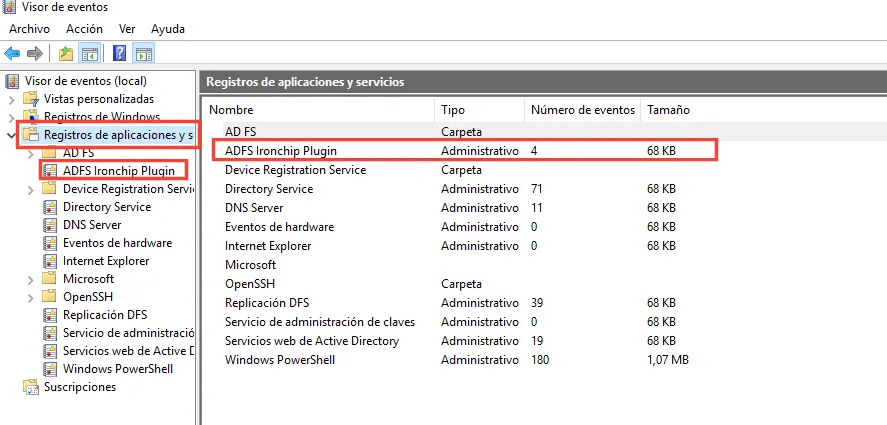
Open Event Viewer to see the Ironchip plugin logs.
-
If everything is correct, you see ADFS Ironchip Plugin in the Applications and Services Logs list. Open it.
-
If the plugin is installed, you see the message
Ironchip license key loaded without errors.in the logs.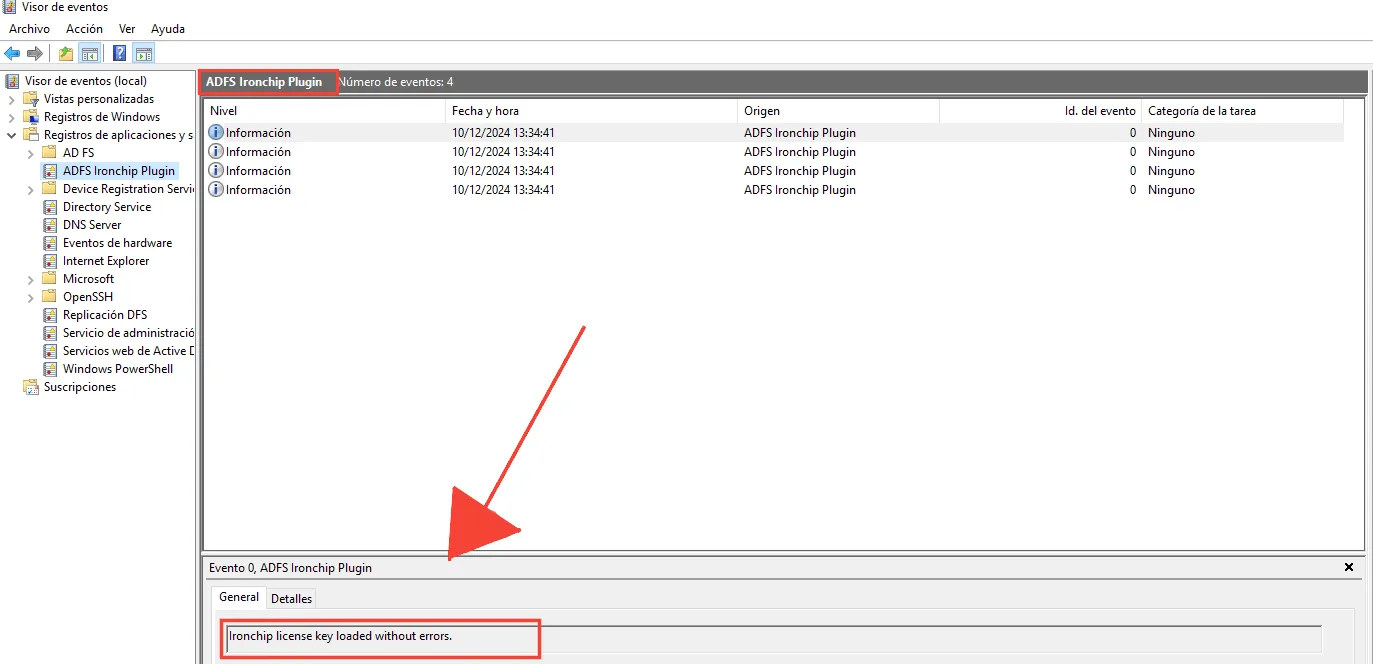
Set up Claims X-Ray as a test application
Section titled “Set up Claims X-Ray as a test application”Claims X-Ray is a Microsoft tool that works as a test application for ADFS.
-
Go to https://adfshelp.microsoft.com/ClaimsXray/TokenRequest and follow the instructions.
-
Open PowerShell as administrator and run the following. This adds Claims X-Ray as a relying party trust:
Ventana de terminal $authzRules = "=>issue(Type = `"http://schemas.microsoft.com/authorization/claims/permit`", Value = `"true`"); "$issuanceRules = "@RuleName = `"Issue all claims`"`nx:[]=>issue(claim = x); "$redirectUrl = "https://adfshelp.microsoft.com/ClaimsXray/TokenResponse"$samlEndpoint = New-AdfsSamlEndpoint -Binding POST -Protocol SAMLAssertionConsumer -Uri $redirectUrlAdd-ADFSRelyingPartyTrust -Name "ClaimsXray" -Identifier "urn:microsoft:adfs:claimsxray" -IssuanceAuthorizationRules $authzRules -IssuanceTransformRules $issuanceRules -WSFedEndpoint $redirectUrl -SamlEndpoint $samlEndpoint -
If you also want to add the OIDC integration, run:
Ventana de terminal Add-AdfsClient -Name "ClaimsXrayClient" -ClientId "claimsxrayclient" -RedirectUri https://adfshelp.microsoft.com/ClaimsXray/TokenResponseif ([System.Environment]::OSVersion.Version.major -gt 6) { Grant-AdfsApplicationPermission -ServerRoleIdentifier urn:microsoft:adfs:claimsxray -AllowAllRegisteredClients -ScopeNames "openid","profile" } -
Check that Claims X-Ray appears under Relying Party Trusts.
-
If the access control policy has no parameters, right-click the service, select Edit Access Control Policy, delete everything, and choose the third option, Permit everyone and MFA for specific group. At the bottom, select the protected group.
-
Under Authentication Methods > Multi-factor Authentication Methods, check that
IronchipMFAAdapterappears. If it doesn’t, edit the list and add it.
Enable the IdP-initiated sign-in page
Section titled “Enable the IdP-initiated sign-in page”-
See the endpoints of your ADFS from PowerShell:
Ventana de terminal Get-AdfsEndpoint | select FullUrl -
In your browser, open your ADFS URL with
/idpinitiatedsignon.aspxadded at the end. You see an error because this page is disabled by default. -
Enable it from PowerShell:
Ventana de terminal Set-AdfsProperties -EnableIdPInitiatedSignonPage $true -
Open the page again and sign in with your user.
-
If the Windows security prompt appears, you can disable it in the ADFS Management Console: expand Services, click Authentication Methods, click Edit under Primary Authentication Methods, and clear the Windows prompt option. Click Apply and OK.
You now see a login form.
Test the protected service with Claims X-Ray
Section titled “Test the protected service with Claims X-Ray”- Open the Claims X-Ray tool and configure it for your ADFS.
- Click Test Authentication. You are redirected to your ADFS.
- Enter your username and password.
- You are prompted for MFA. Click Submit.
- You receive a push notification in the Ironchip app. Open it and authenticate.
If everything is correct, you are redirected to the final Claims X-Ray page.
Was this page helpful?
Thank you. We will use it to improve the documentation. If you want to tell us what is missing or unclear, write to support@ironchip.com.