

HTTP API
HTTP authentication lets you add Ironchip verification to an in-house application: the backend calls the API with an API key, and Ironchip asks the user for approval on their device. It is a way to support authentication through standard HTTP calls, with no SDK and from any language.
How it works
Section titled “How it works”- The user tries to access the in-house application.
- The application makes an HTTPS GET call to the Ironchip endpoint with the user identifier.
- Ironchip shows the user the usual authentication flow (push, USB, NFC, etc.).
- When the user finishes, the endpoint returns the validated identity.
- The application uses that response to grant or deny access.
The integration does not change the application’s existing authentication logic.
Requirements
Section titled “Requirements”- An administrator account in the Ironchip admin console.
- Access to the backend code of the application you want to protect.
- The users enrolled in Ironchip, or identity synchronization configured.
- The company created in Ironchip. See Integration protocols for the data to prepare.
Create the MFA integration
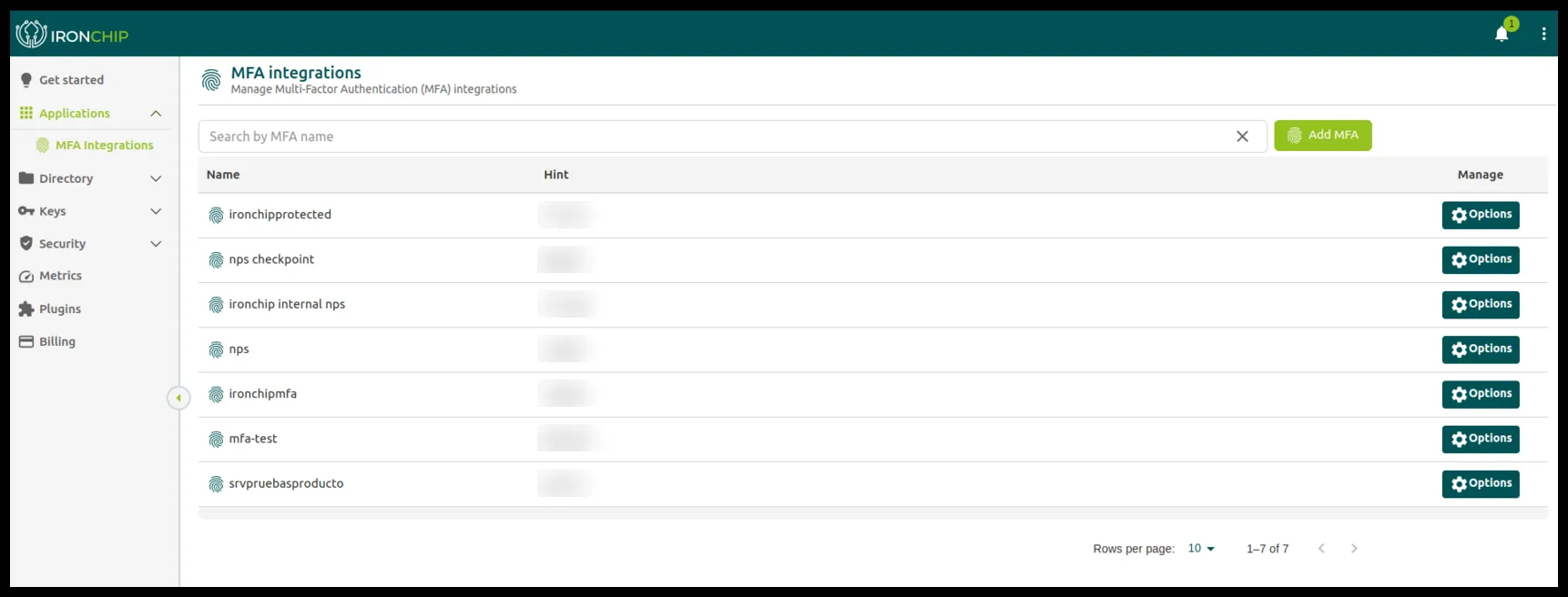
Section titled “Create the MFA integration”In Applications > MFA Integrations you can see all the HTTP-MFA integrations that have been added to Ironchip.
-
Click Add MFA. A new window opens.
-
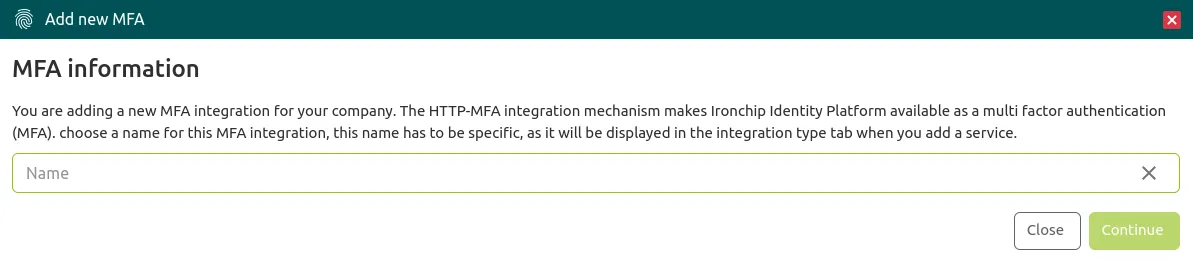
In the Add new MFA window, enter the name of the MFA integration in Name and click Continue. Choose a name that is easy to recognize: it is the one that appears in Application integration type when you add the application.
-
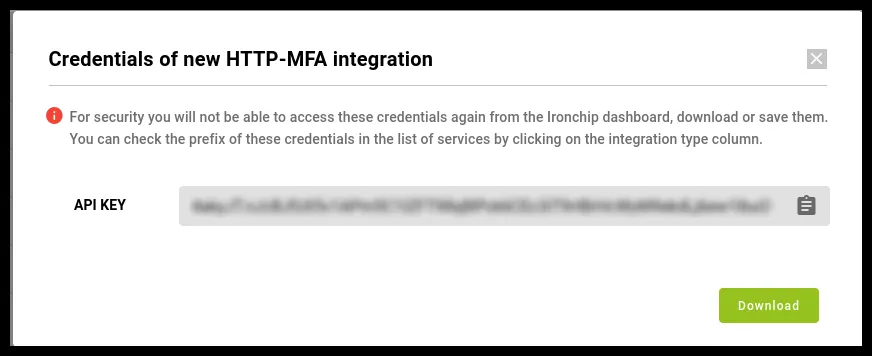
The Credentials of new HTTP-MFA integration window shows the API KEY. Save it or download it with Download: for security, you cannot view it again from the console. You will use it to configure services with Ironchip.
Add the application to the company
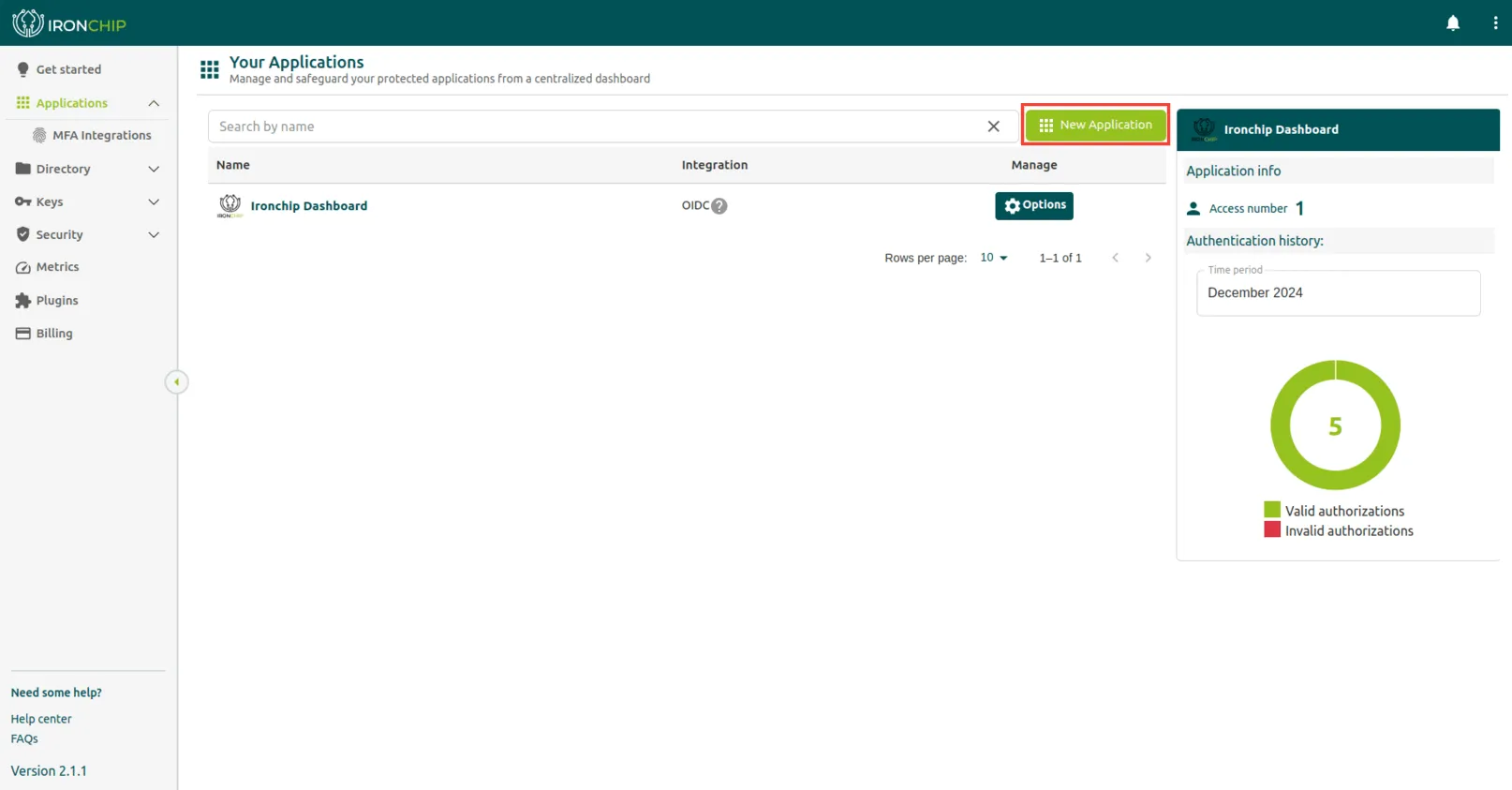
Section titled “Add the application to the company”The Applications section lists all the protected services that have been added to Ironchip and their integration type.
-
Click New Application. The Add new application window opens.
-
In the Application Details step, enter the application name in Name.
-
In Application integration type, select the name you gave the MFA integration in the previous section.
-
Click Next and complete the Upload Logo step to finish. The application appears in the Applications section.
Grant access to users and groups
Section titled “Grant access to users and groups”-
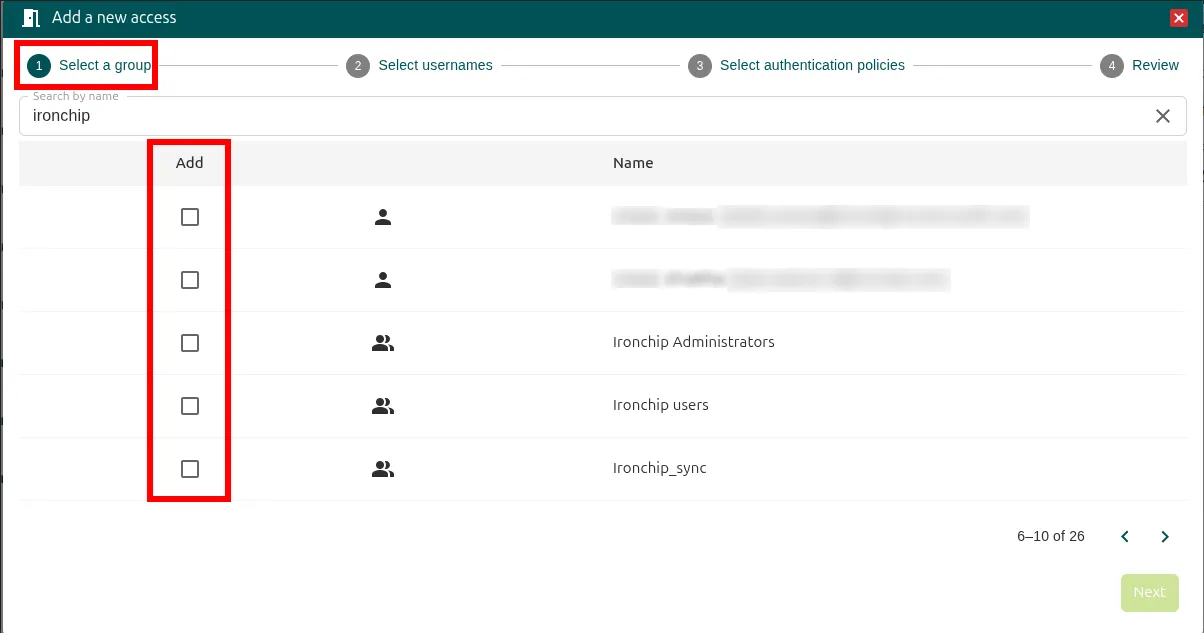
In Applications, click Add in the Add access column of the application. The Add a new access window opens.
-
In Select a group, search by name with Search by name, check the Add box of the users or groups that get access and click Next.
-
In Select usernames, check the format of the external username (External Username), email by default, and click Next.
-
In Select authentication policies, choose the authentication policies required for access, for example Any user devices AND Any user safezones, and click Next.
-
In Review, check the summary and click Add.
The access is created with the selected configuration. You can change it at any time with the access’s Options button. The details of each step are in Grant access to users and groups.
Was this page helpful?
Thank you. We will use it to improve the documentation. If you want to tell us what is missing or unclear, write to support@ironchip.com.