

Sophos Firewall
This guide explains how to protect Sophos Firewall with Ironchip through RADIUS with NPS or with OTP codes.
RADIUS with NPS
Section titled “RADIUS with NPS”Set up the RADIUS service in Sophos and integrate it with an NPS server in an Active Directory environment.
Requirements
Section titled “Requirements”- Access to the Ironchip admin console.
- A Windows server with the NPS role configured and protected by Ironchip.
- An account with permissions to make changes in Sophos.
Configure Sophos
Section titled “Configure Sophos”-
Go to Authentication.
-
In the Servers section, click ADD to add the RADIUS service.
-
In Server Type, select
RADIUS Serverand fill in the fields:- NPS server name.
- NPS server IP.
- Authentication port. It defaults to
1812; this example changes it to1645. Use the port your NPS server listens on. - Authentication timeout. We recommend
60seconds, as in the other RADIUS integrations, to give users time to accept the Ironchip notification. - Shared secret.
- Group name attribute: to test the connection, leave it as
groupfor now.
-
Test the connection to the server with the credentials of a user who has access to the NPS application in the Ironchip admin console.
Create the user group in Sophos
Section titled “Create the user group in Sophos”If you use RADIUS authentication on a Sophos service now, it fails, because the users are not in the local Sophos database. To fix this, create a group in Sophos that stores the users with authentication permissions.
- Go to the Groups section and click Add. If you already have a group, you do not need to create one.
- Fill in the required fields.
Add an attribute to the network policy
Section titled “Add an attribute to the network policy”Tell the NPS server, through an attribute, which group manages the authentication users.
- In NPS, open the network policy you created earlier by double-clicking it.
- Go to Settings.
- Under RADIUS Attributes, select Standard, click Add, select the
Filter-Idattribute and click Add. - In the next window, enter the attribute value: String format and, below it, the group you created in Sophos.
- In Sophos, go to Authentication, edit the configuration you made earlier in the Servers section and enter
Filter-Idin Group name attribute.
Verify the integration
Section titled “Verify the integration”The Services section lists all the Sophos services where you can use RADIUS. This example tests with the Sophos user portal.
- Go to User portal authentication methods, select the RADIUS checkbox and move it above Local so it takes priority. Click Apply.
- Administration > Admin and Users settings has the section with the ports of the different Sophos portals. In this example the user portal is on
4443. - Open the user portal and sign in with a user who is in the domain and configured in the Ironchip admin console. The example uses a test user.
- When you connect with a user who does not exist in the local Sophos database, Sophos creates it and adds it to the group set in the network policy.
- When you enter the credentials, you receive a notification from the Ironchip authenticator to accept.
Use RADIUS in the SSL VPN
Section titled “Use RADIUS in the SSL VPN”For the VPN service, the process is similar:
- Go to Authentication, open the SSL VPN section, select the RADIUS checkbox and place it above Local so it takes priority.
- Download the configuration file from the user portal and add it to the VPN client.
Troubleshooting
Section titled “Troubleshooting”- The connection test or sign-in fails with a timeout: raise the RADIUS server timeout to
60seconds. The user must accept the Ironchip notification before it runs out. - The NPS server rejects the request: check that the shared secret and the port are the same in Sophos and in NPS, and that Sophos is configured as a RADIUS client in NPS.
Configure OTP codes in Sophos and add them to the Ironchip authenticator.
Requirements
Section titled “Requirements”- The Ironchip app installed and configured on your device.
- Sophos deployed and installed correctly.
Configure Sophos
Section titled “Configure Sophos”-
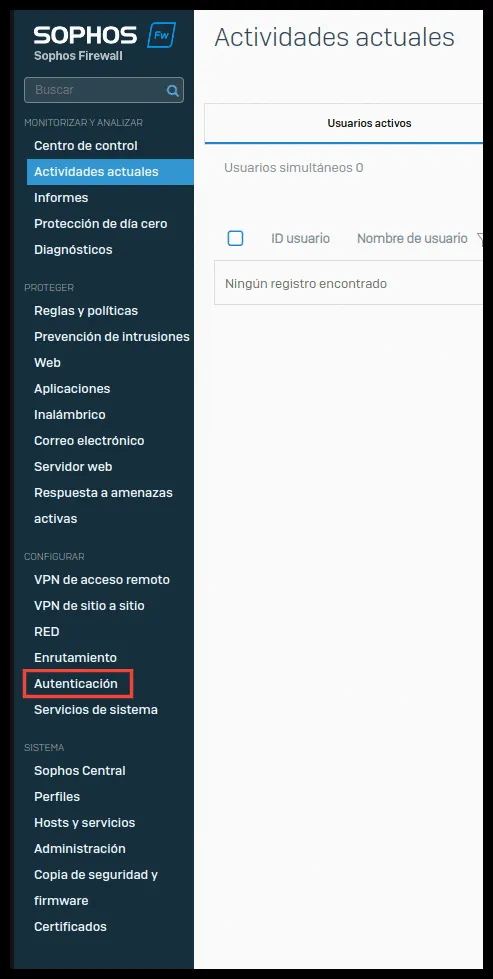
In the Sophos administration panel, go to Authentication.
-
Go to Multifactor authentication and enable and configure OTP on this tab.
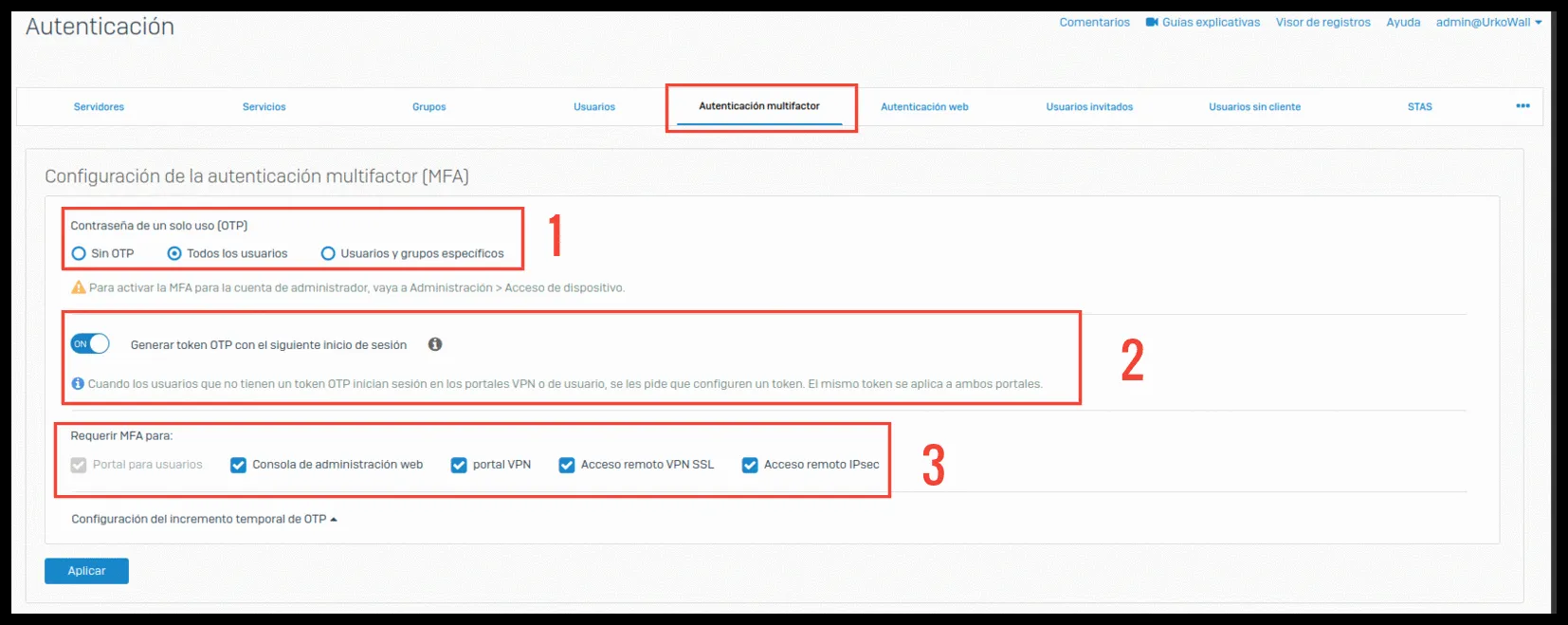
- Select whether OTP is not used, is used, or is used for specific groups and users.
- Enable this option so users have to set up OTP at their next sign-in.
- Select which services use OTP.
-
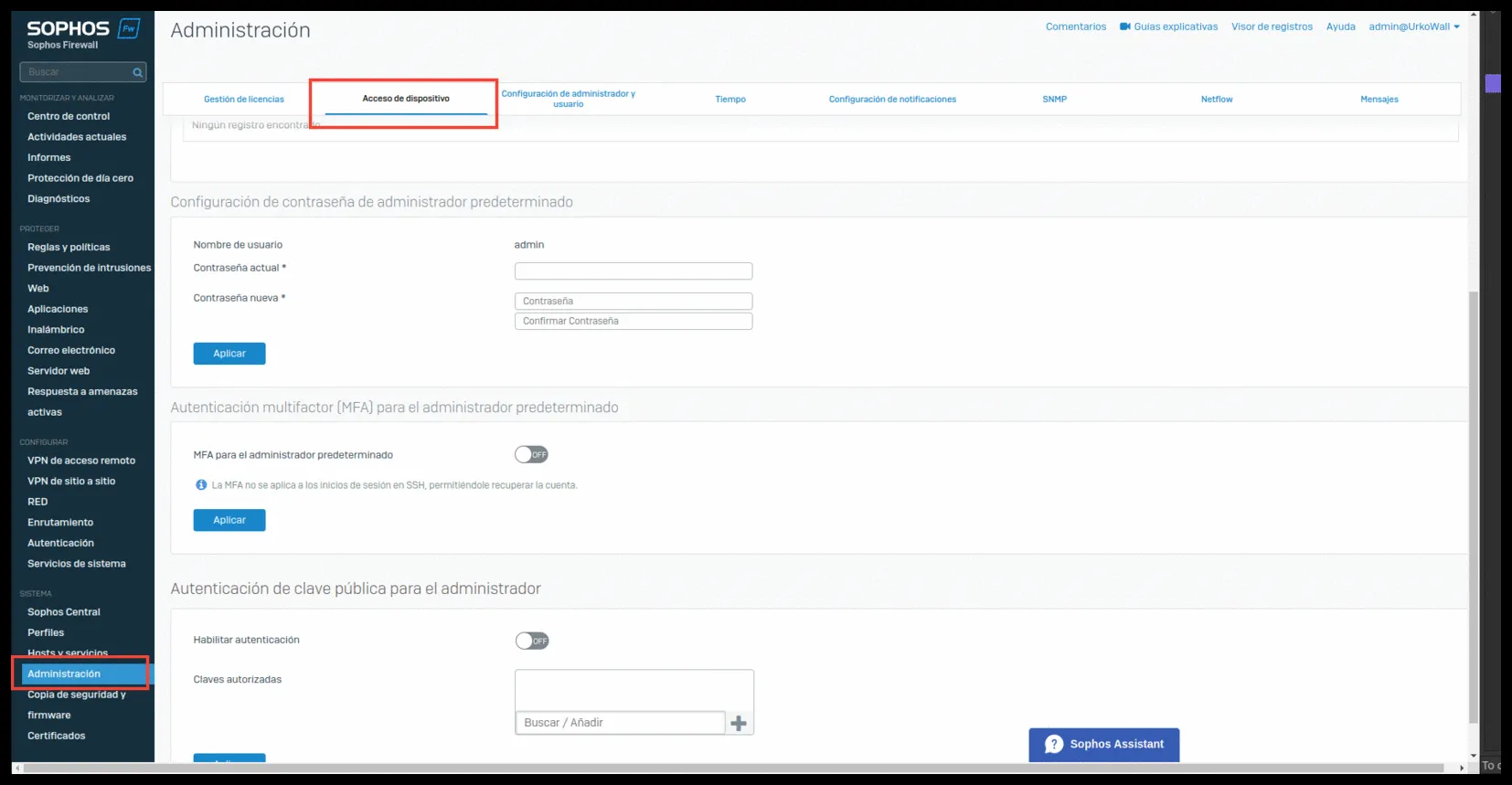
To use OTP with the administrator account, go to Administration and open Device access.
-
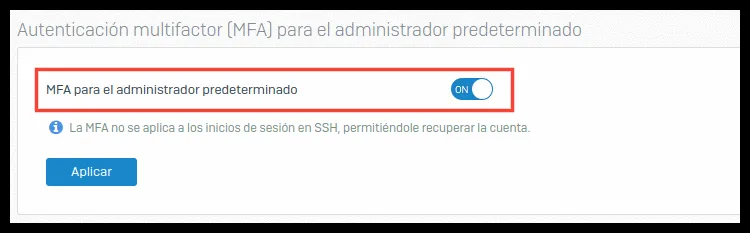
Scroll down to the MFA section and enable MFA for the default administrator.
-
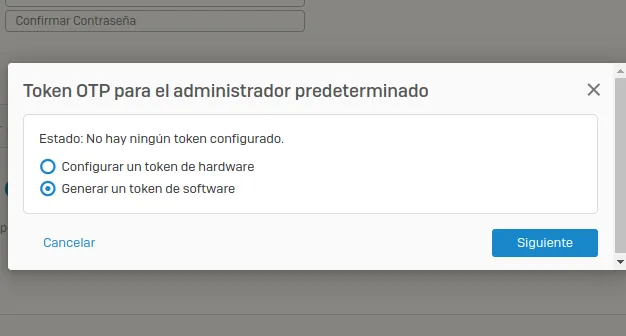
When you click Apply, a window appears. Select Generate software token.
-
A QR code appears. Scan it with the Ironchip app from the OTP section, and enter the administrator password and the OTP code on the same line:
<password><000000>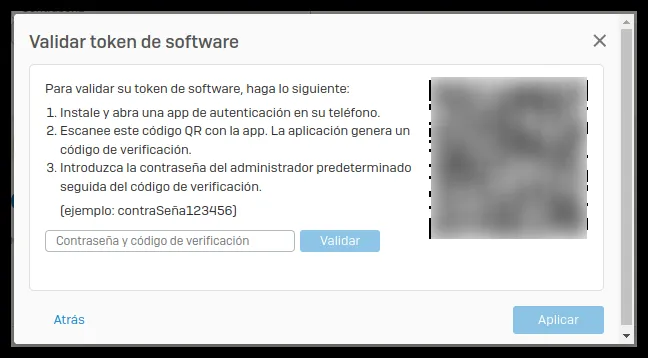
From now on, whenever a user with OTP enabled signs in to a service configured with OTP, they must enter the password and the OTP code on the same line: <password><000000>.
Troubleshooting
Section titled “Troubleshooting”Correct credentials but access denied
Section titled “Correct credentials but access denied”If the username and the password plus OTP are correct but sign-in is still refused:
-
In the Sophos administration panel, go to Authentication.
-
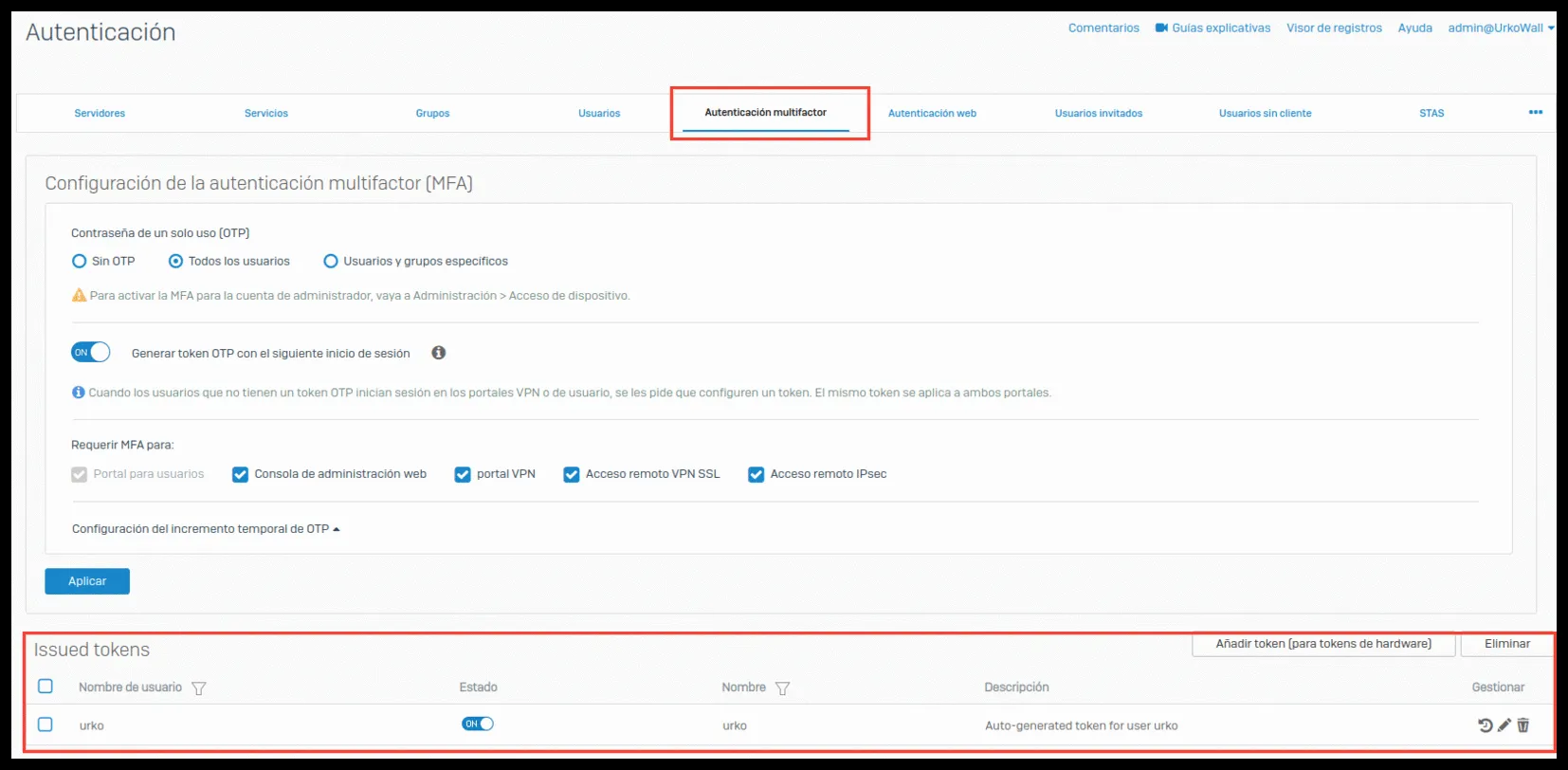
Go to Multifactor authentication. At the bottom of the page there is a list of users with OTP enabled.
-
Click the sync icon of the affected user.

-
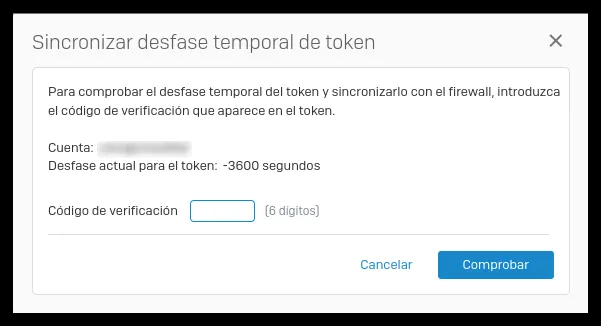
Enter the OTP code of that user account and run the synchronization.
Was this page helpful?
Thank you. We will use it to improve the documentation. If you want to tell us what is missing or unclear, write to support@ironchip.com.