

OpenVPN
This guide explains how to integrate OpenVPN Access Server with Ironchip through SAML or through RADIUS with NPS.
Requirements
Section titled “Requirements”- OpenVPN Access Server configured.
- Access to the Ironchip admin console.
Configure Ironchip
Section titled “Configure Ironchip”-
Go to Applications and click New Application.
-
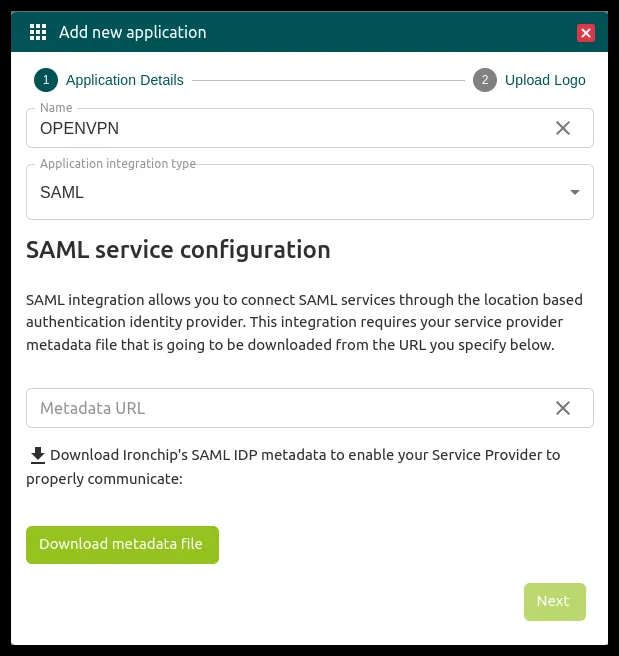
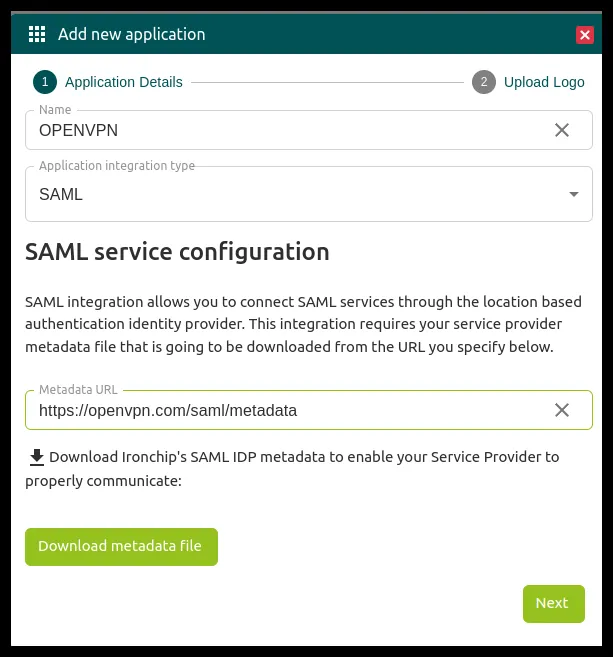
Give the application a descriptive name and select the SAML integration type.
-
When you select the type, the Download metadata file button appears at the bottom. Download the metadata: you give it to the service provider (SP), in this case OpenVPN.
Configure OpenVPN
Section titled “Configure OpenVPN”-
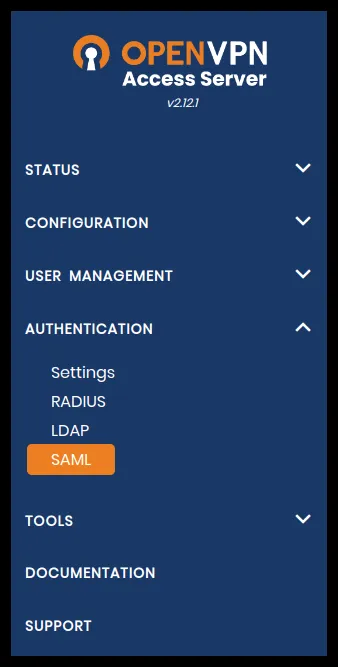
In OpenVPN, go to Authentication > SAML.
-
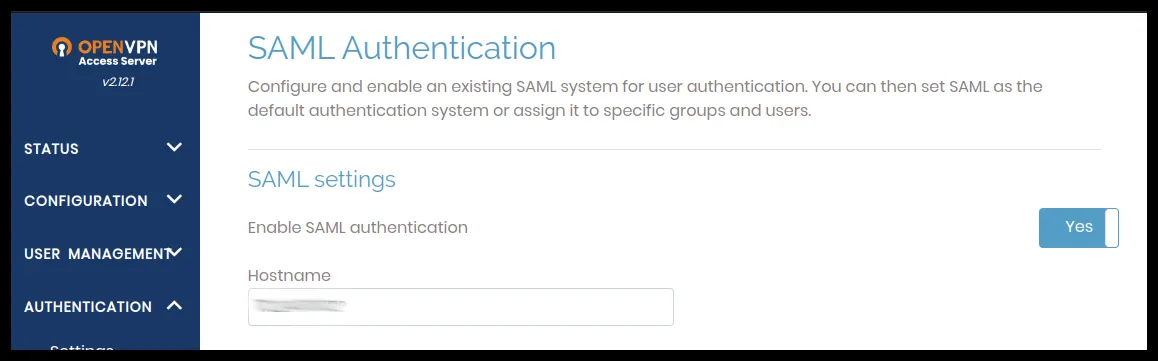
Enable SAML. Next you enter the metadata you downloaded.
-
OpenVPN offers two ways to enter the metadata: with the downloaded file or manually. This guide uses the file: under Configure Identity Provider (IdP) Automatically via Metadata, click Choose file.

-
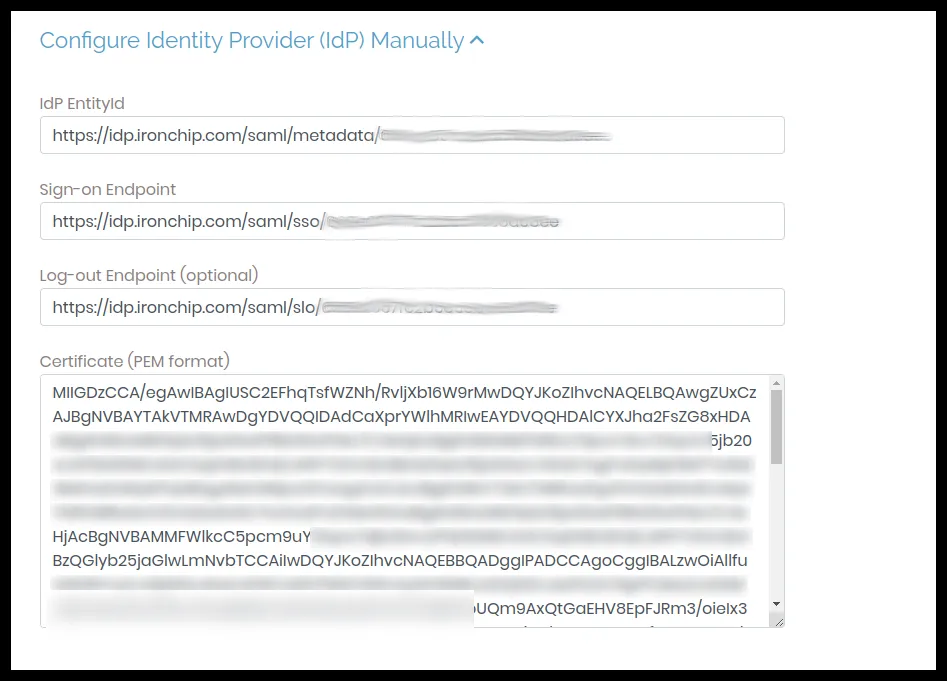
Select the metadata file and click Upload. To check that it was added correctly, go to the manual configuration: the fields must be filled in with the matching data.
-
Add the SP (OpenVPN) metadata to the Ironchip application. In Service Provider (SP) identity and URL, copy the SP Identity URL.
-
Paste that URL into the Metadata URL field of the application you are creating in the Ironchip admin console.
-
In OpenVPN, go to Authentication > Settings, select SAML as the authentication method, click Save Settings and then Update Running Server to apply the changes.

Give users access
Section titled “Give users access”-
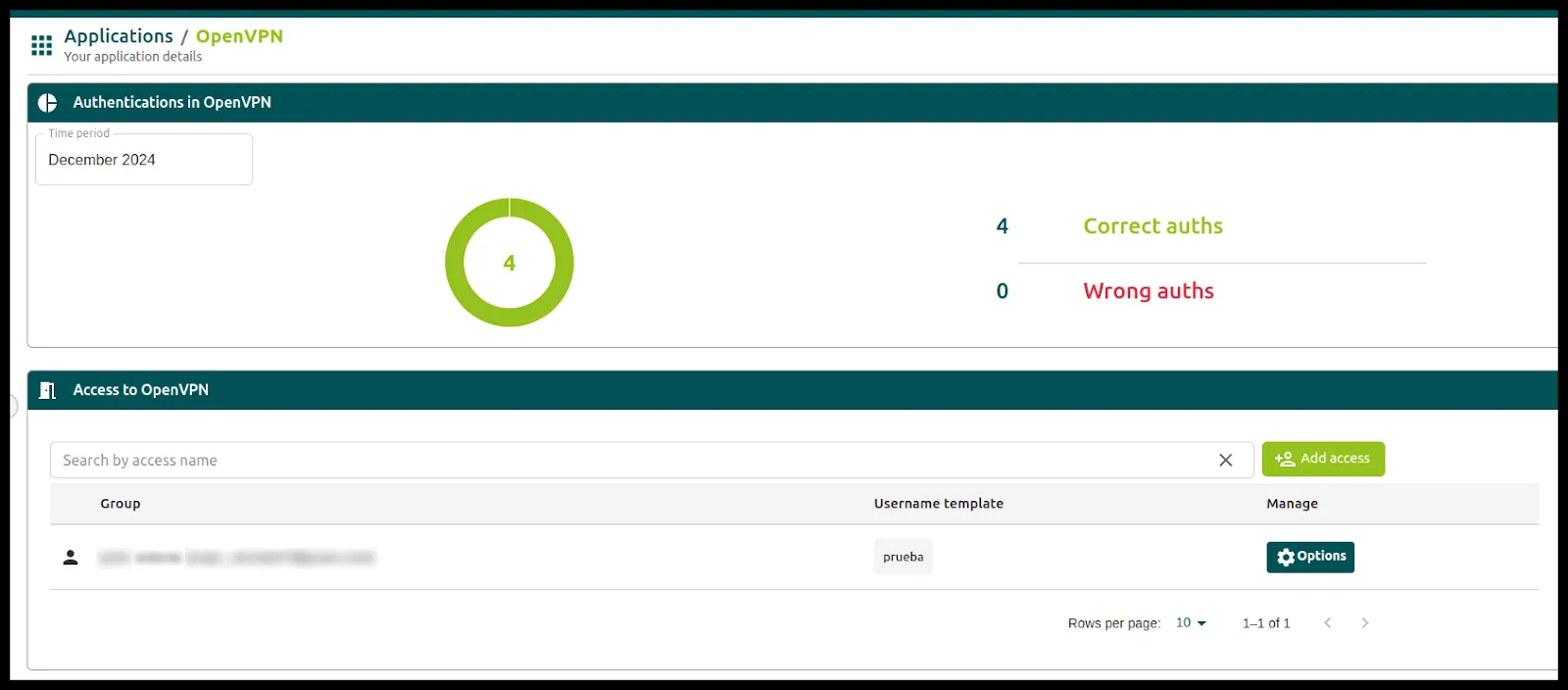
Open the application you created in the Ironchip console and click the green Add access button.
-
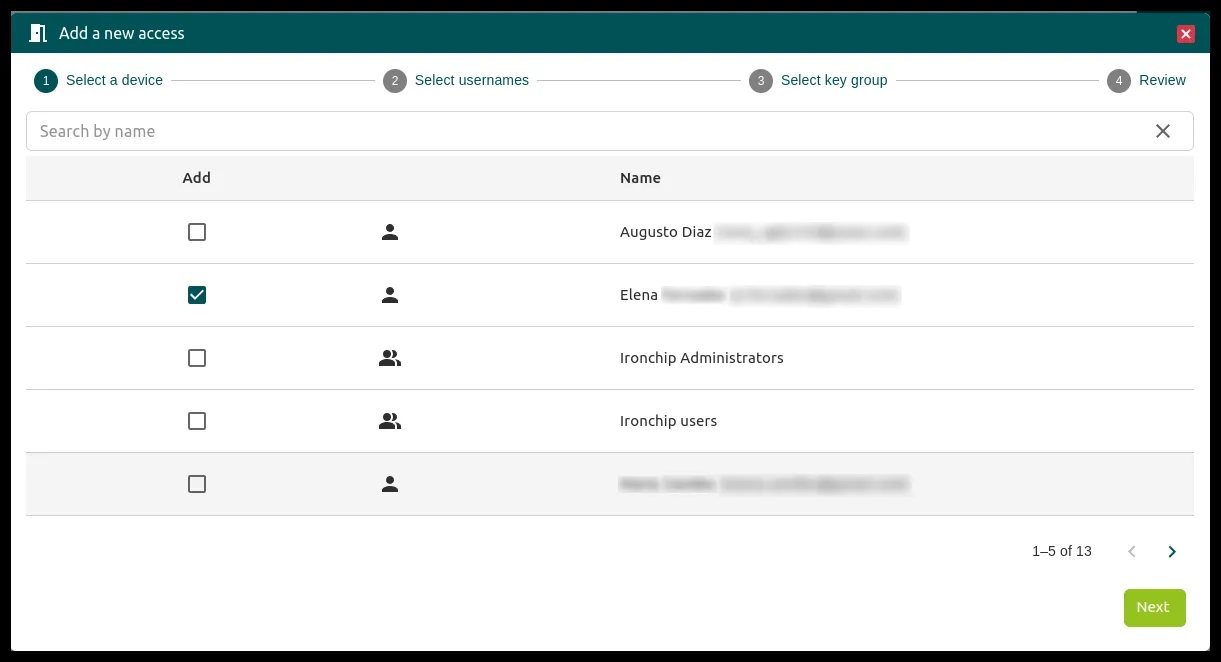
Select the user who will authenticate.
-
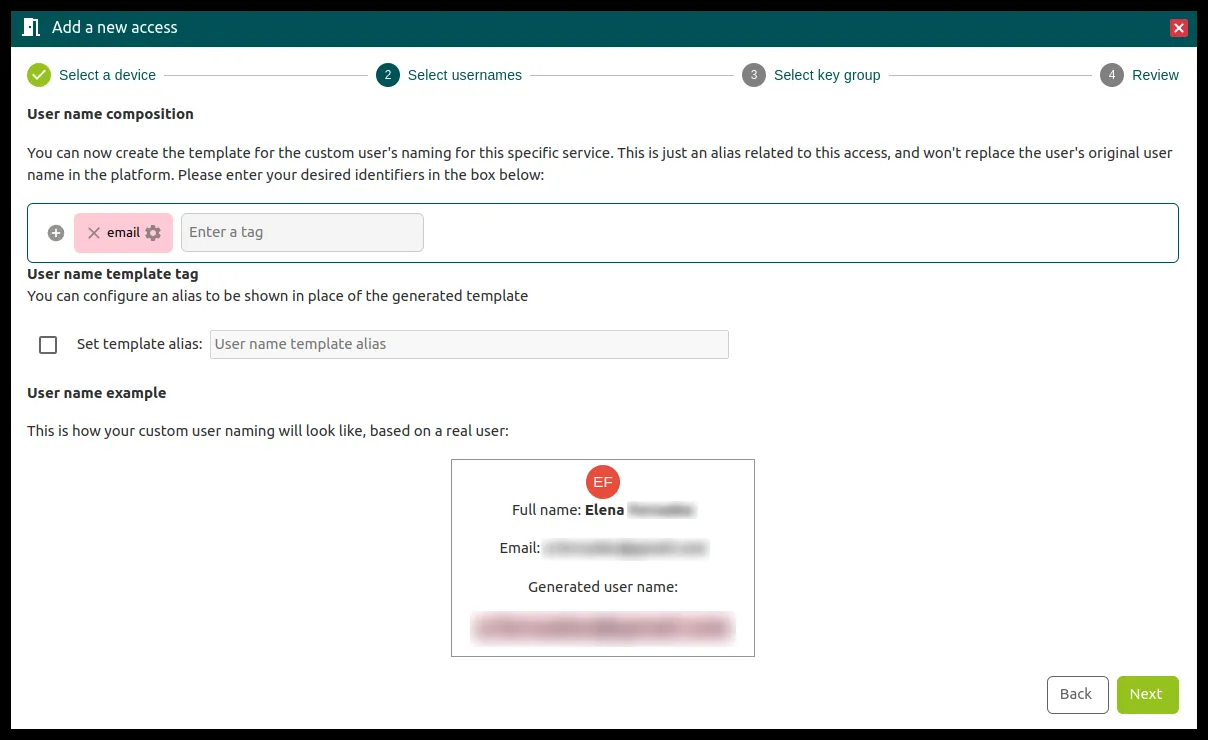
Select the username the user will use to access the VPN.
-
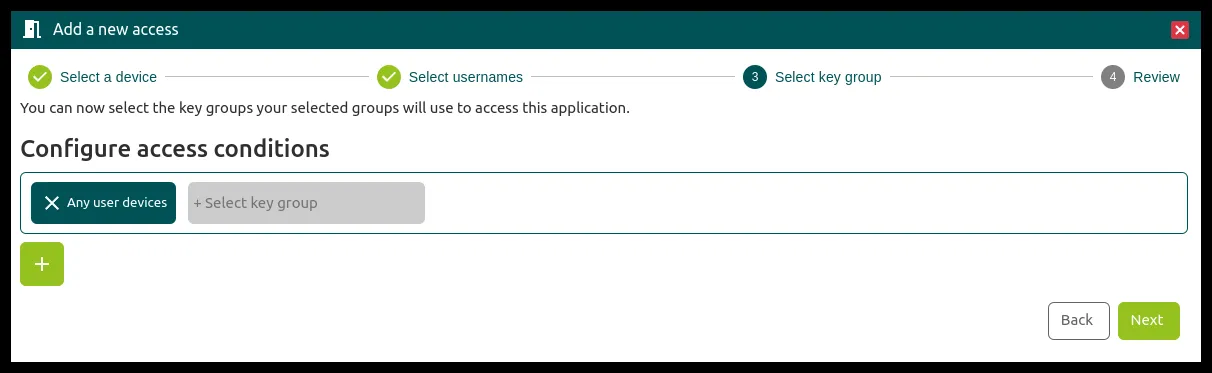
Set the access conditions.
Verify with the OpenVPN client
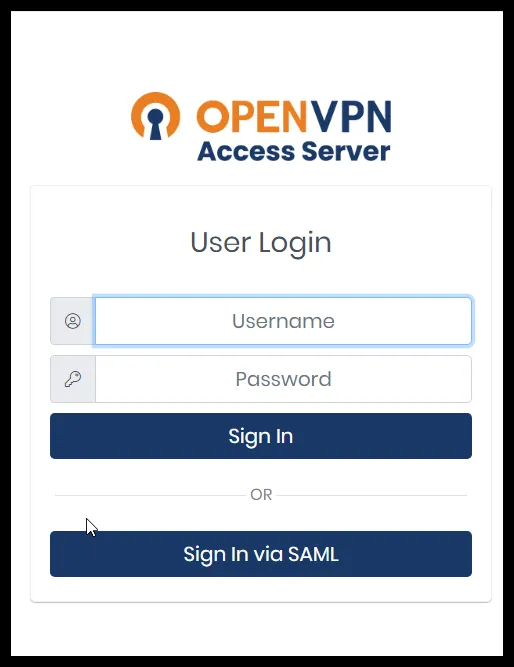
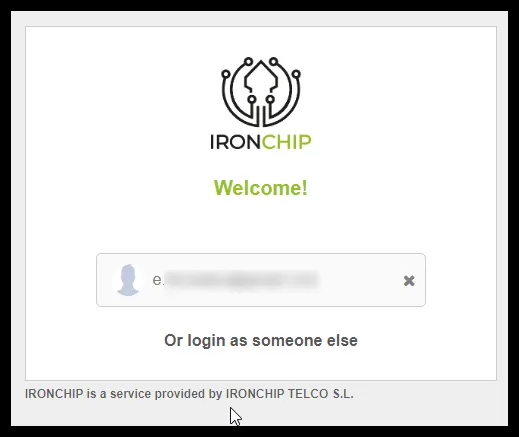
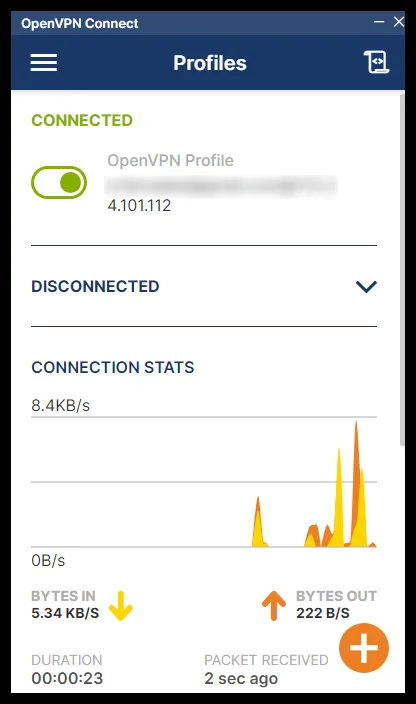
Section titled “Verify with the OpenVPN client”When you create a new connection in the client, it redirects you to the OpenVPN client portal, where you can choose between a local user or SAML.
RADIUS
Section titled “RADIUS”Requirements
Section titled “Requirements”- The NPS role installed on a server.
- Access to the OpenVPN admin interface with administrator permissions.
- Access to the Ironchip admin console with administrator permissions.
Configure Ironchip
Section titled “Configure Ironchip”-
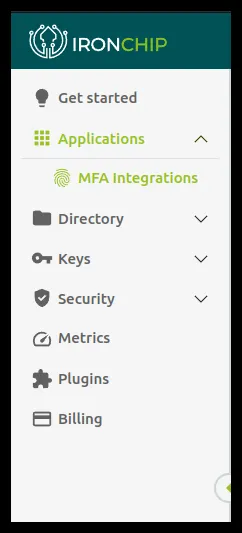
Go to Applications and select MFA Integrations.
-
Click ADD MFA and give it a descriptive name, in this case
OpenVPN.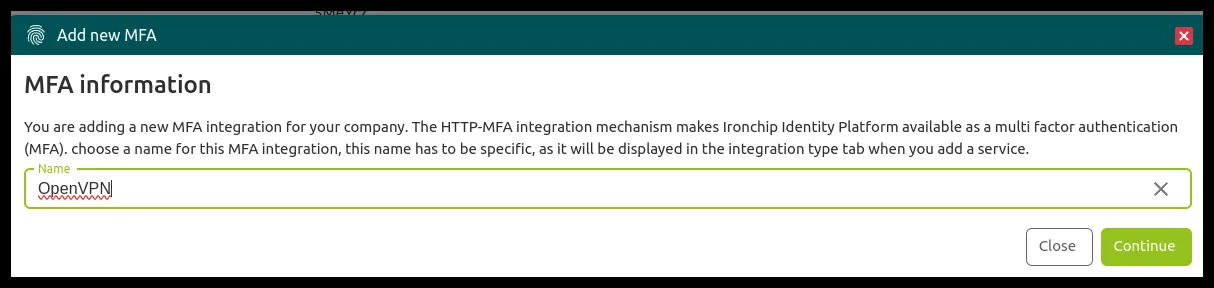
-
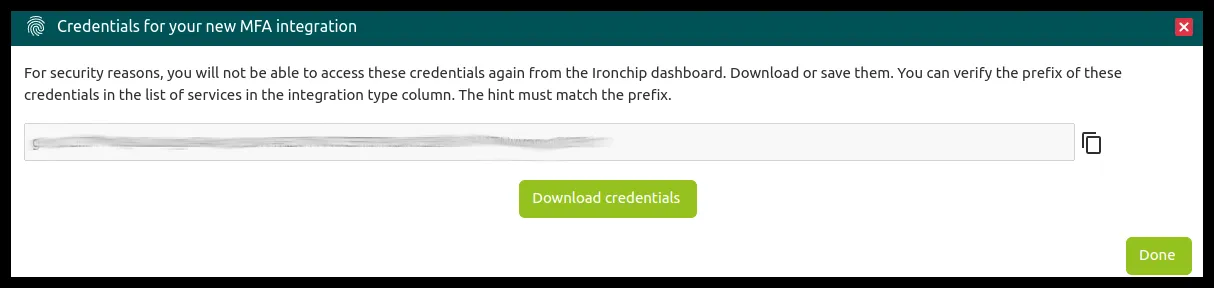
In the next window, copy or download the credentials.
-
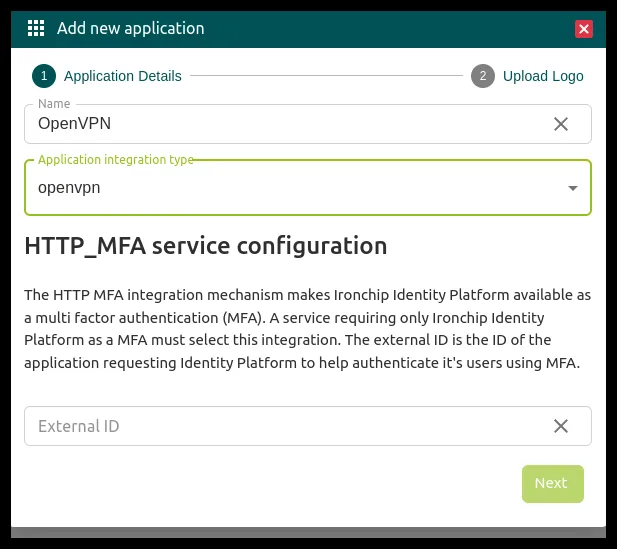
Go back to Applications and select New Application. Add a descriptive name, select the integration method you just created and, in the section that becomes available, add the policy you create later on the server.
Configure NPS
Section titled “Configure NPS”-
Create two groups in Active Directory: one to authenticate with Ironchip and one for users who do not need MFA.
-
With the groups created and the users assigned, open NPS and create a network policy.
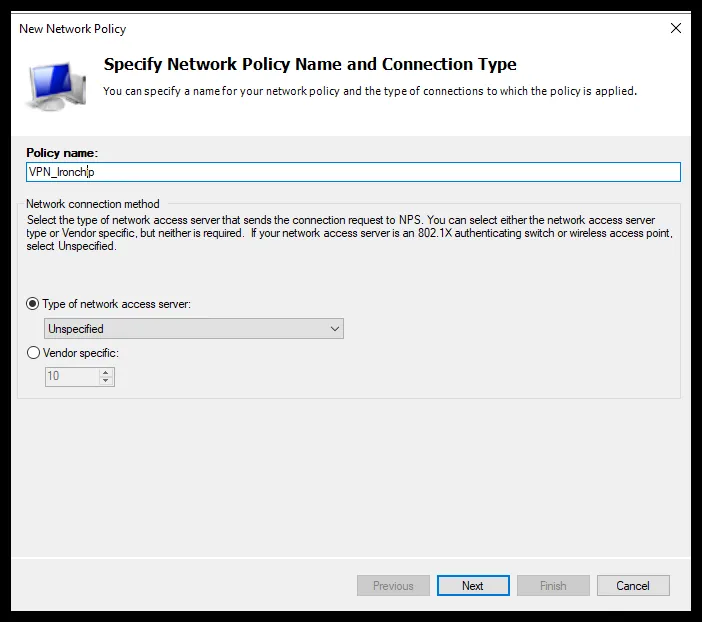
-
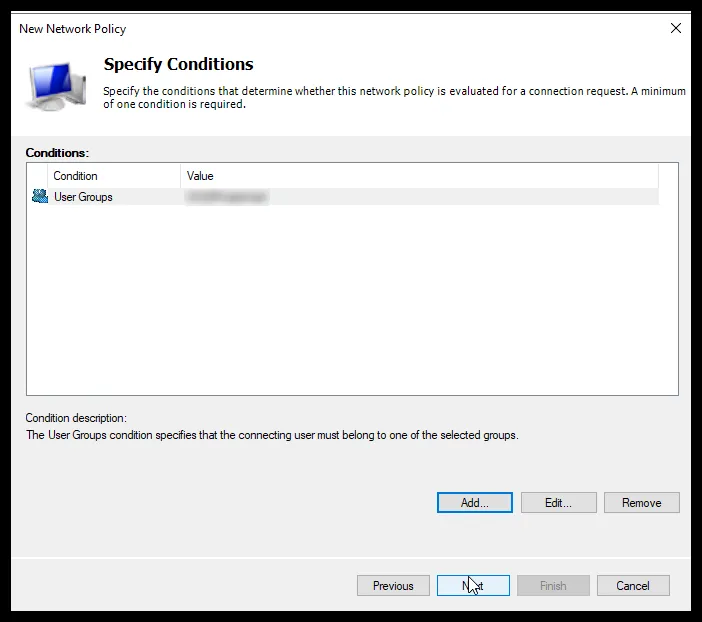
In the next window, click Add > User Groups and add one of the groups you created.
-
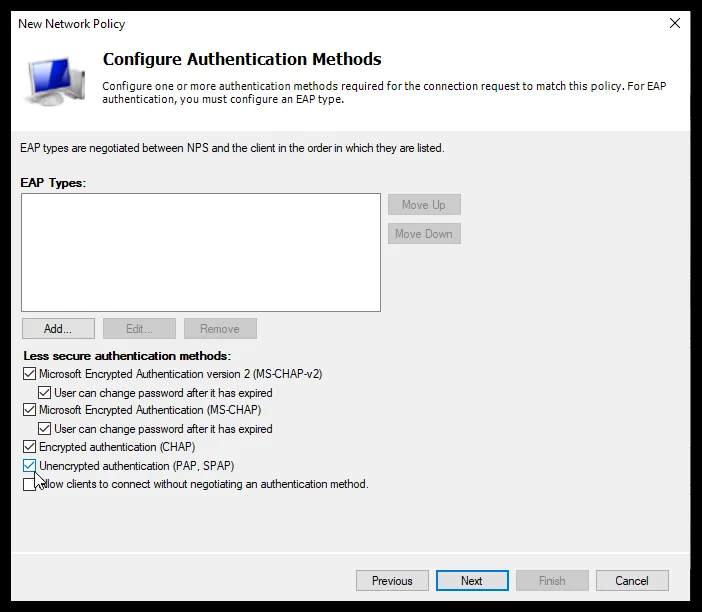
Click Next until you reach Configure Authentication Methods. Select Encrypted authentication (CHAP) and Unencrypted Authentication (PAP, SPAP). Click Next until you finish.
-
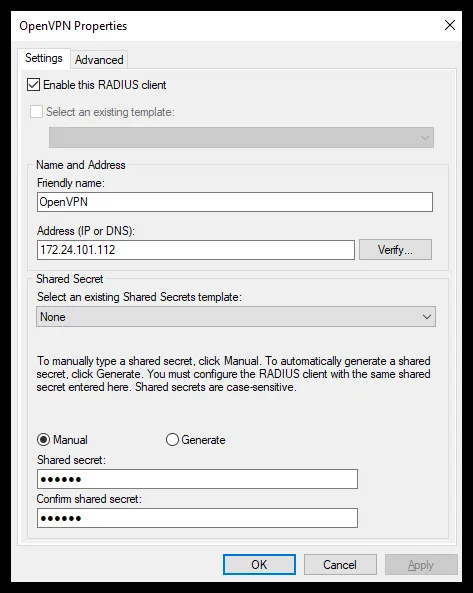
Go to RADIUS Clients and create a RADIUS client that points to OpenVPN Server. Enter a descriptive name (the name of the SP it points to), the IP and the shared secret, which you can type or generate automatically.
-
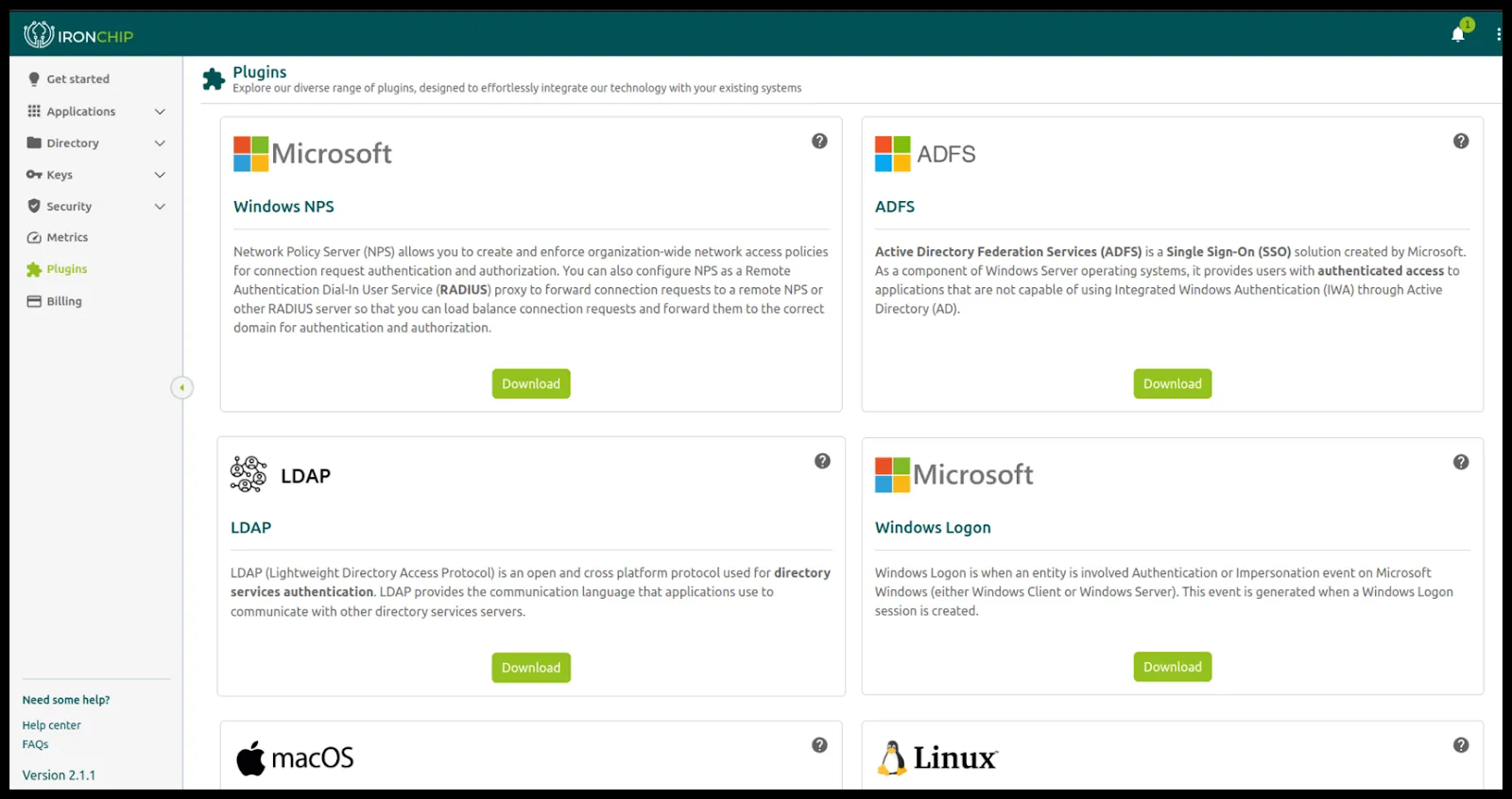
In the Ironchip console, go to Plugins and download the NPS plugin on the server.
-
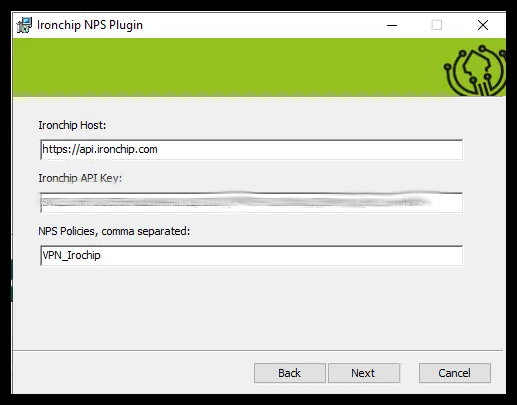
Run the plugin, accept the terms and conditions and fill in the parameters:
- The API key, which is in the credentials file you downloaded when you created the MFA integration.
- In NPS Policies, the policy you want to protect with Ironchip.
Configure OpenVPN Server
Section titled “Configure OpenVPN Server”-
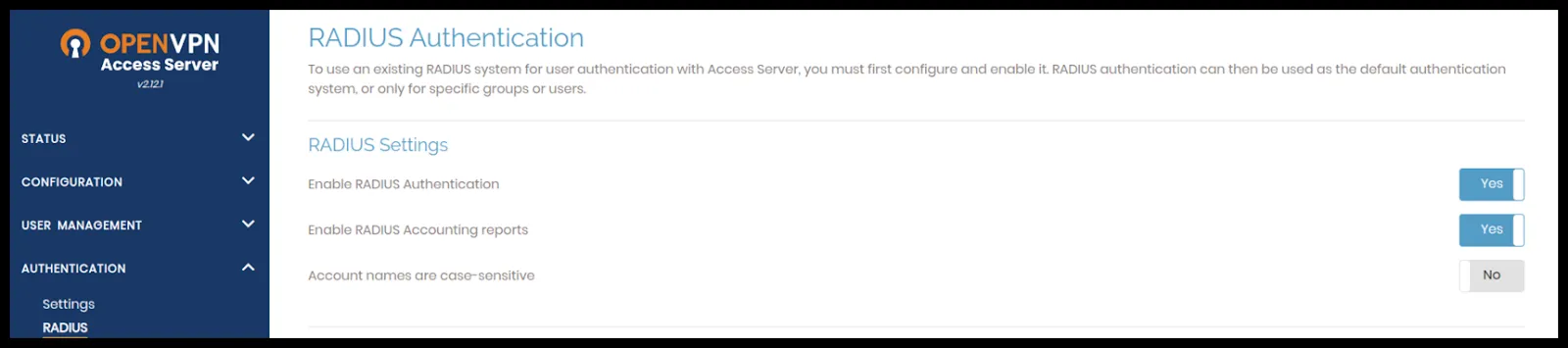
In the OpenVPN admin interface, go to Authentication and select RADIUS. Enable RADIUS and the accounting reports.
-
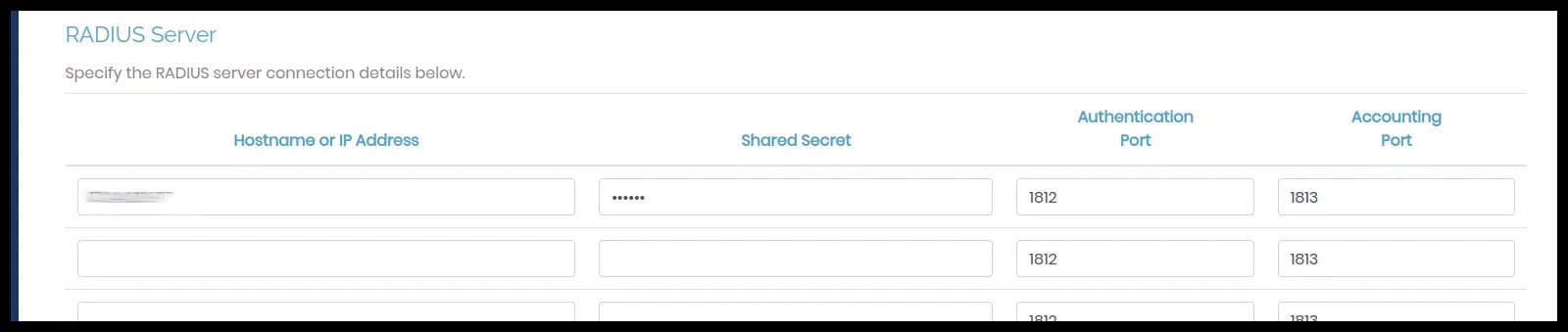
Go to RADIUS Server and add the IP of the server where you configured NPS and the secret you set in the RADIUS client.
Give users access
Section titled “Give users access”For a user to access the VPN, besides being in the Active Directory group, you must create an access for them in the application in the Ironchip console.
-
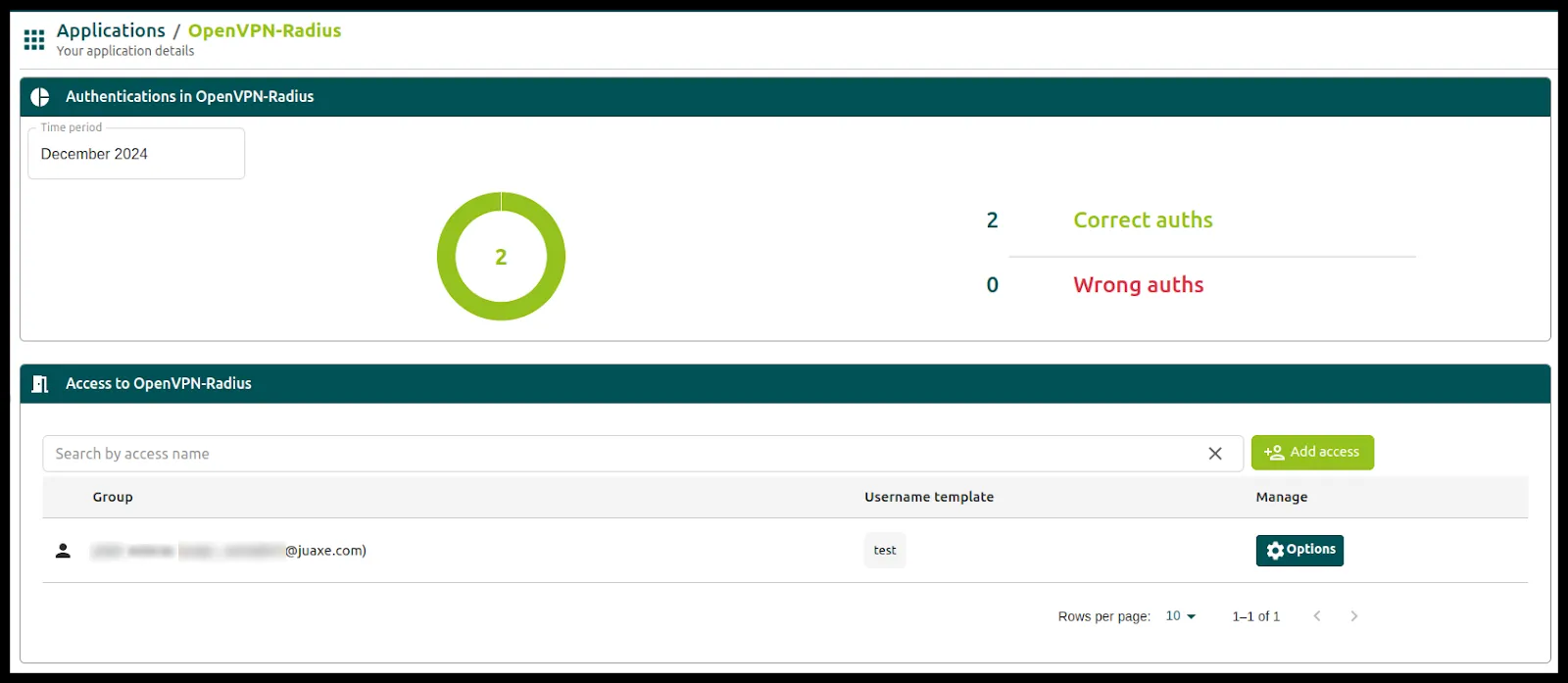
Open the application in the Ironchip console and click Add Access.
-
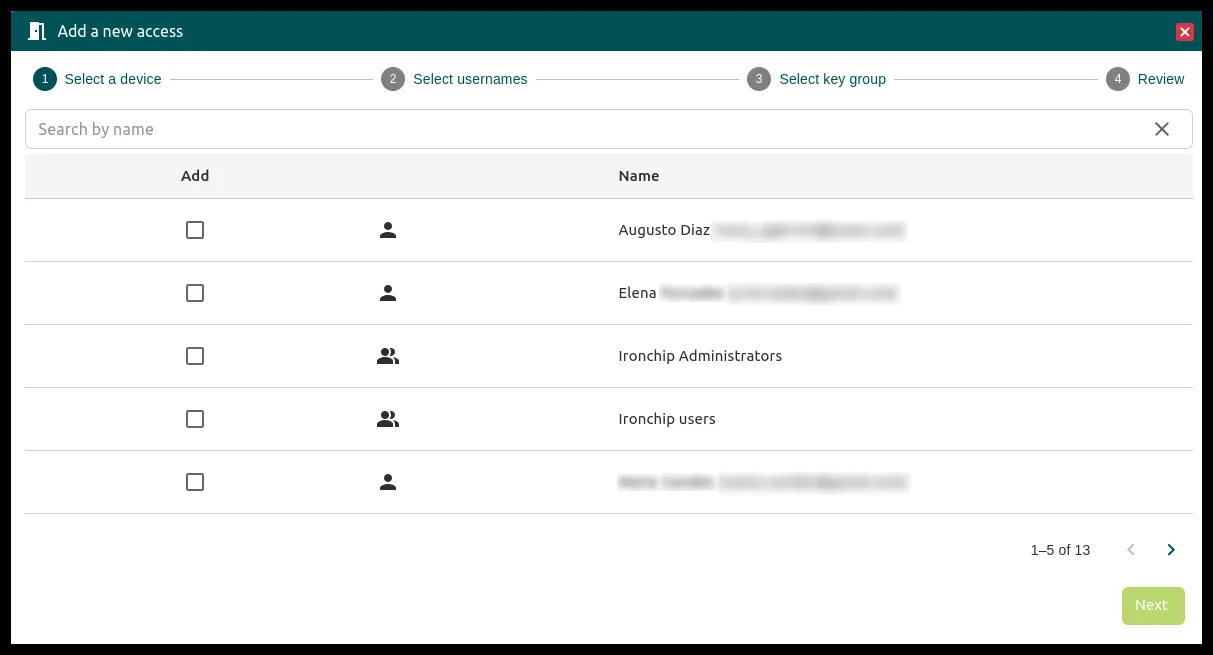
The platform users and groups appear. Select the user who will authenticate.
-
The next window asks for a User Name. By default it is the email: remove the default tag and type the username. If you have Active Directory synchronized, with AD Connect for an on-premises directory or with an enterprise application in Entra ID (formerly Azure AD), you can use the
samAccountNametag.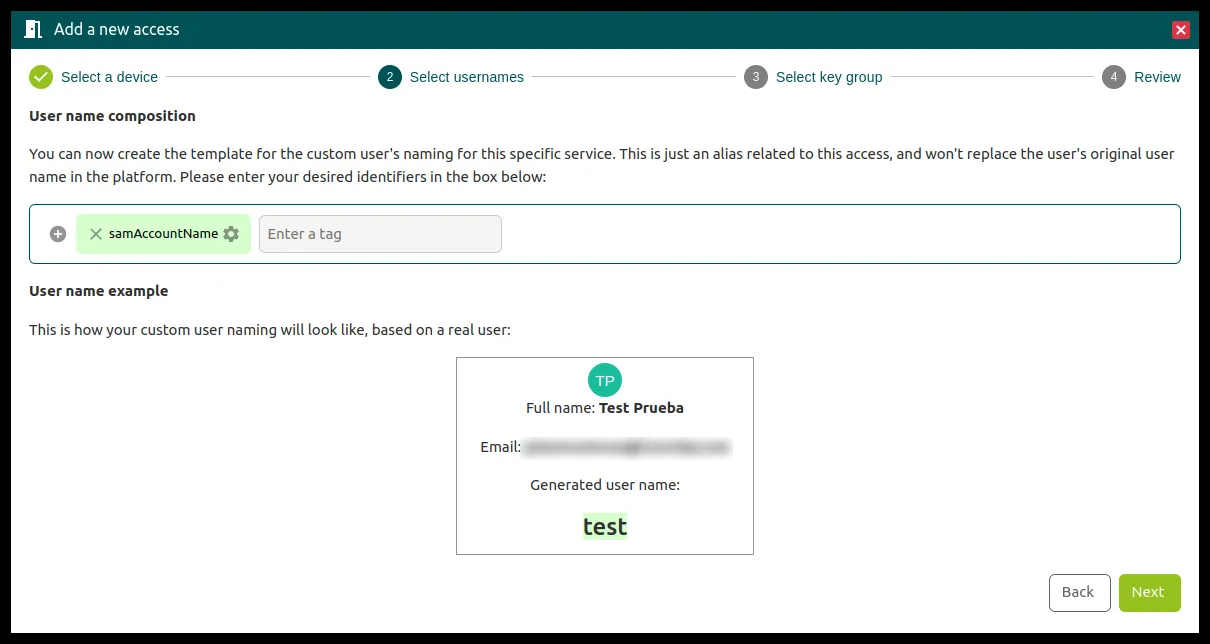
-
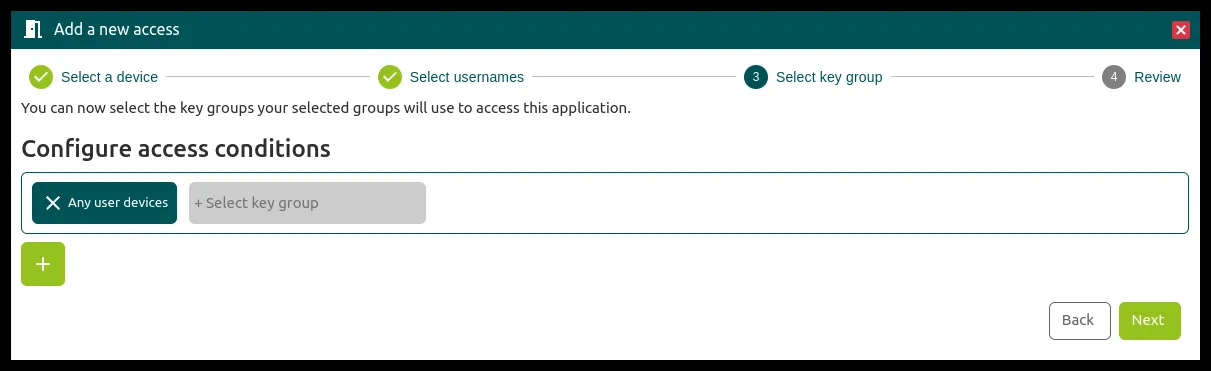
Set the access conditions.
Verify with the OpenVPN client
Section titled “Verify with the OpenVPN client”In the OpenVPN client, create a new profile and use your domain credentials to connect to the VPN.
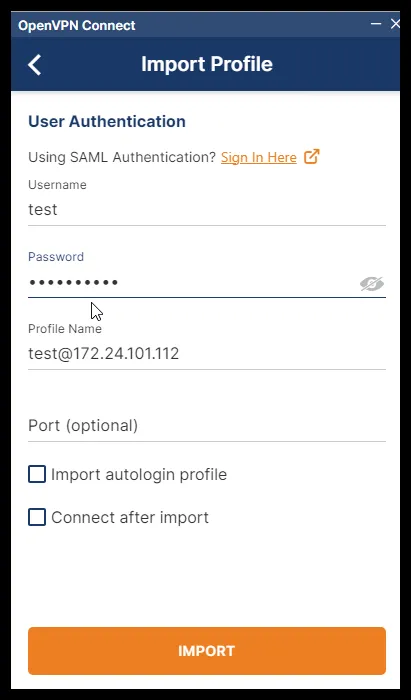
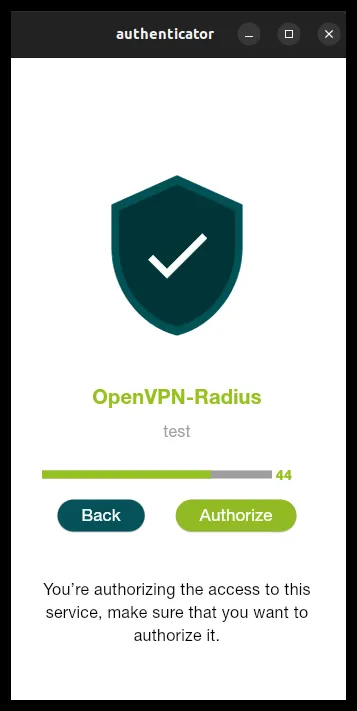
When you create the profile, it asks you to authenticate.
Was this page helpful?
Thank you. We will use it to improve the documentation. If you want to tell us what is missing or unclear, write to support@ironchip.com.