

Microsoft NPS
NPS (Network Policy Server) lets you create and apply network access policies for the authentication and authorization of connection requests across the organization. Use this guide to protect it with Ironchip over RADIUS, so that you can use Ironchip in other services, such as RDP or VPN.
Requirements
Section titled “Requirements”- A functional Active Directory.
- DHCP and DNS services active. If you do not have them, see Prepare the Windows environment.
- An HTTP-MFA integration (MFA application) created in Ironchip. See Create an HTTP-MFA integration.
Configure Ironchip
Section titled “Configure Ironchip”-
In the admin console, create the application that references the HTTP-MFA integration. In External ID, enter the name of the network policy you will protect with the plugin (in this guide,
IronchipProtected) and click Add service.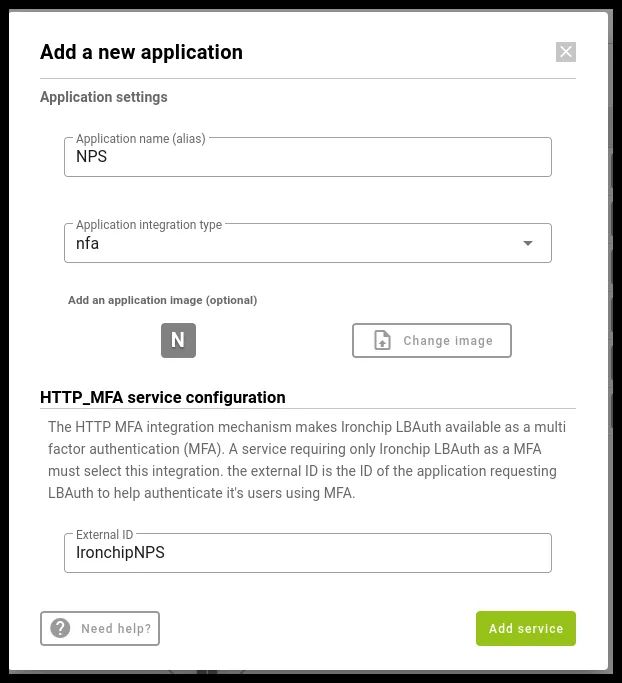
-
Save the API key that Ironchip shows when you create the application. It only appears this once, and you need it to install the plugin.
-
Add users to that application, using the format
Domain\User.
Configure Microsoft NPS
Section titled “Configure Microsoft NPS”Install NPS on the server
Section titled “Install NPS on the server”Install the Network Policy and Access Services role from Add roles and features.
Create the network policy
Section titled “Create the network policy”-
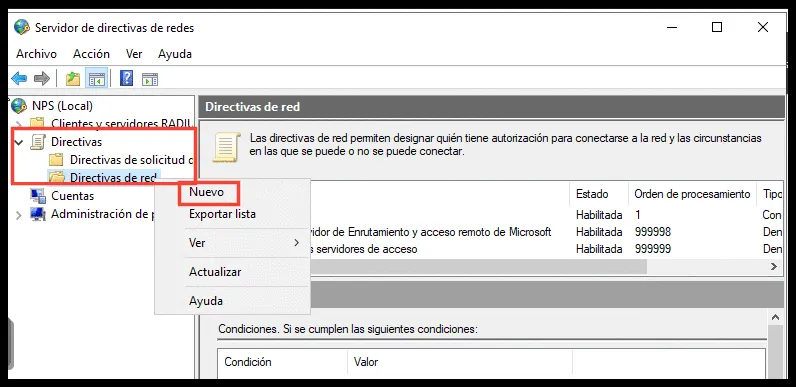
Open the Network Policy Server. On the Policies tab, right-click Network Policies and create a new policy.
-
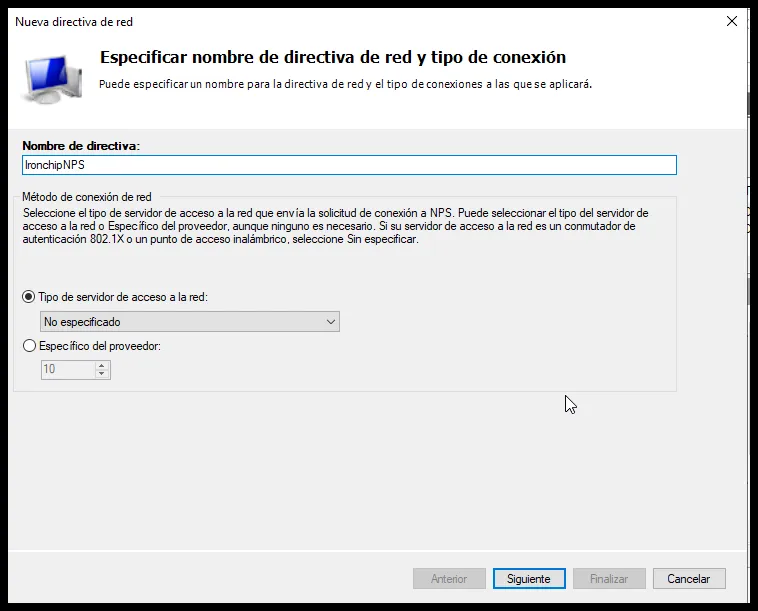
Give it an identifying name and click Next. You use this name when you install the NPS plugin to determine which policy to protect.
-
Select the user group the policy applies to.
-
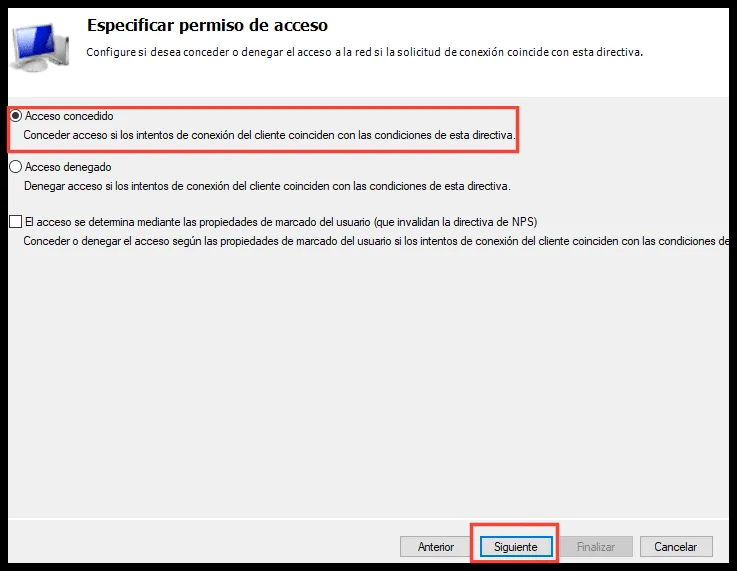
On the next tab, leave Access granted selected.
-
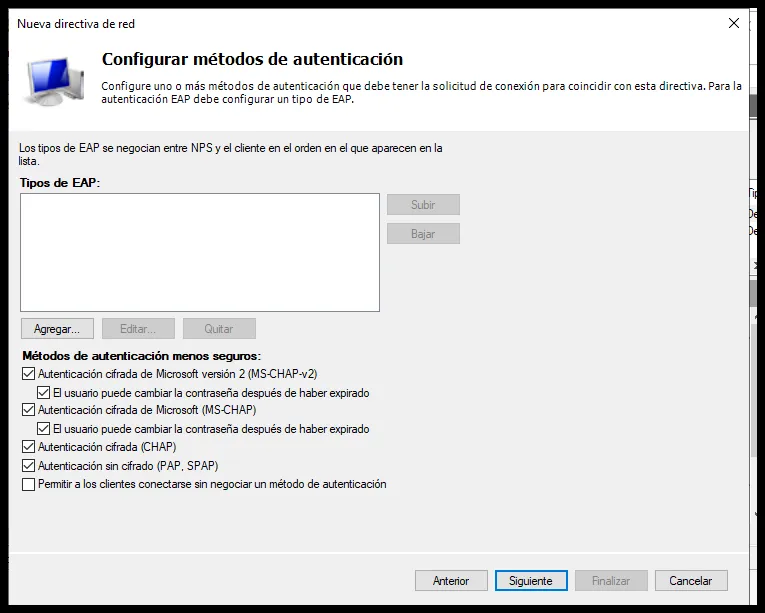
Configure the authentication methods the policy uses and click Next.
-
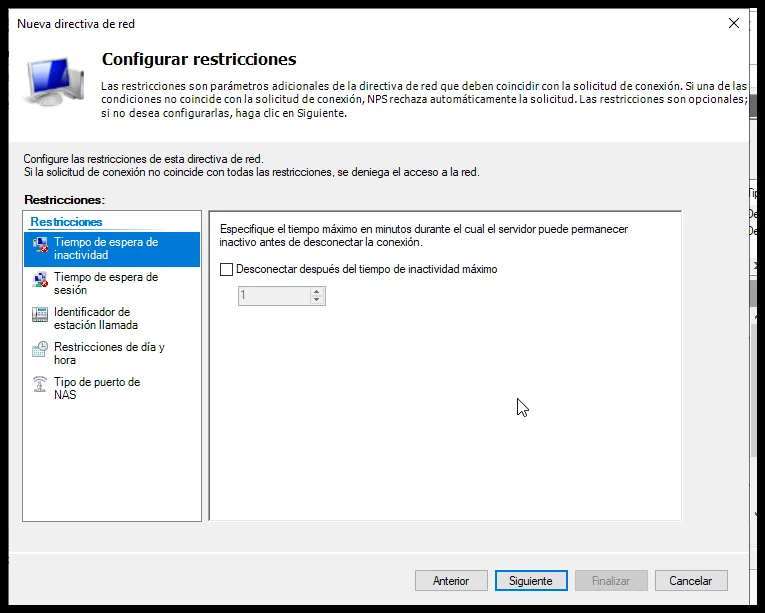
Configure the constraints that automatically deny access if they are not met. Complete it with the options you want and click Next.
-
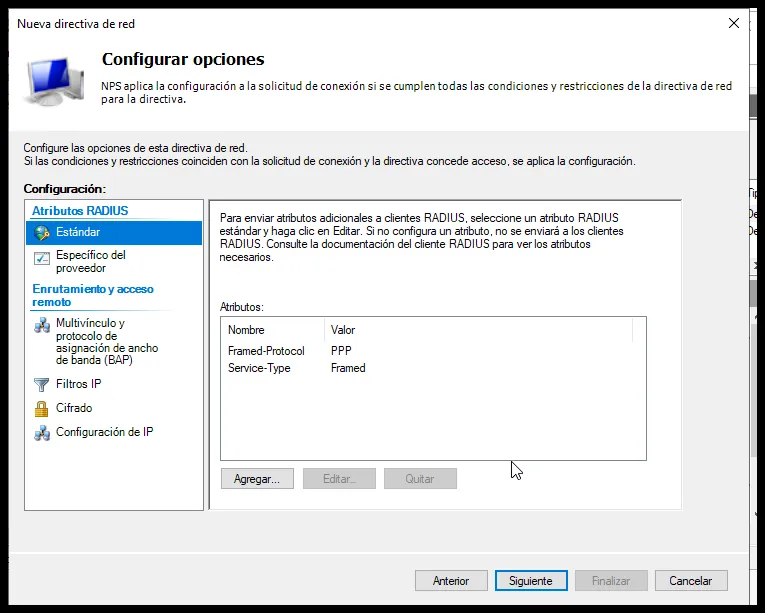
Add the settings that apply when the policy constraints are met, and click Next.
-
Review the summary of the configuration and click Finish.
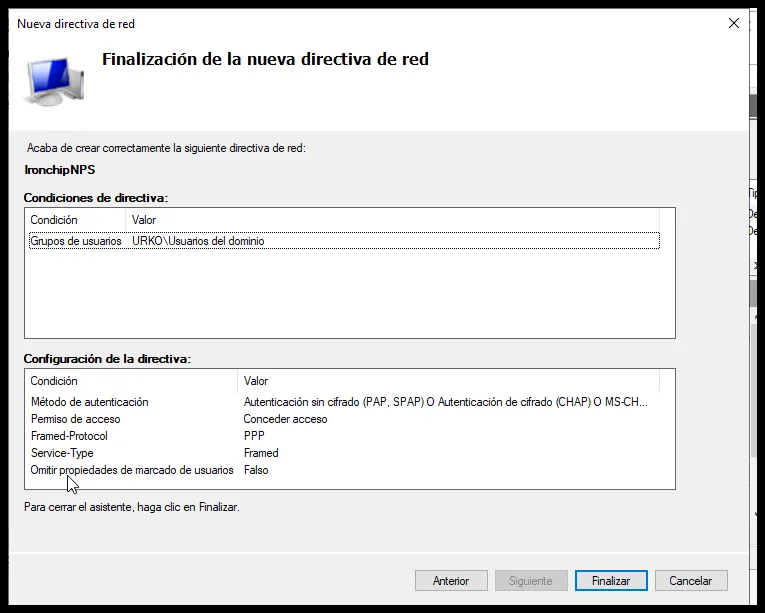
The network policy is created. You can now install the NPS plugin.
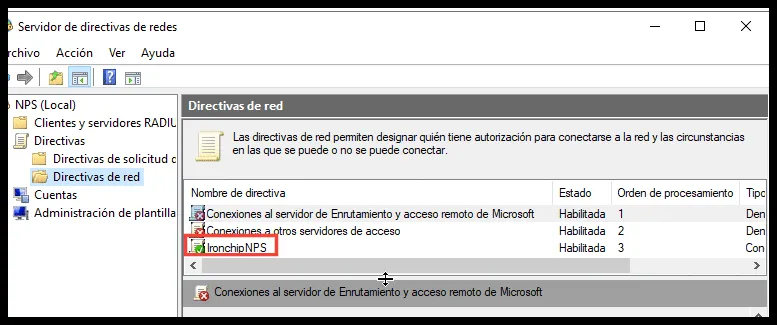
Install the NPS plugin
Section titled “Install the NPS plugin”-
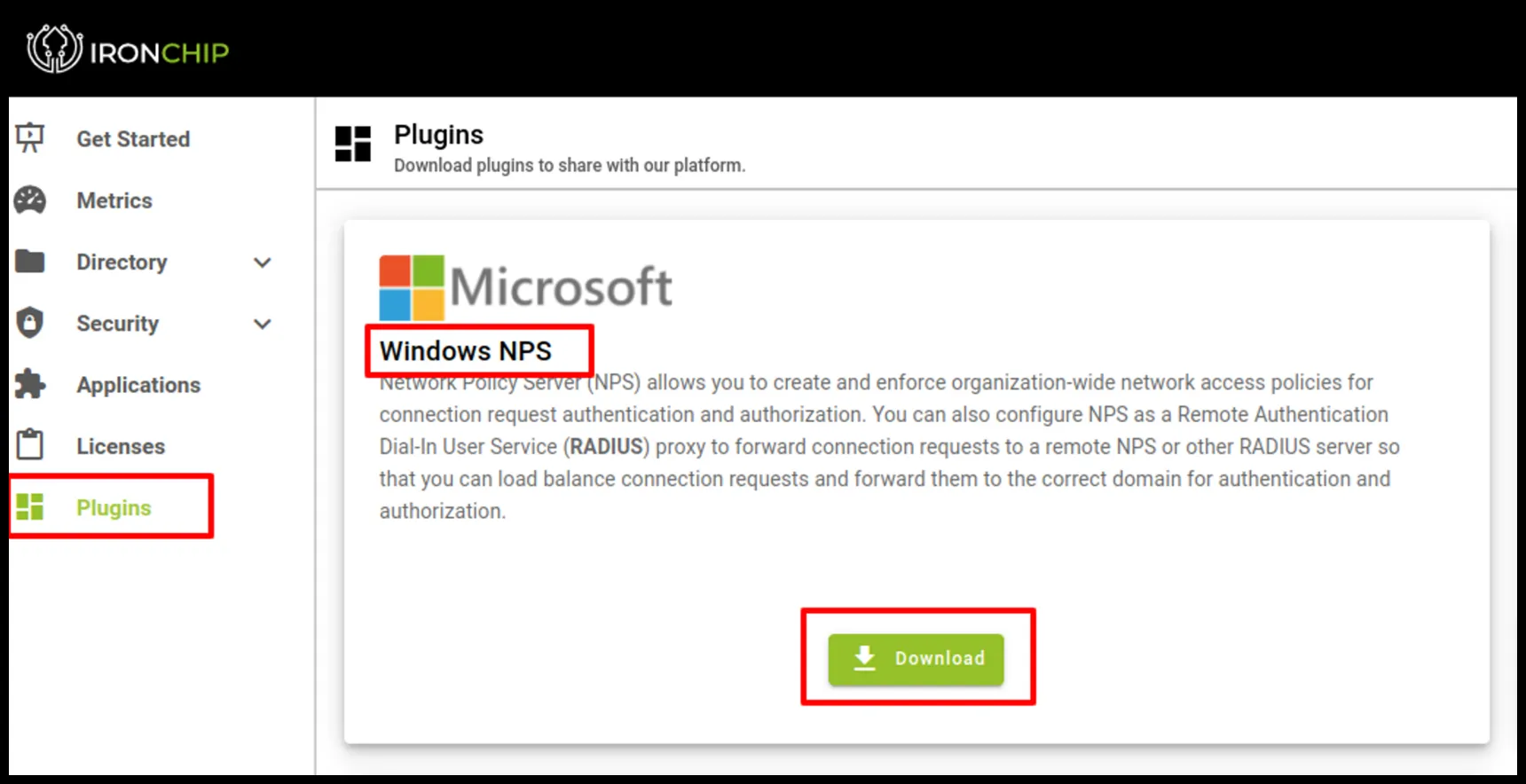
In the Plugins section of the Ironchip admin console, find Windows NPS and click Download.
-
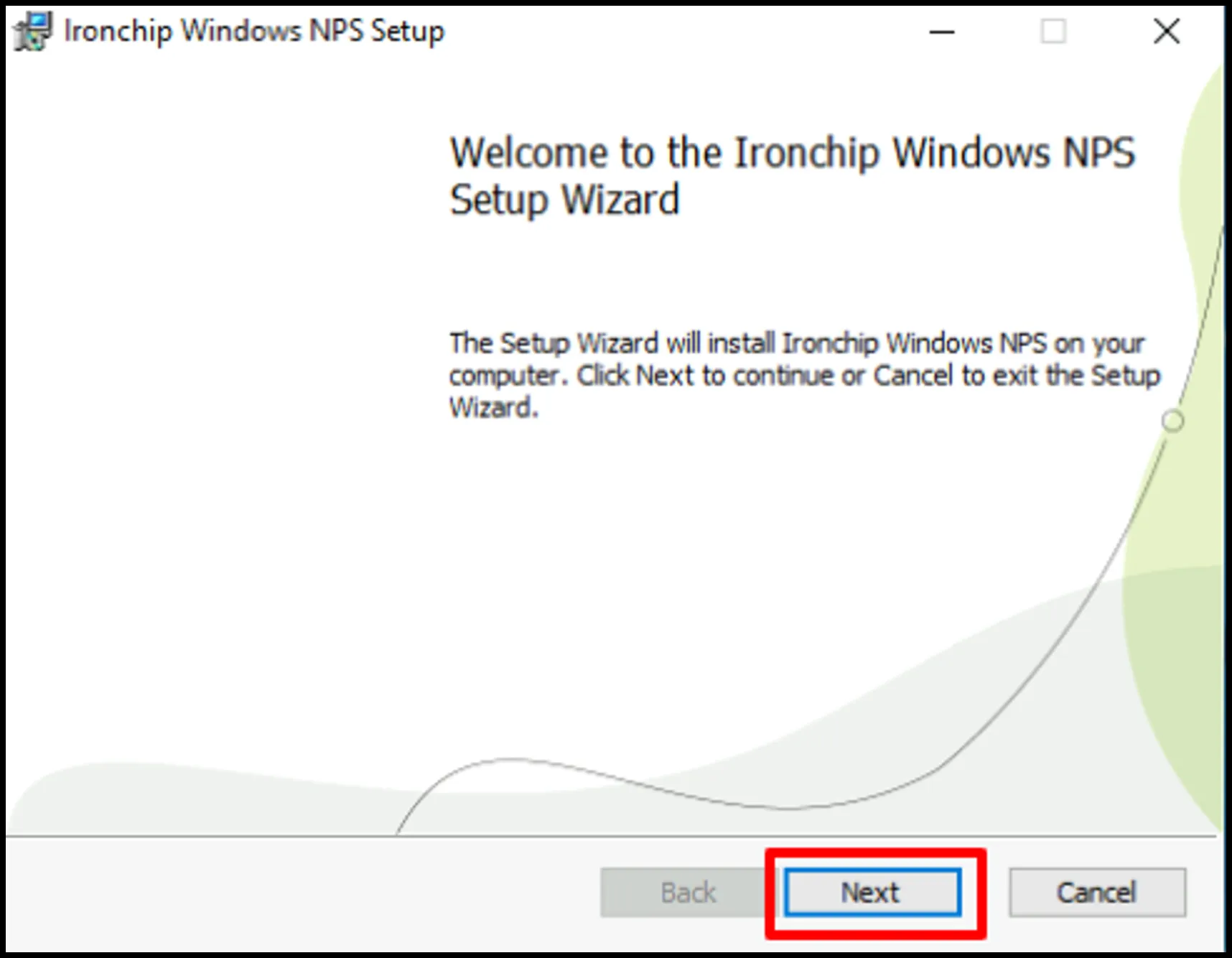
Run the installer.
-
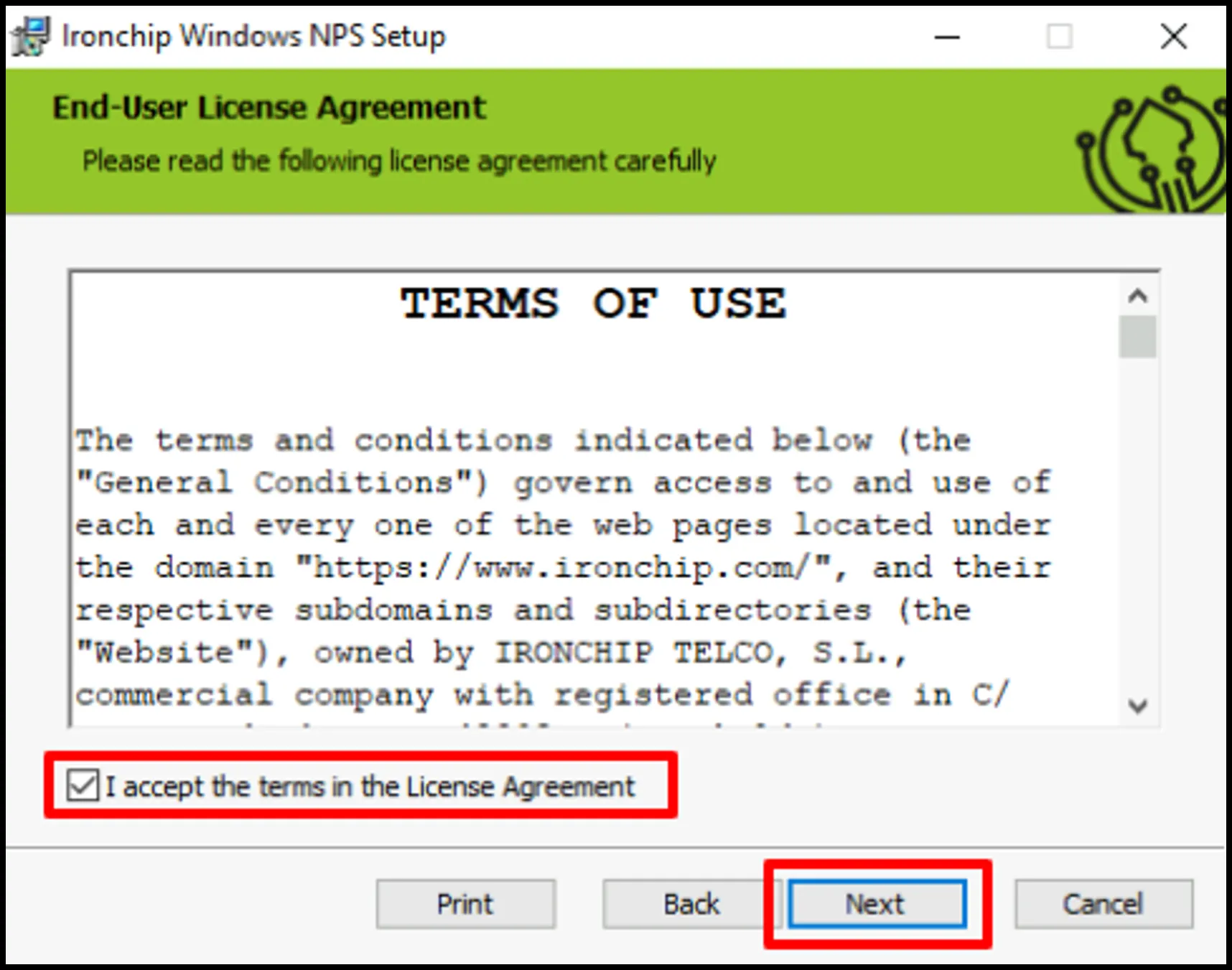
Click Next, accept the terms of use, and click Next again.
-
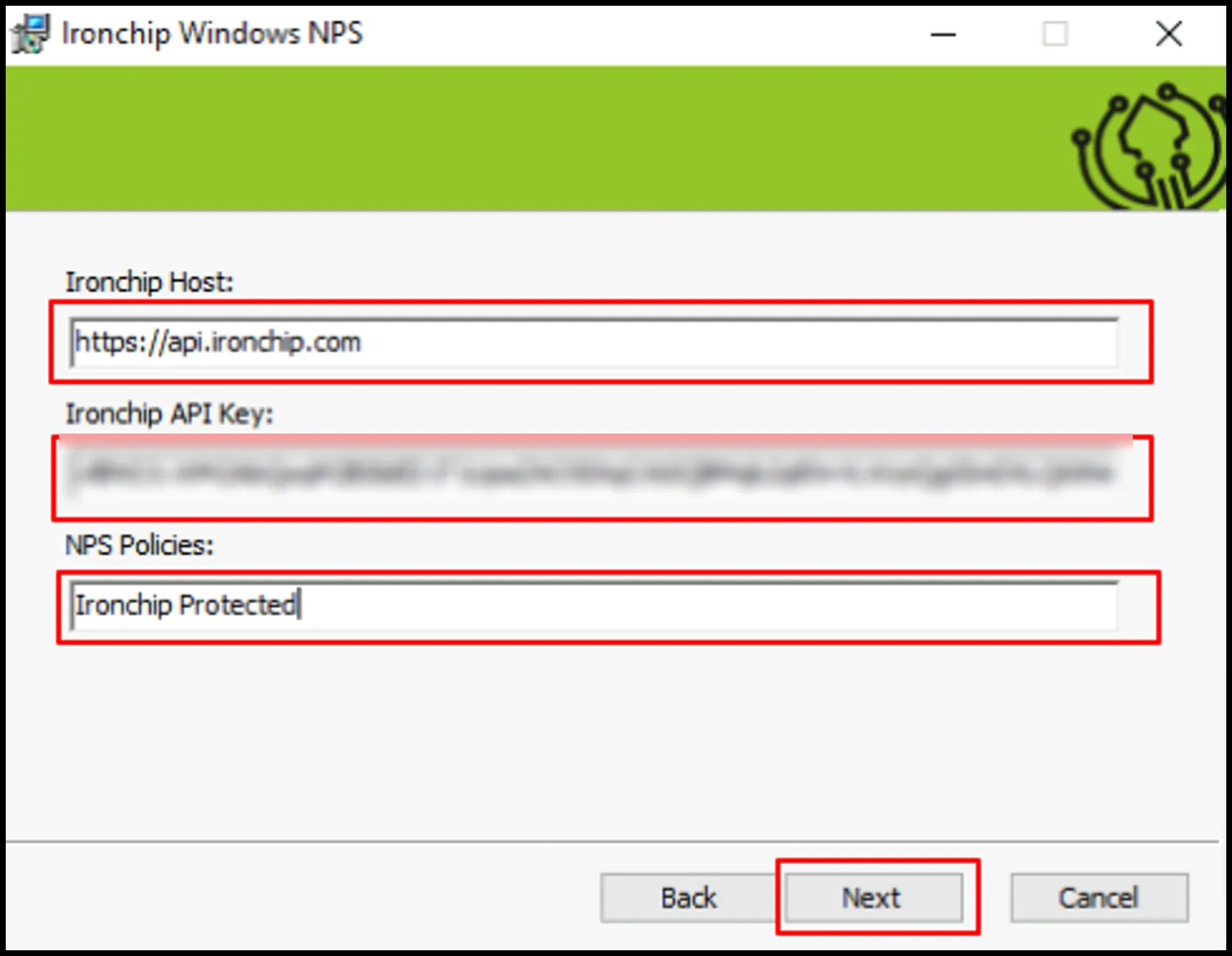
Complete the next screen and click Next:
- Ironchip Host: your Ironchip host. If you use the cloud solution, it is
api.ironchip.com; otherwise, enter your custom host. - Ironchip API Key: your company’s API key, which you got when you created the service.
- NPS Policies: the name of the network policy you want to protect with Ironchip NPS. In the example, it is the policy you created,
IronchipProtected. To add more than one, separate the names with commas.
- Ironchip Host: your Ironchip host. If you use the cloud solution, it is
-
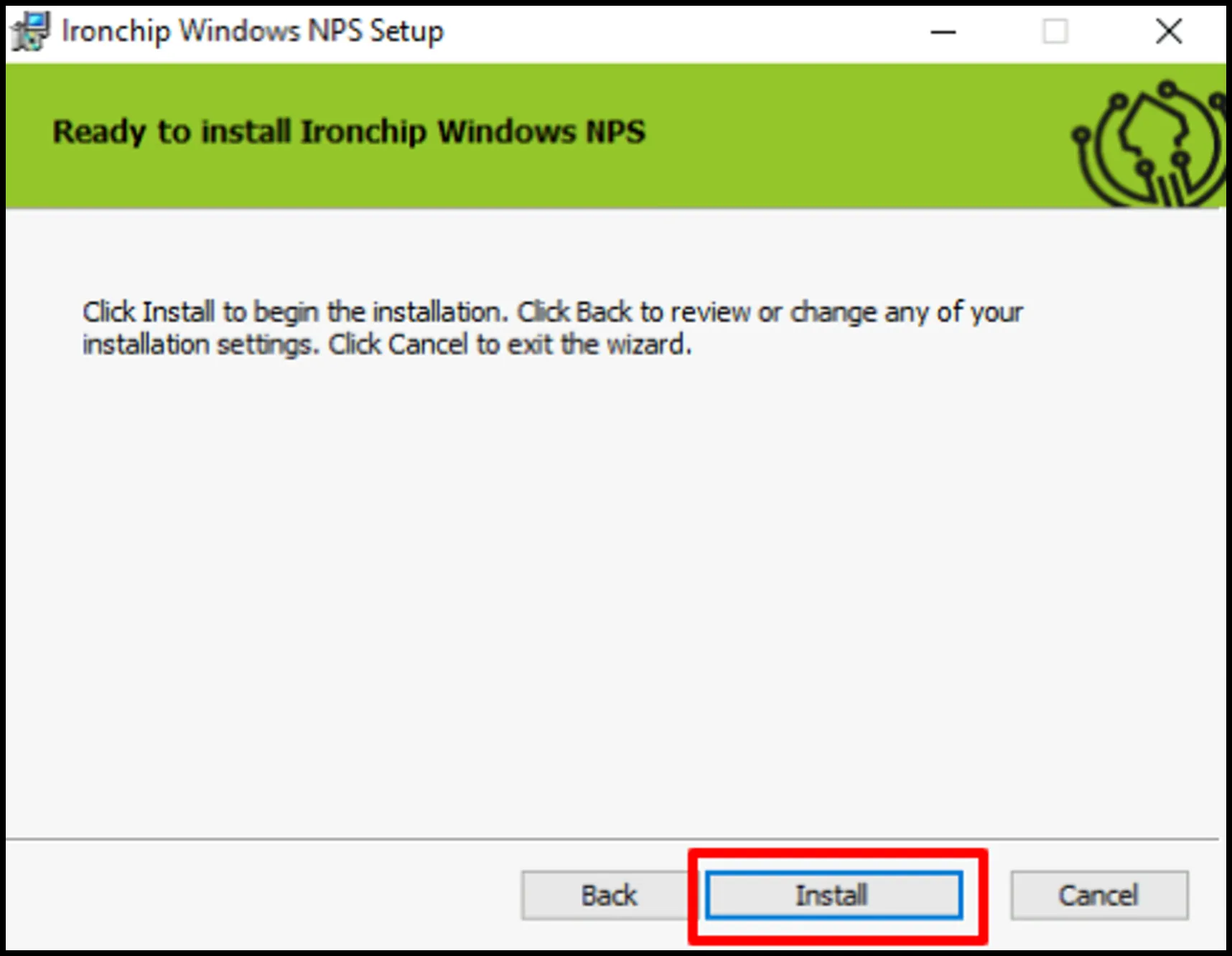
With all parameters correct, click Install.
-
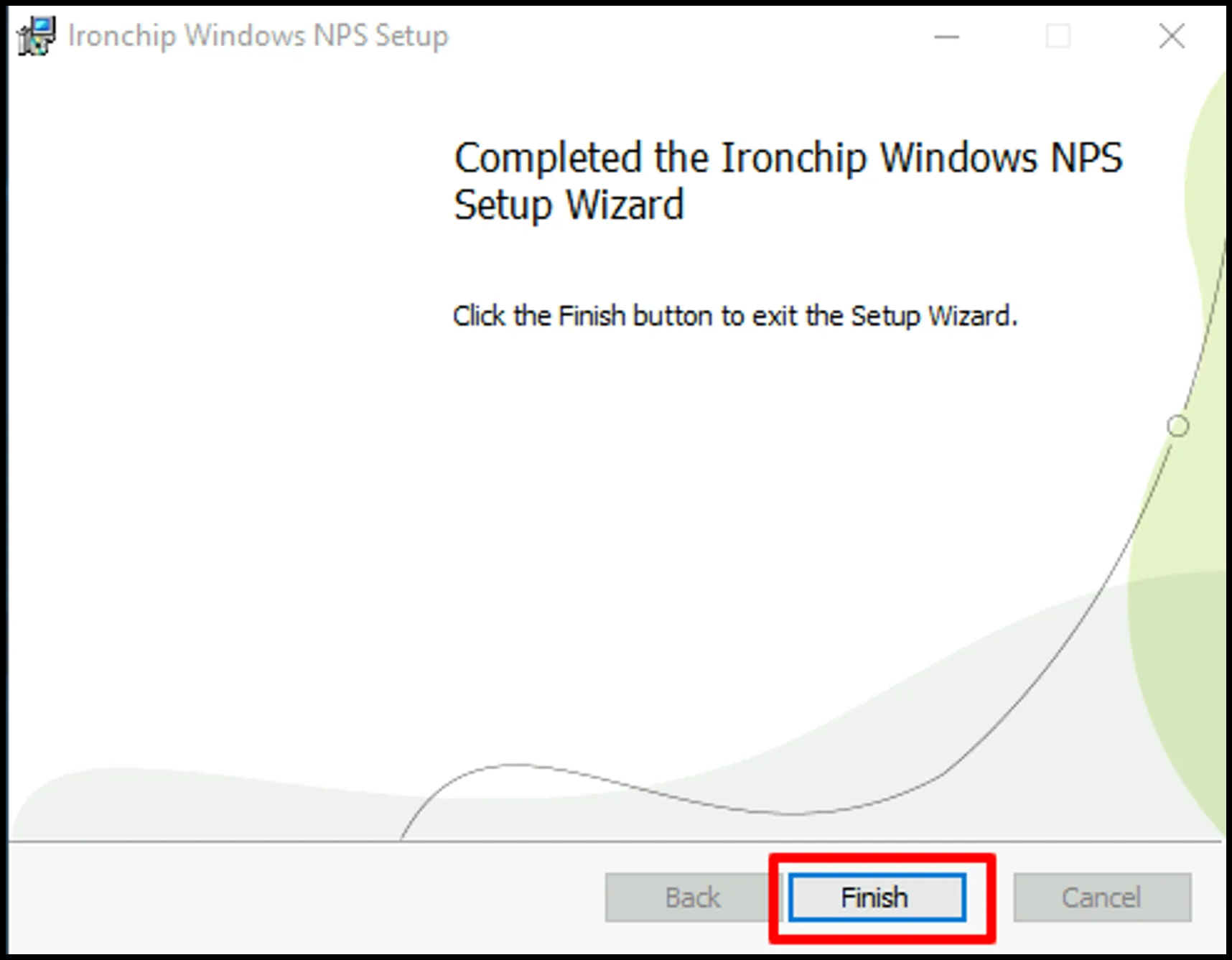
When the installation succeeds, click Finish.
Install the https://api.ironchip.com certificate on every device that will use this service.
Install on Windows Server 2008 and Windows Server 2012
Section titled “Install on Windows Server 2008 and Windows Server 2012”Before you install the Ironchip NPS plugin on these versions, you need to install JDK and .NET (our team provides these components) and change the format of the Ironchip certificate so that it is accepted.
Install the JDK
Section titled “Install the JDK”- Open the program and click Next.
- Accept the terms of the agreement and click Next again.
- The next window lets you customize the installation. The default configuration is enough, so just click Next.
- Click Install.
- When the installation finishes, click Finish.
Install .NET
Section titled “Install .NET”This step is optional on Windows Server 2012.
- Run the program, accept the terms and conditions, and click Install.
- When the installation finishes, click Finish.
Change the format of the Ironchip certificate
Section titled “Change the format of the Ironchip certificate”- Open
api.ironchip.comin your browser (any browser works). - Click Not secure and then The certificate is not valid.
- In the next window, go to Details and click Copy to File….
- Choose the third option and select Include all certificates in the chain if possible. Click Next.
- In the new window, click Next.
- Choose the path where you want to export the certificate and the name for the file. Click Next.
- When the export finishes, click Finish.
The certificate is now on your computer in the right format. Import it next:
- Search for
mmcin the program search and open it. - Choose File and then Add/Remove Snap-ins.
- Select Certificates and click Add.
- Choose Computer account and click Next.
- Choose the first option shown and click Finish.
- Under Console Root, click Certificates (Local Computer) and choose Trusted Root Certification Authorities.
- Expand the Certificates folder inside it. In the rightmost pane, choose More Actions, then All Tasks, and then Import.
- Choose the location where you exported the certificate. Select the right extension: choose All Files (*.*). Click Next.
- In the next window, click Next again.
- Check the import summary and click Finish.
- When you see the successful import message, click OK.
Verify the integration
Section titled “Verify the integration”Check the plugin logs
Section titled “Check the plugin logs”- Open the Event Viewer to see the Ironchip NPS plugin logs.
- If everything is OK, you see NPSP Ironchip Plugin in the list of applications and services logs. Click it. If the plugin is installed, the logs show
Ironchip NPS plugin initialized successfully.
Test RADIUS access with NTRadPing
Section titled “Test RADIUS access with NTRadPing”To check that everything is configured correctly and working, use the third-party tool NTRadPing.
-
Download the application from NTRadPing.
-
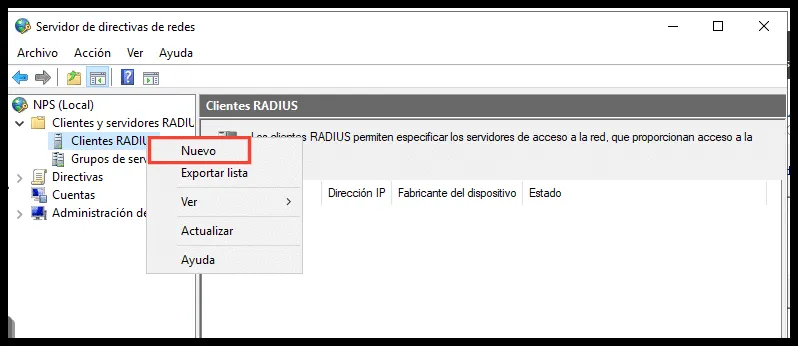
Create a RADIUS client so that you can run the test: open the Network Policy Server, go to RADIUS Clients and Servers, and create a new one by right-clicking RADIUS Clients.
-
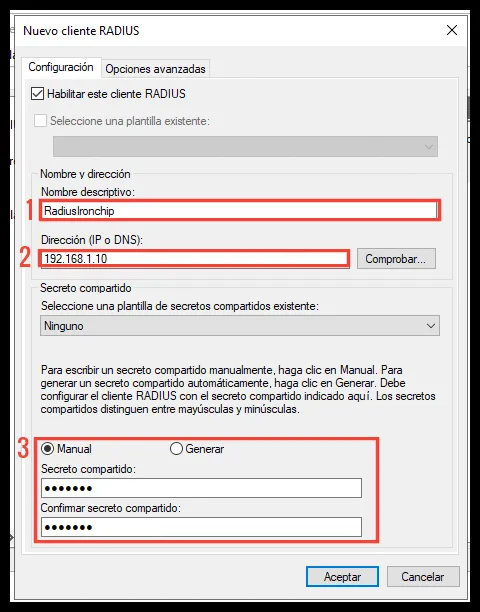
In the panel that opens, enter this data:
- An identifying name for the RADIUS client.
- The IP of the server where you will install it.
- A secret key for RADIUS.
-
Restart the service to apply the settings.
-
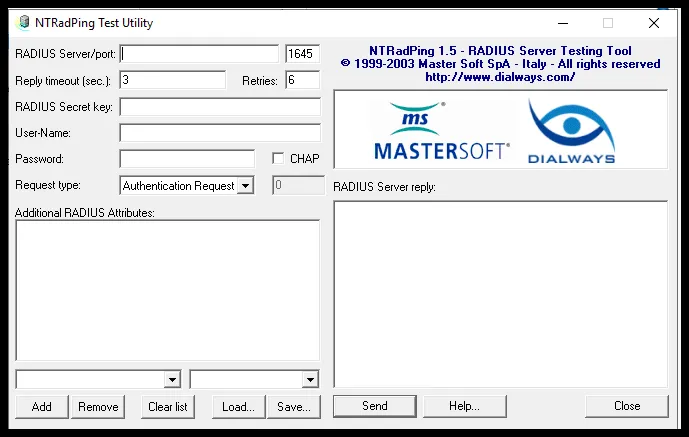
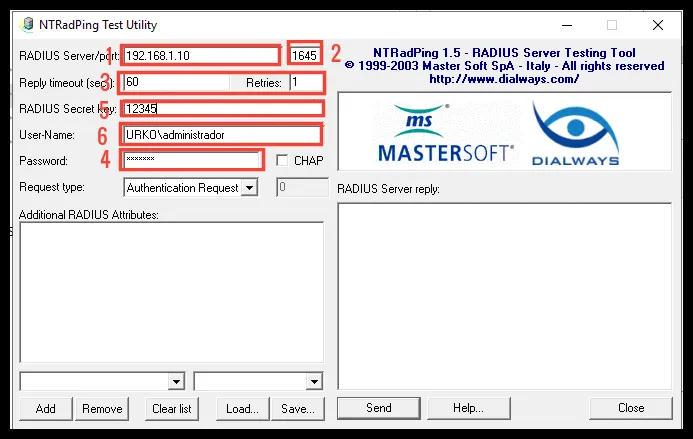
Open NTRadPing and fill in the fields:
- IP of your server.
- Port to connect to (default is
1645). - Time before aborting and how many times it runs.
- The user’s password.
- The RADIUS server key.
- The user to use.
Video tutorial
Section titled “Video tutorial”Troubleshooting
Section titled “Troubleshooting”Each section quotes the message exactly as the plugin shows it and explains what it means.
“User XXX is not authenticated in service XXX. Please, try again.”
Section titled ““User XXX is not authenticated in service XXX. Please, try again.””The user is not authenticated, or the authentication was not valid. Try the authentication again on the same page.
“Unable to load IronChip license key”
Section titled ““Unable to load IronChip license key””The full message is: “Unable to load IronChip license key. Check that it is the correct license and try again. If problem persist contact IronChip support for help.”
The license format is not valid. Email info@ironchip.net with the error. We validate the license key you used and give you a valid one if it is not valid.
“Event ID 4402: There is no domain controller available for the domain”
Section titled ““Event ID 4402: There is no domain controller available for the domain””You do not need to rename your domain or roll back. You can resolve this issue by adding the following registry key, which forces authentication to use the DNS name instead of the NetBIOS name:
- New string value (
REG_SZ):Default Domain. - Data:
example.loc(orexample.domain.loc).
“The API-Key provided is not valid”
Section titled ““The API-Key provided is not valid””The full message is: “The API-Key provided is not valid. Please, contact IronChip support and send logs for assistance.”
The license has the correct format, but it is old or invalid. Email info@ironchip.net with the error. We validate the license key you used and give you a valid one if it is not valid.
“Ironchip has failed. Sorry.”
Section titled ““Ironchip has failed. Sorry.””The full message is: “Ironchip has failed. Sorry. Contact support to allow us to solve the problem.”
Something unexpected happened. Contact Ironchip support at info@ironchip.net and attach the error log printed in the Ironchip MFA logs in Event Viewer.
Was this page helpful?
Thank you. We will use it to improve the documentation. If you want to tell us what is missing or unclear, write to support@ironchip.com.