

Login agent deployment
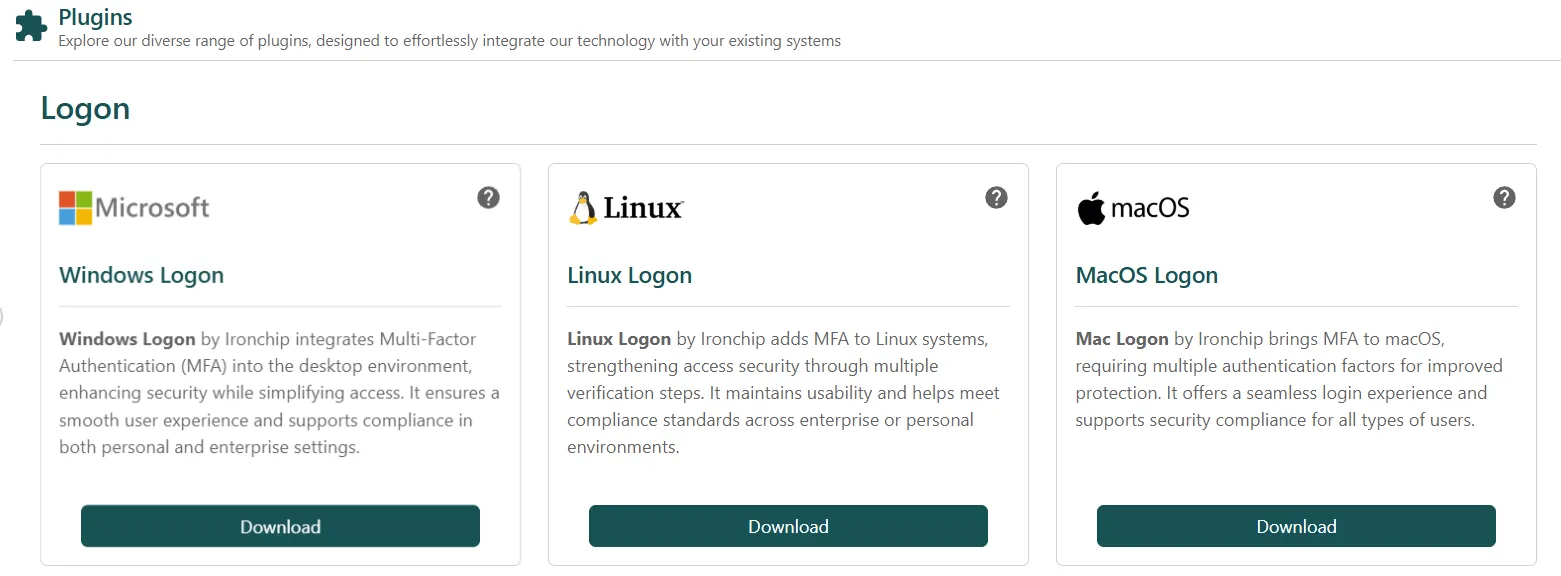
Answers to common questions about deploying, configuring and updating the Ironchip login agents on large fleets of Windows and Linux machines. For the step-by-step installation of each agent, see Windows logon, Linux logon and macOS logon.
Deploy the Windows Logon agent on many machines
Section titled “Deploy the Windows Logon agent on many machines”Choose the method that fits your environment:
- GPO (recommended): distribute the MSI to all domain computers with Group Policy. The deployment is silent, with no user interaction.
- MDM (Intune, SCCM): for environments with device management tools.
- Manual: for pilots or small groups. Not recommended for mass deployments.
The official MSI installer is available in the releases published on GitHub. There is one installer for x64 computers (IronchipWindowsLogon_x64.msi) and another for ARM64 computers (IronchipWindowsLogon_arm64.msi). The properties the installer supports are listed in Windows logon.
Make Ironchip the only credential provider
Section titled “Make Ironchip the only credential provider”In the installer, which you can also configure with an .mst file deployed through a GPO, choose an (Exclude other providers) option in each scenario (the e value in the CPUS_* properties). With it:
- Ironchip becomes the only credential provider in Windows in that scenario.
- The second factor is mandatory on every sign-in.
- There is no risk of bypassing the second factor through the native Windows credential provider.
Update Windows Logon
Section titled “Update Windows Logon”Ironchip publishes new versions in the GitHub releases. Distribute the new MSI with GPO or MDM. When you install the new MSI over the existing one, the agent is updated and keeps its configuration and saved users. You cannot install an older version over a newer one. Before you roll it out to production, wait until Ironchip confirms that the version is validated.
Compatibility with credential provider management software
Section titled “Compatibility with credential provider management software”Incompatibilities can occur. One documented case involved the configuration of third-party software interfering with the Ironchip credential provider and allowing the second factor to be bypassed. Ironchip fixed it in Windows Logon version 2.3.2.
If you detect an incompatibility with third-party software, report it to Ironchip support with screenshots or a video of the behavior.
Use Ironchip with RDP
Section titled “Use Ironchip with RDP”There are two options:
- Windows Logon on the target machine: protects the RDP session directly. Choose Local and Remote or Only Remote in the Logon scenario of the installer (the
0and1values ofCPUS_LOGON). - RD Gateway with RADIUS: Ironchip acts as the second factor on the Gateway and protects every RDP connection that goes through it. See Remote Desktop (RDP).
Some customers use Ironchip both with direct RDP and with a Citrix VPN combined with RDP.
Deploy the agent on Linux
Section titled “Deploy the agent on Linux”On Linux, Ironchip integrates through PAM (Pluggable Authentication Modules). It adds the Ironchip second factor to any Linux service that uses PAM, such as SSH, sudo, su or local login. It is especially useful on production servers, bastion hosts and development environments. The steps are in Linux logon.
Was this page helpful?
Thank you. We will use it to improve the documentation. If you want to tell us what is missing or unclear, write to support@ironchip.com.