

UDS Enterprise (Virtual Cable)
This guide integrates a SAML authenticator from UDS Enterprise 3.5 to validate users in Ironchip, so that Ironchip users can access UDS Enterprise services.
Requirements
Section titled “Requirements”- Access to the Ironchip admin console with a user that has administration permissions.
- An account with permissions to configure UDS Enterprise.
- Users registered on both platforms.
Configure Ironchip
Section titled “Configure Ironchip”Create the SAML application
Section titled “Create the SAML application”-
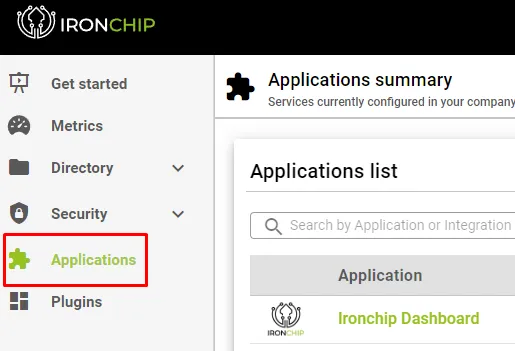
In the Ironchip admin console, select SAML apps.
-
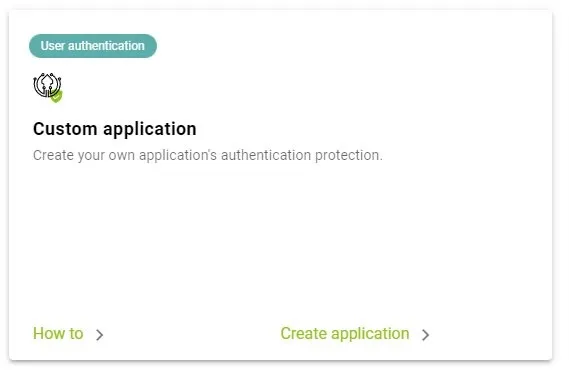
Register a new custom SAML application.
-
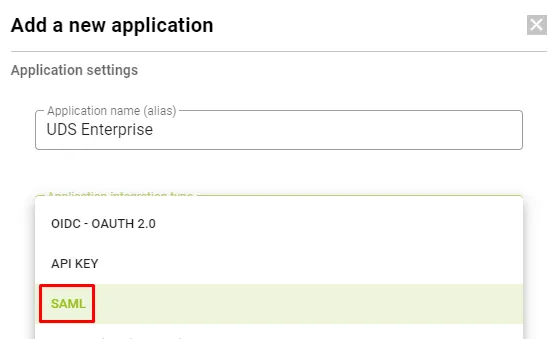
In the configuration wizard, enter a name to identify the application and select the SAML integration type.
-
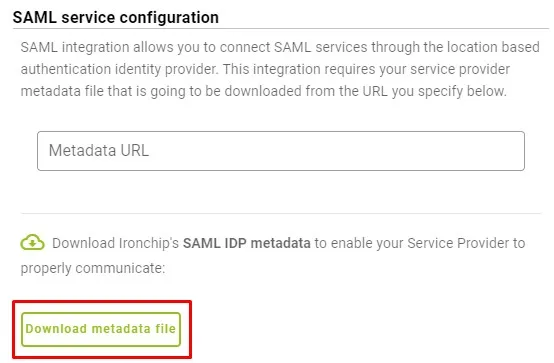
Download the metadata that Ironchip generates. You need it in UDS Enterprise. Leave this window open and continue with the next step.
Configure UDS Enterprise
Section titled “Configure UDS Enterprise”Create the SAML authenticator
Section titled “Create the SAML authenticator”-
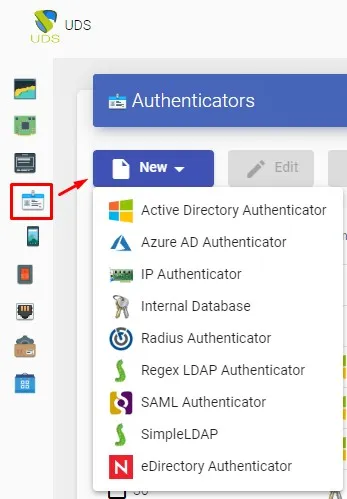
In the UDS Enterprise administration, go to Authenticators, select New, and choose SAML Authenticator.
-
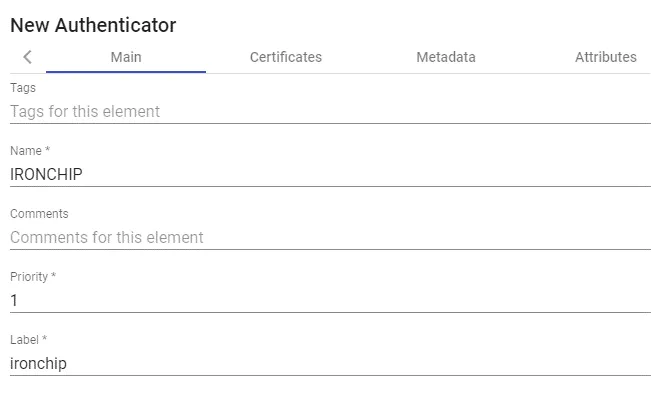
On the Main tab, enter a name for the authenticator (it cannot contain spaces), the priority, and a Label.
-
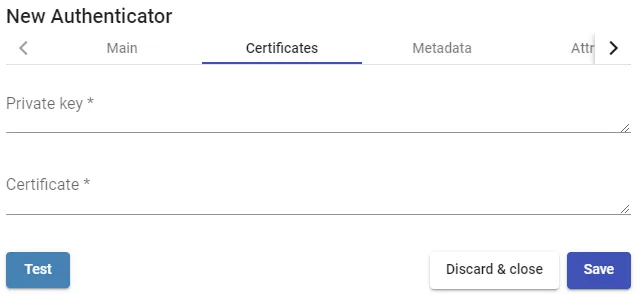
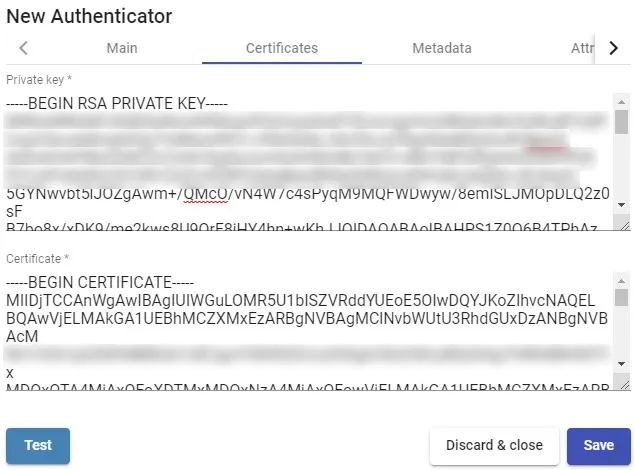
On the Certificates tab, enter a valid certificate and its key. They must be in PEM format.
Generate a certificate with OpenSSL
Section titled “Generate a certificate with OpenSSL”If you do not have certificates, you can generate one with OpenSSL. The UDS server has OpenSSL installed, so you can use that machine.
-
Generate the certificate and key.
Ventana de terminal openssl req -new -newkey rsa:2048 -days 3650 -x509 -nodes -keyout server.key -out server.crt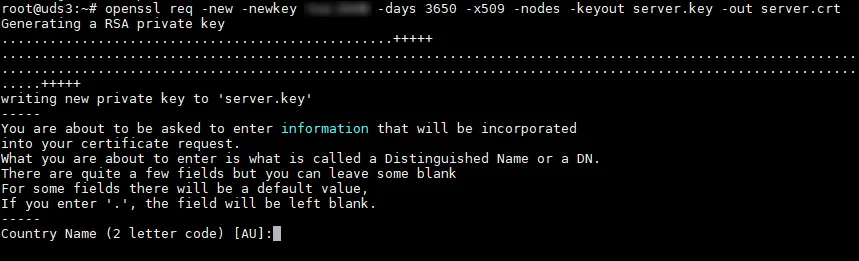
-
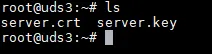
Fill in the data the command asks for to generate the certificate.
-
Convert the key to RSA format.
Ventana de terminal openssl rsa -in server.key -out server_rsa.key
-
Copy the contents of the certificate file and the RSA key into UDS.

-
Paste the key in Private Key and the certificate in Certificate.
Add the Ironchip metadata
Section titled “Add the Ironchip metadata”-
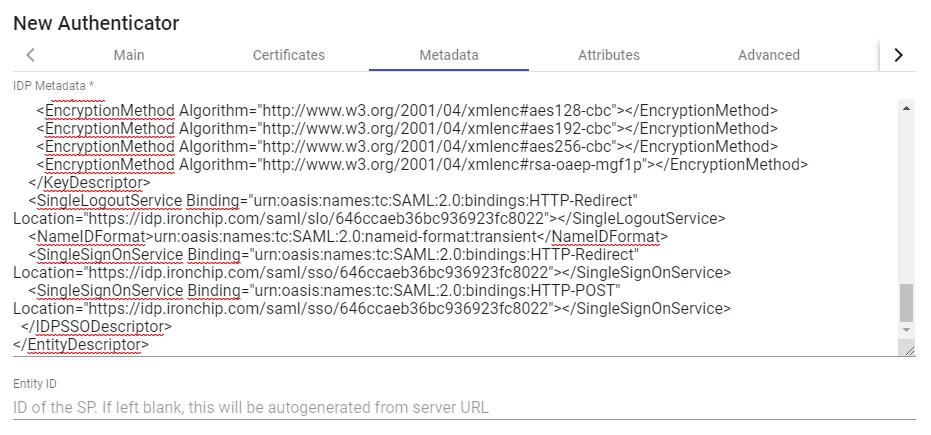
On the Metadata tab, fill in IDP Metadata with the metadata you downloaded from Ironchip when you registered the custom SAML application. Copy the complete content of the file. Open the file with a suitable editor and never with a browser, because it hides parts of the code.
-
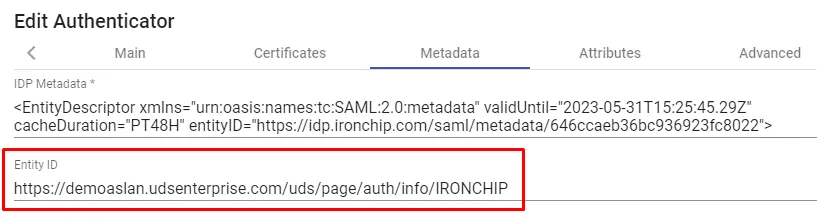
Leave Entity ID empty. UDS fills it in automatically when you save the authenticator, based on the URL you use to connect to the UDS Enterprise portal.
-
Save the authenticator. To let you save, enter any data on the Attributes tab. You will return to this section later to apply the final configuration.
-
Edit the authenticator again. There you get the Entity ID data you need to finish configuring the custom SAML application in the Ironchip console.
Finish the configuration in Ironchip
Section titled “Finish the configuration in Ironchip”-
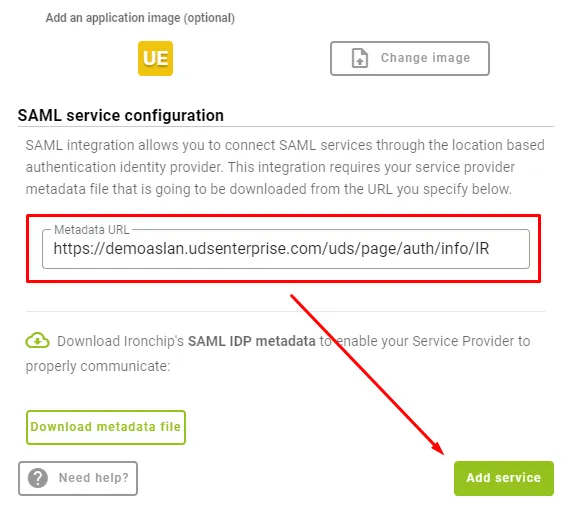
Return to the Ironchip wizard to create the custom SAML application. It asks for the Metadata URL that UDS Enterprise generated after you saved and re-edited the authenticator.
-
Enter the URL and finish the wizard.
-
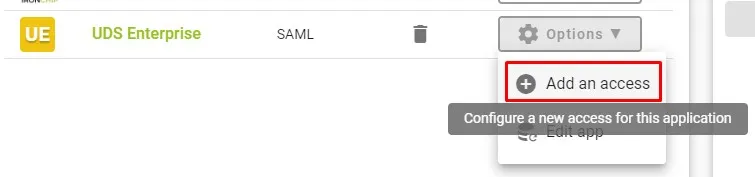
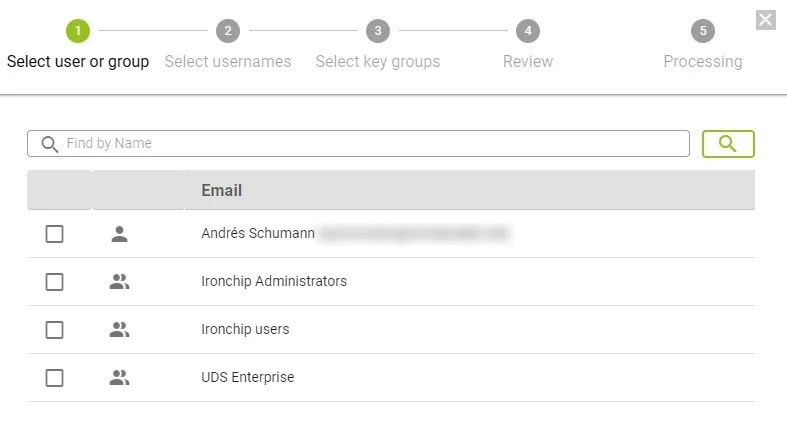
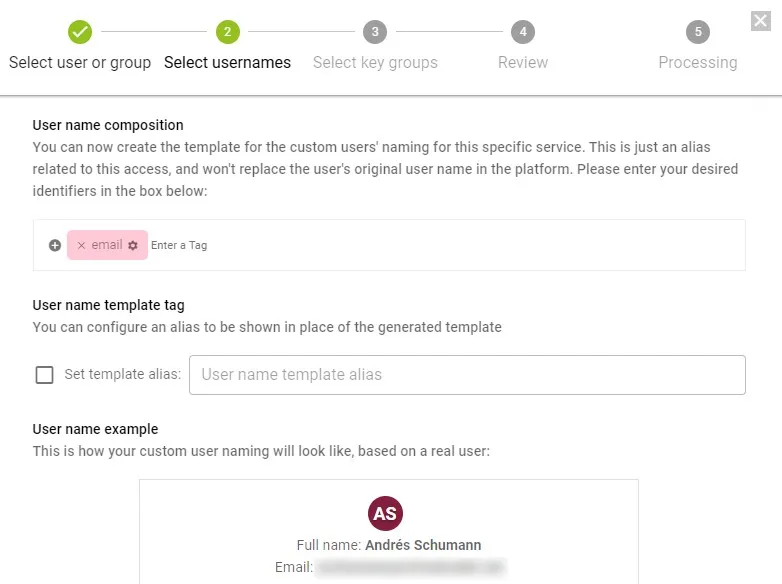
Give your users access to the application you created. You can add users individually or groups of users.
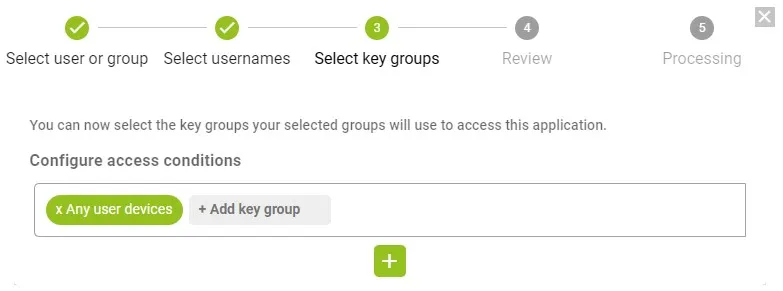
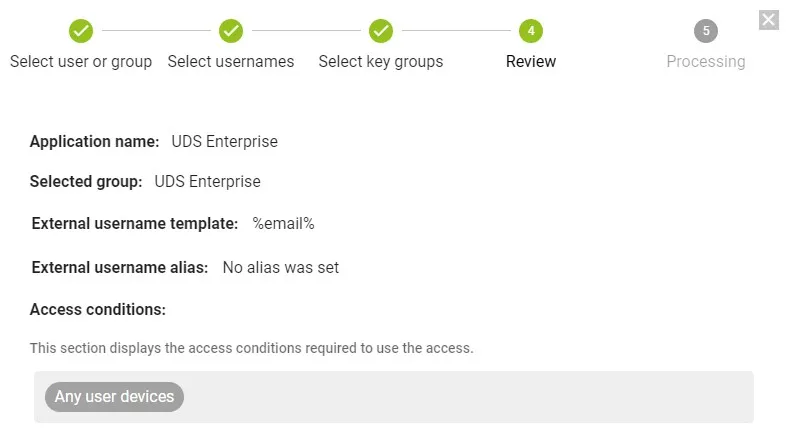
Define attributes and groups in UDS Enterprise
Section titled “Define attributes and groups in UDS Enterprise”-
In the UDS Enterprise administration, select the SAML authenticator you created and edit it.
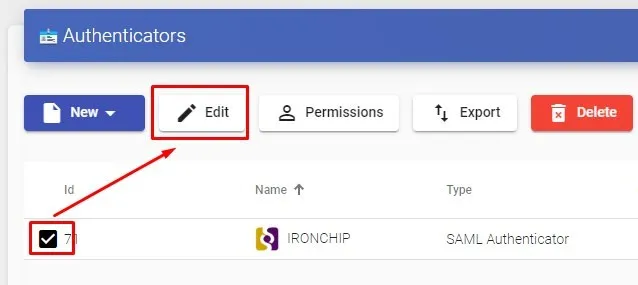
-
In Attributes, enter the correct attributes. They are defined and visible in the Ironchip documentation. By default they are:
Description Friendly Name SAML Name User Name uidurn:oid:0.9.2342.19200300.100.1.1User Email mailurn:oid:0.9.2342.19200300.100.1.3User given Name givenNameurn:oid:2.5.4.42User common Name cnurn:oid:2.5.4.3User Groups eduPersonAffiliationurn:oid:1.3.6.1.4.1.5923.1.1.1.1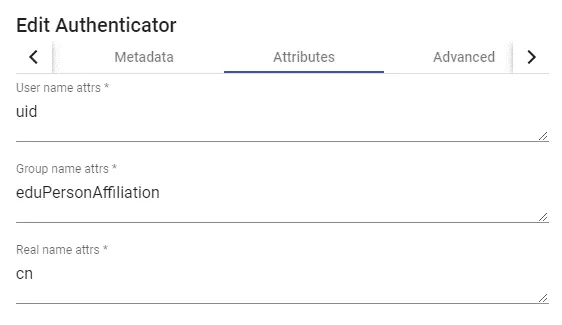
-
Save, and open the authenticator you created in UDS Enterprise.
-
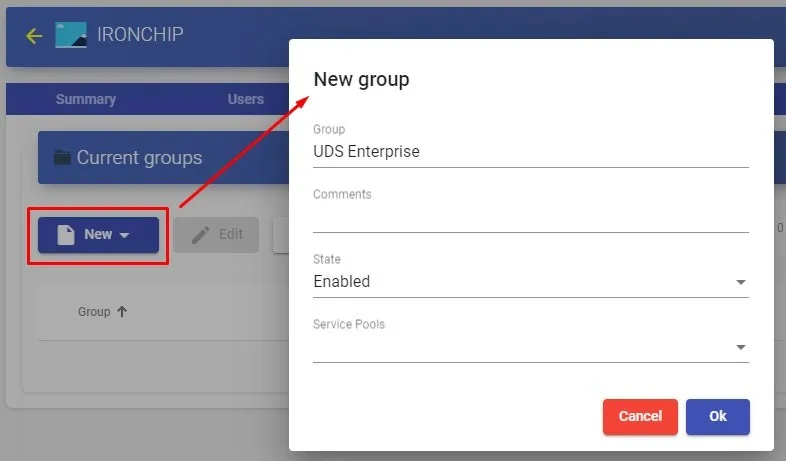
Go to the Groups section and add the groups you need. You have to add them manually, because the automatic search does not apply to this type of authenticator.
-
Add all the groups you need. In this example, the groups are the departments the users belong to, because the department membership attribute Ironchip uses is
Groups.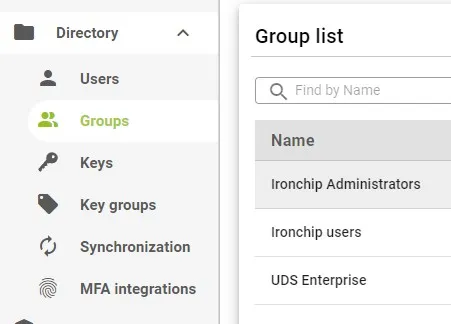
Verify the integration
Section titled “Verify the integration”-
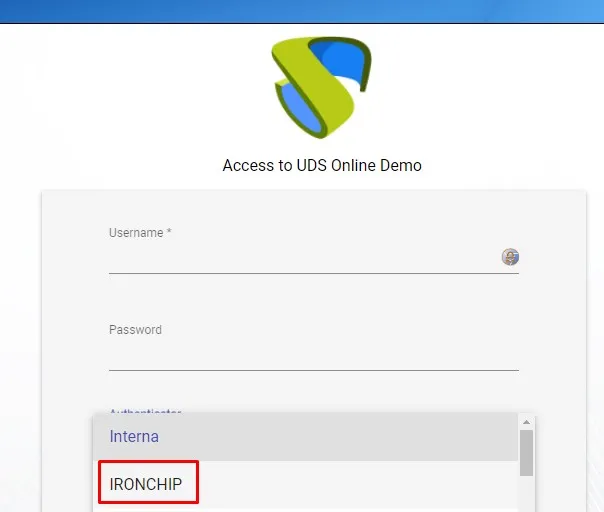
Access the UDS Enterprise portal through the SAML authenticator you just created.
-
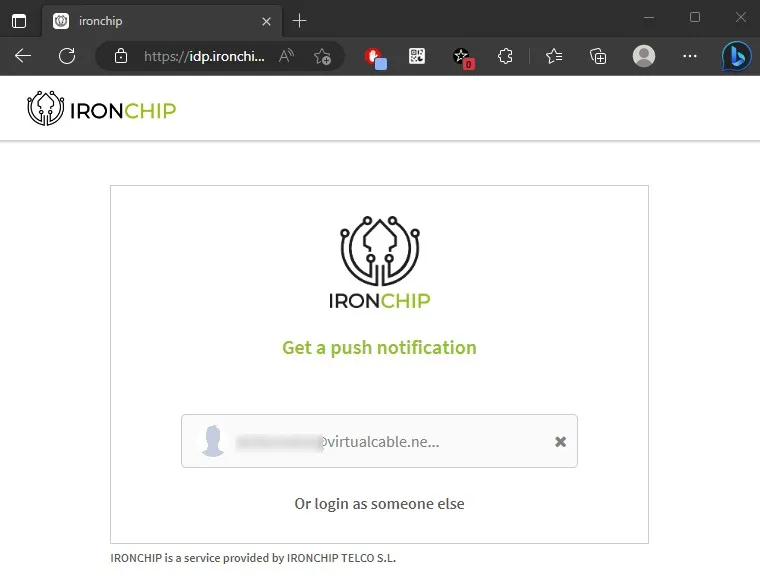
When you select the SAML authenticator, UDS Enterprise redirects you to the provider’s page. In this case, the system asks for the email address of the user who will receive a push notification.
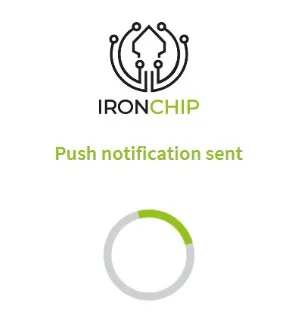
-
After you sign in to Ironchip, you are redirected back to the UDS Enterprise services page.
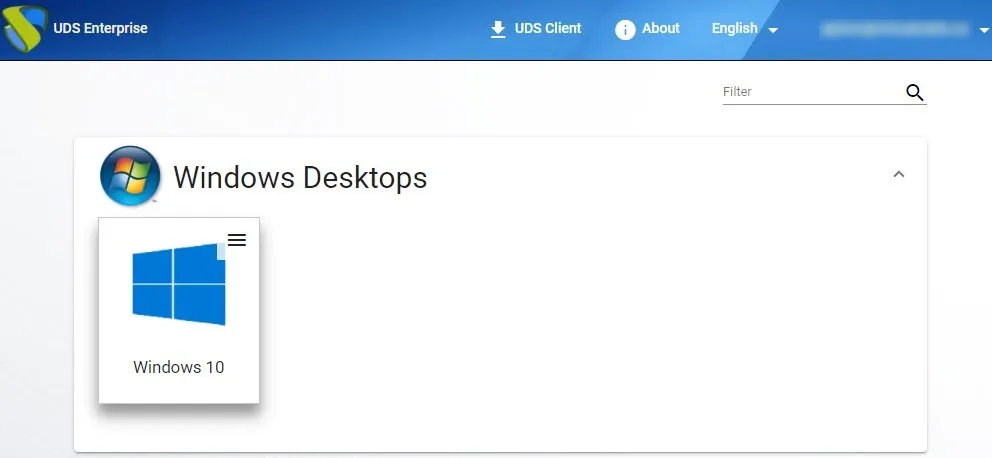
If the group the user belongs to has services assigned, they are displayed and the user can access them.
-
To check which groups a user belongs to, open the authenticator and edit the user.
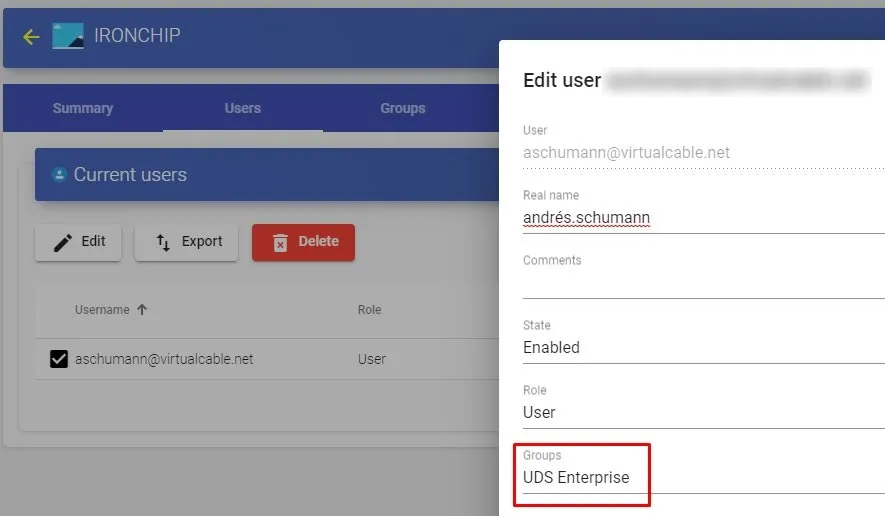
In this example, the user belongs to the UDS Enterprise group and, because that group is registered in the authenticator, the user can access.
Was this page helpful?
Thank you. We will use it to improve the documentation. If you want to tell us what is missing or unclear, write to support@ironchip.com.