

Entra ID as MFA
This guide explains how to integrate Ironchip as an external multi-factor authentication (MFA) method in Microsoft Entra ID (formerly Azure AD). Microsoft and Ironchip connect over the OIDC protocol.
Requirements
Section titled “Requirements”- An account with a P1 or P2 license and permissions in Azure Cloud.
- Access to the Ironchip admin console.
Configure Entra ID
Section titled “Configure Entra ID”Create the enterprise application
Section titled “Create the enterprise application”-
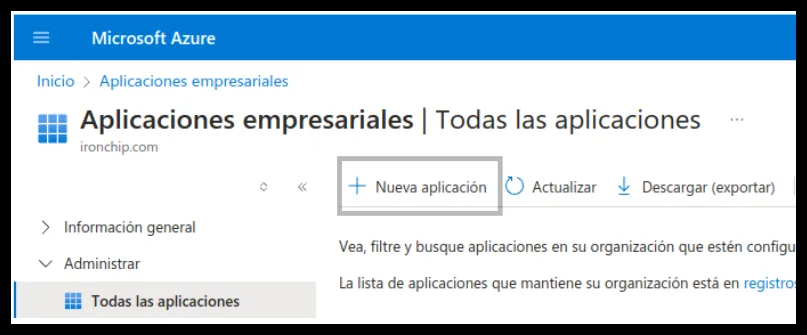
In Entra ID, go to Enterprise applications and add a new enterprise application.
-
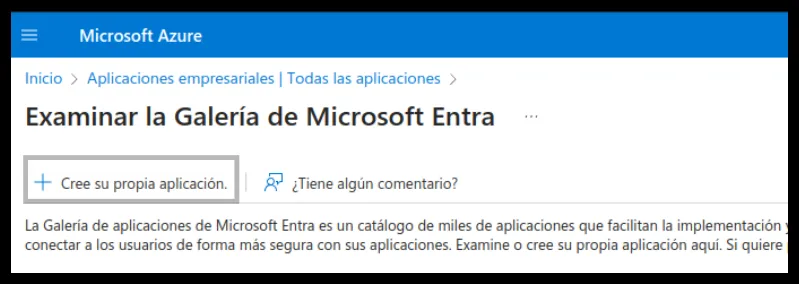
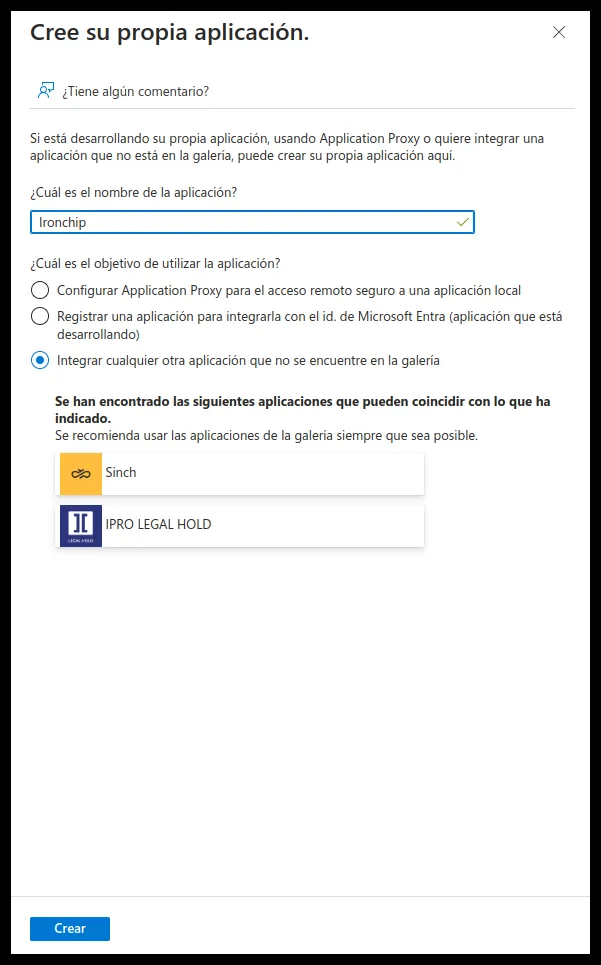
Select Create your own application, choose a name for the application and select Integrate any other application you don’t find in the gallery.
Configure the redirect URIs
Section titled “Configure the redirect URIs”-
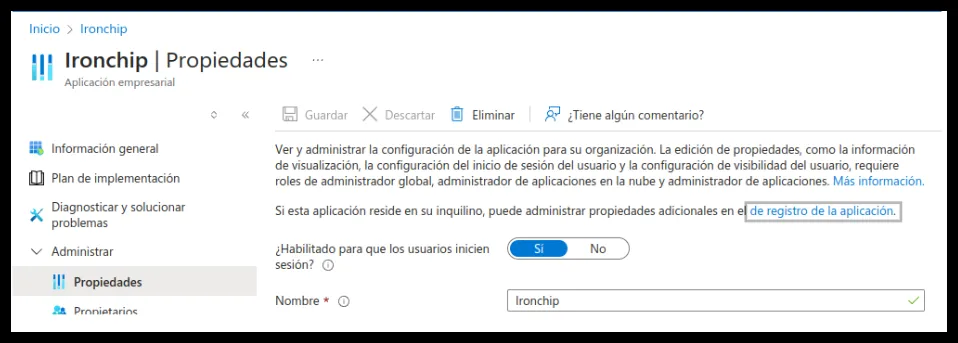
Go to Manage > Properties and click the application registration.
-
In Overview, copy the application ID. You will need it later to set up Ironchip as MFA in Azure.
-
In Endpoints, copy the OAuth 2.0 authorization endpoint (v2). It is one of the two redirect URIs you need.
-
The other redirect URI is the one that leads to the Ironchip IdP:
https://idp.ironchip.com/oidc/auth. -
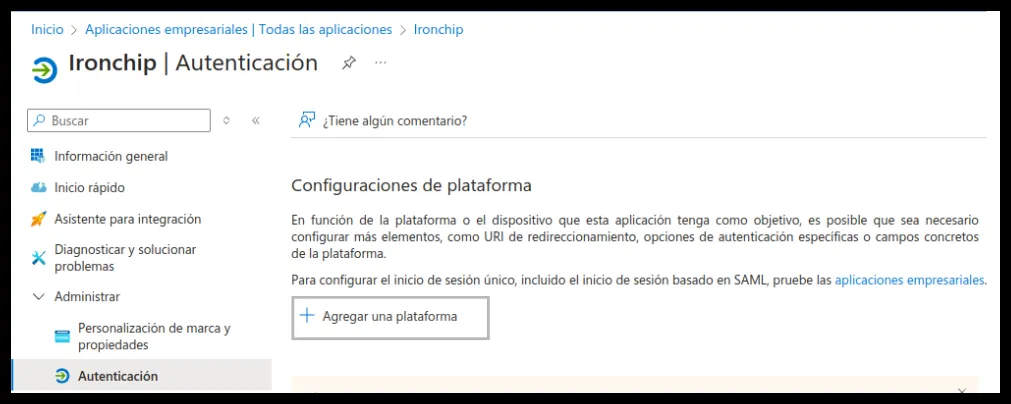
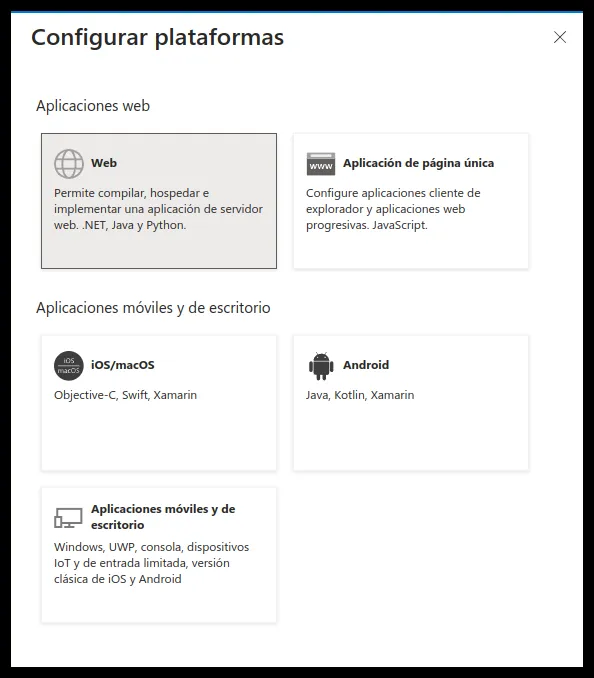
Go to Authentication, select Add a platform and choose Web.
-
Add the Ironchip redirect URI first and then the Azure one.
Configure the tokens
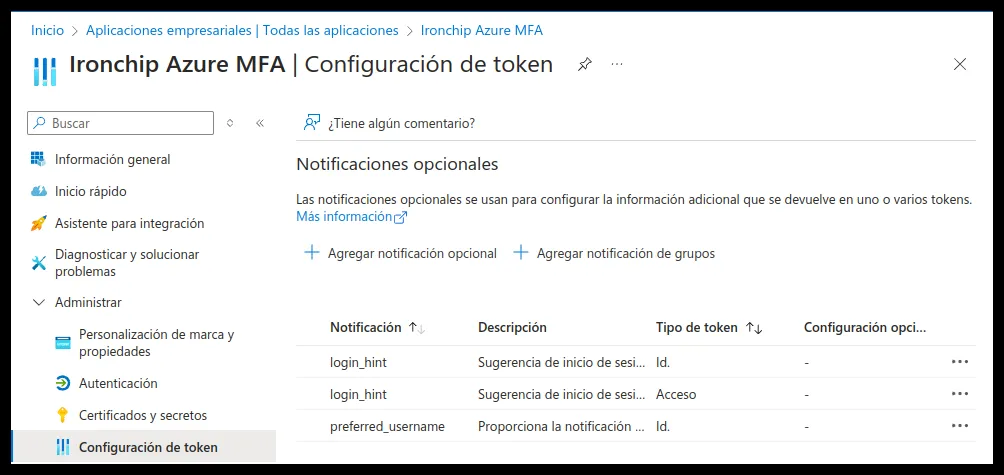
Section titled “Configure the tokens”Go to Token configuration and add the optional claims shown in the screenshot:
login_hint, in the ID and Access token types.preferred_username, in the ID token type.
Configure the API permissions
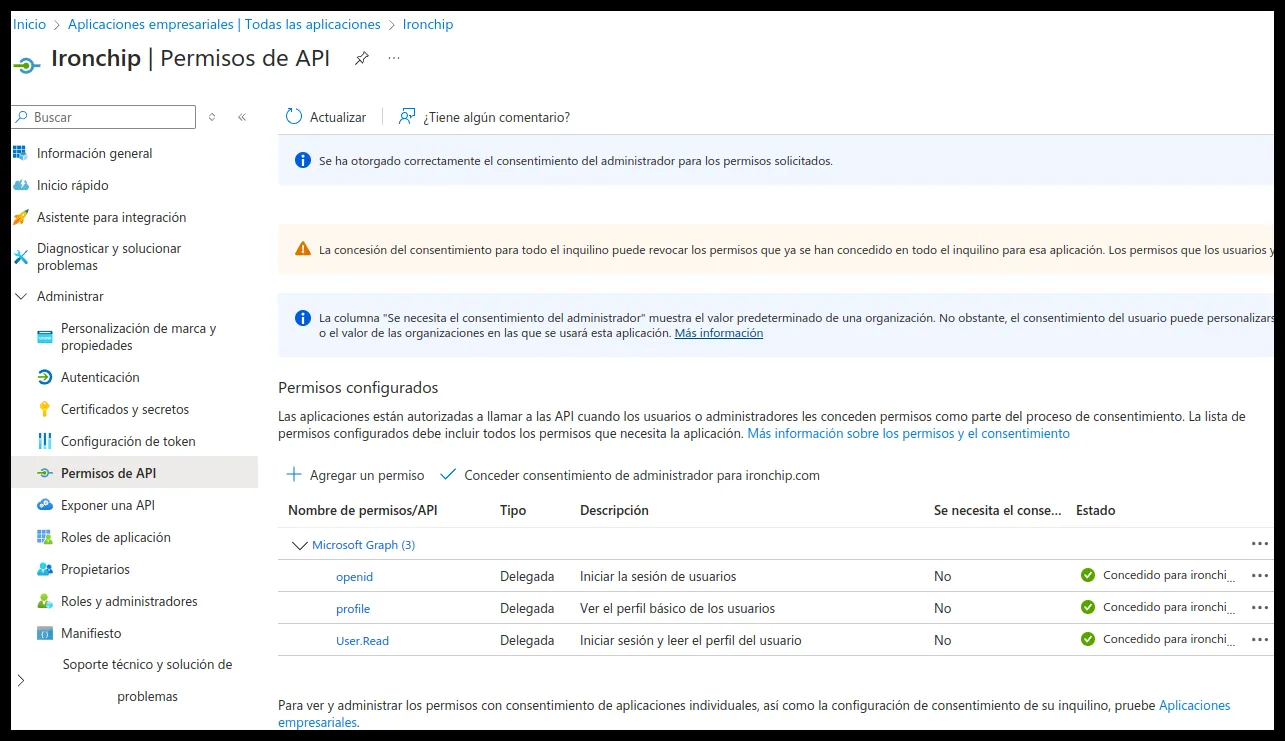
Section titled “Configure the API permissions”Go to API permissions and add these delegated Microsoft Graph permissions, then grant admin consent:
openidprofileUser.Read
Configure Ironchip
Section titled “Configure Ironchip”Create an application in the Ironchip admin console to connect Microsoft with Ironchip through OIDC.
-
In the Ironchip admin console, go to Applications.
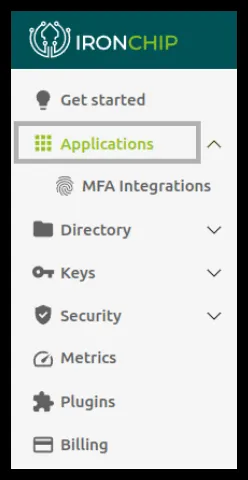
-
Select New Application, give it a name and choose the OIDC - OAUTH 2.0 integration type.

-
In Redirect URIs, enter
https://login.microsoftonline.com/common/federation/externalauthproviderand click Next. This URI sends the user back to Microsoft when authentication finishes.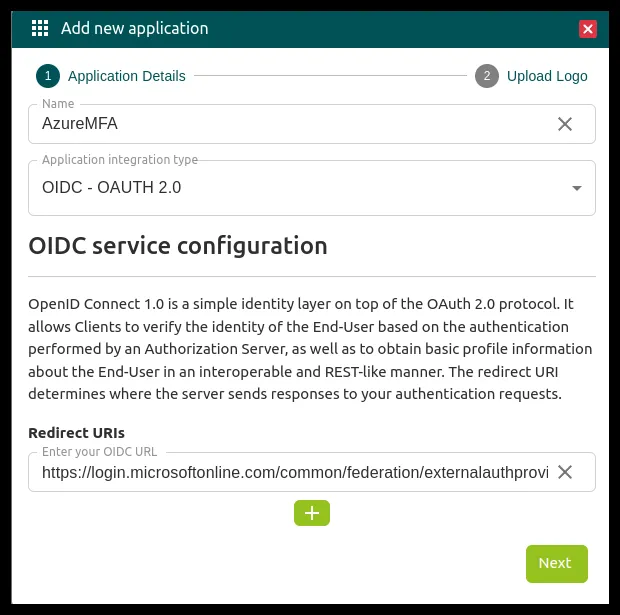
-
When you finish, Ironchip shows the application credentials: Client ID, Client Secret, and Metadata URL. You need them to set up Entra ID and you can’t view them again: download them with Download or store them in a safe place.
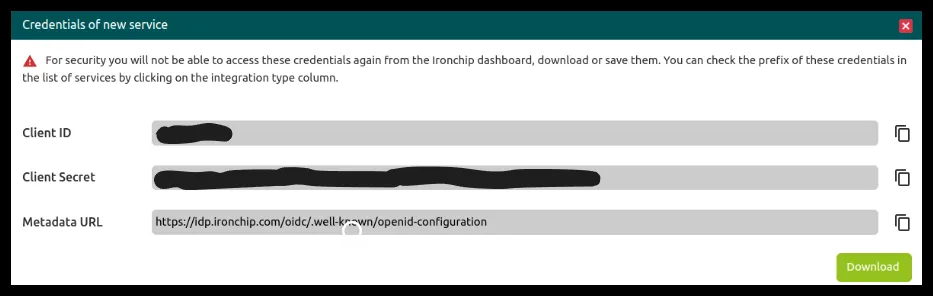
Add Ironchip as an external authentication method
Section titled “Add Ironchip as an external authentication method”-
In Microsoft Entra ID, go to Manage > Security > Authentication methods.
-
Select Add external method.
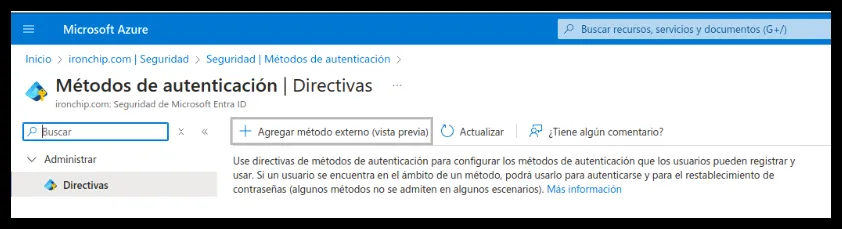
-
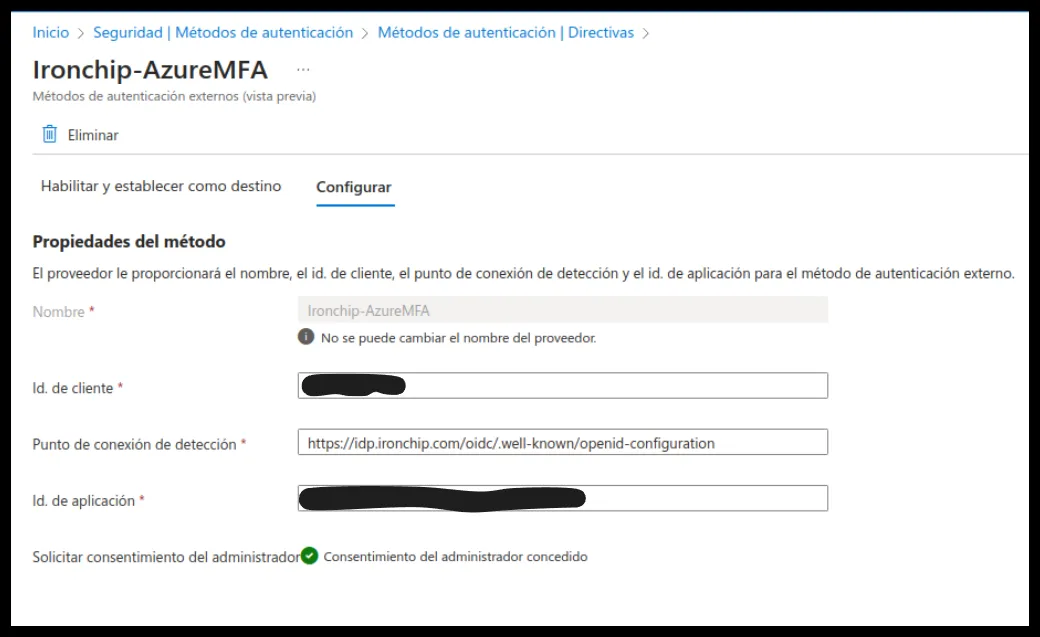
On the Configure tab, fill in the method properties:
- Name: the name of the MFA you are adding.
- Client ID: the Client ID that Ironchip showed when you created the OIDC application.
- Discovery Endpoint: the Metadata URL that Ironchip showed,
https://idp.ironchip.com/oidc/.well-known/openid-configuration. - App ID: the application ID you copied from the enterprise application properties.
-
On the Enable and target tab, under Include, click Add target and add the users or groups that can use this MFA. The example uses a group named
TestUser.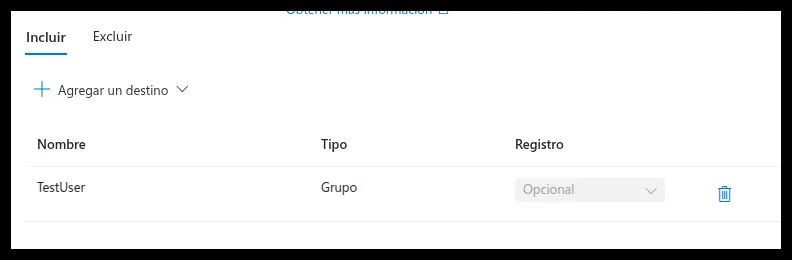
Configure Conditional Access
Section titled “Configure Conditional Access”To choose which users use this authentication method, configure a Conditional Access policy.
-
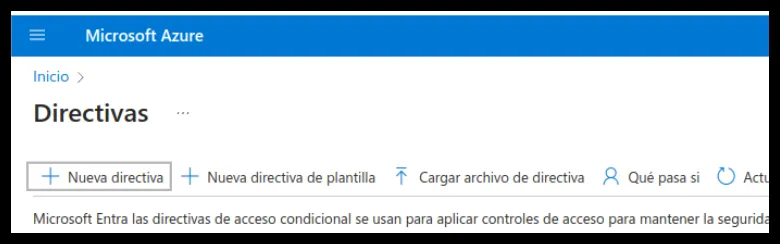
Under Security, go to Protect > Conditional Access and create a new policy.
-
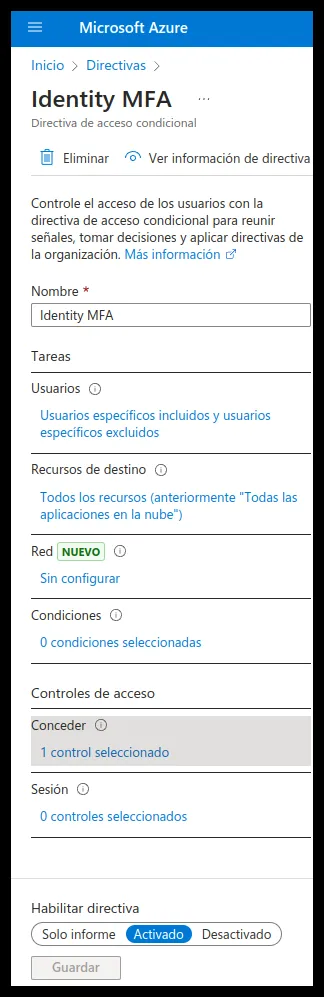
Configure the users, the resources they can access and the authentication method.
-
Under Access controls, go to Grant and turn on Require multifactor authentication.
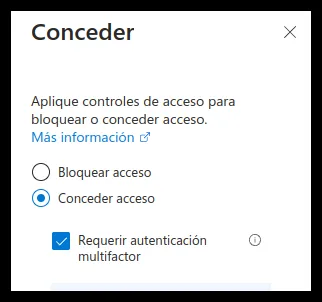
With Conditional Access configured, authentication is enabled for the users you selected.
Was this page helpful?
Thank you. We will use it to improve the documentation. If you want to tell us what is missing or unclear, write to support@ironchip.com.